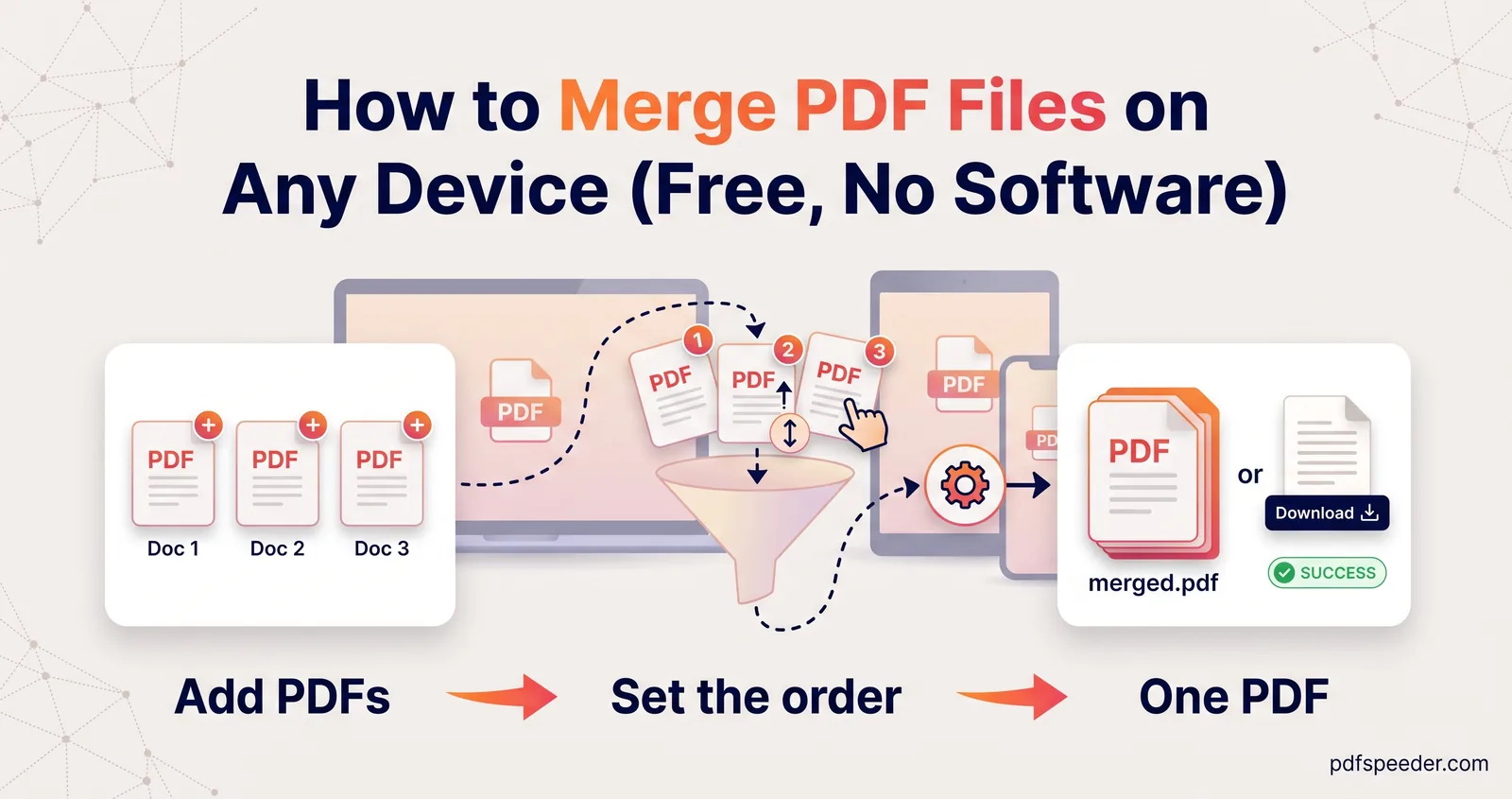
How to Merge PDF Files on Any Device (Free, No Software)
How to merge PDF files in a browser, on a Mac, Windows PC or phone, and get the page order, page picking, rotation and bookmarks right before you save.
Merge, Split & Organize · 11 guides
Practical how-tos for getting pages into the right files and the right order: combining scans into one PDF, pulling out a single page, deleting blank pages, fixing sideways scans and numbering everything before you submit it. Most of these jobs take under a minute once you know which tool does what.
How to merge PDF files in a browser, on a Mac, Windows PC or phone, and get the page order, page picking, rotation and bookmarks right before you save.
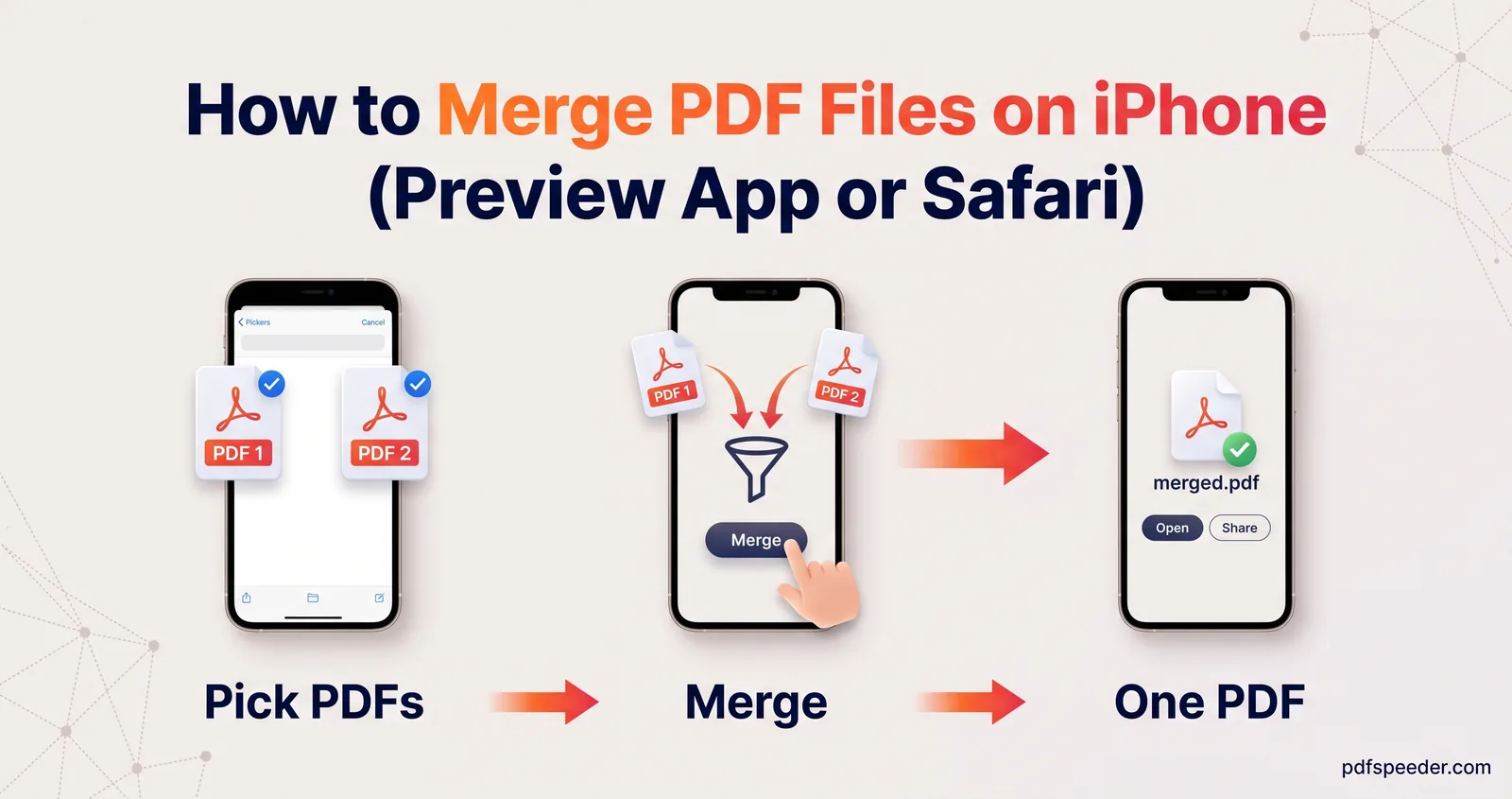
How to merge PDF files on iPhone with the built-in Preview app or in Safari, choose pages, fix the order, then rename, save and share the combined PDF.
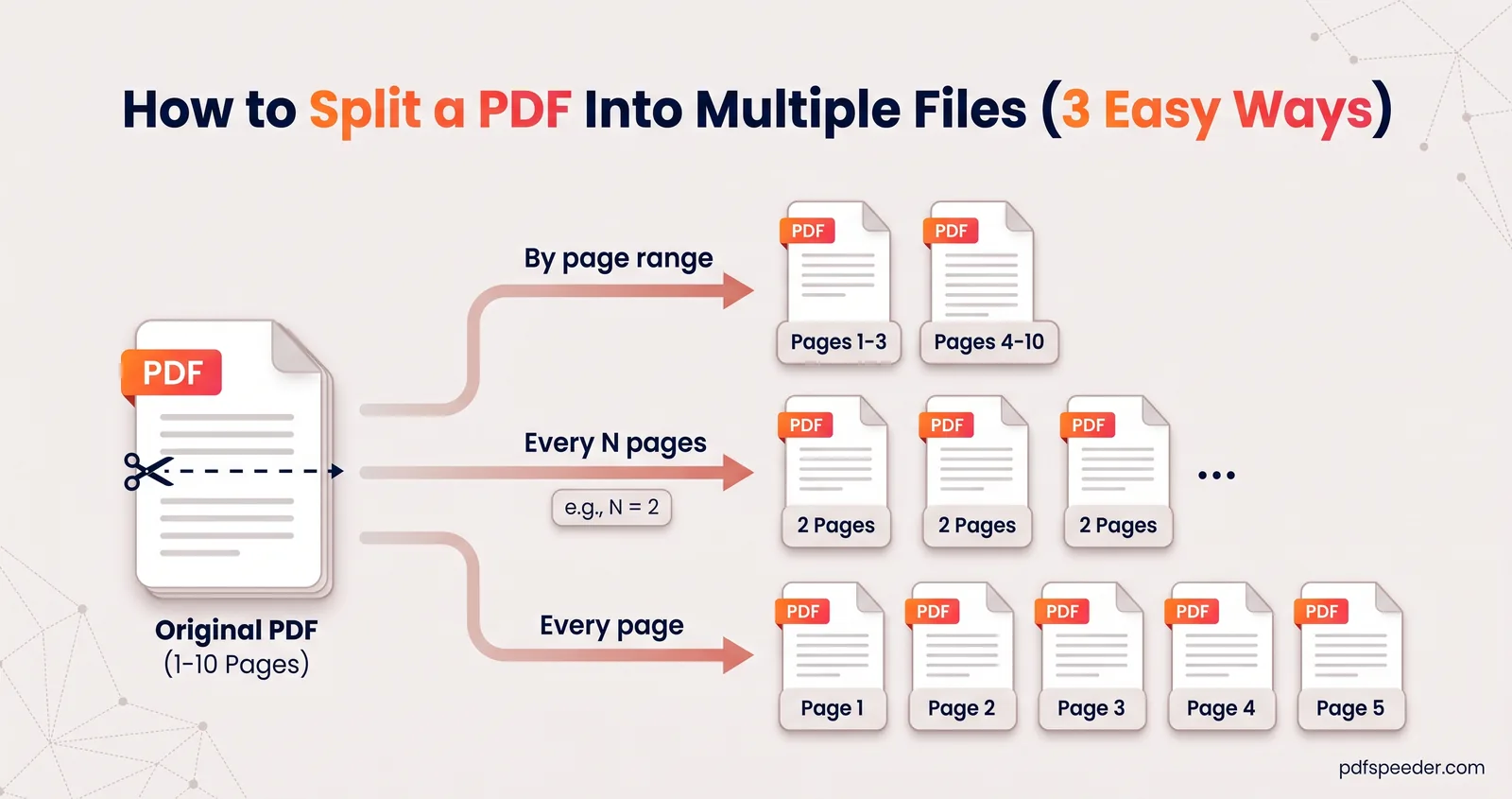
How to split a PDF into multiple files by page ranges, every N pages or one page per file, plus how to size each part so it fits an upload limit.
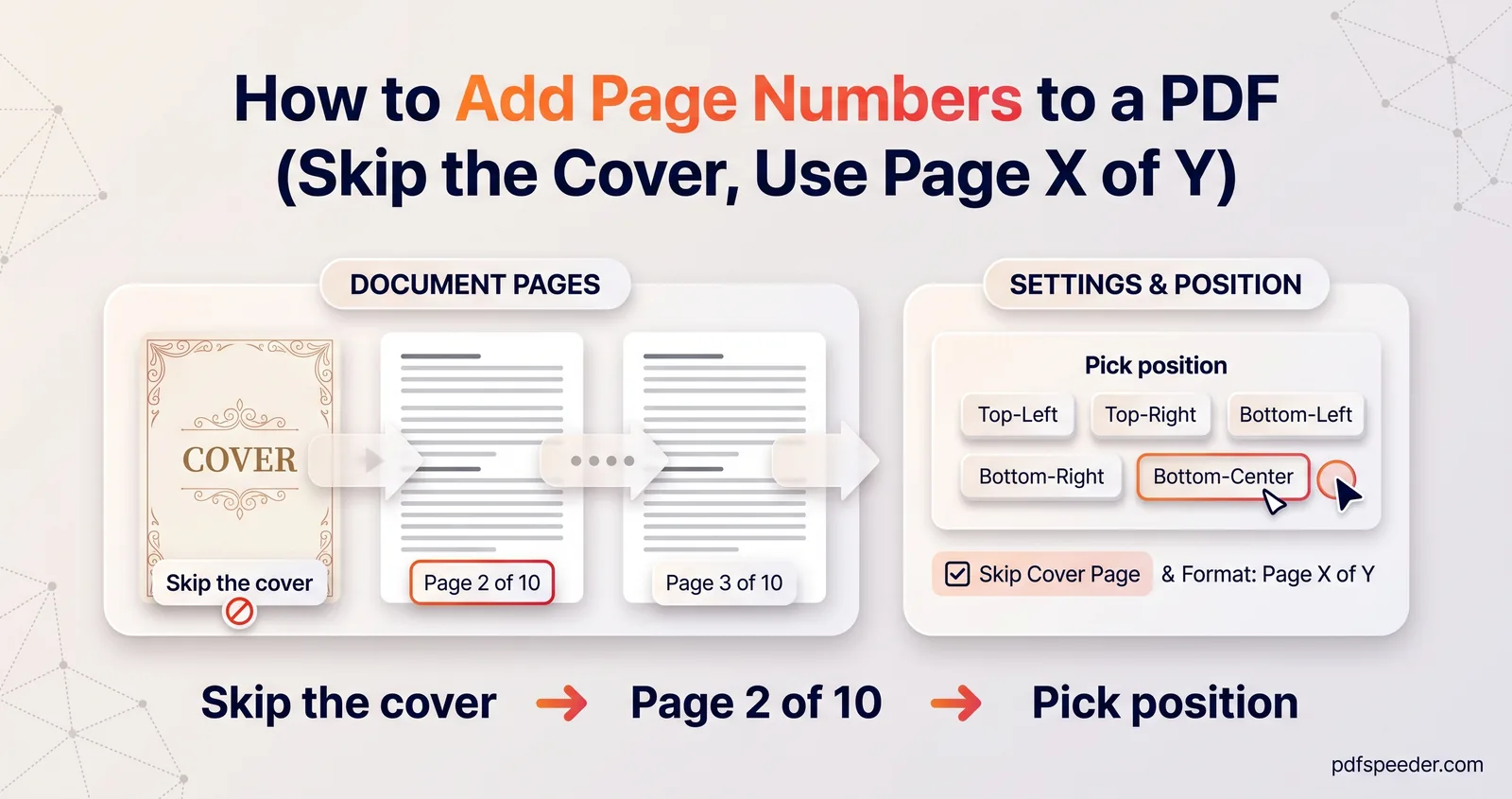
How to add page numbers to a PDF: choose a format like Page 1 of 10, skip the cover, start from any number, and place the numbers well for printing.
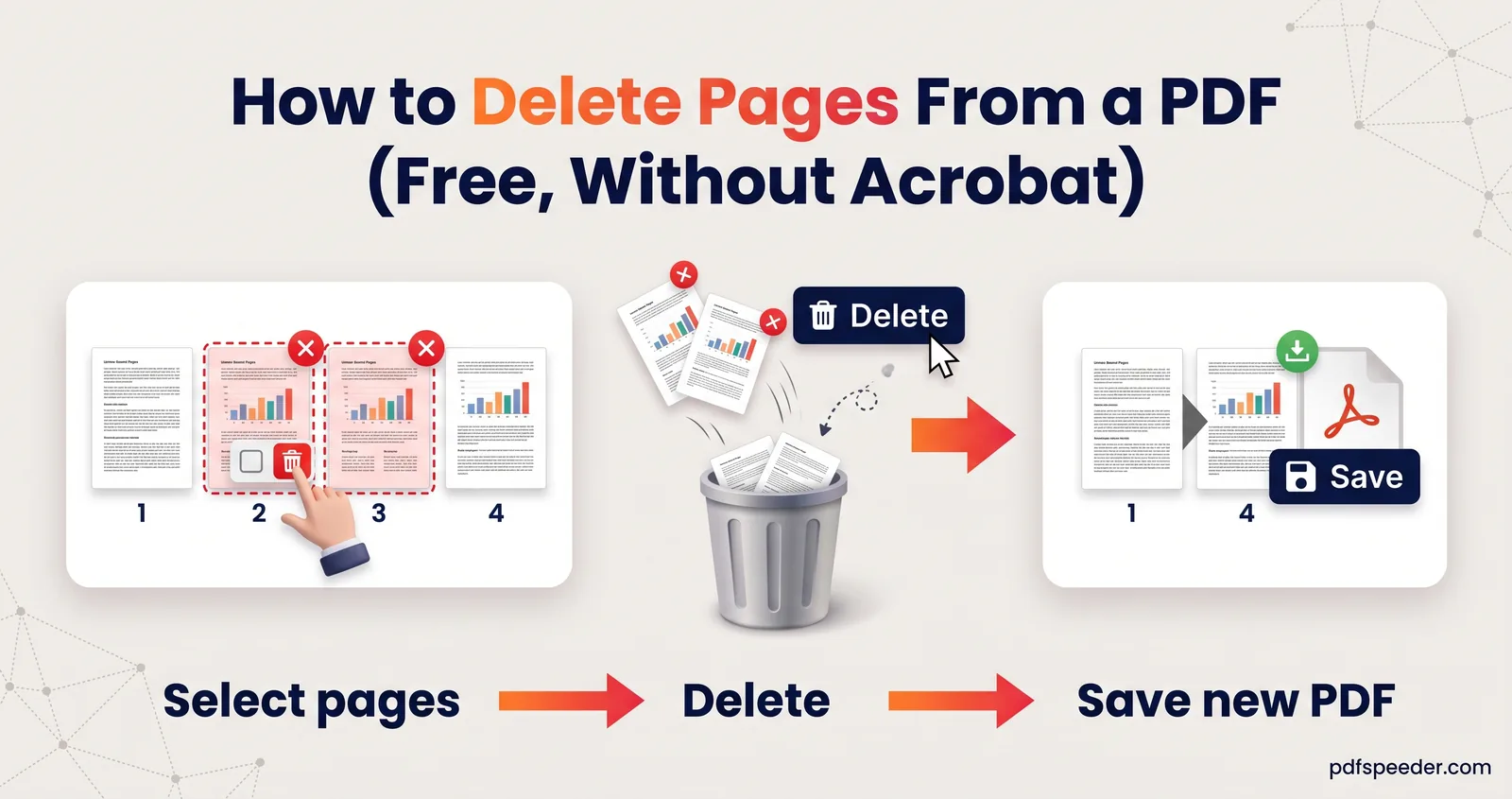
How to delete pages from a PDF for free: pick pages by thumbnail or number, use the odd, even and invert shortcuts, spot blank scans, and keep files small.
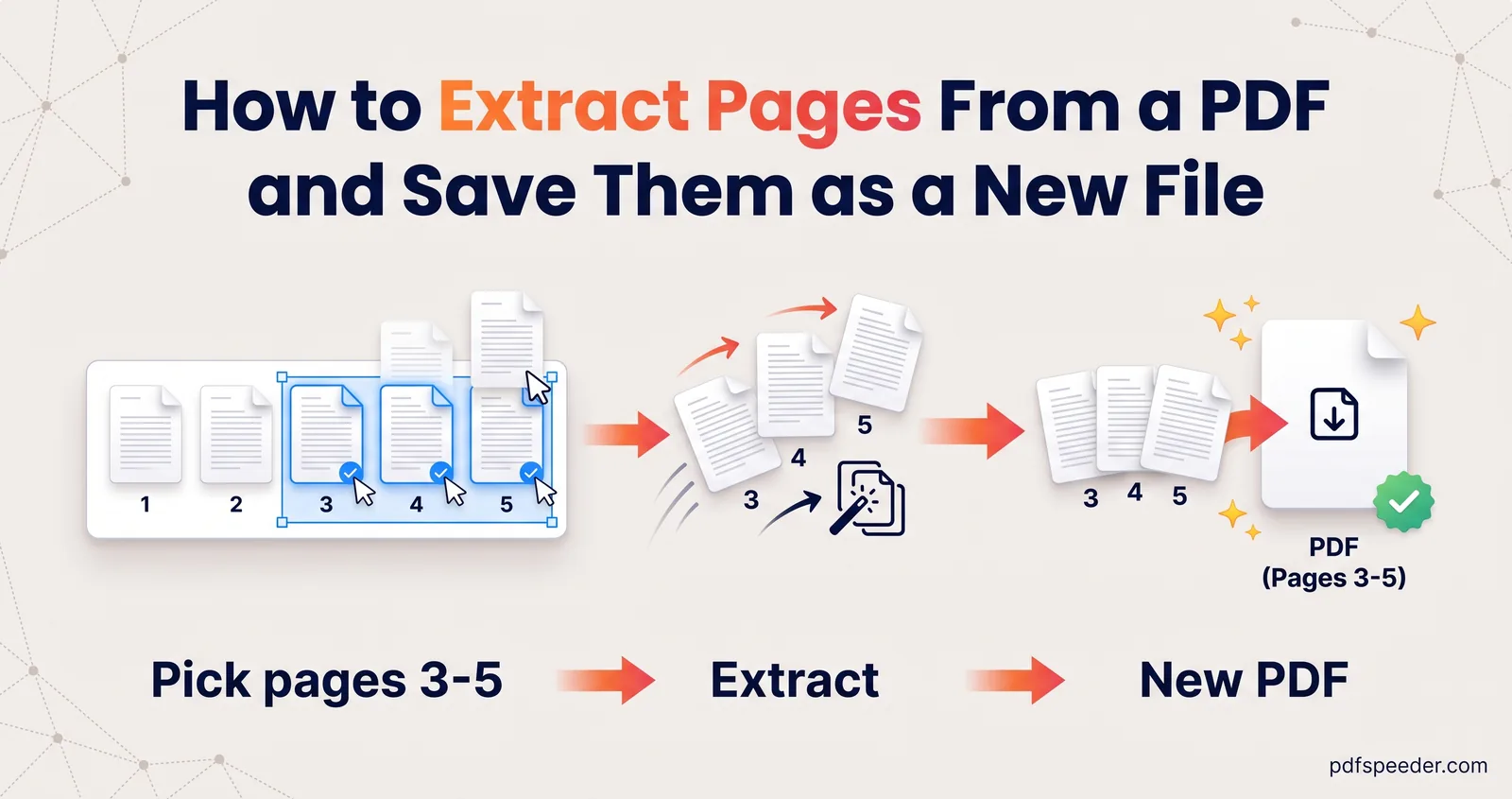
Extract pages from a PDF into a new file: click or type the pages you want online, use Chrome's print dialog or Preview on a Mac, and handle locked files.
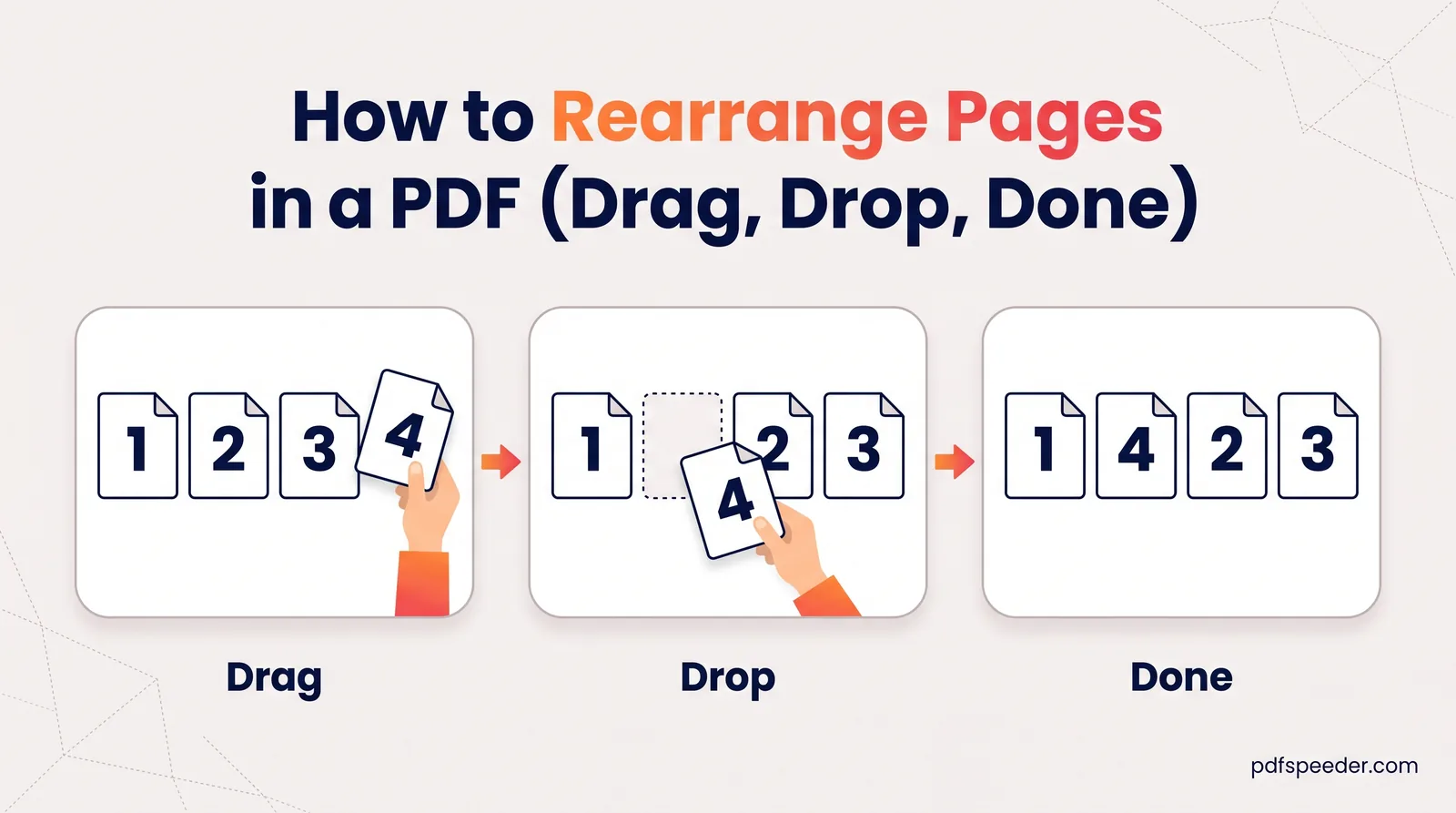
How to rearrange pages in a PDF: drag thumbnails for short files, type a new order for long ones, reverse a back-to-front scan and fix a merged file.
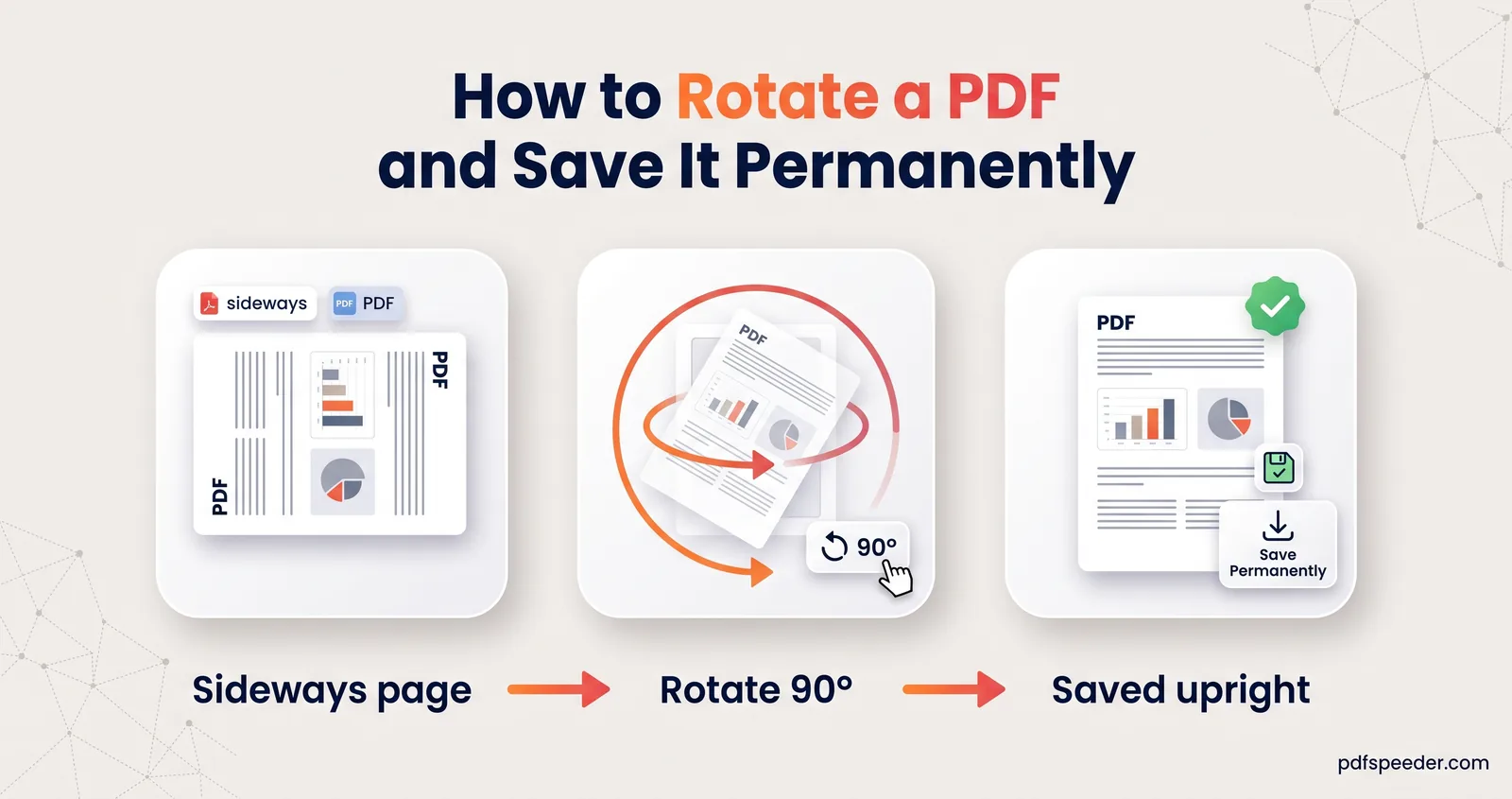
Rotated a PDF but it opened sideways again? Learn why viewer rotation doesn't stick, and how to rotate a PDF and save it, every page or just one.
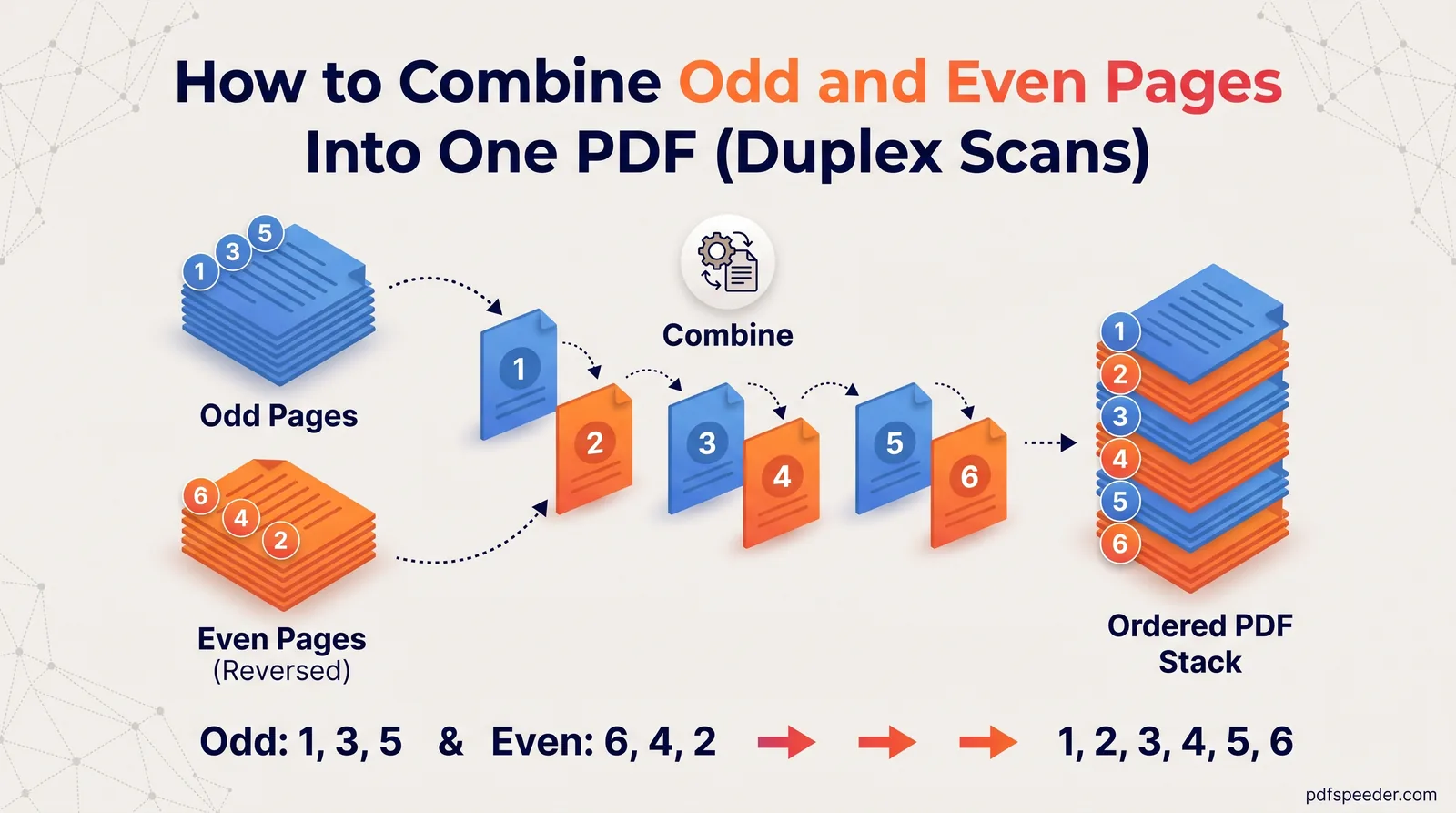
Scanned fronts and backs separately? Combine odd and even pages into one PDF in the right order, and fix reversed backs and the gaps that blank pages cause.
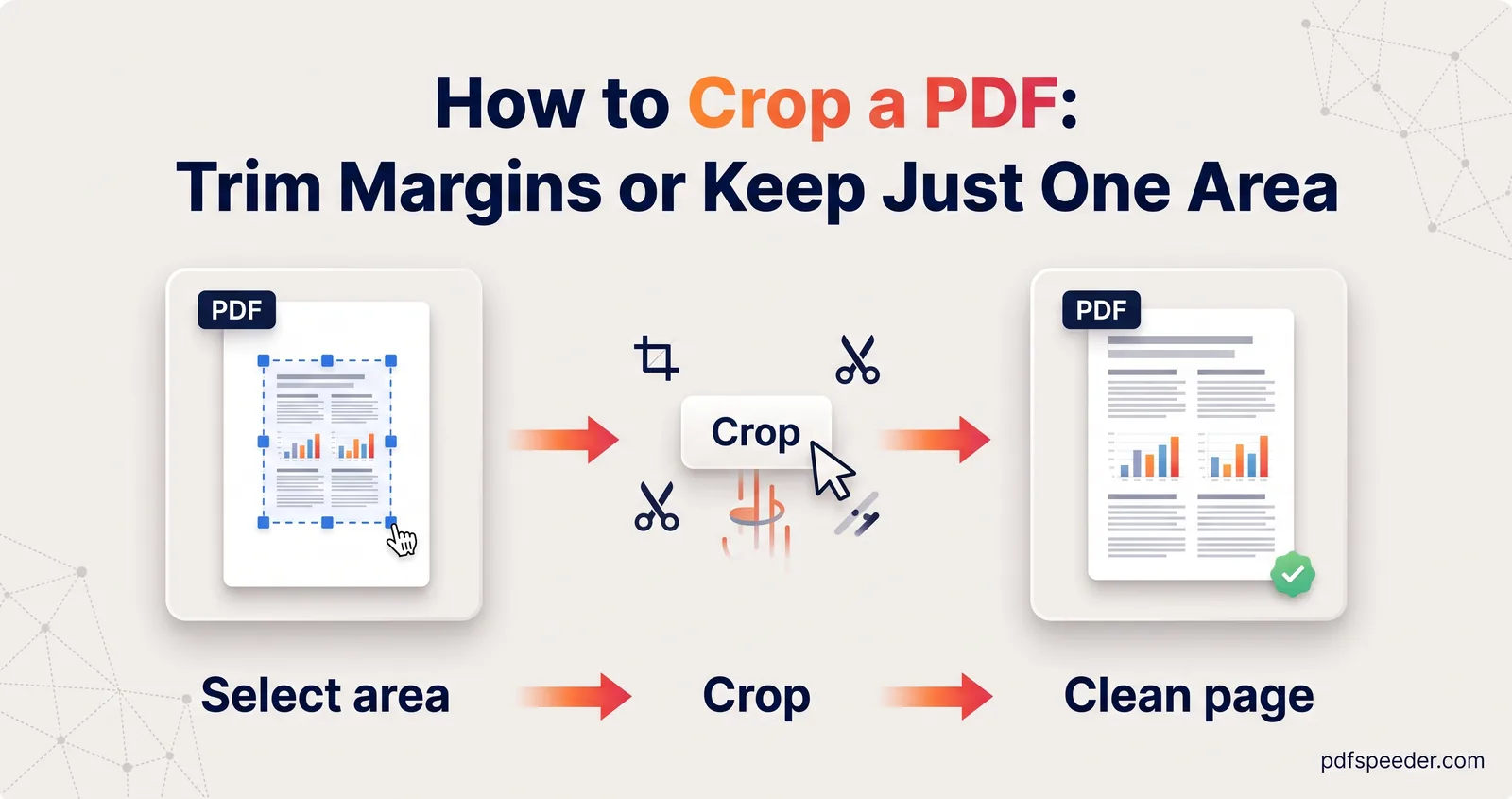
Crop a PDF free in your browser: keep one chart or receipt, trim margins on every page, tidy scans, and see why cropping hides content without deleting it.
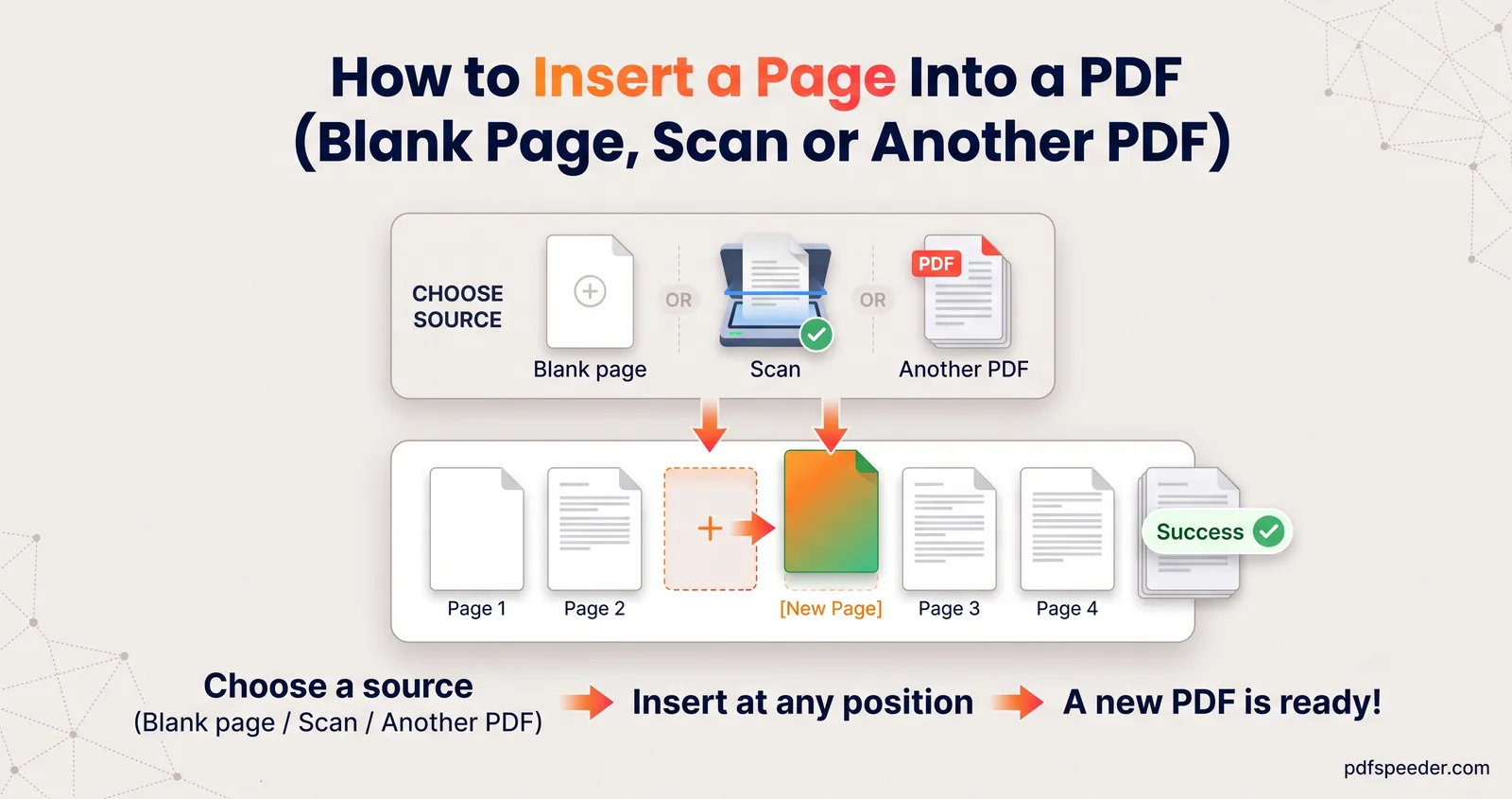
No insert button needed: add another PDF, a scanned page or a blank page anywhere in a PDF by merging with page ranges, then fix page numbers and bookmarks.
No signup needed. Open one and follow along with any guide above.