How to Insert a Page Into a PDF (Blank Page, Scan or Another PDF)
No insert button needed: add another PDF, a scanned page or a blank page anywhere in a PDF by merging with page ranges, then fix page numbers and bookmarks.

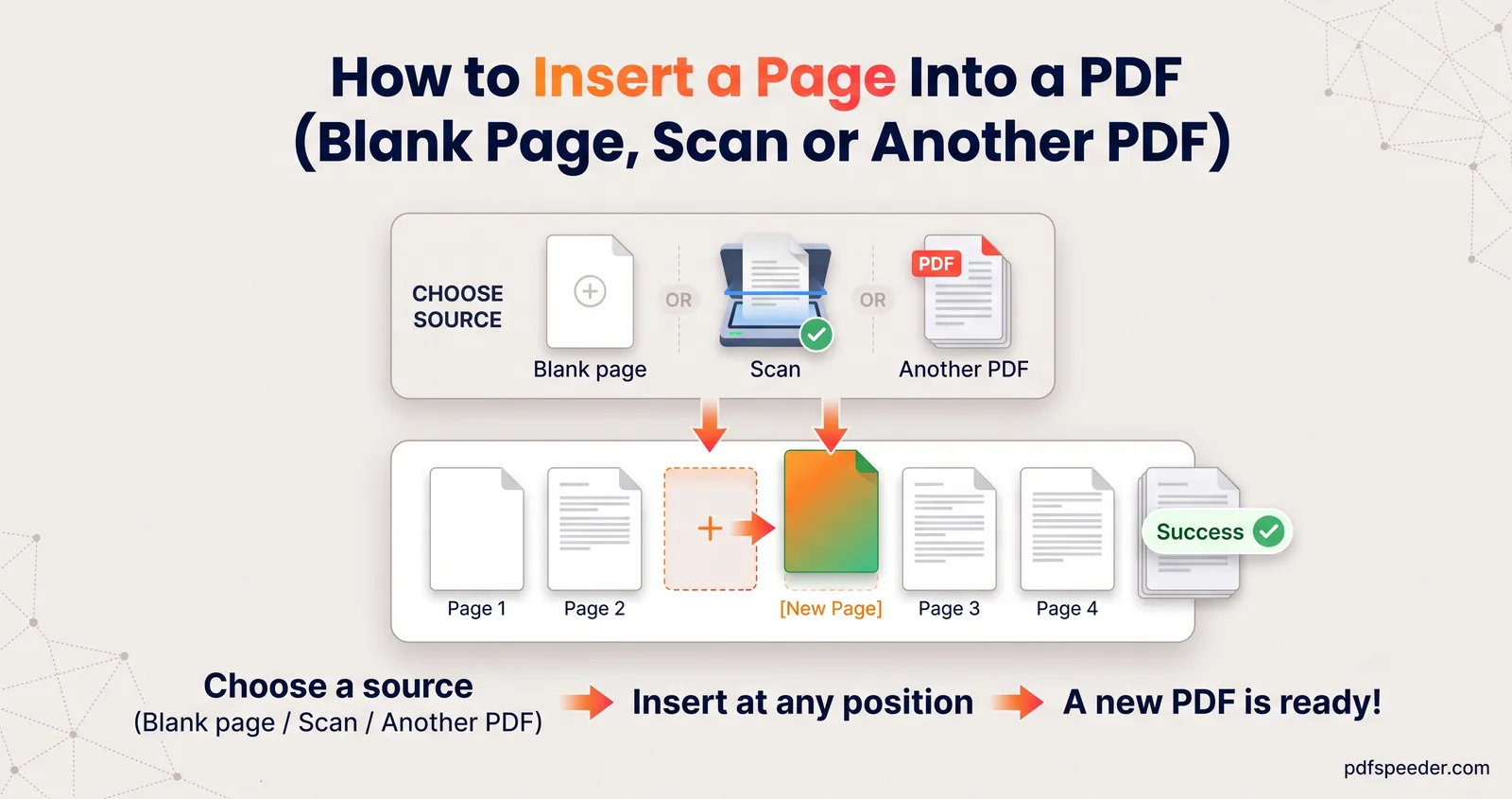
You can insert a page into a PDF without a dedicated "insert" button: merge the original with the new page, using page ranges to split the original at the point where the page belongs. With Merge PDF, that's a single run in your browser, and the same trick adds a blank page or a scanned photo. If you're wondering how to insert a page into a PDF on a Mac, Preview's Edit > Insert menu does it too, and you'll find the steps for both below, plus the page numbers and bookmarks to check afterwards.
On this page
The trick: insert by merging
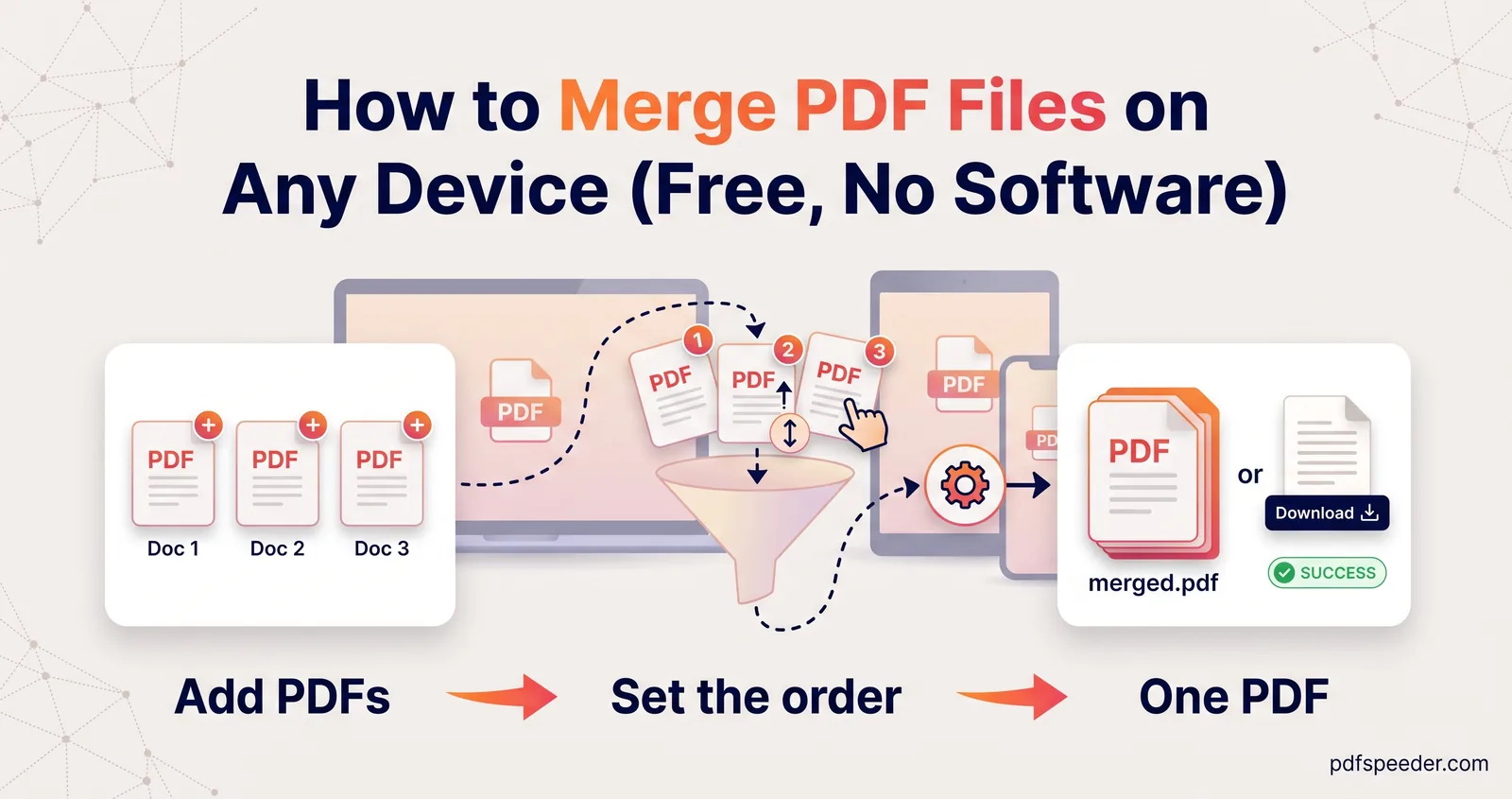
Merge PDF lets every file in its list have its own Pages to include range. So you can list the original twice: once for the pages before the insertion point, and again for the pages after it, with the new page in between. The tool stitches them into one file in that order.
You don't need a copy of the original for this. Merge PDF accepts the same file twice, and each entry in the list keeps its own range.
Three ways to add pages to an existing PDF, compared:
| Method | Free tasks used | Best for |
|---|---|---|
| One merge, with the original added twice | 1 | Inserting anywhere, using the fewest tasks |
| Merge, then move the page with Reorder Pages | 2 | Placing the page by dragging a thumbnail instead of typing ranges |
| Preview on a Mac (Edit > Insert) | None | Mac users who'd rather stay offline |
Every run of Merge PDF or Reorder Pages counts as one task in the free daily allowance: 2 tasks a day without an account, 3 with a free account, reset at 00:00 UTC (05:30 IST). Both tools run entirely in your browser, so your files aren't uploaded.
Insert another PDF at a specific page
Say you need to insert a one-page certificate after page 3 of a 6-page report. Here's how to insert a PDF into another PDF in one merge:
- Add three files in this order:
report.pdf,certificate.pdf, thenreport.pdfagain, using Add more PDFs for the second report. Drag them by the grip handle or use the arrows if they land in a different order. - Set the ranges. Type
1-3in the first report's Pages to include box and4-6in the second report's. Leave the certificate's box empty, so all of it is used. - Untick Auto-bookmark each file. Otherwise the merged PDF gets bookmarks named after the files: "report", "certificate" and "report" again.
- Keep Merge mode on Sequential and select Merge & Download.
In our test, this gave report pages 1, 2 and 3, then the inserted page, then report pages 4, 5 and 6. The pattern works for any position: to insert after page k of an N-page file, the first range is 1-k and the second is (k+1)-N. To add a page at the very start or end, you only need the original once; just put the new file first or last.
The two-step version: merge, then reorder
If you'd rather place the page by eye than work out ranges, merge the original and the new page normally, so the new page lands at the end, then move it. Open the merged file in Reorder Pages and either drag the last thumbnail into place or type the order you want in New page order. For the 6-page report, the new page is page 7, so you'd type:
1,2,3,7,4,5,6The box only accepts a list that names every page exactly once, so check the count before you apply it. In our test, this produced the same result as the one-merge method, at the cost of a second task.
On a Mac: Preview's Insert menu
Preview can add pages without any upload. Apple's Preview guide to PDF pages says to select the page you want to appear before the new one, then choose Edit > Insert > Page from File (or Blank Page). The new page goes in after the selected one. Preview saves changes to the open file, so duplicate it first if you need to keep the original.
Insert a scanned page or photo
A photo or scan has to become a PDF before you can insert it. JPG to PDF does this in your browser and reads JPG, PNG, WebP and several other formats.
- Add the image. Sideways phone photos are straightened automatically, using the orientation the phone recorded.
- Set Page size to match the document you're inserting into, usually A4 (or US Letter). The default, Fit to image, sizes the page from the photo's pixels, so a phone photo can turn into a page much bigger than A4 that looks out of scale next to the others.
- Choose a Margin if you want a white border, and leave Quality on Original, which embeds your image without compressing it again.
- Select Create PDF and download it. A single image is saved under its own name.
Now insert that one-page PDF at the right position, using either method above. This is the easiest way to insert a scanned page into a PDF, such as a signed form page that replaces an unsigned one. To replace rather than add, simply leave the old page out of the ranges: for a new page 4 in a 6-page file, use 1-3 and 5-6.
Turning several photos into pages at once is covered in our guide to combining multiple images into one PDF.
Add a blank page
Merge PDF's Divider page between files option inserts a blank page before every file after the first, the same size as the page before it. That makes it a tidy way to add a blank page to a PDF:
- Add your PDF to Merge PDF twice, as above.
- Give the first entry the range
1-3and the second4-6. - Tick Divider page between files, keep Sequential mode, and merge.
In our test, the blank page appeared as page 4, between the original pages 3 and 4, at the same A4 size. Dividers only work in Sequential mode. Each extra part adds another blank, so adding the file three times, with three ranges, gives two blank pages.
Common reasons to add one: making each chapter start on a right-hand page for double-sided printing, leaving room for handwritten notes, or separating sections in a printed pack. For a blank page at the very end, it's quicker to save an empty document as a one-page PDF from Word or Google Docs and merge it in last.
Check page numbers and bookmarks afterwards
Inserting pages changes the document's structure, so look at three things before you send it:
- The page count. It should be the original count plus the pages you inserted, minus any you replaced.
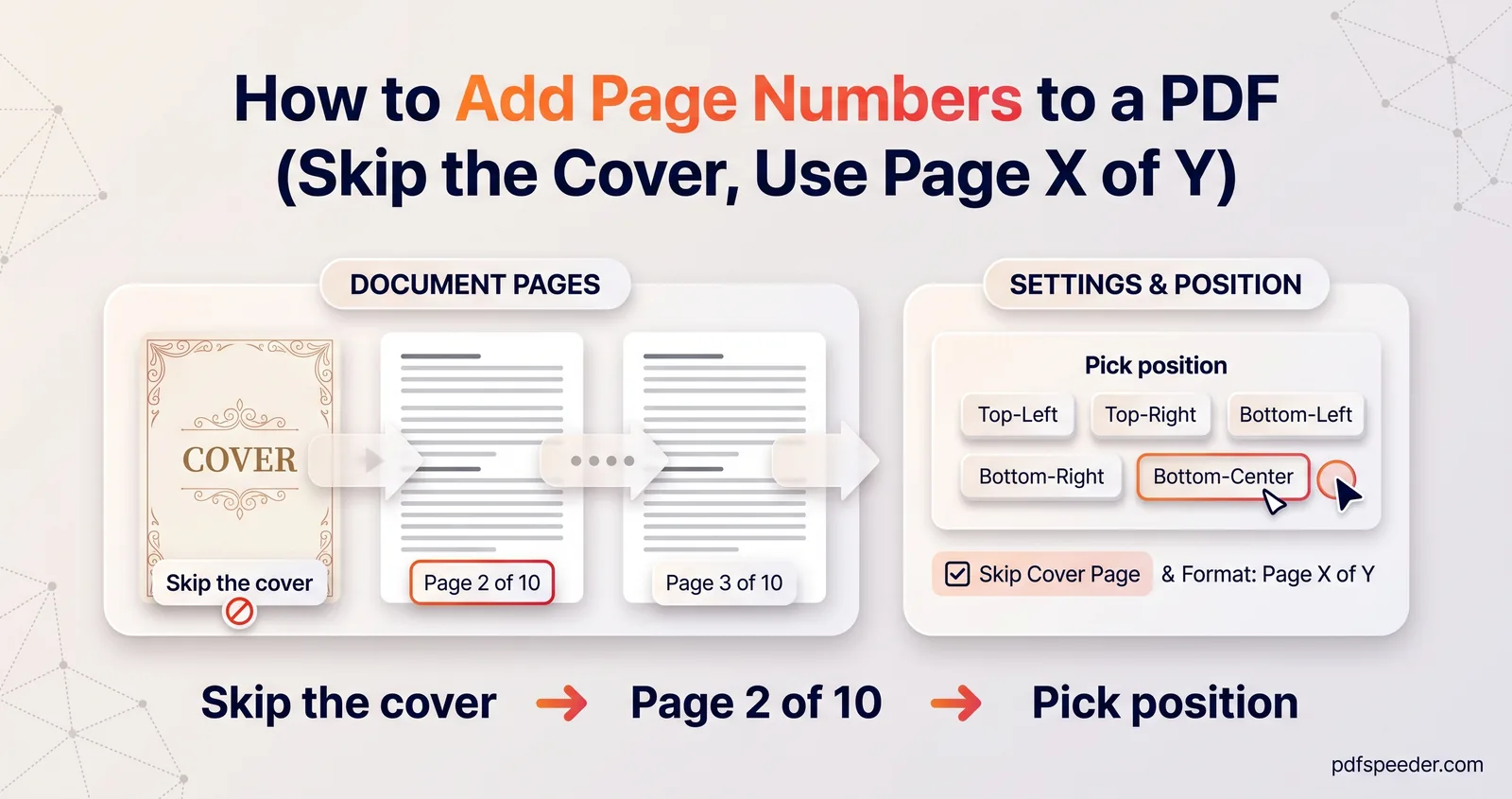
- Printed page numbers. Numbers printed in a footer are part of the page, so they don't update. After an insert after page 3, the old page 4 still says "4" even though it's now page 5. If you have the source document, insert the page there and export the PDF again. If the pages have no printed numbers yet, add them now with our Add Page Numbers tool, which can skip the cover page and use formats such as "Page 1 of 10".
- Bookmarks. Merge PDF builds new bookmarks from file names only, and Reorder Pages adds none. In our test, a report's own bookmarks (Introduction, Results, Annex) were replaced by bookmarks named after the two merged files. If readers rely on the bookmark panel, insert the page in the source document instead.
Finally, rename the file: Merge PDF saves it as Merged_PDF_ followed by a number, and Reorder Pages adds _reordered to the name. For other ways to fix page order, such as interleaving double-sided scans, see how to combine odd and even pages into one PDF.
Ready to insert your page? Open Merge PDF, add the original twice with the new page in between, and set the two ranges around it.
Frequently asked questions
Can I insert a page into a PDF without Adobe Acrobat?
Yes. Merge PDF inserts pages by merging with page ranges in any browser, and on a Mac, Preview's Edit > Insert menu adds a page from another file or a blank page.
How do I insert a PDF into another PDF at a specific page?
Add the original with the pages before the insertion point, then the new PDF, then the original again with the remaining pages, and merge them in Sequential mode. For a new page after page 3 of 6, the ranges are 1-3 and 4-6.
How do I replace a page in a PDF?
Leave the old page out of the ranges and put the new one where it was. For a new page 4 in a 6-page file, add the original with the range 1-3, then the new page, then the original again with 5-6.
How do I add a blank page to a PDF?
Add the file to Merge PDF twice, give the two entries ranges either side of where the blank page goes, and tick Divider page between files. A blank page the size of the previous page goes in between.
Does inserting a page reduce the quality of the PDF?
No. The pages are copied into the new file unchanged; only a photo converted with JPG to PDF's Compressed setting is re-encoded.