How to Crop a PDF: Trim Margins or Keep Just One Area
Crop a PDF free in your browser: keep one chart or receipt, trim margins on every page, tidy scans, and see why cropping hides content without deleting it.

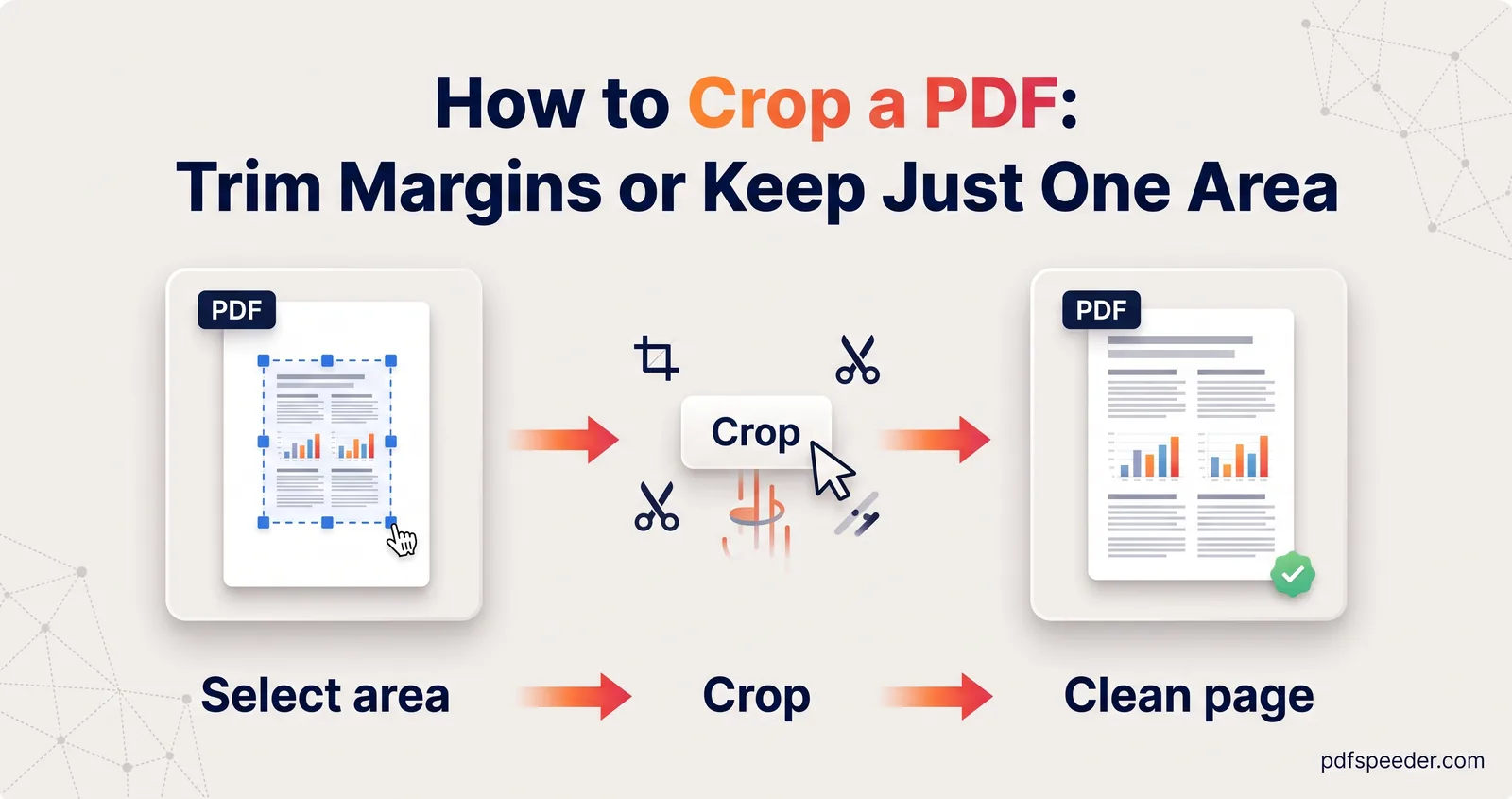
To crop a PDF, open it in a cropping tool, drag a box around the part you want to keep, choose whether the box applies to every page or just the current one, and save the result. Everything outside the box disappears from view, which is how you trim wide margins or keep a single chart or receipt from a full page. One thing most guides leave out: the cut-off area usually isn't deleted, only hidden, so cropping is no way to remove private information.
On this page
Three ways to crop a PDF
Cropping jobs come in three flavours, and each needs a slightly different approach:
| What you want | How to do it | Best tool |
|---|---|---|
| Keep one area, such as a chart, a table or a receipt | Draw a tight box around it on that page | Crop PDF, Apply to Current Page Only |
| Trim the same margins from every page | Draw one box and apply it to all pages | Crop PDF, Apply to All Pages |
| Remove white space from PDF scans automatically | Detect the paper's edges at scan time, or use a tool with automatic margin removal | Your scanning app, or paid Adobe Acrobat |
Our Crop PDF tool handles the first two in your browser, so the file isn't uploaded anywhere. It accepts files up to 100 MB, and each crop counts as one task in the free daily allowance: 2 tasks a day without an account, 3 with a free account, reset at 00:00 UTC (05:30 IST). It has no automatic trimming, so the third job is covered separately below.
Draw a box around what you want to keep
This is how to crop a PDF down to one area, such as the receipt in a page of scanned paperwork or one chart from a report:
- Open Crop PDF and drop in your file. If it's password-protected, you're asked for the password, and the cropped copy is saved without one.
- Use Next and Prev to find the page you want.
- Select Apply to Current Page Only, so the box affects this page alone.
- Click and drag across the page preview to draw the box. Everything outside it is shaded, which is the part that will be cut away. A very small drag is ignored, and Reset crop clears the box so you can try again.
- Select Apply Crop & Download. The new file has "_cropped" added to its name.
In Current Page Only mode, each page keeps its own box, so you can crop one page of a PDF and leave the rest untouched, or give a few pages different boxes in the same run. Pages without a box stay exactly as they were.
The box is drawn by hand, with no numeric fields, so leave a little breathing room around the content. A box that grazes the edge of a table can clip the last column or a row of figures, and you won't get those back without the original.
If you only need that one page as its own file, extract it before you crop. Cropping a 40-page document to show one receipt still leaves 40 pages.
Trim margins evenly on every page
Wide margins make a PDF hard to read on a phone or e-reader, and scanned books often carry dark borders from the scanner lid. To trim PDF margins across the whole document:
- Open the file in Crop PDF and leave Apply to All Pages selected (it's the default).
- Draw the box on the first page, leaving the same gap inside each edge of the text.
- Step through a few pages with Next. The same box is shown on each, so you can check that no page has text, a page number or a footnote running outside it.
- Select Apply Crop & Download.
The box is stored as a proportion of the page, not a fixed size, so on a document whose pages differ in size, each page loses the same percentage from each side. That's usually what you want, but check any page that's a different size, such as a fold-out plan.
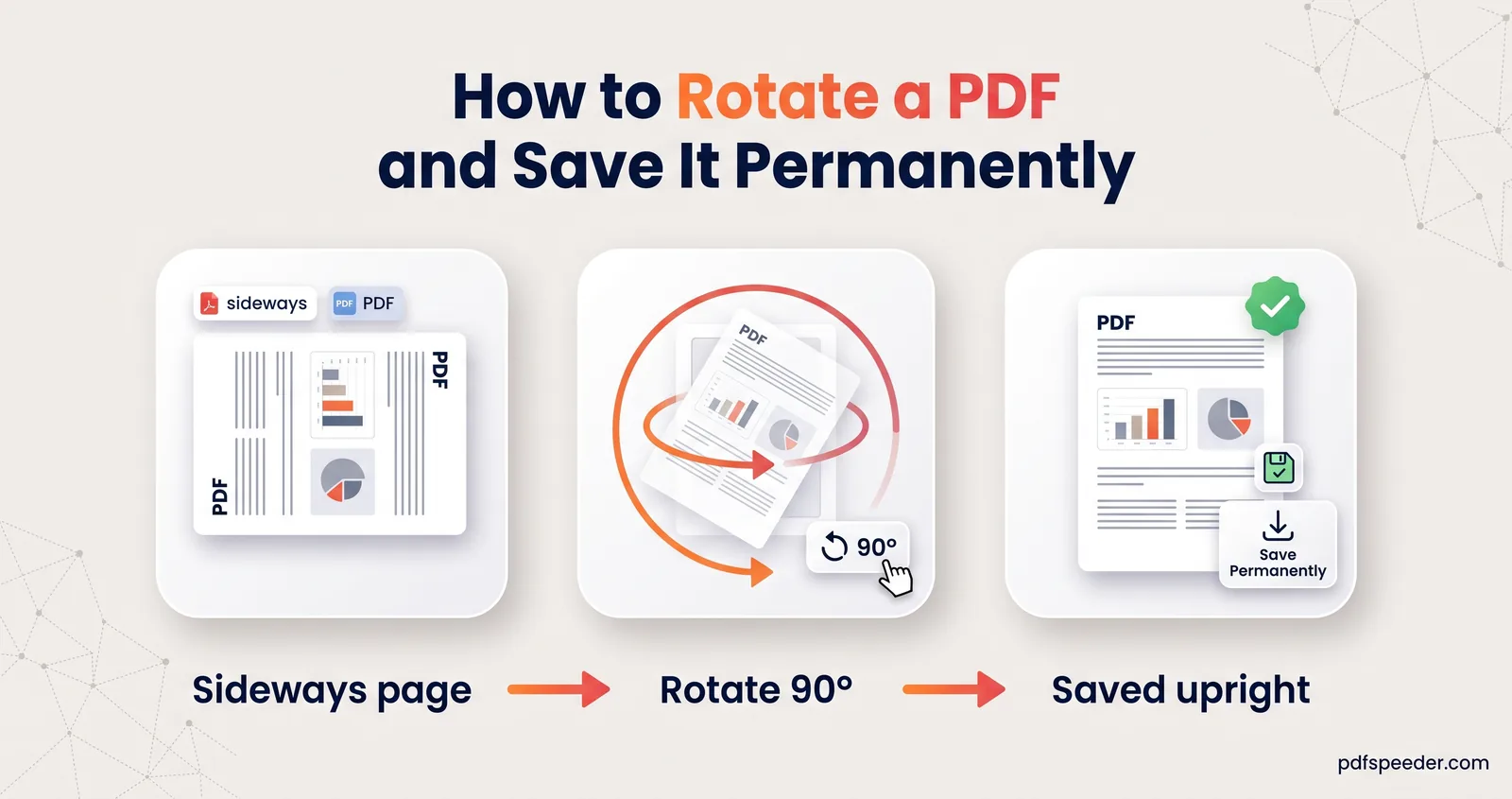
Mixed orientation is the main trap. If some scanned pages are sideways, a box drawn on an upright page cuts the wrong area of a sideways one. Fix those pages first with Rotate PDF, which turns only the pages you choose; our guide to rotating a PDF and saving it explains which angle to pick.
On a Mac, Preview can crop too. Apple's guide to cropping a PDF in Preview has you show the Markup toolbar, choose the Rectangular Selection tool, select the area to keep and click Crop. To see the selection's exact dimensions, choose Tools > Show Inspector and open the Crop Inspector.
Auto-trim the white space around scans
Crop PDF doesn't detect margins for you, and it's worth being clear about that. When white space comes from scanning a small item, like a receipt or an ID card, on a full A4 scanner glass, these routes work:
- Fix it at the source. Phone scanning apps usually find the edges of the paper and crop to them as you scan. Scanning the receipt again with your phone is often quicker than cropping a dozen pages afterwards.
- Crop page by page. In Crop PDF, choose Apply to Current Page Only and draw a tight box on each page. With a handful of pages, this takes a minute.
- Use a desktop tool with automatic margin removal. The paid version of Adobe Acrobat has a Remove White Margins option in its crop dialog, which trims each page to its content.
Keep expectations realistic for scans: cropping changes what's shown, not what's stored. The full-page image stays inside the PDF, so a cropped scan won't get noticeably smaller. To reduce the size too, compress it afterwards.
Cropping is not hiding: a privacy warning
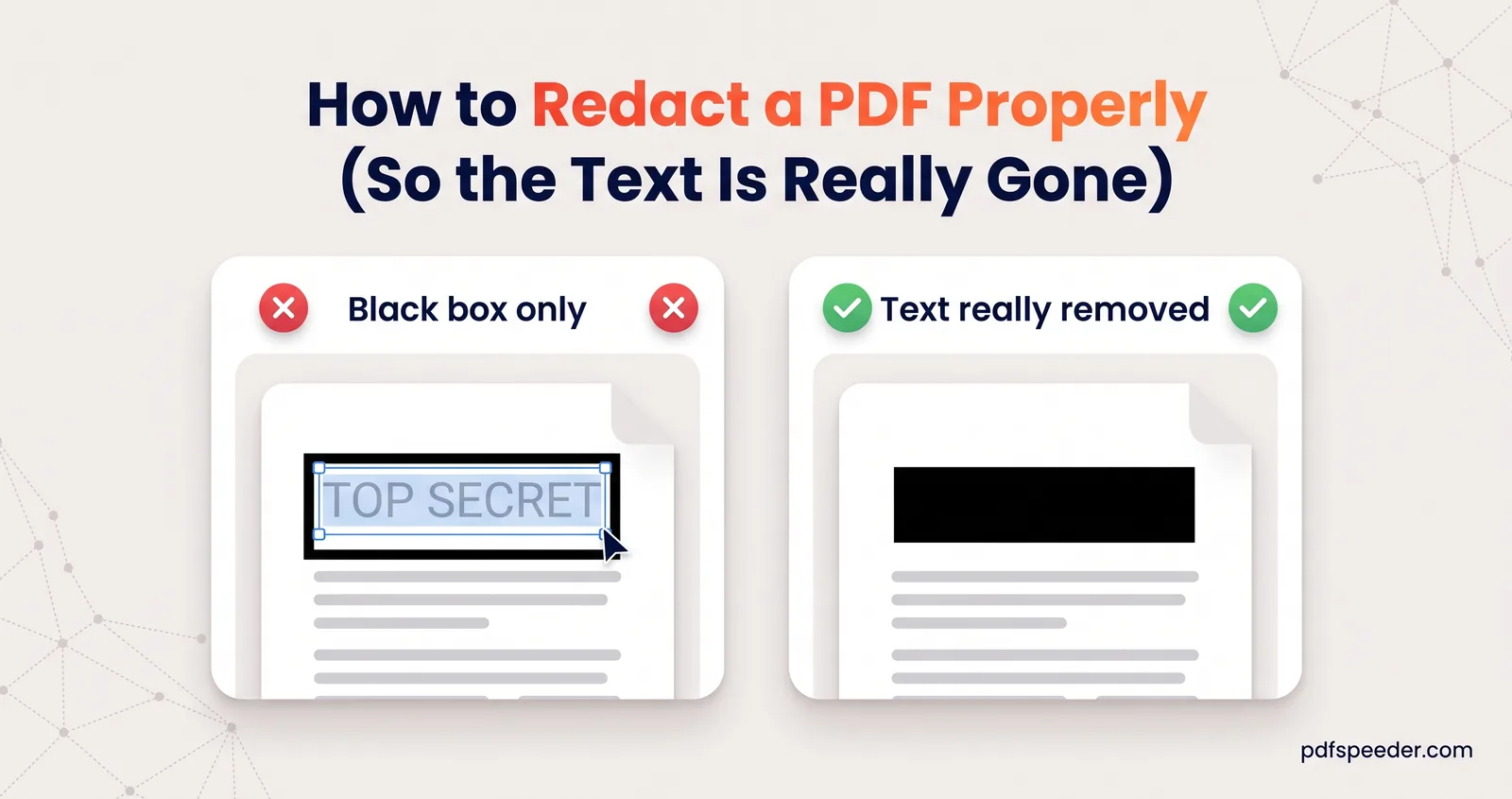
A PDF page has a visible window, called the crop box, laid over its contents. Cropping tools normally just shrink that window. The text and images outside it aren't deleted; they're still in the file, just outside the area viewers display and print.
We tested this on a sample page with a fake account number at the top and a receipt in the middle. After cropping to the receipt with Crop PDF, the page looked right in every viewer. But a standard text-extraction library still returned the hidden line, "SECRET: Account 1234 5678 9012", from the cropped file, and resetting the page's visible window brought the whole original page back into view.
So if the part you're cutting away contains anything private, such as account numbers, addresses, signatures or other people's details:
- Redact it first. Redact PDF rebuilds each page that has a redaction box as an image, so whatever was under the box is gone for good, not just covered. Our guide on how to redact a PDF shows how to check that it worked.
- Then crop for appearance, if you still want a tidier page.
- Test the result. Search the cropped file for the hidden words and try copying text near the edges.
The same caution applies to cropping in other apps, unless the app says it discards the cropped content. Treat cropping as a layout tool, never as a privacy one.
Ready to tidy your file? Open Crop PDF, draw the box on one page, step through the rest with Next to check it fits, and download your cropped copy.
Frequently asked questions
Can I crop a PDF online for free?
Yes. Crop PDF runs in your browser at no cost, and each crop counts as one task in the free daily allowance.
How do I crop just one page of a PDF?
Select Apply to Current Page Only, go to that page and draw the box. Every page without a box is left exactly as it was.
Does cropping a PDF reduce the file size?
Not noticeably. Cropping hides the area outside the box but keeps it in the file, so compress the PDF afterwards if size matters.
Can someone see what I cropped out of a PDF?
Often, yes. The hidden content usually stays in the file and can be extracted or revealed again, so redact sensitive information instead of cropping it away.
Can I remove white space from a PDF automatically?
Crop PDF has no automatic trimming, so you draw the box yourself. Phone scanning apps crop to the paper's edges as you scan, and paid Adobe Acrobat has a Remove White Margins option.