How to Merge PDF Files on Any Device (Free, No Software)
How to merge PDF files in a browser, on a Mac, Windows PC or phone, and get the page order, page picking, rotation and bookmarks right before you save.

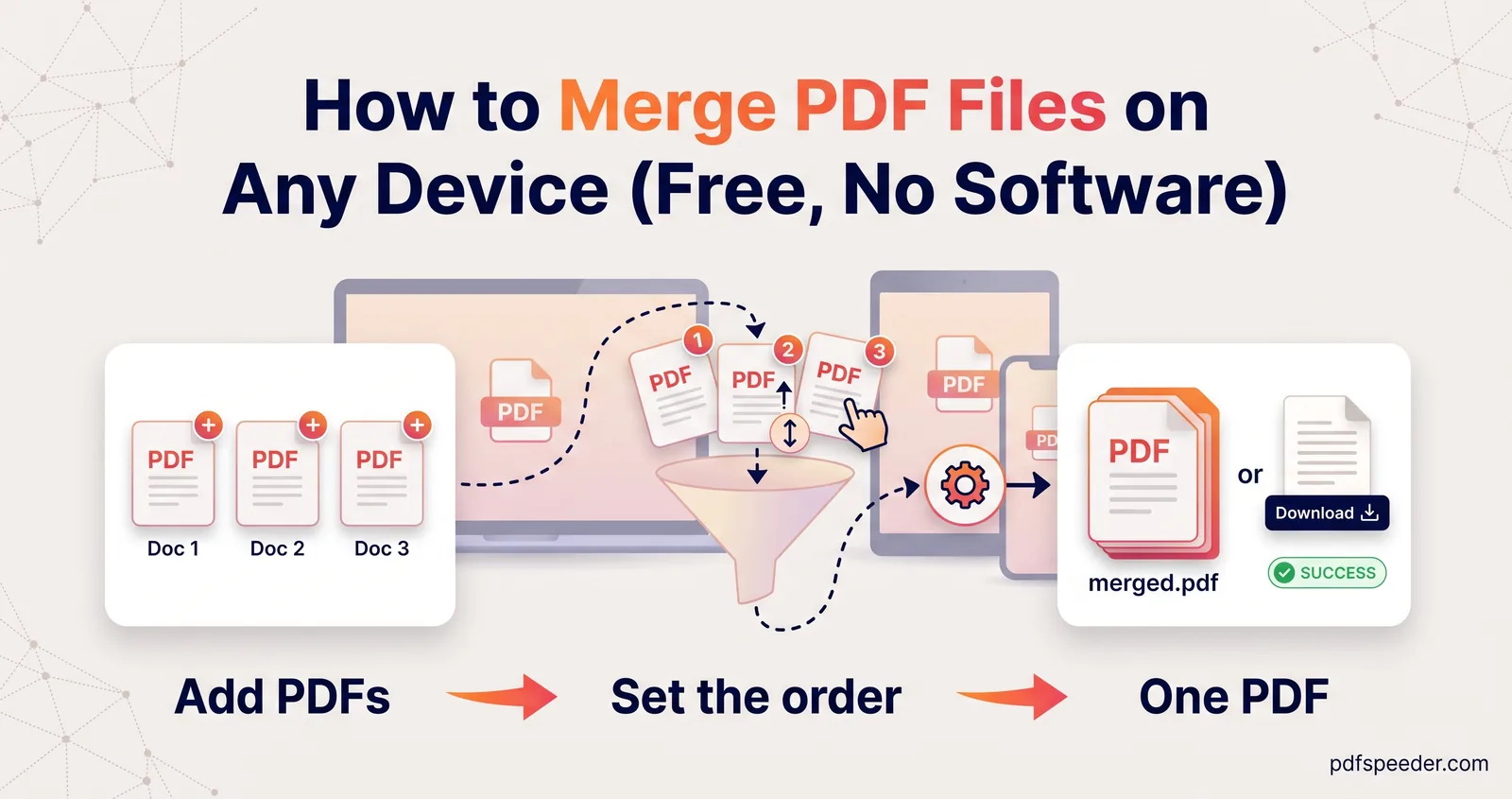
To merge PDF files, open a PDF merger in your browser, add the files, put them in order and download one combined PDF. On a Mac you can also use Preview, iPhones running iOS 26 or later can insert one PDF into another in the Preview app, and Windows has no built-in merger, so a browser tool is the simple route there. This guide covers each device, then the details that make a merged file pleasant to use: page order, page picking, rotation, bookmarks and file size.
On this page
Merge PDF files online in four steps
Merge PDF works the same way in any modern browser, on Windows, Mac, Android or iPhone. It runs entirely in the browser, so your files never leave your device, and it accepts PDFs of up to 200 MB each, with no fixed limit on how many you add.
- Add your files. Open Merge PDF and drop in two or more PDFs, or tap Select PDF Files. Each file shows a strip of page thumbnails, so you can tell them apart even when the names are unhelpful.
- Put them in order. Drag a file by its handle or use its up and down arrows. A–Z sorts by name and understands numbers, so
file2comes beforefile10, and Reverse flips the whole list. - Set any options. Each file can have its own page range and rotation, and the merged PDF gets one bookmark per file unless you switch that off. The details are further down.
- Select Merge & Download. You'll see how many files and pages went in and the final size. The file is saved as
Merged_PDF_followed by a number, so give it a proper name.
Each merge counts as one task in the free daily allowance, which is 2 tasks a day without an account and 3 with a free account, however many files you combine. If one of the PDFs has a password, you're asked for it, and the merged file is saved without one.
Merge PDFs on a Mac with Preview
Every Mac can combine PDFs without extra software. In Preview:
- Open the PDFs you want to combine, and choose View > Thumbnails in each window.
- Drag thumbnails from one window's sidebar into the other's, at the end or between existing pages. Command-click to select pages that aren't next to each other.
- To add a whole PDF, drag its icon from the Finder into the sidebar.
- Drag thumbnails up or down to fix the order.
Preview saves changes automatically, so if you want to keep the originals untouched, choose File > Duplicate before you start (Apple's guide to combining PDFs).
To combine PDFs on a Mac even faster, select the files in the Finder, Control-click and choose Quick Actions > Create PDF. Apple notes that the files appear in the PDF in the order you select them, so click them in sequence (Apple's steps). If you also want a bookmark for each file or need to interleave double-sided scans, use Merge PDF in Safari instead.
Merge PDFs on Windows without extra software
Windows doesn't include a PDF merger, so the simplest way to merge PDF on Windows is your browser: open Merge PDF in Edge or Chrome and follow the four steps above. There's nothing to install, the files stay on your PC, and it's also the answer if you want to merge PDFs without Adobe Acrobat.
One tip saves dragging: before you start, rename the files in File Explorer with numbers in front, such as 01 Application.pdf, 02 ID proof.pdf and 03 Certificates.pdf. One click on A–Z then puts them in the right order, and with bookmarks switched on, those names become the bookmark titles too.
Merge PDFs on iPhone and Android
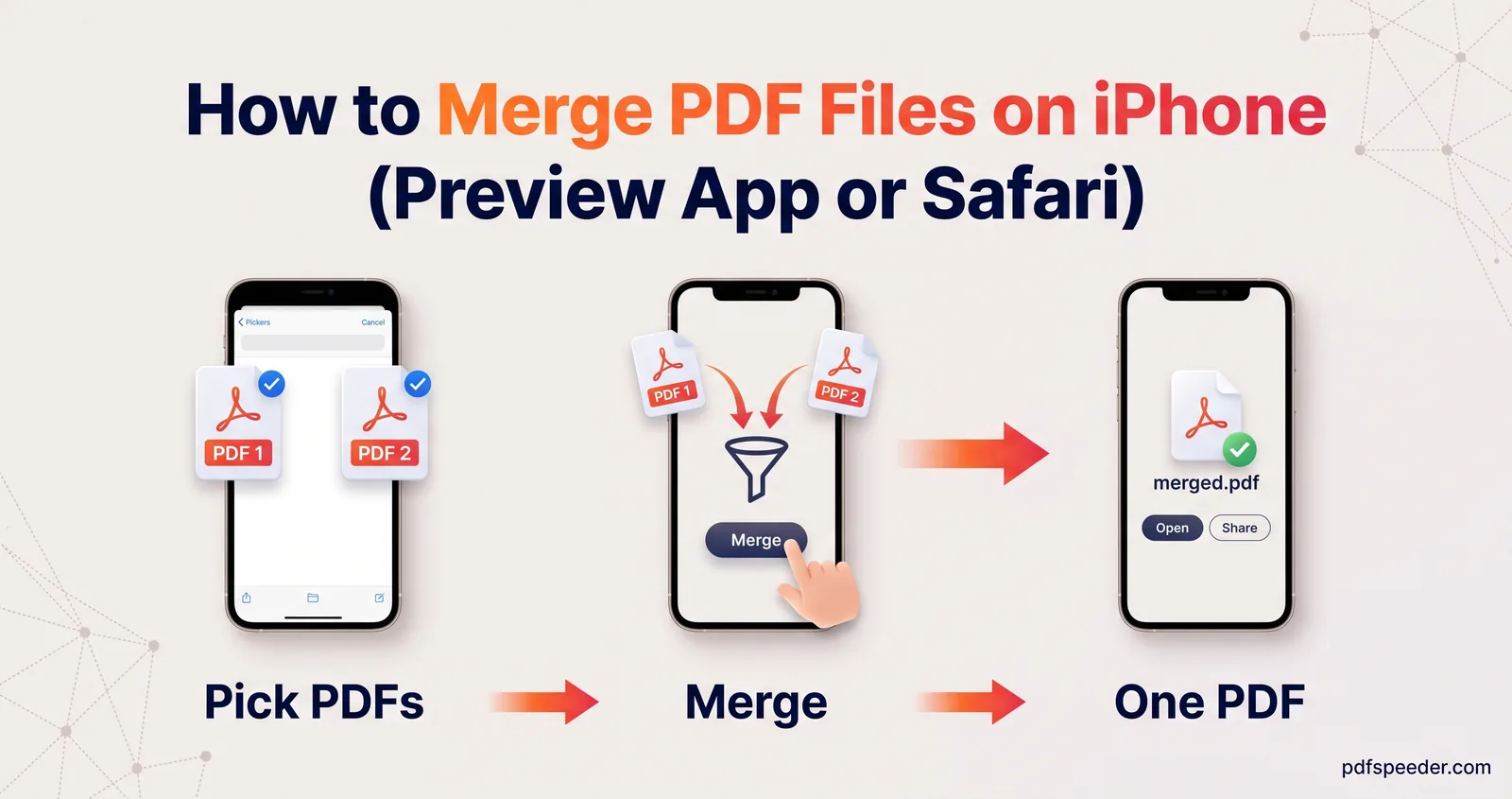
On an iPhone with iOS 26 or later, the Preview app can join PDF files into one:
- Open the first PDF in Preview and tap the page count to show the thumbnails.
- Touch and hold a thumbnail near where the new pages should go, tap Insert from File and choose the second PDF.
- To change the order, touch and hold a thumbnail and drag it above or below another one.
Preview changes the PDF you opened, so make a copy first if you need the original: tap the Actions menu next to the file name, then Duplicate (Apple's instructions). For page ranges, rotation and bookmarks in one step, use Merge PDF in Safari; our guide to merging PDF files on iPhone walks through both routes, plus renaming and sharing the result.
On Android, Merge PDF works in Chrome just as it does on a computer: add the files from your phone's storage, order them and save the merged PDF to your downloads.
Pick pages, rotate and add bookmarks while merging
These settings are what turn a pile of pages into a document someone can find their way around.
Choose pages from each file
Type pages into a file's Pages to include box using commas and dashes, such as 1,3-5,8, or leave it empty to include every page. The pick button next to it opens a grid where you click pages instead, with shortcuts for all odd, all even, the first 10 or the last 10 pages. Pages from one file always keep their original order (typing 5,1 still gives page 1, then page 5), so to rearrange pages inside a file, run it through Reorder Pages first.
Rotate sideways scans
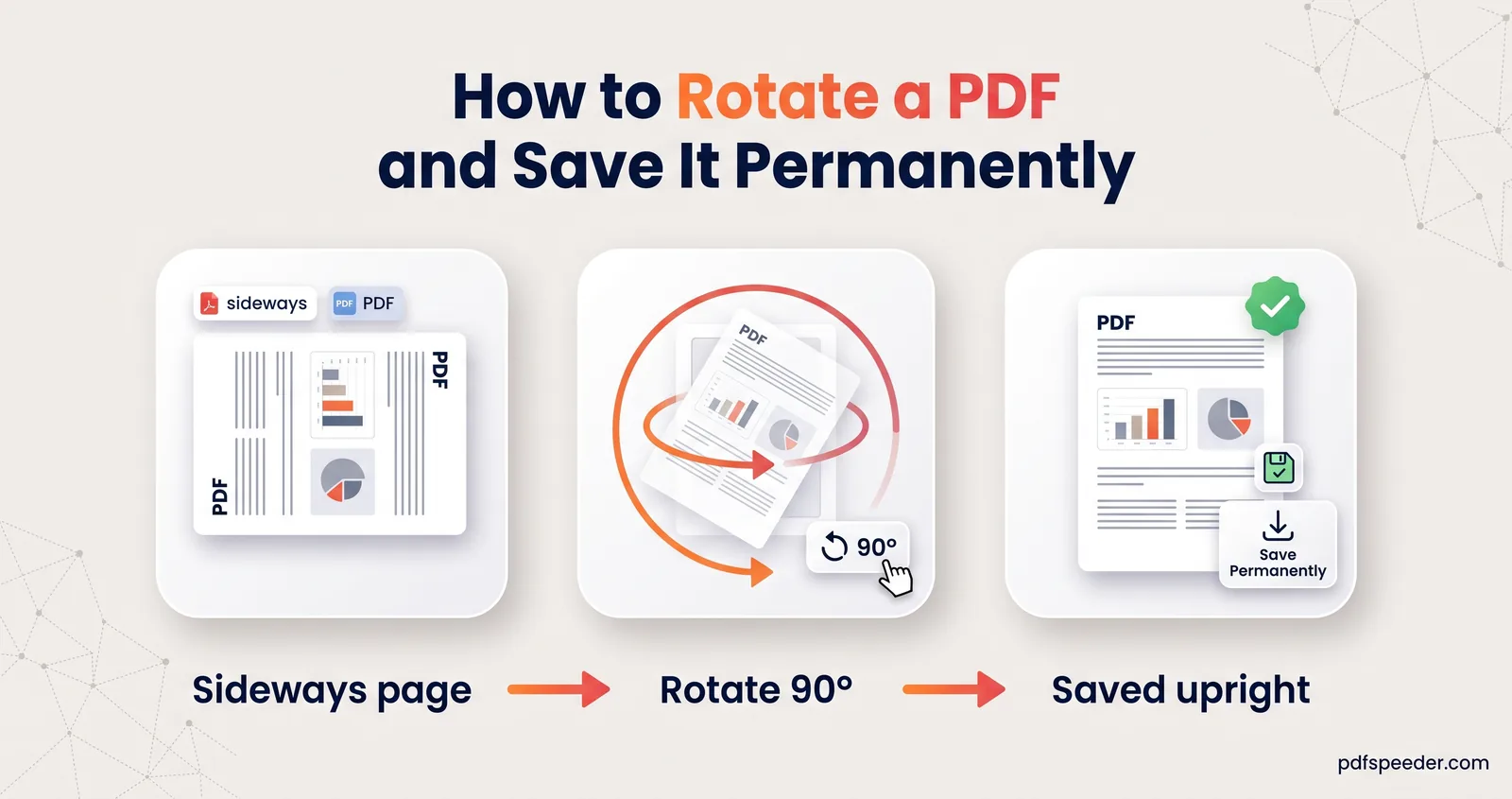
The 0°, 90°, 180° and 270° buttons on each file turn every page of that file. A certificate scanned sideways can be fixed right here, with no separate rotate step.
Bookmarks and divider pages
Auto-bookmark each file is on by default. The merged PDF gets one bookmark per file, named after its file name, and it opens with the bookmark panel showing. Bookmarks already inside the original PDFs aren't carried over, so clear file names are what give the merged file a usable table of contents.
Divider page between files inserts a blank page before every file after the first, sized like the page before it. That helps with printed packs, but leave it off for uploads, where blank pages only pad the page count.
Interleave and odd/even scans
Besides the standard Sequential mode, Interleave takes page 1 of every file, then page 2 of every file, and so on. Odd / Even is made for double-sided paper scanned on a one-sided scanner: file 1 holds the fronts (pages 1, 3, 5…), file 2 the backs, and the merge puts every page in reading order. If you scanned the backs by turning the whole stack over, the last back comes out first, so tick Reverse the even-pages PDF.
After merging: check order and file size
Open the merged PDF and scroll through it once before you send it:
- Page count. Compare it with what you expected. A missing page usually means a page range was typed wrong.
- Order and rotation. Look for a page in the wrong place or turned the wrong way. Reorder Pages fixes the order by dragging thumbnails or typing a sequence such as
3,1,2,4. - Size. Merging doesn't compress anything, because pages are copied as they are, so the merged file weighs about as much as the originals put together. If that's too much for an email or a portal, run it through Compress PDF afterwards. One compression of the merged file is all you need, as the guide to fitting several scans under 200 KB explains.
- Name. Rename
Merged_PDF_…to something the recipient will recognise, such asAsha_Verma_KYC_documents.pdf.
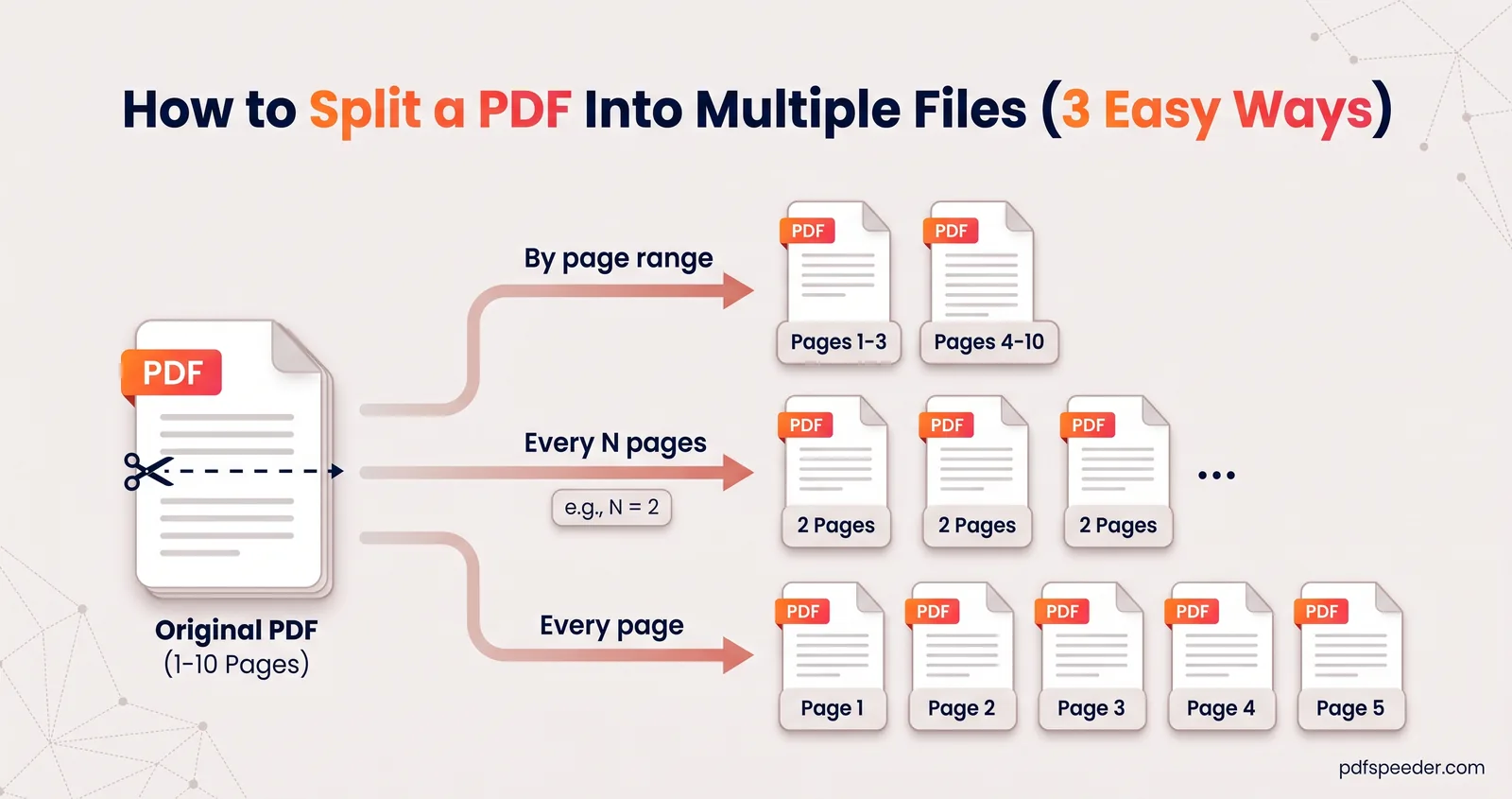
Now combine PDF files of your own: open Merge PDF, add them, and check the bookmarks in the finished file. And when you need to go the other way, here's how to split a PDF into multiple files.
Frequently asked questions
How do I merge two PDFs into one?
Open Merge PDF, add both files, drag them into order and select Merge & Download. On a Mac, you can also drag one PDF's pages into the other's thumbnail sidebar in Preview.
Can I merge PDF files without Adobe Acrobat?
Yes. Merge PDF works in any modern browser, and on a Mac, Preview and the Finder's Create PDF quick action combine PDFs too.
How many PDFs can I merge at once?
Merge PDF has no fixed limit on the number of files and accepts up to 200 MB per file. In practice, the limit is how much memory your phone or computer has.
Does merging PDFs reduce quality?
No. Pages are copied into the new file unchanged, so text and images look exactly as they did before.
Can I merge password-protected PDFs?
Yes, if you know the passwords. Merge PDF asks for each one, and the merged file is saved without a password, so keep it somewhere private.
Does merging count toward the daily limit?
Yes, each merge counts as one task, whether you combine two files or twenty.