How to Split a PDF Into Multiple Files (3 Easy Ways)
How to split a PDF into multiple files by page ranges, every N pages or one page per file, plus how to size each part so it fits an upload limit.

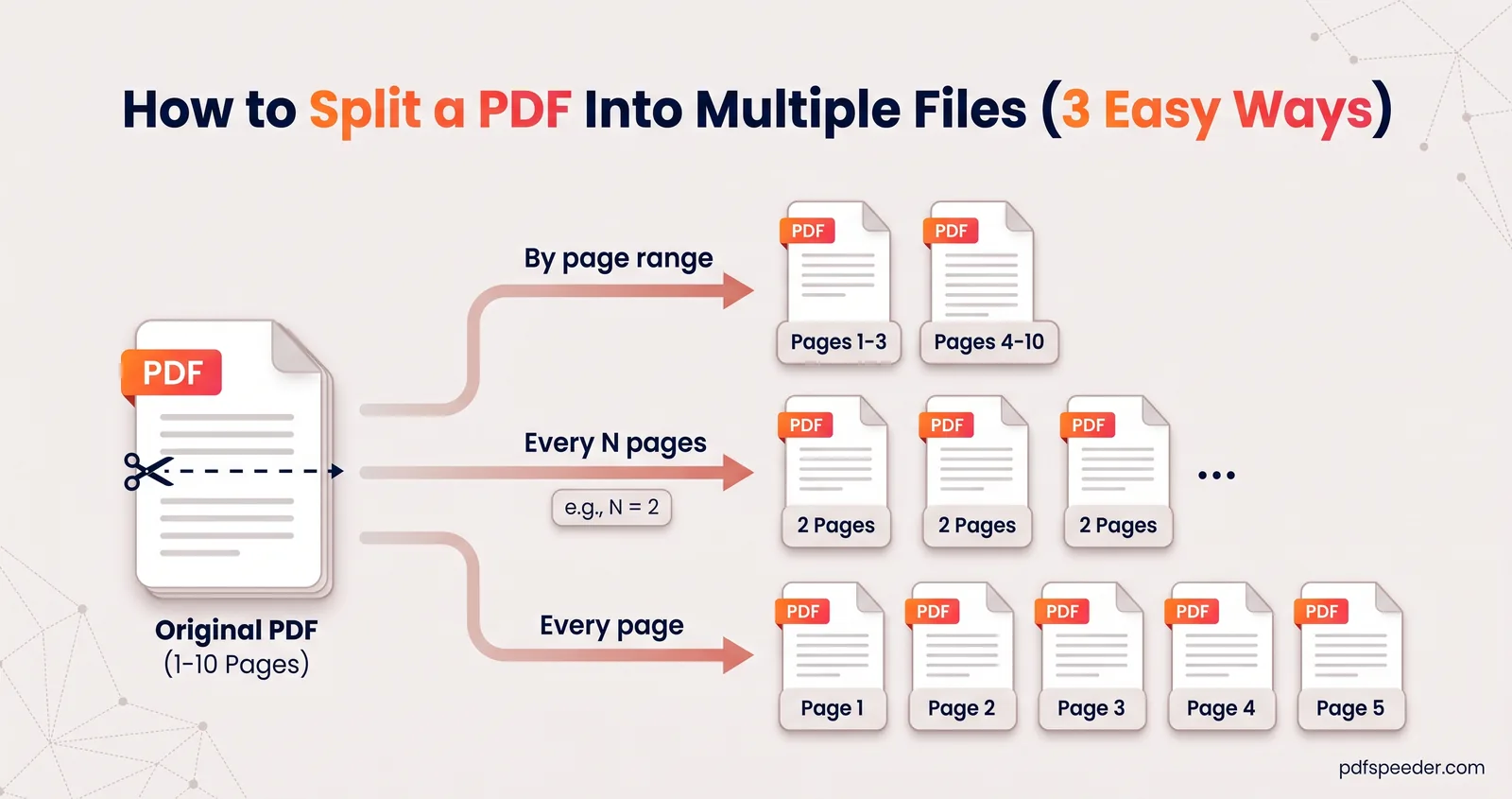
To split a PDF into multiple files, open a PDF splitter, choose how to cut the document (by page ranges, every N pages, or one file per page) and download the parts, usually together as a ZIP. The mode depends on the job: chapters and monthly statements suit page ranges, chunked uploads suit equal parts, and scans you want to file separately suit one page per file. Below, each mode is matched to its job, followed by a simple way to size the parts for an upload limit.
On this page
Split or extract: which do you need?
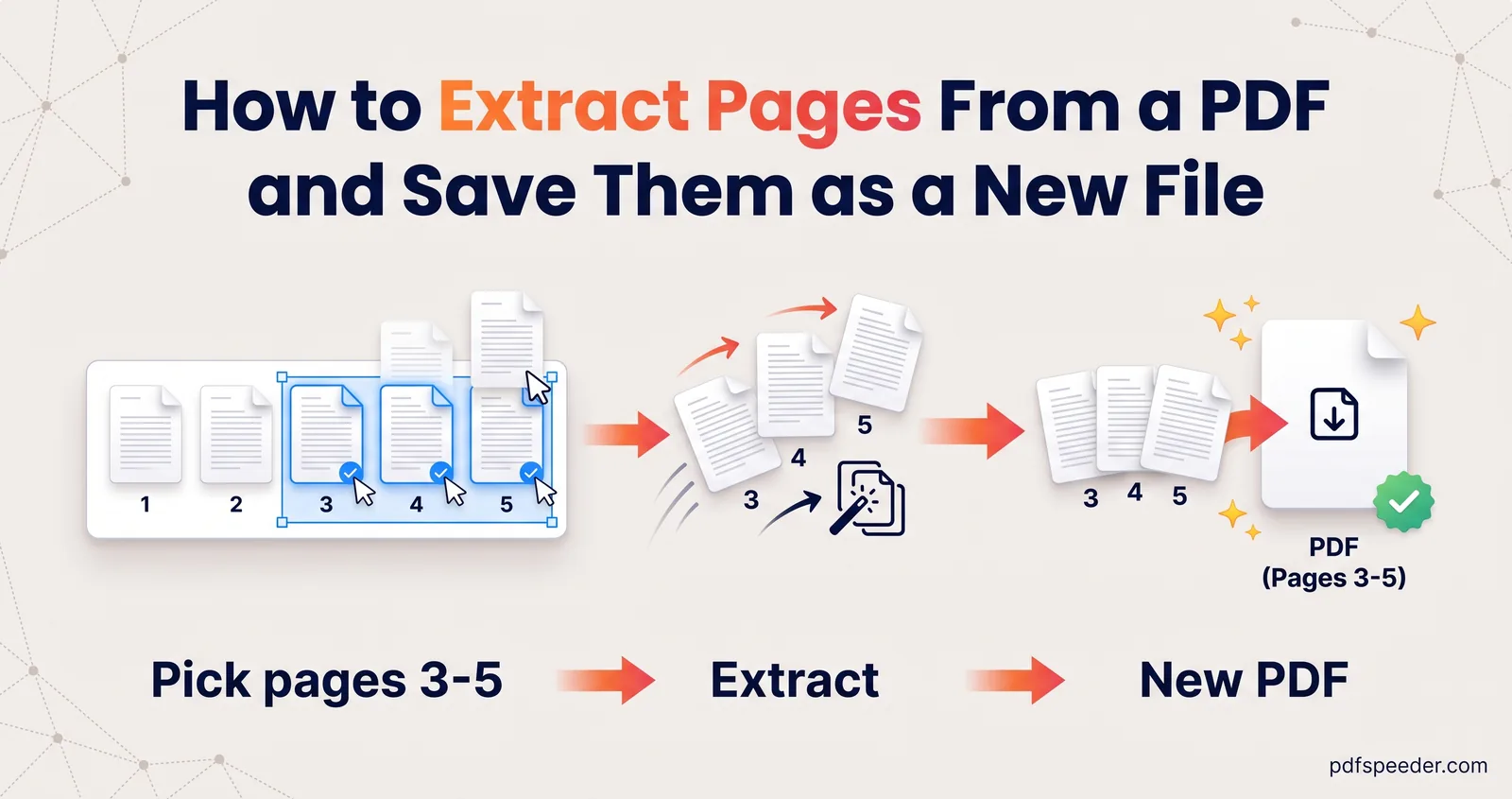
The two words sound alike but give different results. Splitting turns one PDF into several files. Extracting pulls the pages you choose into one new file and leaves the rest behind.
| You want | Use | You get |
|---|---|---|
| Each chapter, month or section as its own file | Split PDF, Custom Ranges | One PDF per range |
| Equal chunks, such as 10 pages each | Split PDF, Fixed Size | One PDF per chunk |
| Every page as a separate file | Split PDF, Extract All | One PDF per page |
| A few chosen pages in one new file | Extract PDF Pages, or Split PDF's Pick Pages | One PDF |
Both tools run in your browser, so the PDF isn't uploaded anywhere, and each finished job counts as one task in the free daily allowance (2 tasks a day without an account, 3 with a free account). Split PDF takes files up to 50 MB, while Extract PDF Pages takes up to 100 MB, which is handy when a file is too big to split in one go.
Split a PDF into multiple files by page range
Custom Ranges suits documents with natural sections: the chapters of a book or course pack, the months of a bank statement, or the separate certificates in a scanned bundle. Here's how to split a PDF into chapters or sections:
- Open Split PDF and add your file. Every page appears as a thumbnail.
- Keep Custom Ranges selected and enter the first range, for example pages 1 to 12. Clicking thumbnails adds pages to the active range as well.
- Select Add range for each further section.
- Leave Merge all ranges into one PDF switched off to get one file per range. Switch it on only if you want the ranges stitched into a single file.
- Select Split PDF and download. When there's more than one file, Download All saves them together as a ZIP.
Example: A year of bank statements in one 36-page PDF, with three pages per month, needs 12 ranges: 1–3, 4–6, 7–9 and so on up to 34–36. You get 12 files, one per month.
Each file is named after the original with its pages added, such as statement_pages_1-3.pdf, so the order is obvious when you unzip them. Rename them afterwards if someone expects names like "January".
Split every N pages
Fixed Size cuts the document into equal chunks: every 1, 2, 5 or 10 pages with the preset buttons, or any number you type. The panel tells you how many files you'll get before you split.
It's the mode for jobs that come in regular units. A stack of two-page application forms scanned in one go, split every 2 pages, gives each applicant their own file. A long manual split every 10 pages becomes a set of chunks that are easier to upload or send.
If the page count doesn't divide evenly, the last file is shorter: 25 pages split every 10 pages gives files of 10, 10 and 5 pages.
Save every page as its own PDF
Extract All makes one PDF per page, named filename_page_1.pdf, filename_page_2.pdf and so on, all in one ZIP. It's the quickest way to separate PDF pages when each page is a document in its own right, such as a batch of scanned receipts or ID cards. If you came looking for how to split a PDF into multiple files of one page each, this is the mode.
For just a handful of pages, Pick Pages is tidier. Click the pages you want and turn on One PDF per picked page, or leave it off to put them together in one file, kept in page-number order.
All of this works in a phone browser too. On an iPhone, the ZIP lands in the Files app: tap Browse, then Downloads, touch and hold the ZIP and tap Uncompress to get the separate PDFs.
Split a large PDF for upload limits
Split PDF cuts by pages, not by megabytes, so you work out how many pages each part can hold. Three lines of arithmetic do it:
average page size = file size ÷ number of pages
pages per part    = (upload limit × 0.9) ÷ average page size, rounded down
number of parts   = number of pages ÷ pages per part, rounded up
The 0.9 keeps a 10% margin, because pages don't all weigh the same.
Example: A 36 MB scanned report has 90 pages, and the portal accepts 10 MB per file. The average page is 36 ÷ 90 = 0.4 MB. Each part can hold 10 × 0.9 ÷ 0.4 = 22.5 pages, so 22, and 90 ÷ 22 = 4.1 rounds up to 5 parts. Rather than four parts of 22 pages and one of 2, divide the pages evenly: Fixed Size set to 18 gives five parts of about 7.2 MB each.
One catch with typed documents: each part needs its own copy of the fonts its pages use, so the parts add up to more than the original. In a test with a 40-page text PDF, four 10-page parts came to 15% more than the original file, and 40 single pages to more than four times as much. Scanned pages share no fonts, so they divide almost exactly. Either way, check the size of each part before you upload it.
If the arithmetic gives you too many parts, compress first, because a smaller file divides into fewer pieces. Compress PDF accepts files up to 100 MB, uploads them to our server and deletes them automatically within 2 hours, and it counts as one extra task. Files over 50 MB need that step anyway, unless you pull out sections with Extract PDF Pages instead. For other ways to slim a file down first, see our guide to reducing PDF file size.
Ready? Open Split PDF, pick the mode that matches your job, and check the file names in the ZIP before you send them on. If you ever need to put parts back together, here's how to merge PDF files in the right order.
Frequently asked questions
Can I split a PDF by file size?
Not directly, because Split PDF cuts by pages. Divide the file size by the page count to get the average page size, then work out how many pages fit in each part using the formula above.
Does splitting a PDF reduce its quality?
No. Pages are copied into the new files as they are, so text and images look exactly as they did in the original.
How do I split a PDF into single pages?
Choose Extract All in Split PDF. You get one PDF per page, downloaded together as a ZIP.
Can I split a password-protected PDF?
Yes, if you know the password. Split PDF asks for it, and the parts are saved without a password, so store them somewhere private.
Is my PDF uploaded when I split it?
No. Split PDF and Extract PDF Pages run in your browser, so the file stays on your device. Each split still counts as one task in your daily allowance.