How to Extract Pages From a PDF and Save Them as a New File
Extract pages from a PDF into a new file: click or type the pages you want online, use Chrome's print dialog or Preview on a Mac, and handle locked files.

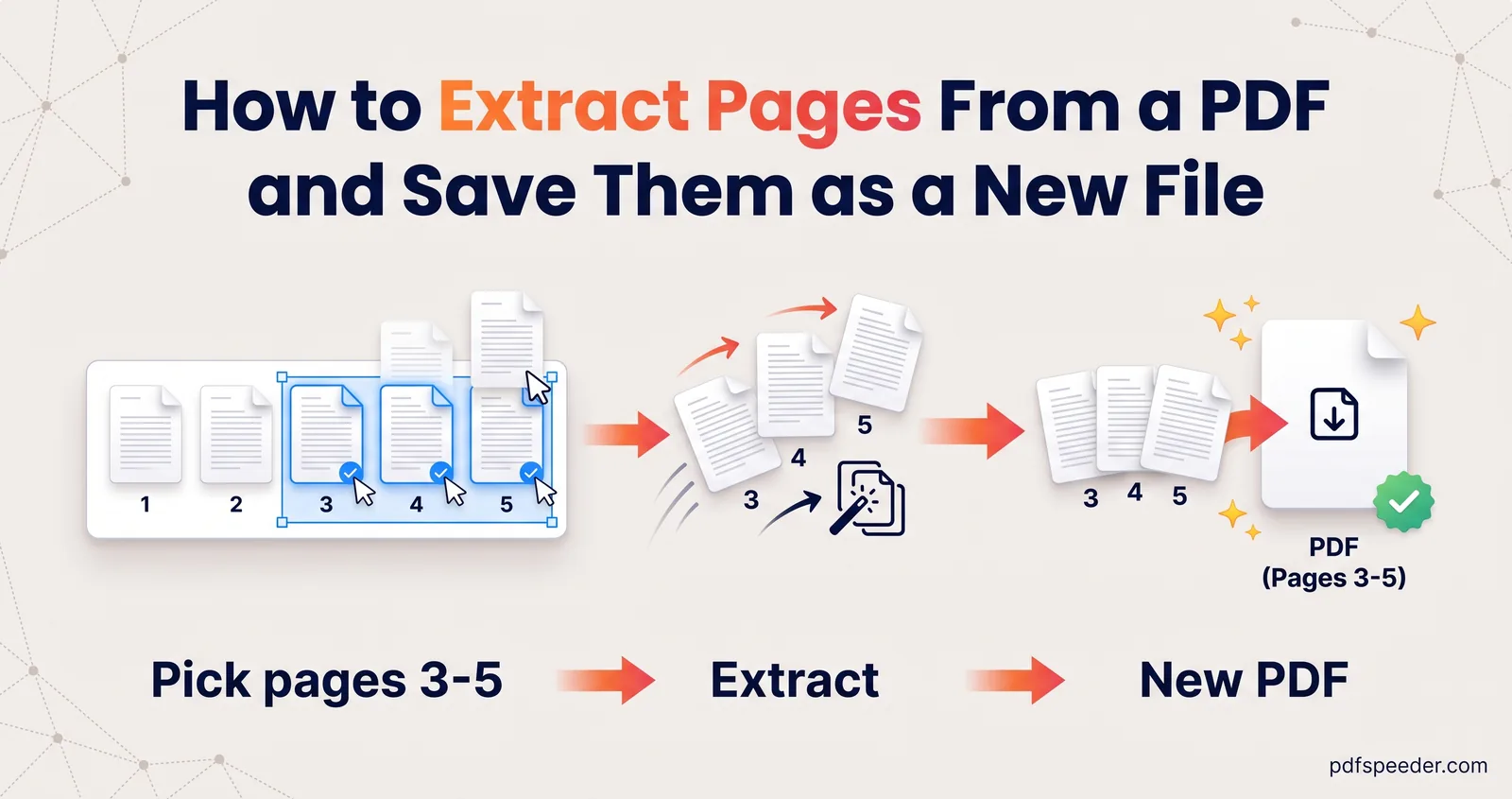
To extract pages from a PDF, choose the pages you want and save them into one new PDF, leaving the original untouched. In a browser, Extract PDF Pages lets you click the page thumbnails or type a range such as 1,3,5-9. You can also do it for free with Chrome's print dialog or Preview on a Mac, and a password-protected file only needs its password.
On this page
Extract pages from a PDF online: pick or type a range
Extract PDF Pages is built for exactly this job: a few pages out, one new file in. It runs in your browser, so the PDF isn't uploaded, and it accepts files up to 100 MB.
- Open Extract PDF Pages and add your PDF. Every page appears as a thumbnail.
- To pick by eye, keep Click to Select and click each page you want; a check mark confirms it, and a second click removes it.
- To pick by number, switch to Use Page Range, type the pages (for example
1,3,5-9,12) and select Apply. - Check the counter, which shows how many pages are selected, then select Extract Pages.
- Select Download Extracted PDF. The file is named after the original with "_extracted" added.
The pages are copied as they are, so text stays selectable and images keep their quality. Each extraction counts as one task in the free daily allowance (2 a day without an account, 3 with a free account).
To save one page of a PDF, select just that page. That's the quickest way to send a single certificate from a scanned bundle, or the one page of a statement someone asked for.
Note: The new file always keeps the original page order: picking 9, 2 and 5 gives you pages 2, 5 and 9. To change the order afterwards, use Reorder Pages.
Page-range syntax that saves time
Typing is faster than clicking once a document runs to dozens of pages. The range box follows a few simple rules:
| You type | You get |
|---|---|
7 |
Page 7 only |
1,3,5-9 |
Pages 1, 3, 5, 6, 7, 8 and 9 |
12-20, 31 |
Pages 12 to 20, then 31 (spaces are fine) |
9-5 |
Pages 5 to 9: a backwards range is read the right way round |
40-60 in a 50-page file |
Pages 40 to 50: numbers past the end are ignored |
One thing it doesn't understand is an open-ended range such as 5-. Type the last page number instead, such as 5-50.
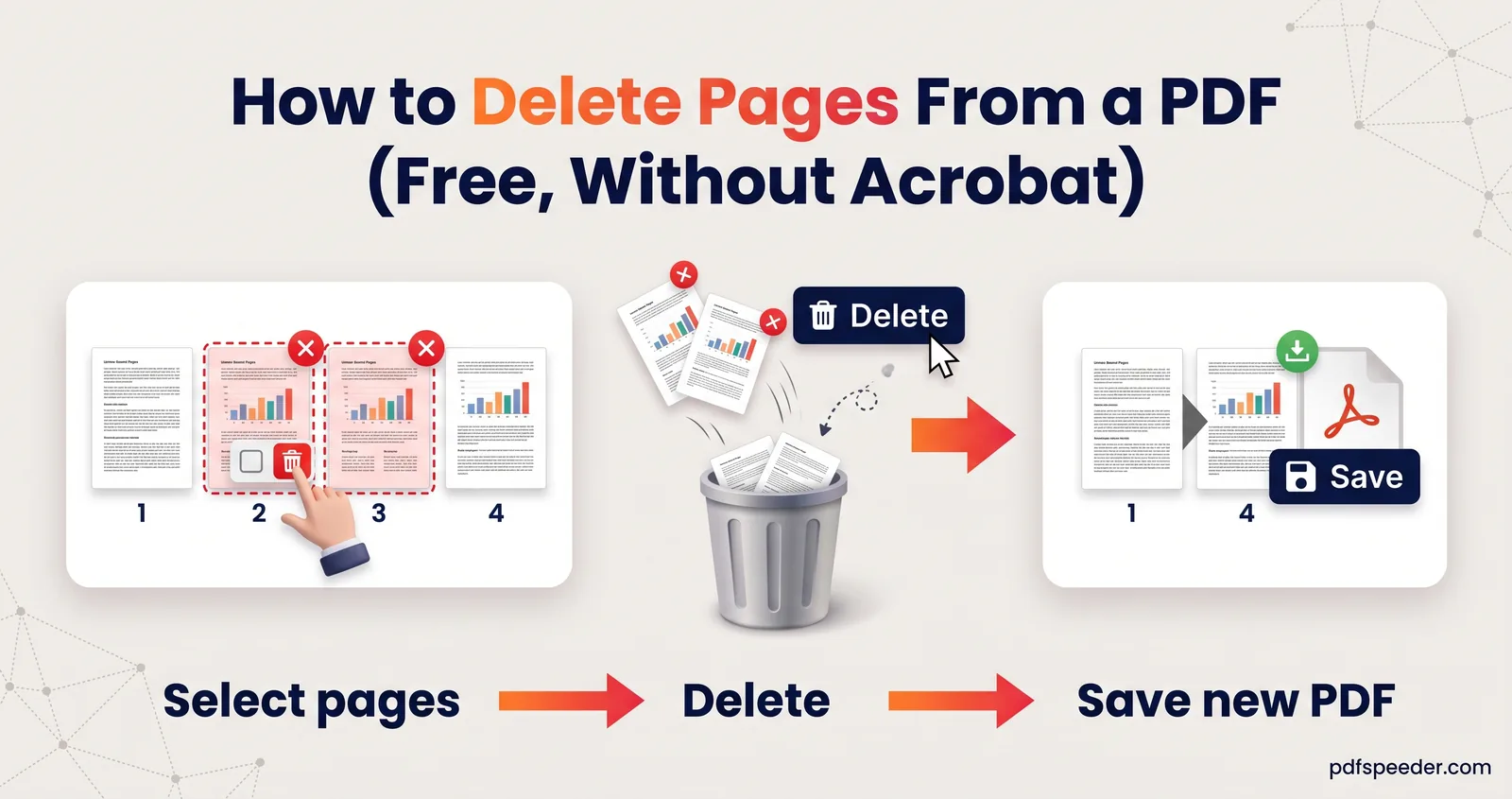
The shortcut buttons cover the common patterns: Select all, Clear, Invert, Odd pages and Even pages. Invert is the time-saver when you want everything except a few pages: click the pages you don't want, then invert the selection. For that job you can also delete the unwanted pages from the PDF directly.
Save each page as its own file instead
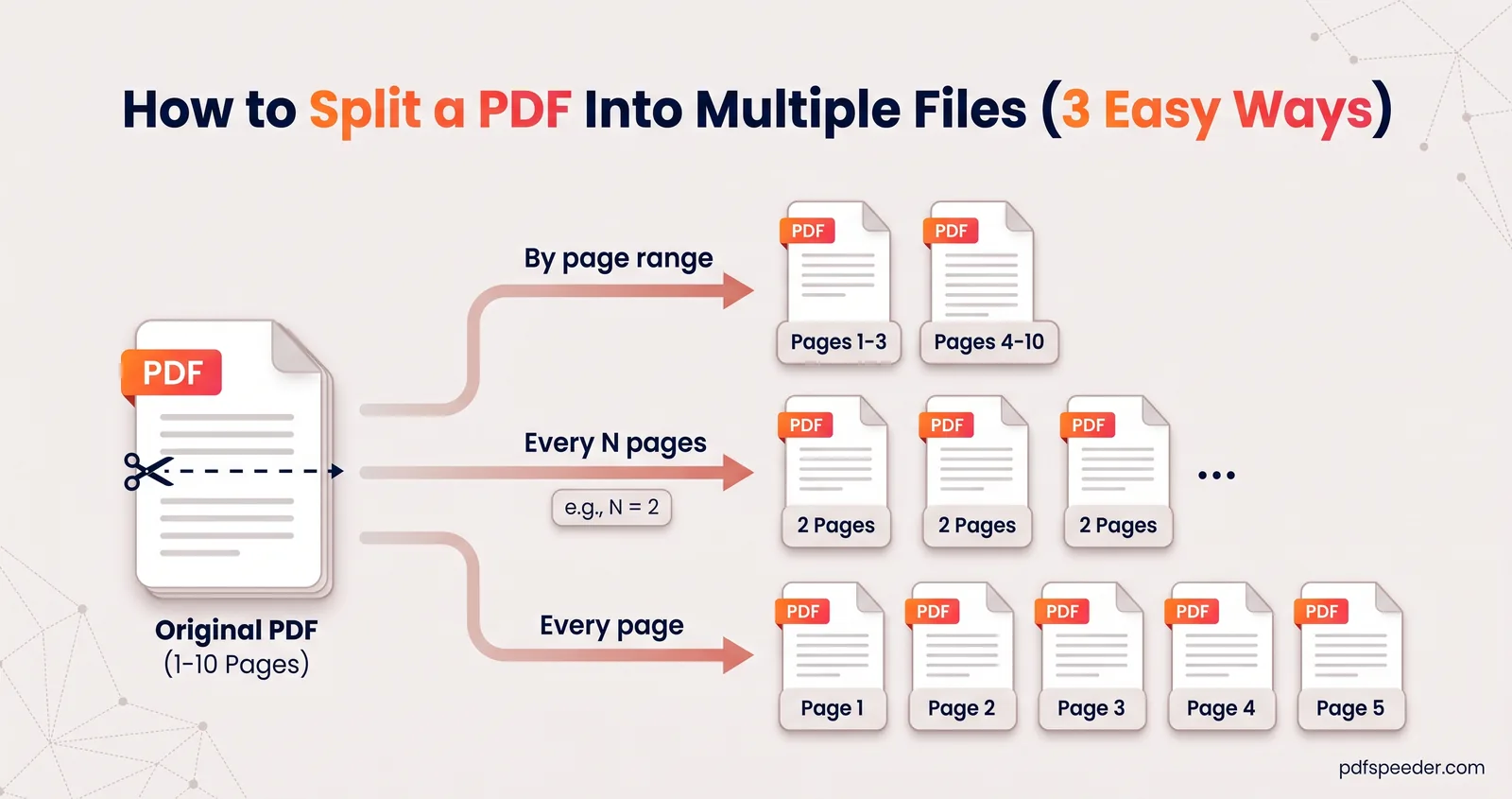
Extracting always produces one PDF. If you want to save PDF pages separately, one file each, use Split PDF instead: its Extract All mode makes one PDF per page, and Pick Pages with One PDF per picked page does the same for just the pages you choose. Our guide to splitting a PDF into multiple files covers every mode.
Extract pages with Chrome's print dialog
If you'd rather not use any online tool, Chrome can extract specific pages from a PDF through its print dialog, because "printing" to a PDF with a custom page range creates a new file:
- Open the PDF in Chrome, for example by dragging it into a Chrome window.
- Press Ctrl + P (on a Mac, ⌘ + P).
- Set Destination to Save as PDF.
- Under Pages, choose Custom and type the pages, such as
2-4, 7. - Select Save and choose where to put the new file.
It's free and works offline, and it doesn't use a daily task. The catch is that printing rebuilds the pages rather than copying them, so extras such as links, bookmarks and fillable form fields may not survive. Use it for documents you only need to read or upload; use Extract PDF Pages when you need an exact copy of the pages.
Tip: If the print option is greyed out, the PDF's permissions block printing, and Chrome won't print it. For a file you're allowed to use, Extract PDF Pages gets round that: it opens such a file without asking for a password, and the extracted copy carries no restrictions.
Extract pages on a Mac with Preview
Every Mac can pull pages out of a PDF without extra software. According to Apple's Preview guide, you can create a new PDF by dragging thumbnails from the sidebar to the desktop:
- Open the PDF in Preview and choose View > Thumbnails.
- Select the pages you want. Command-click to pick pages that aren't next to each other.
- Drag the selected thumbnails onto the desktop.
The new PDF holds only those pages, and the original stays as it was. Rename it in the Finder before you send it.
Extracting from a password-protected PDF
Files like bank statements and e-documents often open only with a password. Extract PDF Pages asks for the password when you add the file, decrypts it in your browser, and saves the extracted copy without the password, with its text still selectable. That's one task.
Use Unlock PDF only if you also want a password-free copy of the whole file. If the extracted pages have to stay protected, lock the new file again with a password of your choice.
Chrome works too: it asks for the password when it opens the file, and Save as PDF with a custom page range writes a new copy without the password, as long as the file allows printing. If you don't know the password, no legitimate tool can open the file; our guide to removing a password from a PDF explains your options.
Open Extract PDF Pages, type the range you need, and check the page count in the new file before you send it.
Frequently asked questions
How do I save just one page of a PDF?
In Extract PDF Pages, click that one page and select Extract Pages. In Chrome, print the PDF with Save as PDF as the destination and type the page number under Custom pages.
Can I extract pages in a different order?
Not in one step: extracted pages always keep their original order. Extract them first, then rearrange the new file with Reorder Pages.
What's the difference between extracting and splitting a PDF?
Extracting puts the pages you choose into one new PDF. Splitting cuts a PDF into several files, such as one per chapter or one per page.
Does extracting pages reduce the quality?
No. Extract PDF Pages copies the pages unchanged, so text and images look exactly as they did. Printing to PDF rebuilds the pages, which can drop links and form fields.
Is my PDF uploaded when I extract pages?
No. Extract PDF Pages runs in your browser, so the file stays on your device, although each extraction still counts as one task.