How to Remove a Password From a PDF You Can Already Open
Remove the password from a PDF you can open, such as a bank statement or salary slip: in your browser, through Chrome or Edge, or with Preview on a Mac.

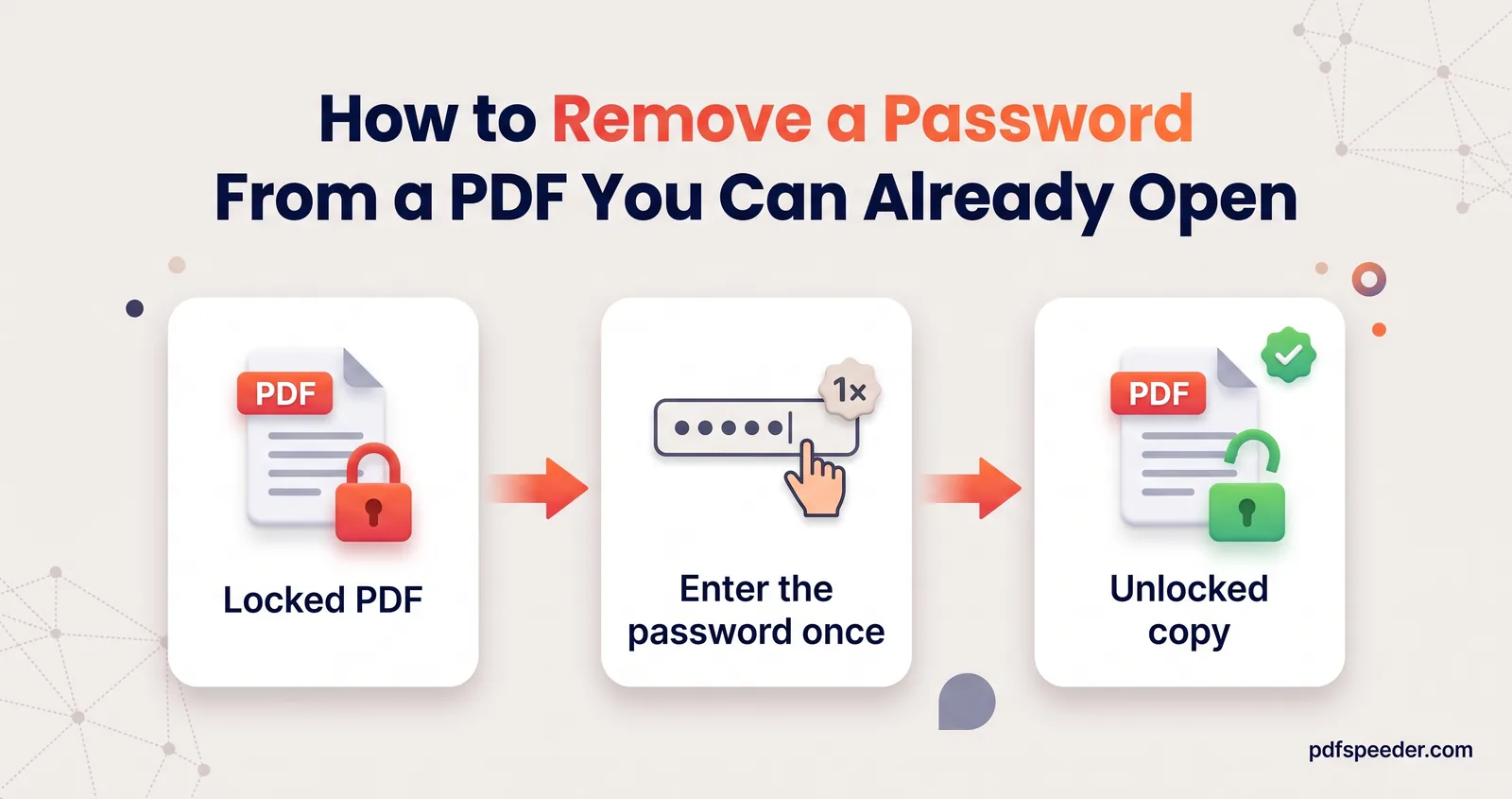
To remove the password from a PDF you can already open, enter the password once and save a copy that doesn't ask for it. You can do that in your browser with an online unlocker, by printing to PDF from Chrome or Edge, or with Preview on a Mac, and each route takes about a minute. All three need the password, because no legitimate tool skips it, so this guide is for your own bank statements, salary slips and e-statements.
On this page
Before you start: you need the password
PDFs can carry two different passwords, and it helps to know which one you're dealing with:
- An open password (also called a user password) stops the file opening at all. Bank statements, salary slips and e-Aadhaar copies usually use this kind, and you must know it to remove it.
- A permissions password (also called an owner password) lets the file open but blocks printing, copying or editing. Some forms and reports carry only this kind.
If you're asked for a password the moment you open the file, it's the first kind. If the file opens normally but Print or Copy is greyed out, it's the second.
Removing a password doesn't break any encryption. Each method below decrypts the file with the password you supply, then saves a copy that no longer asks for it. Do this only with documents you're entitled to open, and keep the unlocked copy somewhere private: anyone who gets hold of it can read it.
How to remove a password from a PDF online
Our Unlock PDF tool runs entirely in your browser, using qpdf, a widely used open-source PDF engine, compiled to run inside the page. Your statement isn't uploaded anywhere, which matters for a document full of account numbers and balances.
- Open Unlock PDF and drop in your file (up to 50 MB).
- Wait a moment while it checks the file. It tells you whether the PDF needs a password to open, only has restrictions, or isn't protected at all.
- If it needs a password, type it in (the eye icon shows what you've typed) and select Unlock PDF. For a restrictions-only file, the button reads Remove restrictions and no password is needed.
- Download the copy. It's saved with "_unlocked" added to the name and opens without a password prompt.
The decryption is lossless. Text stays selectable and searchable, and pages, images and links come through unchanged. Under Advanced options you can also tick Optimize for fast web view or Recompress streams, and the second often makes the unlocked file smaller.
Note: If the password is wrong, the tool says so and lets you try again. Only a successful run counts as one task in the free daily allowance: 2 tasks a day without an account, 3 with a free account, reset at 00:00 UTC (05:30 IST).
Once your statements open freely, you can combine several months into one file with Merge PDF, which also works in your browser.
Remove it with Chrome or Edge
Any browser that displays PDFs can make a password-free copy by printing the open file to a new PDF. It's the quickest way to save a PDF without a password when you're already at a computer:
- Drag the PDF into a Chrome or Edge window, or right-click it and choose Open with, then type the password when asked.
- Press Ctrl+P (Cmd+P on a Mac) to open the print dialog.
- Set the destination or printer to Save as PDF. On Windows, Microsoft Print to PDF works too.
- Select Save, then pick a name and folder for the copy.
The new file is a fresh print of the pages, so it carries no password. Text normally stays selectable, but links, bookmarks and fillable form fields may not survive the trip through the print dialog.
Warning: If the print button is greyed out or Ctrl+P does nothing, the PDF has a permissions password that blocks printing. Chrome deliberately disables printing for such files, so use the online method instead, which removes those restrictions along with the open password.
Remove it on a Mac with Preview
Preview, the PDF viewer built into every Mac, makes a clean copy through the same kind of print dialog:
- Open the PDF in Preview and enter the password.
- Choose File > Print.
- Click the PDF pop-up menu at the bottom of the dialog and choose Save as PDF.
- Give the copy a new name and select Save. Leave Security Options alone, because that's where you'd add a password rather than remove one.
Apple describes these steps in its guide to saving a document as a PDF on Mac.
If you protected the file yourself in Preview, there's a tidier way to remove the PDF password on a Mac. Choose File > Edit Permissions, deselect Require Password To Open Document and click Apply; Apple's guide to password-protecting a PDF in Preview explains the permission options. Preview also respects print restrictions: it asks for the owner password before printing a file that blocks printing.
Which method should you use?
All three keep the file on your own device. They differ in what happens to the parts of the PDF that aren't plain page content:
| Unlock PDF | Chrome or Edge | Preview on a Mac | |
|---|---|---|---|
| What you need | The open password (none for restrictions only) | The open password | The open password |
| Works when printing is blocked | Yes | No | Only with the owner password |
| Text stays selectable | Yes | Usually | Usually |
| Links and bookmarks kept | Yes | Not always | Not always |
| Uses a free daily task | Yes, one per file | No | No |
For a single statement you need to print, the browser route is fine. For anything you'll merge, search or convert later, such as turning a bank statement into a spreadsheet, the lossless online copy is the better starting point.
Forgot the password? Your real options
If a PDF won't open without a password you don't know, no legitimate tool will get you in. Unlock PDF doesn't crack or guess passwords, and sites that promise to "recover" them are a risky place to upload a bank statement. These routes do work:
- Check the message that came with the file. Banks, employers and government portals often explain the password format in the email or SMS that delivered the PDF, or on their help pages. Formats vary between organisations and change over time, so go by what the sender tells you rather than a list you find online.
- Check the details. Passwords are case-sensitive, a date may be expected as DDMMYYYY rather than DD-MM-YYYY, and a stray space breaks everything. Typing the password in a notes app first makes mistakes easier to spot.
- Download it again. If you can log in to the net banking or portal that issued the file, download a fresh copy and look for password instructions on the same page.
- Ask the sender. For a file someone emailed you, ask for the password or an unprotected copy, ideally by phone or another channel rather than in the same email thread.
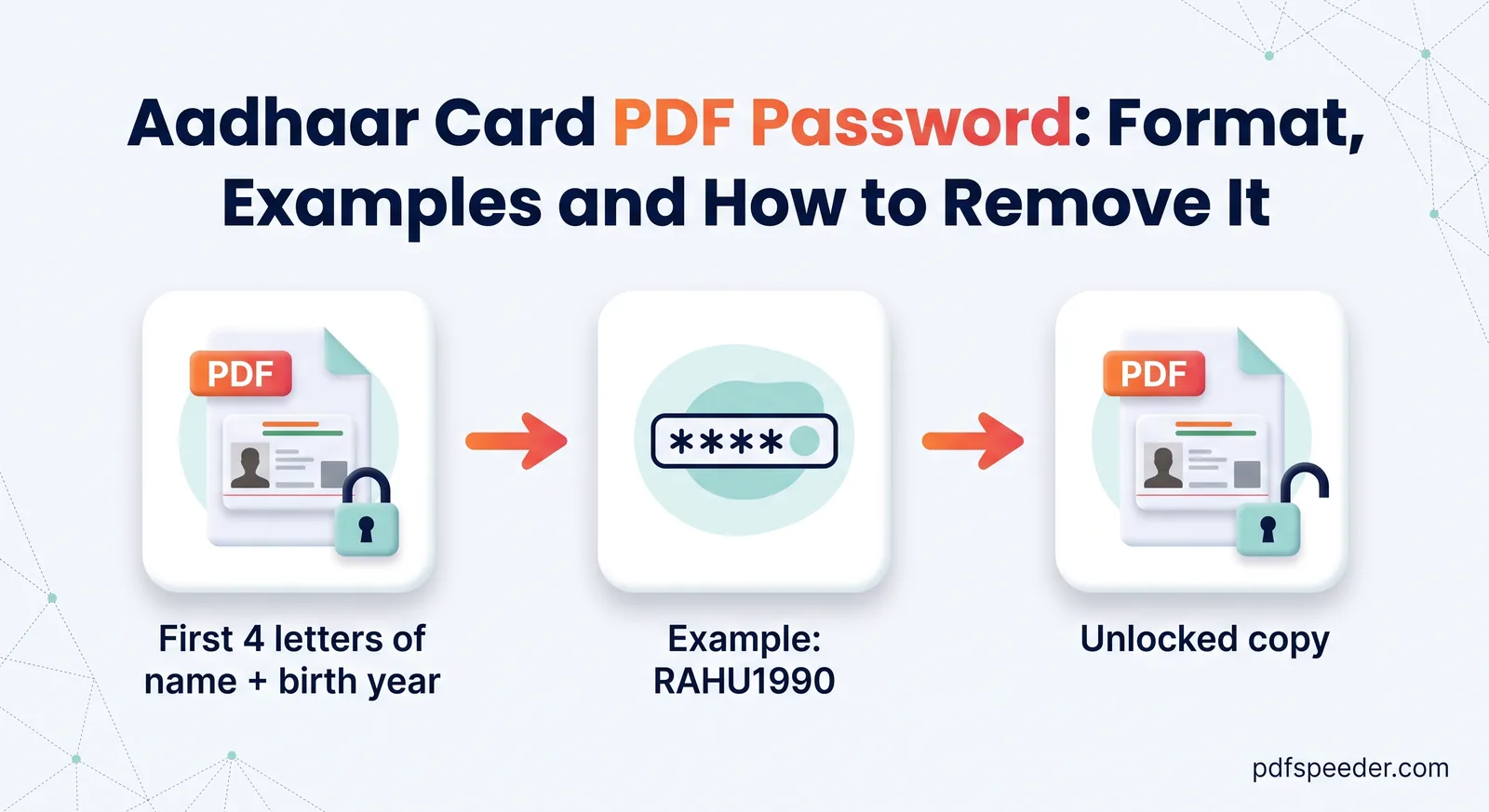
Tip: UIDAI publishes the e-Aadhaar format on its Aadhaar Online Services page: the first four letters of your name in capitals, followed by your year of birth. Our Aadhaar card PDF password guide works through examples for short names, initials and spaces.
Ready to try it? Drop your statement into Unlock PDF, type the password once, and store the unlocked copy somewhere only you can reach. If you'll be emailing it on, protect it again first with Lock PDF; our guide to password-protecting a PDF covers choosing a password and sharing it safely.
Frequently asked questions
Can I remove a PDF password without knowing it?
Not if the password is needed to open the file: every legitimate method, ours included, needs it. If the file opens freely and only blocks printing or copying, Unlock PDF removes those restrictions without a password, so use it only on documents you're allowed to use that way.
Is my bank statement uploaded when I use Unlock PDF?
No. Unlock PDF decrypts the file inside your browser, so the statement and its password never reach our server.
Will removing the password change the PDF?
With Unlock PDF the pages, text, images and links stay as they were, and only the encryption is removed. The print-to-PDF routes make a fresh copy, which can lose links, bookmarks and fillable fields.
How do I add a password back later?
Run the unlocked copy through Lock PDF and choose a new password. On a Mac you can also open it in Preview, choose File > Export and set one with the Permissions button.
Why does it keep saying the password is incorrect?
Passwords are case-sensitive and must match the expected format exactly, so check capitals, date formats and stray spaces. If you're sure it's right, ask the sender to confirm the format or send a fresh copy.