Aadhaar Card PDF Password: Format, Examples and How to Remove It
The Aadhaar card PDF password is the first four letters of your name in capitals plus your birth year. See UIDAI's examples, common mistakes and fixes.

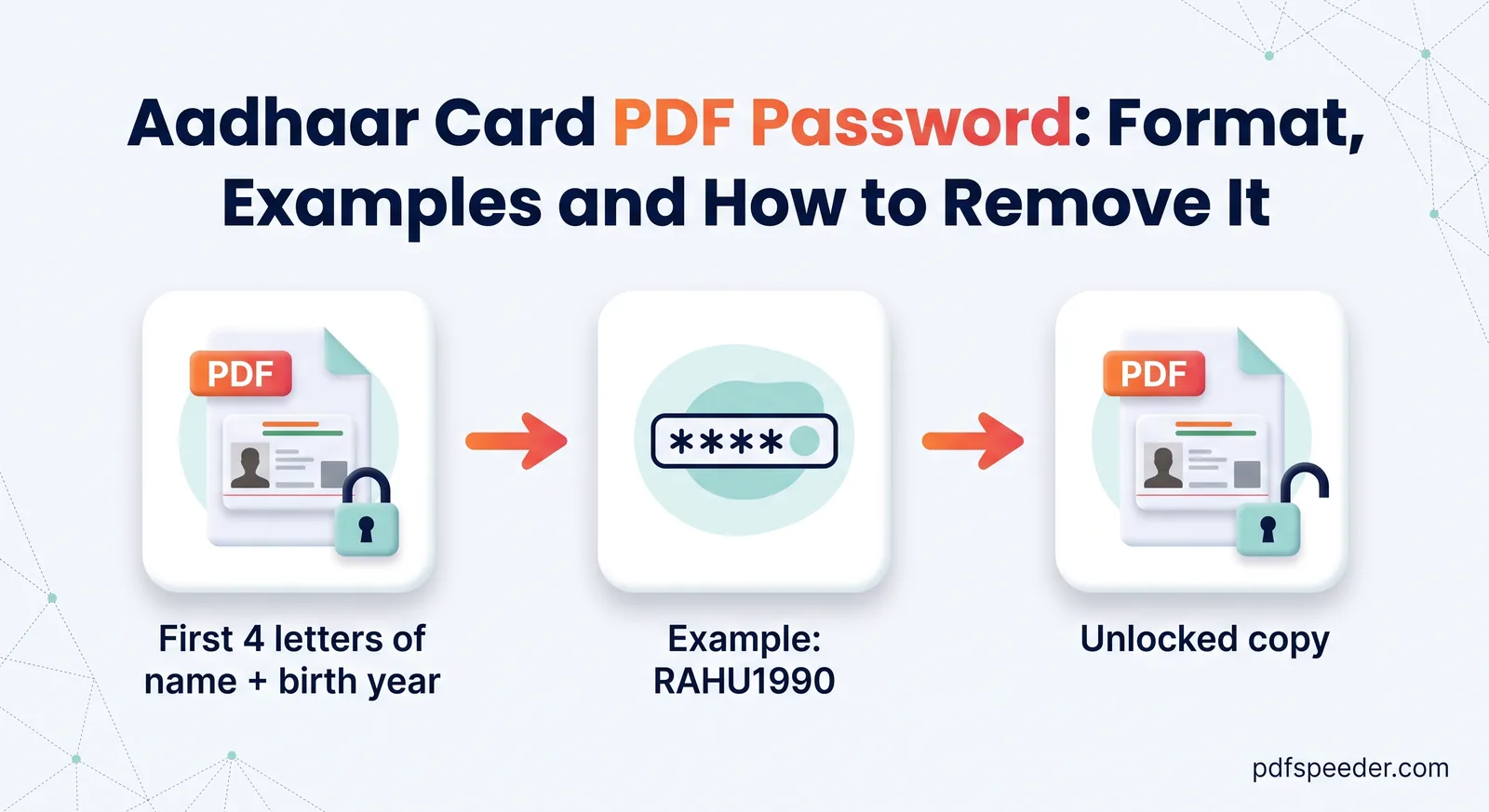
The Aadhaar card PDF password is the first four letters of your name in capital letters, followed by your year of birth in four digits. If your name is SURESH KUMAR and you were born in 1990, the password is SURE1990. This guide walks through UIDAI's official examples, the small details that make the password fail, and how to save a password-free copy when you need to print, merge or upload your e-Aadhaar.
On this page
The Aadhaar card PDF password format
UIDAI, the authority that issues Aadhaar, describes e-Aadhaar as a password-protected electronic copy of Aadhaar, digitally signed by UIDAI. Its Aadhaar Online Services FAQ gives the e-Aadhaar password as a combination of two parts:
e-Aadhaar password = first 4 letters of your name, in CAPITALS
                   + your year of birth, as YYYY

SURESH KUMAR, born 1990   →   SURE1990
Three details trip people up. The letters must be capitals. The year is the full four-digit year, not your whole date of birth. And the name is the one printed on your Aadhaar, so a nickname, or the spelling on your PAN card or school certificate, won't work if it differs.
UIDAI's examples are written in English capital letters, so go by the English spelling of your name on the card, exactly as printed.
Aadhaar password examples for different names
UIDAI's FAQ gives four examples, and each one answers a question people often ask about the Aadhaar PDF password format:
| Name on Aadhaar | Year of birth | Password | What the example shows |
|---|---|---|---|
| SURESH KUMAR | 1990 | SURE1990 | Only the first four letters of the name are used |
| SAI KUMAR | 1990 | SAIK1990 | The space is skipped, and the letters carry on into the next word |
| P. KUMAR | 1990 | P.KU1990 | The full stop after an initial is kept as one of the four characters |
| RIA | 1990 | RIA1990 | A name shorter than four letters is used in full |
Two more, worked exactly the same way as UIDAI's first two examples:
- ANJALI SHARMA, born 1995: the first four letters are A, N, J and A, so the password is ANJA1995.
- OM PRAKASH, born 1988: OM has only two letters, so the space is skipped and P and R complete the four. The password is OMPR1988.
If your name has other punctuation, such as a hyphen or an apostrophe, UIDAI's examples don't say how it's treated. The P. KUMAR example shows that punctuation printed in the name can count, so try the characters exactly as they appear on your card first.
Why the e-Aadhaar password isn't working
When the e-Aadhaar password is rejected, work through these common causes in order:
- Lowercase letters. sure1990 fails where SURE1990 works. On a phone, turn on caps lock and watch for auto-capitalisation changing only the first letter.
- The full date of birth. SURE15081990 is wrong; only the year goes in: SURE1990.
- A two-digit year. SURE90 is too short. The year always has four digits.
- The space counted, or the full stop dropped. SAI KUMAR gives SAIK, not SAI followed by a space. P. KUMAR gives P.KU, with the full stop.
- A different spelling. Use the name exactly as it's printed on your Aadhaar, even if you spell it differently elsewhere.
- A typing slip. Tap the eye icon in the password box, if your viewer has one, to see what you actually typed.
How to open the Aadhaar PDF on a phone or computer
According to UIDAI, you can download e-Aadhaar from the MyAadhaar portal or the Aadhaar mobile app, using your Aadhaar number, enrolment number or Virtual ID. The OTP for the download goes to your registered mobile number.
Once it's downloaded:
- Find the file in your Downloads folder, or in the Files app on a phone, and open it.
- Your PDF viewer asks for a password. That could be Chrome or Edge on a computer, or the Files app or a PDF reader on a phone.
- Type the password in capitals, as worked out above, and confirm.
Any standard PDF viewer can display the pages. To check UIDAI's digital signature, though, UIDAI's FAQ says you need Adobe Reader, so use that if someone asks you to confirm the copy is genuine.
How to remove the password from your Aadhaar PDF
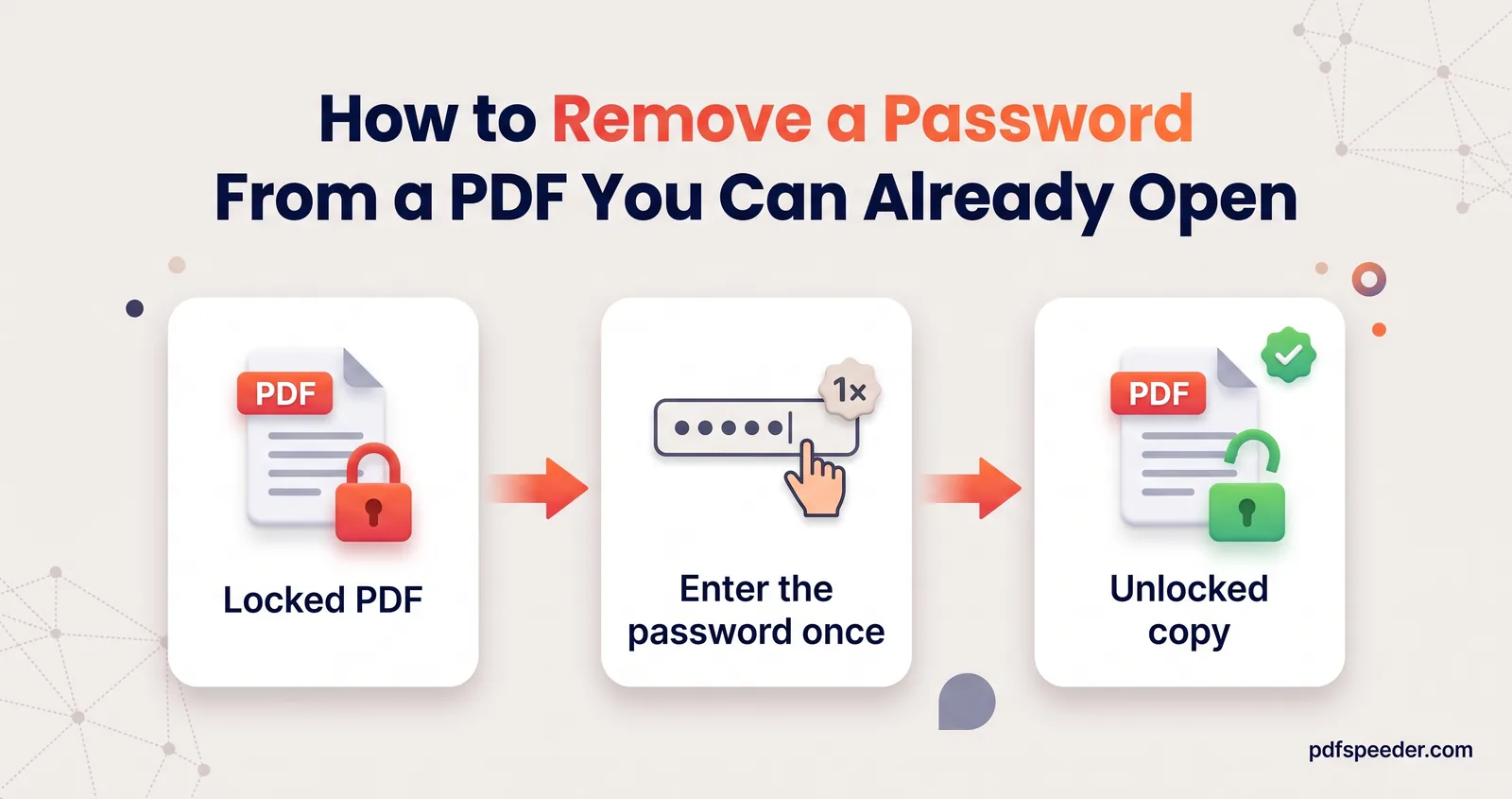
Typing the password every time is tedious, and some upload forms and print shops can't open a protected file at all. Our Unlock PDF tool saves a copy without the password, and it runs entirely in your browser, so your Aadhaar file is never uploaded to our server:
- Open Unlock PDF and drop in your e-Aadhaar.
- Type the password (for example SURE1990) and select Unlock PDF. If it's wrong, you'll see "Incorrect password" and can try again.
- Download the copy, which is saved with "_unlocked" added to the file name.
The copy keeps real, selectable text, so it prints sharply and stays small. For other ways to do the same job, such as printing to PDF from Chrome or Preview on a Mac, see our guide on removing a password from any PDF.
Warning: Removing the password rewrites the file, so UIDAI's digital signature no longer validates on the copy. Use the unlocked copy for printing and combining documents, and keep the original e-Aadhaar for anyone who wants to verify it.
Combine it with other documents or shrink it for a form
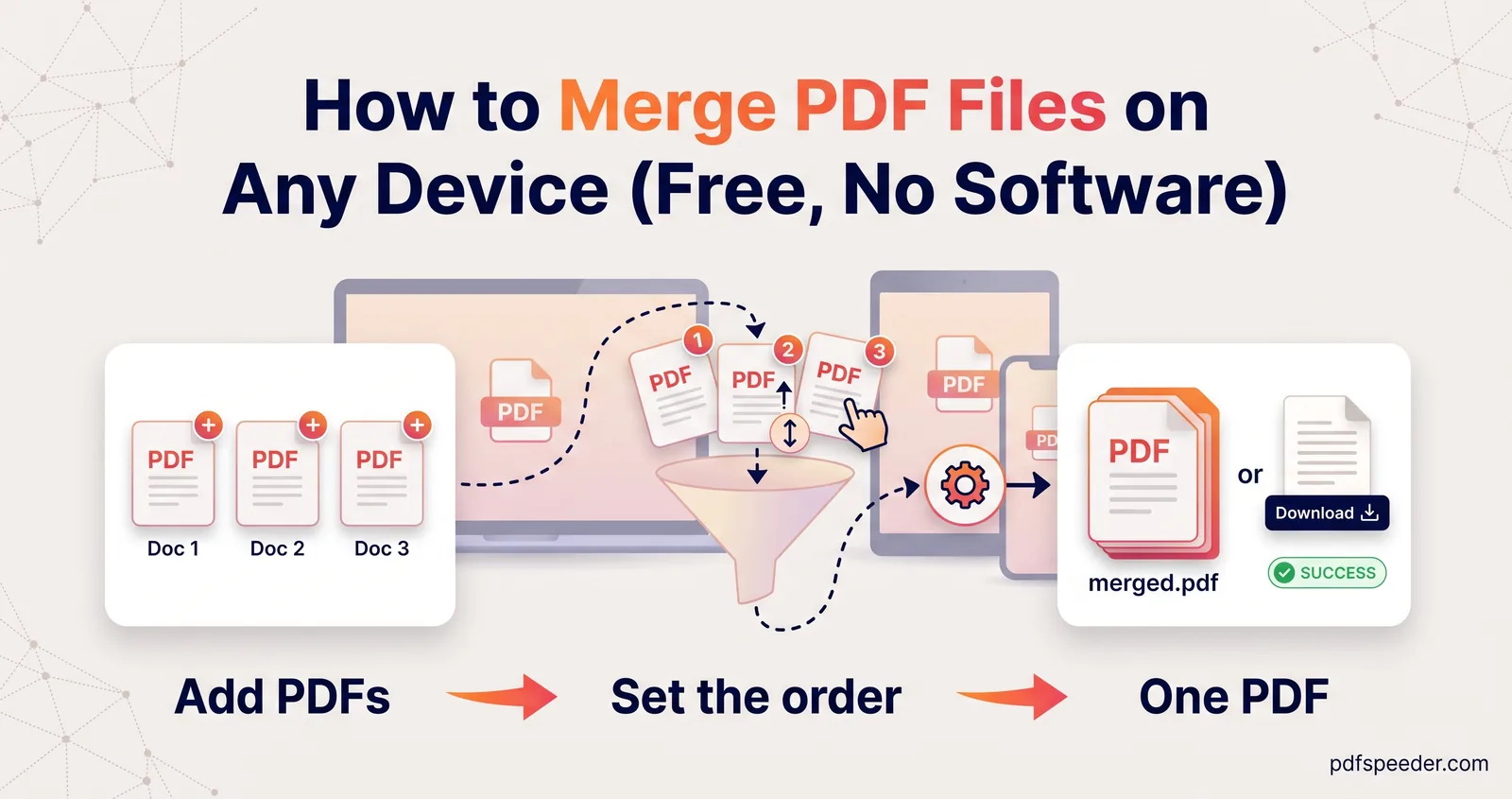
Applications often want Aadhaar, PAN and other documents in a single PDF. Merge PDF combines them in your browser, and it accepts the password-protected original too: it asks for the password and saves the merged file without one, with the text kept as text. Our guide on how to merge PDF files covers page order, page picking and rotation.
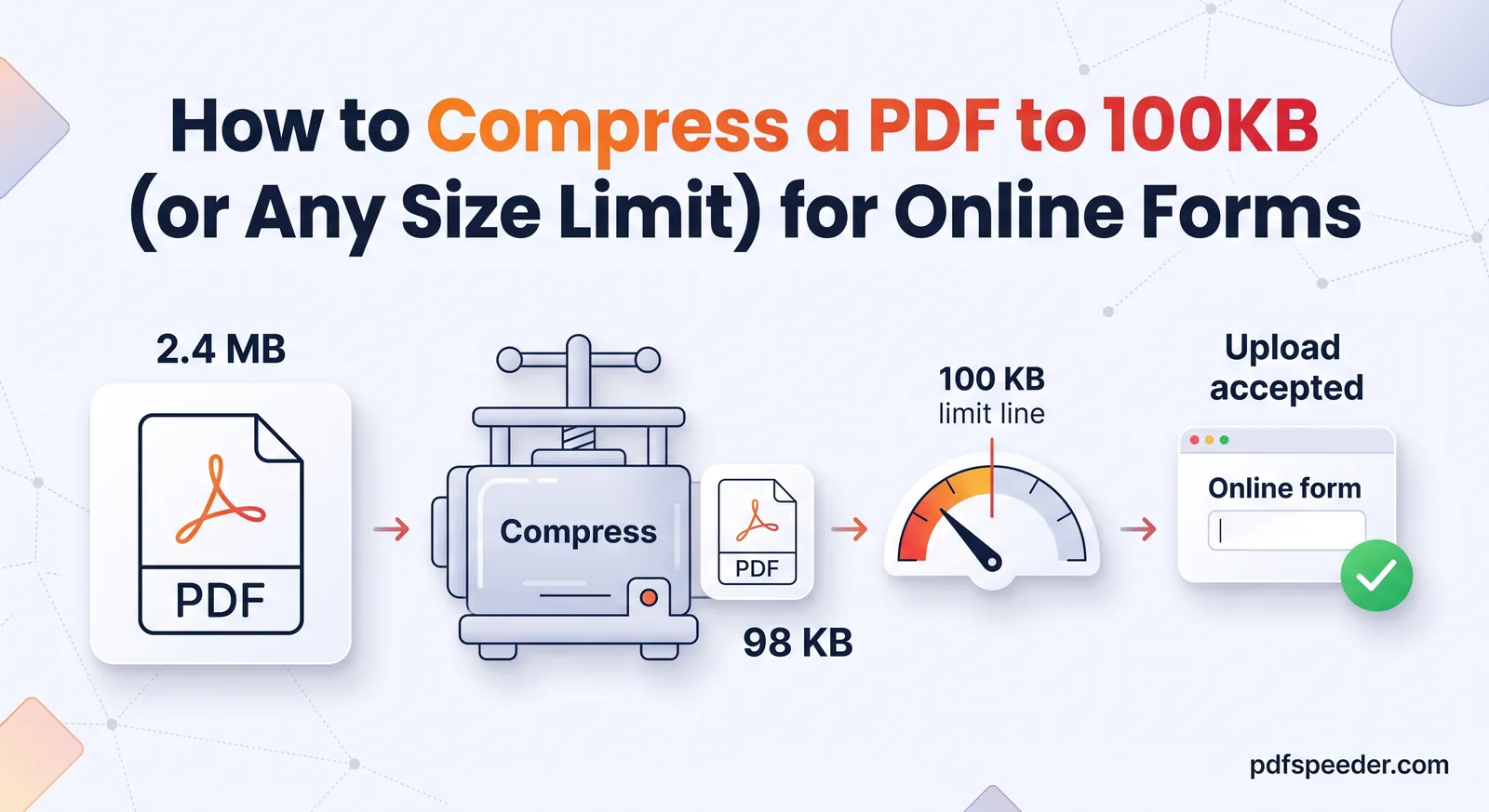
For portals with a tight size limit, Compress PDF asks for the password in your browser before anything is uploaded, and the uploaded copy is deleted from our server automatically within 2 hours. Our guide to compressing a PDF to 100 KB covers the settings that keep the numbers readable.
Note: Each tool run counts as one task in the free daily allowance: 2 tasks a day without an account, 3 with a free account, reset at 00:00 UTC (05:30 IST). Merging and compressing on the same day takes 2 tasks; unlocking first is only needed if you want a password-free copy of the Aadhaar on its own.
Keep your Aadhaar copy safe
A password-free Aadhaar copy is convenient, and it's just as convenient for anyone else who gets hold of it. A few habits keep it under control:
- Share the masked version where you can. UIDAI's masked Aadhaar replaces the first 8 digits of the Aadhaar number with "xxxx-xxxx", so only the last 4 are visible. You can choose it when you download from the MyAadhaar portal.
- Delete the unlocked file after use. Don't leave it in a shared folder, a print shop's computer or an old chat.
- Re-protect what you email. If you have to send the copy, protect it with Lock PDF using a password of your own, and share that password by phone or a separate message.
Ready? Open Unlock PDF, type your four capital letters and birth year, and keep the original e-Aadhaar safely alongside the copy.
Frequently asked questions
What is the password to open an e-Aadhaar PDF?
It's the first four letters of your name in capitals followed by your year of birth, as UIDAI explains in its FAQ. For SURESH KUMAR born in 1990, that's SURE1990.
My name has fewer than four letters. What is my password?
Use your whole name. UIDAI's own example is RIA, born in 1990, whose password is RIA1990.
Does the password use my full date of birth?
No. Only the four-digit year goes into the password, so a birth date of 15 August 1990 contributes just 1990.
Is my Aadhaar uploaded when I remove the password?
Not with Unlock PDF, which works inside your browser, so the file and the password stay on your device.
Can I set my own password for the e-Aadhaar PDF?
UIDAI sets the format, and its FAQ describes no way to choose your own. If you want a different password, remove the original one and protect the copy with Lock PDF.