How to Fill a Non-Fillable PDF Form (Type, Tick, Sign, Done)
Fill a non-fillable PDF form without printing it: type into any box, add ticks, dates and a signature, keep answers aligned, and flatten before you submit.

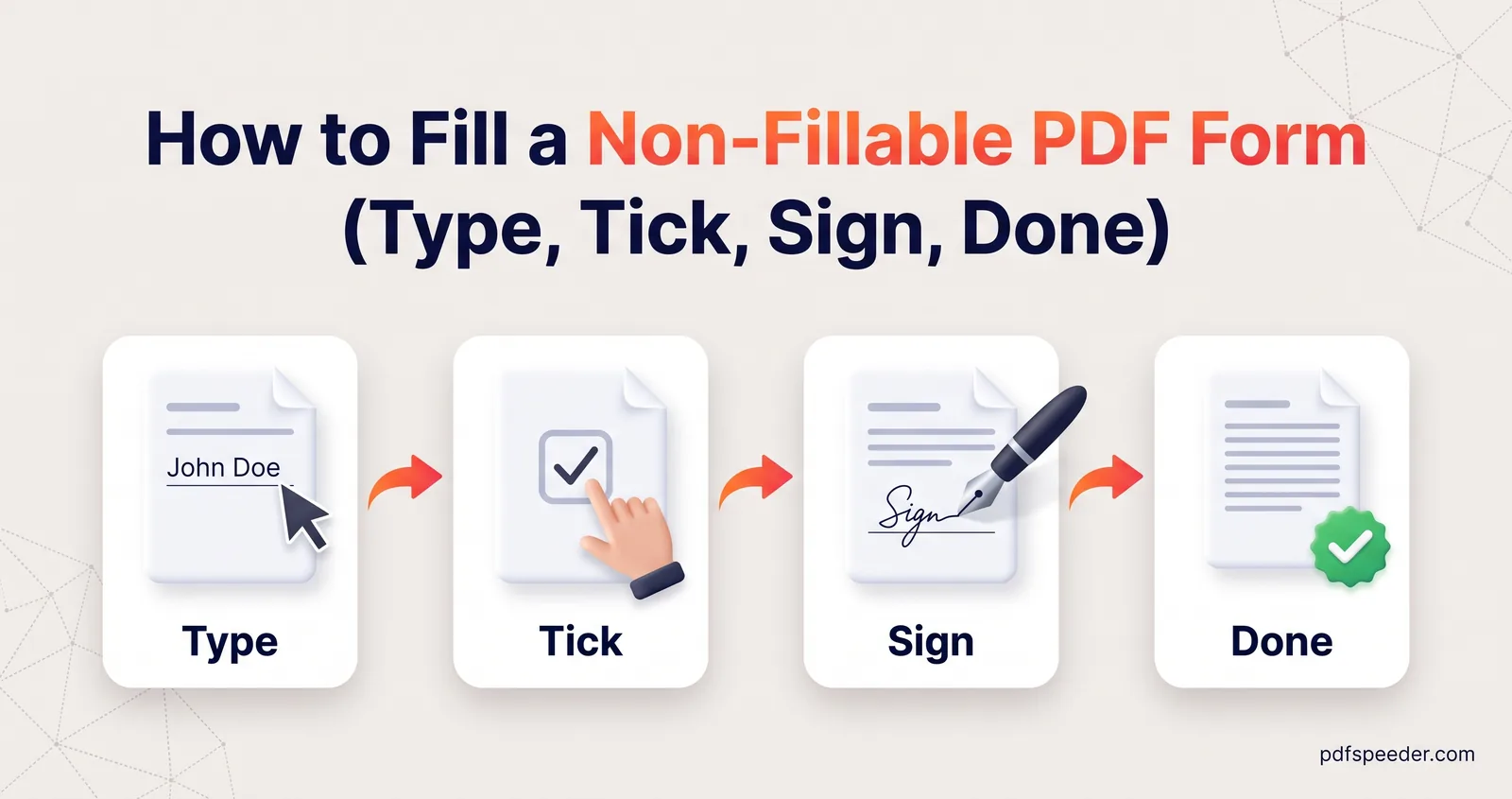
To fill a non-fillable PDF form, open it in a form filler that lets you place text anywhere on the page, then click each answer box and type, adding ticks, dates and your signature the same way. It takes a few minutes and no printer or scanner. Below, you'll see how to tell a fillable form from a flat one, how to keep your answers neatly inside the boxes, and the mistakes that get forms sent back.
On this page
Fillable or flat? How to tell in five seconds
Open the form in any PDF viewer, such as your browser, and click inside an answer box. That one click tells you what you're dealing with:
| What happens | What it means | How to fill it |
|---|---|---|
| A cursor appears and you can type | A fillable form with built-in fields | Type in the fields, then flatten |
| Nothing happens, but you can select printed words | A flat digital form | Place text boxes yourself |
| You can't select any words, not even the title | A scanned form, which is a picture of paper | Place text boxes yourself |
You don't have to work it out by hand, though. Our PDF Form Filler checks for built-in fields when you open a file. If it finds them, it says "Fillable form detected" and puts an input box over each one; if it finds none, it opens the form in manual mode, ready for you to type anywhere.
How to fill a non-fillable PDF form: text, ticks and dates
PDF Form Filler lets you fill a PDF form online without uploading it: it runs in your browser, so the form and everything you type stay on your device. That matters for forms full of account numbers, addresses and ID details.
- Open PDF Form Filler and drop in the form (up to 50 MB).
- Choose Text in the toolbar, click where an answer goes and type. Press Enter when you've finished that box.
- Choose Tick or Cross and click inside each check box the form wants marked. Use whichever mark the form asks for, and resize it with the corner handle if the tick box in the PDF is small.
- Choose Date and click to drop today's date, written as DD/MM/YYYY. Double-click it to change it to another date or format.
- Move between pages with Prev and Next, and repeat for each page.
- Select Download Filled PDF. The file is saved with "_filled" added to its name.
If the form has some fillable fields but not everywhere you need to write, you don't need to switch modes: type in the detected fields and click empty parts of the page to place extra text, ticks or a signature. Choose Switch to manual mode only if you'd rather place everything yourself, because entries typed into detected fields are saved only while those fields are showing.
Downloading the form counts as one task in the free daily allowance: 2 tasks a day without an account, 3 with a free account, reset at 00:00 UTC.
Other free ways to type on a scanned form
Your own devices can do a simple version of this. Chrome's built-in PDF viewer has an Add text button, as Google explains in its help page on managing PDFs in Chrome. Preview on a Mac lets you add a text box when a form won't accept typing directly, and the Files app on an iPhone has Add Text Form Box.
These are fine for a few answers; for a long form, a dedicated form filler is quicker because you can set the font and nudge each answer into place. To change printed text rather than fill in blanks, see our guide on how to edit a PDF.
Keep your answers inside the boxes
Neat alignment is what makes a typed form look official rather than pasted on. These habits help:
- Zoom in. Use the zoom buttons, or Fit to fill the screen width, so you can see exactly where each line sits.
- Match the size of the printed text. Set the font size before you place a box; 10 to 12 is a sensible start for most forms, and anything between 6 and 72 is allowed. Text that's bigger than the form's own labels spills over the lines.
- Nudge with the keyboard. Click an answer to select it, then use the arrow keys to move it a little at a time, or hold Shift for bigger steps.
- Use Courier for character boxes. Fields with one box per letter, common for names, PAN numbers and PIN codes, line up best with a fixed-width font. Choose Courier from the font list and adjust the size until each letter sits in its own box, or place each character as a separate text box.
- One answer per box. A separate text box for each line of an address is easier to align than one long entry.
If a click doesn't drop anything, something was still selected. The first click only deselects it; click again to place the new item.
Add your signature
In PDF Form Filler, choose Sign, draw your signature with a mouse or your finger in the pad that appears, then click the page where it belongs. Drag the corner handle to resize it so it sits on the signature line without covering the printed text. The pen is navy blue by default, like a ballpoint, and you can change the colour and stroke width.
For a typed signature in a handwriting font, or a photo of your real one, use Sign PDF instead. It also adds initials and dates, and it can remember your signature in your browser for next time. It counts as a separate task, so do your typing in the form filler first and sign last. Our guide on how to sign a PDF compares the different kinds of signature.
Flatten and save the completed form
Flattening turns everything you've added into a permanent part of the page, so nobody can click a field and change it, and every viewer shows the same thing.
PDF Form Filler does this for you. Answers typed into detected fields are flattened when you download, and anything placed in manual mode is drawn straight onto the page.
Flatten separately when you've filled the form somewhere else, such as in Chrome, Preview or another app, where answers can stay as editable fields. Open Flatten PDF, drop in the filled form, keep Form fields and Annotations & comments ticked, and download the flattened copy. To check any file, open it and click on an answer: if you can still edit it, it isn't flat yet.
Tip: Keep your filled but unflattened copy until the form is accepted. If you need to correct one answer, it's much quicker than starting again.
Mistakes that get forms rejected
Whoever processes your form decides what's acceptable, so read its instructions first. These slips are easy to make and just as easy to avoid:
- Text over the printed labels. An answer that overlaps a heading or spills past a box can make both unreadable. Zoom in and check every page before you download.
- The wrong date format. DD/MM/YYYY and MM/DD/YYYY read very differently. Use the format printed on the form, and edit the Date tool's entry if it differs.
- Blank mandatory fields. Look for asterisks, "required" notes and declarations at the bottom of each page.
- A missing or tiny signature. Some forms want a signature on every page, or a signature and the place and date beside it.
- Lowercase where capitals were asked for. Many forms say "fill in BLOCK LETTERS", so retype anything in lowercase rather than hoping nobody minds.
- An editable file. If the recipient's system shows empty boxes where you typed answers, the answers were probably left as unflattened fields. Flatten the file and send it again.
- A file too big to upload. Typed text adds almost nothing, but a scanned form can be large. Our guide to compressing a PDF to 200 KB shows how to shrink a scan without making it unreadable.
When you're ready, open PDF Form Filler, drop in your form and start with the first box.
Frequently asked questions
How do I fill a PDF form that is not fillable?
Open it in a form filler that works in manual mode, click where each answer goes and type. PDF Form Filler does this in your browser and also adds ticks, crosses, dates and a drawn signature.
Can I fill out a PDF form without printing it?
Yes. Type your answers, add your signature digitally, and download the completed PDF ready to email or upload, with no printer or scanner involved.
Can I type on a scanned form?
Yes. A scan is a picture of the paper, so place text boxes over the answer spaces. Set the font size to match the printed text and nudge each answer into position with the arrow keys.
Why can't I type in my PDF form?
The form has no built-in fields, so there's nothing for your viewer to type into. Use a form filler's manual mode, or the Add text option in Chrome's PDF viewer for a quick answer or two.
Is my form uploaded anywhere?
No. PDF Form Filler, Sign PDF and Flatten PDF all work inside your browser, so the form and your answers stay on your device.