How to Sign a PDF Electronically (Draw, Type or Upload)
Sign a PDF without printing it: draw, type or upload your signature, add initials and the date, sign on a phone, and know what a drawn signature proves.

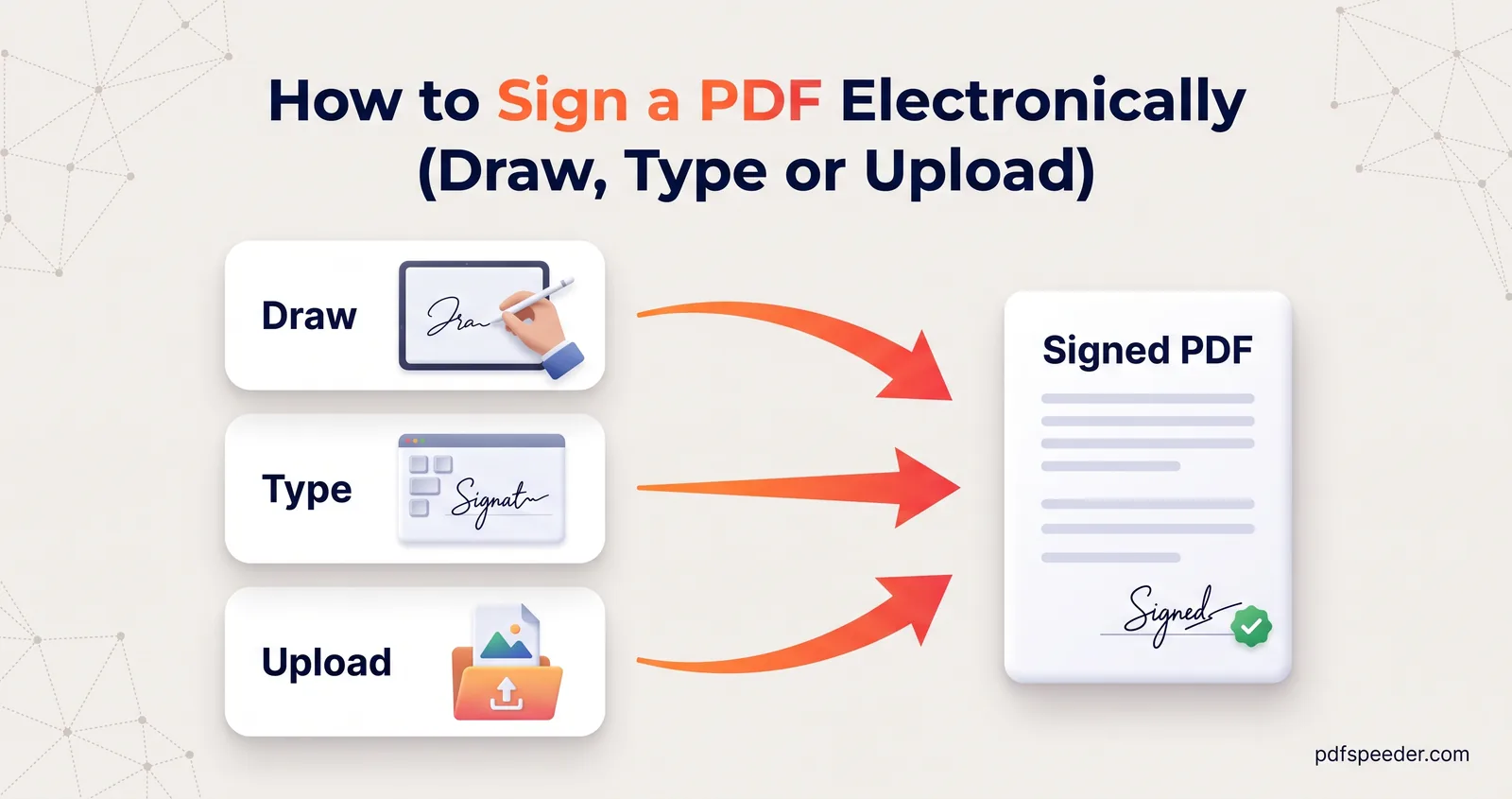
To sign a PDF, open it in a signing tool, create your signature by drawing it, typing your name in a handwriting font or uploading a photo of your real one, then place it on the signature line and download the signed copy. It takes about a minute on a computer or a phone, with no printing or scanning. One thing to know before you start: a signature image like this records your intent to sign, but it isn't the certificate-based digital signature that some official filings require.
On this page
Three ways to create your signature
Our Sign PDF tool offers three ways to make a signature, plus a fourth for next time. Pick the one that suits the document and the device in your hand:
| Method | How it works | Best for |
|---|---|---|
| Draw | Sign with a mouse, a finger or a stylus on a pad with a baseline guide | Phones and tablets, and anyone who wants their own handwriting |
| Type | Type your name and choose one of six handwriting fonts, such as Dancing Script or Great Vibes | A neat, consistent signature on letters and routine forms |
| Upload | Add a PNG or JPG photo of your signature on paper | Matching the signature you use on paper documents |
| Saved | Reuse a signature you saved earlier in the same browser | Signing documents regularly |
Drawn signatures default to navy ink, like a ballpoint pen, and you can change the colour and choose a line from 1 to 6 pixels thick. Strokes are smoothed as you draw, so a shaky mouse line still looks natural.
For an uploaded signature, sign on plain white paper with a dark pen and photograph it in good daylight. The tool makes the near-white background transparent automatically, but shadows or grey-looking paper can leave a faint box around the ink, so crop the photo tightly before you upload it.
Tip: Tick Save signature on this device and it waits in the Saved tab next time. It's stored only in your browser's local storage, never uploaded, and the bin icon deletes it.
How to sign a PDF step by step
Sign PDF lets you sign a PDF online for free, and it runs entirely in your browser, so the document and your signature never leave your device:
- Open Sign PDF and drop in your PDF (up to 50 MB).
- Create your signature using Draw, Type, Upload or Saved, then select Use Signature.
- Click the page where the signature belongs. Drag it into position and resize it with the corner handle, which keeps its proportions.
- Add your initials, the date or any extra text, as described below.
- Press P or select Preview to see the page without editing handles, then select Download Signed PDF.
Nothing is final until you download: Ctrl+Z undoes, Ctrl+Y redoes, and the Delete key removes whatever is selected. The signature goes into the page itself, so it looks the same in every PDF viewer. Each PDF you sign counts as one task in the free daily allowance, however often you download the result: 2 tasks a day without an account, 3 with a free account, reset at 00:00 UTC. Uploading a new signature image after a download is the exception: it starts a new task, so upload any image you need before your first download.
If the document also has boxes to fill in, fill them first with PDF Form Filler, which flattens your answers as it saves, and sign last. For a form you filled in another app, run it through Flatten PDF before signing, so nobody can change the answers once your signature is on it. Our guide to filling a non-fillable PDF form covers the form-filling side in detail.
If you're also changing text or adding images, the PDF Editor has its own drawing pad for signatures, so one session can cover everything; our guide on how to edit a PDF explains its tools.
Signing on a phone or tablet
Sign PDF works in the browser on iPhone, Android and iPad, and the drawing pad responds to your finger. A few things make it easier:
- Turn the phone sideways to get a wider pad, then sign at the size you'd use on paper.
- Use a stylus if you have one; it gives a cleaner line than a fingertip.
- Tap Fit to fit the page to your screen, and use the zoom buttons to find a small signature line.
- Drag with one finger to move the signature once it's placed.
To sign a PDF on an iPhone without any website, Apple's own tools work too, as covered further down.
Add initials, the date and extra text
Agreements often want more than one signature. The toolbar above the page has four placement tools, each with a keyboard shortcut:
- Signature (S) places the signature you created.
- Initials (I) places "AB" in a handwriting font. Double-click it and type your own initials. If an agreement asks for initials on every page, step through with Next and add them as you go.
- Date (D) places today's date as DD/MM/YYYY. Double-click to change it, for example to 04 Oct 2026 if the document spells months out.
- Text (T) places a box you can type in, for details like your place of signing, your designation or "Read and agreed".
Everything you place on each page is remembered as you move between pages, and there's no limit on how many items you add. Select an item and use the arrow keys to nudge it, or Shift and the arrows for bigger steps.
Built-in options: Preview, Markup and more
You may not need a website at all to add a signature to a PDF:
- Preview on a Mac. Open the PDF, show the Markup toolbar and click the signature button. Create a signature on the trackpad, by holding a signature on white paper up to the camera, or on a nearby iPhone or iPad, then drag it into place and resize it. Apple's guide to filling out and signing PDF forms in Preview has the details.
- iPhone Files app. Open the PDF in Files, tap the markup button, choose Add Signature, sign with your finger and tap Done, then drag the signature where it belongs. Apple explains this in its iPhone guide to filling out forms and signing documents.
- Chrome on a computer. Chrome's PDF viewer has a Draw tool with a pen you can sign with, and you then download the file with your changes, as Google describes in its help on managing PDFs in Chrome.
These are handy for a quick signature. A dedicated signer adds typed signatures in several fonts, photo uploads and ready-made initials and date stamps, and it works the same way on every device.
Is a drawn signature legally valid?
It depends on the document, the country and the person or organisation receiving it, so it's worth understanding what a signature image is and isn't. This section explains the general picture; it isn't legal advice.
A drawn, typed or uploaded signature is a picture placed on the page. It shows your intention to sign, much as ink does, but it isn't cryptographically tied to you or to the document. Anyone could copy the image, and it can't show whether the file was changed after you signed it.
India's Information Technology Act, 2000 recognises electronic signatures made with specific techniques, and two of them are common for documents. Here's how they compare with a signature image:
| Signature image (draw, type or upload) | Aadhaar eSign | Digital Signature Certificate (DSC) | |
|---|---|---|---|
| How you sign | Place a picture of your signature on the page | Confirm your identity with an Aadhaar OTP or biometrics through a service that offers eSign | Sign with a certificate issued by a licensed Certifying Authority, usually kept on a USB crypto token |
| Proves who signed | No | Yes, through the certificate behind the signature | Yes |
| Can reveal later changes to the file | No | Yes | Yes |
| Where you get it | Any signing tool, including ours | Banks, government departments and other organisations that build eSign into their services | A licensed Certifying Authority |
According to the eSign FAQ from India's Controller of Certifying Authorities, signatures made through eSign are legally valid when the service runs under the Second Schedule of the IT Act and the Controller's guidelines.
In practice, whether a signature image is enough is up to the recipient: some accept it for everyday paperwork, some filings insist on a DSC or eSign, and a few kinds of document have stricter rules altogether. Ask the recipient what they accept before you sign, and take legal advice for anything high-stakes.
Ready to sign? Open Sign PDF, create your signature once, tick Save signature on this device, and the next document takes seconds.
Frequently asked questions
How do I sign a PDF without printing it?
Open it in Sign PDF, draw, type or upload your signature, click where it goes and download the signed copy. The whole process happens in your browser, with no printer or scanner.
Can I sign a PDF on my iPhone?
Yes. Sign PDF works in Safari or any iPhone browser, and you sign with your finger. Apple's Files app can also add a signature through its markup tools.
Is my signature uploaded or stored anywhere?
No. Sign PDF works inside your browser, so neither the document nor your signature reaches our server. If you tick Save signature on this device, it's kept in your browser's local storage until you delete it.
Why does my uploaded signature have a grey box around it?
The tool removes near-white pixels, so a shadow or off-white paper can leave a faint background. Retake the photo on bright white paper in daylight, and crop it close to the ink.
Can I e-sign a PDF with Aadhaar on PDFSpeeder?
No. Sign PDF places a signature image, not an Aadhaar eSign or a DSC-based digital signature. When a document needs one of those, ask the organisation requesting it which service it accepts.