How to Password Protect a PDF (Free, on Windows, Mac or Online)
Password protect a PDF for free in your browser, in Word or with Preview on a Mac. Learn which password type to use, how to pick one and how to share it.

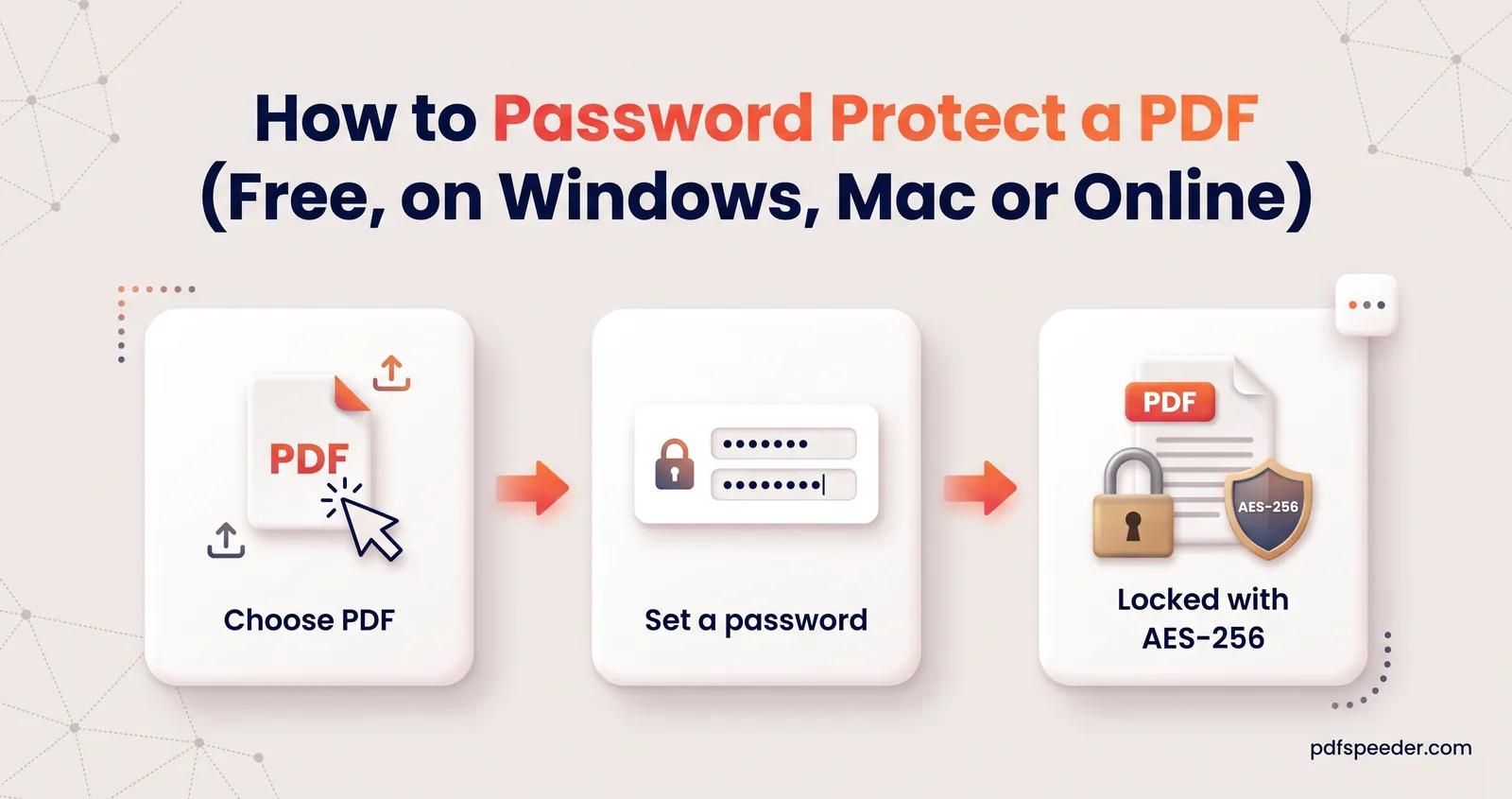
To password protect a PDF, encrypt it with an open password, which anyone has to type before the file will display. You can do that for free in your browser with an online locker, in Microsoft Word when you save a document as a PDF, or with Preview on a Mac, and none of them needs Adobe Acrobat. The password you pick matters more than the tool you use, so this guide also covers choosing one that can't be guessed and getting it to the recipient safely.
On this page
Two kinds of PDF passwords
A PDF can carry two passwords that do very different jobs:
| Open password | Permissions password | |
|---|---|---|
| Also called | User password | Owner password |
| What it does | Encrypts the content, so the file can't be read without it | Lets the file open, but asks viewers to block printing, copying or editing |
| Who it stops | Anyone who doesn't know it | Only people whose software honours the restrictions |
| Use it for | Keeping a document private | Discouraging casual edits or reprints |
The difference matters. An open password is real encryption. A permissions password only sets flags inside the file, and mainstream viewers such as Chrome and Preview respect them, but other software can ignore them. Plenty of tools strip them without knowing the owner password, including our own Unlock PDF, which removes restrictions from files you're allowed to use.
So if the contents are confidential, always set an open password. Use restrictions to restrict printing of a PDF or copying from it as a polite barrier, not as protection.
How to password protect a PDF online, step by step
Our Lock PDF tool encrypts the file inside your browser, so the document and the password never leave your device. It accepts files up to 50 MB.
- Open Lock PDF and drop in your PDF.
- Type a password and type it again to confirm. A strength bar shows how it's doing, or select Generate strong password for a random 16-character one. Copy it from the pop-up before you close it: without it, nobody can open the file.
- Check the User Permissions below. Printing, copying, annotating and form filling are allowed by default; modifying and page assembly are blocked. Untick anything you want to stop.
- Select Lock PDF and download the file, which is saved with "_locked" added to its name.
The Owner password box under Advanced options is optional. Leave it blank and Lock PDF sets a long random one, so your restrictions are actually enforced; fill it in only if you'll want to change the permissions yourself later.
To change a PDF's password, add the file to Lock PDF as it is: it asks for the current password, then locks the copy with your new one, and the old password no longer opens it. To remove the password altogether, use Unlock PDF instead. Each file you lock counts as one task in the free daily allowance: 2 tasks a day without an account, 3 with a free account, reset at 00:00 UTC.
Which encryption does Lock PDF use?
Lock PDF encrypts every file with AES using a 256-bit key, whatever PDF version the file was saved in. With a key that long, the password is the only realistic weak point, so a long random password keeps the file safe.
Not every app works that way. Some pick the cipher from the file's PDF version, which can mean RC4 with a 128-bit or even a 40-bit key for older files, and a 40-bit key is short enough to be broken by brute force whatever password you chose. If you lock files with another app, check the security details in your PDF reader's document properties before you trust it with anything sensitive.
Built-in options: Word and Mac Preview
You can also encrypt a PDF with software you probably have already.
Microsoft Word on Windows can add a password to a PDF as it saves one:
- Choose File > Save a Copy (or Save As), then Browse.
- Set the file type to PDF.
- Select Options, tick Encrypt the document with a password and select OK.
- Type and confirm the password, then select Save.
Microsoft describes these options in its guide to saving Office files as PDF.
Preview on a Mac can protect any PDF you open in it:
- Open the PDF in Preview and choose File > Export.
- Click the Permissions button and select Require Password To Open Document, then enter the password twice.
- Enter an Owner Password too, and tick any actions, such as printing, that people may do without it.
- Click Apply, then Save. To keep the original unprotected, give the copy a new name first.
Apple lists these steps in its guide to password-protecting a PDF in Preview. From any Mac app, File > Print, then PDF > Save as PDF > Security Options, does the same job.
Choose a password people can't guess
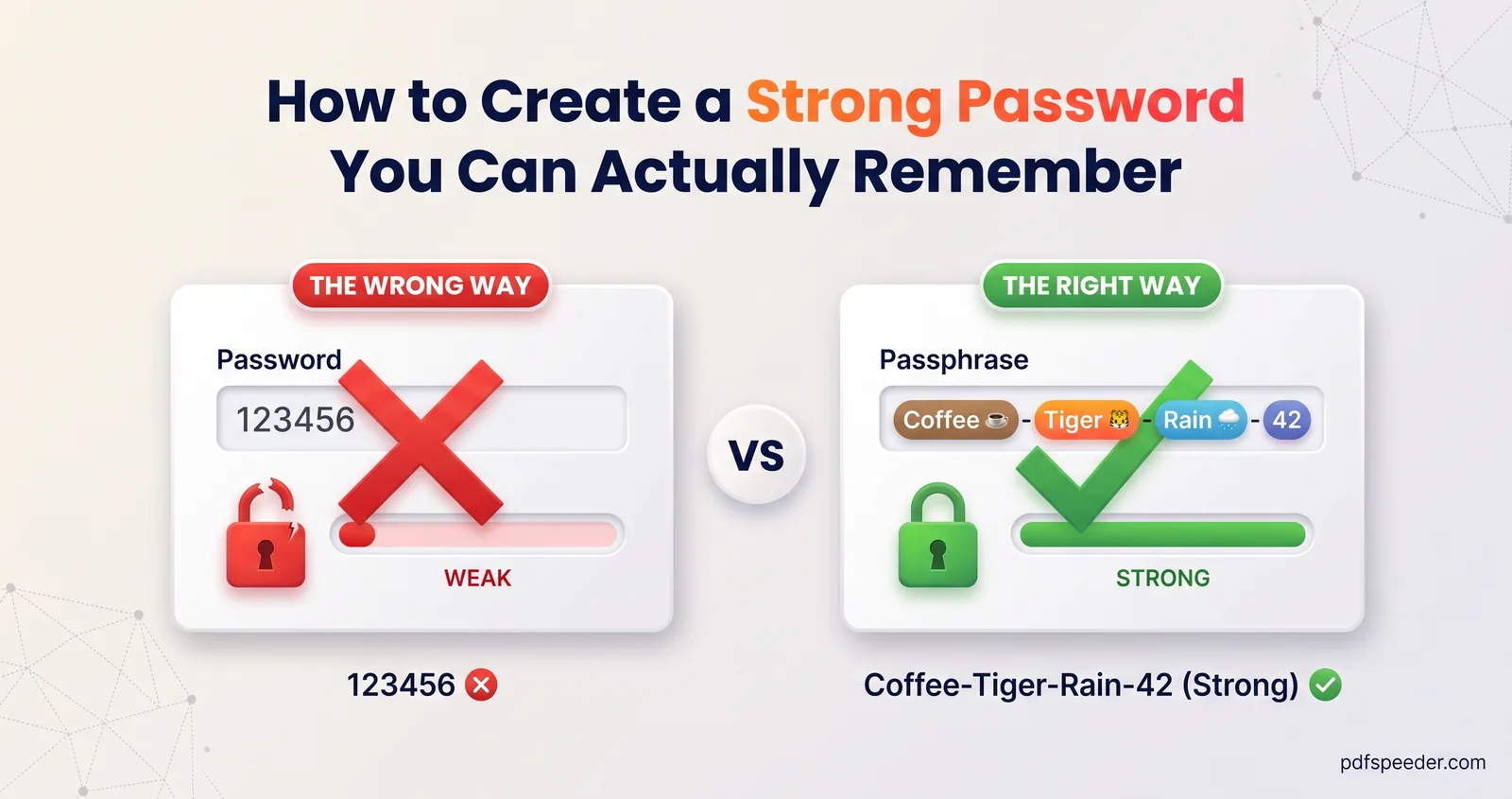
Passwords like the one on an e-Aadhaar, built from your name and year of birth, are easy for the owner to work out, and just as easy for anyone else who knows those details. For a file you're protecting yourself, avoid anything printed in the document or known to people around you: birth dates, phone numbers, PAN or account numbers. An eight-digit birth date written as DDMMYYYY has only 36,525 possible values across a whole century, and whoever's guessing usually knows roughly when you were born.
Length beats cleverness. Here is how many possibilities each kind of password allows:
| Password | Possible combinations |
|---|---|
| A date of birth (DDMMYYYY, any day in 100 years) | 36,525 |
| 8 lowercase letters | about 2.1 × 10^11 |
| 8 characters from the full keyboard (94 symbols) | about 6.1 × 10^15 |
| 6 random words from a 1,707-word list | about 2.5 × 10^19 |
| 12 characters from the full keyboard | about 4.8 × 10^23 |
| 16 characters from Lock PDF's generator | about 7.9 × 10^28 |
Every extra character multiplies the work for whoever's guessing. Our Password Generator creates random passwords up to 64 characters, or memorable passphrases of 3 to 12 words drawn from that 1,707-word list, and shows the strength of each in bits. It runs in your browser and doesn't use any of your daily tasks.
Store the password in a password manager or somewhere equally safe. No tool can recover a lost open password, which is the whole point of encryption, so keep an unprotected copy of anything you can't afford to lose.
Share a locked PDF safely
Encryption only helps if the password travels separately from the file. A few rules keep it that way:
- Use a different channel. Email the PDF, then send the password by text message or tell it over the phone. If someone gets into the email account, they get the file but not the key.
- Keep it out of the file name and subject line. "Statement_password_Asha1990.pdf" undoes all your work.
- Agree a password in advance for files you send regularly, such as monthly reports, so it never travels with them at all.
- Tell the recipient what to expect. People who've never opened a protected PDF may think the file is broken when the password box appears.
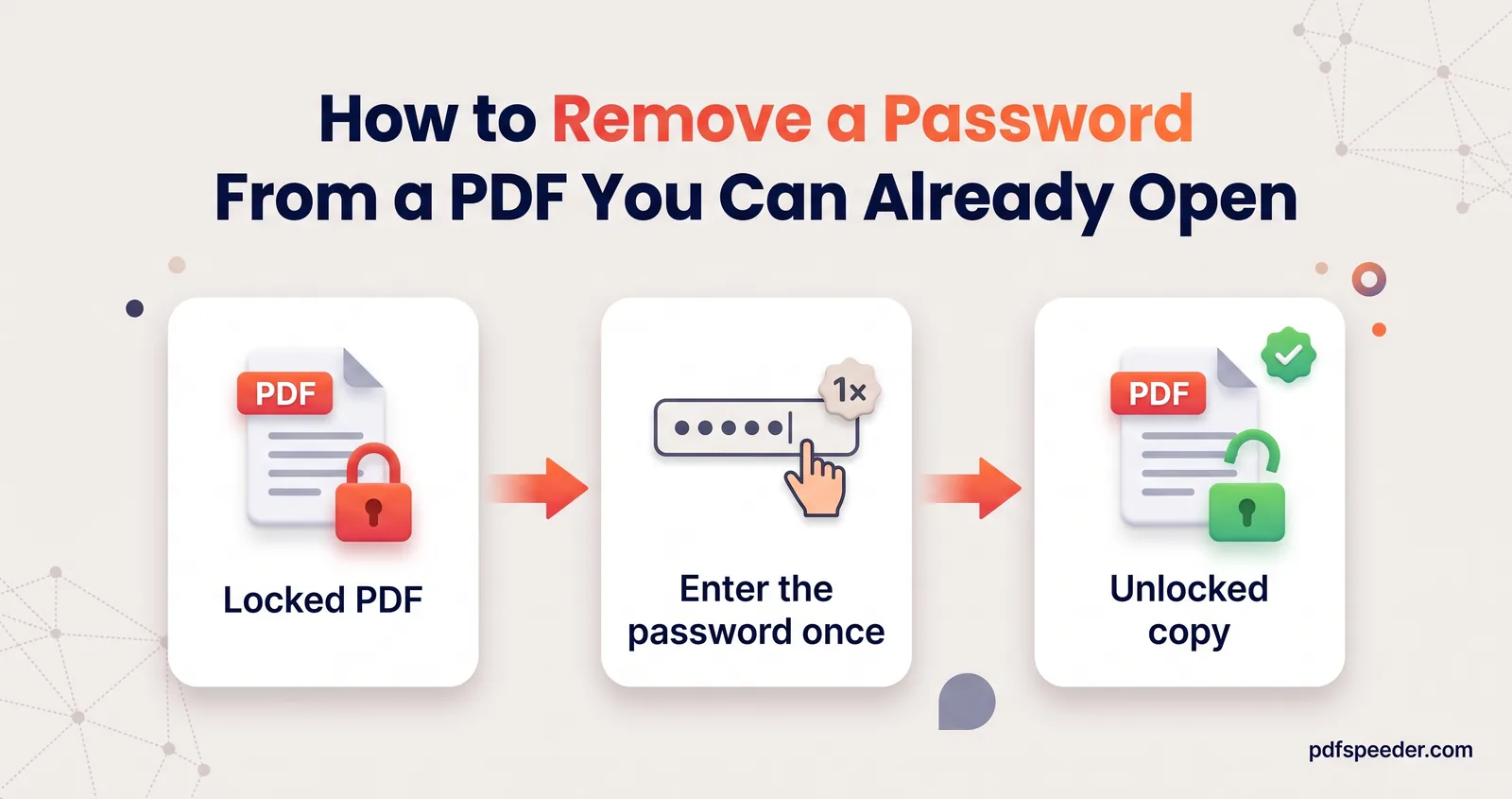
When the recipient no longer needs the protection, they can save a password-free copy using our guide to removing a password from a PDF.
Ready to protect your file? Generate a password, copy it somewhere safe, and run the document through Lock PDF.
Frequently asked questions
How secure is a password-protected PDF?
With strong encryption, such as the 256-bit AES that Lock PDF uses, and a long, random open password, the file can't realistically be opened without the password. The real risks are a guessable password, an old 40-bit cipher from another app, or a password sent in the same email as the file.
Can I password protect a PDF without Acrobat?
Yes. Lock PDF works in any browser, Word can encrypt a PDF as it saves one, and Preview on a Mac can add a password when it exports a file.
Can I stop people printing or copying my PDF?
You can set permissions that block printing, copying or editing, and mainstream viewers respect them. They rely on the viewer cooperating, though, so treat them as a deterrent rather than real protection.
What happens if I forget the password?
Nobody can recover it, us included, because the password is never stored. Keep the unprotected original somewhere safe so you can create a new locked copy.
Does Lock PDF upload my file?
No. Lock PDF encrypts the file inside your browser, so neither the document nor the password reaches our server.