How to Redact a PDF Properly (So the Text Is Really Gone)
How to redact a PDF so the text is really gone: mark what must go, rebuild those pages as images, then prove it by searching, copying and extracting the text.

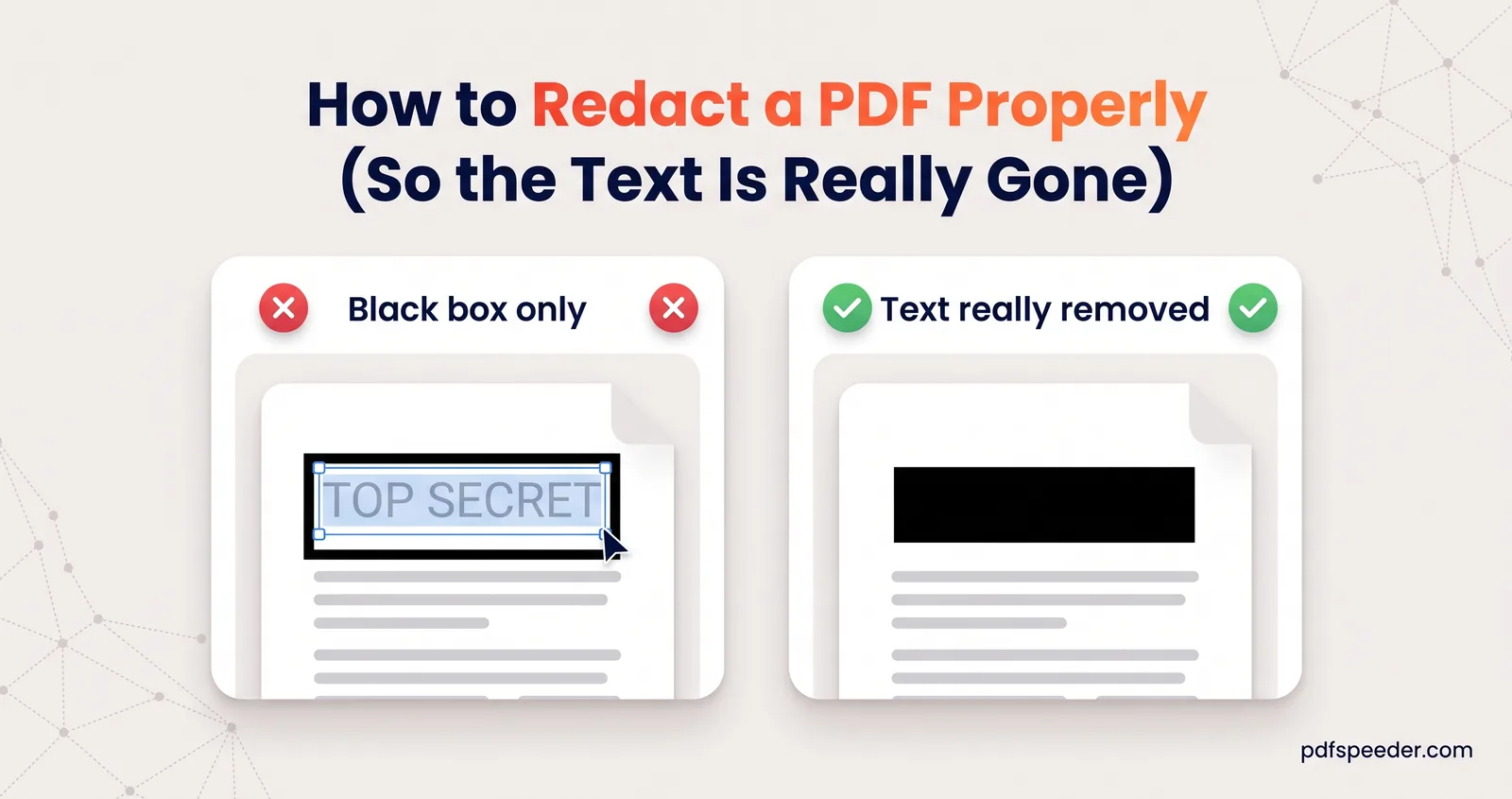
To redact a PDF properly, mark every piece of sensitive information, apply the redaction so those pages are rebuilt without the text underneath, then prove it worked by searching, copying and extracting text from the result. The proof matters because a failed redaction usually looks perfect: a black box sits on top while the words are still in the file. Here's how to redact a PDF for free, step by step, including the metadata and file-name checks people forget.
On this page
Why black boxes alone don't redact a PDF
A PDF page is built in layers, and anything drawn later is simply painted over what came before. A black rectangle, a black highlight or text recoloured to black hides words from your eyes, but the words stay in the page's content, where search, copy-and-paste and text-extraction tools still find them.
In a test on a sample bank statement, a black rectangle drawn over the account number left that number fully searchable and copyable. After the same page was rebuilt as a 200 DPI image, text extraction returned nothing at all. That's the whole difference between hiding text and removing it:
| How the text was covered | Is the text still in the file? |
|---|---|
| Black rectangle from a shape, comment or drawing tool | Yes |
| Black highlighter, or text recoloured black | Yes |
| White box over the text | Yes |
| Any of the above, then flattened or printed to PDF | Usually yes |
| Redact PDF, which rebuilds each boxed page as an image | No |
| The PDF Editor's Redact tool, which does the same when you save | No |
| Every page turned into an image and back into a PDF | No |
If your redaction is not working, meaning someone could still copy or find the hidden words, the cause is usually one of the first four rows.
Step 1: Mark everything that must go
Before you draw a single box, list what has to disappear. Typical items are names, account and card numbers, PAN and Aadhaar numbers, addresses, phone numbers, email addresses, signatures, photos, and any QR code or barcode, which can carry the same details in machine-readable form.
Then search the original PDF for each item with Ctrl+F (Cmd+F on a Mac). Numbers and names tend to repeat in headers, footers, reference lines and small print, and a single missed copy undoes the rest. Note every page where each one appears.
Now mark them in our Redact PDF tool, which runs in your browser, so the file isn't uploaded anywhere (our guide to whether online PDF tools are safe explains why that matters):
- Drop in your PDF (up to 100 MB). If it has a password, you'll be asked for it.
- Under Apply Redaction To, choose This page, All pages for something that sits in the same spot on every page, such as an account number in a header, or Range for pages like 1-3, 5.
- Pick a colour (black, white, red, blue, yellow or your own) and, if you like, a label of up to 32 characters, such as REDACTED.
- Drag a box over each item, a little larger than the text so no tops or tails of letters peek out. Turn on the Magnifier for small print; drag a box to move it, drag a handle to resize it, or press Delete to remove it.
- Step through every page you noted with Next. The counter shows the boxes on the current page and in the whole document.
Step 2: Turn the pages into images
This is the step that makes the information unrecoverable, because a page that is only a picture has no text layer left to give anything away.
With Redact PDF, it happens when you apply
Select Apply Redactions & Download. Every page that has a box is rendered as an image at 200 DPI, with the boxes and labels burned into the pixels, and saved in a new PDF. Pages without boxes are copied as they were, so their text stays selectable. You get a copy with "_redacted" added to its name, and the run counts as one task in the free daily allowance: 2 tasks a day without an account, 3 with a free account, reset at 00:00 UTC.
If you're already editing in our PDF Editor, its Redact tool does the same to every page with a box when you save, as part of the same task as your other edits.
Know the trade-offs before you send it:
- Redacted pages can't be searched or copied, not even the parts you left visible. Other pages are unaffected.
- The file gets bigger. In our sample test, rebuilding one page as a 200 DPI image took the file from about 2 KB to about 120 KB. If a portal has a size limit, our guide to reducing PDF file size shows how to shrink it.
- A password-protected original works the same way. You're asked for the password, pages without boxes keep their text, and the redacted copy is saved without the password.
If you blacked out text in another app
If you used a shape or drawing tool, in Preview, Edge or any other app, or anything else that draws boxes on top, convert the pages yourself:
- Open PDF to JPG, add the file and keep the resolution at 200 DPI (raise it to 300 for very small print). Choose the 001.jpg filename pattern, so the pages sort in the right order, then convert and select Download ZIP.
- Unzip the images and add them, in page order, to JPG to PDF.
- Set the page size to A4, or Letter if that's what the original used, and leave the quality on Original. Create the PDF.
Both tools run in your browser and count as one task each, so without an account this route uses the whole day's allowance. It turns every page into an image, which is the safest option when sensitive details are scattered through the document.
On a Mac, Preview has its own Redact Selection tool for text. Apple's guide to annotating a PDF in Preview says the redaction becomes permanent once you close the document, and notes that table-of-contents entries linking to redacted text aren't removed.
Step 3: Prove the text is really gone
Never send a redacted file on trust. These four checks take two minutes:
| Check | How | It passes if |
|---|---|---|
| Search | Open the redacted copy and search for each hidden name or number | Nothing is found on the redacted pages |
| Copy | Select all on a redacted page, copy, and paste into a notes app | None of the hidden text appears |
| Extract | Run the file through PDF to Text, as described below | The hidden items are missing from the output |
| Look | Zoom to 400% around every box | No edges of letters show around a box |
For the extraction check, open PDF to Text, which also works in your browser. Set Scanned PDF (OCR) to Off, so you see only text that is actually stored in the file, untick Remove running headers, footers & page numbers, and choose Simple line-by-line output. Extract the text, then search the result for each item on your list.
If any check finds something, don't patch the redacted copy. Go back to the original, add the missing boxes and apply again.
Don't forget metadata and file names
The page content isn't the only place where details hide.
- Document properties. A PDF's title, author and subject can contain a name, such as "Asha Rao statement Sep 2026". Redact PDF doesn't copy them into the redacted file, but other apps may keep them. Check them in your PDF reader (in Adobe Acrobat Reader, File > Properties), and clear or rewrite them with our PDF Metadata Editor, whose Scrub all metadata button empties every field at once.
- The file name. The redacted copy keeps the original name plus "_redacted". If that name contains a person's name or an account number, rename the file before you send it.
- Bookmarks. A bookmark can repeat the very text you removed. Redact PDF doesn't copy bookmarks into the new file, but other tools may keep them, as Apple's note about Preview shows.
- The message itself. Don't undo the work in the email subject line or the chat message that carries the file.
Keep the unredacted original somewhere private, because nothing can bring the hidden content back from the redacted copy. If the redacted file still contains information only certain people should see, add an open password too; our guide to password-protecting a PDF explains how to choose and share one.
Ready to try it? Search your document for every sensitive item, mark them in Redact PDF, then run the search, copy and extract checks on the copy before it goes anywhere.
Frequently asked questions
Can I redact a PDF for free?
Yes. Redact PDF runs in your browser at no cost, and each redaction counts as one task in the free daily allowance.
Why can I still copy the text under my black box?
The box was drawn on top of the page, so the text underneath was never removed. Redact the original with a tool that rebuilds the page as an image, then check the result by searching and copying.
Can a redaction be undone?
Not from a properly redacted copy: the pages with boxes are images, so the hidden text isn't in the file. That's why you should keep the original somewhere private.
Will the redacted pages still be searchable?
No. Pages rebuilt as images have no text layer, so nothing on them can be searched or copied, while pages without boxes keep their text.
How do I redact a scanned PDF?
The same way: draw boxes over the details and apply. If the scan had an invisible OCR text layer, it disappears from the rebuilt pages along with everything else under the boxes.