How to Add a Watermark to a PDF (Text or Logo, Free)
Add a text or logo watermark to a PDF free: readable settings, CONFIDENTIAL and DRAFT presets, chosen pages only, and how easily watermarks can be removed.

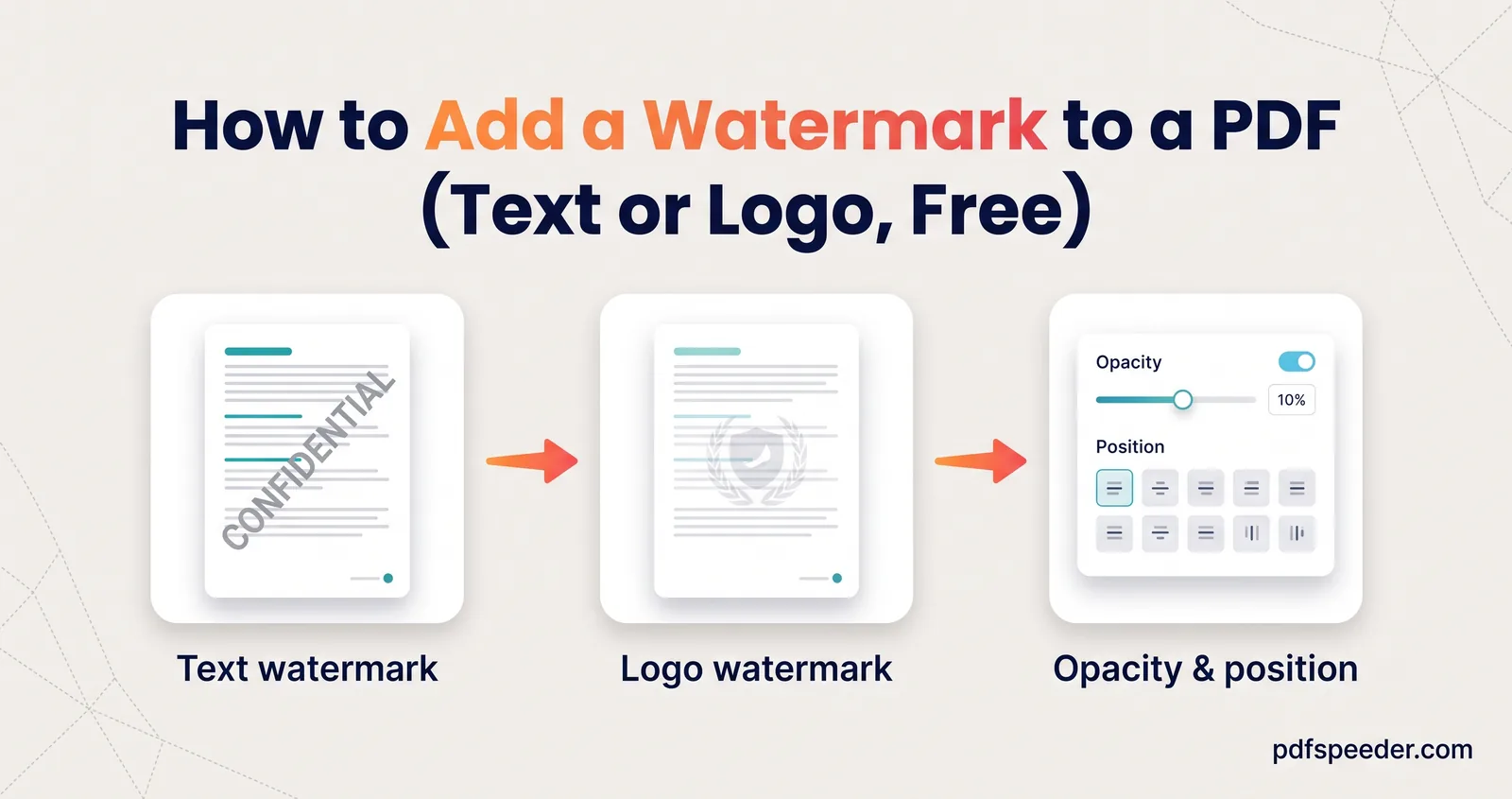
To add a watermark to a PDF, open it in a watermark tool, type your text (such as CONFIDENTIAL or DRAFT) or upload a logo, set the opacity, angle and position, choose which pages to mark, and download the stamped copy. The settings decide whether the mark discourages copying or just makes the document hard to read. This guide shows how to add a watermark to a PDF that stays readable, how to mark only some pages, and what a watermark can't do: anyone determined can remove one, so it's a label, not a lock.
On this page
Text or image watermark?
Both kinds sit over the page content, and each suits different jobs:
| Watermark | Good for | Watch out for |
|---|---|---|
| Text, such as CONFIDENTIAL, DRAFT or PAID | Showing a document's status; marking copies for one recipient ("Prepared for Asha Rao") | Long text needs a smaller size to fit the page |
| Image, such as a company logo | Branding proposals, design proofs and price lists | A JPG logo has no transparency, so its white background shows as a pale box |
If you're still working in Microsoft Word, you can add the watermark before you export: Microsoft's watermark instructions use Design > Watermark, with presets such as DRAFT and CONFIDENTIAL and a Custom Watermark option for pictures. For a PDF you've already got, use a PDF tool.
How to add a watermark to a PDF, step by step
Our PDF watermark tool, Add Watermark to PDF, runs in your browser, so the file isn't uploaded anywhere. It accepts PDFs up to 50 MB, and each file you watermark counts as one task in the free daily allowance: 2 tasks a day without an account, 3 with a free account, reset at 00:00 UTC (05:30 IST). Changing the text or its look and downloading the same file again costs nothing more, but choosing a new watermark image after a download counts as another task.
- Add your PDF. The first page appears in a live preview, with buttons to step through the others.
- Choose Text or Image. For text, click a preset (CONFIDENTIAL, DRAFT, COPY, SAMPLE, APPROVED, DO NOT COPY, ORIGINAL or PAID) or type your own, up to 80 characters. For an image, add a PNG or JPG.
- Style it. Text has six fonts (Helvetica, Times and Courier, each in regular or bold), a colour picker with quick swatches, a size from 8 to 240 points, opacity and rotation. Images have scale, as a percentage of the page width, plus opacity and rotation.
- Position it. Pick one of nine spots (corners, edges or centre) or drag the watermark on the preview. Or choose Tiled to repeat it across the page, with a Gap slider for spacing.
- Choose the pages under Pages, then select Download Watermarked PDF. The file is saved with "_watermarked" added to its name.
The preview updates as you change each setting, so check it on a page with dense text before you download.
Note: If the PDF has a password, the tool asks for it and saves the watermarked copy without one, so lock it again with Lock PDF if it must stay protected.
Settings that look professional
A watermark should be noticed at a glance and ignored while reading. The defaults (red, 22% opacity, rotated -30°, 64 points) are a sensible start for a confidential watermark PDF, and these adjustments cover most other cases:
- Opacity: 15-25% for text documents, so every word underneath stays readable. Go higher only on image-heavy pages such as design proofs, where a faint mark disappears.
- Colour: red or orange signals status (DRAFT, CONFIDENTIAL); grey or navy looks calmer on client documents. Pale colours can almost vanish on paper, so print a test page if the document will be printed.
- Angle: a diagonal mark reads as a watermark rather than part of the text. Negative angles rise from left to right.
- Single or tiled: one mark is enough to show status. A tiled watermark PDF repeats the mark over the whole page, which suits proofs and samples you send before payment, because no part of the page is left clean.
For a single mark that runs corner to corner on an A4 portrait page, set the rotation to -55° (A4's diagonal is at 54.7°) and use roughly these sizes, which fill about 85% of the diagonal in a bold font:
| Text | Size for a corner-to-corner mark |
|---|---|
| CONFIDENTIAL | about 118 pt |
| DO NOT COPY | about 125 pt |
| APPROVED | about 156 pt |
| ORIGINAL | about 179 pt |
| SAMPLE | about 210 pt |
| DRAFT, COPY or PAID | more than the 240 pt maximum, so use 240 pt or Tiled |
Short words are the hardest to make large, which is why a DRAFT watermark PDF often looks best tiled.
Mind the file size. The watermark is stored as a high-resolution image placed on each page. In our test, a 3-page text PDF of 3 KB grew to about 78 KB with one CONFIDENTIAL mark per page, and to about 87 KB tiled, because the same image is reused on every page. That's nothing for email, but it matters for a portal with a 100 KB limit.
To add a logo watermark to a PDF, use a PNG with a transparent background, start at the default 50% opacity and 35% of the page width, and place it in the centre or a lower corner. A corner logo is subtle, but it's also the easiest kind to crop out.
Watermark only certain pages
The Pages buttons decide where the mark goes: All, First, Last, Odd, Even, or Custom with a list such as 1,3,5-9. Pages outside the selection stay clean. Some common patterns:
- Cover only: First, for a DRAFT stamp on the title page of a long report.
- Everything except the cover: Custom with
2-40(using your page count), so the cover stays presentable. - Signature or approval page: Last, for an APPROVED or PAID mark.
- Printed booklets: Odd, so a logo appears only on right-hand pages.
The tool applies one watermark per run. For two different marks, such as CONFIDENTIAL on every page and APPROVED on the last one, download the first result and run it again with the second mark. That uses two tasks.
Make the watermark harder to remove
Be realistic about what a watermark does. It tells people the status or owner of a document and discourages casual reuse, but it doesn't stop a determined person:
- It can be deleted. Our watermark is a separate image placed over each page. In our test, a few lines of script deleted it from every page and left the document looking untouched. A PDF editor that can select objects can do the same.
- It doesn't block copying. The text underneath stays selectable, so anyone can copy the content out and leave the watermark behind. The watermark itself isn't text, so it won't appear in pasted text or searches.
- It can be cropped. A small mark in a corner disappears with one crop.
You can raise the effort required:
- Use a tiled layout over the whole page, so there's no clean area to crop to.
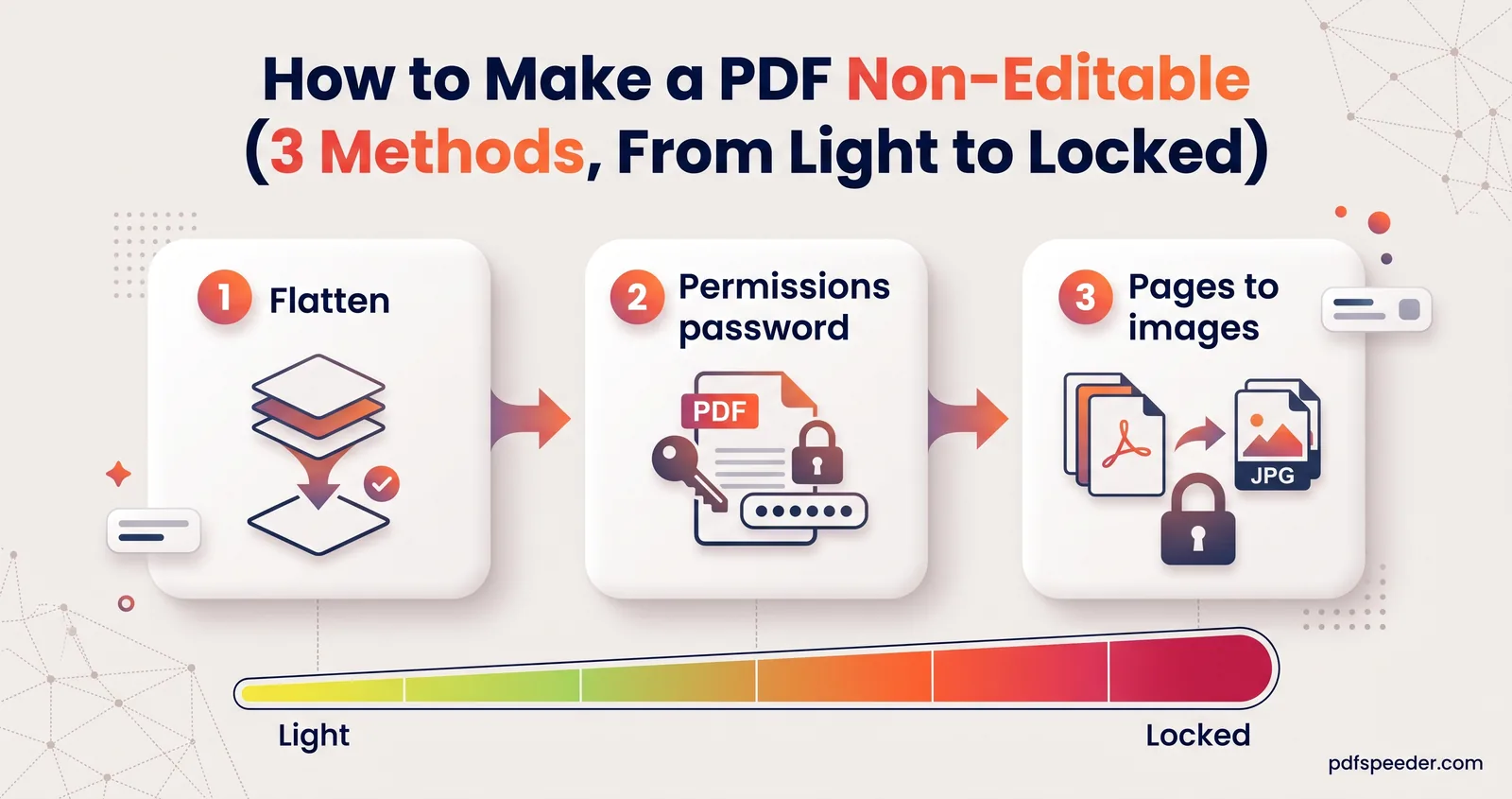
- Bake it into the page. Convert the watermarked pages to images with PDF to JPG, then back into a PDF with JPG to PDF. The watermark and content become one picture, so there's no separate object to delete. The cost: text can no longer be selected or searched, and the file gets bigger. Our guide to making a PDF non-editable walks through the conversion and compares it with lighter options.
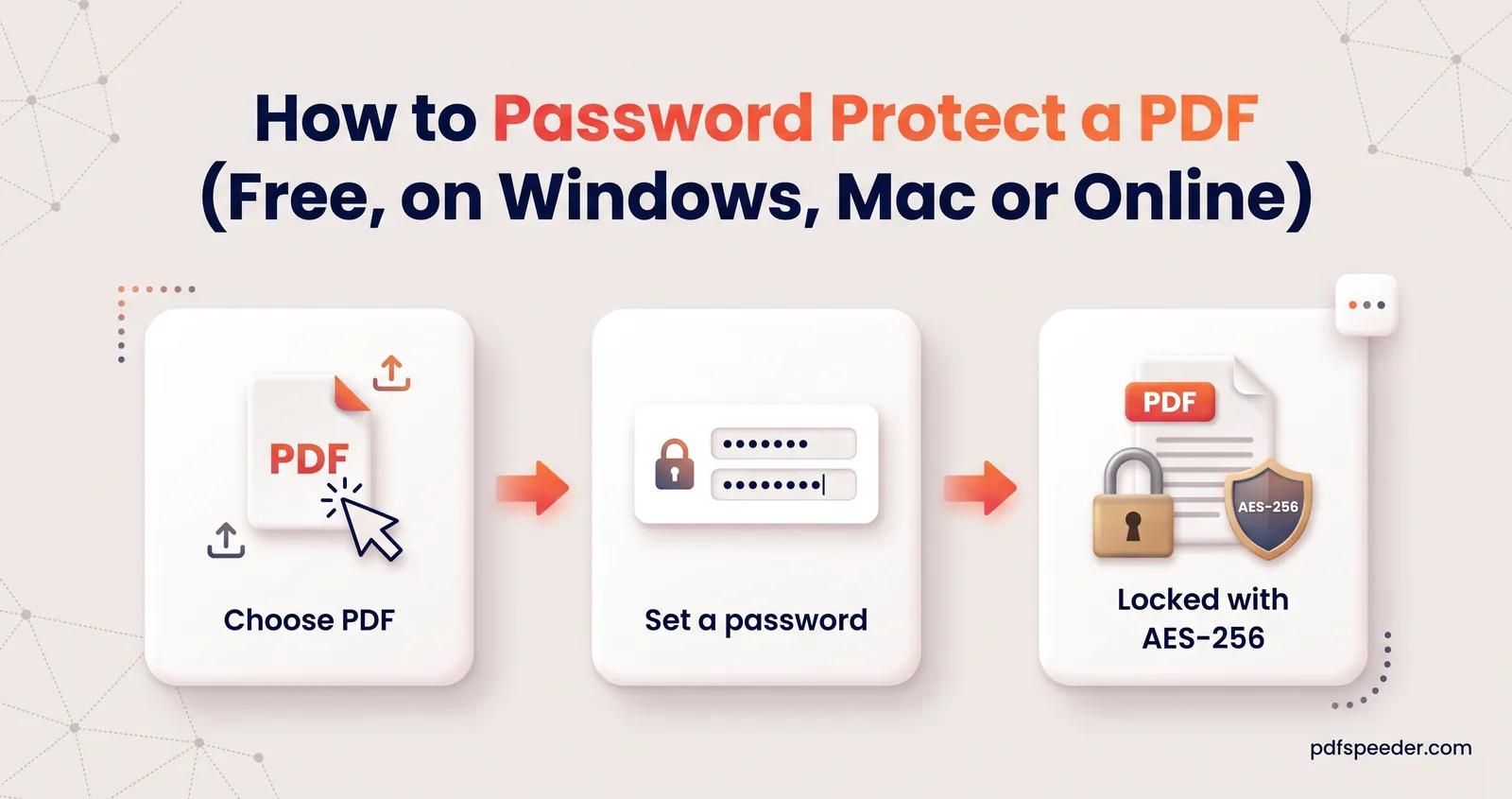
- Restrict editing. Lock PDF encrypts the file with AES-256 and, by default, blocks modifying; untick Allow copying to block copying too. Lock PDF always sets a password to open the file, and compliant viewers enforce the restrictions, but other software can ignore them. Our guide to password-protecting a PDF explains the two kinds of PDF password.
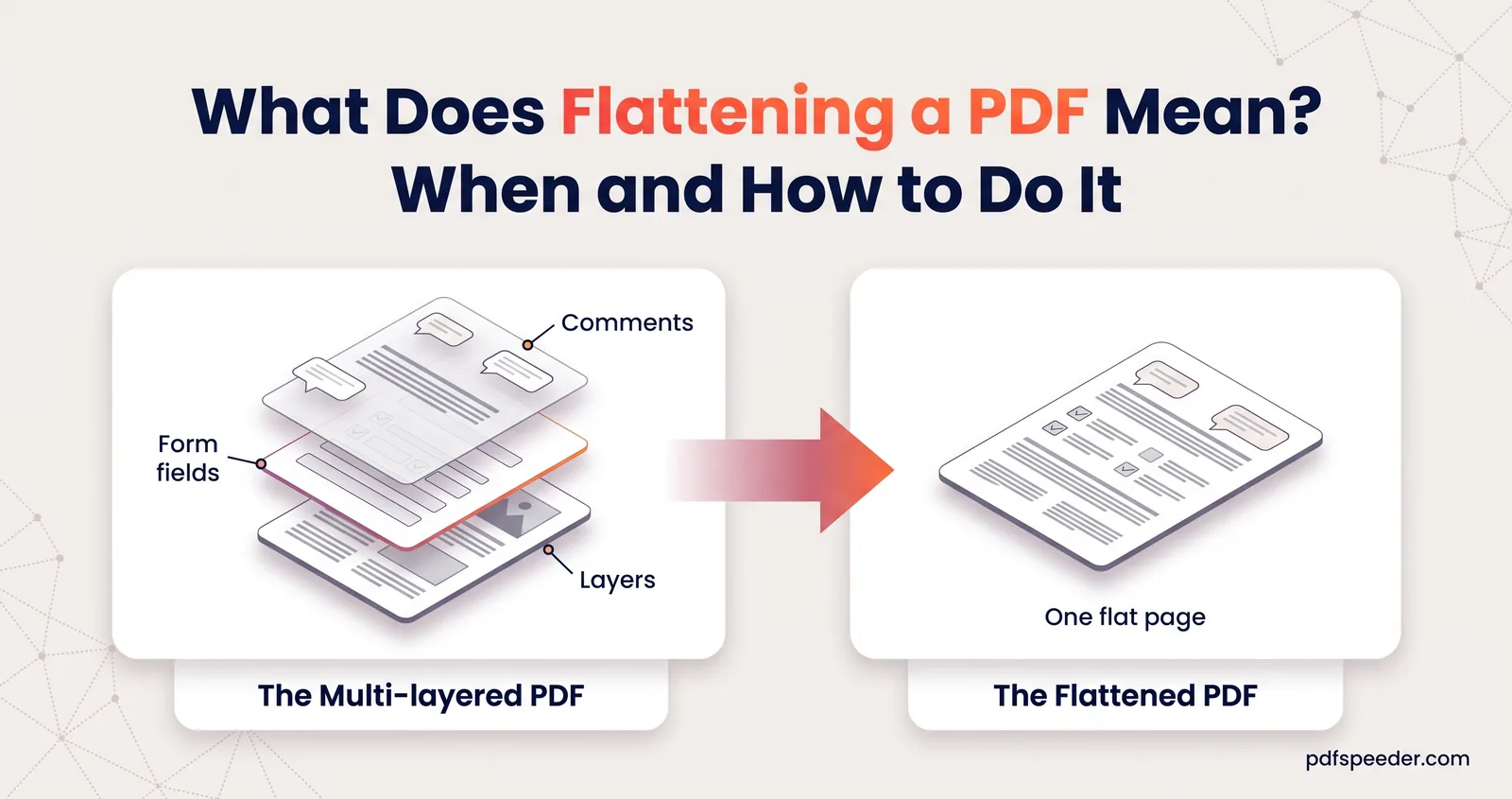
Where does flattening fit? Flatten PDF bakes form fields, comments and stamps into the page, as our explainer on what flattening a PDF means shows. Our watermark is already part of the page, so flattening adds nothing there, but it's the right step for a DRAFT stamp added as a comment in another app, or for a filled form you're watermarking. Flatten first, then watermark, then lock: locking last keeps the restrictions on the final file.
Ready to mark your document? Open Add Watermark to PDF, try a preset at 20% opacity, check a dense page in the preview, and download.
Frequently asked questions
Can I watermark a PDF for free?
Yes. Add Watermark to PDF runs in your browser at no cost within the daily allowance, and each file you watermark counts as one task.
What opacity should a watermark have?
Around 15-25% for text documents keeps every word readable. Image-heavy pages such as design proofs can take more.
Can I add a watermark to only some pages?
Yes. Choose First, Last, Odd, Even or Custom under Pages, and type a list such as 1,3,5-9 for custom pages.
Can a PDF watermark be removed?
Yes, by someone determined: an image watermark can be deleted as an object, and a corner mark can be cropped. Tiling it, converting the pages to images and restricting editing all make removal harder, not impossible.
Will the watermark stop people from copying my text?
No. The text underneath stays selectable. To discourage copying, untick Allow copying in Lock PDF, knowing that some software ignores that restriction.