How to Make a PDF Non-Editable (3 Methods, From Light to Locked)
Make a PDF non-editable three ways: flatten it, set a permissions password or turn pages into images. See what each stops, what it costs and its limits.

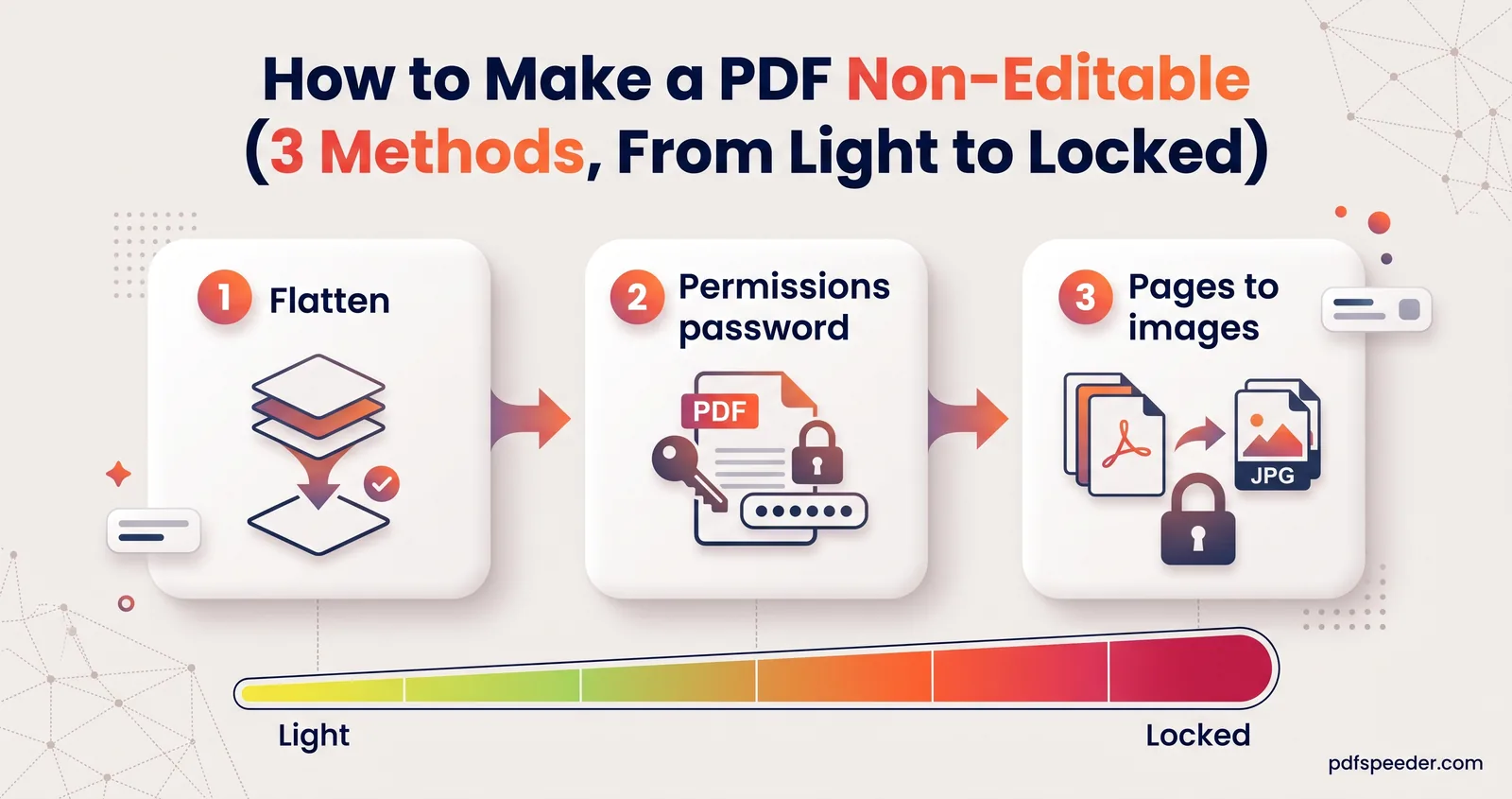
There are three ways to make a PDF non-editable, from light to strong: flatten it so form answers and comments can't be changed, add a permissions password that tells PDF apps to block editing, or turn every page into an image so there's no text left to edit. Each one stops something different and costs something different, so the right choice depends on who receives the file. Here's how to make a PDF non-editable with each method, what our tests showed it really blocks, and how to choose.
On this page
Make a PDF non-editable: what it can and can't mean
No PDF is impossible to change. Anyone can retype it, screenshot it, or print it and scan it back in. What you can do is stop casual edits, make changes take real effort, and keep the original so any tampering can be spotted.
Each method works on a different part of the file:
| Method | What it stops | What it doesn't stop | Searchable text | File size | Tasks |
|---|---|---|---|---|---|
| Flatten | Retyping form answers; moving or deleting comments | Editing page text in a PDF editor; copying | Yes | Same or smaller | 1 |
| Permissions password | Editing and, if you choose, copying, in apps that honour it | Software that ignores restrictions | Yes | Slightly larger | 1 |
| Pages to images | Editing or copying any text | Image editing; retyping | No | Much larger | 2 |
If what you really need is proof that a document hasn't been changed, none of these is the tool: a certificate-based digital signature shows if a file was altered after signing. Our guide to electronic vs digital signatures explains the difference.
Method 1: Flatten the PDF
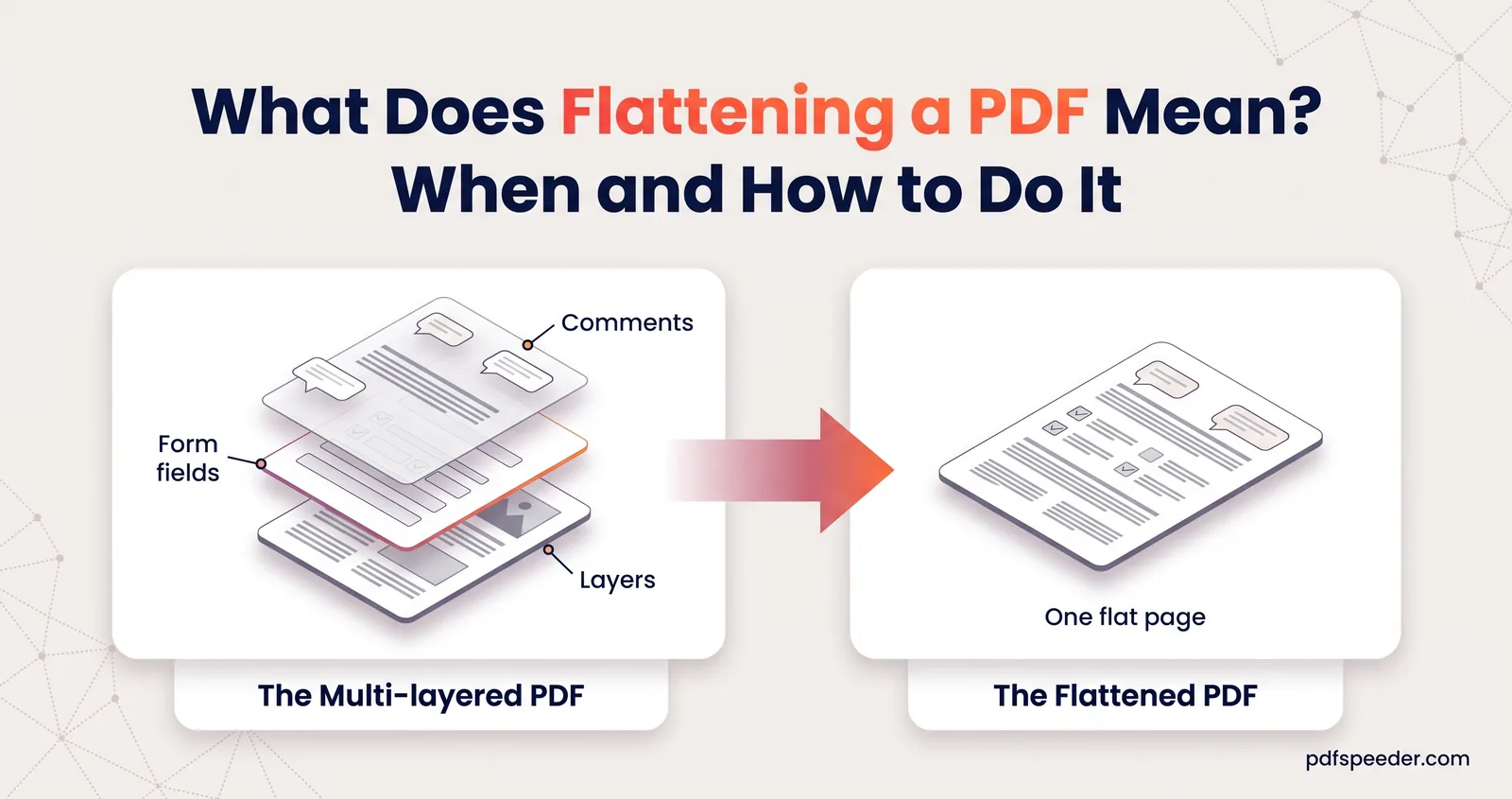
Flattening merges form fields, comments, stamps and drawings into the page, so they behave like printed ink. It's the right step for a filled application form or an approved document with markup.
- Open Flatten PDF and add your file (up to 50 MB). It runs in your browser, so nothing is uploaded.
- Keep Form fields and Annotations & comments ticked.
- Select Flatten PDF, then download the copy with "_flattened" in its name.
In our test, a filled name box and a ticked checkbox became plain page content: no fields remained, so nobody could retype the answers. But the page text was still real text, which a PDF editor's edit-text tool can change and anyone can copy. Flattening also removes any editing restrictions already on the file, so if you plan to add a password too, flatten first and lock last.
Our explainer on what flattening a PDF means covers what else changes, including what happens to hidden layers.
Method 2: Set a permissions password
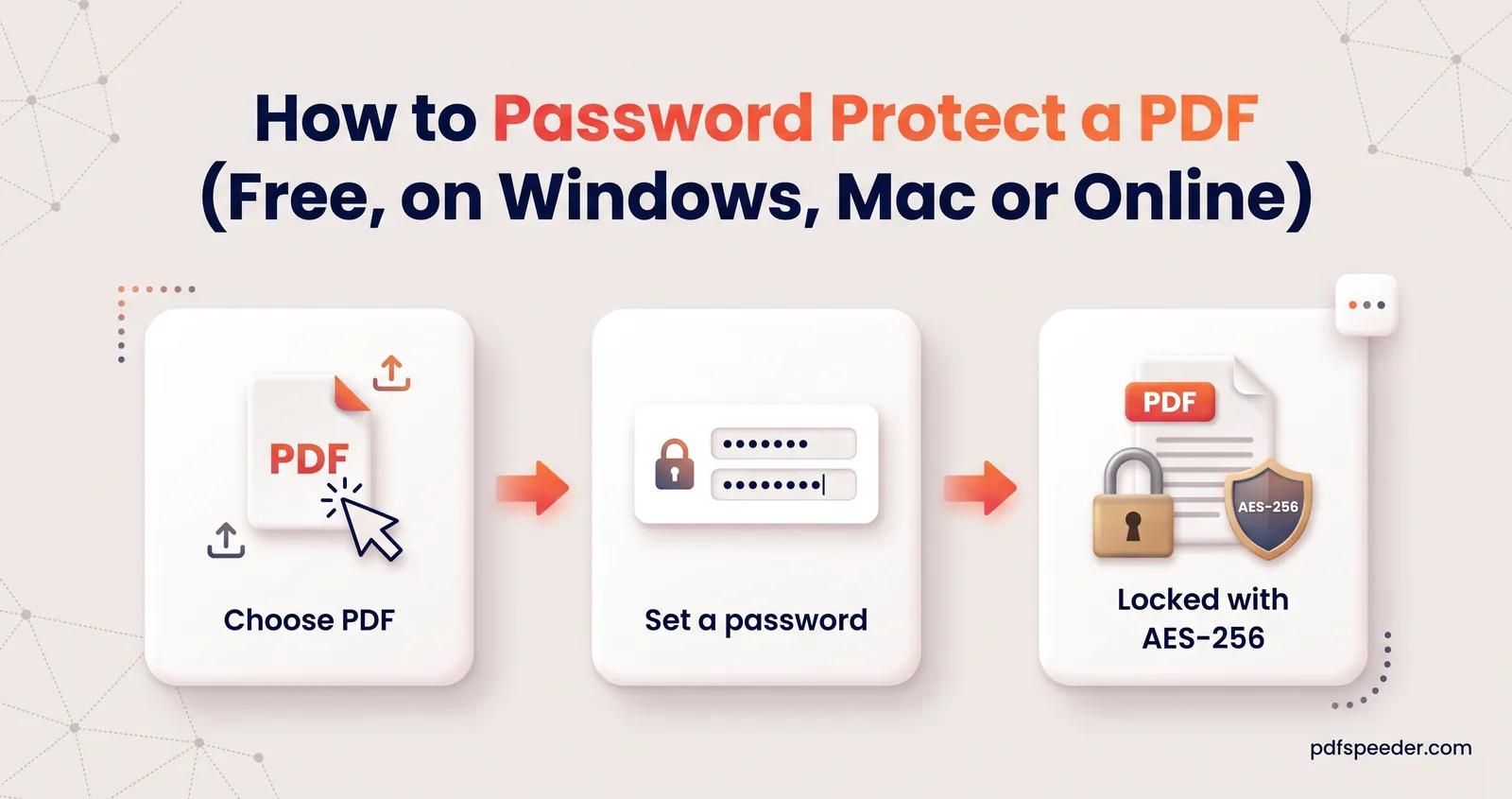
A PDF can carry permission flags that tell apps whether people may edit, copy, print or rearrange pages. They're tied to an owner password, and compliant apps let only someone who knows it change them. It's the usual way to prevent editing, or restrict editing in a PDF to certain actions, while leaving it readable.
With Lock PDF:
- Add the PDF (up to 50 MB; it's encrypted in your browser).
- Type an open password twice. Lock PDF always sets one, so recipients need it to view the file.
- Review the User Permissions. Allow modifying and Allow page assembly are off by default; printing, copying, annotating and form filling are allowed. To stop copying from the PDF, untick Allow copying.
- Leave the owner password under Advanced options blank, and Lock PDF sets a long random one, so the restrictions hold.
- Select Lock PDF and download the "_locked" copy. It's encrypted with AES-256.
Be clear-eyed about what this does. The permissions are honoured by mainstream viewers, but they're a request, not a lock: the encryption protects the content from people without the open password, while the restrictions rely on the reader's software. In our test, anyone who knew the open password could re-save the file with a free PDF library and get a copy with no restrictions at all. Share the open password only with people who need to read the file, and send it separately from the PDF.
To make a PDF read-only for everyone without an open password, use an app that sets permissions on their own. On a Mac, Preview's File > Export > Permissions lets you set an owner password and choose which actions are allowed, with Require Password To Open Document left unticked, according to Apple's Preview guide.
Method 3: Turn pages into images
The strongest everyday option is to replace each page with a picture of itself. There's no text left to select, change or copy, only pixels.
- Open PDF to JPG and add the PDF. It runs in your browser and takes files up to 200 MB.
- Choose a resolution of 150 to 200 DPI and the 001.jpg filename pattern, so the pages stay in order, then convert and select Download ZIP.
- Unzip the images and add them, in order, to JPG to PDF. Set Page size to A4 (or Letter) and keep Quality on Original.
- Create the PDF and download it.
That's two tasks from the free daily allowance: 2 tasks a day without an account, 3 with a free account, reset at 00:00 UTC (05:30 IST).
The trade-offs are real. In our test, a 3-page text report of 3.6 KB became 1.9 MB as 200 DPI colour images at 90% quality, and still 944 KB at 150 DPI in grayscale at 75%. The text can't be searched, and screen readers have nothing to read, so the file is no longer accessible to blind and partially sighted readers. Keep the original for anyone who needs the text.
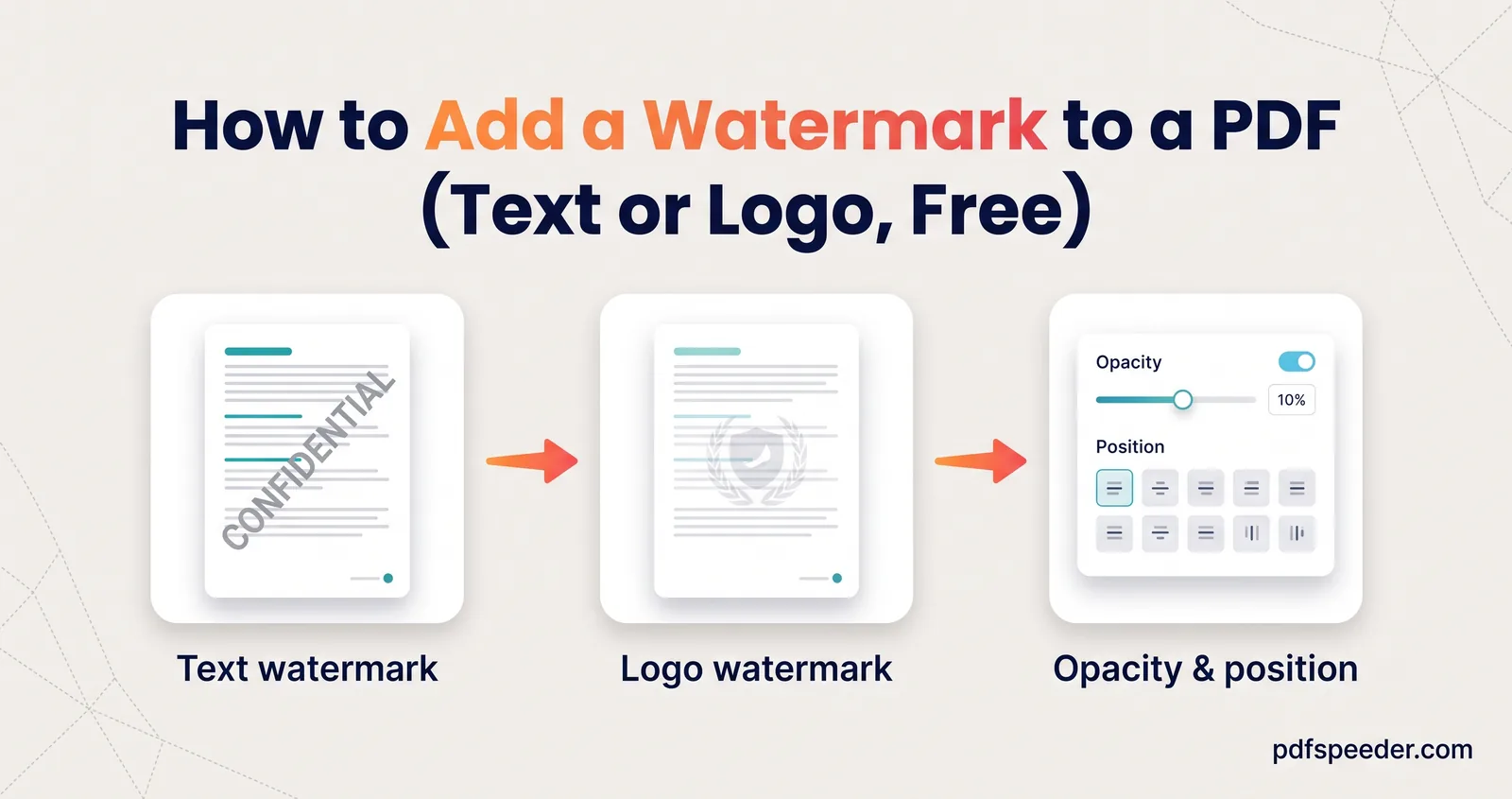
An image-only page is still an image: someone can edit it in a photo editor, or run OCR to get the text back. Adding a watermark before you convert makes reuse more obvious; our guide to watermarking a PDF covers settings that stay readable.
Which method should you choose?
Match the method to the risk:
- A form you're submitting: flatten it. If you filled it with our PDF Form Filler, the download is already flattened.
- A quote, report or contract draft for named people: use Lock PDF with modifying blocked and, if needed, copying blocked, and send the password separately.
- A public file that should open freely but resist edits: set permissions without an open password, for example in Preview, knowing that some software ignores them.
- A certificate, price list or design you don't want copied: turn the pages into images, add a watermark, and accept the larger, unsearchable file.
- Maximum effort: flatten, convert to images, then lock with an open password. Each layer covers a gap in the others.
Whichever you pick, keep an editable original somewhere private, because every method here is designed to be hard to undo. Start with the lightest method that covers your risk: flatten a filled form, or open Lock PDF and untick the permissions you want to block.
Frequently asked questions
How do I make a PDF read-only?
Set permissions that block modifying, with Lock PDF (which also requires an open password) or Preview's Permissions on a Mac. For no editable text at all, convert the pages to images.
Can I stop people from copying text from my PDF?
Untick Allow copying in Lock PDF, which compliant viewers respect. For a stronger barrier, convert the pages to images, which leaves no text to copy, though OCR can still read it back.
Does flattening make a PDF non-editable?
Partly. Form fields and comments can no longer be changed, but the page text stays editable in a PDF editor and can still be copied.
Can a password-protected PDF still be edited?
Without the open password, it can't even be opened. With it, the editing restrictions depend on the app, and some free tools can save an unrestricted copy.
Will turning pages into images make my PDF bigger?
Usually much bigger. In our test, a 3.6 KB text report grew to 1.9 MB at 200 DPI, so use 150 DPI and grayscale where readability allows.