How to Remove Metadata From a PDF Before You Share It
See the hidden author, software and dates in a PDF, remove metadata or fix the title in one click, and catch the hidden details a metadata scrub misses.

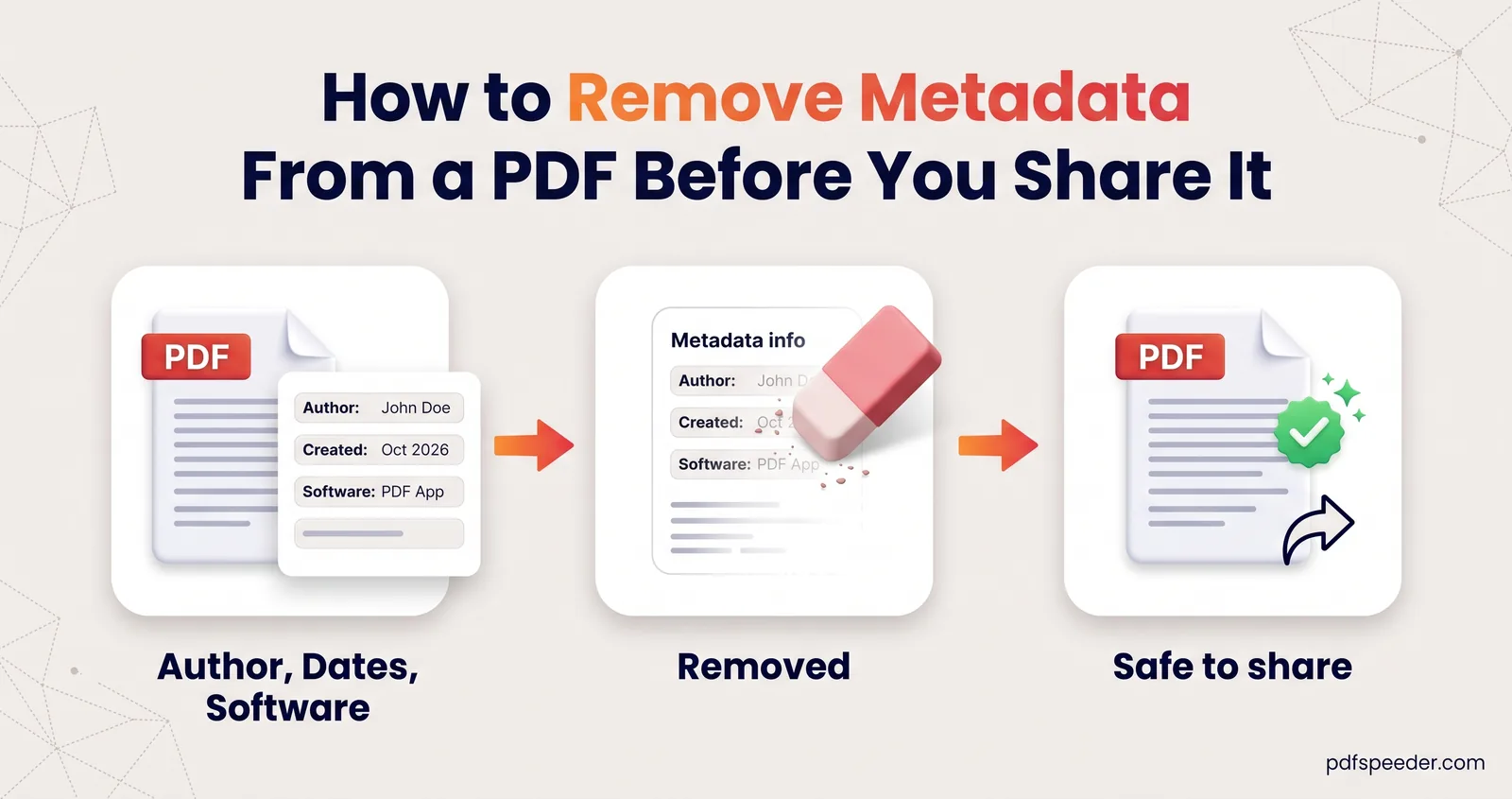
To remove metadata from a PDF, open it in a metadata editor, clear the title, author, subject, keywords, software and date fields, and save a new copy, making sure the hidden XMP copy of those details goes too. A PDF metadata remover that runs in your browser does all of that in one click. Metadata isn't the only thing a PDF carries, though, so this guide also covers comment authors, attachments and photo location data, which a metadata scrub leaves behind.
On this page
What metadata hides in your PDF
Every PDF has a set of document properties stored alongside the pages. Most people never look at them, but anyone can, in any PDF reader. Here's what a typical file exported from a word processor might contain:
| Field | Example value | What it can reveal |
|---|---|---|
| Title | Document1 | A working file name, or an earlier project's title |
| Author | Asha Rao | The name on the computer or Office account that made it |
| Subject and Keywords | Salary revision; hr, salary | Internal labels you never meant to publish |
| Creator (application) | Microsoft Word for Microsoft 365 | The app that made the original document |
| Producer | Microsoft Word for Microsoft 365 | The software that wrote the PDF, often with a version |
| Created and Modified | 12 Sep 2026, 10:30 (+05:30) | When you worked on it, including your time zone |
Many files also carry a second copy of these details in an XMP packet, a block of XML inside the PDF. Clearing only the visible fields can leave that copy behind, and some readers display it, so a proper scrub removes both.
How to see a PDF's metadata
You can check any PDF's document properties before you send it:
- Adobe Acrobat Reader: choose File > Properties and look at the Description tab.
- Google Chrome: open the PDF, then choose Document properties from the three-dot menu at the top right of the viewer.
- Firefox: open the PDF, then choose Document Properties from the viewer's tools menu (the >> button).
- Preview on a Mac: choose Tools > Show Inspector.
Our PDF Metadata Editor also lists the original values as soon as you open a file, next to editable fields, so you can see exactly what you're about to change.
How to remove metadata from a PDF in one click
The PDF Metadata Editor runs in your browser, so the file isn't uploaded anywhere. It handles PDFs up to 50 MB, and each saved copy counts as one task in the free daily allowance: 2 tasks a day without an account, 3 with a free account, reset at 00:00 UTC (05:30 IST).
- Add your PDF. The original title, author, subject, keywords, creator, producer and dates appear on the left.
- Select Scrub all metadata and confirm. Every field is emptied, both dates are cleared, and automatic date stamping is switched off, so nothing new is added on save.
- Select Save & Download PDF. The cleaned copy has "_metadata" added to its name, so rename it before you share it.
Whenever you save, the editor also deletes the XMP packet, so old values can't resurface. In a test on a sample file, the scrubbed copy had no title, author, subject, keywords, creator, producer or dates left, and no XMP packet. The pages themselves aren't changed.
Two other tools can strip metadata as part of a bigger job:
- Compress PDF has a Strip metadata option, on by default, which removes the title, author, dates and XMP while it shrinks the file. It processes the file on our server, uploaded over an encrypted connection and deleted automatically within 2 hours.
- Repair PDF has a Remove hidden metadata option that strips the author, software identifiers, dates and XMP packet while it rebuilds the file in your browser.
The cleanest fix is at the source. When you save a PDF from Microsoft Word, the PDF Options include a Document properties box; Microsoft's guide to saving Office files as PDF notes that properties are included only when it's selected.
Edit the title and author instead
Sometimes the right move is to fix the properties, not empty them. The title in particular is worth getting right:
- Browser tabs in Chrome and Firefox show a PDF's title instead of its file name, so "Document1" is what a client sees when they open your proposal.
- Search results can use it too. Google has said it uses the title metadata and the anchor text of links to decide the title shown for a PDF, and falls back to the file name when no title is set.
- Libraries and document systems often sort and label files by title and author.
To change a PDF title or author name, type over the field in the PDF Metadata Editor. Keywords work as chips: type one and press Enter, or paste a comma-separated list. Dates can be picked from a calendar, set to now, or cleared, and each field has its own Reset button if you change your mind. A good title says what the document is, such as "Salary revision letter, September 2026", not which file it came from.
What removing metadata won't hide
A metadata scrub only touches the document properties. In our test, these survived it, as they would in most metadata editors:
- Comment authors. A sticky note still carried its author's name, "Asha Rao", and its text. Delete the comments, or flatten them, which removes the comment objects along with their author names. Our explainer on what flattening a PDF means shows what else changes.
- Attachments. A text file attached to the PDF was still inside it. Remove attachments in the app that added them; printing the PDF to a new PDF also leaves them behind, because only the pages are printed.
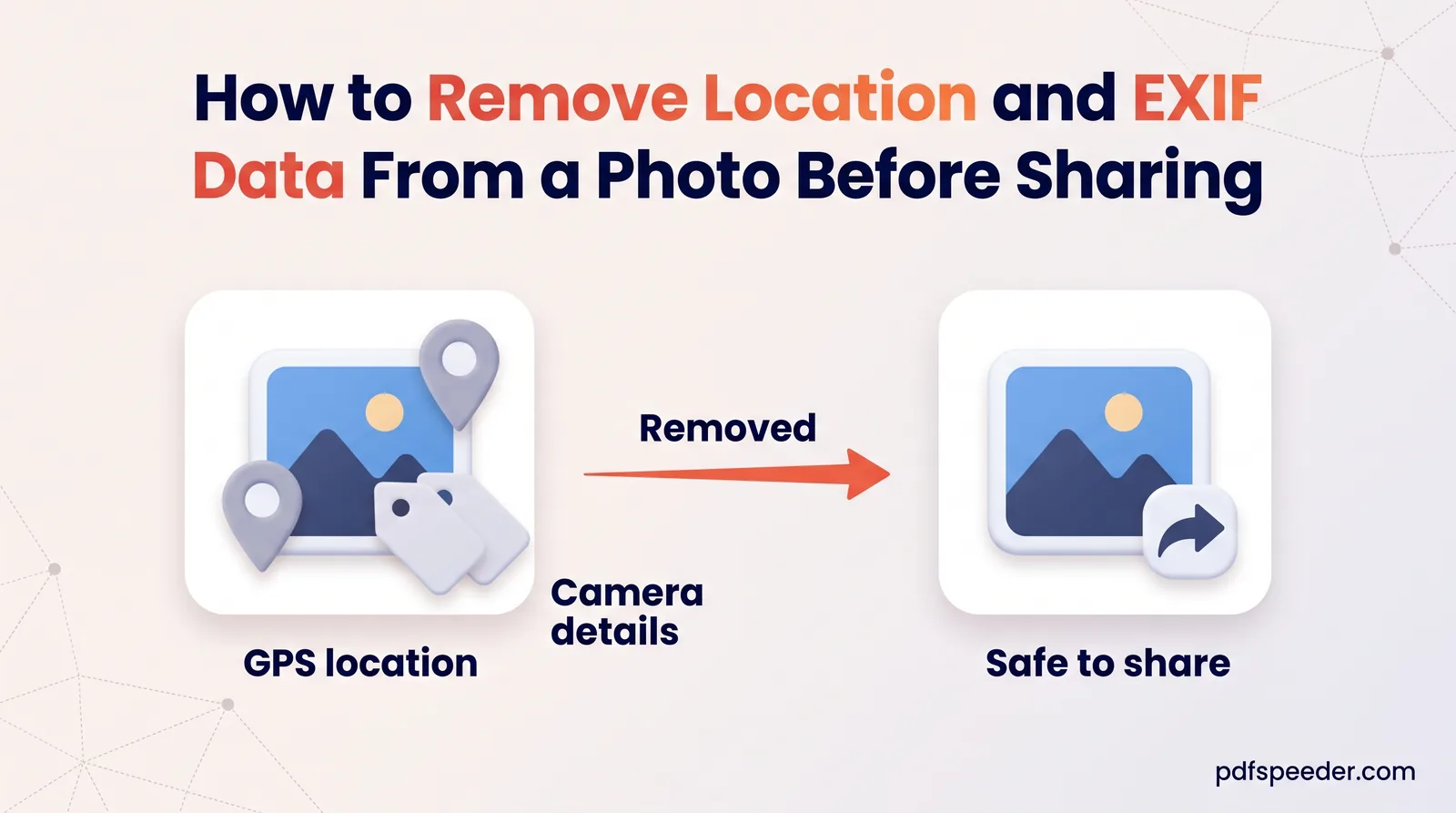
- Photo location data. Photos placed in a PDF can keep their own EXIF data, including camera details and GPS coordinates. When we made a PDF from a phone-style photo with JPG to PDF's Original quality, the photo was embedded byte for byte, EXIF included. The Compressed quality setting re-encodes the image, and in our test that dropped the EXIF data.
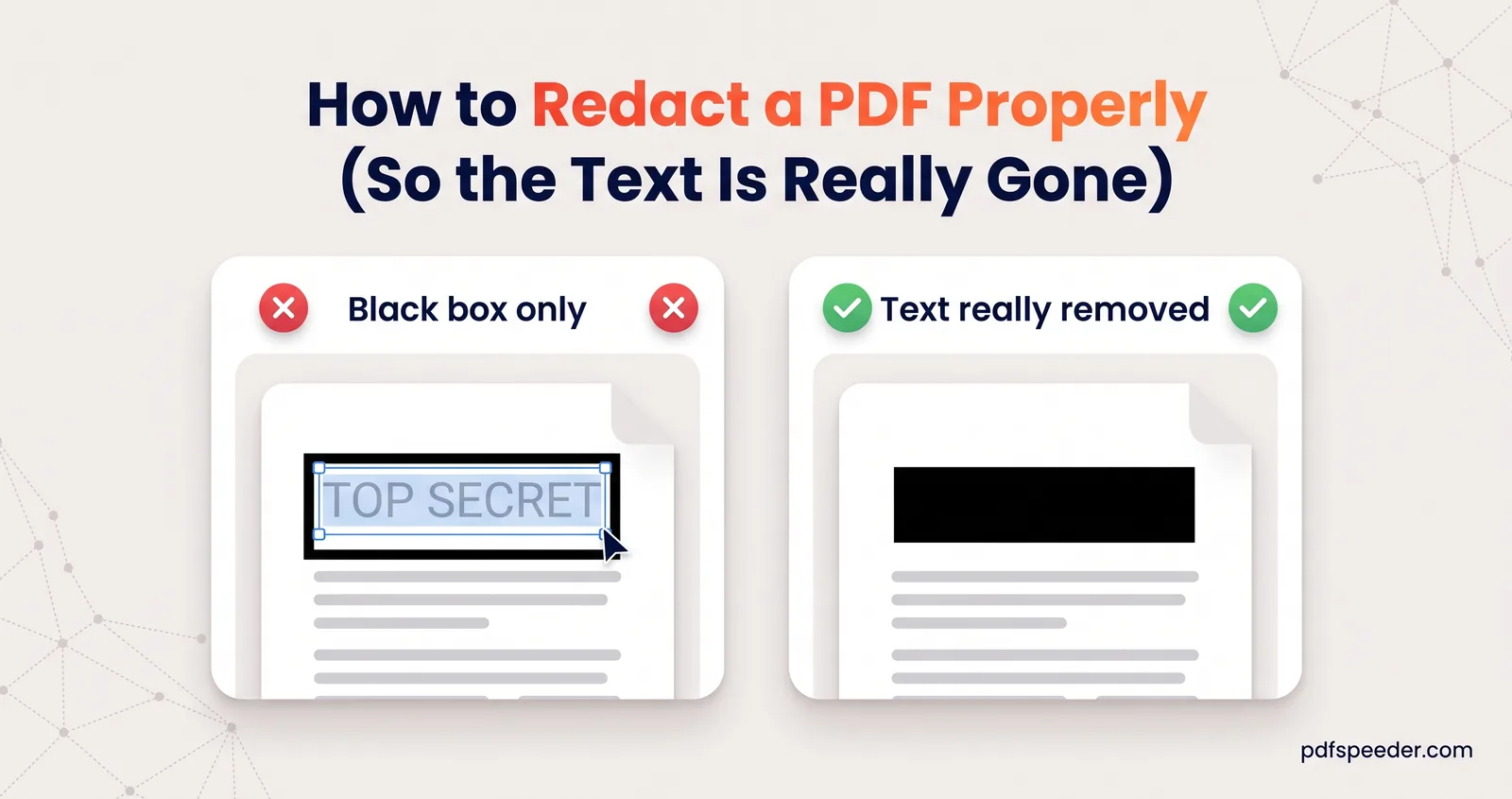
- What's on the page. Names in headers, signatures, account numbers and white text on a white background are content, not metadata. To remove those properly, see our guide on how to redact a PDF.
- The file name. "Asha_Rao_salary_revision_final.pdf" tells people as much as the Author field does.
If you're sharing a file publicly, check all of these, then open the cleaned copy's properties once more to confirm the fields are empty.
Ready to tidy your file? Open the PDF Metadata Editor, compare the original values with what you want people to see, and either scrub everything or give the document a proper title.
Frequently asked questions
How do I see the metadata of a PDF?
In Adobe Acrobat Reader, choose File > Properties; in Chrome, choose Document properties from the PDF viewer's three-dot menu. The PDF Metadata Editor shows the same fields as soon as you open a file.
How do I change the author name on a PDF?
Open the PDF in the PDF Metadata Editor, type the new name in the Author field and select Save & Download PDF. The hidden XMP copy, which may still hold the old name, is deleted at the same time.
Does removing metadata change the content of my PDF?
No. Only the document properties change; the pages, text, images and form fields stay as they were.
Is it safe to remove metadata online?
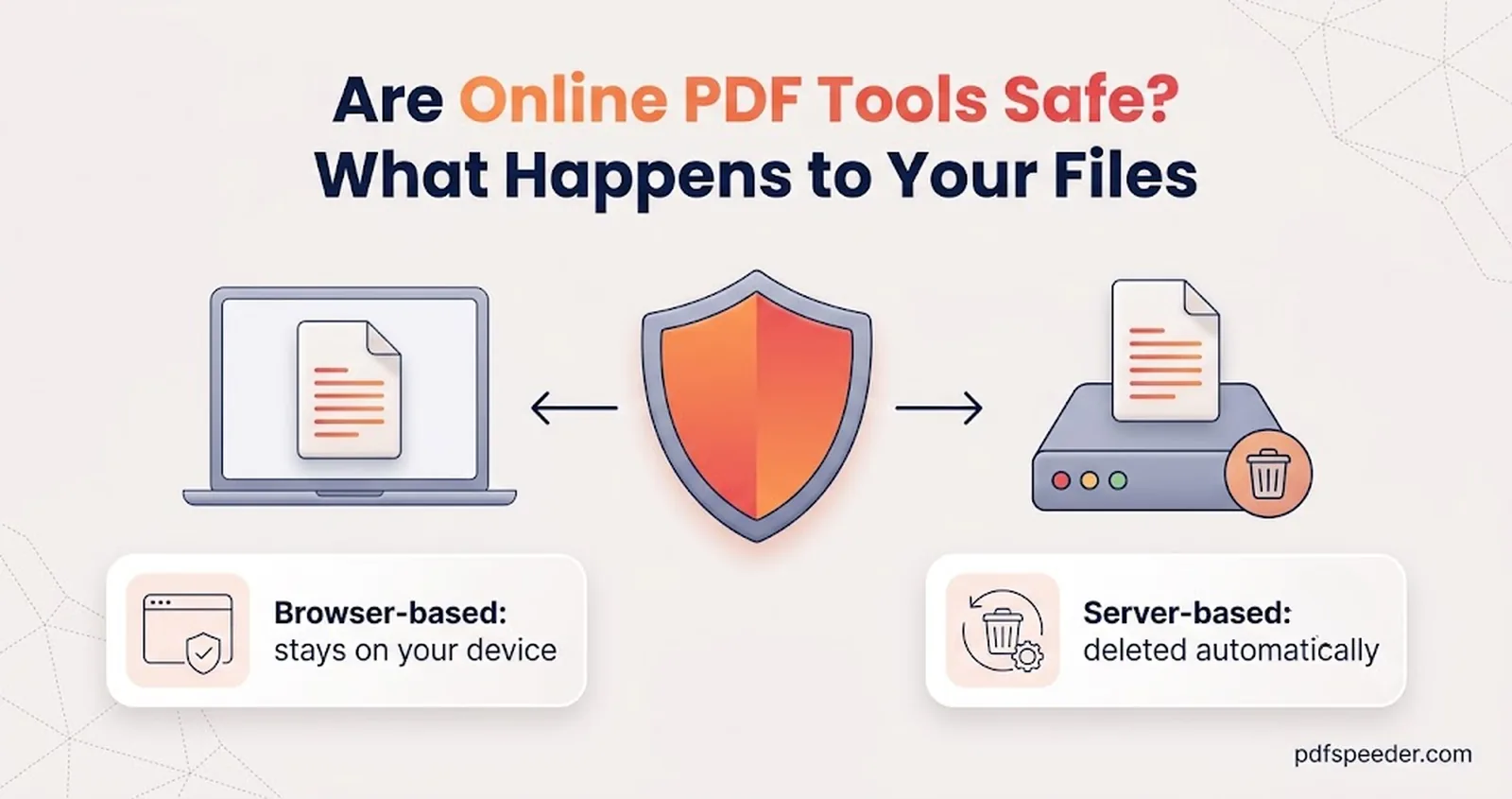
The PDF Metadata Editor works in your browser, so the file never reaches our server. Compress PDF uploads the file and deletes it from our server automatically within 2 hours.
Why does my PDF still show the old title after I changed it?
The old title is probably stored in the XMP copy as well. Saving with the PDF Metadata Editor removes that copy, so reopen the new file rather than the original.