How to Remove Location and EXIF Data From a Photo Before Sharing
Remove location from a photo before you share it: check for hidden GPS and EXIF data, switch location off on iPhone and Android, or strip it in your browser.

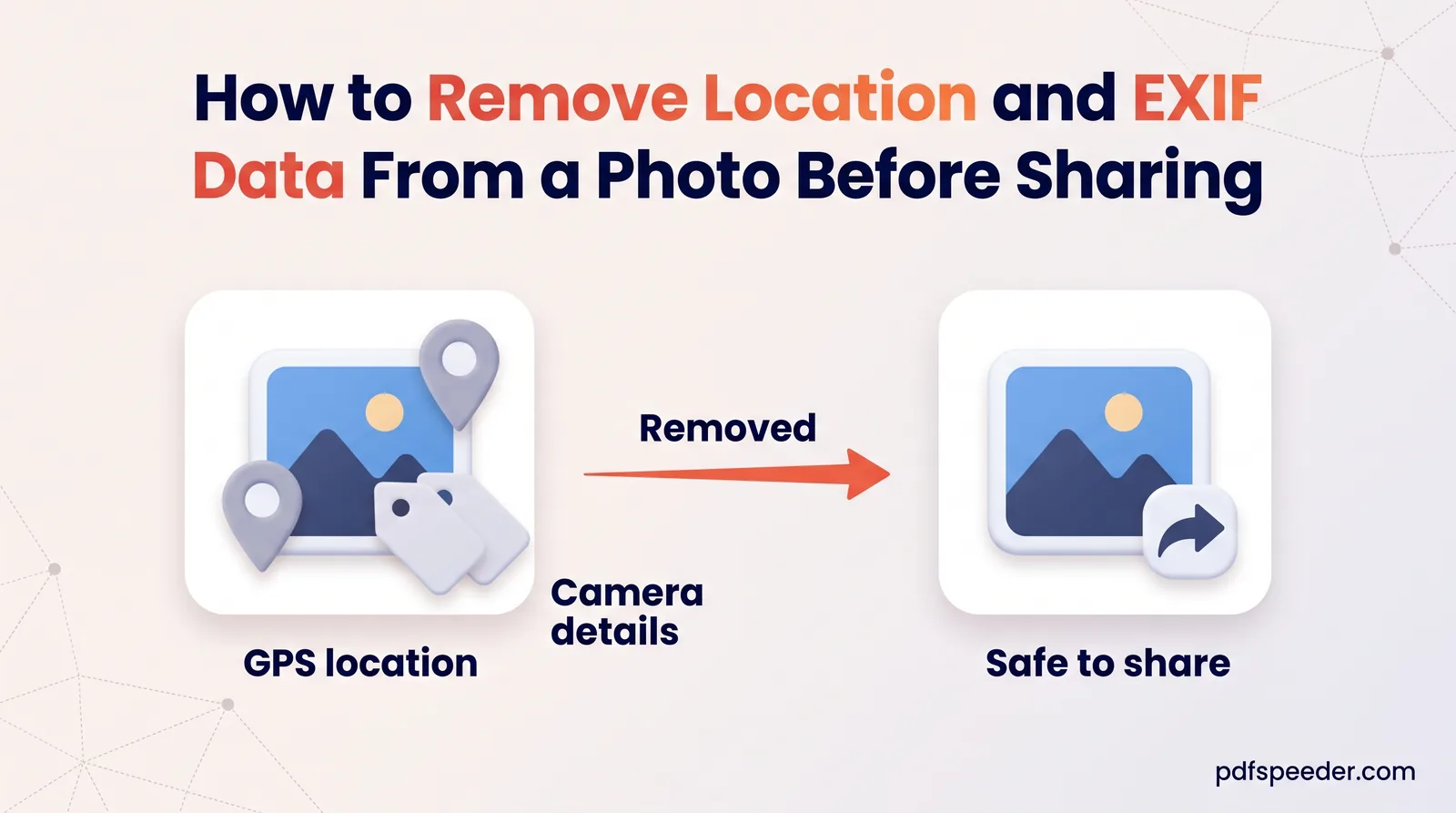
To remove location from a photo before you share it, either switch location off in your phone's share options or save a clean copy of the file without its EXIF data. On an iPhone, tap Share, then Options, and turn off Location; on a Samsung Galaxy, tick Remove location data on the Gallery's share screen; on a computer, re-save the photo through a tool that writes a fresh file. It's worth checking first, because a phone photo can carry the exact coordinates of the place it was taken.
On this page
What hidden data your photos carry
Most cameras and phones save a block of information called EXIF inside every photo. You don't see it when you look at the picture, but anyone who has the file can read it with ordinary apps:
| EXIF field | What it can reveal |
|---|---|
| GPS latitude and longitude | Where the photo was taken: your home, your child's school, your office |
| Date and time | When you were there, down to the second |
| Device make and model | Which phone or camera you use; some cameras also record a serial number |
| Camera settings | Exposure, ISO, focal length and flash, which are harmless on their own |
| Orientation | Which way up the photo should be displayed |
Location is the field that matters. One photo pins down a place; a handful taken at home, all with coordinates and timestamps, shows a pattern. Photos can also carry other metadata blocks, such as captions, keywords or names added by editing apps, which a clean copy removes along with the EXIF.
How to check a photo for location data
Before you change anything, check photo location data on the device you're using:
- iPhone: open the photo in Photos and swipe up, or tap the Info button. A map appears if the photo has a location.
- Android: in most gallery apps, open the photo and swipe up to see its details, including a map when there's a location.
- Mac: open the photo in Preview and choose Tools > Show Location Info. If that menu item is grey, the photo has no location information, as Apple's Preview guide notes.
- Windows: right-click the file, choose Properties and open the Details tab. A GPS section with latitude and longitude means the location is stored.
Run the same check on the copy you're about to share, not only the original, so you know the fix worked.
Turn off location when sharing on iPhone and Android
iPhone
Apple's guide to managing location metadata in photos covers three levels of control:
- For one share: select the photos, tap the Share button, tap Options and turn off Location, then share as usual. The photos in your library keep their location.
- For one photo, permanently: open it from Albums, tap the More button, then Adjust Info, Adjust Location and No Location.
- For all future photos: go to Settings > Privacy & Security > Location Services > Camera and choose Never.
Android
On Samsung Galaxy phones with One UI 3.0 or later, open Gallery, long-press to select the photos, tap Share and tick Remove location data before choosing an app, as Samsung's support page shows.
Google Photos works differently. Google says new albums, links and conversations you share from Google Photos don't include location details by default. But its location help page also says you can't change or remove a location your camera added, and that a photo you download and email to someone still shows the original location your device saved. So a file shared outside Google Photos needs cleaning first.
To stop recording location altogether, look in your camera app's settings: the option's name and place vary between phone makers.
How to remove location from a photo in your browser
When you're sending a photo as a file, by email, through a cloud link or to an upload form, the safest approach is a clean copy. Our Image Resizer makes one in your browser: it draws the photo and saves it as a new file, and the new file carries none of the original's EXIF data. Used at 100% scale, it works as a free photo metadata remover that leaves the picture's size alone.
- Open the Image Resizer and add one photo or a whole batch (JPG, PNG, WebP, GIF, BMP or AVIF, up to 80 MB each).
- Choose Scale % and leave it at 100%.
- Keep Format on the original, and Quality at 92 or higher for JPGs.
- Select Resize, then download the photo, or all of them as a ZIP.
In a test on a sample JPG carrying GPS coordinates, the camera make and model and a timestamp, the copy came back at the same 1600 × 1200 pixels with no EXIF data at all: no GPS, no device, no date. Sideways phone photos are rotated into the pixels first, so they stay upright without the orientation tag. The only trade-off is that a JPG is compressed once more at the quality you set, which you won't see at 92; a PNG is copied without any loss.
Strip EXIF and shrink the file at the same time
The Image Compressor removes EXIF too, in both Quality and Target size mode, so it suits photos you want smaller as well; our guide to reducing image size in KB explains how to pick a target.
An already optimized label means the compressor couldn't make that photo any smaller and kept your original pixels. It still strips the EXIF data, GPS included, and adds a metadata removed label when it does. Only the colour profile and, for a photo taken sideways, the orientation tag stay, so the picture looks the same and stays upright. In our test, a JPG carrying GPS coordinates came back with both labels and no GPS data.
Both tools run entirely in your browser, so you can strip EXIF online without uploading the photo anywhere, and neither uses up your daily free tasks.
Built-in options on a computer
- Windows: select the photos, right-click, choose Properties, open Details and click Remove Properties and Personal Information. The default choice creates a copy with all the properties Windows can remove taken out. Check the copy's Details tab afterwards, since Windows only removes the properties it knows how to edit.
- Mac: in the Photos app, select the photos and choose Image > Location > Hide Location, which Apple lists alongside Revert to Original Location.
| Method | Removes location | Removes other EXIF | Same pixel size |
|---|---|---|---|
| iPhone Share > Options > Location off | Yes, for that share | No | Yes |
| Samsung Gallery "Remove location data" | Yes, for that share | No | Yes |
| Windows Remove Properties (copy) | Yes | Most editable properties | Yes |
| Image Resizer at 100% | Yes | Yes, all of it | Yes |
| Image Compressor, Target size | Yes | Yes; only the orientation tag may stay | Usually; it shrinks only if it must |
Do social apps remove it for you?
Some services strip location from the copies they show other people, but behaviour varies between apps, can change without notice and often isn't spelled out in their help pages. Google Photos is one that documents its rule, which is why it's quoted above. Two situations are clear-cut, though: an email attachment, a cloud-storage link or any other file transfer delivers the exact file you sent, metadata included, and whatever you upload may be kept by the service in its original form. The only way to be sure is to remove the GPS from the photo before it leaves your device.
Metadata isn't the only giveaway, either. A house number, a school badge, a street sign or a reflection in a window can reveal a location that no EXIF tool can remove, so glance at the picture itself before you post it. For the wider question of which online tools to trust with personal files, see our guide to whether online PDF tools are safe.
Next step: check one of your recent photos for a location, then switch off location on your phone's share screen or open the Image Resizer, keep Scale at 100% and save a clean copy before you share.
Frequently asked questions
How do I remove EXIF data from a photo for free?
On a computer, save a clean copy with the Image Resizer at 100% scale, which writes a new file without any EXIF data, or use Windows' Remove Properties and Personal Information. On a phone, turn off location in the share options.
Does removing location from a photo lower its quality?
Turning location off in your phone's share options doesn't touch the picture. A clean copy from the Image Resizer is a re-saved JPG, which looks the same at quality 92 or higher, and PNGs lose nothing.
Will the app I share with remove the location?
Some apps strip it from the copies they display, but behaviour varies and can change, and a photo sent as a file keeps everything. Removing the location yourself is the only way to be certain.
How do I stop my phone adding location to photos?
On an iPhone, go to Settings > Privacy & Security > Location Services > Camera and choose Never. On Android, turn off the location option in your camera app's settings.
Can I remove location data from many photos at once?
Yes. Add the whole set to the Image Resizer at 100% scale and download the clean copies together as a ZIP, or select several files in Windows before choosing Remove Properties and Personal Information.