How to Reduce Image Size in KB Without Ruining the Photo
How to reduce image size in KB for forms, email and uploads: what decides the file size, how to hit an exact target like 50 KB, and when to resize first.

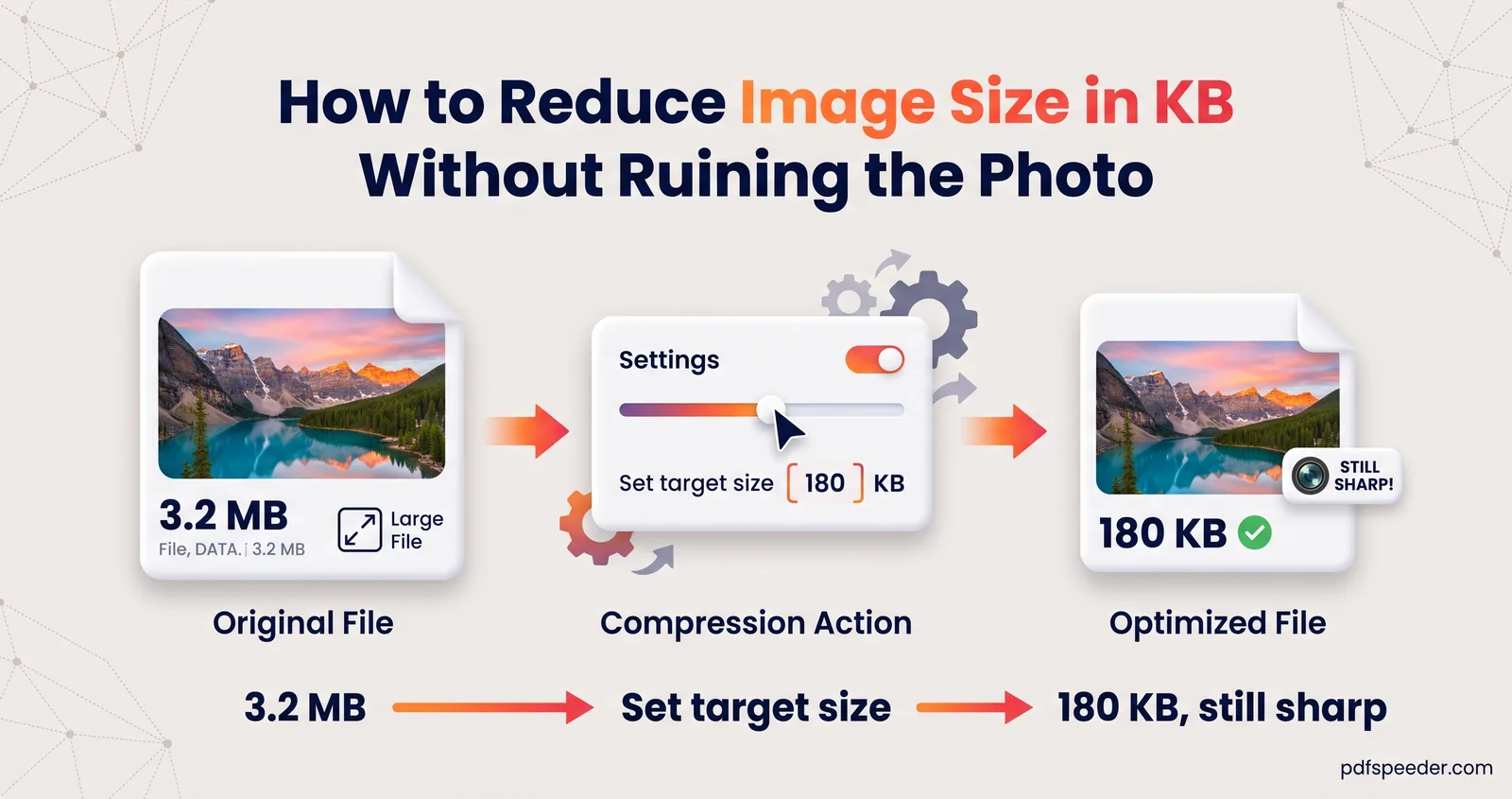
To reduce image size in KB, you lower one of the three things that decide it: the pixel dimensions, the compression quality or the file format. For most photos, a compressor with a target-size setting does it in one step: type 50 KB or 200 KB and it finds the highest quality that fits. If the target is tiny, or a form also fixes the pixel size, resize the photo to the required dimensions first and compress it afterwards.
On this page
What decides an image's size in KB
Every photo is a grid of pixels, and each pixel holds three colour values (red, green and blue) of one byte each. That makes the raw size easy to work out:
raw size in bytes = width × height × 3
example: 4000 × 3000 × 3 = 36,000,000 bytes (34.3 MB as Windows counts it)
That's a 12-megapixel phone photo before compression. Formats like JPEG shrink it by discarding detail your eye barely notices, and how much they discard is the quality setting. So three levers control the final KB:
- Pixel dimensions. Halve the width and the height and you're left with a quarter of the pixels, so the compressed file usually drops to roughly a quarter, often a little more.
- Quality. On JPEG and WebP's scale of 1 to 100, lower numbers throw away more fine detail. Faces and small text show the damage first.
- Format. JPEG suits photos, PNG suits screenshots and line art, and WebP or AVIF can be smaller again, though not every portal accepts them.
Here's how the raw size falls as the dimensions do:
| Dimensions | Pixels | Raw size |
|---|---|---|
| 4000 × 3000 (12 MP phone photo) | 12,000,000 | 34.3 MB |
| 2000 × 1500 | 3,000,000 | 8.6 MB |
| 1000 × 750 | 750,000 | 2.1 MB |
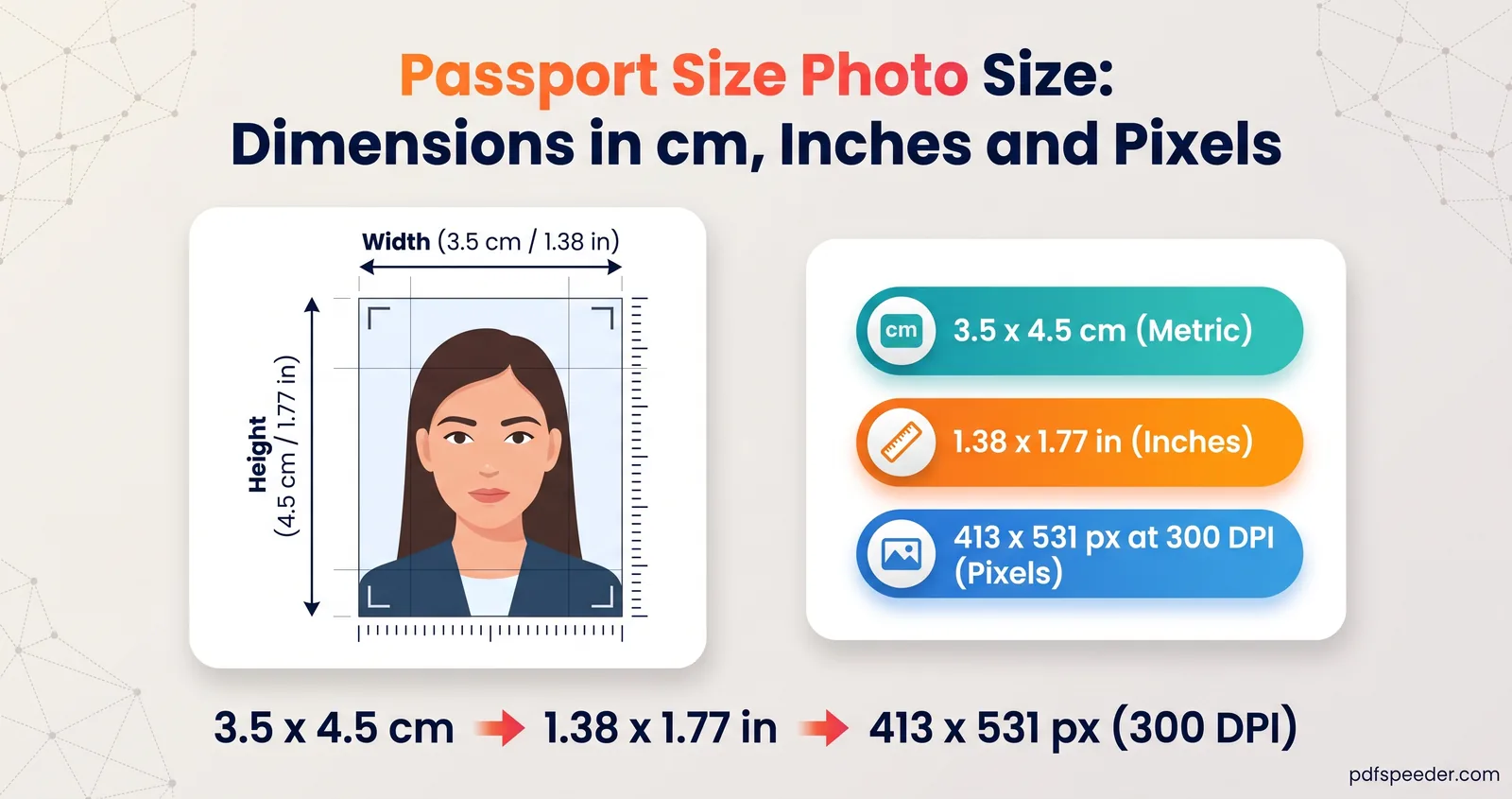
| 413 × 531 (35 × 45 mm at 300 DPI) | 219,303 | 642 KB |
| 276 × 354 (3.5 × 4.5 cm at 200 DPI) | 97,704 | 286 KB |
A useful way to judge whether a target is realistic is the budget it leaves each pixel. Multiply the target in KB by 8,000 (the bits in a kilobyte of 1,000 bytes, which is how the compressor counts) and divide by the number of pixels:
| A 50 KB target at | Bits available per pixel |
|---|---|
| 4000 × 3000 | 0.03 |
| 1600 × 1200 | 0.21 |
| 1000 × 750 | 0.53 |
| 600 × 450 | 1.48 |
As a rough guide, a JPEG photo starts to look blocky below about half a bit per pixel and looks clean at one bit or more. So 50 KB is comfortable for a 600 × 450 image, borderline at 1000 × 750 and hopeless for a full 12 MP photo, however clever the compressor is.
How to reduce image size in KB to an exact target
Our Image Compressor has a target-size mode built for upload limits. It runs in your browser, so your photos are never uploaded.
- Open the Image Compressor and add one or more photos: JPG, PNG, WebP, GIF, BMP or AVIF, up to 80 MB each.
- Under Compression, switch to Target size. Type the limit and choose KB or MB, or tap the 50 KB, 100 KB, 200 KB or 500 KB chip.
- Pick the Output format. Choose JPG for upload forms, which almost always ask for it.
- Select Compress, then drag the before/after divider across the face or any text to check the result.
- Download the image, or all of them as a ZIP.
Behind the scenes it searches for the highest quality that still fits under your target, and if even the lowest quality is too big, it reduces the dimensions step by step until the file fits. If a result is marked "closest possible", the target couldn't be reached at all; resize the photo first (next section). The smallest target it accepts is 5 KB.
Note: The compressor counts 1 KB as 1,000 bytes, so a 100 KB target produces a file of at most 100,000 bytes. That passes whether a portal counts 1 KB as 1,000 or 1,024 bytes, so you can type the portal's own limit.
| Portal limit | Type this target | Largest file it can produce | Shown by Windows as |
|---|---|---|---|
| 20 KB | 20 KB | 20,000 bytes | 19.5 KB |
| 50 KB | 50 KB | 50,000 bytes | 48.8 KB |
| 100 KB | 100 KB | 100,000 bytes | 97.7 KB |
| 200 KB | 200 KB | 200,000 bytes | 195.3 KB |
| 500 KB | 500 KB | 500,000 bytes | 488.3 KB |
That makes it simple to compress an image to 50KB, 100 KB or any other limit without a second attempt. Windows counts 1,024 bytes per KB, which is why a 50,000-byte file shows up there as 48.8 KB; that's normal. To see a file's exact size in bytes, right-click it and open Properties on Windows, or select it and press Command+I on a Mac.
Resize first when the target is tiny
When a form gives pixel dimensions as well as a KB limit, or the target is very small, resizing first gives you control over the result. Leave it to the compressor and it may shrink the photo to whatever size happens to fit, which won't match the form's rules.
Our Image Resizer handles this step:
- Exact size sets precise pixels. If the shape differs from your photo, choose Crop to fill (trims the edges, keeping the centre) or Fit with padding (adds a border) so nothing gets stretched.
- Fit within keeps your photo's shape and shrinks it to fit a box, such as 1280 px.
- Presets include common social sizes and a 35 × 45 mm passport size at 300 DPI; our passport photo size guide lists the sizes other countries use.
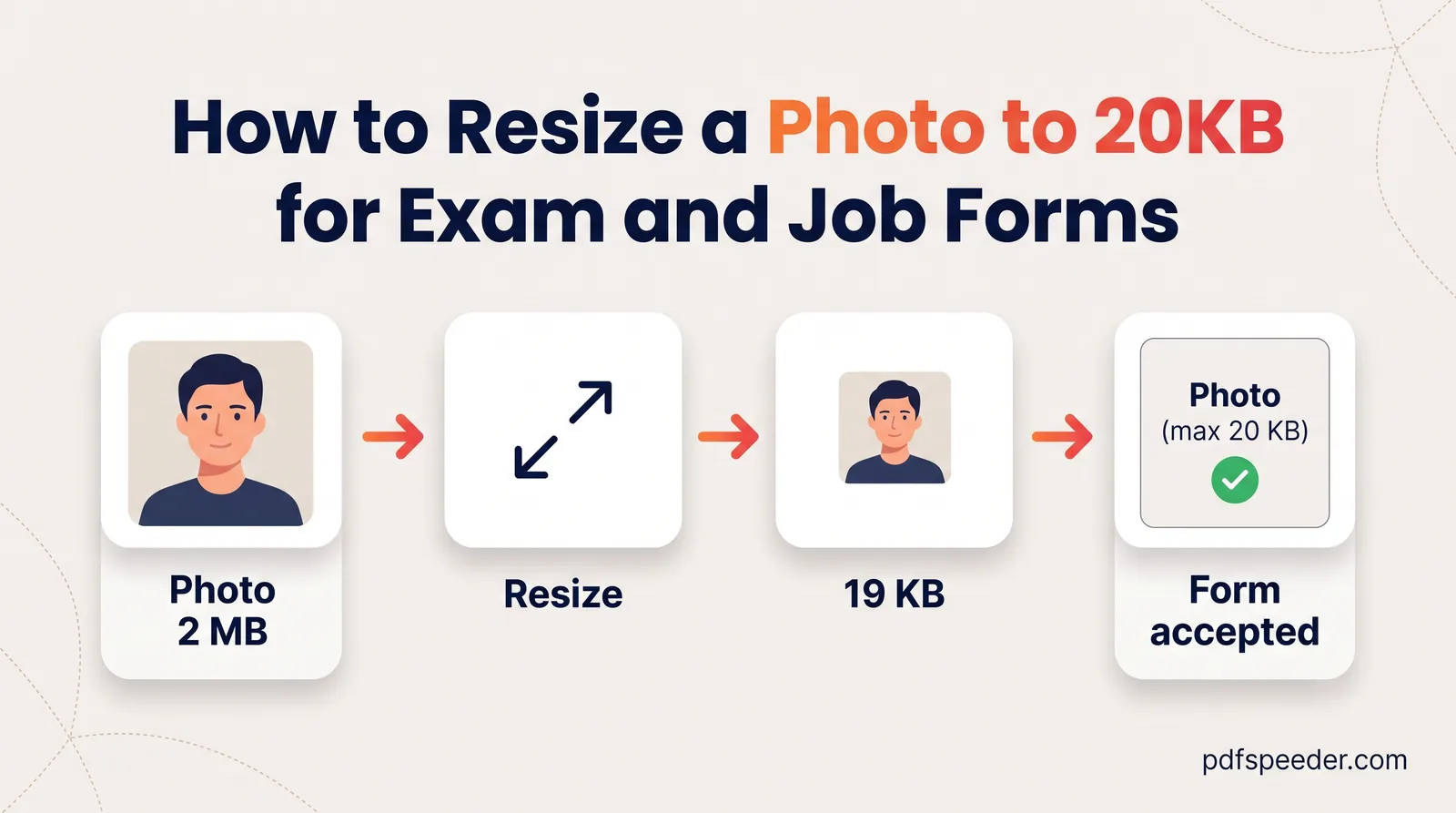
The resizer saves JPGs at quality 92 by default, so run the resized file through the compressor afterwards to bring it down to the KB limit. For very small targets such as 20 KB, our guide to resizing a photo to 20 KB works out the dimensions to use.
Choose the right format for small files
| Format | Best for | Watch out for |
|---|---|---|
| JPG / JPEG | Photos, and almost every upload form | No transparency; repeated saving adds blur |
| PNG | Screenshots, diagrams, text | Photos saved as PNG are much bigger than JPG |
| WebP | Websites, smaller photos at the same look | Some portals, especially exam and government forms, accept only JPG |
| AVIF | Smallest files where it's supported | Limited support; the option only appears if your browser can create it |
JPG and JPEG are the same format with two spellings, so a form asking for one accepts the other. A PNG can't be squeezed to an exact byte target, so in target-size mode the compressor saves PNGs as JPG (or as WebP under Smart, if the image has transparency). And if your image has a transparent background, JPG has to fill it with a colour; the compressor uses white unless you choose another under Transparency fill.
Minimum sizes and other form rules
Plenty of forms set a window rather than a cap, such as a photo between 20 KB and 50 KB. A few points save you a rejected upload:
- Aim for the top of the window. Target-size mode aims just under the number you type, so type the upper limit (50 KB for a 50 KB cap) rather than the minimum.
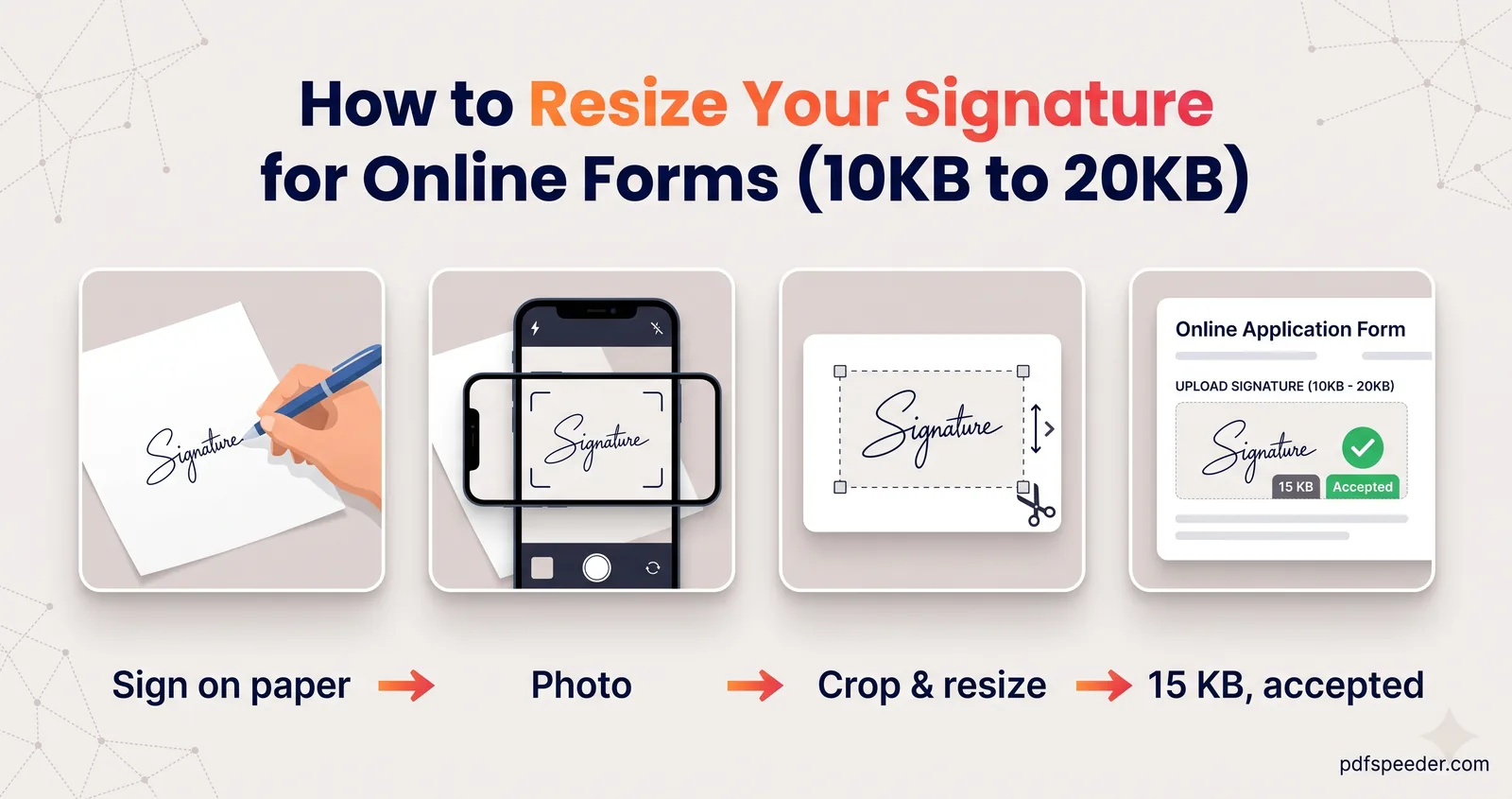
- If it comes out too small, add pixels, not noise. Small images run out of detail to keep: target mode never goes above quality 95, so a tiny image may land under the minimum. Resize to larger dimensions, within any limits the form sets, and compress again. Signatures hit this most often, as our guide to resizing a signature for online forms explains.
- DPI doesn't change the KB. DPI is a label stored in the file that tells printers how large to print it. Changing it alone leaves the pixels, and therefore the file size, exactly as they were. If a form asks for 200 or 300 DPI, set the Print DPI field in the Image Resizer.
- Location data goes. The compressor removes EXIF metadata, including any GPS location your phone recorded, from every JPG, PNG or WebP it hands back, even when it keeps your original pixels because they already fit. That's a privacy bonus for anything you upload.
Compress many photos at once
Both tools handle batches. In the Image Compressor, add as many photos as you need, choose the settings once and download everything as a ZIP; Adjust settings re-runs the batch without adding the files again.
For mixed formats, the Bulk Converter takes up to 100 files at a time and converts PNG, WebP, GIF or BMP images to JPG, PNG, WebP or PDF, with a quality slider and resizing by longest side, width or percentage. It also runs in your browser.
When you compress photos for email, work backwards from the limit. Gmail allows 25 MB of attachments on personal accounts and turns anything bigger into a Google Drive link, according to Google's help page. Leave some headroom: to send 30 photos in about 20 MB, each needs to average under 680 KB, so a 650 KB target per image does it.
Prefer something built in? On a Mac, Preview's Tools > Adjust Size reduces the pixels and File > Export has a quality slider, while on an iPhone, Mail offers smaller sizes when you send photos. They're fine for one-off jobs; for exact KB targets and batches, the compressor is quicker.
Next step: open the Image Compressor, switch to Target size, type the portal's limit and check the result before you upload it.
Frequently asked questions
How can I reduce image size in KB without losing quality?
Reduce the pixel dimensions to what you actually need first, then compress at the highest quality that fits your limit. Shrinking a 12 MP photo to the size a form asks for removes far more KB than lowering the quality, and costs much less visible detail.
How do I compress a photo to 50KB?
In the Image Compressor, switch to Target size and type 50 KB; it counts 1 KB as 1,000 bytes, so the file fits whichever way the portal counts. If the result says "closest possible", resize the photo to smaller dimensions first.
Why is my image still too big after compressing?
Usually the photo still has too many pixels for the target. Resize it to the dimensions the form asks for, or to around 1000 px on the longest side, and compress again.
Does reducing the DPI reduce the file size?
No. DPI is only a printing instruction stored in the file, so changing it leaves the pixels and the KB unchanged. Only fewer pixels, a lower quality or a different format make the file smaller.
Is it safe to compress photos for official forms online?
The Image Compressor and Image Resizer both run entirely in your browser, so your photo never leaves your device. The compressor also removes location data and other EXIF details from every JPG, PNG or WebP it hands back, including ones whose original pixels it keeps.