Are Online PDF Tools Safe? What Happens to Your Files
Are online PDF tools safe? See which tools upload your file and which never do, what to check before uploading, and a simple test you can run on any tool.

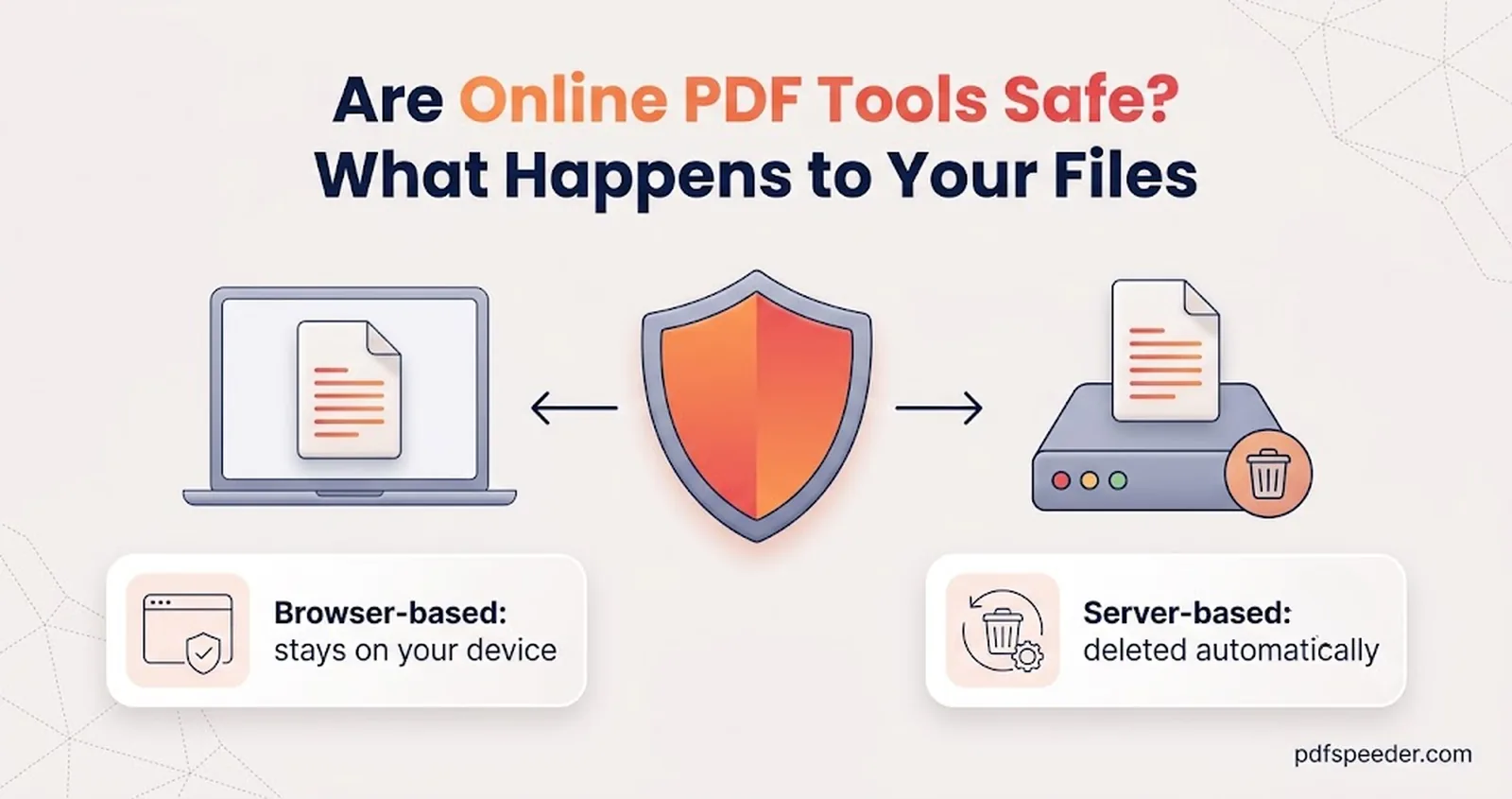
Are online PDF tools safe? They can be, but it depends on which kind you use: some work entirely inside your browser, so the file never leaves your device, while others upload it to a server, process it there and delete it later. What matters is knowing which kind you're using, what the provider does with uploads, and how sensitive your document is. This guide explains both kinds, gives you a two-minute test for any tool, and sets out exactly how PDFSpeeder handles your files.
On this page
Are online PDF tools safe? The short answer
Two questions decide how much risk you're taking:
- Does the file leave your device? If a tool works in your browser, there's no upload to worry about.
- If it's uploaded, what happens next? Look for an encrypted connection, automatic deletion within a stated time, and a clear answer on whether anyone else, such as an AI provider, gets to see the content.
A provider that answers both in plain words is a good sign. A tool that won't say where your file goes is a reason to pick another one, especially for an ID card, a bank statement or a contract.
Browser-based vs server-based tools
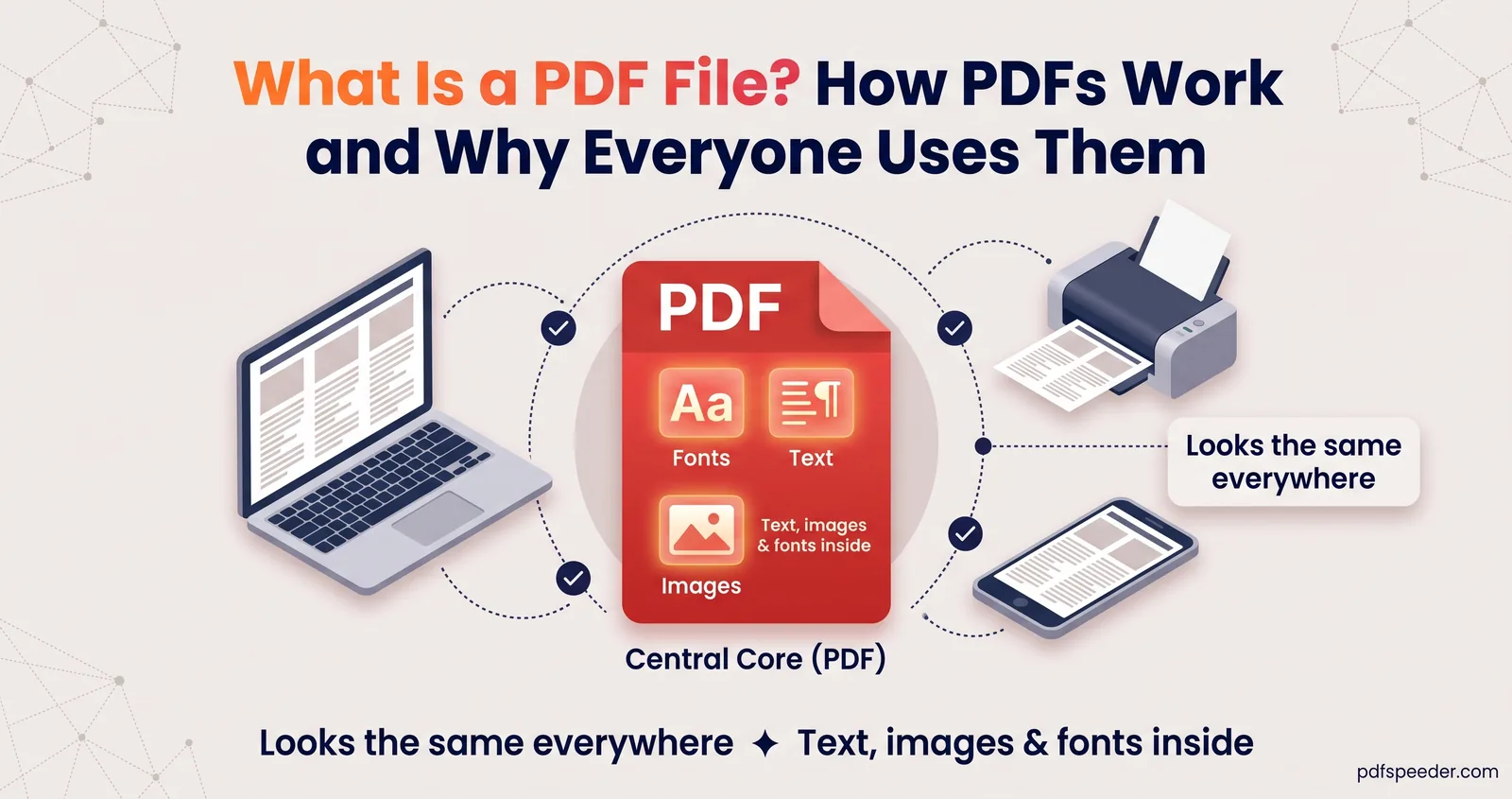
Every online PDF tool belongs to one of two families, and they handle your file very differently:
| Works in your browser | Works on a server | |
|---|---|---|
| Where the work happens | On your phone or computer, using code the page loads | On the provider's computers |
| Does your file travel? | No | Yes: it's uploaded, and the result is sent back |
| Typical jobs | Merging, splitting, rotating, signing, editing, watermarking, adding or removing passwords | Office conversions, PDF to Word or Excel, heavy compression, AI features |
| What limits it | Your device's memory and speed | The server and your connection |
| What to check | That it really runs locally | Encryption in transit, the deletion policy, third parties |
Server tools exist because some jobs need software that's too big or too slow to run in a web page, such as faithful Word and PowerPoint conversion, industrial-strength compression or an AI model. That isn't a problem in itself; it just means the provider's handling of your file matters.
For sensitive documents, the most secure PDF tools are browser-based ones, because there's nothing on a server to leak, intercept or forget to delete.
What happens to an uploaded file
On a well-run service, an upload follows a short, predictable path: the file travels over an encrypted HTTPS connection, sits in temporary storage while it's processed, the result comes back to you, and both are deleted automatically.
Before you upload anything private, check the provider's privacy page for straight answers to these questions:
- How long are files kept, and are they deleted automatically, or only when you ask?
- Does anyone open them? Processing should be automatic, with no person reading your documents.
- Is any content shared with a third party, such as an AI provider, and is it used for training?
- Are files sold or used for anything except your task?
HTTPS deserves a word of its own. The padlock in your address bar means your file is encrypted on its way to the server and back, so nobody on your Wi-Fi can read it. It says nothing about what happens once the file arrives, which is what the deletion policy is for.
AI tools add one more step, because the document's text goes to the company that runs the AI model. OpenAI, for example, says that data sent to its API isn't used to train its models unless the customer opts in, and that abuse-monitoring logs are kept for up to 30 days by default.
How to check whether a tool uploads your file
You don't have to take a website's word for it. Two tests show you what really happens.
The offline test
- Open the tool and do one practice run with a harmless file. Some browser tools download extra components the first time you use them, so this gets them loaded.
- Turn off Wi-Fi and mobile data.
- Run the tool again with another test file.
If it still works and gives you a result, the processing happened on your device. If it stops with a network or upload error, it's a server tool. Reconnect when you're done.
The network test
On a computer, press F12 (or Cmd+Option+I on a Mac) to open your browser's developer tools and select the Network tab. Run the tool and watch the list of requests. An upload shows up as a request roughly the size of your file; small requests, such as page analytics or a usage counter, don't carry your document. If no request comes close to your file's size, it stayed on your device.
Either test takes a couple of minutes and works on any site, which makes it a sensible habit before you trust a new tool with anything personal.
Extra care for IDs, bank statements and contracts
Some documents deserve more caution than others: Aadhaar and PAN cards, passports, bank statements, salary slips, medical reports and contracts. A few habits cut the risk a long way:
- Use browser tools first. Merging statements, removing a password you know, signing and redacting can all be done without an upload.
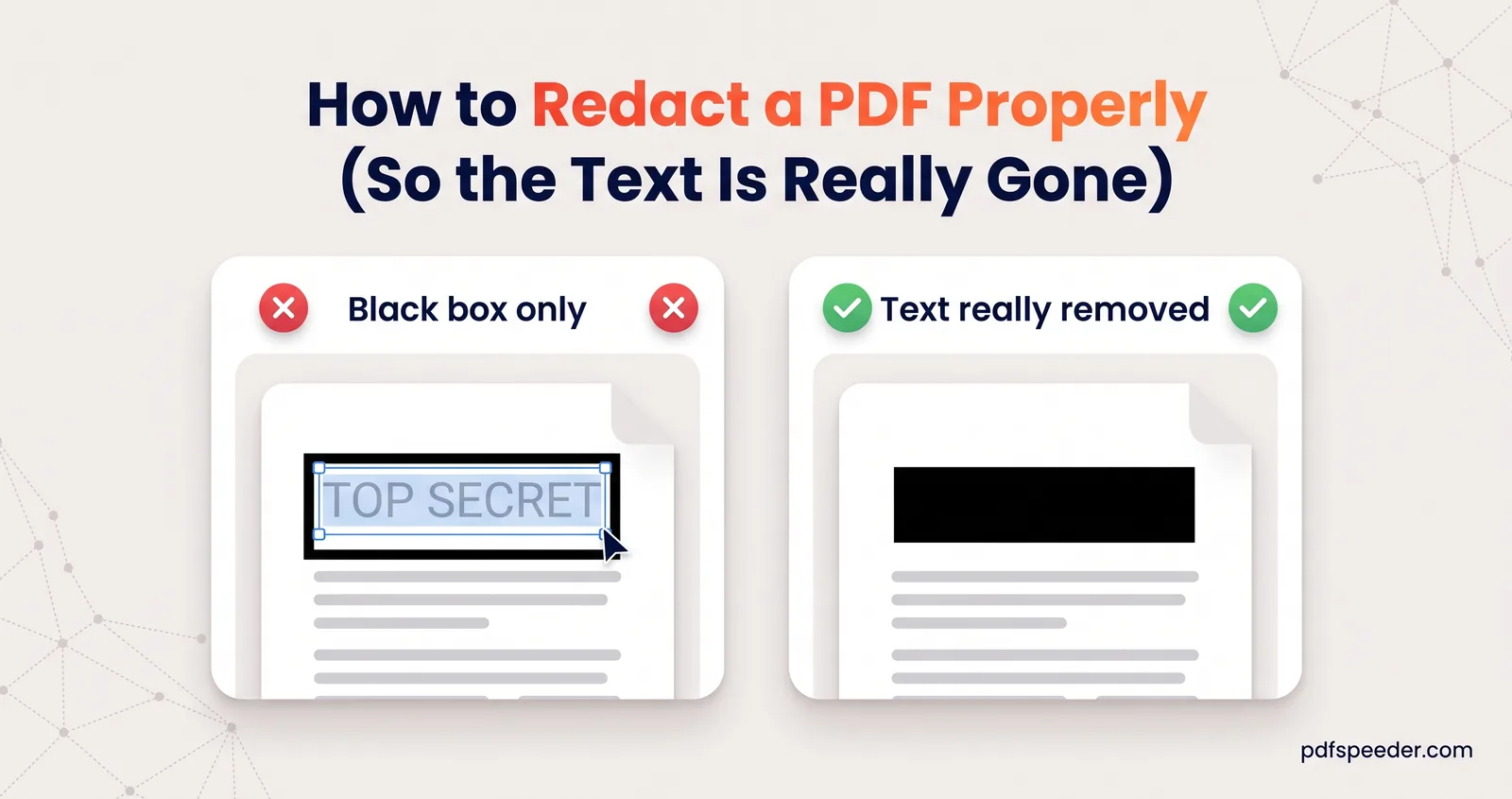
- Send less. Before you use any server tool, remove the pages it doesn't need, and black out details the recipient doesn't need to see, using a redaction tool that really removes them.
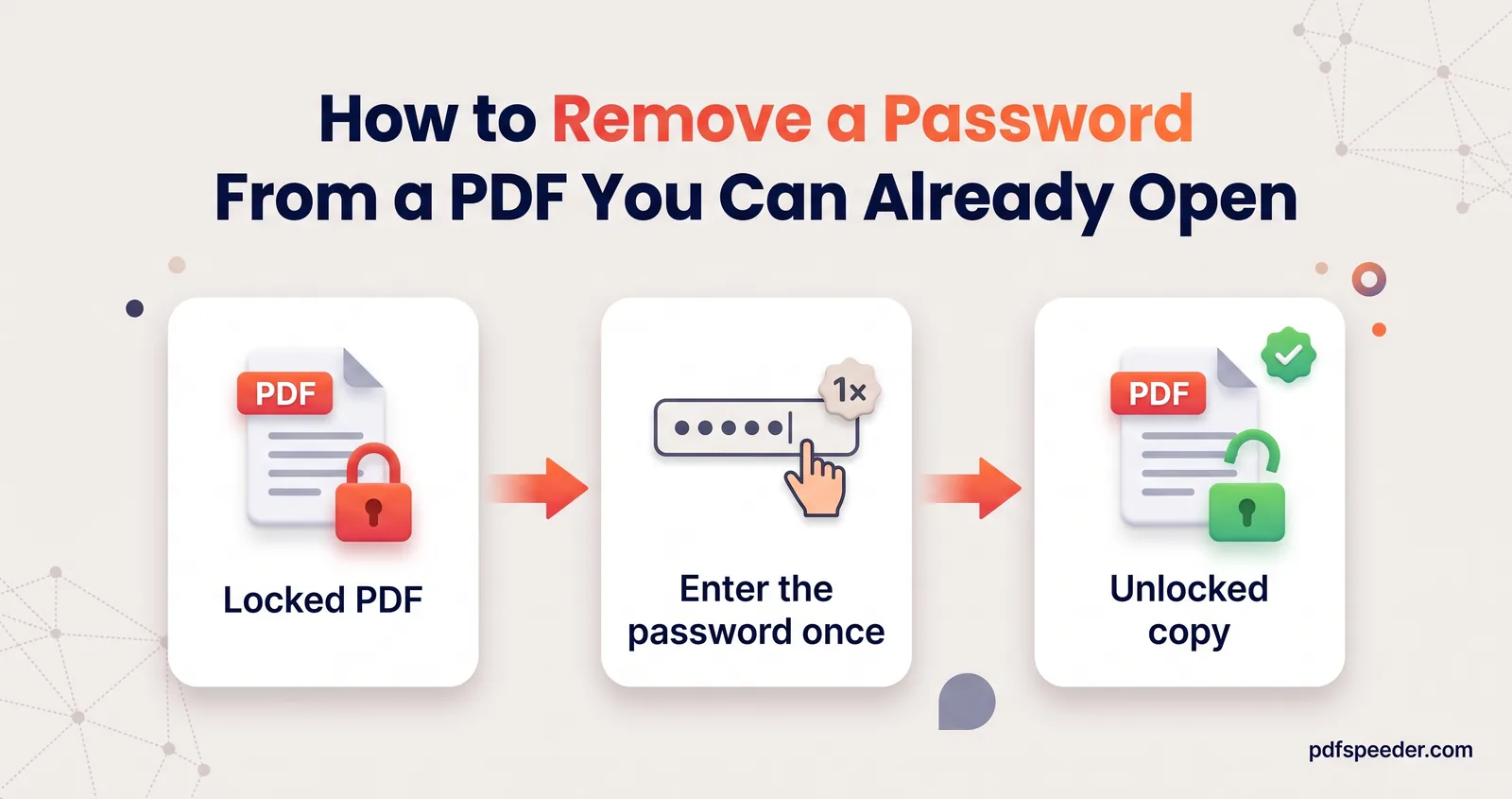
- Keep password-free copies private. When you take the password off your own statement, store the copy somewhere only you can reach, and add a password again before emailing it.
- Send passwords separately. Text or tell the password; don't put it in the same email as the file.
- Follow your organisation's rules. Client files and anything under an NDA may be off limits for any outside service, however trustworthy.
- Tidy up on shared computers. Downloads stay in the Downloads folder after you close the browser, so delete them when you've finished.
Our guide to removing a password from a PDF covers bank statements and salary slips, and how to redact a PDF properly shows how to remove details before sharing a document.
How PDFSpeeder handles your files
Many of our PDF tools work entirely inside your browser; the rest use our server for jobs a browser can't do well.
| Where it runs | Tools |
|---|---|
| In your browser, never uploaded | Merge PDF, Split PDF, Rotate PDF, page tools, PDF Editor, Sign PDF, PDF Form Filler, Add Watermark, Lock PDF, Unlock PDF, Redact PDF, Flatten PDF, PDF to JPG, JPG to PDF, PDF to OCR, PDF to Text, image resizing and compression, calculators and text tools |
| On our server | Compress PDF, conversions to PDF from Word, Excel, PowerPoint and other formats, PDF to Word and Excel, Background Remover, and the AI tools |
For server tools, your file is uploaded over HTTPS, processed automatically and deleted within 2 hours. As our privacy policy states, we don't open, copy, share or use your files for anything except the task you asked for, and we never sell them. The AI tools, such as Chat with PDF and AI PDF Summarizer, send the document's text to OpenAI to generate the answer; Chat with PDF keeps that text only for your chat session, and it's deleted within 2 hours.
A few details are worth knowing:
- Lock PDF encrypts files with AES-256 in your browser, so neither the document nor the password reaches us.
- Redact PDF rebuilds every page that has a box as an image, so the text under the box is gone from the file, not just covered.
- Daily tasks. Free use counts toward a daily allowance of 2 tasks without an account, or 3 with a free account, reset at 00:00 UTC. Counting a task records which tool you used, never the file itself.
Next time you're about to upload something personal, run the offline test first. If a browser tool can do the job, choose it; if only a server tool can, send the smallest, most redacted version of the file it needs.
Frequently asked questions
Is it safe to upload a PDF online?
It's reasonably safe with a provider that uses HTTPS, deletes files automatically within a stated time and doesn't share content. For IDs, bank statements and contracts, prefer tools that work in your browser, so nothing is uploaded at all.
Do online PDF tools keep my files?
Good ones delete uploads automatically, and the privacy policy should say when. PDFSpeeder deletes uploaded files within 2 hours, and its browser tools never receive your file in the first place.
Which PDF tools don't upload files?
Tools that run in your browser, such as our Merge PDF, Split PDF, PDF Editor, Sign PDF, Lock PDF and Redact PDF. The offline test above lets you confirm it for any tool on any site.
Is HTTPS enough to keep my file safe?
HTTPS protects your file while it travels, but not what happens on the server afterwards. You also need automatic deletion and a clear promise that files aren't read, shared or sold.
Are AI PDF tools safe for confidential documents?
They send the document's text to an AI provider, so check both companies' policies and your organisation's rules first. For highly confidential files, summarise or question only a redacted copy, or skip AI tools altogether.