What Is OCR? How Text Recognition Works on PDFs and Photos
What is OCR? See how optical character recognition turns scans and photos into searchable text, why it makes mistakes, and how to OCR a PDF for free.

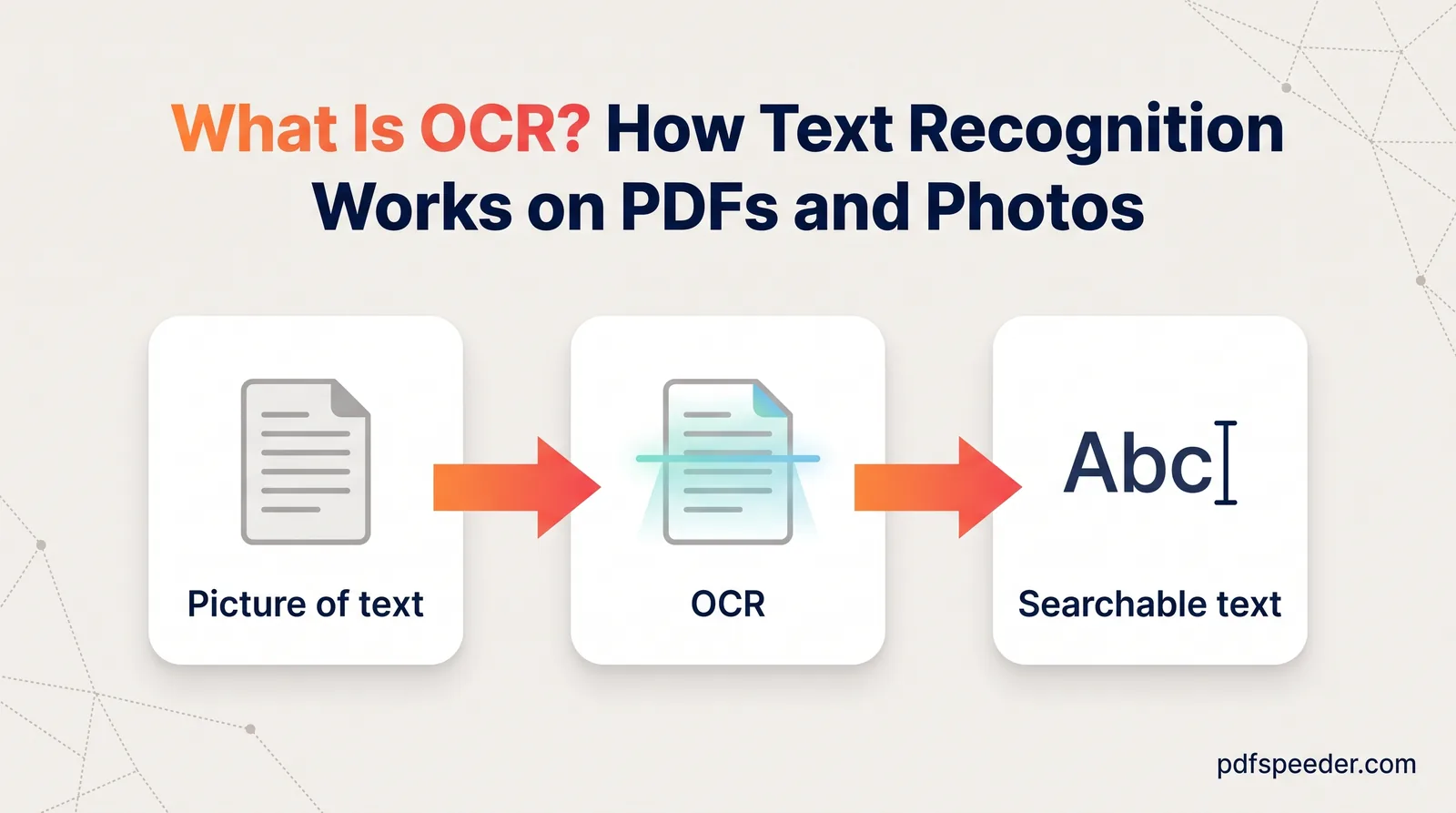
OCR, short for optical character recognition, is technology that finds the letters in an image, such as a scanned page or a photo of a document, and turns them into real text you can search, copy and edit. Without it, a scanned PDF is just a picture of words: Ctrl+F finds nothing and you can't copy a single line. Here's how OCR works step by step, what makes a PDF "searchable", why OCR gets things wrong, how it copes with Hindi and other Indian languages, and how to run it on a PDF for free.
On this page
OCR in plain English
The OCR full form is optical character recognition, and the name spells out its meaning: software looks at an image (optical), works out which shapes are letters and numbers (character) and records them as text (recognition). If your phone can copy words out of a photo, or a scanned contract lets you search for a name, OCR did the work.
Whether a PDF needs OCR depends on how it was made, a difference our explainer on what a PDF file is covers in more depth:
- Digital PDFs, exported from Word, a website or an app, already contain real text. You can select it, and no OCR is needed.
- Scanned PDFs and photos of documents contain only images. Every page is a picture, so there's no text to search until OCR adds some.
A quick way to tell them apart: try to select a sentence or search for a word. If nothing highlights, the page is an image.
How does OCR work?
Modern OCR runs in five stages, and each one can make or break the result.
- Clean up the image. The page is converted to grayscale and the ink is separated from the paper, a step called thresholding. Specks are removed, a crooked page is straightened, and a sideways page is turned upright.
- Find the layout. The software locates blocks of text, columns, lines and individual words, and decides the reading order. Tables and multi-column pages are where this stage most often slips.
- Recognise the characters. Older engines compared each letter's shape with stored patterns. Current ones use neural networks that read a whole line at once; the open-source Tesseract engine, for example, added a neural-network engine focused on line recognition in version 4.
- Apply language knowledge. Models trained on a language know which character sequences are likely, which helps them choose between look-alikes such as 0 and O, or 1, l and I.
- Produce the output. That can be plain text, text with the position of every word (a format called hOCR), or a searchable PDF.
Tesseract itself has a long history: it was developed at Hewlett-Packard between 1985 and 1994, released as open source in 2005, and then developed by Google until 2017. It recognises more than 100 languages out of the box, and it's the engine our OCR tools use.
What a searchable PDF is
A searchable PDF looks like the original scan, because the page image stays in place. OCR adds an invisible layer of text on top, with each word placed over its image. When you search, select or copy, you're working with that hidden layer; when you read, you're looking at the picture underneath.
That design has one consequence worth knowing. OCR mistakes don't show on screen, only when you use the text. If the scan shows ₹1,500 but OCR read the zeros as the letter O, a search for "1,500" won't find it, and a copied figure will be wrong. So check important numbers in anything you copy out of a scanned PDF.
If you need to edit the text rather than search it, converting the scan to a Word document is the better route; our guide to converting a PDF to Word without losing formatting explains how to keep the layout intact.
Why OCR makes mistakes and how to reduce them
OCR reads exactly what's in the image, so most errors trace back to the scan itself:
| Problem | What goes wrong | What helps |
|---|---|---|
| Low resolution | Thin strokes break up and small letters merge | Scan at 300 DPI |
| Crooked or curled pages | Lines run into each other | Flatten the page; use deskew |
| Shadows and uneven light | Dark patches swallow words | Even lighting; adaptive thresholding |
| Sideways or upside-down pages | Gibberish output | Auto-rotate before recognition |
| Wrong language selected | Accents and scripts are misread | Select every language on the page |
| Handwriting | Large parts come out wrong | Check it by hand or retype it |
| Stamps or lines across text | Characters vanish under the mark | Rescan more cleanly; check those fields |
A few OCR accuracy tips make the biggest difference:
- Get the scan right first. A flat page, even light and 300 DPI do more than any setting.
- Pick the languages before you start. OCR set to English will mangle a Hindi paragraph, however clear the scan.
- Check what matters. Amounts, dates, account numbers and names deserve a second look in every OCR result.
- Keep the original. The scan is the real record; the text layer is a helpful copy of it.
OCR for Hindi and other Indian languages
Indian scripts are harder for OCR than English, for reasons you can see on the page. In Devanagari and Bengali, letters hang from a headline (the shirorekha) that joins a whole word together. Vowel signs (matras) sit above, below or beside consonants, and conjuncts combine two or more consonants into a new shape. On a blurry or small scan, those marks are the first things to be dropped or misread.
OCR for Hindi is most dependable on clean scans, and three habits help:
- Scan at 300 DPI, so matras and the headline survive.
- Select every language on the page. For a form printed in English and Hindi, choose both, and the engine will expect either script.
- Proofread names and numbers, which have no dictionary to fall back on.
Our PDF to OCR tool supports 40 languages, including Hindi, Marathi, Bengali, Gujarati, Punjabi, Tamil, Telugu, Kannada, Malayalam and Urdu, and the text layer of its searchable PDFs keeps these scripts searchable. Odia isn't on its list.
How to OCR a PDF for free
PDF to OCR runs entirely in your browser, so the file is never uploaded. It accepts PDFs up to 100 MB, and each file you run through it counts as one task in the free daily allowance: 2 tasks a day without an account, 3 with a free account, reset at 00:00 UTC (05:30 IST). Here's how to use it:
- Open PDF to OCR and add your PDF. The page grid shows every page, and the Scanned only button selects just the pages without text.
- Choose the output: Searchable PDF (text over the image), Text (.txt), or hOCR (an HTML file with word positions).
- Leave the OCR strategy on Auto. Pages that already contain real text are read directly, and only the scanned ones go through OCR.
- Select the document's languages. English is the default; hold Ctrl (or Cmd on a Mac) to pick several.
- Enhance scans before OCR is on by default. For crooked or sideways pages, also tick Auto-correct skew and Auto-rotate wrong-way-up pages. Under Advanced options, recognition quality defaults to High (300 DPI), and Local adaptive threshold helps with phone photos that have shadows.
- Select Run OCR, then download the result or copy the text. A confidence score for each page shows where to look for mistakes.
Two other tools cover different goals:
| You need | Use | Where it runs |
|---|---|---|
| A scan you can search, keeping its look | PDF to OCR | In your browser |
| Editable text in a Word document | PDF to Word, with OCR on Auto | On our server; deleted within 2 hours |
| Just the words, as a .txt file | PDF to Text, with OCR on Auto | In your browser |
PDF to Word accepts files up to 50 MB, and its OCR languages include English and Hindi. PDF to Text reads scanned pages in 14 languages, Hindi among them, and can keep columns aligned in its layout mode. Each of them also counts as one task per file.
Try it on a single scanned page first: run it through PDF to OCR, search for a word you can see, and check how the numbers came out before you process a whole document.
Frequently asked questions
What is the full form of OCR?
Optical character recognition. It's software that recognises letters and numbers in an image and turns them into text.
Does OCR work on handwriting?
OCR engines designed for printed text, like the one our tools use, often struggle with handwriting. Expect to correct handwritten parts yourself.
How accurate is OCR?
It depends mostly on the scan: clean, straight, high-resolution printed pages come out far better than blurry phone photos. PDF to OCR shows a confidence score for each page so you know where to check.
Can OCR read tables?
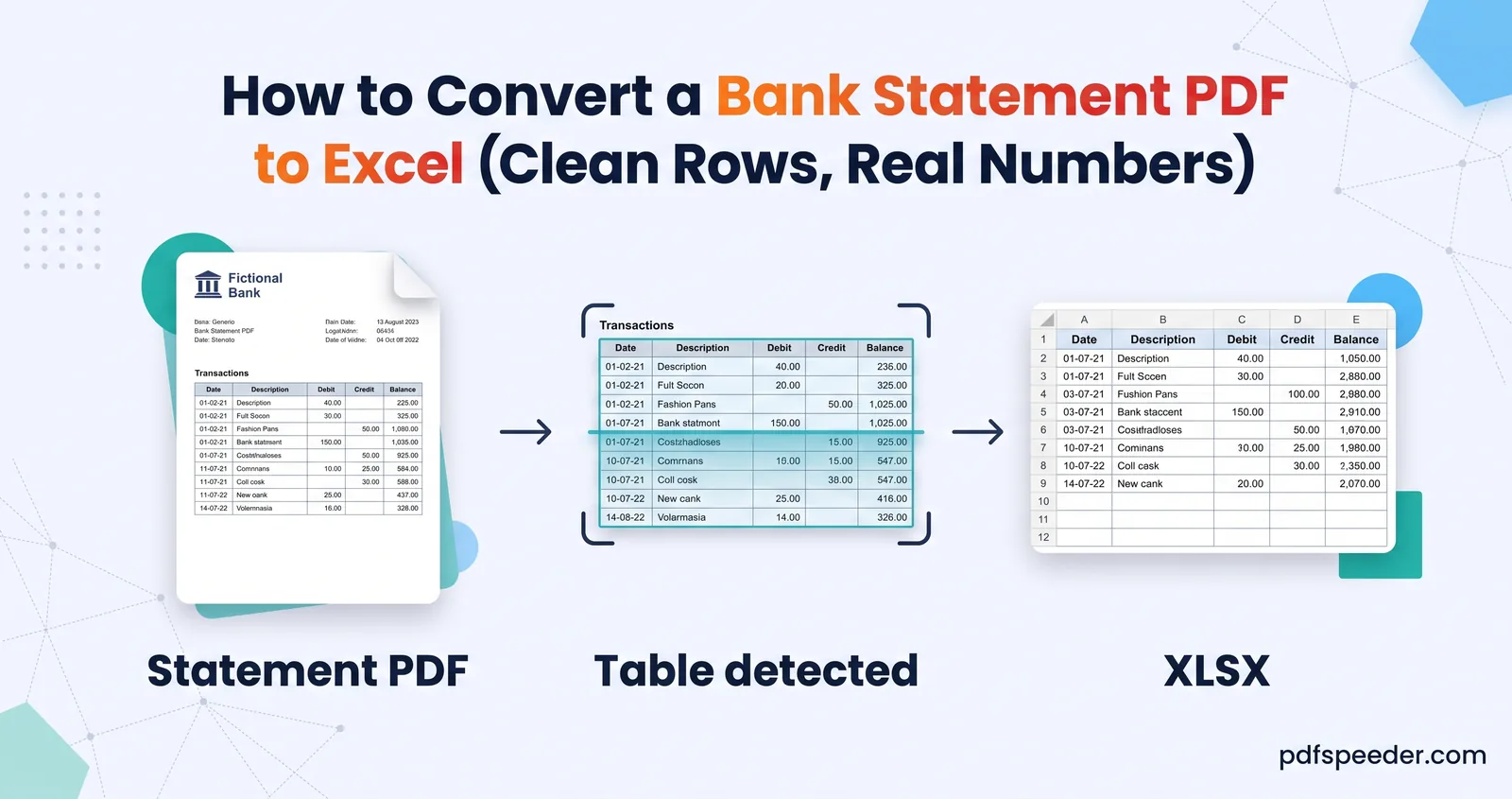
It reads the text in a table, but rebuilding the rows and columns is harder. For statements and other tables, see our guide to converting a bank statement PDF to Excel.
Does OCR change how my PDF looks?
No. A searchable PDF keeps the look of each page and adds the recognised text as an invisible layer on top.