How to Convert a Bank Statement PDF to Excel (Clean Rows, Real Numbers)
Convert a bank statement PDF to Excel with one row per transaction and amounts you can add up, then prove nothing went missing with a balance check.

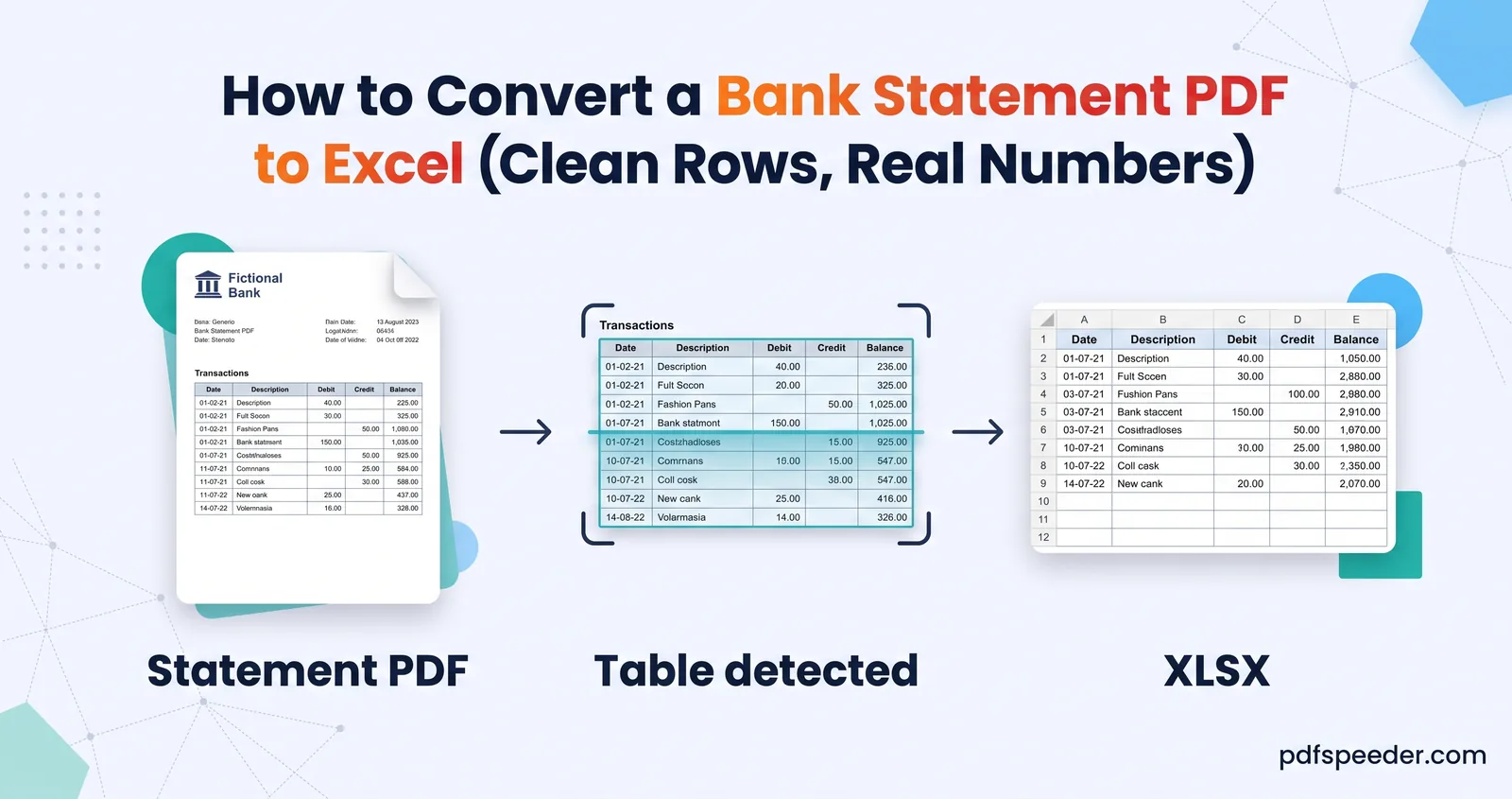
To convert a bank statement PDF to Excel, remove the statement's password, run it through a PDF to Excel converter with smart merge switched on, and check the result with a running-balance formula before you rely on it. Smart merge gives you one row per transaction, and the XLSX output turns amounts into real numbers. The balance check then proves that no transaction was dropped or misread on the way.
On this page
Before you start: remove the statement's password
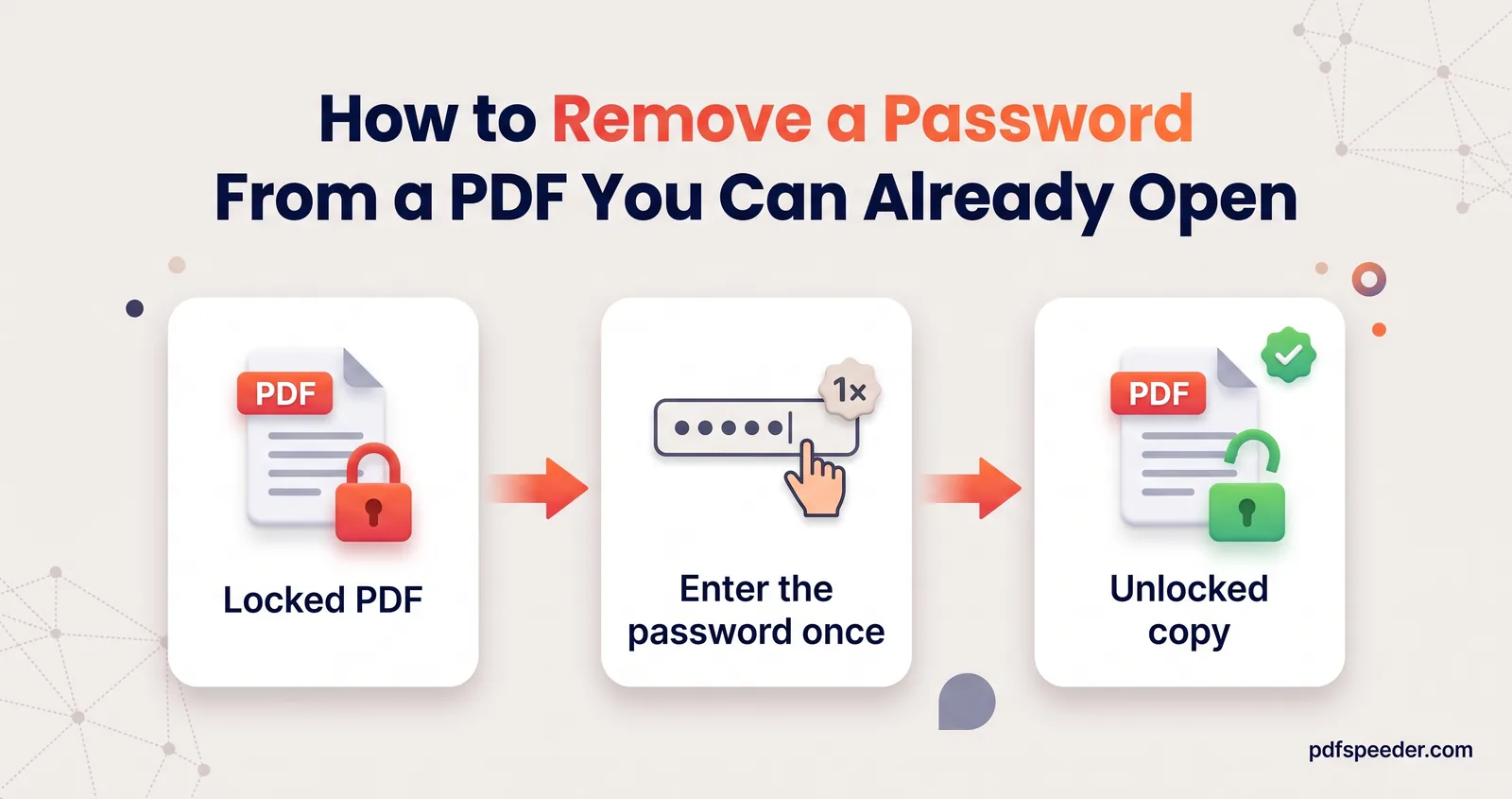
Many banks email statements as password-protected PDFs, and no converter can read a file it can't open: PDF to Excel stops with a message asking you to unlock the file first. The password is usually explained in the email the statement came with or on your bank's website. You have two free ways to remove it:
- Unlock PDF. Add the statement to Unlock PDF, type the password and download the unlocked copy. It runs in your browser, so the file isn't uploaded, and the pages come out unchanged.
- Your browser's Save as PDF. Open the statement in Chrome or Edge, enter the password, press Ctrl+P and pick Save as PDF as the printer. The saved copy has no password. Check that you can still select its text, because the converter needs real text, not pictures of it. Our guide to removing a password from a PDF covers both routes, plus Preview on a Mac.
Note: Unlocking counts as one task in the free daily allowance, and PDF to Excel counts as one more: previewing and converting the same file within 2 hours costs a single task, for up to 40 previews and 10 conversions. Getting a password-protected bank statement to Excel therefore takes two tasks, which fits even the allowance without an account (2 a day; 3 with a free account). The browser route uses no task at all. The allowance resets at 00:00 UTC (05:30 IST).
How to convert a bank statement PDF to Excel, step by step
- Open PDF to Excel and add the unlocked statement (up to 50 MB). Each page appears with green boxes around the tables the tool found, and a panel lists every table with its size and first few rows.
- Leave Output format on XLSX. It turns amounts into numbers and keeps dates exactly as printed.
- Keep Smart merge ticked, along with All tables on one sheet and Bold first row as header. All three are on by default.
- Read the preview cards. Each transaction should sit on one row, with the date, narration and amounts in separate columns. If they don't, switch Engine to Premium, or change Table detection to Bordered (for statements printed with ruled lines) or Borderless, and compare.
- Leave Page range blank to convert every page, or list just the pages you want, such as
1-3, 7: the tool converts exactly those pages. - Select Convert & Download. The workbook is named after your PDF.
Your statement is uploaded over an encrypted connection, processed on our server and deleted automatically within 2 hours. The table preview runs when you add the file and again whenever you change the detection mode, engine, OCR setting or language, or smart merge. Previews and conversions of the same file within 2 hours count as that one task, up to 40 previews and 10 conversions, so you can compare settings before you download.
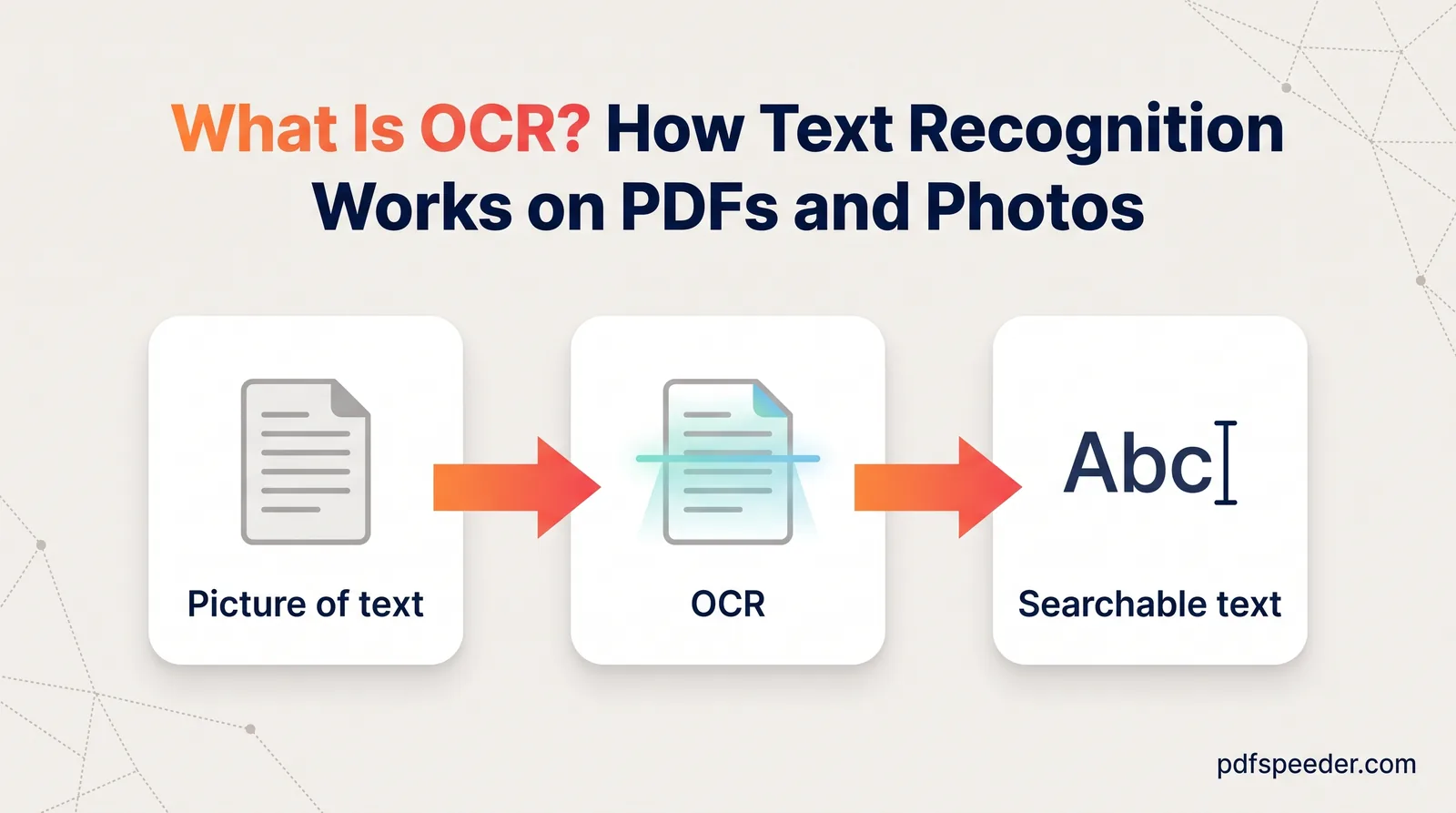
If your statement is a scan or a photo, leave Scanned PDF (OCR) on Auto: the tool rebuilds the table from recognised text, and the badge beside that setting changes to OCR ON. Recognised digits can be wrong, which makes the balance check below essential; our guide to what OCR is explains why.
Fix multi-line narrations and page breaks
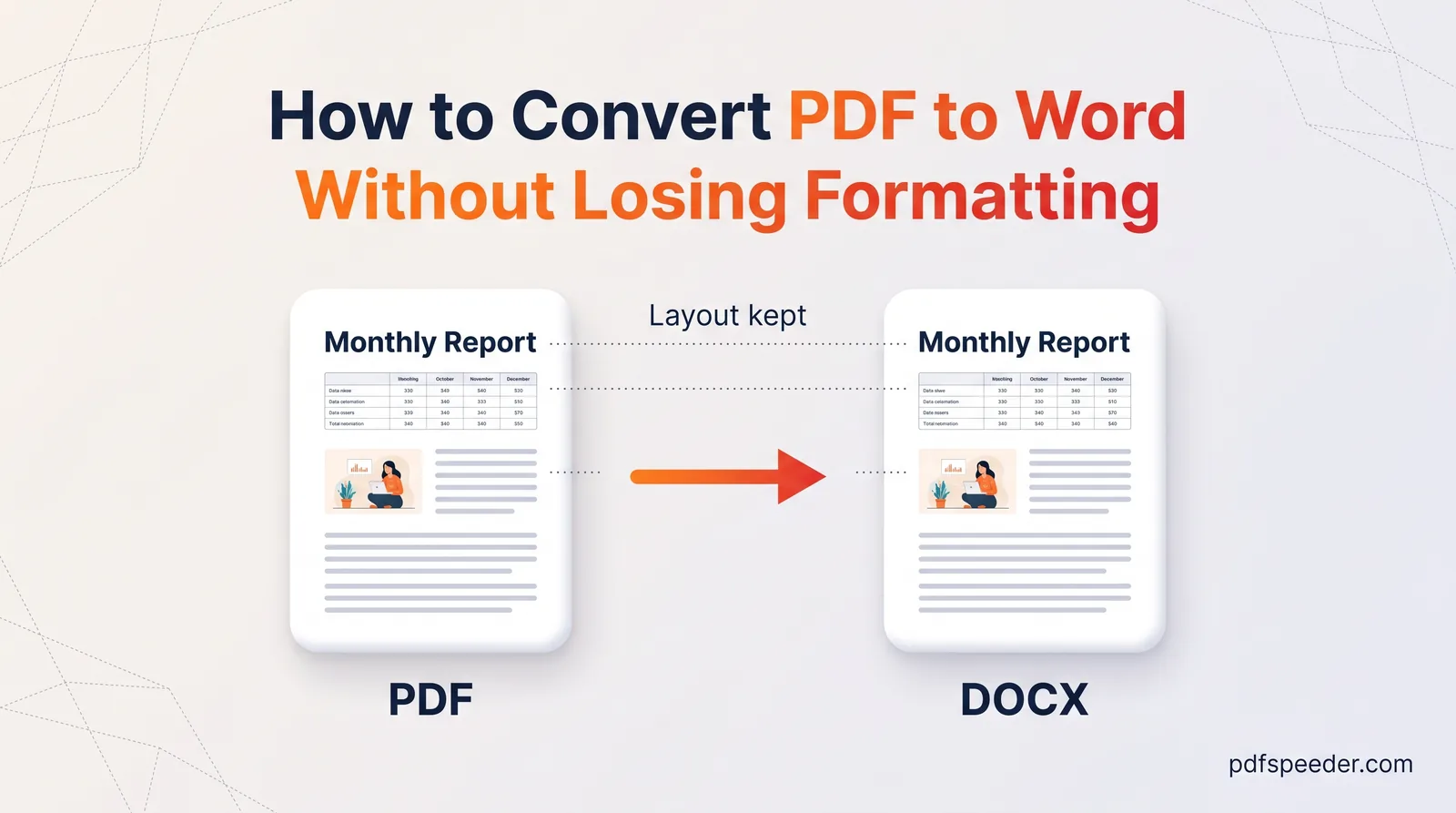
A PDF has no idea that three lines of text belong to one transaction. A long UPI narration wraps onto two or three lines, and a basic PDF table to Excel conversion makes each line its own row, with the date and amounts only on the first. Add the column header that repeats at the top of every page and the "Page 1 of 4" footers, and a 30-transaction statement can easily turn into 80 rows or more. It's the same reconstruction problem behind most layout trouble, explained in our guide to converting PDF to Word without losing formatting.
Smart merge fixes both problems:
- Wrapped narrations. A line with no date and mostly empty cells is folded into the transaction above it, so the full narration ends up in one cell, with line breaks where it wrapped.
- Page breaks. Tables on different pages that share the same header are joined into one continuous table. The repeated headers and page-footer lines are dropped.
Here's one transaction from a sample statement, before and after:
| Date | Narration | Withdrawal | Balance | |
|---|---|---|---|---|
| Without smart merge, row 1 | 02/04/2025 | UPI-SWIGGY-SWIGGY@YBL- | 486.00 | 1,29,724.50 |
| Without smart merge, row 2 | YESB0YBLUPI-512345678901- | |||
| Without smart merge, row 3 | PAYMENT FROM PHONE | |||
| With smart merge | 02/04/2025 | UPI-SWIGGY-SWIGGY@YBL-YESB0YBLUPI-512345678901-PAYMENT FROM PHONE | 486.00 | 1,29,724.50 |
With All tables on one sheet ticked, every transaction lands on a single sheet called Tables, with the header once at the top and the top row frozen. Untick it and each table gets its own sheet, named like Page2_Table1.
A few leftovers are normal. Delete any address or summary lines above the header row. If a narration fragment still sits alone in its own row, add its text to the cell above and delete the row. To put each narration on one line, use =SUBSTITUTE(B2,CHAR(10)," ") in a spare column.
Turn text into numbers you can add up
The XLSX output already converts most amounts into real numbers: 1,25,000.00 in Indian grouping, 1,250.00, ₹1,234.00, and (500.00) as minus 500 all arrive as numbers with two decimals. Account numbers with a leading zero, and any number longer than 11 digits, deliberately stay as text so Excel can't mangle them. Dates stay as text too, exactly as printed.
To test a column, select it and look at Excel's status bar. If it shows a Sum, the cells hold numbers; if it shows only a Count, they hold text. Two leftovers are common in Indian statements.
Balances with Cr or Dr after the number
A balance such as 1,23,456.78 Cr stays as text. In a spare column, this formula strips the letters and turns Dr balances negative:
=IF(ISNUMBER(SEARCH("Dr",F2)),-1,1)*NUMBERVALUE(SUBSTITUTE(SUBSTITUTE(F2,"Cr",""),"Dr",""),".",",")1,23,456.78 Cr becomes 123456.78 and 5,000.00 Dr becomes −5000. NUMBERVALUE reads the full stop as the decimal point and the comma as the group separator whatever your computer's regional settings, and ignores spaces. It needs Excel 2016 or later.
Dates you can sort
For a date written as 01/04/2025, this builds a real date that doesn't depend on regional settings:
=DATE(RIGHT(A2,4),MID(A2,4,2),LEFT(A2,2))For two-digit years such as 05/04/25, use =DATE(2000+RIGHT(A2,2),MID(A2,4,2),LEFT(A2,2)), then give the column a date format. Without formulas: select the dates, choose Data > Text to Columns > Delimited > Next, clear every delimiter, select Next, set the column to Date: DMY and select Finish. To replace the original column with your results, copy them and use Paste Special > Values.
This is also why XLSX beats CSV here. When you open a CSV, Excel reads dates using your computer's regional settings, so on a PC set to US format, 01/04/2025 can turn into 4 January. If your accounting software needs a CSV anyway, PDF to CSV uses the same engine and has a Clean numbers option that writes ₹1,23,456.78 as 123456.78.
Verify nothing is missing with a balance check
Every row's balance should equal the balance above it, minus the withdrawal, plus the deposit. If a transaction was dropped, misread or put in the wrong column, that chain breaks at exactly that row. These formulas assume Date in column A, Narration in B, Ref No. in C, Withdrawal in D, Deposit in E and Balance in F, with transactions in rows 2 to 31 and an opening balance of ₹45,210.50; change those to match your sheet.
- In G2, check the first transaction against the opening balance printed on the statement:
=ROUND(45210.50-D2+E2,2)=ROUND(F2,2) - In G3, check each row against the one above, then fill it down to the last transaction:
=ROUND(F2-D3+E3,2)=ROUND(F3,2) - Anywhere outside the table, count the rows that fail:
=COUNTIF(G2:G31,FALSE) - Check the totals too:
=ROUND(45210.50+SUM(E2:E31)-SUM(D2:D31),2)should equal the closing balance.
A count of 0 means every row reconciles. ROUND stops tiny decimal noise from showing up as a mismatch, and empty withdrawal or deposit cells count as zero. For the sample statement used above, the totals check works out like this:
| Line | Amount |
|---|---|
| Opening balance | ₹45,210.50 |
| Add: deposits, SUM(E2:E31) | ₹1,25,535.00 |
| Less: withdrawals, SUM(D2:D31) | ₹1,11,763.30 |
| Expected closing balance | ₹58,982.20 |
| Closing balance printed on the statement | ₹58,982.20 |
Example: Delete the ₹25,000 rent payment of 10 April from that sample sheet and the check shows FALSE on the row that follows it, while the totals formula returns ₹83,982.20, exactly ₹25,000 more than the closing balance. The size of the gap tells you which amount to look for.
What the results tell you:
- FALSE on one row: compare that row and the one above with the PDF. Usually a transaction is missing or an amount landed in the wrong column.
- FALSE on most rows: the columns are shifted. Convert again with the other engine or detection mode.
- #VALUE!: an amount in that row is still text. Convert it as shown in the previous section.
- Newest transactions first: reverse the check. In G2 use
=ROUND(F3-D2+E2,2)=ROUND(F2,2), fill it down to the second-to-last row, and check the last row against the opening balance.
Start with your most recent statement: remove its password, convert it with smart merge on, and add the two check formulas in column G before you build any totals or charts on the data.
Frequently asked questions
Can I convert a password-protected bank statement to Excel?
Yes, once the password is removed, which means you need to know it. Unlock PDF does that in your browser, and PDF to Excel then converts the unlocked copy.
Is it safe to upload a bank statement?
PDF to Excel sends it over an encrypted connection and deletes it within 2 hours, and Unlock PDF never uploads it at all. If you'd rather nothing leaves your computer, Excel for Microsoft 365 can import PDF tables itself through Data > Get Data > From File > From PDF.
Why don't my amounts add up in Excel?
Some of them are probably text, often because of Cr or Dr suffixes or a CSV opened with different regional settings. Convert them with the NUMBERVALUE formula above, then run the balance check.
Can I convert a scanned bank statement to Excel?
Yes. With OCR on Auto, the tool reads tables from scanned pages, but recognised digits can be wrong, so run the balance check on every row.
What settings work best for bank statements?
Start with the defaults: Standard engine, Auto detection and smart merge on. Statement layouts differ between banks, so if the preview puts dates and amounts in the wrong columns, try the Premium engine next.