How to Convert PDF to Word Without Losing Formatting
Convert PDF to Word without losing formatting: see what converts cleanly, which OCR setting suits a scan, and the quick fixes for anything left over.

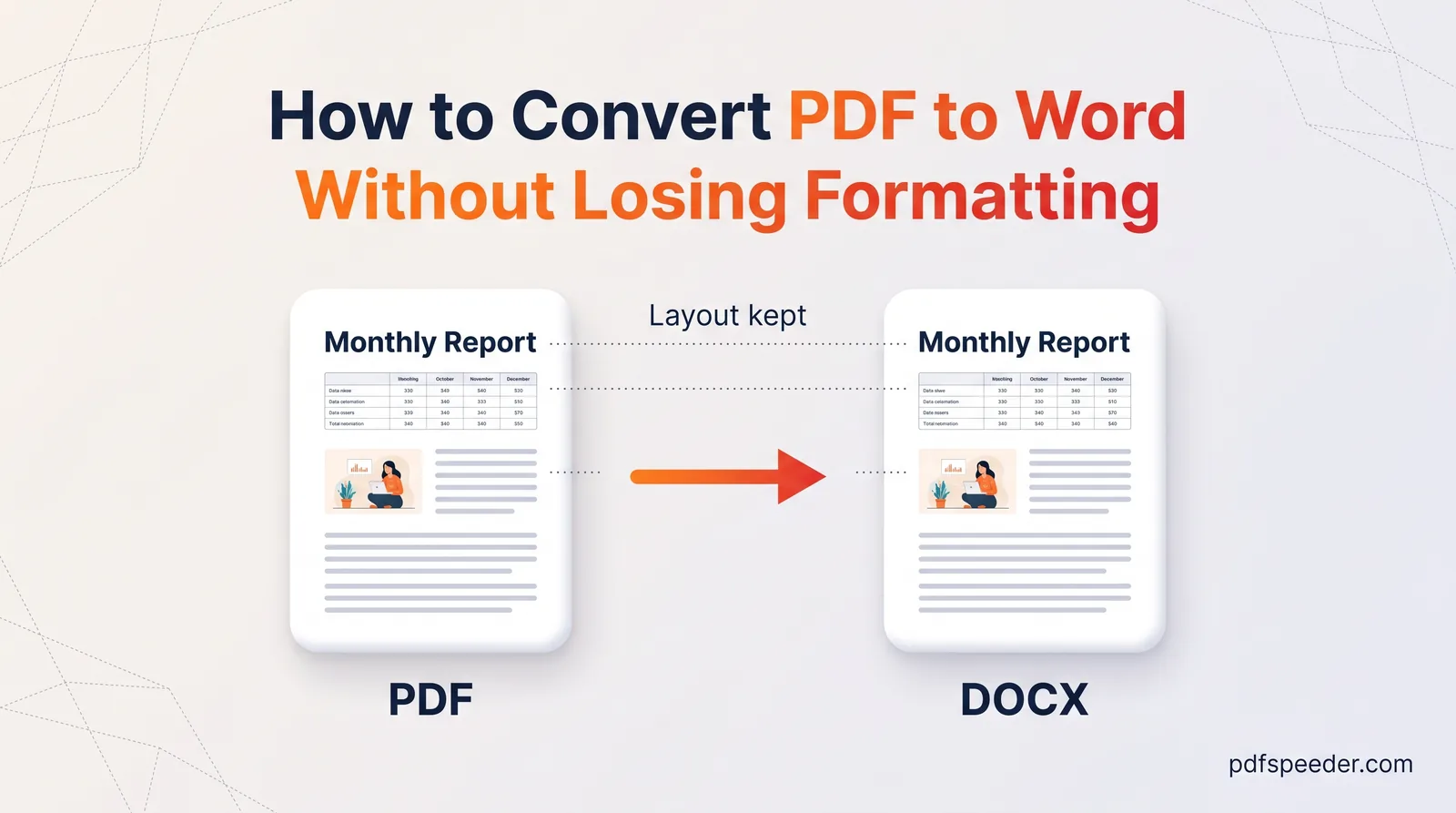
To convert PDF to Word without losing formatting, start from a PDF that holds real text rather than a scan, convert only the pages you need, and set aside ten minutes to tidy the result in Word. Text, fonts, links, images and tables with ruled lines usually come through well. Scans, pages with three or more columns, and repeating headers and footers are where layouts break, so it pays to know what to expect before you start.
On this page
Why PDF to Word conversion goes wrong
A Word file stores structure: this is a heading, this is a paragraph, this is a table with four columns. A PDF mainly stores appearance: draw these characters at these exact positions, draw a line here, place a picture there. Those positions don't say that two lines belong to the same paragraph, or that a grid of lines and numbers is a table.
So a converter has to rebuild the document by inference: lines that sit close together in the same font become a paragraph, text boxed in by ruled lines becomes a table, and a gap down the middle of the page becomes two columns. When a guess is wrong, you get the familiar mess: a paragraph chopped into one-line pieces, a table scattered as loose text, or two columns read straight across.
Fonts cause the rest of the trouble. A PDF usually carries only the characters it needs from each font, and Word can't edit with those. If the font isn't installed on your computer, Word swaps in one with different letter widths, so lines wrap in new places and page breaks drift.
What converts cleanly and what doesn't
This is what our PDF to Word tool typically does with each kind of content:
| In your PDF | What you get in Word |
|---|---|
| Text exported from Word or Google Docs | Editable text in the original fonts, with bold, italics and links; some paragraphs split at line ends |
| Tables with ruled lines | Real Word tables, merged cells included |
| Tables without lines | Usually still a table, rebuilt from the alignment; check the columns |
| Two-column pages | Real Word columns, in a section of their own |
| Three or more columns, sidebars, brochure layouts | Often a grid of table cells holding pieces of lines |
| Bulleted and numbered lists | Typed numbers and indents rather than a live Word list; bullet symbols can vanish |
| Headings | The right size and weight, but in the Normal style |
| Running headers, footers and page numbers | Ordinary text repeated on each page, not in Word's header area |
| Photos, logos and charts | Pictures; a chart's data can't be edited in Word |
| Scanned pages | Text recognised by OCR, as plain paragraphs without tables or images |
| Hindi, Arabic, Urdu and other complex scripts | Possible missing spaces between words, or letters and punctuation out of order |
Convert PDF to Word without losing formatting, step by step
These steps use our free PDF to Word converter, which works in the browser on a phone or a computer.
- Check whether your PDF is a scan. Open it and try to highlight a single word. If you can, the file has real text; if the whole page highlights as one block, or nothing does, it's a scan and needs OCR.
- Remove an opening password first. The converter can't open a PDF that asks for a password. Unlock PDF removes it in your browser once you type the password in. Files that open freely but block printing or copying don't need this step.
- Add the file. Open PDF to Word and drop in your PDF (up to 50 MB). Page thumbnails appear, with a badge telling you whether the tool found digital text or a scan.
- Choose the pages. Every page starts out selected. Click a thumbnail to leave it out, or type ranges such as
1-3, 7in the Pages box. - Set Text Recognition (OCR). Leave it on Auto unless one of the cases in the table below applies, and pick the document's language under OCR Language.
- Convert and download. Select Convert to Word, then Download Word Document. The .docx keeps your PDF's file name.
Your file is uploaded over an encrypted connection, converted on our server and deleted automatically within 2 hours. Each conversion counts as one task in the free daily allowance: 2 tasks a day without an account, 3 with a free account, reset at 00:00 UTC (05:30 IST). Unlocking a file first uses a task too, so without an account, unlocking and converting one file takes the whole day's allowance.
Which OCR setting should you pick?
| Setting | What it does | Pick it when |
|---|---|---|
| Auto (default) | Checks a sample of pages; if they hold almost no text, the whole file goes through OCR, otherwise it keeps the layout | Almost always |
| Always OCR | Reads every selected page as an image | Text copied from the PDF pastes as gibberish or empty boxes |
| Off | Never runs OCR | A picture-heavy PDF with almost no text, such as a photo catalogue, gets treated as a scan and you'd rather keep the pictures |
Auto makes one decision for the whole file. If a mostly typed report ends with a few scanned pages, those pages arrive in Word as pictures, so convert them in a separate run: select just those pages and choose Always OCR. Pick the right OCR language as well: the menu offers 14, plus English and Spanish combined, and reading a Hindi page as English produces nonsense.
Other free ways to get an editable Word file
| Method | Works well for | Limits |
|---|---|---|
| Microsoft Word 2016 or later (File > Open) | Mostly-text PDFs, without uploading anything | Lines and pages may break in different places; copier-style scans format poorly |
| Google Docs (in Drive: right-click > Open with > Google Docs) | Quick text from short PDFs | 2 MB or smaller; lists, tables, columns and footnotes are unlikely to be detected |
Those limits come from Microsoft's guide to editing a PDF in Word and Google's help page on converting PDFs. Both leave your PDF unchanged and work on a copy.
Tables, columns and scans: what to expect
Tables
Tables with visible borders give the best results. They come out as real Word tables, merged cells included, so you can add rows, resize columns and restyle them. Borderless tables are rebuilt from how the text lines up. They often work too, but check that no two columns have merged into one and that no column has split in two.
If what you need is the numbers, for totals, sorting or filtering, Word is the wrong destination. PDF to Excel puts each value in its own spreadsheet cell, which is far easier to work with than a table in Word. For bank statements, follow our guide to converting a bank statement PDF to Excel.
Columns
Two-column pages usually become real Word columns inside their own section, so text flows correctly as you edit. Three or more columns, sidebars and text wrapped around pictures are the weak spot: they can come out as a grid of table cells, each holding a fragment of a line. For pages like that, copying the text column by column is often quicker than repairing the conversion.
Scanned pages
OCR gives you editable words in plain paragraphs, without tables, columns, pictures or bold. Table rows arrive as lines of text, bullets can be misread as stray letters, and the page size may be set to US Letter instead of A4. Treat an OCR conversion as a first draft, and check every number against the original. Our explainer on how OCR works shows why scan quality makes such a difference.
Fix the leftovers in Word
Most "PDF to Word formatting messed up" moments come down to a handful of fixes. Work through them in this order:
- Show formatting marks. Press Ctrl+Shift+8, or select ¶ on the Home tab. You'll see ¶ at each paragraph end, ↵ at each manual line break and → for each tab, which shows you what's really holding the layout together.
- Join broken paragraphs. If every line ends in ¶, select just that stretch of text, press Ctrl+H and replace
^pwith a space. Lines ending in ↵ need^lreplaced instead. Stick to the selection and choose No when Word offers to search the rest of the document; replacing every^pwould merge the whole file into one paragraph. - Restore heading styles. Click in each heading and apply Heading 1 (Ctrl+Alt+1) or Heading 2 from the Home tab, so the Navigation Pane and any table of contents work again.
- Move headers and footers back. Delete the repeated company name and "Page 1 of 3" lines from the body, then add them once with Insert > Header and Insert > Page Number.
- Rebuild lists. Delete the typed numbers or stray indents, select the lines and choose Bullets or Numbering on the Home tab, so new items number themselves.
- Sort out fonts. If text shows in the wrong typeface, the original font isn't installed. Install it, or select the body text and choose a font you have.
- Fit wide tables. Click inside a table that runs off the page, then choose AutoFit > AutoFit Window on the table's Layout tab (Table Layout in newer versions).
- Check page size and margins. Use Layout > Size to pick A4 or Letter, especially after OCR, then Layout > Margins.
When you shouldn't convert at all
Every conversion is a rebuild, so each one risks new errors. Skip it when:
- You only need to change a few words. Edit the PDF itself and the layout stays exactly as it was. PDFSpeeder's PDF Editor lets you click a line of text and retype it in your browser; it uses standard fonts, so check that the change blends in. Our guide to editing a PDF covers the other kinds of change.
- You only need the words. To quote a passage or paste text into an email, PDF to Text extracts clean text in your browser without uploading the file.
- Someone has the original. If the sender made the PDF from a Word file, ask them for the .docx. It will always beat a conversion.
- The PDF is signed. A digital signature doesn't survive conversion, and an edited copy is no longer the document that was signed. Keep the original PDF as the record.
For your first try, pick a typed PDF, leave OCR on Auto, and keep the clean-up checklist above open beside the converted file.
Frequently asked questions
Can I convert PDF to Word without losing formatting for free?
Yes. PDF to Word is free within the daily allowance, and Word 2016 or later can open a mostly-text PDF directly through File > Open.
Why does my converted Word file look messed up?
Usually the PDF has busy columns, scanned pages or fonts you don't have installed, so the converter guessed wrong. Turn on formatting marks with Ctrl+Shift+8 to see the cause, then work through the fixes above.
Can I convert a password-protected PDF to Word?
Yes, once the password is removed. Unlock PDF does that in your browser when you enter the password, but it can't recover a password you don't know.
Can I convert PDF to Word on my phone?
Yes. PDF to Word works in your phone's browser, and the .docx opens in the Word or Google Docs app, though the clean-up steps are much easier on a computer.