How to Convert a Photo to PDF on Your Mobile (Android and iPhone)
Convert a photo to PDF on your mobile without an app: the iPhone and Android built-in options, combining several photos in order, and keeping it small.

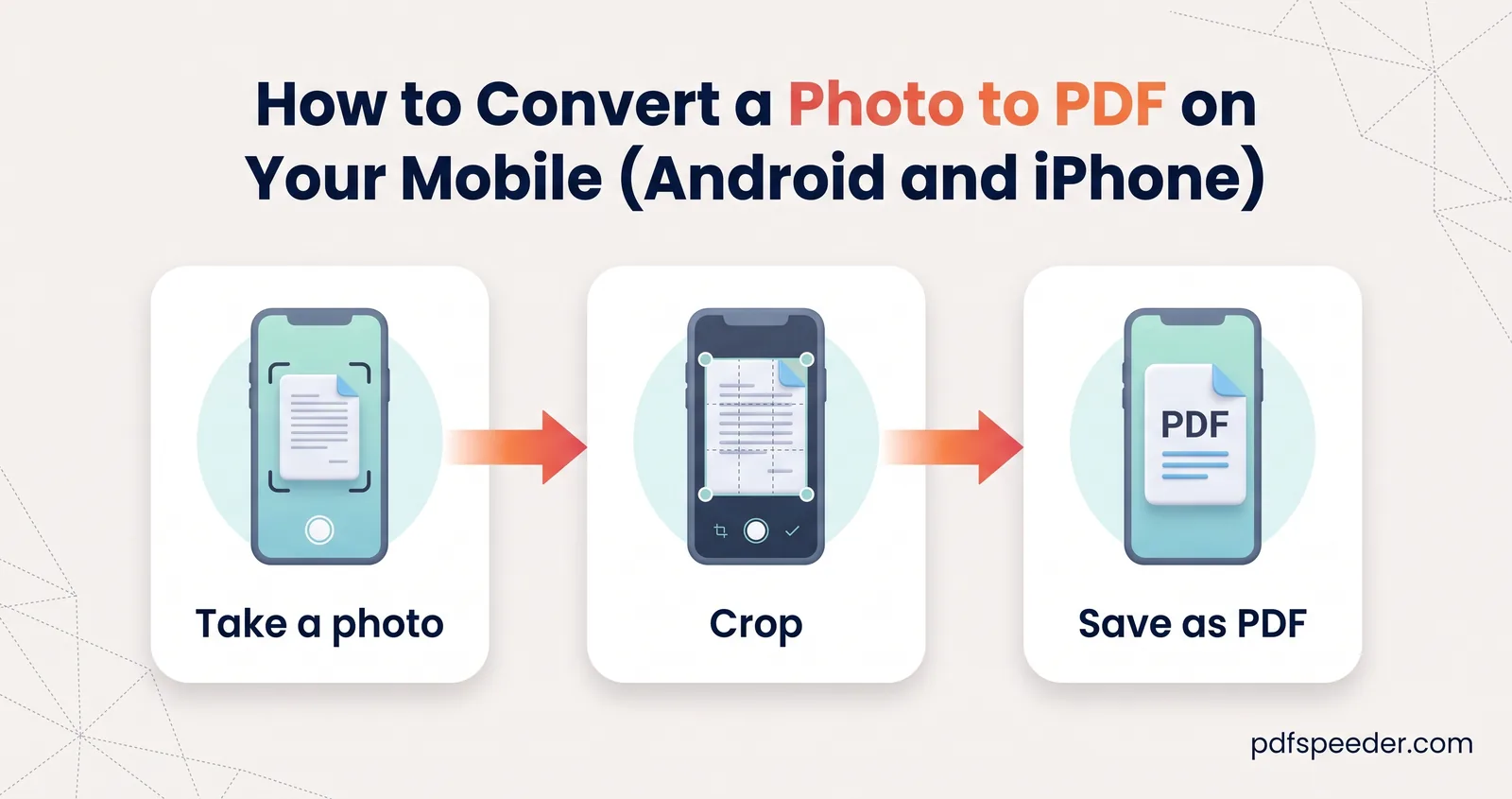
To convert a photo to PDF in mobile, you don't need to install anything. An iPhone can do it from the Photos app's print screen or the Files app, an Android phone can "print" a photo to Save as PDF, and any phone's browser can combine several photos into one PDF in the order and page size you choose. Pick by how many photos you have, whether their order matters and how small the file must be.
| Method | Best for | Several photos in one PDF? | Page size and order control |
|---|---|---|---|
| iPhone: Photos > Print, or Files > Create PDF | A few photos on an iPhone | Yes | Limited |
| Android: Print > Save as PDF | A single photo | Depends on the gallery app | Paper size and orientation |
| JPG to PDF in the browser | Any phone, forms, ID cards | Yes | Order, A4, margins, 2 per page, quality |
On this page
Method 1: iPhone's built-in Create PDF
The quickest route starts in the Photos app:
- Open Photos, tap Select and choose the photos you want.
- Tap the Share button, then Print.
- On the Print Options screen, tap the Share button at the top and choose Save to Files. On older iOS versions, spread two fingers on the page preview first to open it as a PDF, then share it.
- Pick a folder and tap Save. All the selected photos land in one PDF.
If the photos are already in the Files app, you can skip printing. In Files, tap the More button (three dots), tap Select, choose your images, then tap More again and choose Create PDF. The new PDF appears in the same folder, and on some iOS versions the command sits under Quick Actions when you press and hold a single image.
Either way, you get little say over page size, margins or how many photos share a page.
Method 2: Android's Save as PDF option
Android has a built-in PDF "printer" that works from most apps that can print:
- Open the photo in Google Photos or your phone's gallery app.
- Tap the three-dot menu (in some apps, Share first) and choose Print.
- At the top, change the printer to Save as PDF, and set the paper size, such as A4, and the orientation.
- Tap the round PDF button, choose where to save, and tap Save.
That's the quickest photo to PDF on Android for a single picture. If your gallery app won't print several photos together, use Method 3 for multiple photos to one PDF on your phone. For paper documents, Google Drive's scanner is often better than a photo: in the Drive app, tap the Camera button at the bottom right, capture each page (tap Add for more), then choose .pdf and tap Save, as Google's scanning guide describes.
Method 3: Convert photos to PDF in your mobile browser
When order, page size or file size matters, as it does for most application forms, use our JPG to PDF tool in Chrome or Safari. It works the same way on Android and iPhone.
- Tap Select Images and choose your photos. It takes JPG, PNG, WebP, GIF, BMP and AVIF files of up to 60 MB each.
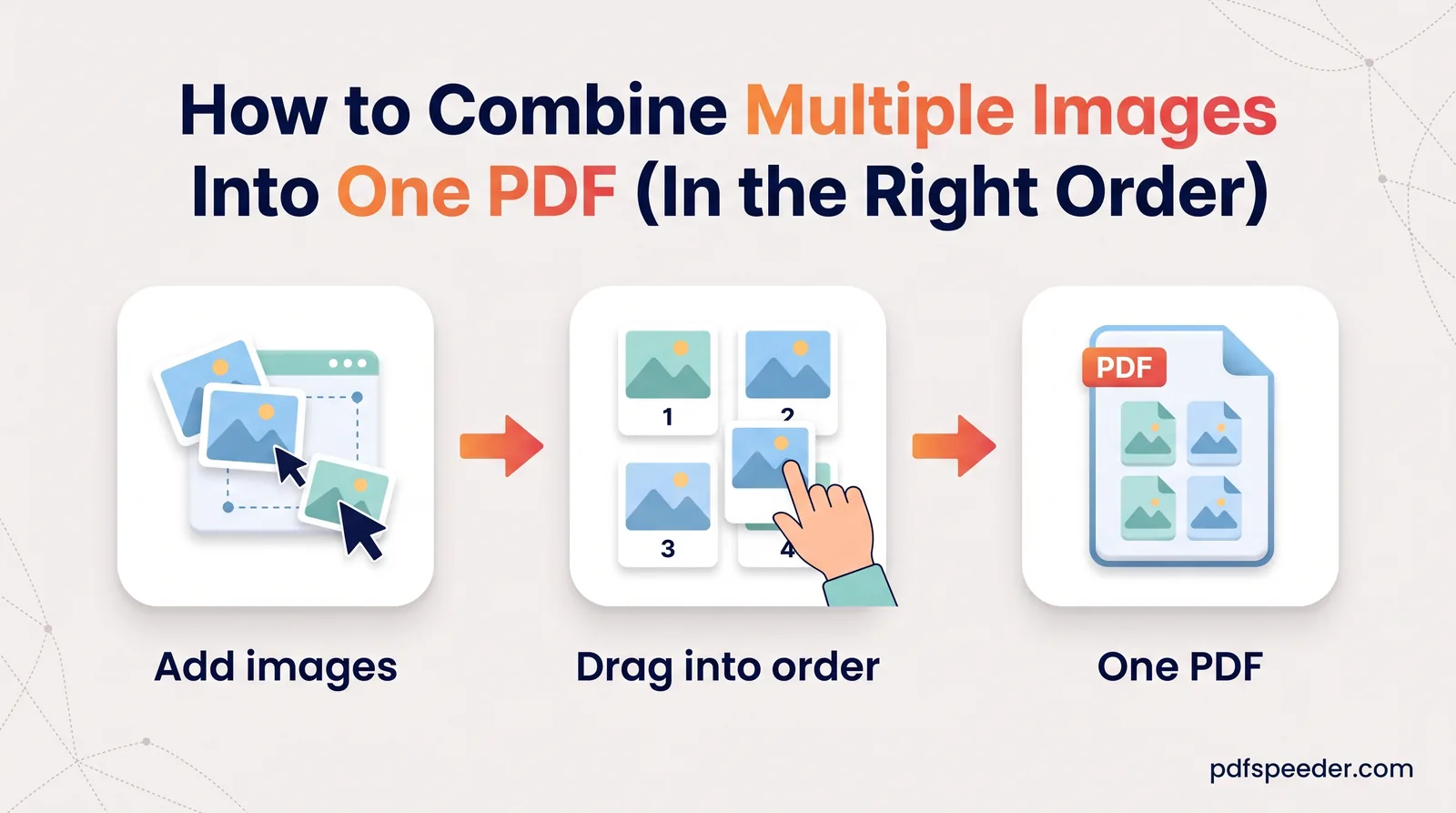
- Drag the thumbnails into the right order. Photos taken sideways are straightened automatically, and you can rotate any image yourself.
- Choose a Page size. Fit to image (the default) makes each page exactly the size of its photo with no border; pick A4 for forms that expect a standard page.
- Set the layout. Once you've picked a paper size such as A4, Images per page: 2 puts the front and back of an ID card on one page, and Margin adds white space around each image.
- Leave Quality on Original unless you need a smaller file (more on that below). If you like, tick Password-protect the PDF.
- Tap Create PDF, check the preview, then Download PDF. Several photos are saved as
images.pdf; a single photo keeps its own name.
Everything happens in your phone's browser, so the photos are never uploaded. Each PDF you create counts as one task in the free daily allowance: 2 tasks a day without an account, 3 with a free account, reset at 00:00 UTC (05:30 IST).
Tip: An iPhone saves photos as HEIC by default. If a photo won't load in a web tool, go to Settings > Camera > Formats and choose Most Compatible, and new photos will be saved as JPEG.
Take a document photo that's easy to read
A sharp, evenly lit photo makes a better PDF than any setting can fix later. For paper documents, a scanner mode beats the plain camera, because it finds the page edges, straightens the page and can switch to grayscale:
- iPhone: in Notes, tap the Attachment button and choose Scan Documents; or in Files, tap More and choose Scan Documents.
- Android: use the Google Drive scanner described above, with Filter set to grayscale for typed pages.
If you're using the camera:
- Use bright, even light, such as a window during the day, and switch the flash off for glossy or laminated cards to avoid glare.
- Hold the phone flat above the page, so its edges look parallel rather than like a trapezium.
- Put white paper on a dark surface and let the page fill most of the frame.
- Tap the screen to focus, and move closer instead of zooming.
- Zoom into the result before converting. If you can't read the smallest date or number, the person checking your form won't either.
Make the PDF small enough for forms
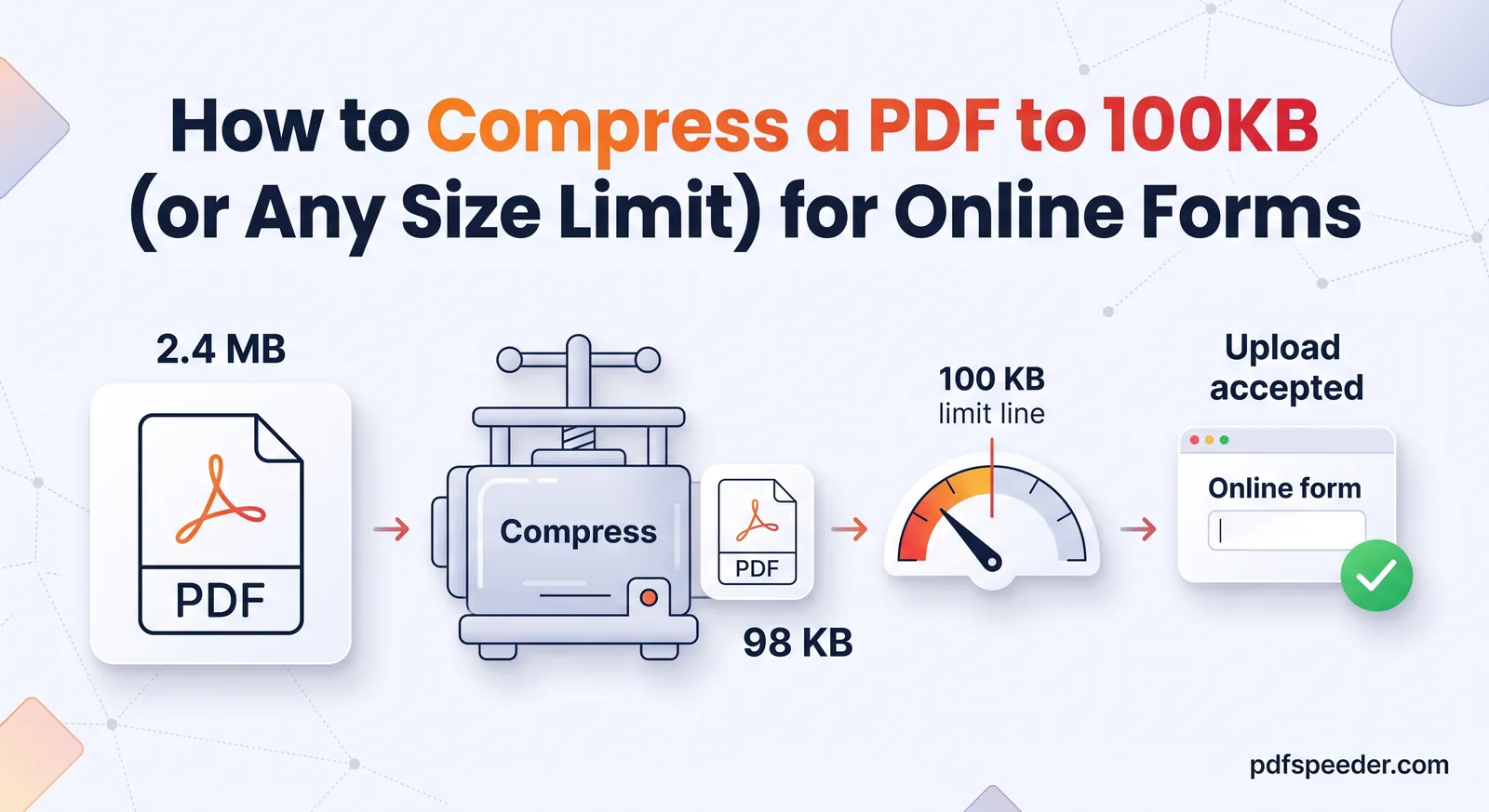
A single phone photo is often several megabytes, while upload forms commonly cap files at somewhere between 100 KB and 2 MB. In Original quality, JPG to PDF stores each JPEG exactly as it is, so the PDF weighs about the same as your photos added together: roughly 1 KB extra, plus around 0.4 KB for each additional page. That makes the size easy to plan: shrink the photos first, then combine them.
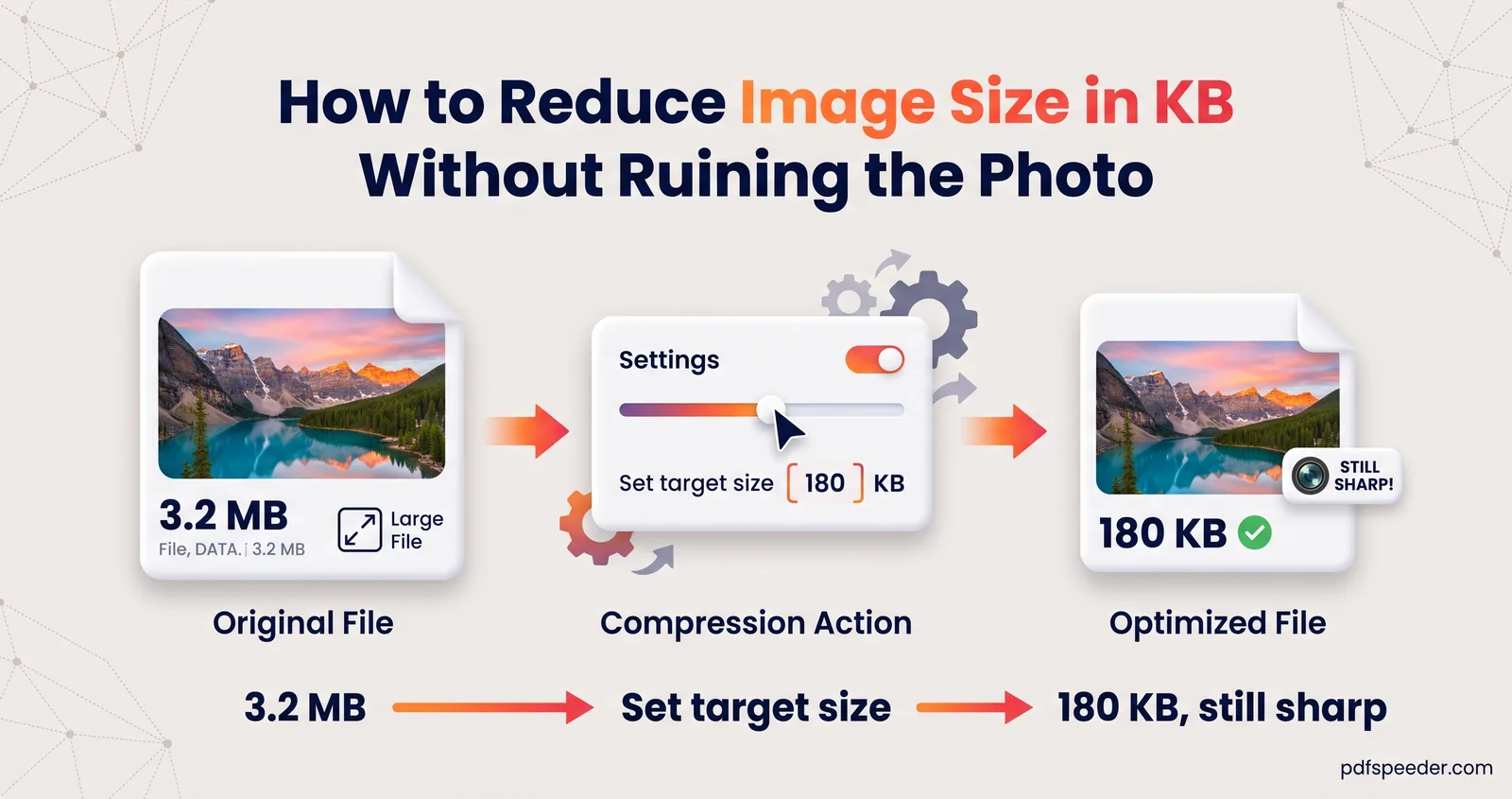
- Open Image Compressor, switch to Target size and enter a size per image.
- Set Output format to JPG. The Smart setting can pick WebP or AVIF, which JPG to PDF would have to re-encode, and that usually makes the file bigger.
- Download the compressed photos, then combine them in JPG to PDF with Quality on Original. Our guide to reducing image size in KB explains how to pick the target.
Example: A form accepts one PDF of up to 200 KB, and you have the front and back of a certificate. Compress each photo to 95 KB as JPG, then combine them on A4: about 95 + 95 + 1.4 = 191.4 KB, safely under the limit.
For a quick, rougher result, choose Quality: Compressed in JPG to PDF instead. It re-encodes each photo at a lower quality and scales big ones down to 2,200 pixels on the long side. If the finished PDF is still too large, Compress PDF can shrink it on our server, where it's deleted automatically within 2 hours; our guide to compressing a PDF to 100 KB covers the tightest limits.
Next time a form asks for "one PDF", start in JPG to PDF: set the order, choose A4, and check the size before you upload.
Frequently asked questions
How do I convert multiple photos into one PDF on my phone?
On an iPhone, select the photos in Photos, then tap Share > Print and use the Share button to save the PDF to Files. On any phone, JPG to PDF in the browser combines them in the order you set.
Can I convert a photo to PDF without an app?
Yes. The iPhone's Photos and Files apps and Android's Save as PDF printer are built in, and JPG to PDF runs in your phone's browser.
Why is my photo PDF so big?
In Original quality, each photo goes into the PDF at full size. Compress the photos to a target size first, or choose Compressed quality, then check the size before you upload.
Is it safe to make a PDF of my ID card online?
JPG to PDF builds the PDF inside your browser, so the photos never leave your phone. You can also add a password to the PDF before you download it.
Why does my photo appear sideways in the PDF?
Phones record which way up a photo was taken, and some apps ignore that. JPG to PDF straightens photos automatically, and you can rotate any image before you create the PDF.