How to Fit an Excel Sheet on One PDF Page (No Cut-Off Columns)
Excel to PDF cutting off columns? Fit the sheet to one page wide or one whole page, keep the text readable, and repeat the header row on every PDF page.

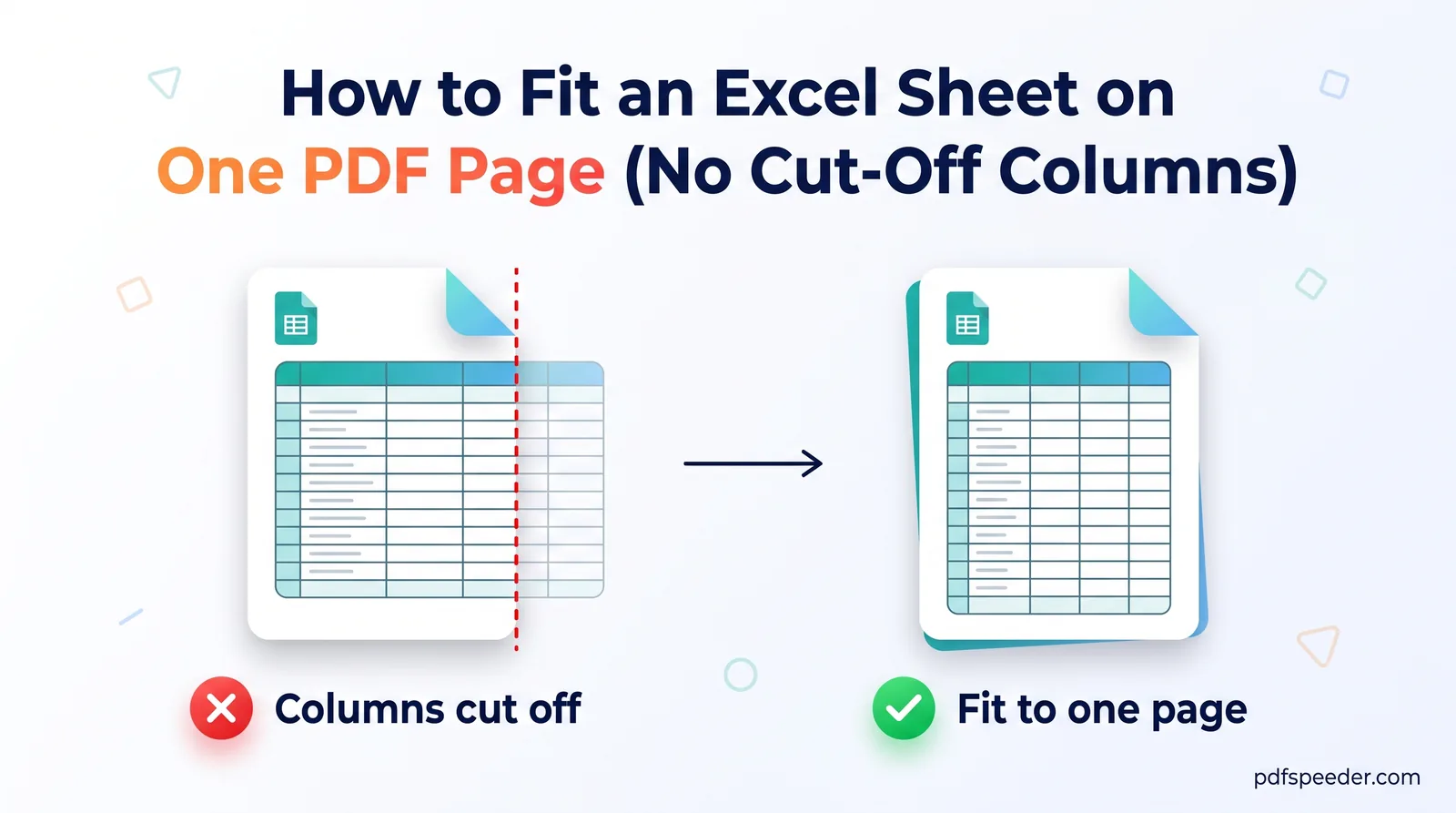
To make Excel to PDF fit to one page, set the sheet's scaling before you export: in Excel, go to Page Layout > Scale to Fit and set Width to 1 page with Height on Automatic to stop columns being cut off, or set both to 1 page to squeeze the whole sheet onto a single page. Switching to landscape and clearing stray print areas fixes most of the rest. The catch is readability, because every bit of shrinking makes the text smaller, so this guide also shows how small is too small.
On this page
Why Excel splits your sheet across PDF pages
Excel's PDF export follows the same page setup as printing, and at the default 100% scaling an A4 page doesn't hold much. In portrait with normal margins it fits only about nine columns at Excel's default width, so column ten onwards moves to a second page and the PDF shows your table in pieces.
The usual causes:
- No scaling. Excel prints at 100% until you tell it otherwise.
- Portrait orientation. A landscape A4 page is about 50% wider inside the margins.
- An old print area. A print area set months ago may cover only part of the table, or include columns you no longer need.
- Manual page breaks. Breaks someone inserted earlier keep splitting the sheet in the same places.
- A stray cell far from the table. A value, or even a single space, in a distant cell stretches the area Excel prints and produces extra, nearly blank pages. Press Ctrl+End to jump to the last cell Excel thinks you used.
To see what's happening, choose View > Page Break Preview. Blue lines show where each page ends: dashed lines are breaks Excel added automatically, solid lines are manual ones, and you can drag either.
How to fit an Excel sheet to one page before you save as PDF
These steps are for Excel on Windows; Excel for Mac has the same Width, Height and Scale boxes on its Page Layout tab.
- Check the print area. On the Page Layout tab, choose Print Area > Clear Print Area. To print only part of the sheet, select that range and choose Print Area > Set Print Area instead.
- Remove old page breaks. Choose Breaks > Reset All Page Breaks.
- Turn the page. Choose Orientation > Landscape if the table is wider than it is tall.
- Set the scaling. In the Scale to Fit group, set Width to 1 page and Height to Automatic for all columns on one page, or set both to 1 page for the whole sheet. Note the number in the Scale box.
- Gain a little width. Margins > Narrow cuts the side margins from 0.7 inch to 0.25 inch.
- Save the PDF. Choose File > Save As, pick PDF as the file type and save.
The print screen offers the same scaling as presets: under File > Print > Settings, the last drop-down (it starts as No Scaling) includes Fit All Columns on One Page and Fit Sheet on One Page. Microsoft's guide to scaling a worksheet adds one detail worth knowing: Excel ignores manual page breaks while a Fit To option is on.
In Google Sheets, choose File > Print, set Scale to Fit to width and the orientation to Landscape, then continue to save the PDF.
Converting without Excel: set the scaling in the file first
No Excel on this device, or working from a phone? Our Excel to PDF converter takes XLSX, XLS, XLSM, XLSB, CSV and ODS files up to 50 MB, converts them on our server and shows a preview of the finished PDF. Add one workbook or several; each becomes its own PDF, and you can download them together as a ZIP.
Know one limit before you rely on it: our server currently converts spreadsheets with LibreOffice, and the Scaling, Orientation, Sheets to include and gridline options on the page don't change the result. Each workbook is converted whole, using the page setup saved in the file as far as LibreOffice supports it. So:
- Set the print area, orientation and Scale to Fit in the workbook itself, as in the previous section, and save it.
- Convert the saved file and look closely at the preview before you download.
- If the preview still splits the table, export the PDF from Excel or Google Sheets instead, where those settings are applied directly.
Your spreadsheet is uploaded over an encrypted connection, converted on our server and deleted automatically within 2 hours. Each spreadsheet counts as one task in the free daily allowance: 2 tasks a day without an account, 3 with a free account, reset at 00:00 UTC (05:30 IST).
One page wide or one whole page: which is readable?
Shrinking a page shrinks the text with it: printed size = font size × scale. Here is roughly what fitting a table one page wide does to 11-point text:
| Columns at default width | A4 portrait | A4 landscape | Landscape, narrow margins |
|---|---|---|---|
| 12 | 80% (8.7 pt) | 100% (11 pt) | 100% (11 pt) |
| 15 | 64% (7.0 pt) | 95% (10.5 pt) | 100% (11 pt) |
| 20 | 48% (5.2 pt) | 71% (7.9 pt) | 78% (8.5 pt) |
| 26 (A to Z) | 37% (4.0 pt) | 55% (6.0 pt) | 60% (6.6 pt) |
| 35 | 27% (3.0 pt) | 41% (4.5 pt) | 44% (4.9 pt) |
The figures assume Excel's default column width, which prints at about 0.72 inch, and normal margins of 0.7 inch at each side (narrow: 0.25 inch). Your own Scale box gives the exact number for your sheet.
Squeezing a whole sheet onto one page also shrinks it to fit its rows. At the default row height, an A4 portrait page holds about 49 rows at 100%. Fit 100 rows onto it and the scale drops to about 49%, so 11-point text prints at roughly 5.4 points; 200 rows take it to about 24%. Excel won't go below 10%, so a long enough sheet spills onto a second page anyway.
A quick readability test before you send the file:
- Multiply your font size by the Scale figure: 11 pt × 55% ≈ 6 pt.
- Open the PDF at 100% zoom and read the smallest numbers from your usual distance. If you have to lean in, so will everyone else.
- If it fails, win back width instead of shrinking further: switch to landscape, use narrow margins, shorten long headers and wrap them onto two lines, or hide helper columns nobody needs to see.
As a rule, use one page wide for long tables, where the rows can flow onto more pages, and keep one whole page for short summaries that nearly fit already.
Multi-sheet workbooks and repeating headers
Page setup belongs to each sheet, so a workbook with five sheets needs five settings. To change them together, Ctrl+click the sheet tabs to group them, make your Page Layout changes, then right-click a tab and choose Ungroup Sheets. In Excel's Save As dialog, select Options and choose Entire workbook under Publish what to put every sheet in one PDF.
When a table runs onto several pages, repeat its header row so page 3 still makes sense. Choose Page Layout > Print Titles, and in Rows to repeat at top enter $1:$1 (or $1:$2 for two header rows). For wide sheets split across pages, Columns to repeat at left does the same for a name or ID column. Excel greys out both boxes while sheets are grouped, so set them one sheet at a time.
In Google Sheets, freeze the header row, then tick Repeat frozen rows under Headers & footers when you print.
A table of text and numbers usually makes a small PDF. If an upload form still says the file is too big, run it through Compress PDF, or try the other methods in our guide to reducing PDF file size.
Before your next export, open Page Break Preview: ten seconds there shows exactly where the PDF will split.
Frequently asked questions
How do I convert Excel to PDF without cutting off columns?
Set Page Layout > Scale to Fit to a Width of 1 page and a Height of Automatic, or pick Fit All Columns on One Page in the print settings, then save as PDF. If you use our Excel to PDF converter, save that scaling in the workbook first, because the converter's own scaling option doesn't currently take effect.
How do I save an Excel sheet as a PDF on one page?
Set both Width and Height to 1 page (Fit Sheet on One Page), check the Scale box, then use File > Save As > PDF. Long sheets get very small this way, so it suits short summaries best.
Why does my Excel PDF have blank pages?
Usually a stray value, space or formatting sits far outside your table, or an old print area or page break is still set. Press Ctrl+End to find the last cell Excel counts, clear anything you don't need, and reset the page breaks.
Does landscape help when Excel to PDF cuts off columns?
Yes. An A4 page in landscape is about 50% wider inside the margins, so a table that needs 71% scaling in portrait fits at 100% in landscape. Combine it with Fit All Columns on One Page for wide tables.