How to Convert Any Document to PDF: Word, Excel, Images and More
How to convert a document to PDF, built-in or online: Word, Excel, PowerPoint, photos, web pages, eBooks and notebooks, and what to check before you send.

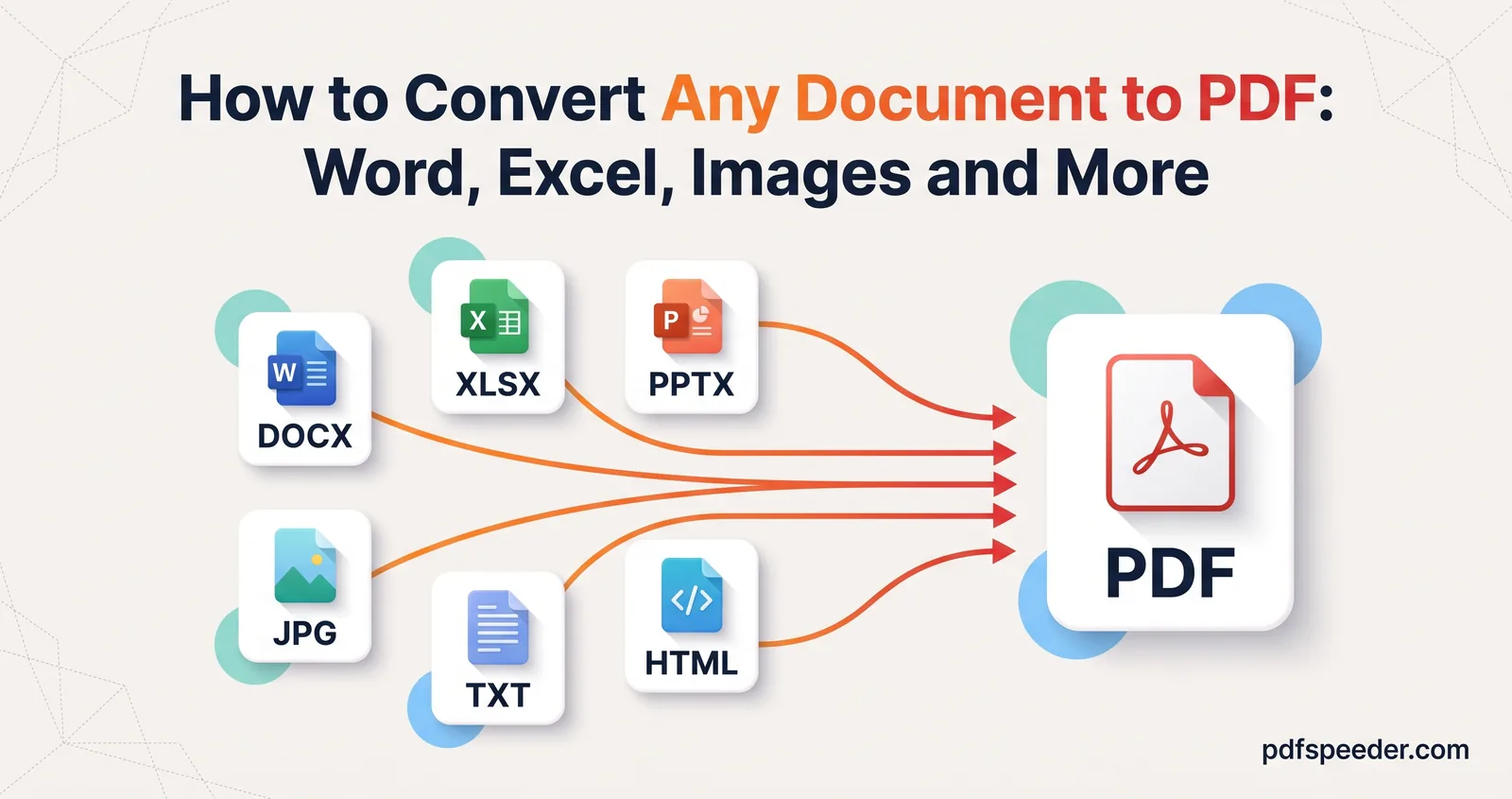
The quickest way to convert a document to PDF is usually the app it's already open in: Word, Excel, PowerPoint and Google Docs can all save a PDF directly, and almost any app that prints can "print" to a PDF on a computer or phone. An online converter fills the gaps, for when you don't have the original app, need photos combined in order, want a web page captured with working links, or have an eBook or notebook to turn into pages. Here's which method suits each kind of file, and the problem to watch for with each one.
On this page
Quick answer: which method for which file
| Your file | Built-in way | Online with PDFSpeeder | What usually goes wrong |
|---|---|---|---|
| Word (.docx, .doc, .rtf, .odt) | File > Save a Copy or Save As > PDF | Word to PDF | A missing font is swapped, so lines and pages break differently |
| Excel (.xlsx, .xls, .csv, .ods) | File > Save As > PDF | Excel to PDF | Columns spill onto extra pages |
| PowerPoint (.pptx, .ppt, .odp) | File > Export > Create PDF/XPS | PPT to PDF | Speaker notes left out |
| Google Docs, Sheets, Slides | File > Download > PDF | Not needed | Very large documents are better saved through Print |
| Photos (JPG, PNG, WebP) | Print, then choose Save as PDF | JPG to PDF, PNG to PDF | Wrong order, sideways photos, a file too big to upload |
| Web page | Browser Print > Save as PDF | HTML to PDF | Cut-off content, cookie banners, missing colours |
| Plain text and code | Open it, print to PDF | Text to PDF | Long lines cut off at the margin |
| Markdown (.md) | Your editor's export, if it has one | Markdown to PDF | Raw symbols such as ** and # instead of formatting |
| eBook (EPUB, MOBI, AZW3) | Calibre, a free desktop app | EPUB to PDF, MOBI to PDF | DRM-protected books can't be converted |
| Jupyter notebook (.ipynb) | Print it from your browser | IPYNB to PDF | Empty outputs if the notebook wasn't saved after running |
How to convert a Word, Excel or PowerPoint document to PDF
In Office or Google Docs
If you have the app that made the file, use it. It knows the document's fonts and layout better than any converter, so what you see is what you get. Microsoft's guide to saving Office files as PDF covers every version; the short version is:
- Word on Windows: choose File > Save a Copy (or Save As for a new file), pick PDF as the type and select Save. Under More Options > Options you can set a page range, create bookmarks from your headings, add document structure tags for accessibility, or make the file PDF/A compliant for archiving.
- Word, Excel or PowerPoint on a Mac: choose File > Save As, then pick PDF under File Format.
- Excel on Windows: choose File > Save As and pick PDF (*.pdf) as the type. Set the scaling first, or wide sheets split across pages; our guide to fitting an Excel sheet on one PDF page shows how.
- PowerPoint on Windows: choose File > Export > Create PDF/XPS Document. Under Options > Publish what, pick slides, handouts, notes pages or outline view. Microsoft notes that the Mac version can't export notes or handouts.
- Google Docs, Sheets and Slides: choose File > Download and pick the PDF option. For a very large document, Google's download help suggests File > Print with Save as PDF as the destination in Chrome instead.
No Office? Convert it online
Word to PDF takes DOCX, DOC, RTF and ODT files up to 50 MB, and Excel to PDF takes XLSX, XLS, XLSM, XLSB, CSV and ODS files of the same size. PPT to PDF handles PPTX, PPT, PPS, PPSX and ODP presentations up to 100 MB. You can add several files at once: each becomes its own PDF, which you download one by one or together as a ZIP, and a preview shows the actual PDF before you download.
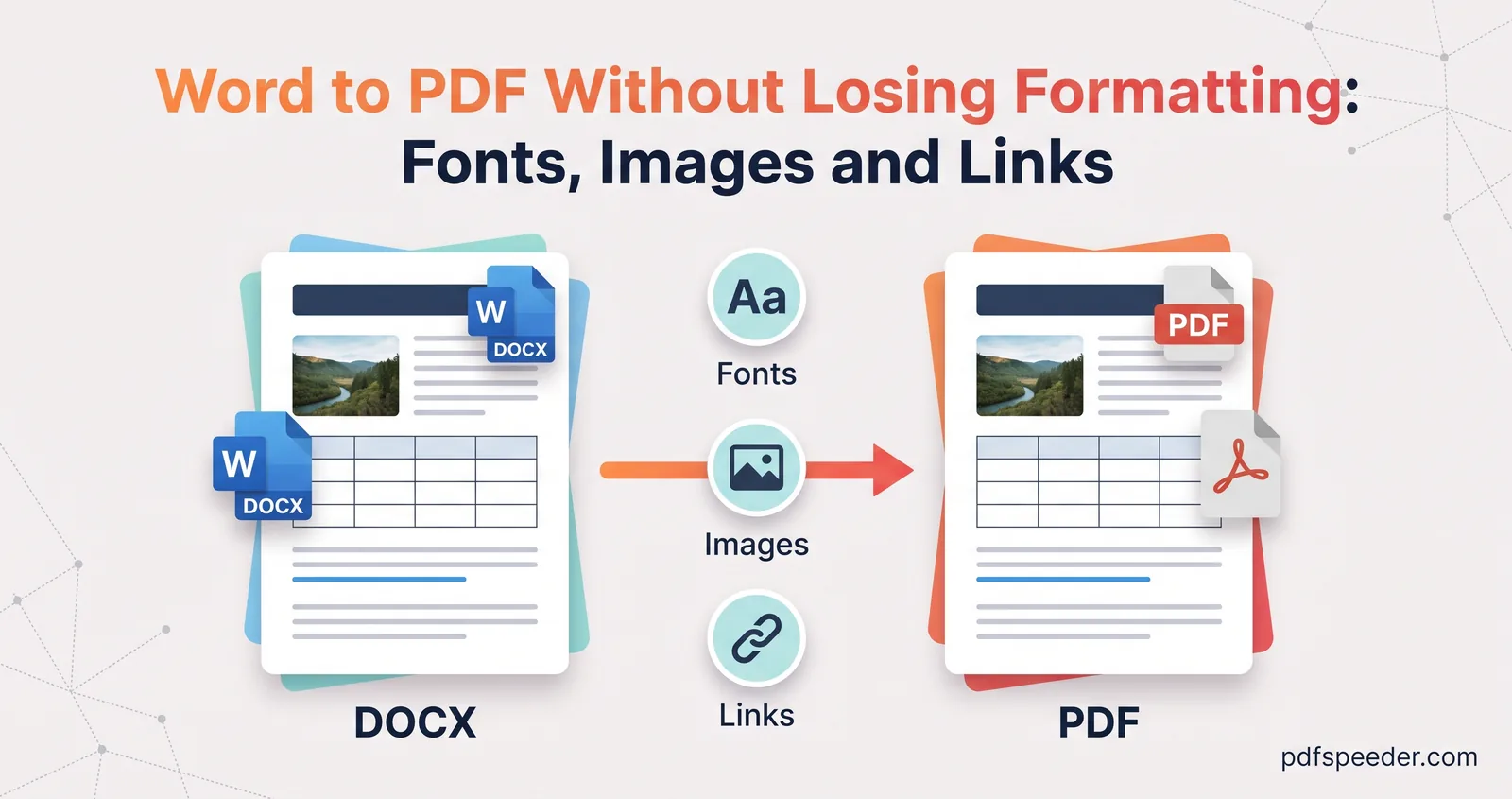
These conversions happen on our server, which uses its own set of fonts. If your document uses a font the server doesn't have, a similar one stands in, and lines can wrap differently. Check the preview: when the layout matters down to the last line, as on a CV or a printed form, export from Office itself, and see our guide to Word to PDF without losing formatting for the fonts, images and links that most often shift.
Photos and images to PDF
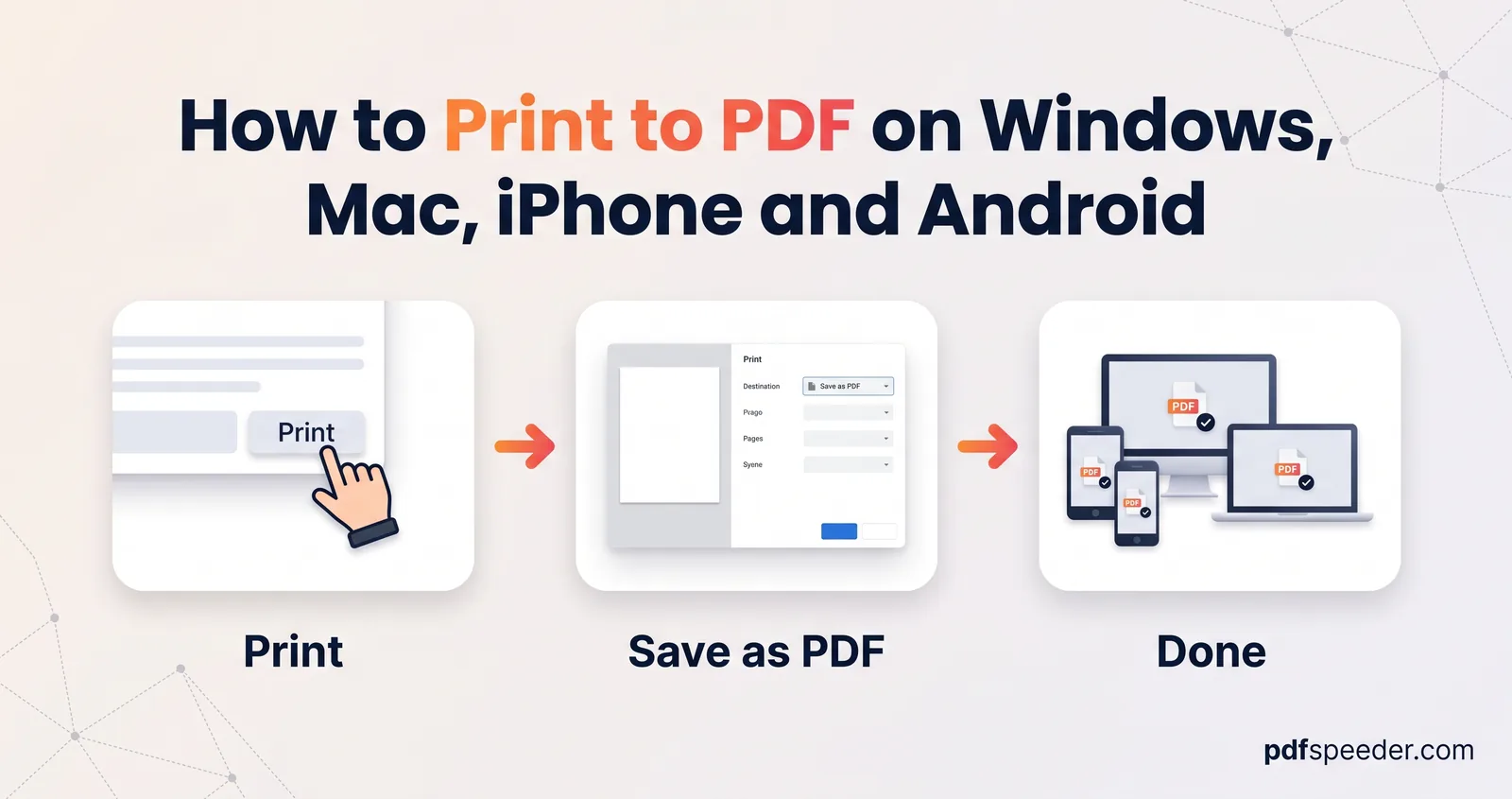
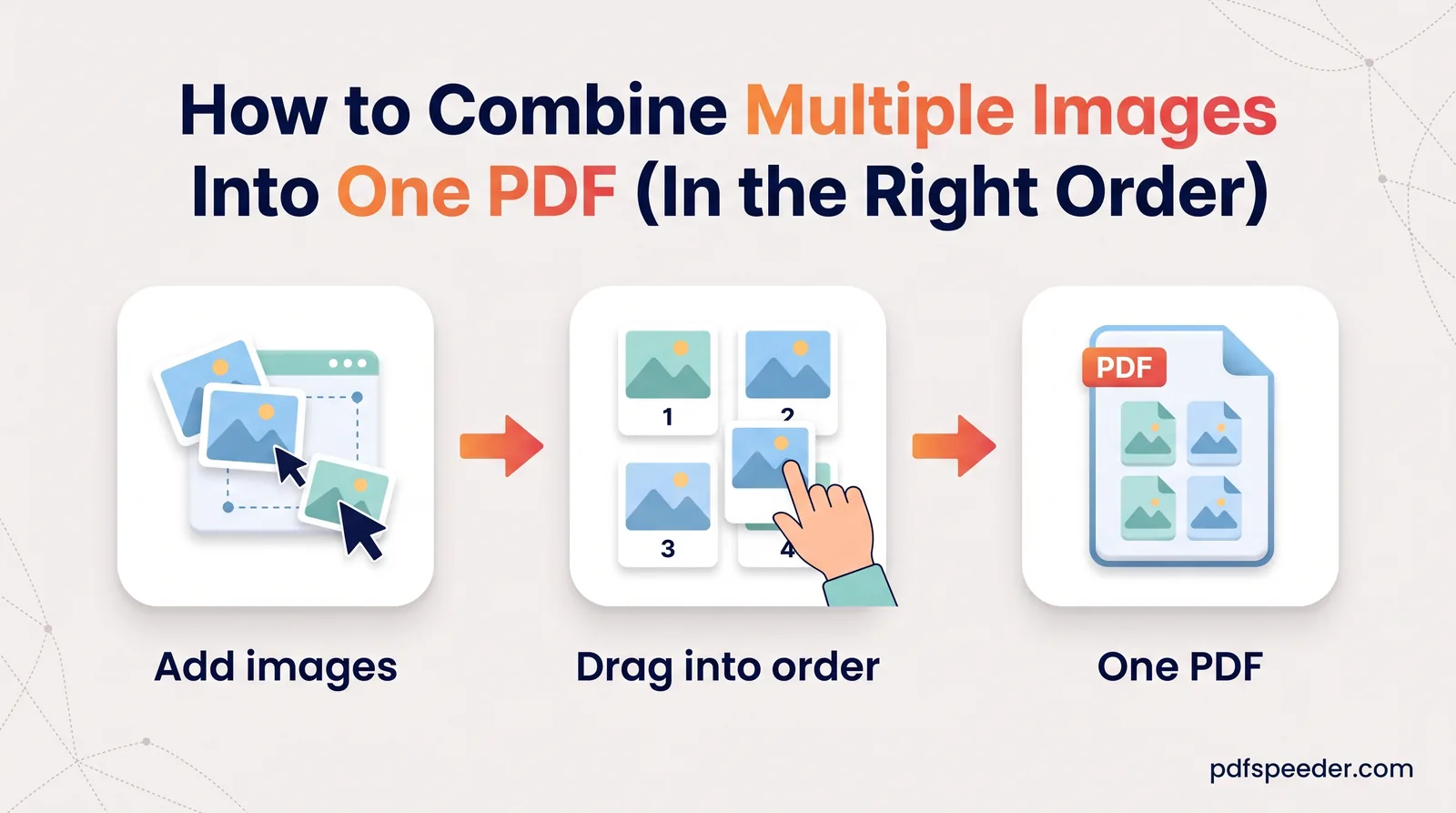
Phones and computers can all turn a photo into a PDF without extra software. On Windows, open the photo, press Ctrl+P and pick Microsoft Print to PDF. On a Mac, Apple's steps for saving a document as a PDF work for photos too: File > Print, then the PDF menu, then Save as PDF. Our guide to combining multiple images into one PDF covers getting the order, page size and file size right, on a phone or a computer.
The built-in routes give you little control over order, page size or file size, which is where online forms trip people up. JPG to PDF runs in your browser, so the images are never uploaded:
- Add JPG, PNG, WebP, GIF, BMP or AVIF images, up to 60 MB each.
- Drag the thumbnails into order. Sideways phone photos are straightened automatically, and you can rotate any image.
- Pick a page size: Fit to image (the default) gives borderless pages the size of each photo, while A4, Letter, Legal, A3 and A5 give standard pages that can hold 1, 2, 4 or 6 images each.
- Leave quality on Original to embed JPEG and PNG files without re-compressing them, then select Create PDF.
PNG to PDF works the same way but keeps transparent backgrounds by default, which suits logos and diagrams.
Web pages to PDF
To convert a webpage to PDF yourself, press Ctrl+P (Cmd+P on a Mac) in Chrome or Edge and set the destination to Save as PDF. Open More settings to change the paper size or scale, and tick Background graphics if colours and shaded boxes are missing.
In a test on a sample page, a PDF made through Chromium's Save as PDF kept every link clickable. It's also the right method for anything behind a login, such as a bank statement page or an order history, because only your own browser can see it.
HTML to PDF does the same job on our server, in a real Chromium browser, when you want more control or several pages at once. Give it a URL (one per line for a batch), an HTML file up to 25 MB or pasted code, then choose the page size, orientation, margins and scale. You can add page numbers or a title header, keep or drop background graphics, and combine several pages into one PDF. Private and local network addresses are blocked, and each page you convert counts as one task.
Text, code and Markdown to PDF
A plain text file prints to PDF from Notepad or TextEdit like any document, but long lines get cut off or wrapped awkwardly, and code loses its structure. Text to PDF handles plain text, source code with syntax highlighting and optional line numbers, and Markdown, with wrapping for long lines and a choice of sans-serif, serif or monospace fonts, for files up to 12 MB.
Markdown to PDF is built for documentation: it renders GitHub-flavoured Markdown, including tables, task lists and footnotes, with highlighted code, a light or dark theme, bookmarks from your headings and an optional contents page. One limit to know: it never fetches anything the file links to, so images hosted on the web won't appear in the PDF.
eBooks, notebooks and other formats
eBooks. EPUB to PDF and MOBI to PDF (which also reads AZW and AZW3 files) follow the book's reading order and keep its own design, or switch to a clean, uniform layout. They add a title page, a table of contents and a bookmark for every chapter, and offer small A5 and A6 pages for reading on a phone or e-reader. Files can be up to 100 MB, but books with DRM copy protection can't be converted.
Jupyter notebooks. IPYNB to PDF uses Jupyter's own nbconvert engine to lay out code, Markdown, printed output, tables and plots, and lets you hide the code or the outputs. It never runs the notebook, so open it, run all the cells and save it before uploading, or the PDF shows empty outputs.
Everything else. CSV, JSON, XML, SVG, TIFF and CAD drawings each have their own converter in our PDF tools menu.
Note: The Office, web, text, eBook and notebook converters upload your file over an encrypted connection, convert it on our server and delete it automatically within 2 hours. Each file counts as one task in the free daily allowance: 2 tasks a day without an account, 3 with a free account, reset at 00:00 UTC (05:30 IST). JPG to PDF and PNG to PDF build the PDF in your browser, and each PDF you make counts as one task too.
Check your PDF before you send it
A conversion can look fine on page one and go wrong on page nine. Before you attach or upload the file, open it and run through this list:
- Pages. Is the page count right, with nothing blank, missing or out of order?
- Characters. Do the ₹ sign, accented names and any Hindi or other non-Latin text show properly, not as boxes?
- Search. Press Ctrl+F and look for a word. If nothing is found, the page went in as a picture, and the reader can't copy from it either.
- Links. Click two or three. Exporting keeps links; printing sometimes doesn't.
- Size. Compare the file size with the upload limit, and compress the PDF if it's too big.
- Paper. Forms in India and Europe usually expect A4; the US uses Letter.
Start with the file you need today: use its app's Save as PDF if you have it, and the matching converter from the table if you don't.
Frequently asked questions
What is the easiest way to convert a document to PDF?
Use the Save as PDF or Export option in the app that made it, such as Word or Google Docs. If the app can't do that, print the document and choose a PDF printer, or use an online converter.
How do I convert a file to PDF on my phone?
On Android, open the file, choose Print and set the printer to Save as PDF. On an iPhone, Safari can save a page as a PDF through Share, then Markup, then Save File To, and online converters work in any phone browser.
Can I convert to PDF for free?
Yes. The built-in options in Office, Google Docs, Windows, macOS, iOS and Android cost nothing, and PDFSpeeder's converters are free within the daily allowance.
Why does my PDF look different from the original document?
Usually a font is missing on the computer or server doing the conversion, so a substitute changes how lines wrap. Converting from the original app, or checking the converter's preview, avoids surprises.
Does converting to PDF reduce quality?
Text stays sharp, because it stays as text. Images can be compressed by some export settings, so choose a print or standard quality option rather than minimum size when image detail matters.