How to Print to PDF on Windows, Mac, iPhone and Android
How to print to PDF on Windows, Mac, iPhone and Android, plus fixes for a missing Microsoft Print to PDF, cut-off pages, wrong paper size and dead links.

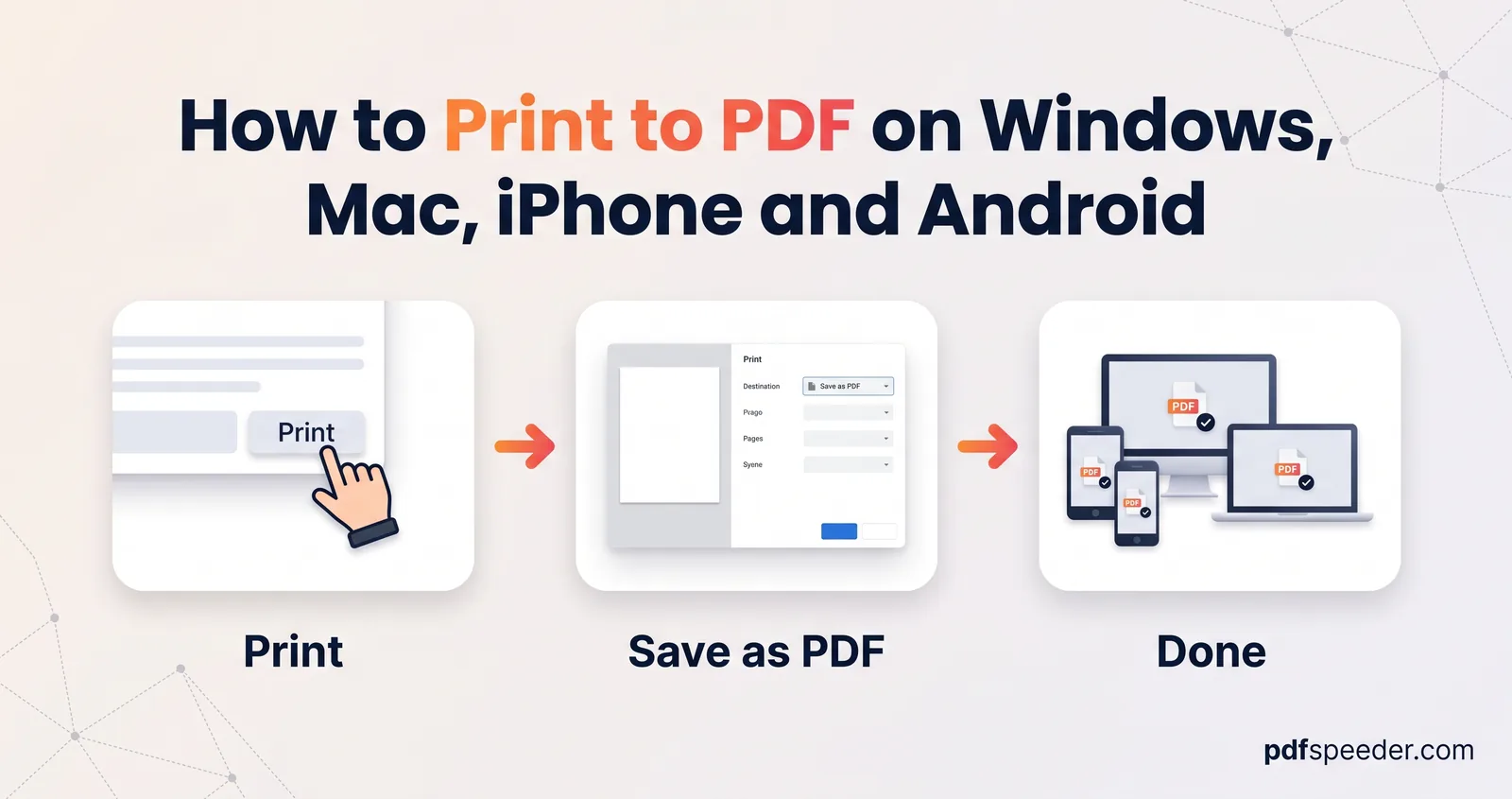
To print to PDF, open the Print dialog in any app and choose a PDF "printer" instead of a real one: Microsoft Print to PDF on Windows, Save as PDF in the PDF menu on a Mac, and Save as PDF in Android's print screen. iPhones save PDFs through the Share sheet instead. A printed PDF looks exactly like the paper version would, but it can lose clickable links and never gets bookmarks, so the end of this guide shows when exporting or converting gives a better file.
On this page
How to print to PDF on Windows 10 and 11
Windows 10 and 11 come with a virtual printer called Microsoft Print to PDF, which works from any app that can print:
- Open the document, web page or photo and press Ctrl+P.
- In the printer list, choose Microsoft Print to PDF.
- Check the paper size and orientation. Look under More settings, Preferences or Printer properties, depending on the app.
- Select Print. A Save Print Output As window opens instead of anything printing.
- Choose a folder, type a file name and select Save.
The PDF keeps real, selectable text in most apps, because the printer receives the text rather than a photo of it. In browsers, Chrome and Edge also offer their own Save as PDF destination in the same list, which is usually the better choice for web pages, for reasons explained below.
Save as PDF on a Mac
Every Mac app that prints can also save a PDF. Apple's steps for saving a document as a PDF are:
- Choose File > Print (or press Cmd+P).
- Click the PDF button or pop-up menu at the bottom of the dialog, then choose Save as PDF.
- Enter a name, choose a location and save.
Before saving, Security Options lets you require a password to open the PDF, or to copy from or print it. The same PDF menu can also send the file straight to Mail or iCloud Drive. Some apps, such as Preview and Safari, also have a separate File > Export as PDF command.
Print to PDF on iPhone and iPad
There's no PDF printer in the iPhone's print menu, but several built-in apps save PDFs through the Share sheet. Apple's iPhone User Guide describes how to save a webpage as a PDF in Safari:
- Open the page in Safari, tap the Page Menu button, then tap Share (with the Bottom or Top tab layout, tap the Share button directly).
- Tap Markup. You can draw or highlight, or leave the page as it is.
- Tap Done, choose Save File To, name the file and tap Save.
Other routes:
- Notes: open the note, tap Share, then Markup, and tap Done to save it as a PDF.
- Pages: tap the More button, then Export, and choose PDF.
- Photos and other apps: in many apps you can tap Print and share the print preview as a PDF; the exact buttons vary between iOS versions.
For combining photos into one PDF in a set order, our guide to converting a photo to PDF on your mobile covers the iPhone's Files app and the browser route.
Print to PDF on Android
Android has a built-in Save as PDF printer. Google's Chrome printing help gives these steps for a web page:
- In Chrome, tap More (three dots), then Share, then Print.
- At the top, tap the printer name and choose Save as PDF.
- Tap the down arrow to set the paper size, orientation and pages.
- Tap the round PDF (download) button, then choose where to save the file.
Most apps that can print, such as Google Docs, Gmail and the gallery, open the same print screen, so the same Save as PDF option appears there.
Microsoft Print to PDF missing or not working?
If Microsoft Print to PDF isn't in your printer list, it has probably been switched off as a Windows feature. Work through these fixes in order:
- Look for it in Settings. On Windows 11, open Settings > Bluetooth & devices > Printers & scanners; on Windows 10, Settings > Devices > Printers & scanners. If it's listed there, close and reopen the app you're printing from.
- Turn the feature back on. Press Windows+R, type
optionalfeaturesand press Enter to open Turn Windows features on or off. Tick Microsoft Print to PDF, select OK and restart. If it's already ticked, untick it, select OK, restart, then tick it again. - Reinstall it from the command line. In a Command Prompt opened as administrator, run these two commands, then restart:
dism /Online /Disable-Feature /FeatureName:"Printing-PrintToPDFServices-Features" /NoRestart
dism /Online /Enable-Feature /FeatureName:"Printing-PrintToPDFServices-Features" /NoRestart- Install pending updates. If the printer vanished straight after a Windows update, check Windows Update for newer fixes.
While you sort it out, you can still make a PDF: Word, Excel and PowerPoint have their own Save As > PDF, and Chrome and Edge have their own Save as PDF destination, none of which need the Windows printer.
Fix cut-off pages, wrong paper size and missing colours
Most printed PDFs that look wrong have one of these causes:
| Problem | Likely cause | Fix |
|---|---|---|
| Text or tables cut off at the edge | Content wider than the page | Switch to landscape, or lower the scale under More settings |
| Pages are US Letter, but you need A4 | The printer's default paper size | Pick A4 under paper size before printing |
| Colours, logos or shaded boxes missing | Background graphics turned off | Tick Background graphics under More settings in Chrome or Edge |
| Date and web address printed on every page | Headers and footers turned on | Untick Headers and footers |
| Blank or nearly blank extra pages | Stray content far outside the area that prints | In Excel, clear the print area and reset page breaks |
| Links in the PDF don't click | A printer driver kept only the look of the page | Export or use Save as PDF instead (next section) |
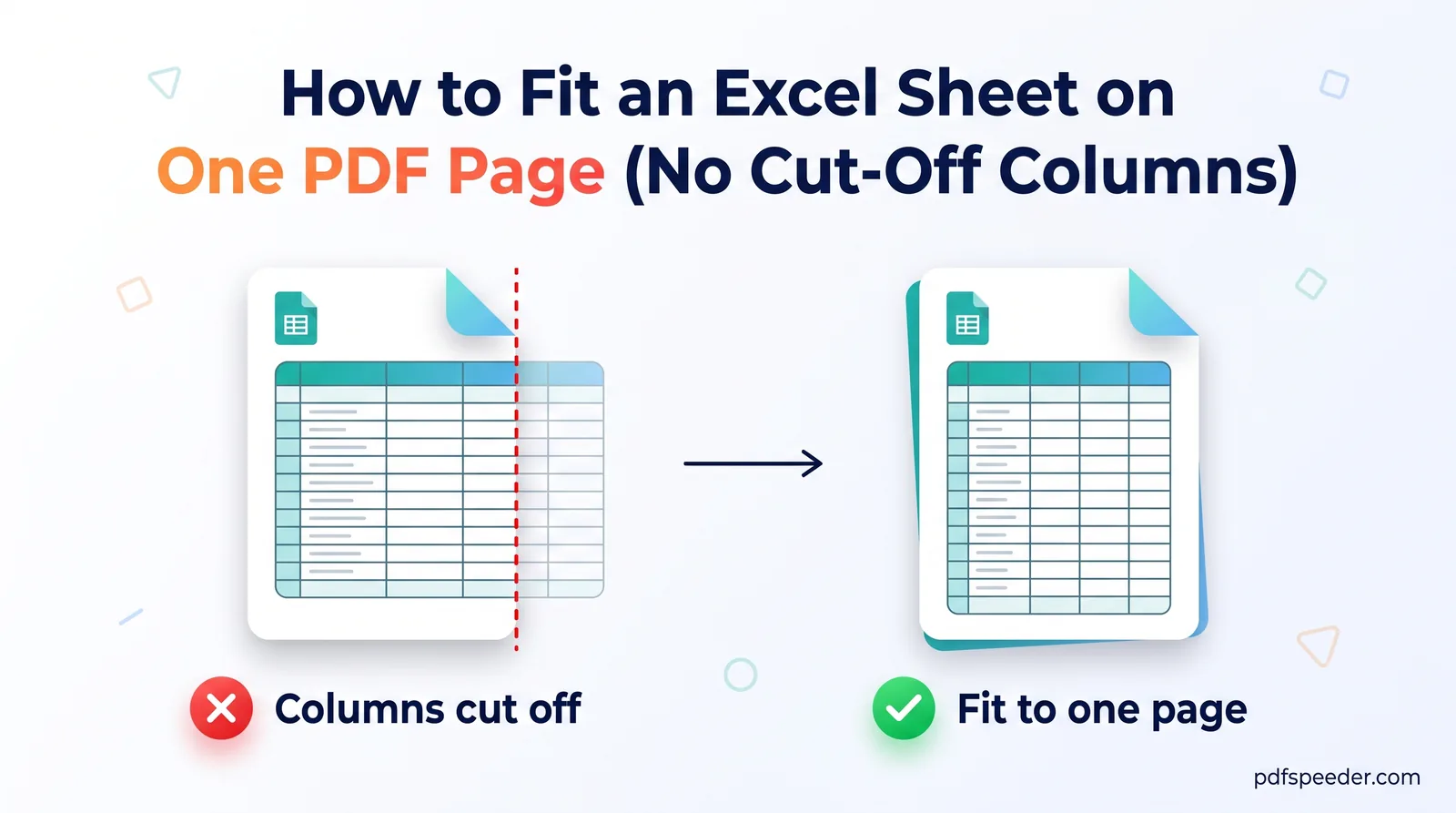
Spreadsheets cause the most cut-off columns. Our guide to fitting an Excel sheet on one PDF page walks through the scaling settings that stop it.
Printing vs converting: which makes a better PDF?
A virtual printer gets what a paper printer would: the appearance of each page. A real export, such as Word's Save As > PDF or Chrome's Save as PDF, works from the document itself, so it can keep what paper can't hold:
| Feature | Virtual printer | Export or converter |
|---|---|---|
| Looks like the original | Yes | Yes |
| Selectable, searchable text | Usually | Yes |
| Clickable links | Often lost | Kept |
| Bookmarks from headings | No | Optional in Word's PDF options |
| Accessibility tags | No | Optional in Word's PDF options |
| Works from any app | Yes | Only where an export or converter exists |
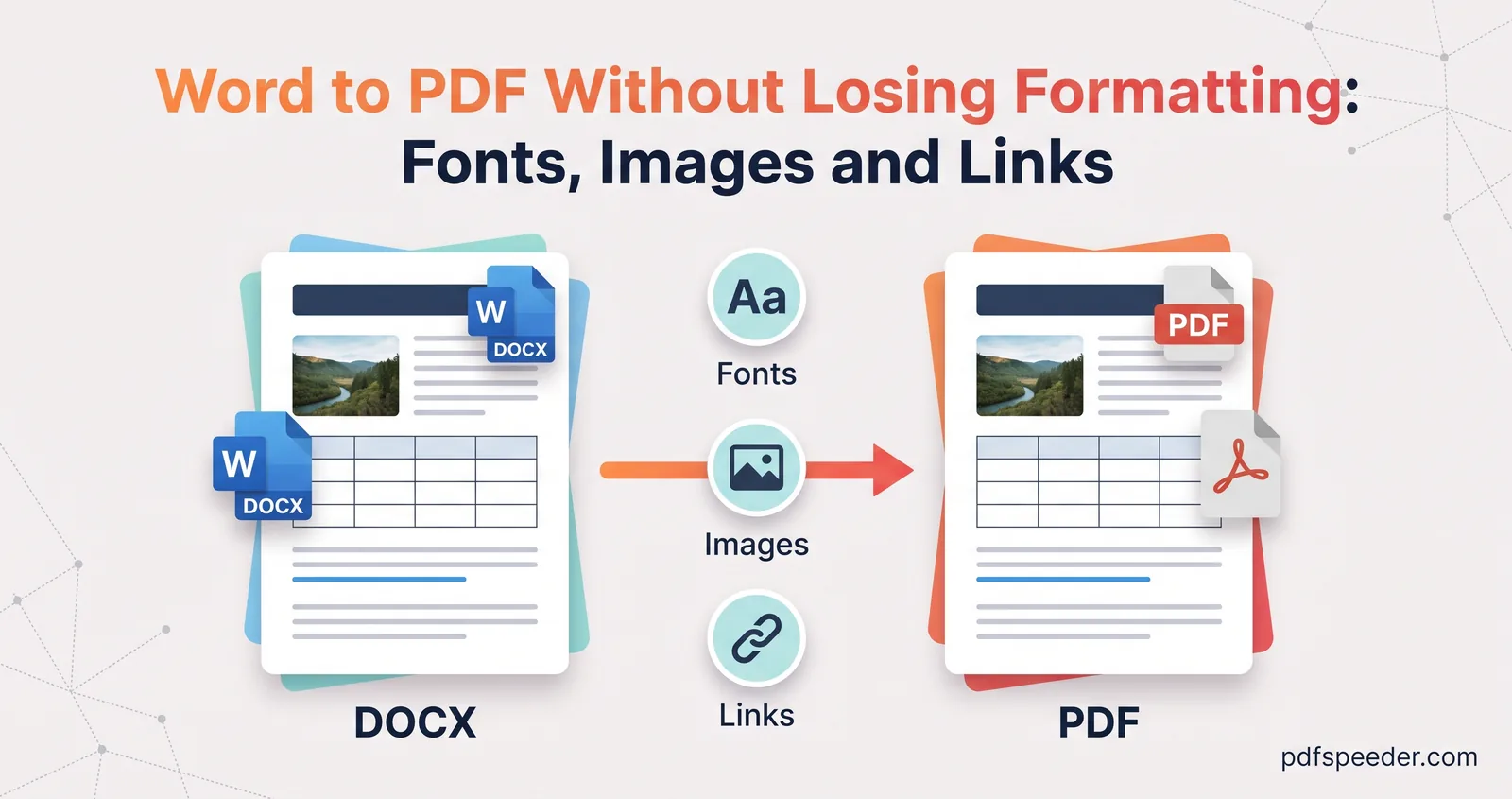
We checked the links ourselves: in tests on sample files, a Word document saved with Save As > PDF and a web page saved through Chromium's Save as PDF kept every hyperlink clickable. Printers are less predictable, so if links matter in a CV, report or ebook, click a few in the finished PDF before you send it. For Word files, our guide to converting Word to PDF without losing formatting also covers fonts, images and bookmarks.
When there's no export option, a converter does the same job:
- Web pages: HTML to PDF renders a URL, an HTML file or pasted code in Chromium on our server, so links stay clickable, and it can add page numbers or combine several pages into one PDF.
- Word files without Word: Word to PDF converts DOCX, DOC, RTF and ODT files on our server and shows a preview of the PDF before you download it.
- Photos: JPG to PDF builds the PDF in your browser, embeds JPEGs without re-compressing them and lets you set the order and page size, which a print dialog can't.
The two server converters delete your file automatically within 2 hours. Each conversion, including each PDF from JPG to PDF, counts as one task in the free daily allowance: 2 tasks a day without an account, 3 with a free account, reset at 00:00 UTC (05:30 IST).
For your next PDF, try the app's own Save as PDF or Export first, and keep the virtual printer for apps that offer nothing else.
Frequently asked questions
How do I print to PDF on Windows?
Press Ctrl+P, choose Microsoft Print to PDF as the printer and select Print, then name the file in the Save Print Output As window. If the printer is missing, turn it back on in Turn Windows features on or off.
Why is Microsoft Print to PDF not showing?
It has usually been turned off as a Windows feature, or removed by an update. Re-enable it under Turn Windows features on or off, restart, and install any pending Windows updates.
Can I print to PDF on an iPhone?
Not through a PDF printer, but Safari saves pages as PDFs through Share, then Markup, then Save File To. Notes and Pages can export PDFs too.
Why don't the links work in my printed PDF?
Printer drivers often record only the look of the page. Use the app's Save as PDF or Export option, or a converter, which keep links clickable.
What is the difference between Print to PDF and Save as PDF?
Print to PDF sends the page to a virtual printer, which captures its appearance. Save as PDF exports from the document itself, so it can keep links, bookmarks and accessibility tags.