How to Copy Text From a PDF (Even Scanned or Protected Files)
How to copy text from a PDF: stop broken line breaks, extract whole documents in reading order, copy from scans with OCR, and handle blocked copying.

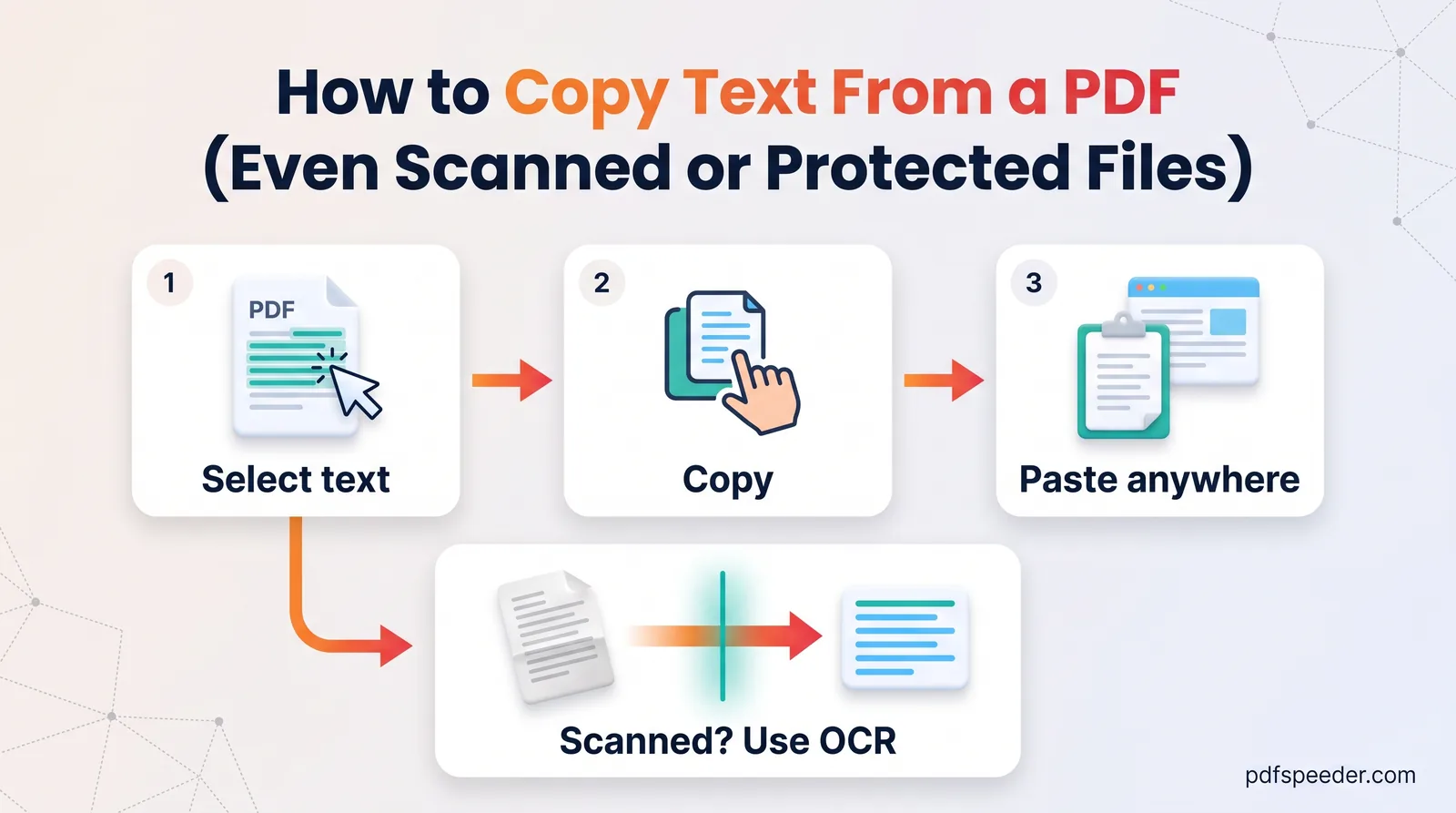
To copy text from a PDF, select it in your PDF viewer and press Ctrl+C (Cmd+C on a Mac), then paste it wherever you need it. That works when the PDF holds real text. If nothing highlights, the page is a scan and needs OCR first; if Copy is greyed out, the file's owner has restricted it. And if the pasted text breaks at the end of every line, an extractor with a reading mode rebuilds the paragraphs for you.
On this page
How to copy text from a normal PDF (and why line breaks appear)
For a short passage, the viewer you already have is fine: drag across the text, or double-click a word and shift-click where the passage ends, then copy. On a phone, press and hold a word to start selecting. Ctrl+A selects all the text in most viewers.
The trouble shows up when you paste. A PDF doesn't store paragraphs; it stores lines of text, each placed at an exact spot on the page. So when you copy, the viewer guesses, and you typically get:
- A line break at the end of every printed line, so one paragraph pastes as eight short ones.
- Split words, such as "infor-" at the end of one line and "mation" on the next.
- Mixed-up columns, when a selection runs straight across a two-column page.
- Page furniture, such as running headers, footers and page numbers, dropped into the middle of your text.
One more problem has a different cause. If the text pastes as gibberish, empty boxes or odd symbols although it looks perfect on screen, the PDF's fonts don't record which letter each shape stands for. Copying can't fix that; treat the page like a scan and use OCR, as described further down.
Extract all the text at once
When you need more than a paragraph, extract the text instead of copying it. PDF to Text works in your browser, so the PDF isn't uploaded:
- Open PDF to Text and add your PDF (up to 100 MB). If it needs a password to open, the tool asks for it.
- Choose the pages: all are selected to start with, and buttons select none, invert the choice, or pick the first or last ten.
- Pick an Output mode from the table below.
- Keep Fix hyphenated line breaks and Remove running headers, footers & page numbers ticked for normal reading text.
- Select Extract Text. The result appears in an editable box, where you can fix anything before you select Copy or Download .txt.
| Output mode | What you get | Use it for |
|---|---|---|
| Reading (reflowed) | Paragraphs rebuilt from wrapped lines; headings, dates and list items kept on their own lines | Quoting, editing, translating, word counts |
| Layout | Columns and tables kept aligned with spaces | Statements, invoices, tables |
| Simple | One line of output for every printed line | When you want the raw line structure |
Each extraction counts as one task in the free daily allowance: 2 tasks a day without an account, 3 with a free account, reset at 00:00 UTC (05:30 IST).
How the clean-up decides what to remove
Reading mode joins a line to the next only when the first one fills most of its column's width, which is the sign that it wrapped. The hyphen fix joins "infor-" and "mation" when the next line starts with a small letter. Header removal looks at the top two and bottom two lines of each page and drops lines that repeat on at least half the pages, numbers aside, plus lines that are only a page number.
That makes two quick checks worthwhile. Look at compound words broken across lines, since "well-" plus "known" becomes "wellknown". And if every page of a report starts with the same heading you want to keep, untick header removal.
Under Advanced options, page markers add a --- Page N --- line before each page, which helps when you need to cite page numbers. The encoding setting matters only for the download: UTF-8 suits almost everything, UTF-8 with BOM helps some older Windows programs recognise the encoding, and ASCII turns accented letters into plain ones and anything else, including ₹ and Hindi, into question marks.
Copying from a scanned PDF
A scanned page is a picture, so there's nothing to select until OCR (optical character recognition) reads the letters. PDF to Text can do this as it extracts:
- Auto reads each page normally and switches to OCR only for pages with almost no real text, fewer than about eight words.
- Always runs OCR on every selected page, which is the fix for fonts that copy out as gibberish.
- Off skips OCR entirely.
Pick the page's language first. PDF to Text offers 14, including English, Hindi, Arabic, Chinese, Japanese and Korean, one per run. For other scripts, or a page that mixes two languages, PDF to OCR reads 40 languages, including Bengali, Gujarati, Marathi, Tamil, Telugu and Urdu, lets you select several at once, and can give you plain text or a searchable PDF that you can copy from whenever you like. It also runs entirely in your browser.
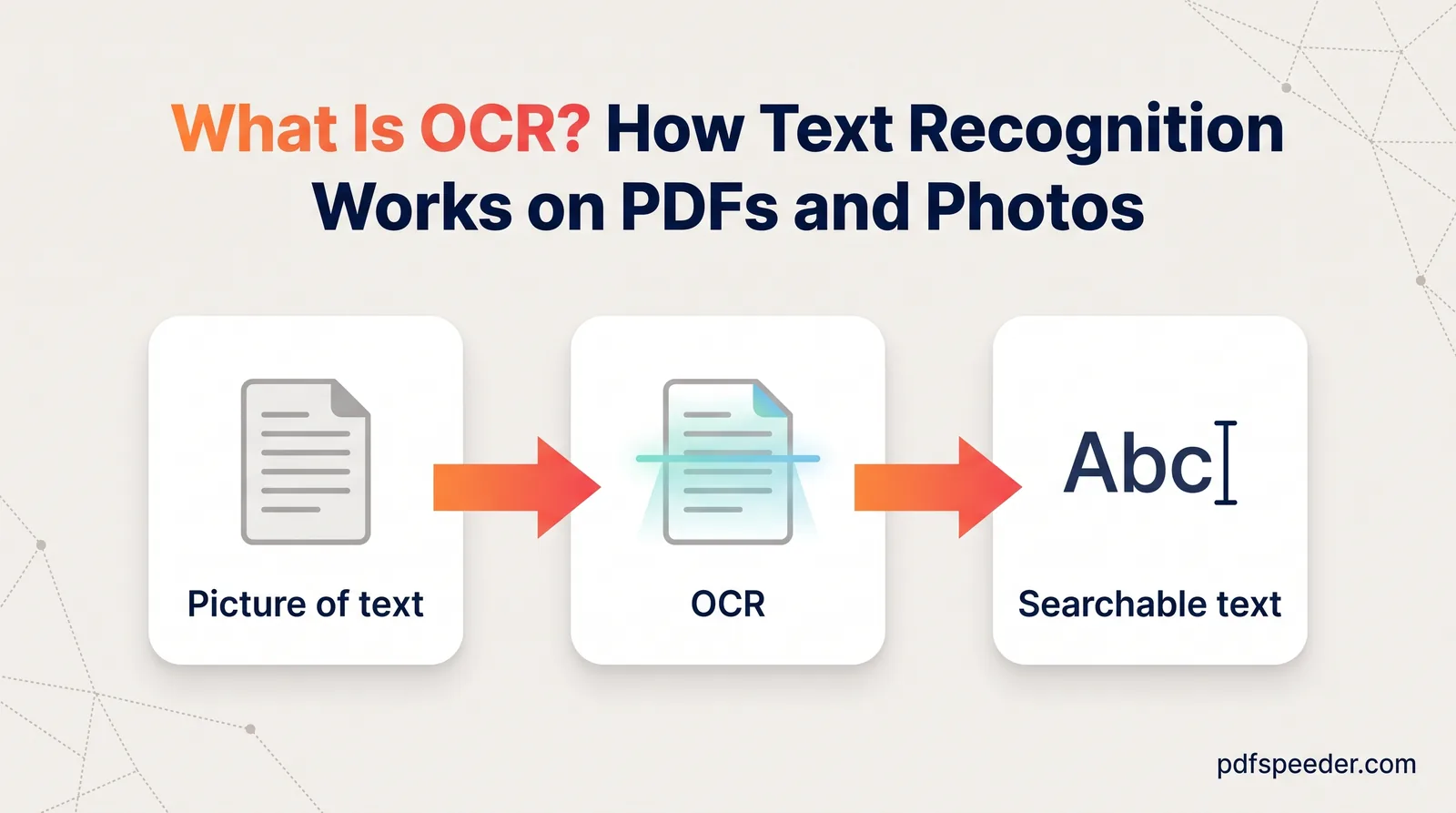
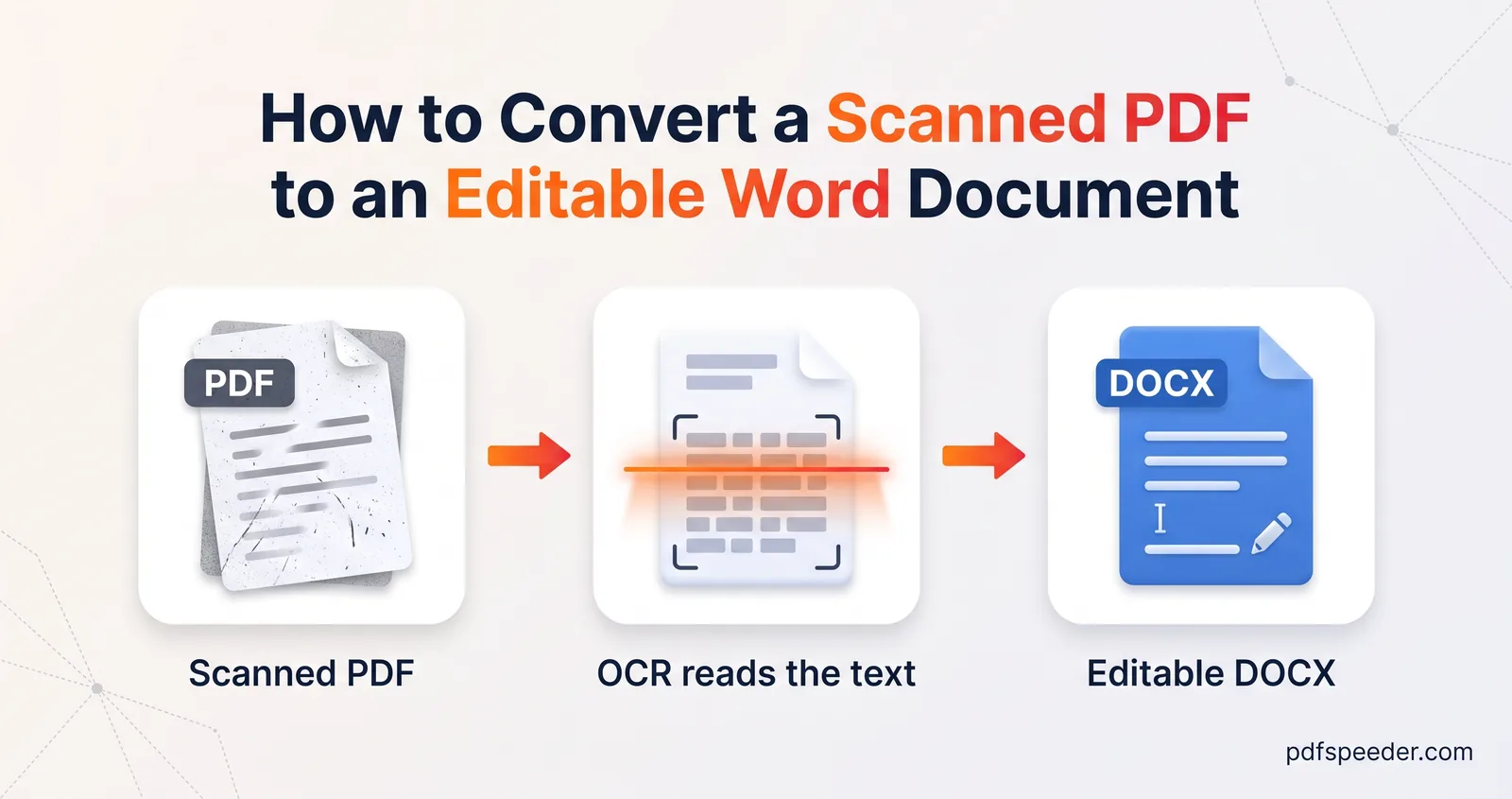
OCR text needs proofreading, especially numbers, names and anything in a table. Our explainer on what OCR is shows why scan quality matters so much, and if you want an editable document rather than plain text, see our guide to converting a scanned PDF to Word.
When copying is blocked
If the PDF opens normally but Copy is greyed out, or selecting does nothing, it carries a permissions password (also called an owner password). Whoever made the file chose to block copying, and the right fix depends on whose document it is:
- You made it. Open your original file and copy from there, or save a new PDF without restrictions.
- It was issued to you, such as your own statement, payslip or certificate. Download a fresh copy from the issuer's portal, or ask them for an unrestricted copy. Our guide to removing a password from a PDF covers the tools for documents you're entitled to use this way.
- It belongs to someone else, such as a paid report or an e-book. Ask the publisher for permission or an accessible copy. For a short quotation, retyping the sentence is quick, and quote it with credit.
Restrictions protect the owner's choices, so only remove them from documents you own or are authorised to use.
Clean up pasted text in seconds
If you've already pasted text with broken lines and stray spaces, you don't need to fix it by hand. Remove Extra Spaces cleans text in your browser as soon as you paste it:
- Clean up (the default) collapses double spaces, turns non-breaking spaces into normal ones, removes invisible characters, trims every line and tidies runs of blank lines.
- Make one line joins everything into a single line, which repairs a single paragraph that pasted as a stack of short lines.
- Keep indentation tidies code and lists without flattening their structure.
Clean up doesn't rejoin wrapped lines, and Make one line merges every paragraph into one, so for several paragraphs at once, the Reading mode in PDF to Text is the better tool. When pasting into Word, choosing Keep Text Only from the paste options also strips the PDF's fonts and colours.
Next time you need more than a sentence, skip the copy-and-fix routine: extract the pages in Reading mode, check compound words and numbers, and copy the clean result.
Frequently asked questions
Why can't I copy text from a PDF?
Either the page is a scanned image with no text to select, or the file has a permissions password that blocks copying. Use OCR for scans, and for restricted files ask the owner or use the original document.
How do I copy text from a PDF without line breaks?
Extract it with PDF to Text in Reading mode, which rebuilds paragraphs and fixes hyphenated words. For one paragraph you've already pasted, Make one line in Remove Extra Spaces joins it back together.
How do I copy text from a scanned PDF?
Run OCR first. PDF to Text's Auto setting reads scanned pages with OCR automatically, and PDF to OCR can turn the whole file into a searchable PDF you can copy from.
Why does copied PDF text turn into gibberish?
The PDF's fonts don't map their shapes to real letters, so the copied codes mean nothing. Extract the page with OCR set to Always to read the text from the image instead.
Can I copy text from a PDF on my phone?
Yes. Press and hold a word in your PDF viewer to start selecting, or open PDF to Text in your phone's browser to extract every page at once.