How to Convert a Scanned PDF to an Editable Word Document
Convert a scanned PDF to Word you can edit: spot a scan in seconds, prep the pages so OCR reads them cleanly, pick Auto or Always OCR, and proofread fast.

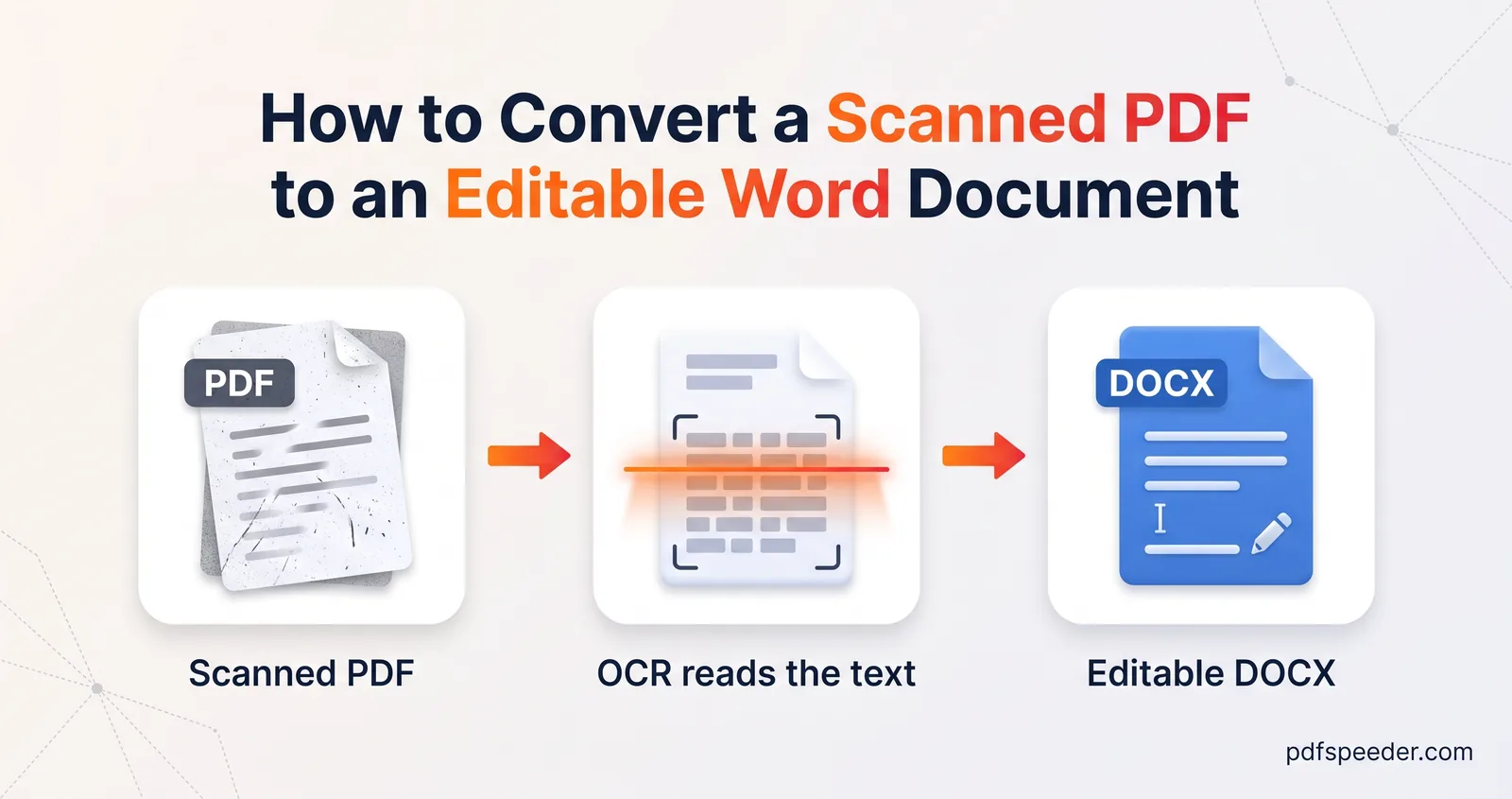
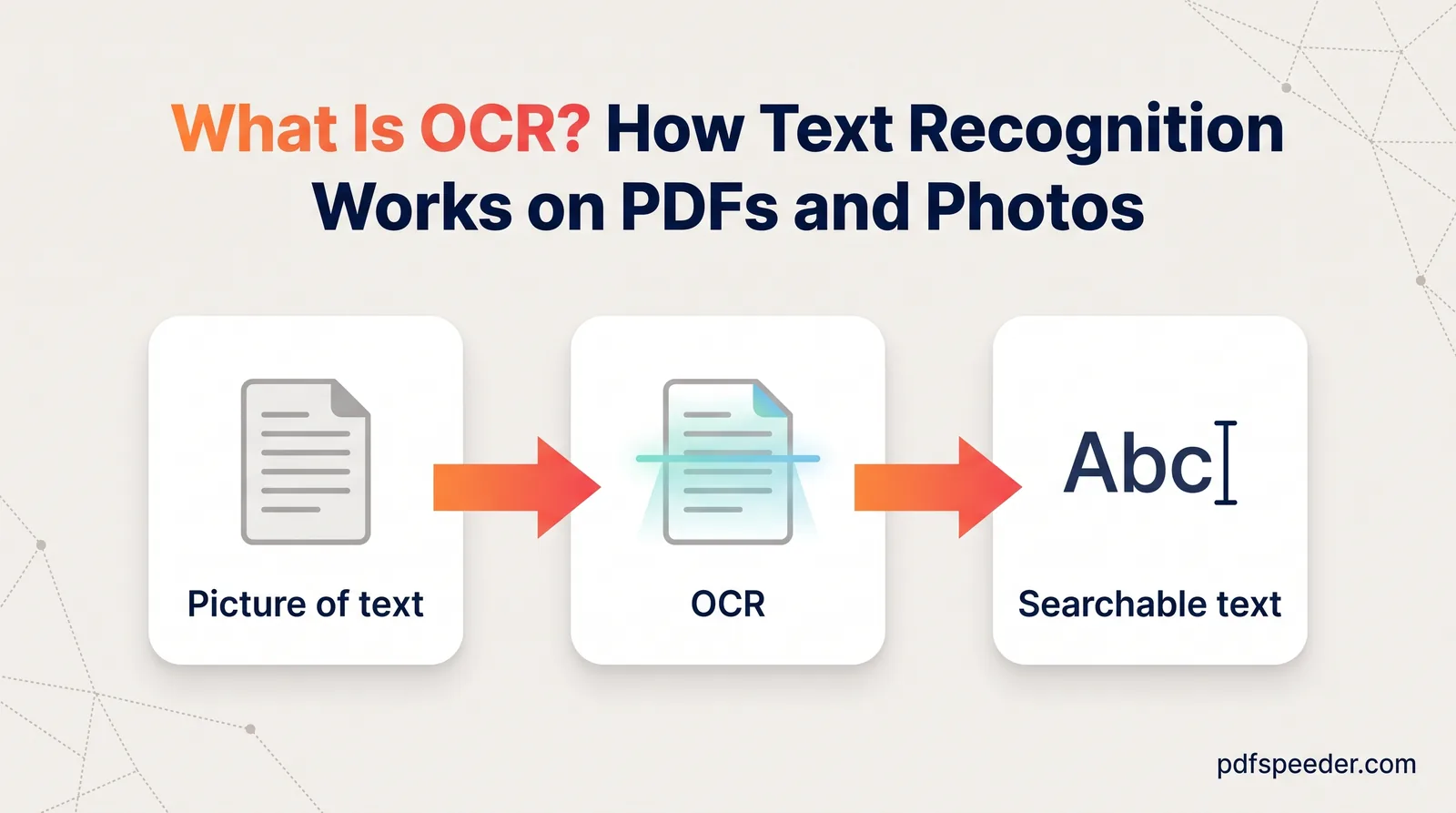
To convert a scanned PDF to Word, you need OCR (optical character recognition): software that reads the letters in each page image and turns them into text you can edit. Run the file through a PDF to Word converter with OCR switched on, pick the document's language, then proofread the result, because OCR gives you plain, editable paragraphs rather than a copy of the page's design. Straightening and cropping the scan first takes a minute and saves you corrections later.
On this page
Is your PDF scanned? A 10-second test
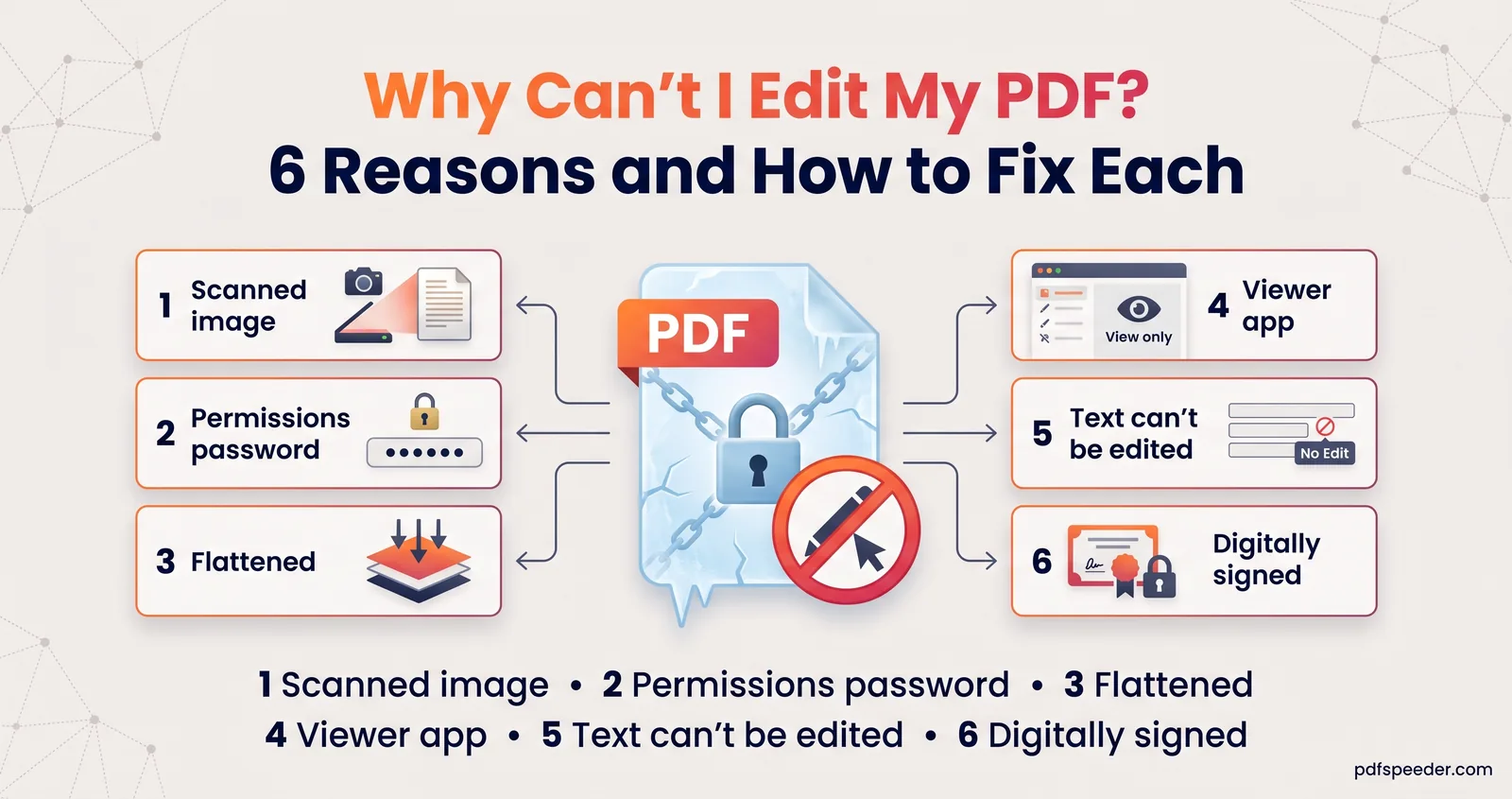
A scanned PDF holds a photograph of each page instead of text, which is why you can't edit it. Two quick checks tell you what you have:
- Zoom in to 400%. Real text stays sharp at any zoom. If the letters turn soft, grainy or blocky, the page is an image.
- Try to select a sentence, or press Ctrl+F (Cmd+F on a Mac) and search for a word you can see. If nothing highlights, the file contains no text at all.
The two checks can disagree. Many office scanners and scanning apps hide a layer of OCR text behind the image, so the page looks like a scan but search still finds words. That kind of file needs a different setting, so note which case you have:
| What you see | What you have | OCR setting to use |
|---|---|---|
| Sharp letters, words highlight | A digital PDF | None; see our guide to converting a PDF to Word without losing formatting |
| Blurry letters, nothing highlights | A plain image PDF | Auto |
| Blurry letters, but words highlight | A scan with a hidden OCR layer | Always OCR |
| Some pages of each kind | A mixed file | Two runs, explained below |
What OCR can and can't rebuild in Word
OCR reads characters, not design. Here's what a scanned page turns into once it's in Word:
- You get the words in reading order, as normal paragraphs you can edit, restyle and spell-check, with a page break between pages.
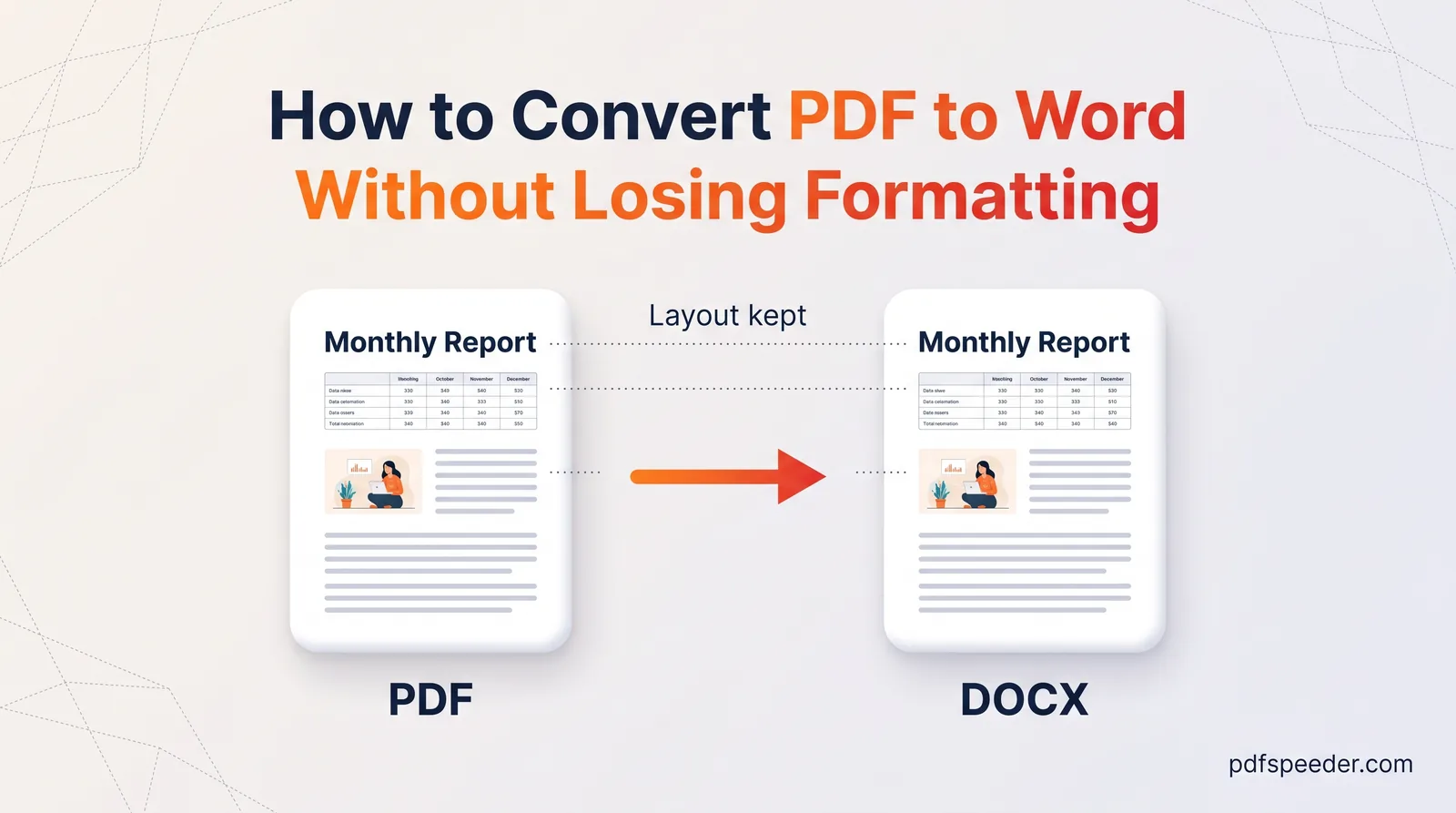
- You lose tables, columns, pictures, logos, signatures, bold and font sizes. A table arrives as lines of text with spaces between the values.
- You may see two short lines joined into one paragraph, or a paragraph split in two, depending on the spacing on the page.
When we ran a sample scanned invoice through our converter, every value came through correctly, but the item table arrived as plain lines such as "Toner cartridge 2 1,180.00 2,360.00", and the "Billed to" line was stuck to the table's header row. That's typical: the text is right, and the structure is yours to rebuild. Our explainer on what OCR is covers how recognition works.
If you only need to search or copy from the scan, you don't need Word at all. PDF to OCR makes a searchable PDF that looks exactly like the original, and it runs in your browser; our guide on how to copy text from a PDF covers the other quick routes.
Prepare the scan for better accuracy
Every flaw in the image is a chance for an OCR error, so a few fixes before converting pay off. Tesseract, the open-source engine our OCR tools use, sets out the same priorities in its guide to improving OCR quality: a resolution of at least 300 DPI, straight lines of text and no dark borders.
Turn sideways pages upright
This matters more than any other fix. In our test, the same invoice scanned sideways came out of PDF to Word as complete gibberish, because its OCR reads each page the way it's oriented in the file. Open Rotate PDF, select just the sideways pages (click their thumbnails or type a range such as 2, 5-6), choose 90° to turn them right, 270° to turn them left or 180° for upside-down pages, and download the fixed file. It works in your browser, on files up to 50 MB.
Crop off dark edges
Scanners often leave a black or grey band around the page, and Tesseract's guide warns that such borders "can be erroneously picked up as extra characters". Crop PDF lets you draw a box around the part to keep and apply it to every page or only the current one. It also runs in your browser, on files up to 100 MB.
Tip: Rotate PDF, Crop PDF and PDF to Word each count as one task in the free daily allowance: 2 tasks a day without an account, 3 with a free account, reset at 00:00 UTC (05:30 IST). If you scan with your phone, crop and rotate each page in the scanning app before saving the PDF, and keep your tasks for the conversion.
Rescan at 300 DPI if you still have the paper
Choose 300 DPI and grayscale, and press the page flat. Enlarging a blurry, low-resolution scan later adds pixels, not detail. Phone photos work if the light is even and the phone is held flat above the page.
Pick the document's language
OCR leans on a language model to choose between look-alike characters, so reading a Hindi page as English produces nonsense however clean the scan is. PDF to Word offers 14 OCR languages: English, Spanish, French, German, Italian, Portuguese, Dutch, Russian, Arabic, Hindi, Chinese (Simplified and Traditional), Japanese and Korean, plus English and Spanish together.
How to convert a scanned PDF to Word, step by step
- Open PDF to Word and add your PDF (up to 50 MB). If the file asks for a password when you open it, remove the password first, because the converter can't read a locked file.
- Look at the badge above the page thumbnails. Scanned — OCR will run means the tool found almost no text; Digital text means it found some.
- Choose the pages. Every page starts out selected: click a thumbnail to leave it out, or type ranges such as
1-3, 7in the Pages box. - Set Text Recognition (OCR) using the table below, then pick the OCR Language.
- Select Convert to Word, then Download Word Document. The .docx takes your PDF's file name, and the success message tells you when scanned pages were recognised with OCR.
Your file is uploaded over an encrypted connection, converted on our server and deleted automatically within 2 hours.
Auto or Always OCR?
| Setting | What it does | Choose it for |
|---|---|---|
| Auto (default) | Samples up to five pages; if they hold almost no text, every selected page goes through OCR, otherwise the file is converted with its layout and without OCR | Plain scans with no hidden text |
| Always OCR | Reads every selected page with OCR, whatever the file contains | Scans with a hidden OCR layer, or text that copies out as gibberish |
| Off | Never runs OCR | Digital PDFs only |
Auto makes one decision for the whole file, and that has two consequences:
- A scan with a hidden text layer gets no OCR. In our test, a searchable scan converted on Auto gave a Word file holding a picture of the page and no text at all. The same file on Always OCR gave seven editable paragraphs.
- A mixed file keeps its scanned pages as pictures. If a typed report ends with scanned annexures, convert it twice: once on Auto for the typed pages, then again with only the scanned pages selected and Always OCR. Converting the same file again within 2 hours doesn't use another task.
Hindi scanned PDF to Word
Choose Hindi as the OCR language, and the Devanagari text arrives in Word as ordinary Unicode text that you can edit, search and set in any Hindi font. Matras and half-letters are the first things a blurry scan loses, so 300 DPI matters even more than usual.
PDF to Word reads one language per run, which is awkward for forms printed in both Hindi and English. For those, use PDF to OCR instead: hold Ctrl (Cmd on a Mac) to select both languages, choose Text as the output, and paste the result into Word. It reads pages at 300 DPI by default, against PDF to Word's fixed 200, which also helps with very small print, and its list includes Marathi, Bengali, Tamil, Telugu, Gujarati and other Indian languages.
Free alternatives worth knowing
- Google Docs: in Google Drive, right-click the PDF and choose Open with > Google Docs. Google's guide to converting PDFs to text sets the limits: files of 2 MB or less, text at least 10 pixels high and pages the right way up. Bold, italics and font size are likely to survive; lists, tables and columns aren't.
- Microsoft Word 2016 or later: File > Open turns a PDF into an editable document. Microsoft notes that this works best with PDFs that are mostly text, and that pages which look like a copier manuscript won't be formatted well.
Proofread these spots first
OCR mistakes look like real words, so a skim won't catch them. Keep the scan open beside the Word file and check these hot spots:
- Numbers. Look for 0 and O, 1, l and I, 5 and S, or 8 and B swapped inside amounts, dates and account numbers. Add up any column of figures: if the Word total doesn't match the scan, a digit was misread.
- Names and addresses. They're in no dictionary, so the language model can't help. Compare them letter by letter.
- Tables. Rebuild short ones with Insert > Table. For long ones, paste the lines into Excel, use Data > Text to Columns, and check that item names containing spaces stayed in one column.
- Joined or split lines. A heading glued to the paragraph below it, or a sentence broken in two, takes seconds to fix once you spot it.
- Hindi text. Check matras and half-letters in names, and expect handwriting anywhere on the page to need retyping, since the engine is built for print.
Two Word features speed this up. Spelling and Grammar (F7) underlines most garbled words. And in Find and Replace (Ctrl+H), select More and tick Use wildcards, then search for [0-9][OoIl] and [OoIl][0-9] to catch letters stuck to digits, such as "2O26" or "l5".
Ready to start? Select only the pages you need in PDF to Word, choose Auto or Always OCR from the table above, and proofread the numbers before anything else.
Frequently asked questions
Can I convert a scanned PDF to Word for free?
Yes. PDF to Word is free within the daily allowance, and Google Docs converts scans of up to 2 MB.
Why did my scanned PDF turn into a picture in Word?
The file probably has a hidden text layer or a few digital pages, so Auto skipped OCR. Convert it again with Text Recognition set to Always OCR.
Will the Word file keep the layout of my scan?
No. OCR gives you editable paragraphs in reading order, and tables, columns and images have to be rebuilt in Word.
Is it safe to convert scanned documents online?
PDF to Word uploads your file over an encrypted connection and deletes it from our server automatically within 2 hours. If you'd rather nothing left your device, PDF to OCR, Rotate PDF and Crop PDF all run in your browser.
How do I convert a Hindi scanned PDF to Word?
Choose Hindi as the OCR language in PDF to Word. For pages that mix Hindi and English, use PDF to OCR with both languages selected and paste its text output into Word.