Word to PDF Without Losing Formatting: Fonts, Images and Links
Word to PDF without losing formatting: why fonts swap, images blur and links stop working, the fix for each one, and a quick check before you send the PDF.

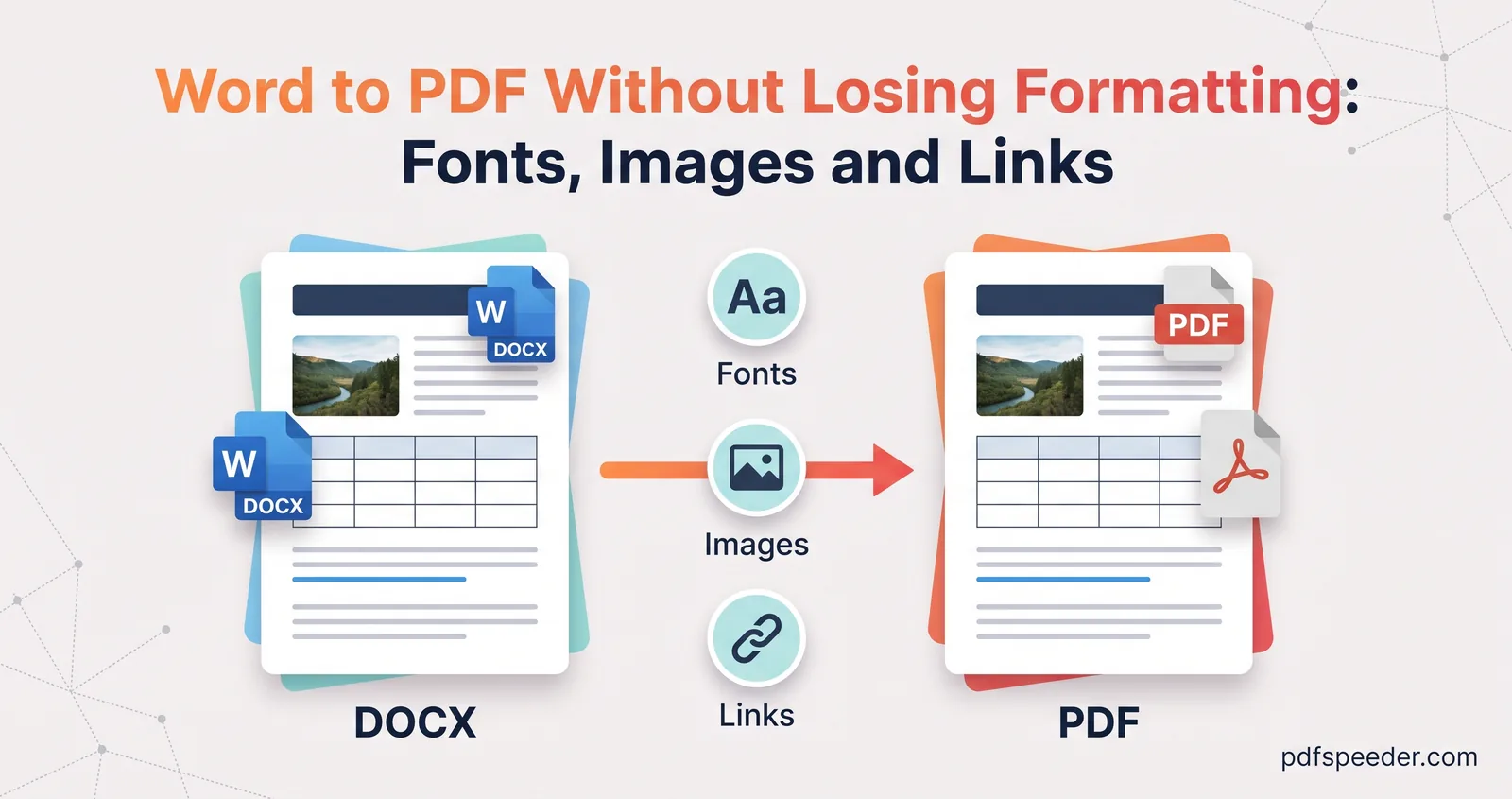
The surest way to get from Word to PDF without losing formatting is to export from Word itself, with File > Save As (or Save a Copy) > PDF, on the computer where the document already looks right. That uses the same layout engine and the same fonts you see on screen, so the pages match. Formatting usually breaks when the conversion happens somewhere else, or through a printer, and each kind of damage has its own fix.
On this page
Why Word documents end up losing formatting as PDFs
A Word file doesn't store finished pages. It stores text, styles and settings, and whichever app opens it lays the pages out again, using the fonts installed on that device. A different app or a missing font can move one line break, and one moved line can push a heading, a table or a signature block onto the next page.
| What you see in the PDF | Usual cause | Fix |
|---|---|---|
| A different typeface, lines wrapping in new places, an extra page | The font isn't available where the conversion happened | Convert in Word, or embed the fonts |
| Soft, blurry photos and charts | Word compressed the pictures, or the PDF was saved at minimum size | Turn off picture compression; export at Standard |
| Links that don't click | The document was printed to a PDF printer | Save as PDF instead of printing |
| No bookmarks in the side panel | Bookmarks option off, or headings not styled as headings | Use Heading styles and the bookmarks option |
| Page breaks in odd places | Laid out by a different app, such as Google Docs or a phone app | Convert in desktop Word; control breaks with paragraph settings |
| Comments and tracked changes in the margin | The PDF was published with markup | Publish the document without markup |
Fonts: embed them or lose them
When Word saves a PDF, it embeds the fonts the document uses, as far as each font's licence allows. Most formatting complaints about fonts therefore come from converting on a different machine, which then substitutes something with different letter widths.
If someone else will convert or open your Word file, embed the fonts in the document itself. In Word on Windows, go to File > Options > Save and, under Preserve fidelity when sharing this document, tick Embed fonts in the file. Two extra boxes appear: Embed only the characters used in the document keeps the file smaller but makes editing in that font awkward, and Do not embed common system fonts skips fonts nearly everyone already has. On a Mac, the same setting is in Word's Preferences.
Not every font allows this. As Microsoft's page on embedding fonts explains, font makers set each font as non-embeddable, preview/print only, editable or installable, and you can check a font's Font embeddability under Fonts in the Control Panel. For a font that can't be embedded, Word's PDF options offer Bitmap text when fonts may not be embedded, which turns that text into an image: it looks right, but nobody can search or copy it.
Tip: Hindi typed in an old non-Unicode font such as Kruti Dev can look perfect in the PDF but copies out as random Latin letters, because those fonts draw Devanagari shapes on top of English character codes. For a PDF people can search, use a Unicode font such as Mangal or Nirmala UI.
Images: stop Word from compressing them
By default, Word compresses pictures when it saves a document, which can soften photos, screenshots and charts before the PDF is even made. To keep them sharp:
- Go to File > Options > Advanced and find Image Size and Quality.
- Pick the document in the list next to it, or All New Documents.
- Tick Do not compress images in file, and set Default resolution to High fidelity.
- Re-insert any picture that already looks soft, because detail Word has thrown away doesn't come back.
- When you save the PDF, choose Standard (publishing online and printing) rather than Minimum size (publishing online).
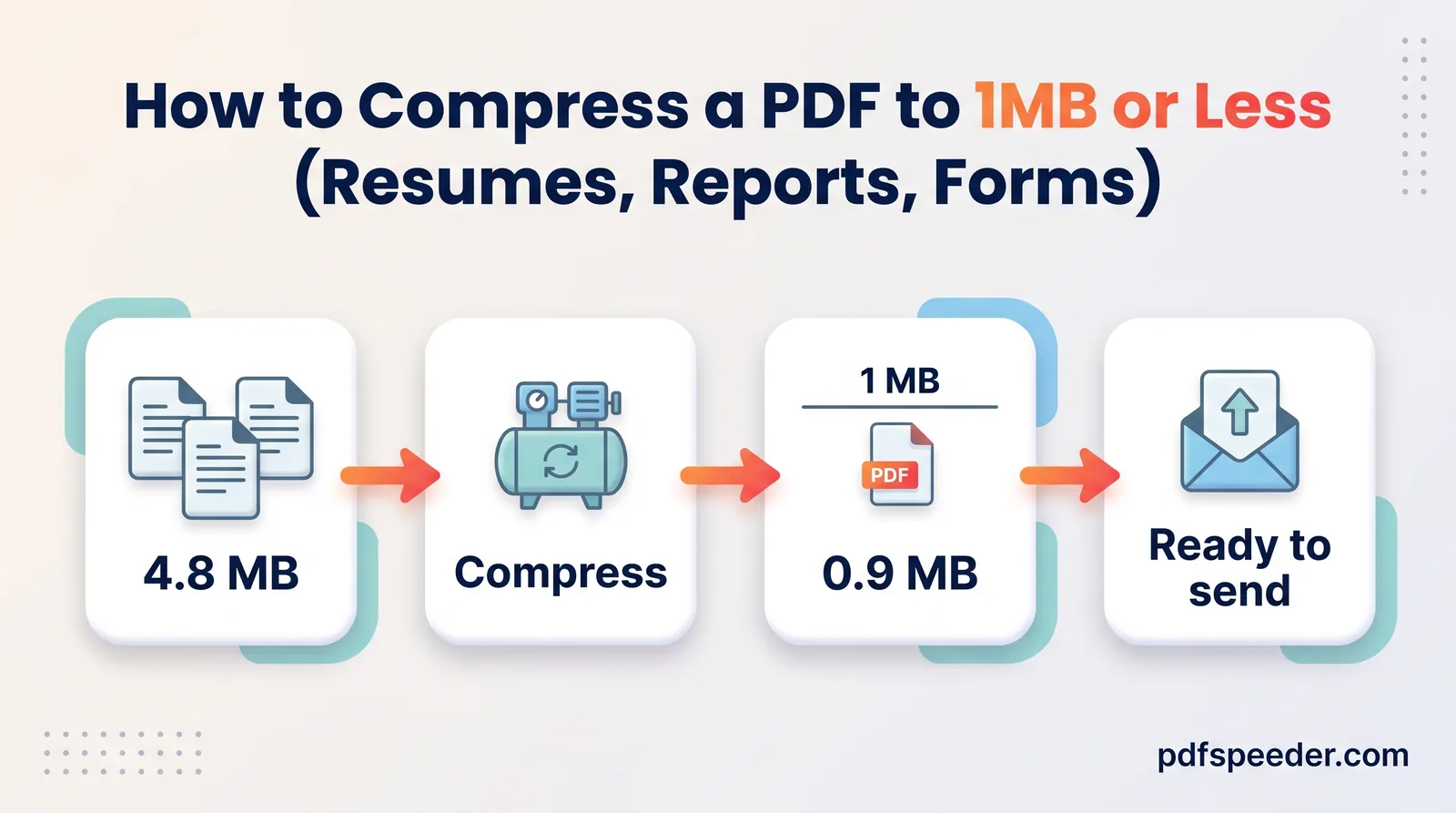
Microsoft documents both settings in its guides to turning off picture compression and choosing a default resolution. The trade-off is a bigger file. If the PDF ends up too large for an email or a portal, compress the finished PDF rather than letting Word squeeze every picture: Compress PDF on its Low Compression level keeps images at 200 DPI, which still prints well. Our guide to compressing a PDF to 1 MB covers tighter limits.
Keep links and add bookmarks
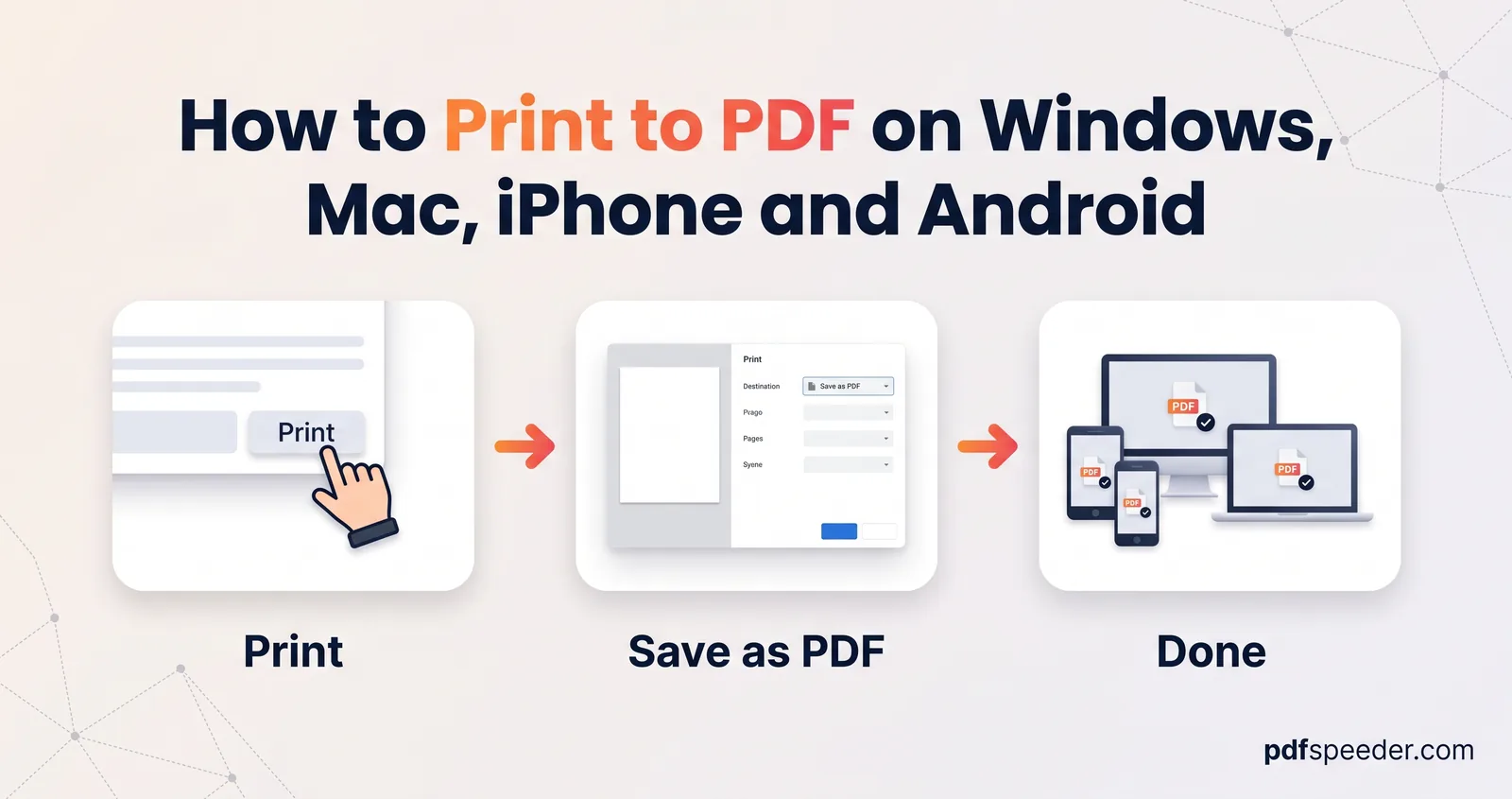
Links survive when you export and often die when you print. In a test on a sample document, a link saved with Word's Save As > PDF stayed clickable, while printers such as Microsoft Print to PDF tend to keep only how the page looks. Our guide on how to print to PDF explains the difference in more detail.
On Windows, select More Options, then Options in the save dialog, to set up the rest:
- Create bookmarks using: Headings builds a clickable outline from Heading 1, Heading 2 and so on. It only sees text formatted with those styles, so headings typed in bold Normal text won't appear.
- Document structure tags for accessibility produces a tagged PDF that screen readers can follow.
- Publish what should be Document, unless you want comments and tracked changes shown.
- ISO 19005-1 compliant (PDF/A) makes an archival PDF, for when a portal or archive asks for one.
On a Mac, Microsoft's guide to creating accessible PDFs recommends Best for electronic distribution and accessibility (uses Microsoft online service) in the Save As dialog, which tags the PDF. Best for printing doesn't add tags, so if you use it, click a couple of links in the result.
Convert in Word, or check carefully when you can't
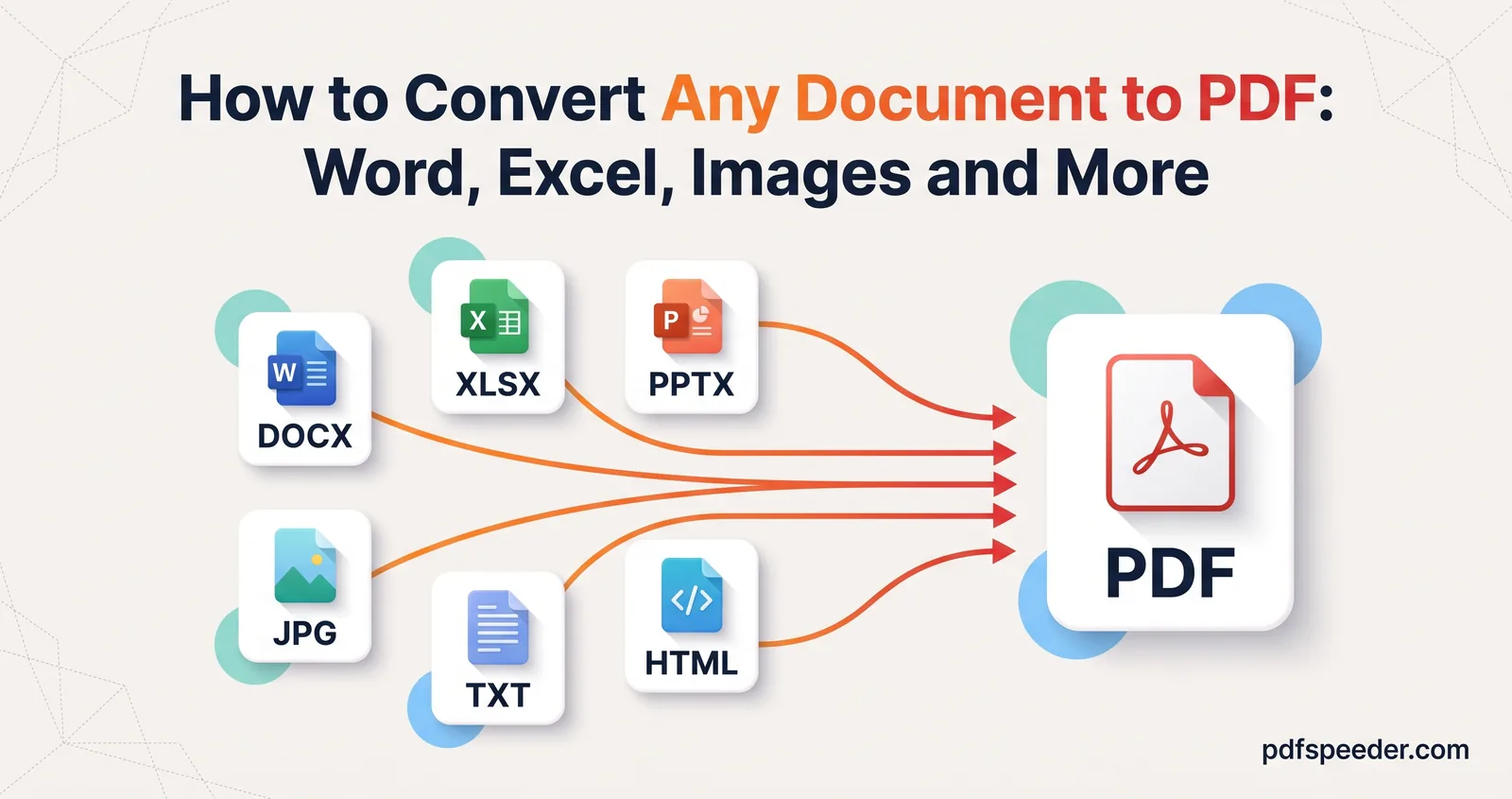
Your own copy of desktop Word is the most faithful converter for a Word file, so use it whenever you need a DOCX to PDF conversion with the exact layout you see on screen. Google Docs, LibreOffice and phone apps lay pages out with their own engines and their own fonts, so a document made in Word can break lines and pages differently there. That's fine for a simple letter and risky for a CV, a form or anything with tables lined up to the edge. For spreadsheets, slides, images and other files, our guide on how to convert a document to PDF lists the best method for each.
If you don't have Word on the device you're using, Word to PDF converts DOCX, DOC, RTF and ODT files up to 50 MB on our server, several at a time, with an optional page range. It lays the document out with the fonts installed on our server, so check the preview it shows before you download, especially for unusual fonts. The file is uploaded over an encrypted connection and deleted automatically within 2 hours, and each document counts as one task in the free daily allowance: 2 tasks a day without an account, 3 with a free account, reset at 00:00 UTC (05:30 IST).
Two Word habits also make page breaks sturdier wherever the file is converted. If a heading is plain bold text rather than a Heading style, select it and turn on Keep with next (Paragraph settings > Line and Page Breaks), so it never sits alone at the bottom of a page. Use Insert > Page Break instead of pressing Enter repeatedly, because blank lines shift as soon as the text above them changes.
A final check before you send
Open the PDF itself, not the Word file, and spend a minute on this list:
- Pages. Does the page count match Word's status bar, with no stray blank page at the end?
- Fonts. In Adobe Acrobat Reader, File > Properties > Fonts lists every font, and each should say "Embedded" or "Embedded Subset".
- Images. Zoom to 200% on a photo and a chart. Soft edges mean compression crept in.
- Links and bookmarks. Click two links and open the bookmarks panel.
- Text. Press Ctrl+F and search for a word. If nothing is found, some text was turned into an image.
- Size. Compare the file size with the upload or email limit.
If everything passes, send it. If the fonts or breaks are off, go back to Word, fix the cause from the table above and export again.
Frequently asked questions
Why does my Word document look different as a PDF?
Usually a font was missing where the PDF was made, so a substitute with different widths changed the line breaks. Exporting from Word on your own computer, or embedding the fonts, prevents it.
How do I keep my fonts when converting Word to PDF?
Save the PDF from Word itself, which embeds fonts whose licence allows it. If someone else will convert the file, tick Embed fonts in the file under File > Options > Save first.
Why are the images blurry in my PDF?
Word compressed them, or the PDF was saved at Minimum size. Tick Do not compress images in file, re-insert the originals and export at Standard.
How do I keep hyperlinks when converting Word to PDF?
Use File > Save As > PDF instead of printing to a PDF printer. On a Mac, choose Best for electronic distribution and accessibility.
Should I print to PDF or save as PDF from Word?
Save as PDF. It keeps links, can add bookmarks and accessibility tags, and embeds your fonts, while printing only captures how each page looks.