How to Compress a PDF to 1MB or Less (Resumes, Reports, Forms)
Compress a PDF to 1 MB without blurry text: shrink the photos at the source, pick the gentlest setting that works, then test the links before sending.

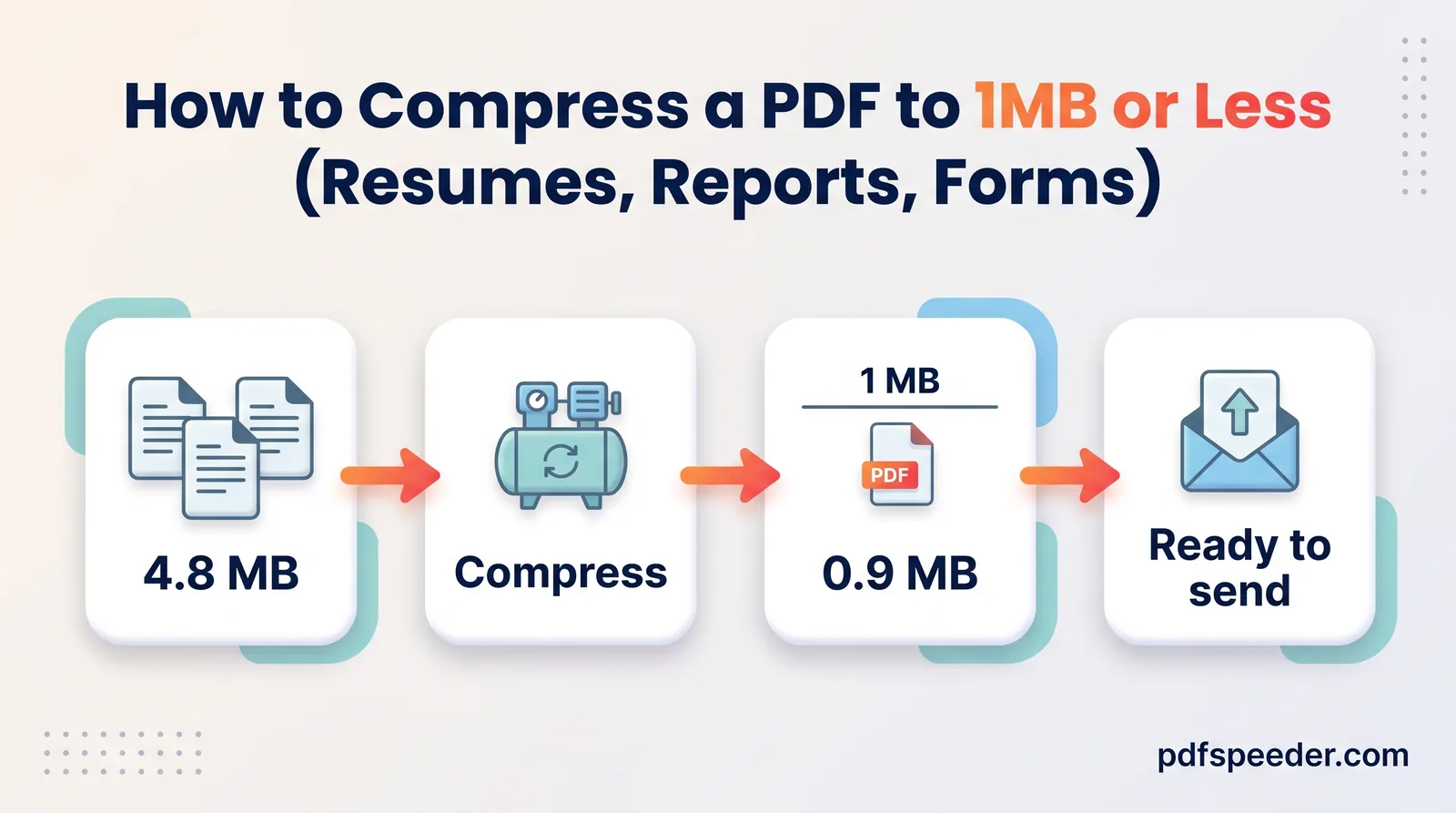
To compress a PDF to 1MB, use the gentlest setting that gets you under the limit and only go stronger if you have to. When a resume, report or form creeps past 1 MB, the extra weight usually comes from images, such as an oversized photo, a template background or a scanned page, while the text itself weighs very little. So fix the images at the source if you can, compress whatever is left, and then check that the text, links and print quality came through.
On this page
Why your resume or report is over 1MB
A PDF stores text as characters plus the font needed to draw them, which takes very little space. Images are stored pixel by pixel, and a photo straight from a phone camera often holds 12 million pixels or more, even when it's printed the size of a postage stamp on your page.
To see how lopsided that is, take a one-page test resume with a 12-megapixel photo printed about 3.2 × 4.2 cm. It weighed 5,656 KB. Compressed, the same page came out between 8 KB and 67 KB depending on the level, so the photo made up nearly the whole file.
The usual suspects when a resume PDF size is too large:
- Photos inserted at full size. Some apps keep every pixel of the original photo, far more than the printed size needs.
- Template graphics. Background images, textures and decorative shapes in resume and report templates.
- Scanned pages. Certificates or signed forms added as scans are photographs of paper, so every page is an image.
A quick test: if a PDF holds one or two pages of text but weighs several megabytes, the weight is in its images.
Fix it at the source before exporting
If you still have the Word or design file, shrink the images there. You get a cleaner result than compressing a finished PDF, and you can export again whenever you edit the document.
Reduce PDF size when exporting from Word
On Windows, two settings do most of the work:
- Select any picture, open the Picture Format tab and choose Compress Pictures.
- Clear Apply only to this picture so every image is included, and tick Delete cropped areas of pictures.
- Pick a resolution. Word's default is 220 ppi, which prints well; choose E-mail for a document that will only be read on screen.
- Choose File > Save As (or Save a Copy), pick PDF as the file type and, under Optimize for, select Minimum size (publishing online). Keep Standard (publishing online and printing) if the document will be printed.
Microsoft documents both steps: compressing pictures and saving as PDF. In Word for Mac you save through File > Save As > File Format > PDF, and Microsoft notes that the Best for printing option may not convert hyperlinks correctly, so test the links in that copy.
Resize photos before you insert them
A photo only needs enough pixels for the size it's printed at. Here is what a photo printed 3.5 cm wide and 4.5 cm tall needs:
| Resolution | Pixels needed | Share of a 12 MP photo |
|---|---|---|
| 72 DPI (screen) | 99 × 128 | 0.11% |
| 100 DPI (sharp on screen) | 138 × 177 | 0.20% |
| 200 DPI (good print) | 276 × 354 | 0.81% |
Even for print quality, the photo uses under 1% of what the camera captured. Run photos through Image Compressor before inserting them: set Max dimension to 1280 px or 800 px and keep the quality at Balanced (80). It works in your browser, so the photos aren't uploaded, and it strips private details such as location from them.
No Word on this computer? Word to PDF converts DOCX, DOC, RTF and ODT files on our server (up to 50 MB each) and deletes them automatically within 2 hours; each conversion counts as one task in your daily allowance. Resize the photos in the document first and the PDF starts out small.
Compress an existing PDF to under 1MB
When all you have is the PDF, Compress PDF gets it under the limit in a minute or two. The file is uploaded over an encrypted connection, compressed on our server with Ghostscript and deleted automatically within 2 hours.
- Open Compress PDF and add your file (up to 100 MB). You'll see the page thumbnails, the current size and a rough estimate of the result.
- Choose Low Compression if the PDF is mostly text with a few photos, or Balanced if it's a long report or mainly scanned pages.
- Select Compress PDF, then compare the first page before and after in the side-by-side preview.
- Download the copy, which ends in "-compressed", and check its exact size against the limit.
Portals disagree on what 1 MB means: some count 1,000,000 bytes, others 1,048,576. A file Windows lists at 976 KB or less passes both, because 976 × 1,024 is 999,424 bytes.
Note: Each file counts as one task in the free daily allowance: 2 a day without an account and 3 with a free account, renewed at 00:00 UTC (05:30 IST). Trying another level on the same file within 2 hours is free, so start with the level you think fits and step up if you need to, always from the original.
Pick the level that keeps text crisp
Text drawn from fonts stays sharp at every level, because compression only touches images. The level decides how much detail each image keeps for the size it's printed at:
| Level | Images kept at | A phone photo printed 3.5 × 4.5 cm becomes | Best for |
|---|---|---|---|
| Low Compression | 200 DPI | about 276 × 354 px | Print, and most 1 MB limits |
| Balanced | 100 DPI | about 138 × 177 px | On-screen reading |
| High Compression | 72 DPI | about 99 × 128 px | Very tight limits |
The test resume from earlier shows the trade-off in real numbers:
| Version | File size | Photo kept | Link and selectable text |
|---|---|---|---|
| Original | 5,656 KB | 3,000 × 4,000 px | Yes |
| Low Compression | 66.6 KB | 250 × 333 px | Yes |
| Balanced | 13.0 KB | 125 × 166 px | Yes |
| High Compression | 7.9 KB | 90 × 120 px | Yes |
All three levels landed far below 1 MB, so Low was the right pick: the photo kept enough detail to print well. When even Low gets you a PDF under 1MB, there's no reason to go further.
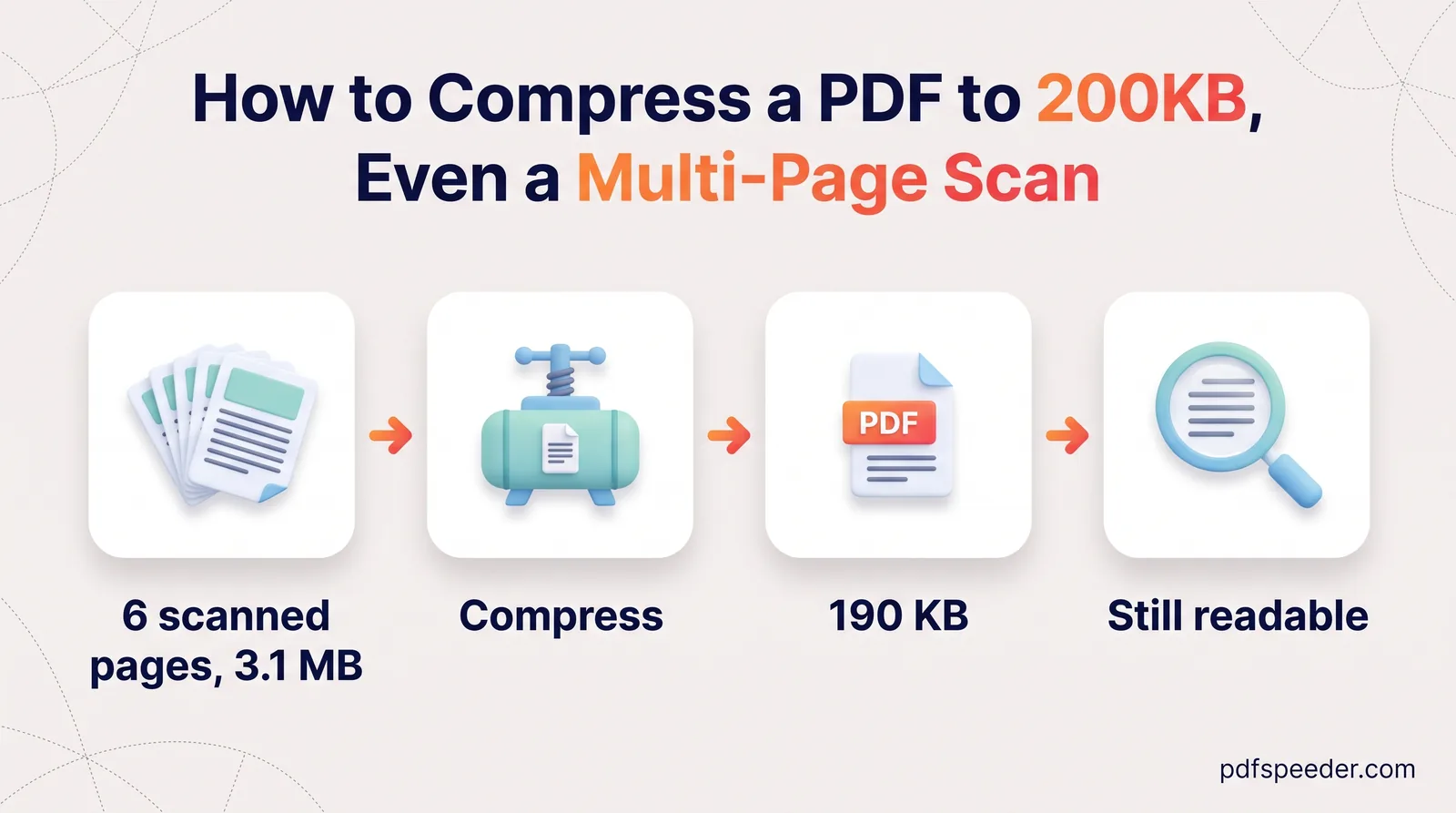
Scanned pages behave differently, because the whole page is an image. On a 300 DPI test scan, Low Compression couldn't save anything and returned the file unchanged; the tool says "Already optimized" when that happens. Choose Balanced instead. If you need to compress a PDF to less than 1MB when it's made of dozens of scanned pages, the per-page budgets in our guide to fitting a multi-page scan under 200 KB apply here too, just with more room per page.
Check links, fonts and print quality afterwards
A smaller file is only useful if nothing important broke. Before you send it:
- Links. Click your email address, portfolio and profile links in the compressed copy. They survived every level in the test above, but check yours: some apps save a web address as plain text that was never clickable.
- Text. Select a sentence and copy it into a note. If you can't, that page is an image, and software that screens resumes may not be able to read it either.
- Fonts and symbols. Zoom to 200% and look at headings, bullets and icons. They should match the original exactly.
- Print. If it will be printed, print one page. Photos kept at 100 DPI or 72 DPI can look soft on paper even when they look fine on a phone.
- Exact size. Right-click and open Properties on Windows, or use Get Info on a Mac, and compare the bytes with the limit.
Keep your original file as well. Detail removed by compression can't be added back later.
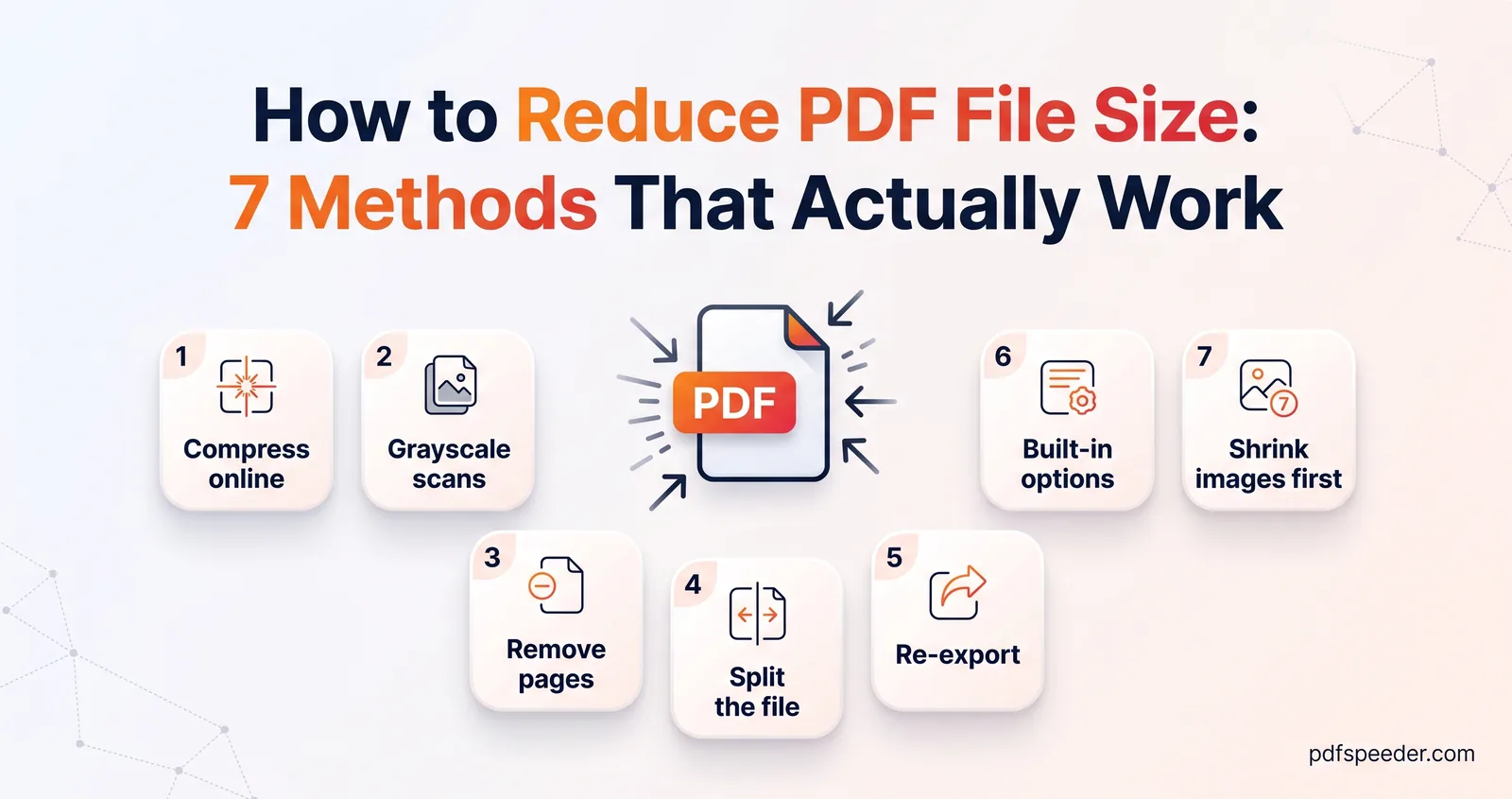
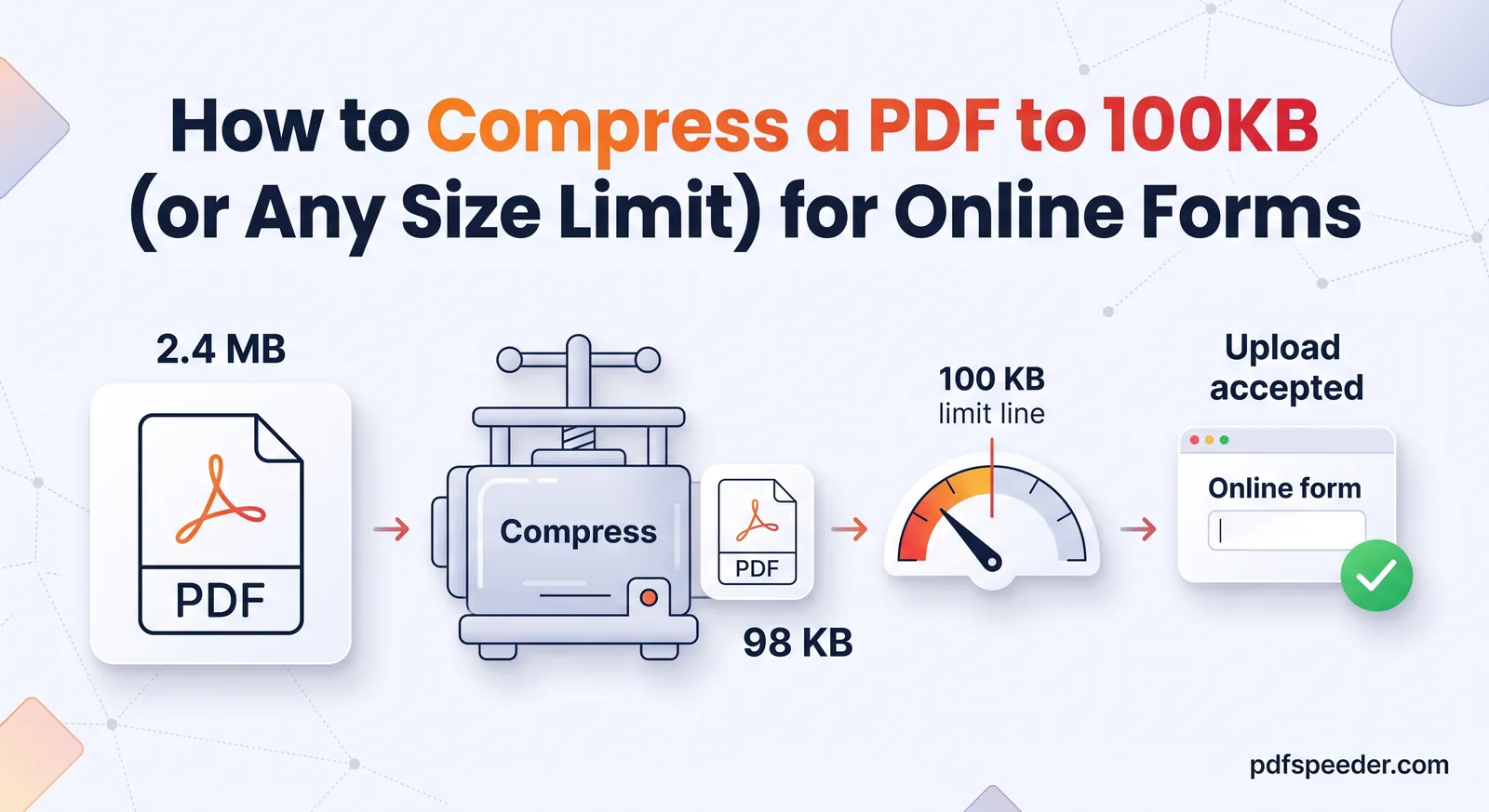
Ready to try? Shrink the photos in your source file if you have it, then run the PDF through Compress PDF on Low Compression and check it with the list above. If it still won't fit, our seven ways to reduce PDF file size cover splitting, grayscale and more, and the 100 KB guide has the strongest tricks.
Frequently asked questions
How do I compress a PDF to 1MB without losing quality?
Shrink oversized photos in the source file, then use Low Compression, which keeps images at 200 DPI, enough for print. Text stays sharp at every level because it isn't stored as an image.
Why is my resume PDF so large?
Usually because of an image: a phone photo inserted at full resolution, a template background or a scanned certificate. One or two pages of text on their own weigh very little.
Is 1 MB the same as 1,000 KB or 1,024 KB?
It depends on the website. Keeping the file at 976 KB or less, as Windows shows it, satisfies both definitions.
Will compressing a PDF break the links?
In a test resume, links and selectable text survived all three compression levels. Still, click every link in the compressed copy before you send it.
What's the fastest way to reduce PDF size to 1MB?
If the PDF is mostly text with a few photos, run it through Compress PDF on Low Compression. If it's mainly scanned pages, start with Balanced.