How to Reduce PDF File Size: 7 Methods That Actually Work
How to reduce PDF file size seven ways: online compression, grayscale scans, cutting or splitting pages, smaller Word exports and Mac or iPhone tools.

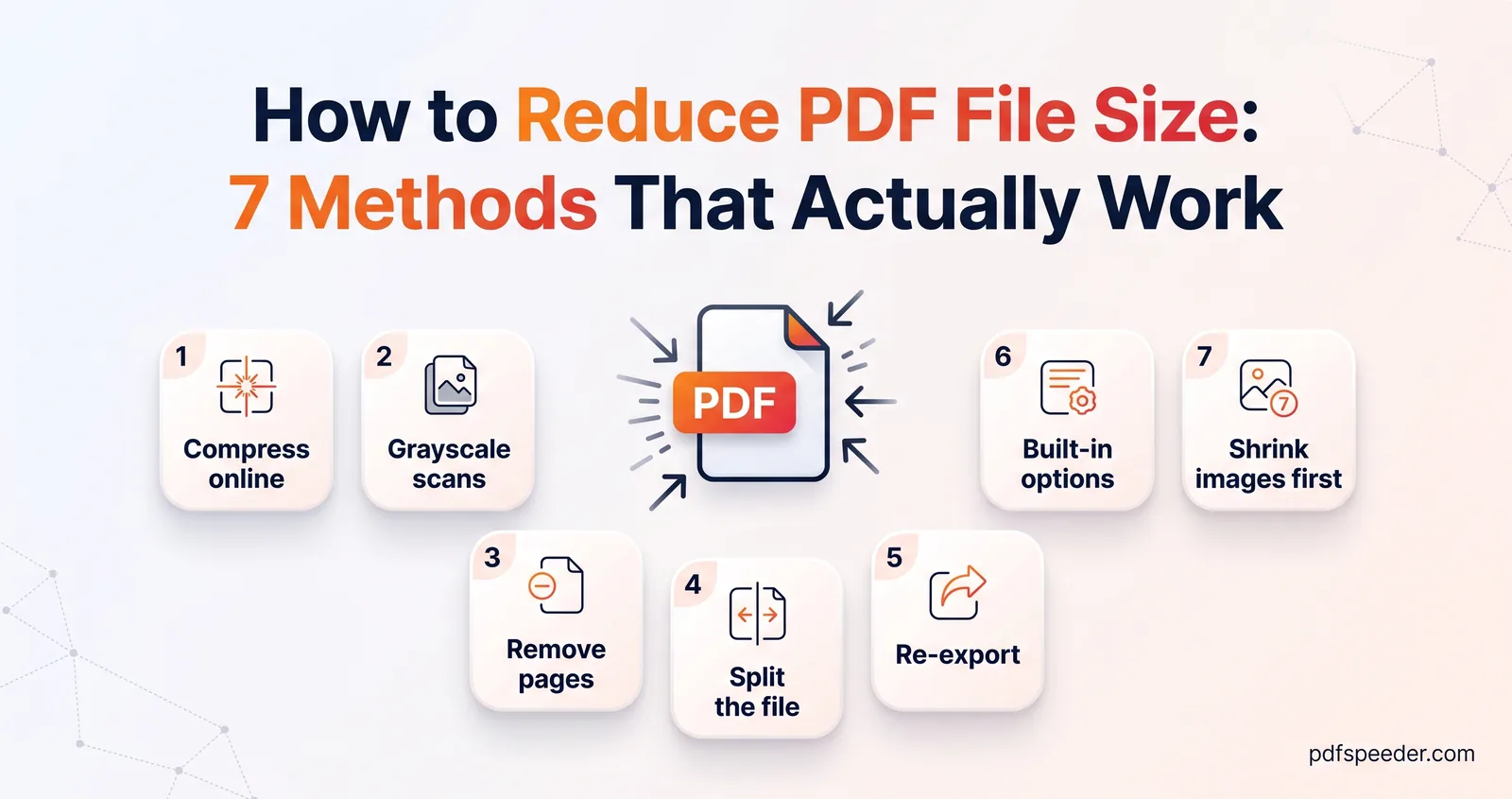
The quickest way to reduce PDF file size is to run the file through a PDF compressor, which shrinks the images inside it, and images usually make up most of a PDF's weight. If that isn't enough, the next step depends on the file: a colour scan wants grayscale, a long report wants fewer pages, and a document you made yourself is best exported again at a smaller size. Below are seven methods, starting with the one that helps most often, plus a table to match each one to your file.
On this page
What makes a PDF file big
A PDF is a container. It holds the text of each page, the fonts needed to draw that text, any images, and some housekeeping such as bookmarks and metadata. Text and fonts are compact. Images are not.
One A4 page scanned in colour at 300 DPI is 2,480 × 3,508 pixels, which adds up to 26.1 million bytes of raw colour data before any compression. Scanners and cameras compress that, usually as JPEG, but a scanned page still weighs far more than a page of typed text. Beyond images, three things add weight:
- More pages. In a scan, every page is another image.
- Embedded fonts. A PDF carries its fonts so it looks the same everywhere. A font that covers many scripts, or one embedded whole instead of just the characters used, adds noticeable weight.
- Hidden extras. Attached files, duplicate copies of the same image, and old versions of content that some editors keep inside the file when they save changes.
So before you shrink a PDF file, ask what's inside it: scanned pages, photos, or mostly text. The answer decides which method works.
Quick answer: how to reduce PDF file size for your file
| Your file | Start with | If it's still too big |
|---|---|---|
| Scanned pages in colour | Online compression, Balanced or High | Rescan or convert to grayscale |
| Exported from Word or PowerPoint, with photos | Export again at minimum size | Online compression, Low |
| Long document, only some pages needed | Delete the extra pages | Compress what's left |
| Too big for one upload, several uploads allowed | Split into parts | Compress each part |
| Photos turned into a PDF | Shrink the photos first | Rebuild the PDF |
| You're on a Mac or an iPhone | Preview's export options | Compress in the browser |
| Plain text, already small | Little to gain | Check the limit in bytes |
1. Compress it online (the fastest fix)
A compressor rewrites the PDF with smaller images, which is why it helps nearly any file that contains scans or photos. Compress PDF is our free PDF compressor: it accepts files up to 100 MB, compresses them on our server with Ghostscript and deletes them automatically within 2 hours. Each file counts as one task in the free daily allowance, which is 2 tasks a day without an account and 3 with a free account, reset at 00:00 UTC, and trying another level on the same file within 2 hours is free.
Pick the level by how the file will be used:
- Low Compression keeps images at 200 DPI. Use it for files that will be printed, or that only need to lose a little weight.
- Balanced keeps images at 100 DPI, which is sharp on screen and a good fit for most upload limits of a megabyte or more.
- High Compression goes down to 72 DPI, for the tightest limits.
Text stays sharp at every level, because it isn't an image. And if the tool can't save anything, you get your original back with a note that it's already optimised, rather than a bigger file. The exceptions are the options under Advanced Options: Convert to grayscale always returns the gray version, and Optimize for fast web view can add a little to a file that was already lean.
For a specific limit, see how to compress a PDF to 100 KB, fit a multi-page scan under 200 KB or bring a resume or report under 1 MB.
2. Turn colour scans into grayscale
Colour stores three values for every pixel and grayscale stores one, so for scanned letters, certificates and forms, switching to grayscale cuts the raw image data to a third before compression even starts. There are three ways to do it:
- Rescan. In your scanner software or phone scanning app, choose grayscale, or black and white for plain typed pages, and 150 DPI.
- Tick Convert to grayscale in Compress PDF. It's under Advanced Options and turns every colour gray, text, drawings and photos included, in the same run as the compression.
- Rebuild the pages as grayscale images. PDF to JPG has a Grayscale colour mode: turn the pages into grayscale JPGs, then rebuild the PDF with JPG to PDF. The 100 KB guide linked above walks through the settings.
The third route turns every page into a picture, so the text can no longer be selected. That costs nothing on a scan, where the text was a picture already, but don't use it on a typed document. Keep colour when a form asks for a colour scan, or when photos and coloured seals need to stay recognisable. And PDFs exported from Word gain little from grayscale, since their text is usually black already.
3. Remove the pages nobody needs
Every page you drop is weight you don't have to compress. Instruction sheets, blank reverse sides, duplicate pages and cover letters are the usual candidates.
Delete PDF Pages shows each page as a thumbnail: click the ones to remove, or type ranges such as 2, 5-7. Its Odd and Even buttons are made for double-sided scans with a blank reverse on every sheet. It runs in your browser on files up to 50 MB, and each use counts as one task.
4. Split the file into parts
Splitting won't decrease PDF size overall, but it solves a different problem: a portal that limits each file rather than the total, or a reader who only needs one chapter.
Split PDF cuts files up to 50 MB in your browser, by custom page ranges, every N pages, or one file per page, and several parts download together as a ZIP. To size the parts, divide the file size by the page count. A 48 MB file with 120 pages averages 0.4 MB per page, so parts of 22 pages stay under a 10 MB limit with room to spare. Pages differ in weight, so check each part before you upload it.
5. Re-export from Word, PowerPoint or your scanner app
If you made the document yourself, exporting it again is the cleanest fix, because the app works from the original images rather than an already-compressed PDF.
- Word, PowerPoint and Excel on Windows. Choose File > Save As, pick PDF and set Optimize for to Minimum size (publishing online), as Microsoft describes. Compressing the pictures inside the document first makes it smaller still; the 1 MB guide above shows both steps.
- Scanner and phone scanning apps. Look for a grayscale or black-and-white mode and a resolution setting. For documents that will be read on screen or uploaded, 150 DPI is plenty.
6. Built-in options on Mac, iPhone and Windows
You can reduce PDF size without software downloads on most devices, either with what's built in or with a browser tool.
Mac
Open the PDF in Preview, choose File > Export, pick Reduce File Size from the Quartz Filter menu and save it under a new name. Apple notes that the result may be lower in quality than the original, so compare the two. In macOS 26 and later, the Export window also has checkboxes such as Optimize images for screen and Save images as JPEG (Apple's steps).
iPhone
On iOS 27, open the PDF in the Preview app, tap the Actions menu next to the file name, choose Export, select PDF and turn on Optimize Images for Screen or Save Images as JPEG (Apple's guide). On an older version, use Compress PDF in Safari. Don't confuse either with Compress in the Files app: that makes a ZIP archive, which saves storage space but leaves the PDF inside exactly the same size.
Windows
Windows has no built-in PDF compressor. Microsoft Print to PDF can create a PDF from anything you can print, but it doesn't offer compression settings, so use Compress PDF in your browser or export again from the original app.
7. Shrink images before they go into the PDF
When you're building a PDF from photos, such as receipts, ID cards or a portfolio, the cheapest moment to save space is before the PDF exists.
Image Compressor can aim for a size per image: switch it to Target size, enter a number in KB, and it finds the best quality that fits, shrinking the dimensions too if it has to. It runs in your browser, so the photos aren't uploaded anywhere.
Work the target out from your limit. For ten photos and a 2 MB limit (2,000,000 bytes, which Windows shows as 1,953 KB), 180 KB per photo totals 1,800 KB and leaves room for the PDF's own structure. Then combine them in JPG to PDF, with its quality set to Original, which places each photo in the PDF exactly as it is, without compressing it a second time.
Start with the first method: open Compress PDF, choose the level that matches your limit, and come back to this list only if the file is still too big.
Frequently asked questions
What is the easiest way to reduce PDF size?
Run the file through an online compressor such as Compress PDF; for scanned documents that's usually the biggest saving in a single step. If it's still too big, switch colour scans to grayscale or remove pages you don't need.
How do I make a PDF smaller without losing quality?
Text never loses quality, because compressors only change images. For the images, start with the gentlest setting, Low Compression at 200 DPI, or export again from the original app with smaller pictures.
Why didn't my PDF get any smaller?
It was either compressed well already or it's mostly text, which leaves little to remove. Compress PDF gives you the original back in that case, so try grayscale, fewer pages or a smaller export instead.
Can I reduce PDF size without software?
Yes. Compress PDF works in any modern browser on a phone or computer, and Preview on a Mac or on an iPhone running iOS 27 has export options that shrink a PDF.
Is a free PDF compressor safe to use?
Compress PDF sends files over an encrypted connection and deletes them automatically within 2 hours. Split PDF, Delete PDF Pages and Image Compressor never upload your file at all.