How to Compress a PDF on Mobile (Android and iPhone)
Compress a PDF on mobile without installing an app: the browser route for Android and iPhone, the iPhone's built-in Preview option, and photo-based PDFs.

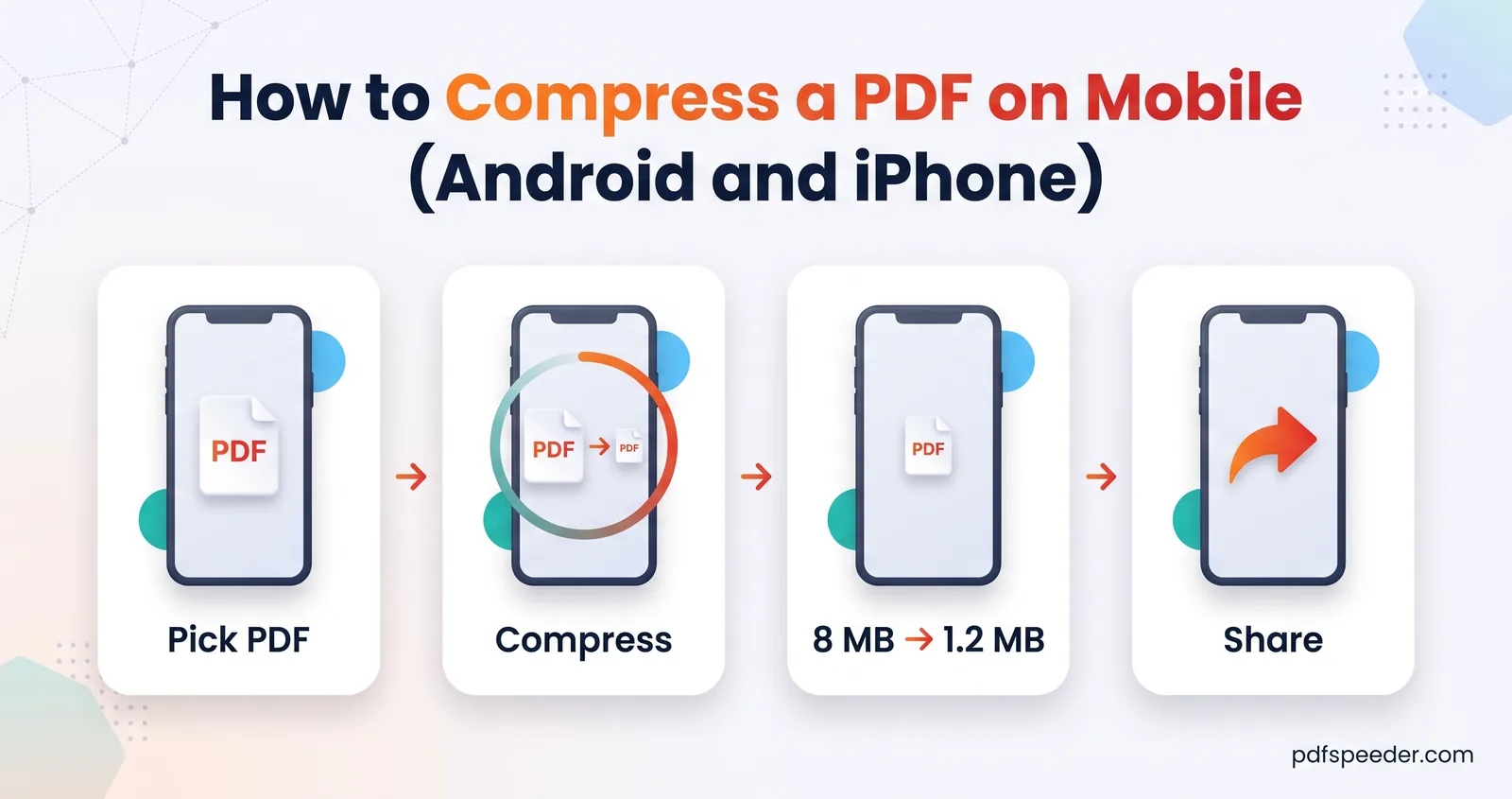
To compress a PDF on mobile, open a browser-based compressor in Chrome or Safari, pick the PDF from your phone, choose a compression level and download the smaller copy. It works the same way on Android and iPhone, with nothing to install. iPhones running iOS 27 can also shrink a PDF in the built-in Preview app, and if your PDF started life as camera photos, rebuilding it from smaller photos often works even better.
On this page
Compress a PDF on mobile in your browser
Compress PDF works in any modern mobile browser, and the steps are identical on both systems:
- Open Compress PDF in Chrome, Safari or your usual browser.
- Tap Select PDF File. Your phone's file picker opens: on Android, look under Recent or Downloads; on an iPhone, use Browse in the picker to reach iCloud Drive and the files on your phone.
- Check the page thumbnails and the current size, then choose a level: Balanced for most uses, High Compression for tight upload limits, Low Compression for files you'll print.
- Tap Compress PDF and wait. The result shows the old and new sizes and the first page before and after, which you can zoom into on your screen.
- Tap Download Compressed PDF. The file is saved with "-compressed" added to its name.
The PDF is uploaded over an encrypted connection, compressed on our server and deleted automatically within 2 hours, so a large file uses some of your mobile data on the way up. Files can be up to 100 MB. Each file counts as one task in the free daily allowance: 2 a day without an account and 3 with a free account, reset at 00:00 UTC (05:30 IST).
Tip: Trying another level on the same file within 2 hours is free, so start with the level you think fits and step up if you need to. Run the stronger level on the original file, not the copy you've already compressed.
iPhone: the built-in Preview app
Since iOS 26, iPhones have a Preview app for PDFs, and on iOS 27 its export screen can optimise file size. According to Apple's iPhone User Guide:
- Open the Preview app and open your PDF.
- Tap the Actions button next to the file name, then tap Export.
- Choose PDF as the format.
- Turn on Optimize Images for Screen, which reduces image resolution for screen viewing, and, if you like, Save Images as JPEG.
- Confirm, choose where to save the file, rename it if you want, and tap Save.
On iOS 26, Apple's guide only mentions a slider for adjusting the file size on the same Export screen. Either way, it all happens on the phone, so nothing is uploaded and no daily task is used.
Preview or Compress PDF: which to use?
| Preview (iOS 27) | Compress PDF | |
|---|---|---|
| Works on | iPhone only | Any phone or computer |
| Choice of strength | Two on/off switches | Three levels: 200, 100 or 72 DPI |
| Resolution it targets | Not published | Shown for each level |
| Before/after comparison | Not described by Apple | First page, side by side, with sizes |
| Uploads the file | No | Yes, deleted within 2 hours |
| Uses a daily task | No | Yes, one per file; other levels on it within 2 hours are free |
Use Preview when you want a quick, private reduction and the result just needs to be smaller. Use Compress PDF when you're aiming at a specific limit and want to check the exact size, and the effect on the first page, before you download.
Warning: Compress in the Files app is a different thing. As Apple explains, it saves a ZIP file, and an upload form that asks for a PDF won't accept a ZIP instead.
Android: find, compress and share the file
Android phones generally don't include a PDF compressor, so the browser route above is the simple way to reduce PDF size on Android. The fiddly part is usually finding the file before and after:
- Find the original. PDFs you've downloaded are usually in your Downloads folder. Open the Files app on your phone to see them, or check Google Drive if the PDF arrived as a link.
- Compress it in Chrome as described above.
- Find the compressed copy. In Chrome, tap the three-dot More menu, then Downloads. If your address bar is at the bottom of the screen, swipe up to find Downloads instead, as Google's Chrome help describes. The file is also in your Files app.
- Rename and share. Chrome's Downloads list lets you rename, share or delete a file. Give it a clear name before you send it, then share it straight to your mail or messaging app, or to Google Drive.
When your PDF started as photos
Many "PDFs" on phones are really a few camera photos wrapped in a PDF, made with the share sheet, a print-to-PDF option or an app. (For paper documents, your phone's scanner gives cleaner, smaller pages than the camera; here's how to scan documents to PDF on your phone.) Compress PDF can shrink these too, but if you still have the original photos, rebuilding the PDF gives you exact control over its size:
- Open Image Compressor, add the photos, switch to Target size and enter a size per photo, such as 150 KB. Set Output format to JPG.
- Download the smaller photos. Image Compressor works in your browser, so nothing is uploaded, and it doesn't use a daily task.
- Open JPG to PDF, add the photos in order, set Page size to A4 and keep Quality on Original, which places each photo in the PDF without compressing it again.
- Create the PDF. It will weigh roughly what the photos add up to.
Choosing A4 matters. On the default Fit to image setting, each page is as big as the photo itself, and compressors judge sharpness relative to the page, so a full-size photo on a huge page counts as low-resolution and gets left untouched. Our guide to compressing a PDF to 500 KB shows that effect with real numbers, and our guide to converting photos to PDF on your phone covers the phone's own photo-to-PDF options.
Upload the smaller file to a form or email
Before you upload, check the exact size. On an iPhone, touch and hold the file in the Files app and tap Get Info. On Android, open the file's details or info view in your Files app.
Your phone and Compress PDF may show slightly different numbers for the same file. Current iPhones, and Android phones from version 8, count 1,000 bytes per kilobyte, while Compress PDF and Windows count 1,024. So a file Compress PDF shows as 195 KB, which is 199,680 bytes, appears as about 200 KB on your phone. Aim a few percent under any limit and you're safe whichever way the website counts.
To upload, tap the form's upload button and pick the file from Downloads: on an iPhone, that's Browse, then iCloud Drive, then Downloads, unless you've changed where Safari saves files. For email, personal Gmail accounts can send attachments of up to 25 MB, and Gmail turns anything bigger into a Google Drive link automatically (Google's Gmail help).
Open Compress PDF in your phone's browser now, pick the PDF that won't upload, and start with Balanced.
Frequently asked questions
How do I compress a PDF on my phone for free?
Open Compress PDF in your phone's browser, choose the file and a level, then download the smaller copy. It's free within the daily allowance.
Can I compress a PDF on iPhone without an app?
Yes. On iOS 27, the built-in Preview app's Export screen has an Optimize Images for Screen option, and Compress PDF works in Safari on any iOS version.
Where does the compressed PDF go on Android?
To your default download location, usually the Downloads folder. In Chrome, tap More, then Downloads, or open the Files app.
Why is my phone's PDF so big?
Usually because it's made of full-size camera photos or a colour scan. Compress it on Balanced or High, or rebuild it from photos shrunk to a target size.
Is it safe to compress a PDF on my phone?
Compress PDF sends the file over an encrypted connection and deletes it from our server within 2 hours. For files that must never leave the phone, use Preview on an iPhone, or shrink photos with Image Compressor, which runs in the browser.