How to Compress a PDF to 500KB for Online Applications
Compress a PDF to 500 KB even when it bundles phone photos, a scanned form and a certificate: shrink each part the right way, merge, then compress once.

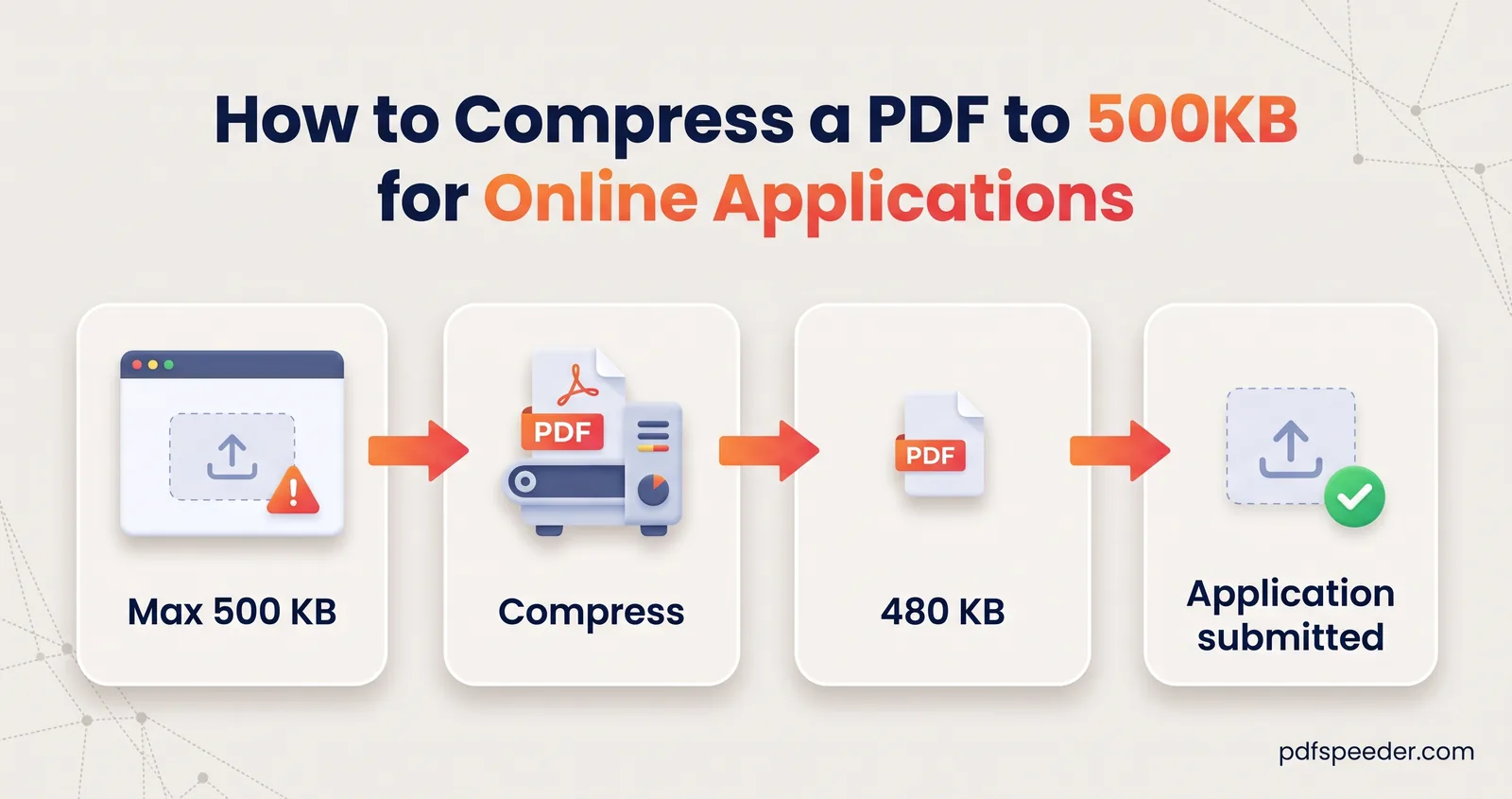
To compress a PDF to 500KB, run it through a compressor on the Balanced setting and check that the result is 488 KB or less as your computer shows it. That's often all a single document needs. When one upload has to hold everything, such as an ID photo, phone pictures of your proofs, a scanned form and a digital certificate, put each piece on an A4 page, shrinking the heavy ones the way that suits them, merge them, and compress the finished bundle once. This guide walks through that order with real numbers from a test bundle.
On this page
Is 500KB enough for your documents?
First, the target. Some portals count 500 KB as 500,000 bytes and others as 512,000. Windows and the size readout in our tools use 1,024-byte kilobytes, so 488 KB on screen is 499,712 bytes and passes both rules. Treat 488 KB as your real ceiling.
Divided across pages, that ceiling looks like this:
| Pages in the bundle | Average budget per page |
|---|---|
| 2 | 244 KB |
| 4 | 122 KB |
| 6 | 81.3 KB |
| 8 | 61 KB |
| 10 | 48.8 KB |
Pages don't weigh the same, though. A page of real text exported from an app costs little, while photos and scans carry nearly all the weight. So 500 KB is plenty for a six-page bundle if you control the images, and nowhere near enough if you drop in two photos straight from your phone camera.
Example: A test bundle of sample files held a passport-size photo (30 KB), the front and back of an ID card as two 12-megapixel photos (1.9 MB each), a two-page form scanned at 300 DPI in colour (2.0 MB) and a one-page digital certificate (129 KB). Merged as it came on A4 pages, it weighed 6,001 KB, and Compress PDF on Balanced brought it down to 357.8 KB by taking the card photos and the scanned pages down to 100 DPI. The same files on photo-sized pages never got below 846 KB, at any level.
Shrink each document type the right way
Compression alone can be enough, as the example shows, but then the compressor decides how much detail each piece keeps. Preparing the pieces yourself keeps the merged file small, lets you check each one before it goes in, and gets you further than a compression level can when one pass isn't enough. Each kind of document needs different treatment:
| Document | What to do first | Why |
|---|---|---|
| Phone photos of ID cards or proofs | Compress each to a target size, as JPG | A 12 MP photo holds far more pixels than a reviewer needs |
| Passport-size photo | Check its size; compress it only if it's heavy | At 413 × 531 px it holds under 2% of a 12 MP photo's pixels |
| A paper form you can scan again | Scan it in grayscale at 150 DPI | Far less image data than a 300 DPI colour scan |
| A scanned PDF you already have | Leave it for the final compression | Scanned pages shrink well at that step |
| A digital certificate or e-document | Leave it alone | Its text stays sharp and searchable at any setting |
Photos: give each one a size budget
Open Image Compressor, switch to Target size and enter a figure such as 80 KB. Set Output format to JPG and Max dimension to 1280 px, then compress. The tool searches for the highest quality that fits the budget, fixes the photo's orientation and strips private details such as location. It works in your browser, so the photos aren't uploaded, and it doesn't use any of your daily tasks.
In the test, the two 1.9 MB card photos came out at 77.6 KB and 79.6 KB, and the card details were still easy to read. The JPG setting matters: the default, Smart, can pick WebP or AVIF, which the next step would have to convert, usually into something bigger. For more on choosing a target, see our guide to reducing image size in KB.
Scans: grayscale beats colour
If you still have the paper form, scan it again in grayscale at 150 DPI with your scanner or your phone's scanning app. Keep colour only if the portal asks for a colour scan or a coloured seal has to stay recognisable. The two form pages in the test came to 188 KB and 208 KB as 150 DPI grayscale JPGs, against about 1 MB each in colour at 300 DPI.
Digital certificates: don't turn them into pictures
A certificate downloaded from an official site holds real text. Never screenshot or photograph it to make it "smaller": the text would turn blurry, and it could no longer be searched or copied. The final compression trims it for you. Run on its own, the sample certificate went from 129 KB to 69 KB on Balanced, with every word still selectable.
Turn the images into PDF pages
Open JPG to PDF, add the photos and any scanned pages you have as JPGs, and set Page size to A4 with Quality on Original. Original places each JPG in the PDF byte for byte, so the PDF weighs barely more than the images: the five test images totalled 583.5 KB and the PDF 587.8 KB.
Warning: Don't leave the page size on its default, Fit to image. That makes each page exactly as big as the photo, which for a phone picture can mean a page over a metre wide. Compared with a page that size, a 12 MP photo looks low-resolution, so Compress PDF never resamples it. In the test, the card photos came through every compression level at their full 4,032 × 3,024 pixels, the bundle never got below 846 KB, and the passport photo, on a tiny page of its own, was squeezed to 137 × 177 pixels on Balanced.
Merge the bundle in the order reviewers expect
Whoever opens your file is usually ticking off a checklist, so give them the documents in the order the notice lists them. If there's no list, put the application form first, then the supporting documents in the order the form mentions them.
- Rename the files with numbers first, such as
01-form.pdf,02-id-proof.pdfand03-certificate.pdf. - Open Merge PDF, add them and select A–Z to put them in that order.
- In a file's Pages to include box, type only the pages you need, such as
1to drop the blank back of a scan. Use the 90°, 180° or 270° buttons on a file whose pages came out sideways. - Leave Auto-bookmark each file on, so the reviewer can jump between documents, and Divider page between files off, so you don't add blank pages.
- Select Merge & Download, then check the size it reports.
Merge PDF runs in your browser and copies pages without compressing them, so the merged file weighs about what its parts did: 715.5 KB for the prepared test bundle. Our guide to merging PDF files covers the other options, from odd/even scans to interleaving.
Compress the merged PDF to under 500KB
If the merged file is already at 488 KB or less, stop: there's nothing to gain from compressing it again. Otherwise, one pass is usually enough:
- Open Compress PDF and add the merged file (up to 100 MB).
- Keep Balanced, the default, which brings sharper images down to about 100 DPI.
- Select Compress PDF and compare the first page before and after in the preview.
- Download the copy ending in "-compressed" and check its exact size.
Compress PDF uploads the file over an encrypted connection, compresses it on our server and deletes it automatically within 2 hours.
Here's how the prepared test bundle did:
| Version | Size | Under 488 KB? |
|---|---|---|
| Prepared parts, merged | 715.5 KB | No |
| Compressed on Balanced | 356.2 KB | Yes |
| Compressed on High | 253.7 KB | Yes |
Balanced brought the card photos and the scanned pages down to 100 DPI and trimmed the certificate's fonts, which is how it saved 50%. High took them down to 72 DPI and saved 65%, but at that resolution small print and signatures start to blur. So try Balanced first, and keep High for when Balanced isn't enough. For a tighter limit, our guide to fitting several scans under 200 KB goes further.
Tip: This route uses three tasks from the free daily allowance: JPG to PDF, Merge PDF and Compress PDF, each one per run. You get 2 tasks a day without an account and 3 with a free account, reset at 00:00 UTC (05:30 IST). If you're not signed in, create a free account before you start, or skip the compression step when the merged file already fits.
What the reviewer must still be able to read
A PDF below 500 KB is only useful if the office can verify it. Open the final file at 100% zoom and check:
- Your photo. The face should be clear and undistorted, not blocky.
- Numbers. ID, roll, registration and certificate numbers, plus your date of birth, should read without guessing.
- Names. Your name should be spelled the same, and legibly, on every document.
- Seals and signatures. Look for unbroken outlines and readable lettering around the seal.
- QR codes. If a card or certificate carries one the office might scan, point your phone's camera at the screen and confirm it still opens.
If anything fails, go back one step for that document only: a bigger target size for the photo, or a cleaner scan. Keep your original files, too, because detail that compression throws away can't be added back.
Start with your heaviest ingredient: put the phone photos through Image Compressor with an 80 KB target, then build the rest of the bundle around them.
Frequently asked questions
How do I compress a PDF to 500 KB without losing quality?
Real text never loses quality, because compression only reduces images. Shrink photos to a sensible target size before they go into the PDF, then compress the bundle on Balanced, which never takes images below about 100 DPI, still sharp on screen.
Why won't my PDF go below 500 KB?
Usually because of full-size phone photos, especially on Fit to image pages, or long colour scans. Compress the photos to a target size, rebuild the pages on A4, and rescan colour pages in grayscale at 150 DPI.
Is 500 KB the same as 0.5 MB?
Nearly. Depending on the site, 0.5 MB means 500,000 or 524,288 bytes, so the same 488 KB ceiling keeps you safe under any of these definitions.
Should I compress each PDF before merging?
No, compress once after merging. It costs one task instead of several, and the portal only judges the final file. Shrinking photos beforehand is different: Image Compressor runs in your browser and doesn't use a task.
Can I combine documents into one PDF under 500 KB on my phone?
Yes. Image Compressor, JPG to PDF, Merge PDF and Compress PDF all work in a phone browser, and the steps are the same as on a computer.