How to Compress a PDF Without Losing Quality
How to compress a PDF without losing quality: the lossless route that changes no pixels, and the gentlest compression level for screen, email or print.

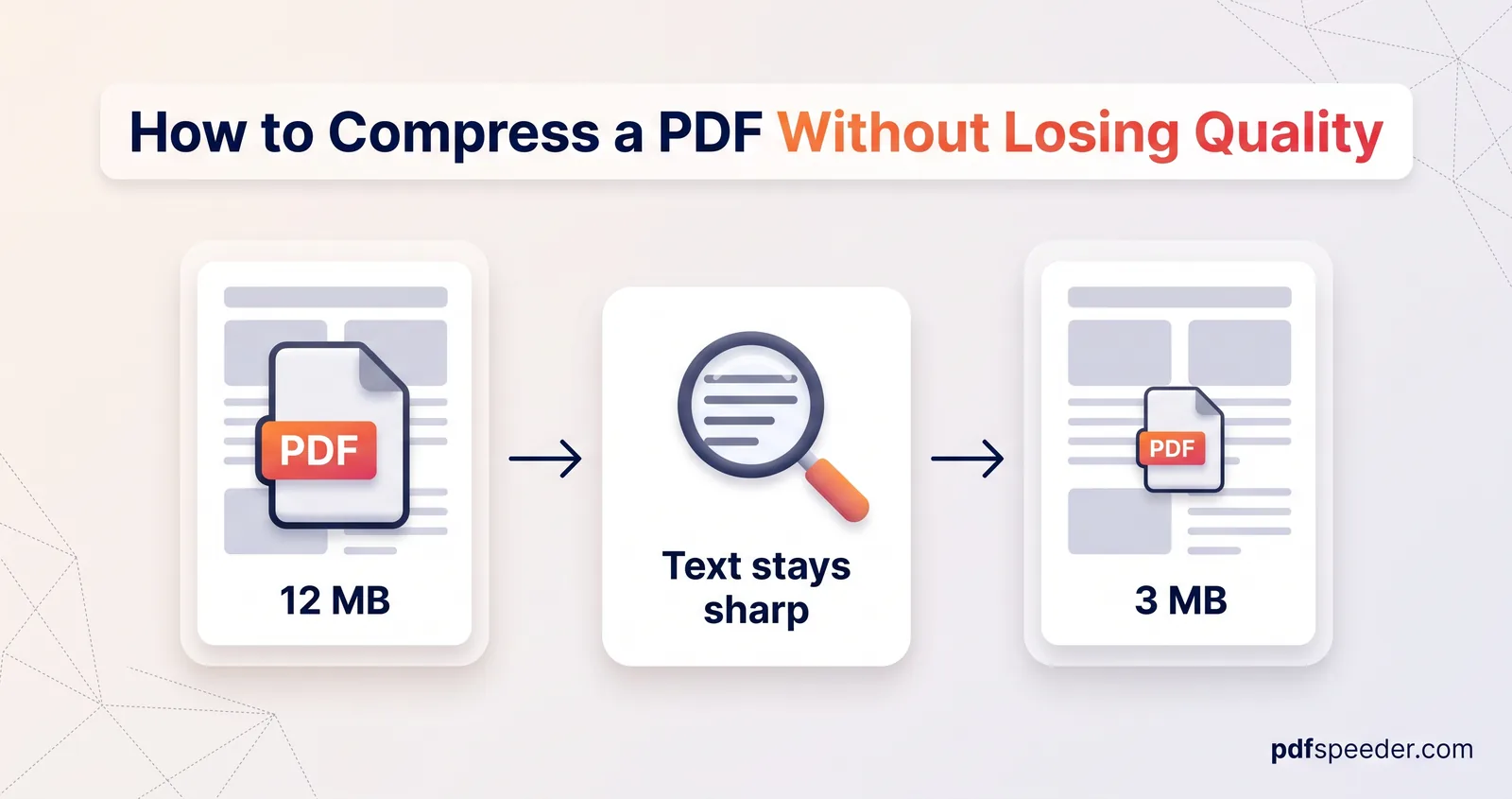
To compress a PDF without losing quality, start with a lossless optimisation, which rewrites the file more efficiently without changing a single pixel. If that doesn't save enough, use the gentlest compression level that still meets your size limit. Text and vector graphics stay sharp at every level, because compressors only resample images, so the real decision is how much image detail your document needs on screen, in an email or on paper.
On this page
What "losing quality" means when you compress a PDF
A PDF can hold three kinds of content, and compression treats them very differently:
- Text is stored as characters plus the fonts that draw them. It stays crisp at any zoom, and Compress PDF keeps it as text.
- Vector graphics, such as charts, logos, tables and lines, are stored as shapes. They stay sharp too.
- Images, such as photos, scanned pages and screenshots, are grids of pixels. They're the only content a compressor degrades, by keeping fewer pixels or encoding them more roughly.
So for a PDF exported from Word, "losing quality" can only mean softer photos. For a scanned PDF, every page is an image, so the whole page can lose detail.
A few less visible things can change as well when a compressor rewrites a file, and they're covered below: colours converted for screens, the hidden tags that screen readers use, and the document's metadata.
Tip: To see what your PDF is made of, try to select a sentence, then zoom to 400% on a chart. Selectable text and crisp edges mean real text and vectors; if nothing selects and edges turn to blocks, you're looking at images.
Lossless vs lossy PDF compression
There are two ways to make a PDF smaller, and only one of them is truly lossless.
Lossless: rewrite the file, keep every pixel
Lossless PDF compression reorganises the file without touching what's drawn on the page. It packs the internal objects together, recompresses text and structure streams at the highest setting, and drops leftovers that nothing on the page uses any more.
Our Repair PDF tool does this with its Optimize & compress option, which is ticked by default. It runs qpdf, an open-source PDF toolkit, in your browser, so the file isn't uploaded, and it accepts files up to 50 MB. Leave Flatten forms & annotations unticked if you want form fields to stay fillable.
Expect modest savings on most files. Here's what the same lossless rewrite did to some test files:
| Test file | Before | After lossless rewrite | Saved |
|---|---|---|---|
| 5-page report exported from Word, with 2 photos | 343.9 KB | 339.9 KB | 1.2% |
| 1-page digital certificate | 129.0 KB | 124.9 KB | 3.1% |
| 2-page colour scan at 300 DPI | 1,999.6 KB | 1,999.0 KB | 0.0% |
| The Word report after 3 rounds of edits saved on top of each other | 1,905.4 KB | 343.9 KB | 82.0% |
The last row is where lossless shines. Some editors save changes by appending them to the end of the file, so old versions of replaced images stay inside it. The rewrite throws them out, and here it took the file straight back to its original size. Scans gain nothing, because their pages are already-compressed JPEG images that a lossless tool leaves alone.
Lossy: resample the images
Compress PDF is the lossy route: it resamples images to a lower resolution and re-encodes them, and it also rewrites the fonts and the file's structure. Here are its PDF compression levels explained, each with its own target resolution. Low Compression only resamples images sharper than one and a half times its target, and keeps flat images such as screenshots lossless. Balanced and High resample every image that's sharper than their target and save it as a JPEG.
| Level | Target | Resamples images sharper than | Word report result |
|---|---|---|---|
| Low Compression | 200 DPI | 300 DPI | 194.4 KB (photos unchanged) |
| Balanced | 100 DPI | 100 DPI, saved as JPEG | 98.1 KB |
| High Compression | 72 DPI | 72 DPI, saved as JPEG | 86.9 KB |
Low's higher threshold is why "lossy" doesn't always mean a loss. Low Compression cut the Word report by 43.5% and left both photos byte-for-byte identical: the saving came from the embedded fonts, which shrank from 271.9 KB to 51.1 KB, and the text could still be selected. If a file's images are already at a sensible resolution, the gentlest level may save a lot without changing a pixel.
Match the setting to screen, email or print
The best DPI for PDF compression depends on where the document ends up. Here's what each level means for a photo printed 15 cm wide on the page:
| Where it's going | Level | Images kept at | A 15 cm wide photo keeps |
|---|---|---|---|
| Office or home printer | Low Compression | 200 DPI | 1,181 px across |
| Email, upload portals, reading on a laptop | Balanced | 100 DPI | 591 px across |
| Phone screens, chat apps, very tight limits | High Compression | 72 DPI | 425 px across |
| Professional printing | None: use the lossless route | As supplied | Unchanged |
At 100% zoom on a standard display, a PDF viewer draws about 96 screen pixels for every inch of page, so images kept at 100 DPI look crisp at normal size. Zoom in, or view the file on a high-resolution phone screen, and they start to soften. For paper, 200 DPI holds up well on office printers. A print shop sets its own requirements, so ask before you compress anything you're sending there.
The rule for compressing a PDF in high quality is simple: start at the gentlest level that suits the purpose, and only go stronger if the file is still too big.
Compress and compare before you download
Here's how to use Compress PDF so you can judge the result before you keep it:
- Open Compress PDF and add your file (up to 100 MB). You'll see the page thumbnails, the current size and a rough estimate.
- Pick the level from the table above. Balanced is selected by default.
- Check Advanced Options. Strip metadata is ticked by default and removes the title, author, dates and hidden XMP data; untick it if you need to keep them. Convert to grayscale turns text, drawings and photos gray, so leave it off when colour matters. Optimize for fast web view lets the first page show while the rest downloads.
- Select Compress PDF. The result screen shows the old and new sizes, the percentage saved and which options were applied.
- Compare the first page before and after. Both are drawn at the same display size, so softness in photos and small print is easy to spot.
- Download the copy ending in "-compressed", then scroll through the remaining pages yourself, because the preview shows only page 1.
The file is uploaded over an encrypted connection, compressed on our server and deleted automatically within 2 hours. If the result would be bigger than your file, you get your original back instead (unless you ticked grayscale, which always returns the gray version), and a saving under 1% is labelled "Already optimized".
Note: Compress PDF and Repair PDF each count one task per file in the free daily allowance: 2 a day without an account and 3 with a free account, reset at 00:00 UTC. Trying another Compress PDF level on the same file within 2 hours is free, so start with the level you think fits and step up if you need to.
When a stronger level is needed, start again from your original file: that's the free retry, while the compressed copy would count as a new file. It's also better for quality. Balanced and High both save images as JPEG, and every round of JPEG compression adds artefacts of its own. In a test, a 300 DPI scan came to 173.0 KB on Balanced and 102.2 KB on High; High run on the Balanced copy gave 97.3 KB, a little smaller but also a little further from the original scan, because its pages had been through JPEG twice.
Mistakes that make compressed PDFs look bad
Most "compression ruined my PDF" moments come from one of these:
- High Compression for print. Photos kept at 72 DPI look soft or blocky on paper even when they look fine on a phone.
- Turning text into pictures. Screenshotting pages, printing to an image or converting pages to JPG and back makes text blurry, unsearchable and often heavier. Compress the PDF itself instead.
- Compressing a print-ready file for screens. In a test, Balanced and High converted CMYK colours to RGB, which can shift colours on a printing press; Low kept them as CMYK.
- Grayscale where colour carries meaning. Coloured charts, highlighted text, stamps and photos lose information when everything turns gray.
- Forgetting accessibility. Compress PDF's rewrite didn't keep the tags that screen readers rely on in a tagged Word export. The lossless route kept them, so use it for documents that must stay accessible.
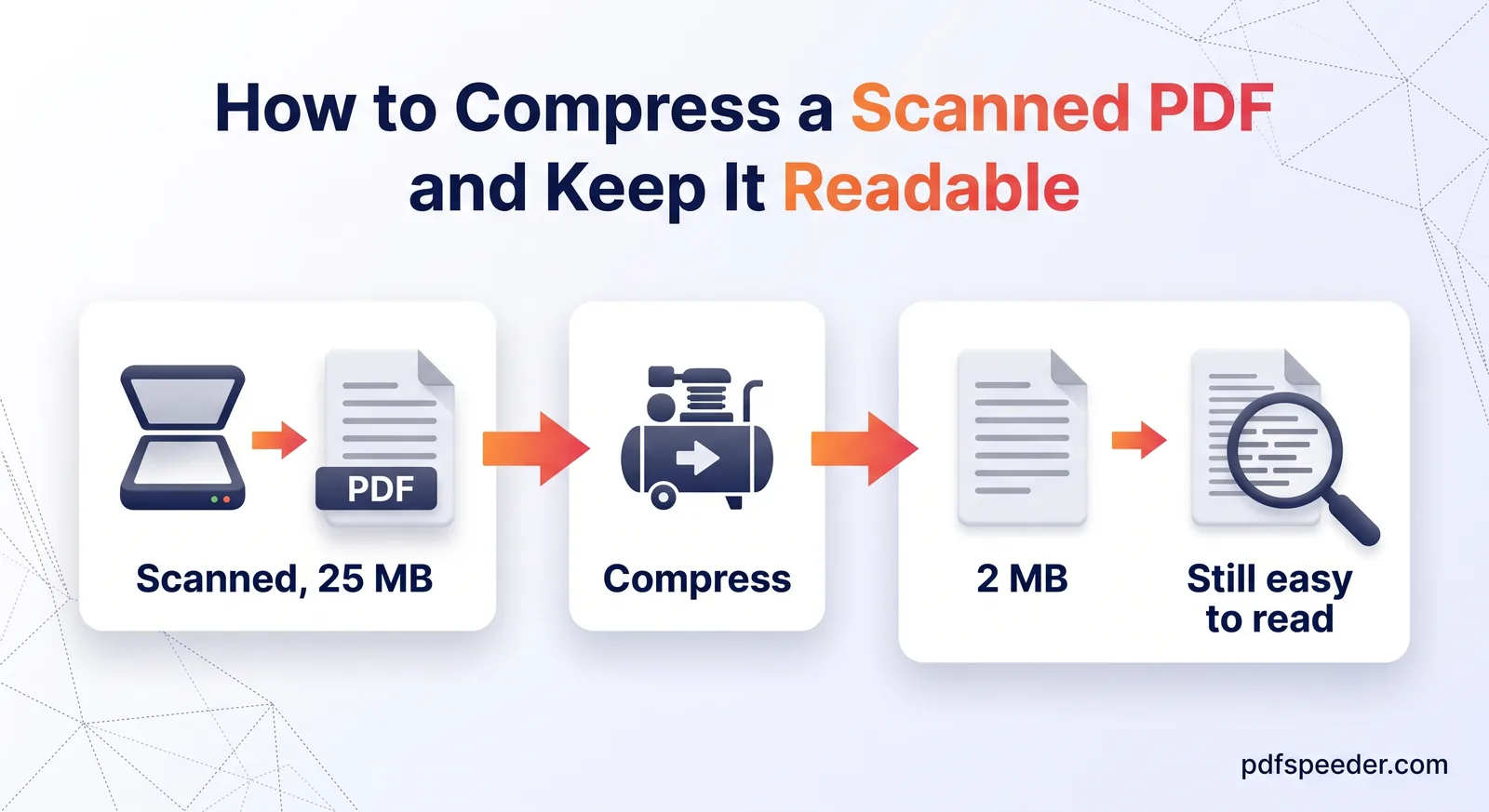
- Expecting compression to fix the source. A blurry scan or a tiny photo can't gain detail. Rescan or re-export instead; our guide to compressing a scanned PDF lists the scan settings that keep files small and readable.
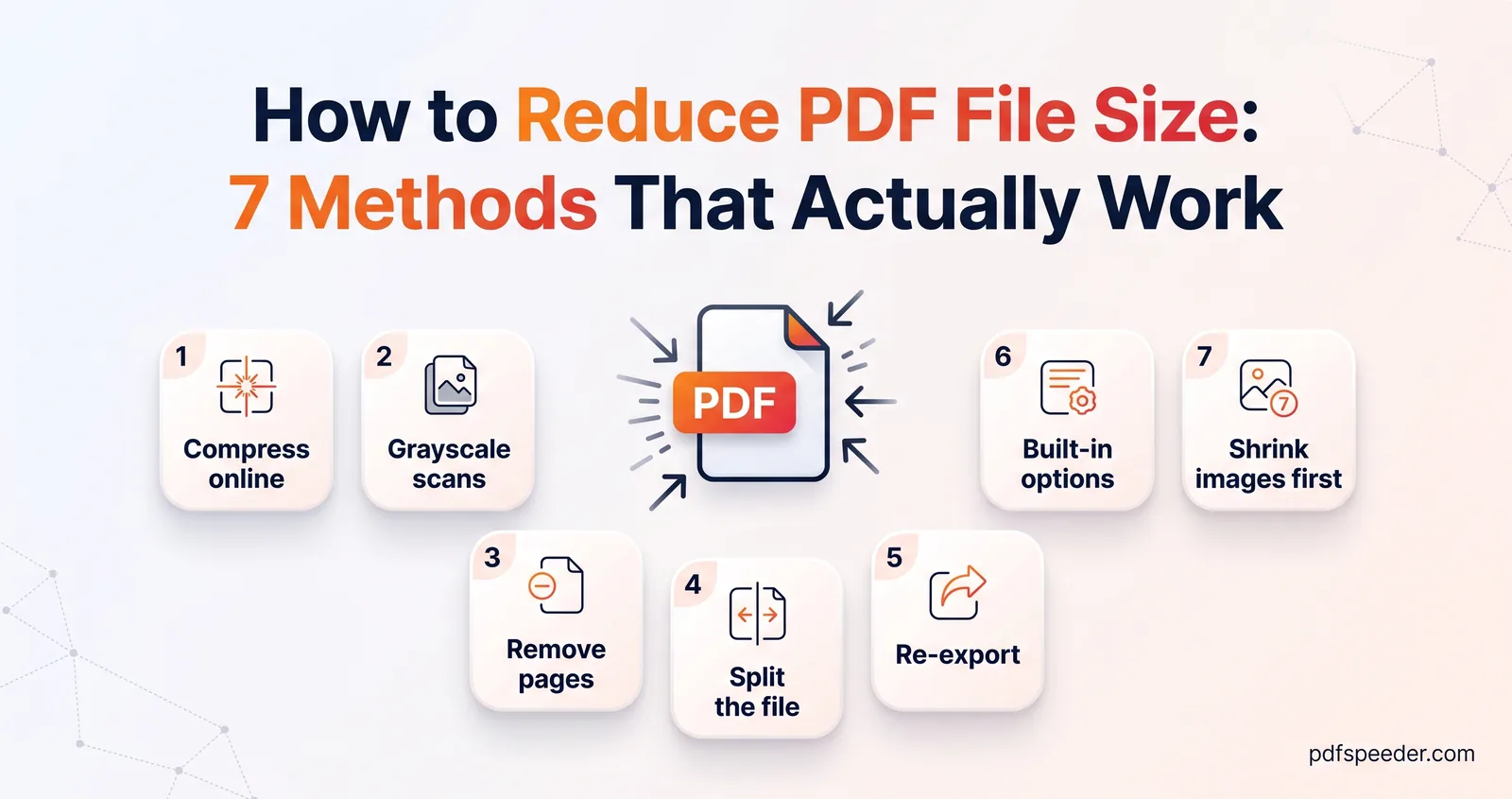
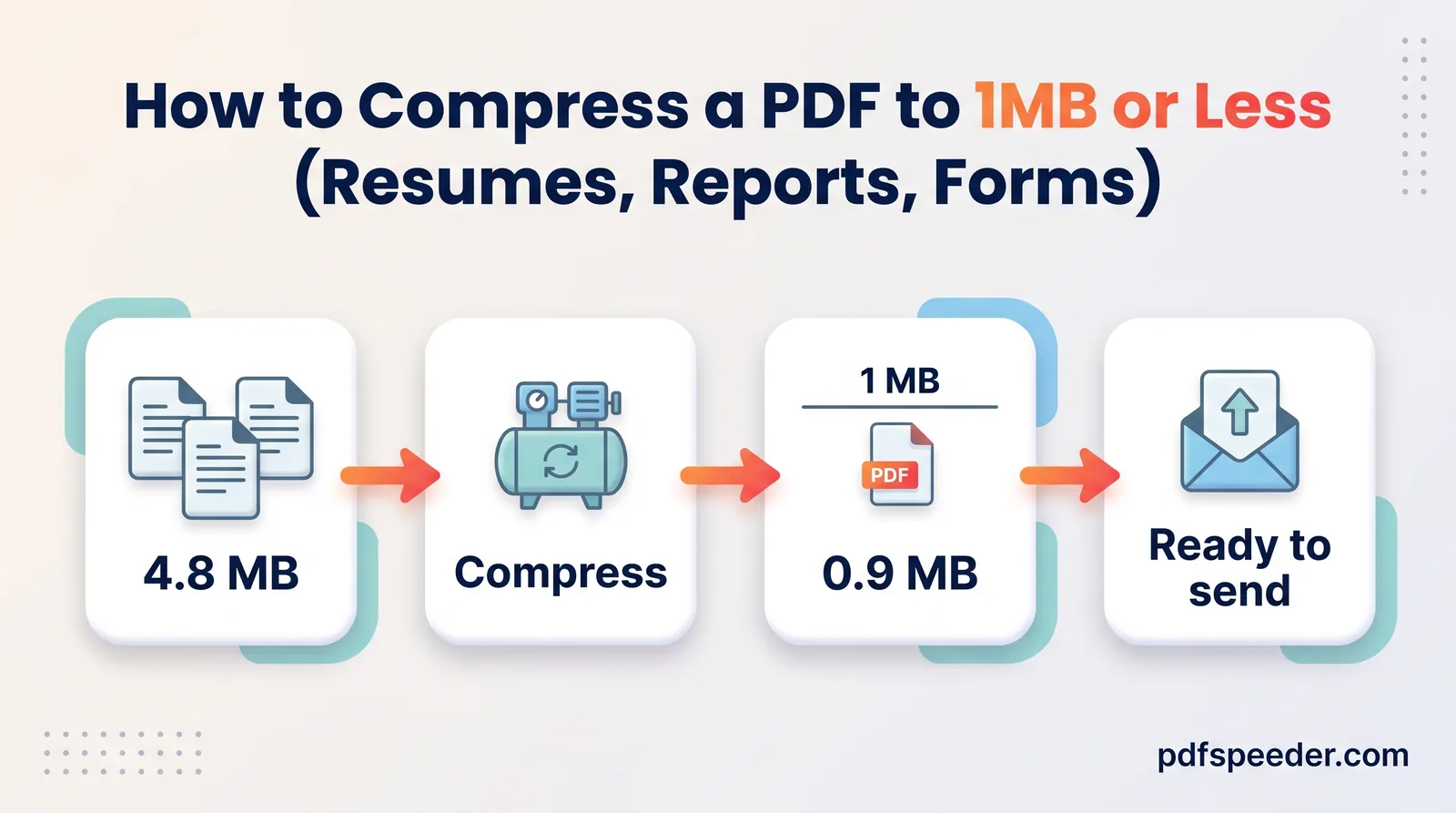
If you made the document yourself, exporting it again from Word or your design app with smaller pictures often beats compressing the finished PDF; our guide to getting a PDF under 1 MB shows the Word settings. For files that still won't shrink, see seven ways to reduce PDF file size.
Try the lossless route first: run your file through Repair PDF with Optimize & compress ticked, check the new size, and move on to Compress PDF on Low only if you need more.
Frequently asked questions
Is there a truly lossless way to compress a PDF?
Yes. A lossless rewrite such as Repair PDF's Optimize & compress option changes no pixels and no text. Savings are usually small, unless the file holds leftovers from repeated edits.
Which compression level keeps the best quality?
Low Compression. It keeps images at up to 300 DPI untouched and brings sharper ones down to 200 DPI, which still prints well on office printers.
Does compressing a PDF reduce the quality of text?
No. Text is stored as characters and fonts, not pixels, so it stays sharp and selectable at every level. That holds for a password-protected file too: Compress PDF asks for the password and decrypts the file in your browser without turning its pages into images.
Why did my PDF barely get smaller?
Its images were probably already at or below the level's resolution, or it's mostly text. Try a stronger level on the original file, or remove pages you don't need.
What DPI should a PDF be for printing?
For office and home printers, 200 DPI images print well, which is what Low Compression keeps. For professional printing, ask the print shop for its requirements before you compress anything.