How to Compress a PDF to 200KB, Even a Multi-Page Scan
Compress a PDF to 200 KB even when it holds several scanned certificates: work out a per-page budget, merge before compressing, and keep stamps legible.

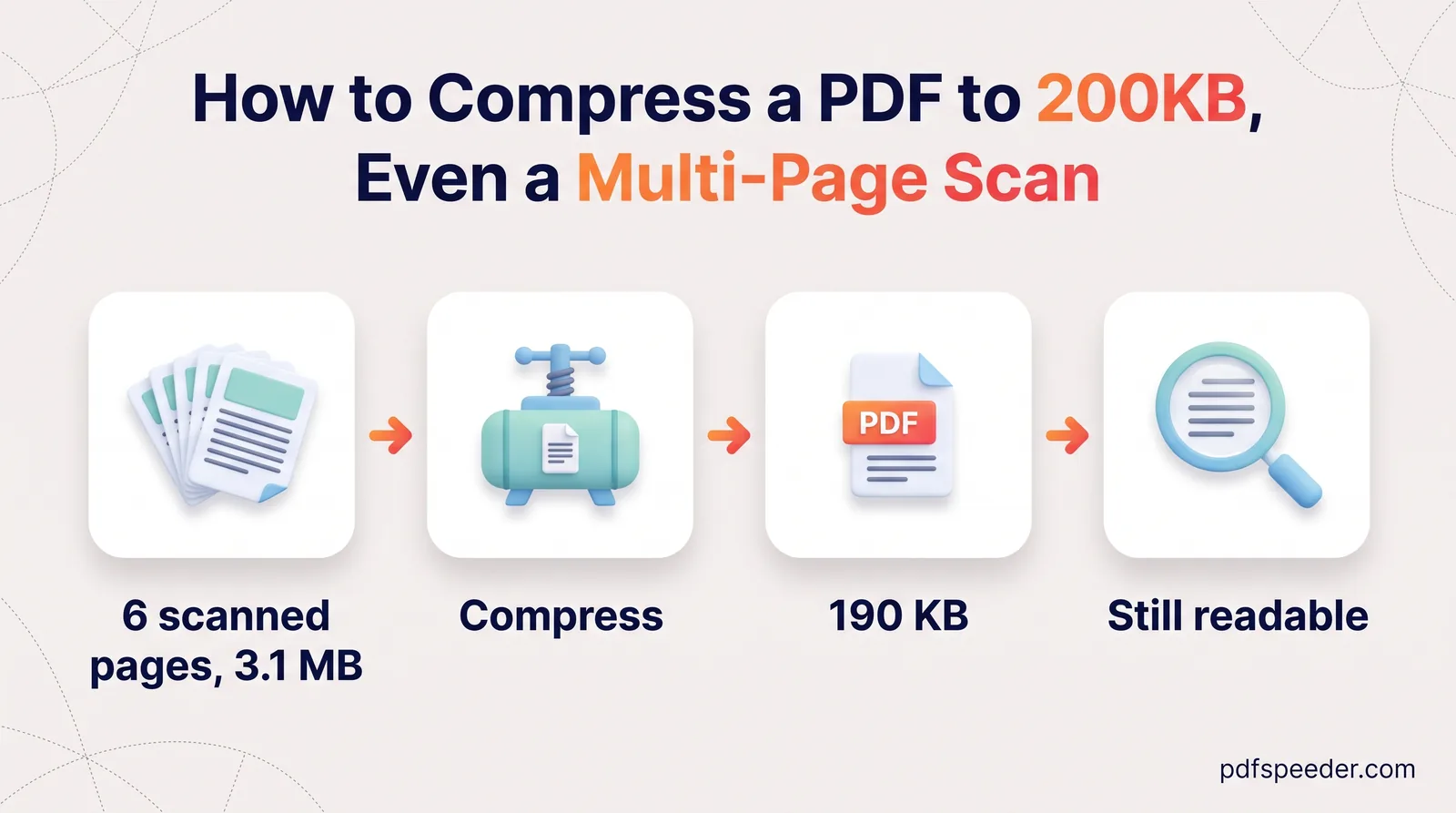
To compress a PDF to 200KB when it holds several scanned pages, combine the scans into one file first, compress that file once on the strongest setting, and check the result against a per-page budget. Five pages sharing 200 KB get about 39 KB each, which is tight but workable when the scans are grayscale or black and white at a sensible resolution. Below you'll find the budget for any page count, the order of steps that saves your daily tasks, and the settings that keep seals, signatures and small print readable.
On this page
What fits in 200KB: a per-page budget
Start with the real ceiling. Some portals count 200 KB as 200,000 bytes, so aim for 195 KB or less as Windows shows it: 195 × 1,024 is 199,680 bytes, just under the line either way. Divide those 195 KB by your number of pages and you have your budget:
| Pages in the file | Budget per page |
|---|---|
| 1 | 195 KB |
| 2 | 97.5 KB |
| 3 | 65 KB |
| 4 | 48.8 KB |
| 5 | 39 KB |
| 6 | 32.5 KB |
| 8 | 24.4 KB |
| 10 | 19.5 KB |
| 15 | 13 KB |
| 20 | 9.8 KB |
The budget explains why colour scans are so hard to fit. A compressor works on pixels, and one A4 page at 100 DPI holds 966,763 of them. Here is how hard it has to squeeze each page to hit 39 KB, the five-page budget:
| One A4 page | Raw pixel data | Squeeze needed for 39 KB |
|---|---|---|
| Colour, 100 DPI | 2,832 KB | 73 times |
| Grayscale, 100 DPI | 944 KB | 24 times |
| Grayscale, 150 DPI | 2,124 KB | 55 times |
| Black and white, 150 DPI | 265 KB | 7 times |
Colour carries three values per pixel and grayscale one, while black and white stores a single bit. That's the whole reason a grayscale or black-and-white scan fits a tight limit so much more easily.
Example: Five sample A4 scans, each a 300 DPI grayscale page with text, a seal and a signature, weighed 4,549 KB together. On High Compression the merged file came to 167.9 KB, about 34 KB per page, safely under 195 KB. The same five pages in colour came to 182.6 KB. Real scans vary, so treat this as a sense of scale, not a promise.
Merge first, compress once
When a form wants one file, it's tempting to compress each certificate separately and stitch them together afterwards. Merging first and compressing once works better, for three reasons:
- It costs fewer tasks. Each file you compress counts as one task in the free daily allowance (2 a day without an account, 3 with a free one, renewed at 00:00 UTC). Compressing five files separately plus a merge would be six tasks; merging and then compressing once is two.
- You check one number. The portal judges the size of the final file, so that's the only size you need to look at.
- The size barely changes. On the five sample scans, merging first gave 167.9 KB, and compressing each page before merging gave 166.0 KB. The order hardly matters to the result, so take the route that's simpler and cheaper.
Merge PDF runs in your browser, so your certificates aren't uploaded while you combine them. It also lets you set the page order, rotate a sideways scan and pick which pages of each file go in, all before anything is compressed.
Compress your PDF to 200KB step by step
This is the full route to compress a multiple-page PDF to 200KB, such as a set of certificates or a semester marksheet, in two tasks:
- Open Merge PDF and add your scans. Drag them into the order the form expects, or sort them A–Z if their names are numbered.
- In each file's Pages to include box, type only the pages you need, for example
1to skip a blank back page. Use the rotation buttons on any sideways scan and leave Divider page between files off, since dividers add pages the form doesn't need. - Select Merge & Download. The merged file is named like
Merged_PDF_followed by a number, so rename it if the portal asks for a particular name. - Open Compress PDF, add the merged file and choose High Compression, which brings images down to 72 DPI. On the five sample pages, Balanced (100 DPI) came to 284 KB, so for several pages High is the level to try first.
- Select Compress PDF, look at the before-and-after preview, and download the copy ending in "-compressed".
- Check the size: 195 KB or less in Windows passes either definition of 200 KB.
Compress PDF uploads the file over an encrypted connection, compresses it on our server and deletes it automatically within 2 hours. If you'd rather tidy up an existing PDF instead, Delete PDF Pages removes pages in your browser, and its Even button selects every even page at once, handy for the blank backs of a double-sided scan. That's one more task, though, so trimming pages inside Merge PDF is the cheaper option.
Getting a stubborn multi-page scan under 200KB
If the compressed file still won't drop below the limit, the scan itself needs changing. Try these in order; for PDFs that aren't scans, our overview of seven ways to reduce PDF file size has other options.
Rescan plain typed pages in black and white
For pages with typed text and no coloured seal or photograph, scan in black and white (sometimes called "text" mode). Besides storing one bit per pixel, black-and-white pages get gentler treatment from Compress PDF, which allows them about twice the resolution of colour and grayscale. A 300 DPI black-and-white test page came out of High Compression at 19.5 KB and still at 150 DPI, while grayscale pages went down to 72 DPI.
Rescan everything else in grayscale
Pages with a seal, a signature in coloured ink or a photo should be scanned in grayscale, which keeps those details as shades of grey. Choose 150 DPI if your scanner asks. High Compression brings grayscale images down to 72 DPI anyway, so a 300 DPI scan only makes the upload bigger.
Watch out for phone photos of documents
A 12-megapixel photo of a page holds 1.38 times as many pixels as a 300 DPI A4 scan, and some of them are the table underneath, which still has to be stored. Use your phone's document-scanning mode instead of the normal camera, so the page is cropped, straightened and saved as a document.
Cut pages and rebuild the heaviest ones
Leave out instruction sheets, cover letters and blank pages. If one or two pages still blow the budget, the 100 KB guide's JPG route shows how to turn pages into small grayscale images and rebuild the PDF with exact control over each page's size.
Keep stamps, signatures and small print readable
A certificate PDF below 200 KB is no use if the roll number or the seal can't be read. What survives compression comes down to how many pixels the smallest details get:
| Resolution | Lowercase letter in 8-point text | A 0.25 mm line in a seal |
|---|---|---|
| 72 DPI | about 4 px tall | 0.71 px wide |
| 100 DPI | about 5.6 px tall | 0.98 px wide |
| 150 DPI | about 8.3 px tall | 1.48 px wide |
| 200 DPI | about 11.1 px tall | 1.97 px wide |
A line narrower than one pixel gets blended into its surroundings, so the fine lettering around a seal can turn into a grey smudge at 72 DPI. Lowercase letters only 4 pixels tall are on the edge of legibility and blur into each other easily. In practice:
- Black and white keeps typed text crisp, but it can wipe out a light seal or break a signature in blue ink into dots. Use it only for plain typed pages.
- Grayscale keeps seals, signatures and photos as shades of grey, with a third of colour's raw data. It's the safe default for certificates.
- Colour is worth its cost only when the form asks for a colour scan or the colour carries meaning.
After compressing, open the file at 100% and read the details an official would check: name, roll or registration number, date of birth, grades, the seal and the signature. If any of them is hard to make out, rescan that page more cleanly rather than accepting a file that could be rejected.
Next, merge your scans in Merge PDF, then run the merged file through Compress PDF on High Compression. Our guide to merging PDF files covers every merge option, from page ranges to bookmarks.
Frequently asked questions
Can I compress several certificates into one PDF under 200 KB?
Yes. Merge them into one file first, then compress it once on High Compression; five grayscale pages get a budget of about 39 KB each.
Why does my PDF stay over 200 KB after compression?
Usually it has several colour pages or photos of documents taken with a phone camera. Rescan typed pages in black and white and the rest in grayscale, and leave out pages the form doesn't need.
Should I compress each page separately before merging?
There's no need. On sample scans the final size came out within 2 KB either way, and compressing files one by one uses up more of your daily tasks.
How many pages can I fit in 200 KB?
Divide 195 KB by the number of pages to get each page's budget. At 10 pages that's 19.5 KB each, which is realistic for clean black-and-white scans but very tight for grayscale.
How do I reduce PDF size to 200KB on a phone?
The same steps work in your phone's browser: merge in Merge PDF, then compress the merged file on High Compression and check its size in your file manager before uploading.