How to Compress a PDF to 100KB (or Any Size Limit) for Online Forms
Get a PDF under 100 KB, or any upload limit, in minutes: the right compression settings, what to do when it won't shrink, and how to keep text readable.

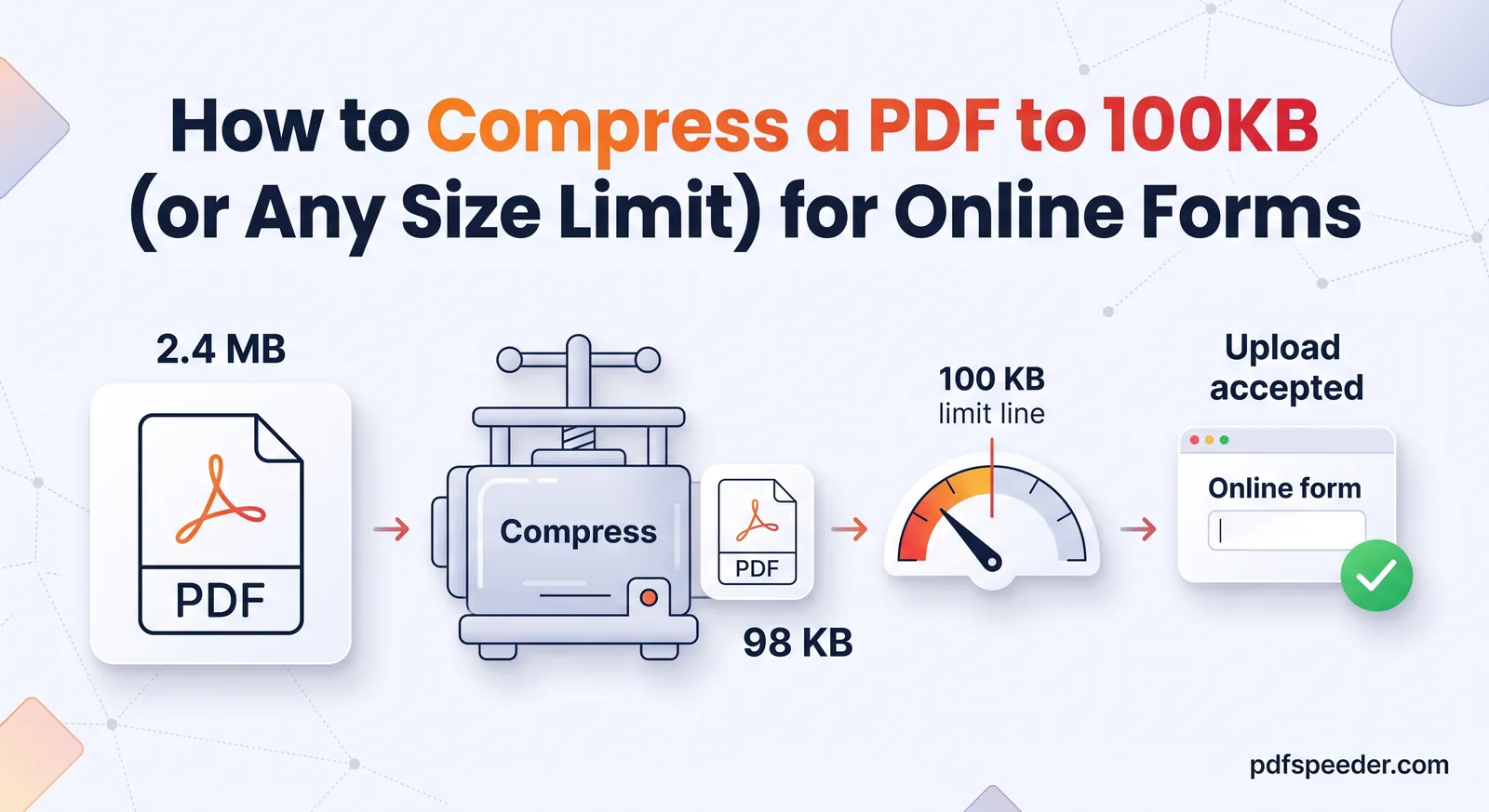
To compress a PDF to 100 KB, run it through a compressor on its strongest setting, then check the file's exact size before you upload it. A one- or two-page document usually gets there in a single pass. A long colour scan may also need a lower resolution, grayscale or splitting, and this guide shows you how to do each without making the text unreadable.
On this page
First, check what "100 KB" means to the portal
Size limits look simple, but there are two kinds of kilobyte. Some upload forms count 1 KB as 1,000 bytes, others as 1,024 bytes. Windows also measures in 1,024-byte units while still calling them "KB", so a file Windows lists as 98 KB is really 100,352 bytes, and a strict 100,000-byte check will reject it.
| Size shown in Windows | Exact size in bytes | Passes a 100,000-byte limit? |
|---|---|---|
| 95 KB | 97,280 | Yes |
| 97 KB | 99,328 | Yes |
| 98 KB | 100,352 | No |
| 100 KB | 102,400 | No |
The safe rule is to aim for 97 KB or less as your computer shows it, which passes either way. The same thinking applies to bigger limits: for a 2 MB cap, stay under 1.9 MB. To see the exact number of bytes, right-click the file and open Properties on Windows, or select it and choose Get Info on a Mac.
While you're on the portal's instructions page, note anything else it asks for, such as a colour scan or a minimum resolution. That decides which of the tricks further down you can use.
How to compress a PDF to 100KB with PDFSpeeder
You use our Compress PDF tool in your browser, on a phone or a computer. The file is uploaded and compressed on our server with Ghostscript, then deleted automatically within 2 hours.
- Open Compress PDF and drop in your file (up to 100 MB). You'll see page thumbnails, the current size and an estimate of the compressed size.
- Choose a compression level. Start with High Compression if the limit is under 500 KB, and Balanced if it's 500 KB or more.
- Select Compress PDF and wait for it to finish.
- Check the result. The tool shows the old and new sizes, the percentage saved and the first page before and after, side by side. Zoom in on the smallest text.
- Download the file (it's saved with "-compressed" added to its name), check its exact size as described above, and upload it.
The three levels differ mainly in how far they reduce the resolution of images inside the PDF:
| Level | Images reduced to | Use it for |
|---|---|---|
| High Compression | 72 DPI | Tight limits (under 500 KB), email, on-screen reading |
| Balanced (recommended) | 100 DPI | Most portals with limits from 500 KB to 2 MB |
| Low Compression | 200 DPI, and only images above 300 DPI | Documents that will be printed |
Text that is stored as real text, as in a PDF exported from Word, stays sharp at every level, because it isn't an image in the first place.
Good to know: Each file counts as one task in the free daily allowance: 2 tasks a day without an account, 3 with a free account, reset at 00:00 UTC (05:30 IST). Trying another level on the same file within 2 hours is free, so start with the level you think fits and step up if you need to, always from the original.
How small can your PDF get?
Whether you can reach 100 KB depends on what's inside the file. A PDF made from a Word document is mostly text and fonts, which take up very little space, so short documents are often small already. A scanned PDF is different: every page is a photograph of paper, and photographs are where nearly all the size comes from.
For a scan, resolution is the setting that matters most. Here is how many pixels a single A4 page holds at common scan settings:
| Scan resolution | Pixels on one A4 page | Compared with 100 DPI |
|---|---|---|
| 300 DPI | 2480 × 3508 (8.7 million) | 9× |
| 200 DPI | 1654 × 2339 (3.9 million) | 4× |
| 150 DPI | 1240 × 1754 (2.2 million) | 2.25× |
| 100 DPI | 827 × 1169 (0.97 million) | 1× |
| 72 DPI | 595 × 842 (0.5 million) | 0.52× |
Halving the resolution leaves a quarter of the pixels, which is why lowering it shrinks a scanned PDF faster than any other setting. High Compression already brings images down to 72 DPI. If the file is still too big after that, the remaining weight usually comes from the number of pages, from colour, or from images that were heavily compressed to begin with. When compression can't save anything on the default settings, the tool tells you the file is already optimised instead of handing you a bigger one.
What to do if your PDF won't go below the limit
If your PDF is still too large to upload, work through these options in order. The first two give the biggest savings for scanned documents.
Rescan in grayscale at 150 DPI
If you still have the paper, rescanning is the cleanest fix. In your scanner software or phone scanning app, choose grayscale (or black and white for plain typed pages) instead of colour, and 150 DPI instead of 300 DPI or "high quality". Grayscale keeps one value per pixel instead of three colour channels, and 150 DPI holds a quarter of the pixels of a 300 DPI scan, so there is far less to compress.
Keep colour only when the form asks for a colour scan, or when colour carries meaning, such as a coloured seal or a photograph.
For typed text, 150 DPI is plenty. At 72 DPI, a capital letter in 10-point text is only about 7 pixels tall, which is why small print and signatures start to blur at the strongest settings. At 150 DPI the same letter is about 15 pixels tall and reads cleanly.
Turn the pages into small JPGs, then back into a PDF
For a scanned document, this route gives you exact control over the size of every page:
- Open PDF to JPG and add your PDF. It runs in your browser, so the file isn't uploaded anywhere.
- Set the resolution to 100 to 150 DPI, the image quality to around 60 to 75%, and the colour mode to Grayscale. Watch the estimated output size as you move the sliders.
- Convert the pages and download the images (as a ZIP if there are several).
- Open JPG to PDF, add the images in page order, choose A4 as the page size and leave the quality on Original. Original places each JPG in the PDF exactly as it is, without compressing it again, so the finished PDF weighs barely more than the images: about a kilobyte extra, plus half a kilobyte or so for each additional page.
- Create the PDF, download it and check its size.
To hit a total, work out a budget for each page first, and leave a little room for the PDF itself:
budget per page = (size limit − safety margin) ÷ number of pages
example: (200 KB − 8 KB) ÷ 4 pages = 48 KB per page
If one page comes out heavier than its budget, convert just that page again at a lower quality.
Warning: This turns every page into a picture, so the text can no longer be selected, searched or copied. That's fine for a scanned certificate, but don't do it to a PDF that is mostly typed text: as images, those pages can end up bigger than before.
PDF to JPG and JPG to PDF count as one task each in the free daily allowance. If you have already used Compress PDF today without an account, you'll need a free account, which has a bigger allowance, to finish this route before the allowance resets.
Split the file if the portal accepts more than one
Some forms have separate upload boxes, for example one per certificate. Then you don't need one tiny file at all. Use Split PDF to break the document up with Custom Ranges or Fixed Size (every N pages), and compress any part that is still over the limit. Split PDF runs in your browser and handles files up to 50 MB.
Leave out the pages the form doesn't need
Instruction sheets, blank backs of pages and cover letters all add weight without helping your application. In Split PDF, the Pick Pages mode lets you click only the pages you want and saves them as a new PDF.
Export a smaller PDF from the original file
If you made the document yourself, go back to the source file. In Microsoft Word on Windows, choose File > Save As, pick PDF as the type and select Minimum size (publishing online) before you save. On a Mac, open the PDF in Preview, choose File > Export and pick the Reduce File Size Quartz filter. It's quick, but it can blur scans heavily, so check the result before you use it.
Keep the text readable: a 30-second check
A file that is small enough but can't be read will still get your form rejected. Before you upload:
- Open the compressed file and zoom to 100%. Read the smallest details: roll or registration numbers, dates, the seal and your signature.
- Compare it with the original. Compress PDF shows the first page before and after, side by side; scroll through the remaining pages yourself.
- If anything is hard to read, go one step back: Balanced instead of High Compression, or 150 DPI instead of 100. Grayscale at a decent resolution beats colour at a very low one.
- Keep your original. Detail that compression throws away can't be put back later.
A starting point for common size limits
When you need to reduce PDF size for an online form, these are sensible first moves. Results depend on the number of pages and how they were scanned, so always check the final size.
| Upload limit | Try this first | If it's still too big |
|---|---|---|
| 100 KB | High Compression | JPG route at 100 DPI in grayscale |
| 200 KB to 300 KB | High Compression | Rescan at 150 DPI in grayscale |
| 500 KB to 1 MB | Balanced | High Compression |
| 2 MB or more | Balanced | Split PDF, then compress each part |
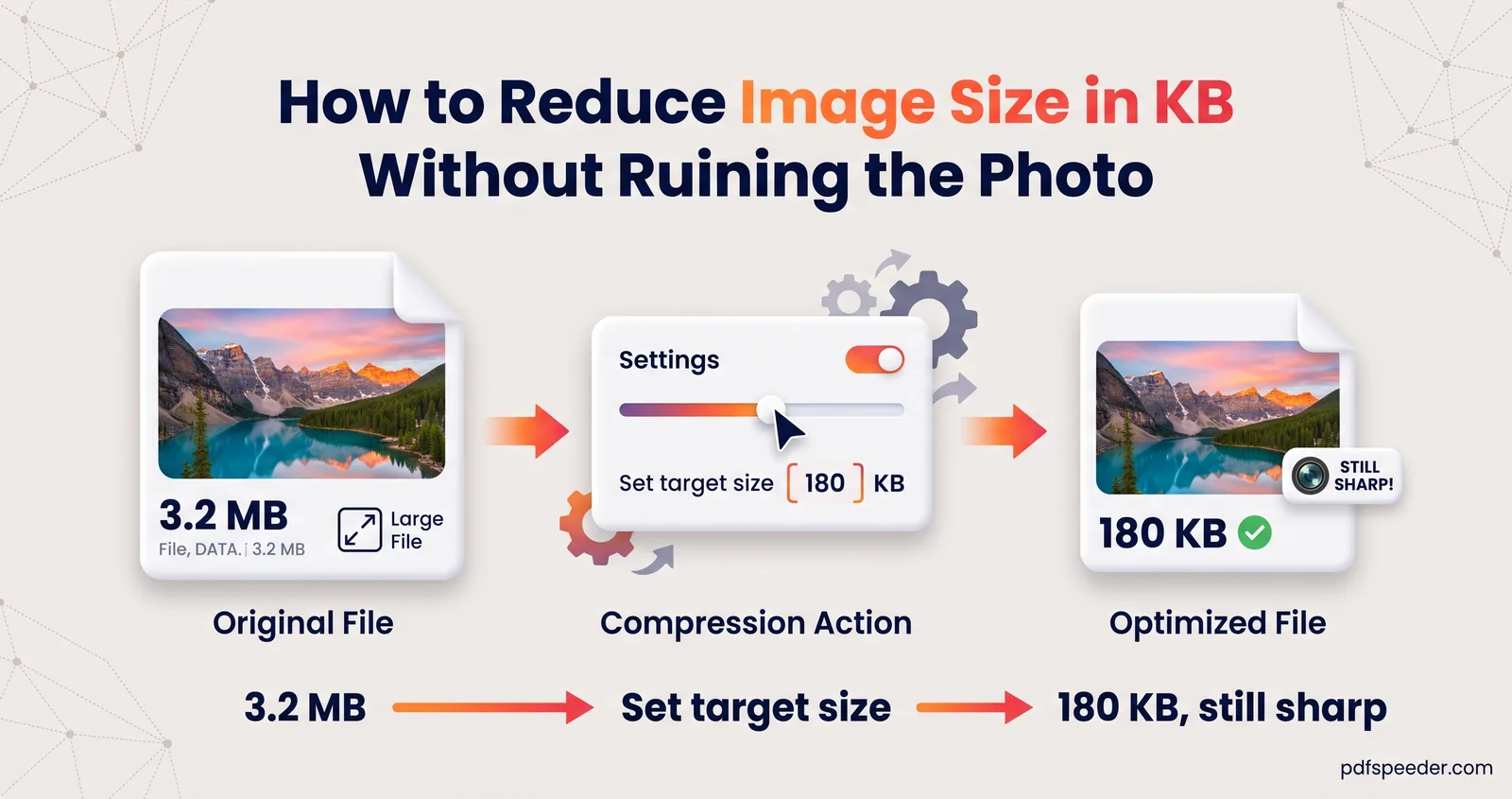
For a 200 KB limit, our guide to compressing a PDF to 200 KB goes through the same steps with that target. If the form wants your photo or signature as a JPG rather than a PDF, see how to reduce an image's size in KB instead.
Ready to try it? Open Compress PDF, choose High Compression for a 100 KB limit, and check the size in bytes before you upload. For more ways to shrink files, browse our compress and optimise guides.
Frequently asked questions
Can I compress a PDF to 100 KB without losing quality?
Text stored as real text stays sharp, because compression mainly reduces images. In a scanned PDF the text is part of the image, so some fine detail goes, but typed text at 100 to 150 DPI in grayscale stays easy to read.
Why is my compressed PDF still over 100 KB?
Usually it has several pages of colour scans, or images that were heavily compressed already. Rescan in grayscale at a lower resolution, convert the pages to small JPGs and back, or split the file if the portal accepts more than one.
Is it safe to compress certificates and ID documents online?
Compress PDF sends your file over an encrypted connection and deletes it from our server automatically within 2 hours. If you'd rather nothing left your device, PDF to JPG, JPG to PDF and Split PDF all run entirely in your browser.
My PDF has a password, like an e-Aadhaar. Can I still compress it?
Yes. Compress PDF asks for the password in your browser, decrypts the file there without turning pages into images, and saves the compressed copy without a password. Store that copy somewhere private.
How do I check the exact size of a PDF?
On Windows, right-click the file and choose Properties: the Size line shows the exact number of bytes in brackets. On a Mac, select the file and press Command+I to open Get Info.