How to Scan Documents to PDF With Your Phone (Clear, Small Files)
Scan documents to PDF on your phone with the built-in iPhone and Android scanners, get a sharp page every time, combine pages and keep the file small.

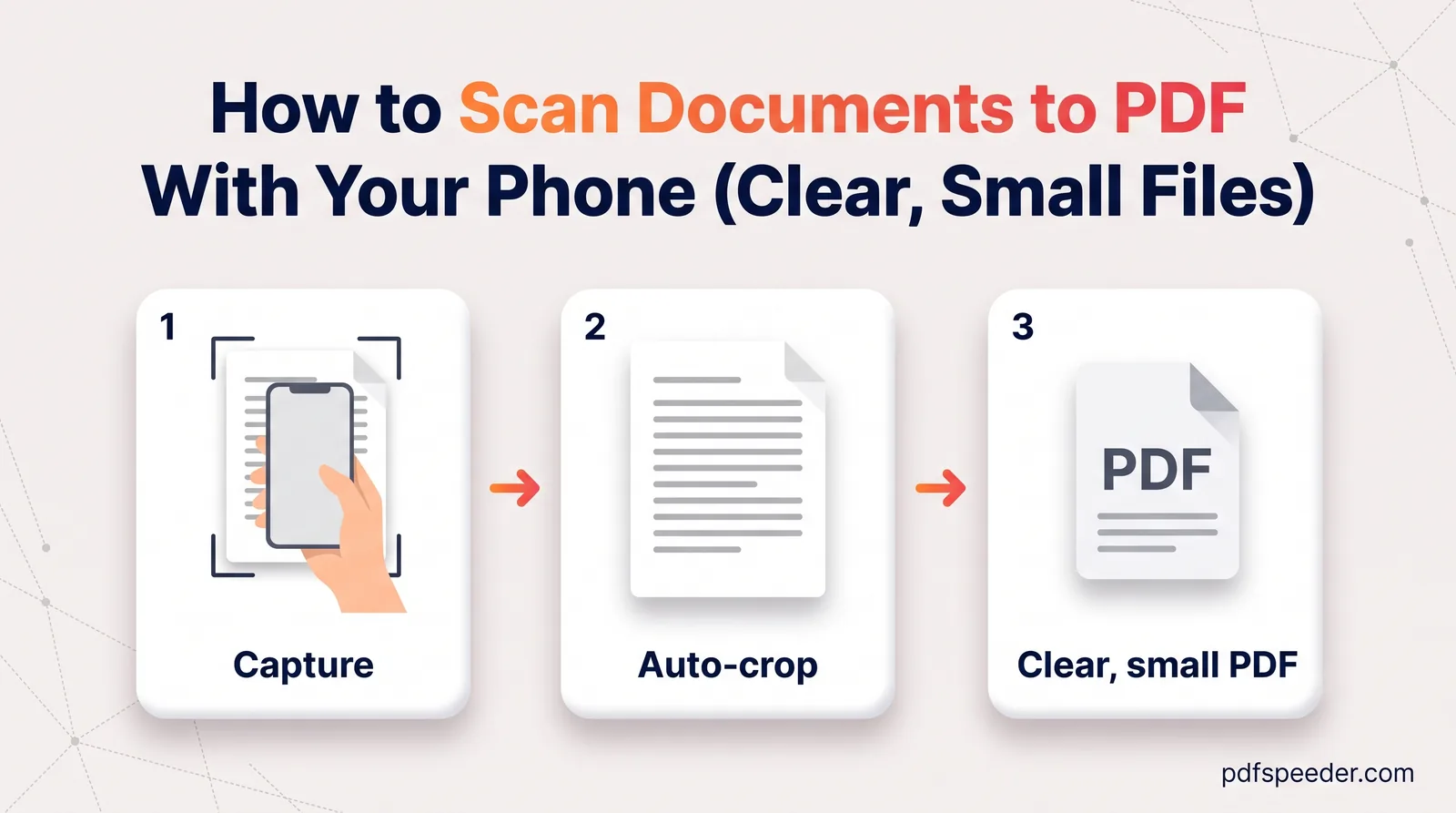
To scan documents to PDF on your phone, use the scanner that's already built in: Notes or Files on an iPhone, and the Google Drive app on Android. Both find the page edges, straighten the page and save several pages as one PDF. A flat surface, even light and the right filter make the difference between a scan that's sharp and small and one that gets rejected, and a few tidy-up steps afterwards make it easy to send.
On this page
Scan on iPhone with the built-in scanner
An iPhone has two built-in ways to scan to PDF, both described in Apple's scanning guide.
In the Files app
Files is the better choice when you want the scan as a file you can upload or attach:
- Open Files and tap the More button (three dots).
- Tap Scan Documents and hold the phone over the page.
- In Auto mode, the page is captured as soon as it's detected. To capture it yourself, tap the shutter button or press a volume button, drag the corners to fit the page, then tap Keep Scan.
- Scan the next page, or tap Done.
- Choose a location, then tap Save. The pages are saved together as one PDF.
In the Notes app
In a note, tap the Attachment button, then Scan Documents, and scan the same way. Apple notes that on iOS 26 you can also choose flash and image-filter options while scanning. The scan is saved as a PDF inside the note, which suits receipts and papers you just want to keep. For a file you'll upload or attach, the Files method above saves you a step.
Scan on Android with Google Drive
Most Android phones have the Google Drive app, and its scanner works like this, according to Google's Drive help:
- Open Drive and tap Camera at the bottom right.
- Point the phone at the page. A blue line outlines the document, and you can switch between Auto and Manual capture.
- After each capture, tidy the page with Crop & Rotate, change colours or switch to grayscale with Filter, and remove stains and marks with Clean. Tap Add for the next page, or Retake if it came out badly.
- Tap Done, give the file a name, choose .pdf as the format, pick a Location and tap Save.
If you scan often, Google also offers a Drive scan widget for your home screen, which opens the scanner in one tap. The PDF is saved to your Google Drive, and when a website asks for the file, Drive is usually one of the places your phone's file picker can open.
Other phone scanners
The OneDrive app has a built-in scanner too: tap Scan, choose Document, capture the page and save it. Microsoft's guide for scanning with OneDrive for Android says scans are saved as PDFs and a multi-page scan can hold up to 10 pages. Microsoft Lens is no longer an option: Microsoft retired the app in early 2026 and recommends OneDrive's scanner instead. Some Android phones also include a scanning mode in their own camera app.
Get a clean scan every time
A phone scanner for documents can fix a tilted page, but it can't recover detail that was never captured. Most bad scans come down to five problems:
| Problem | What it looks like | Fix |
|---|---|---|
| Shadow | A dark patch, often the shape of your phone or hand | Use even light from the side, such as a window beside you, never a lamp directly behind you |
| Glare | A white blotch that wipes out text, common on laminated cards | Switch the flash off, tilt the page slightly, move away from bare bulbs |
| Blur | Soft text, especially in a corner | Hold steady until the page is captured, and move closer instead of zooming |
| Bad edges | Part of the table included, or a corner cut off | Use a plain surface darker than the paper, and check the corners before keeping the scan |
| Curved pages | Lines that bend near a book's spine | Press the page flat with your fingertips in the margins, away from the text, or scan a photocopy |
The filter decides both readability and file size:
- Black and white suits plain typed pages and gives the smallest files.
- Grayscale suits pages with a stamp, a signature in coloured ink or a photo, because light marks survive as shades of grey.
- Colour is only worth it when someone asks for a colour scan or the colour carries meaning.
Before you scan a whole stack, check the first page at full size. If you can't read the smallest date or number, the person receiving it won't either.
Scan multi-page documents into one PDF on your phone
All the scanners above put every page you capture in one session into a single PDF, so the simplest way to scan multiple pages into one PDF is to scan them in one go:
- Sort the paper first. Put the pages in reading order and remove staples, so each page lies flat.
- Scan in order. For double-sided pages, scan the front, turn the sheet over and scan the back before moving on.
- Check the page strip before saving. iPhone and Drive both let you retake or delete a page that came out badly.
- Name the file clearly, such as
2026-10-rent-agreement.pdf, so you can find it later.
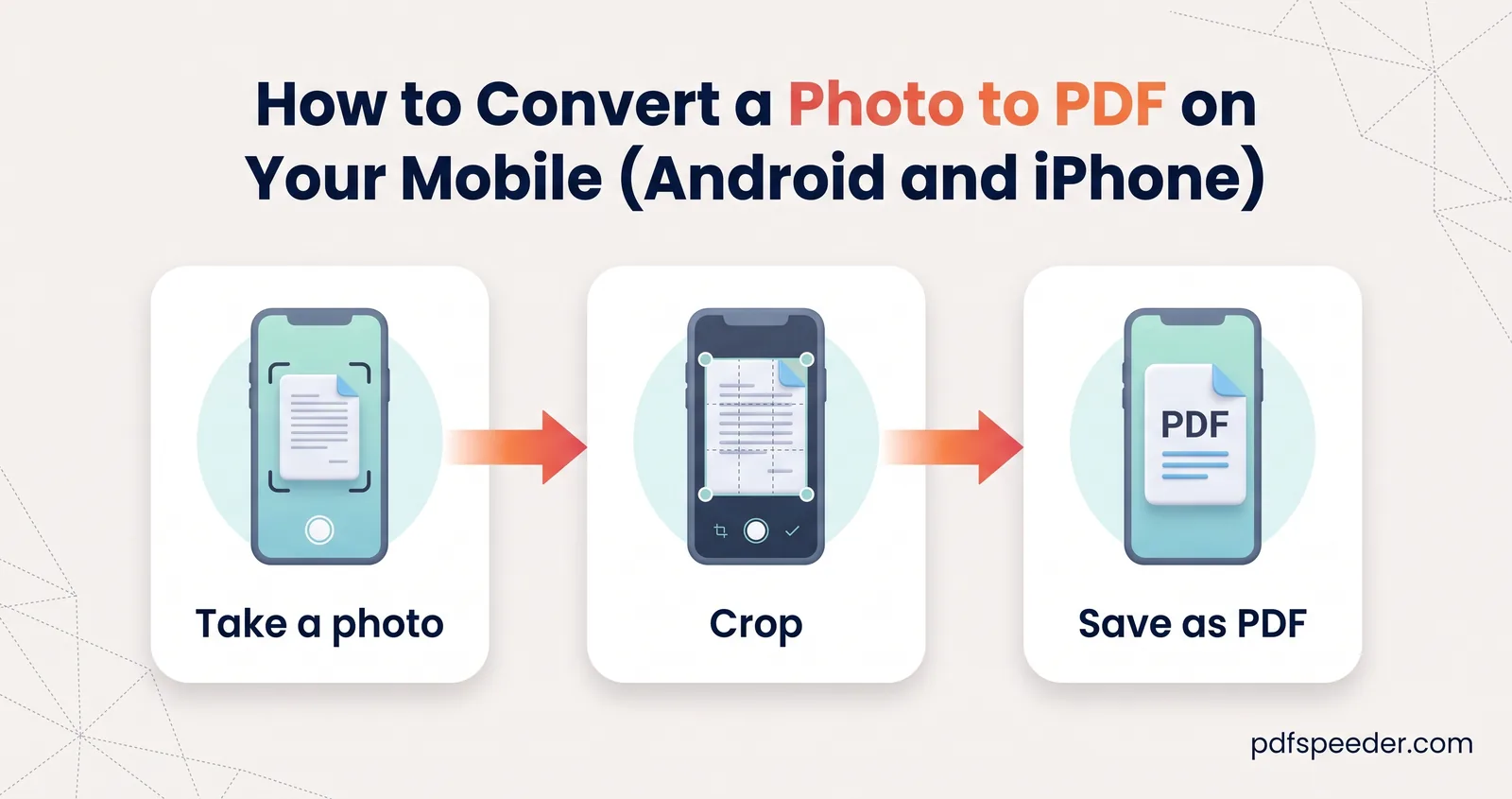
If the pages are in separate scans, or you scanned a long document in batches, combine them in Merge PDF, which runs in your phone's browser. Scans you already took with the normal camera can be turned into a PDF too; our guide to converting photos to PDF on your phone shows how.
After scanning: rotate, compress and make it searchable
A fresh scan is often bigger than an upload form allows, and its text can't be searched or copied yet. These steps fix that, in this order.
- Turn sideways pages. Fix them in the scanner's edit screen before saving if you can; otherwise use Rotate PDF, which saves the rotation into the file. Our guide to rotating a PDF and saving it explains why some rotations don't stick.
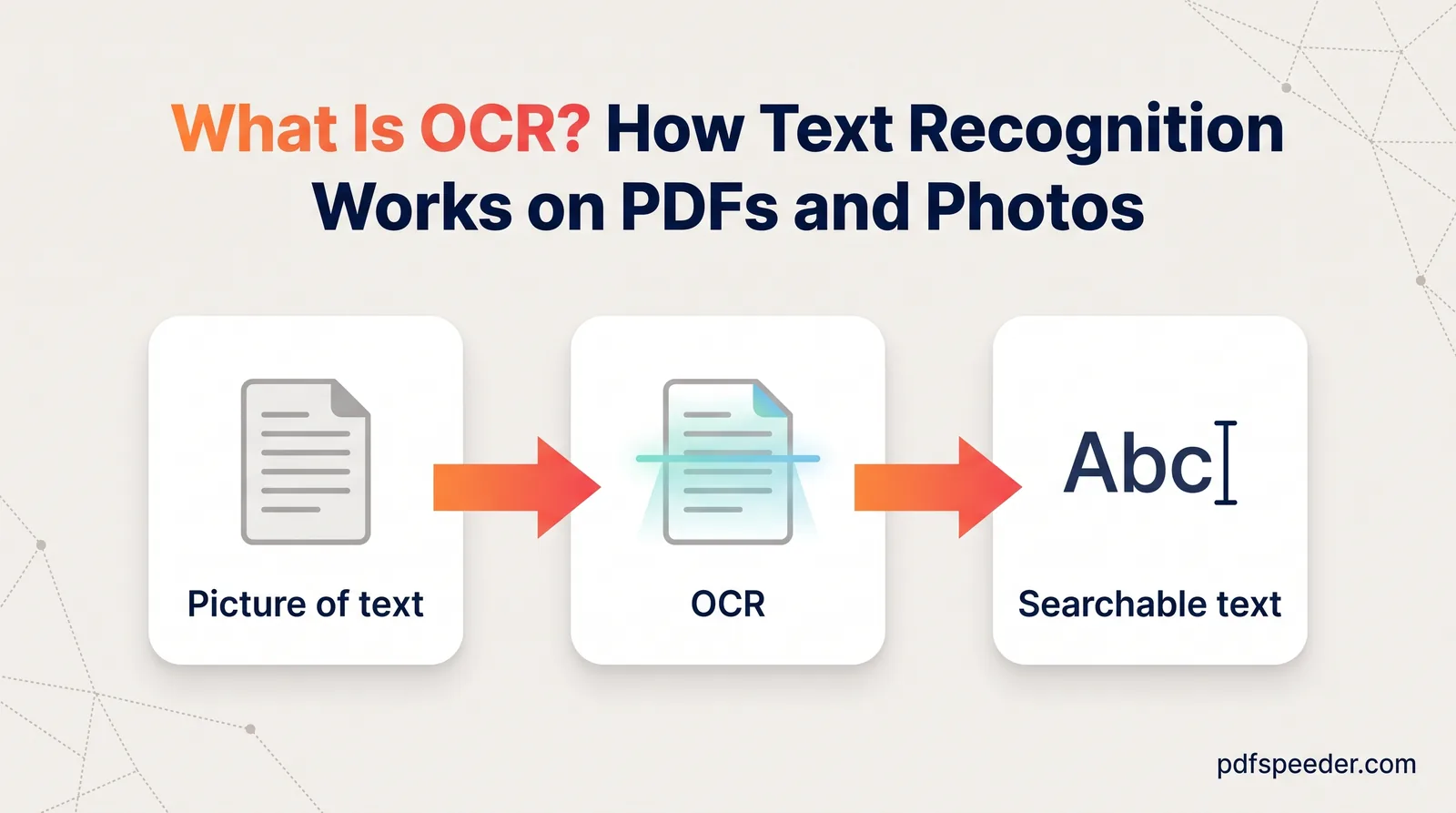
- Make it searchable, if you need to. PDF to OCR recognises the text in your phone's browser and adds an invisible text layer, so you can search and copy the words. Do this before compressing, because OCR rebuilds the page images at its recognition resolution, 300 DPI by default.
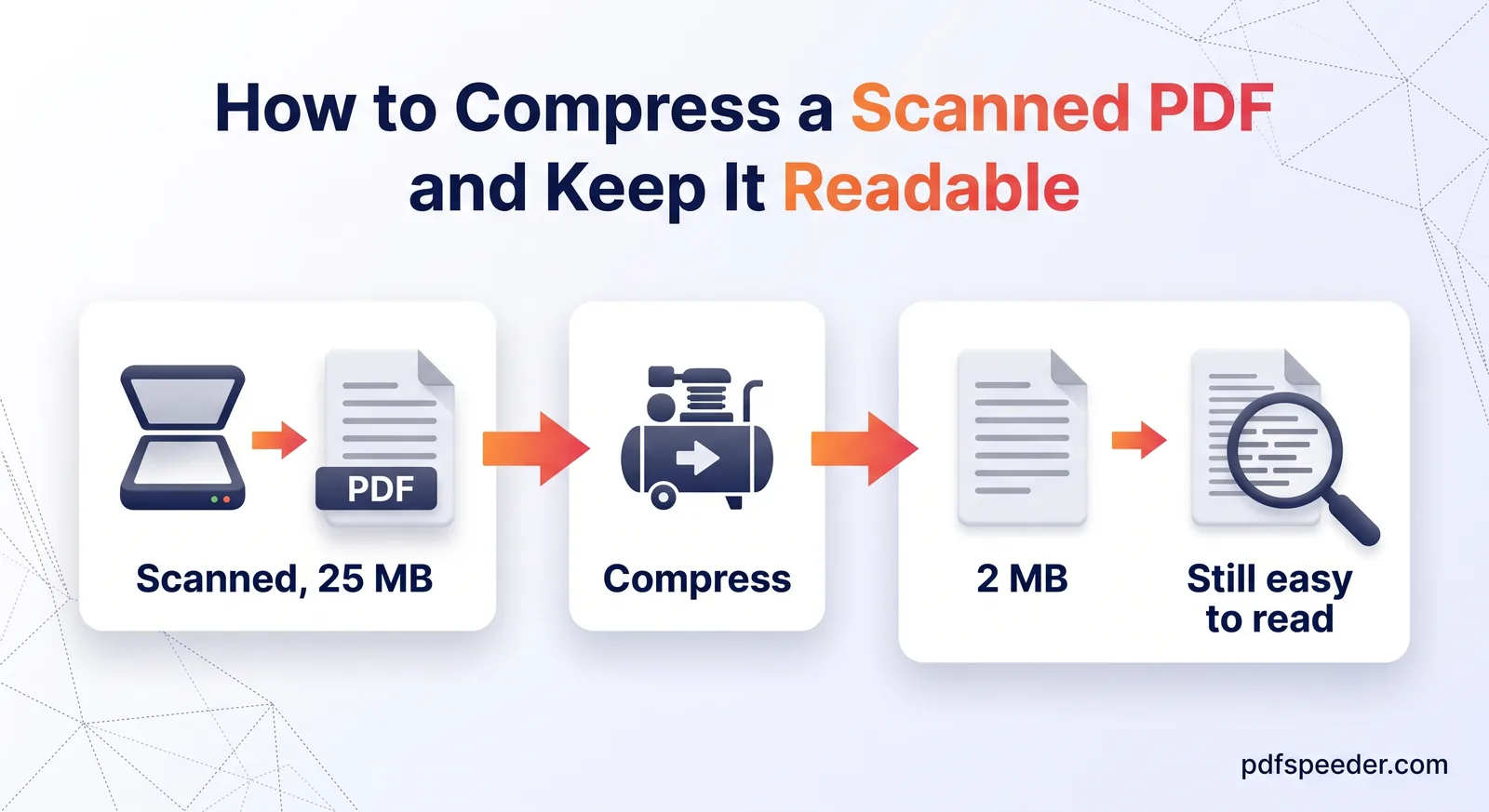
- Compress it. Compress PDF on Balanced brings scanned pages down to about 100 DPI, which keeps typed text easy to read. It uploads the file over an encrypted connection and deletes it from our server automatically within 2 hours.
Rotate PDF, Merge PDF, PDF to OCR and Compress PDF each count as one task in the free daily allowance: 2 a day without an account, 3 with a free account. So use only the steps your scan needs. For the settings that save the most space, and why the order of OCR and compression matters, see our guide to compressing a scanned PDF.
Next time you need a document in PDF, open Files on your iPhone or Drive on Android, pick the grayscale or black-and-white filter, and check the first page before you scan the rest.
Frequently asked questions
How do I scan a document to PDF on my iPhone?
Open the Files app, tap the More button, then Scan Documents. Capture each page, tap Done, choose a location and tap Save, and the pages are saved as one PDF.
How do I scan a document on Android?
Open the Google Drive app, tap Camera at the bottom right, capture each page (tap Add for more), then tap Done, choose .pdf and tap Save.
Can I scan multiple pages into one PDF on my phone?
Yes. Keep scanning in the same session and every page goes into one PDF. To join separate scans later, use Merge PDF in your phone's browser.
Why is my scanned PDF so big?
Colour scans of full pages hold millions of pixels each. Use the grayscale or black-and-white filter for text pages, then compress the PDF on Balanced.
Is a phone scan good enough for official documents?
Often, as long as it's sharp, straight and complete, with every number and stamp readable at full size. Check the receiving organisation's instructions, since some ask for a flatbed scan or an attested copy.