How to Rotate a PDF and Save It Permanently
Rotated a PDF but it opened sideways again? Learn why viewer rotation doesn't stick, and how to rotate a PDF and save it, every page or just one.

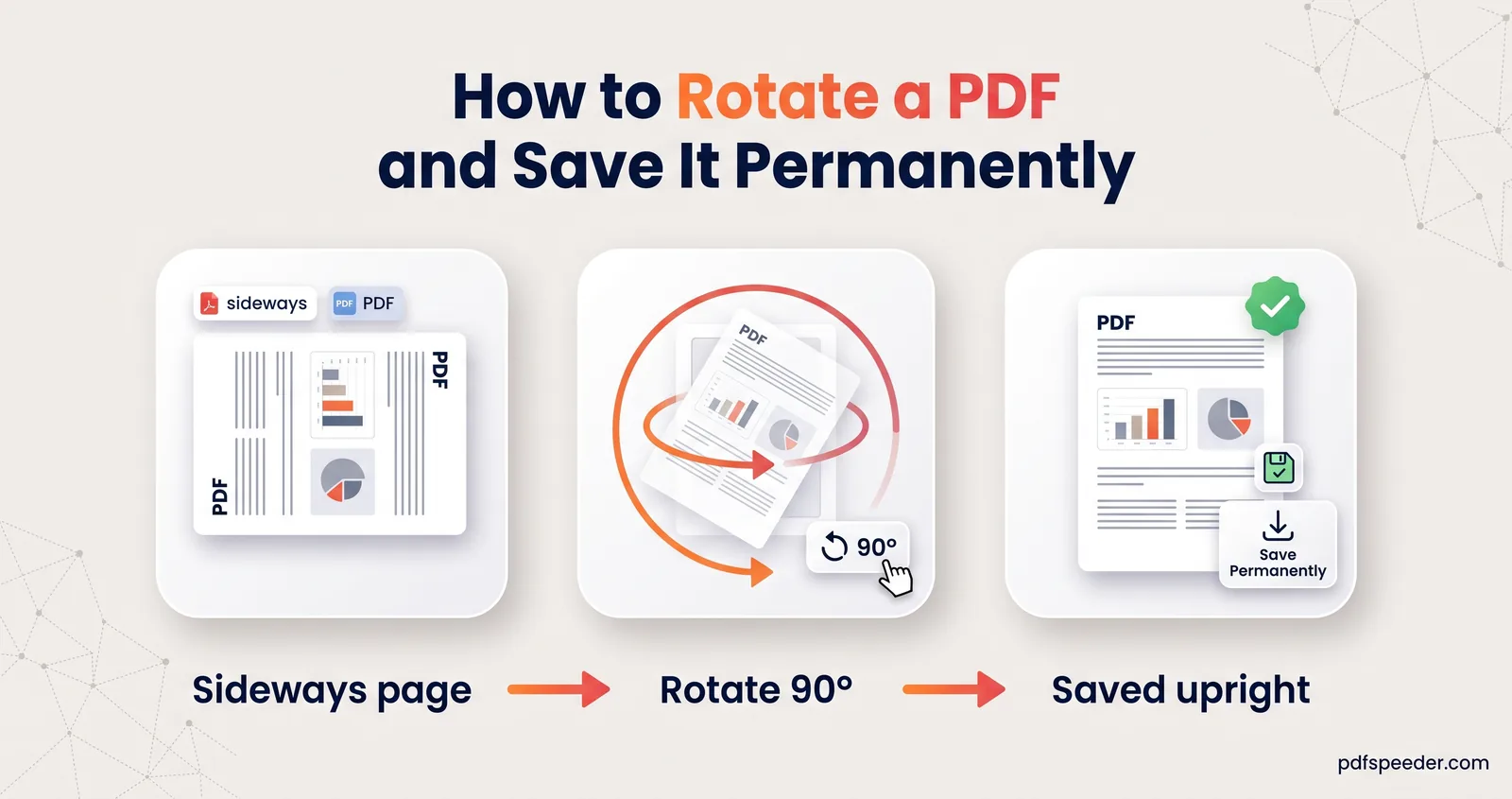
To rotate a PDF and save it, the rotation has to be written into the file rather than just applied to your screen. Use a tool that changes the pages themselves, such as Rotate PDF: choose 90°, 180° or 270°, pick every page or just the sideways ones, and download the corrected copy. If you turned the page with Acrobat Reader's Rotate View, that only changed the view, which is why the file opened sideways again.
On this page
Why your rotation didn't save
Every page in a PDF carries its own orientation setting, and viewers apply it each time they open the file. Some viewers also have a rotate button that turns the page on your screen without touching that setting, so nothing changes in the file itself.
Adobe Acrobat Reader is the best-known case. Adobe's help describes View > Rotate view > Rotate view right (or left) as a way to temporarily change your view, and notes that the original orientation is restored the next time you open the PDF. For a permanent change, Adobe's instructions use the Organize pages tool instead (All tools > Organize pages, then Rotate page right or Rotate page left), followed by saving the file. If your copy of Reader doesn't offer that tool, use one of the methods below.
To check whether a rotation really stuck, close the PDF and open it again, or send it to yourself and open it on your phone. If the page is back to sideways, only the view was turned.
How to rotate a PDF and save it: every page
Rotate PDF rewrites the orientation setting of each page, so the change is permanent and every viewer shows it:
- Open Rotate PDF and add your file (up to 50 MB). Every page appears as a thumbnail.
- Choose the angle: 90° CW, which is selected by default, Flip 180° or CCW 270° CW.
- Leave the Pages to Rotate box empty to turn every page.
- Check the live preview on the thumbnails, then select Rotate PDF.
- Select Download Rotated PDF. The new file has "_rotated" added to its name.
It runs in your browser, so the file isn't uploaded, and each run counts as one task in the free daily allowance (2 a day without an account, 3 with a free account). Nothing is re-compressed: rotation only changes a setting on each page, so text stays selectable and images keep their quality.
The angle you pick is added to each page's current orientation. A page that's already turned 90° and gets another 90° ends up at 180°, so judge by the preview rather than by what you chose last time.
Note: If the PDF has a password, you're asked for it when you add the file, and the rotated copy is saved without one, with its text and images intact. Lock it again with Lock PDF if it has to stay protected.
Rotate only some pages
Often only one page is wrong, such as a landscape table in the middle of a portrait report or a certificate scanned the wrong way. To rotate one page in a PDF, or a handful:
- Type the pages in the Pages to Rotate box, using commas and dashes, such as
4or4, 9-11. - Or click the thumbnails of the pages you want. The box and the thumbnails stay in sync, so you can mix both.
- Use the shortcuts for bigger jobs: Select all, Invert, Odd, Even and Clear.
Each run applies one angle. If some pages need turning clockwise and others counter-clockwise, rotate the first group, download, then run the downloaded file again for the second group. That's two tasks, so it's worth getting each selection right first time.
Two other tools can save you a run in the right situation:
- While merging. Merge PDF has 90°, 180° and 270° buttons on each file you add, which turn every page of that file as it goes into the merged PDF. Our guide to merging PDF files covers the other options.
- For long scans with random sideways pages. PDF to OCR has an Auto-rotate wrong-way-up pages option that checks each scanned page and turns the ones that are sideways or upside down, while adding searchable text. It rebuilds the scanned pages as fresh images, so use it on scans rather than on PDFs made from Word.
90, 180 or 270: which way is which?
Rotation in a PDF is measured clockwise, which is why Rotate PDF calls its third option "CCW 270° CW": turning 270° clockwise ends in the same place as turning 90° counter-clockwise. Match what you see to the turn you need:
| How the page looks now | Choose | What happens |
|---|---|---|
| The top of the page points left; text reads from bottom to top | 90° CW | The page turns a quarter to the right |
| The top of the page points right; text reads from top to bottom | CCW 270° CW | The page turns a quarter to the left |
| Upside down | Flip 180° | The page turns half way round |
Other apps use their own words for the same turns. Acrobat's Rotate page right is a 90° clockwise turn, and so is the Option-click Rotate Right tool in Preview on a Mac, where a plain click on Rotate Left turns the page the other way (Apple's Preview guide). On a Mac, select several thumbnails first to rotate them together.
Stop scans from coming out sideways
A PDF saved sideways usually starts at the scanner or phone. A few habits prevent it:
- On a flatbed scanner, place every page the same way round, with the top edge where the guide marks on the glass show. Landscape pages are the easiest to get wrong, so decide which edge goes first and stick to it.
- In the document feeder, load pages face and edge as the tray's icon shows, and check whether your scanning software has an automatic orientation option you can switch on.
- With a phone, hold it the same way as the page, portrait for portrait pages, and look for a rotate button on the scan's edit screen before you save. Fixing one page there costs nothing, and our guide to scanning documents with your phone covers the other settings.
- When building a PDF from photos, use a tool that reads the orientation phones record: JPG to PDF straightens photos automatically before it places them.
- Before sending, glance through the thumbnails. A sideways page is obvious at thumbnail size and takes seconds to fix.
If you scan a lot, our guide to splitting a PDF into multiple files helps when a batch scan needs breaking up as well as turning.
Open Rotate PDF, drop in the file that keeps opening sideways, and check the preview before you download.
Frequently asked questions
Why does my PDF keep opening sideways after I rotated it?
The rotation was probably applied to the view only, as with Acrobat Reader's Rotate View, so it was never saved in the file. Rotate the pages with a tool that rewrites them, such as Rotate PDF, and download the new copy.
How do I rotate just one page in a PDF?
In Rotate PDF, type that page's number in the Pages to Rotate box or click its thumbnail, choose the angle and select Rotate PDF. Every other page stays as it was.
Can I rotate a PDF in Adobe Reader and save it?
Rotate View in Reader is temporary, and Adobe says the original orientation comes back next time. Adobe's permanent method uses the Organize pages tool; if your Reader doesn't have it, use Rotate PDF in your browser.
Does rotating a PDF reduce its quality?
No. Rotation only changes a setting on each page, so text and images stay exactly as they were. That holds for a password-protected file too: you're asked for the password, and the rotated copy is saved without one.
How do I rotate a scanned PDF?
The same way as any PDF: pick the pages and the angle in Rotate PDF. For a long scan with many randomly turned pages, PDF to OCR's auto-rotate option fixes them in one pass.