How to Combine Odd and Even Pages Into One PDF (Duplex Scans)
Scanned fronts and backs separately? Combine odd and even pages into one PDF in the right order, and fix reversed backs and the gaps that blank pages cause.

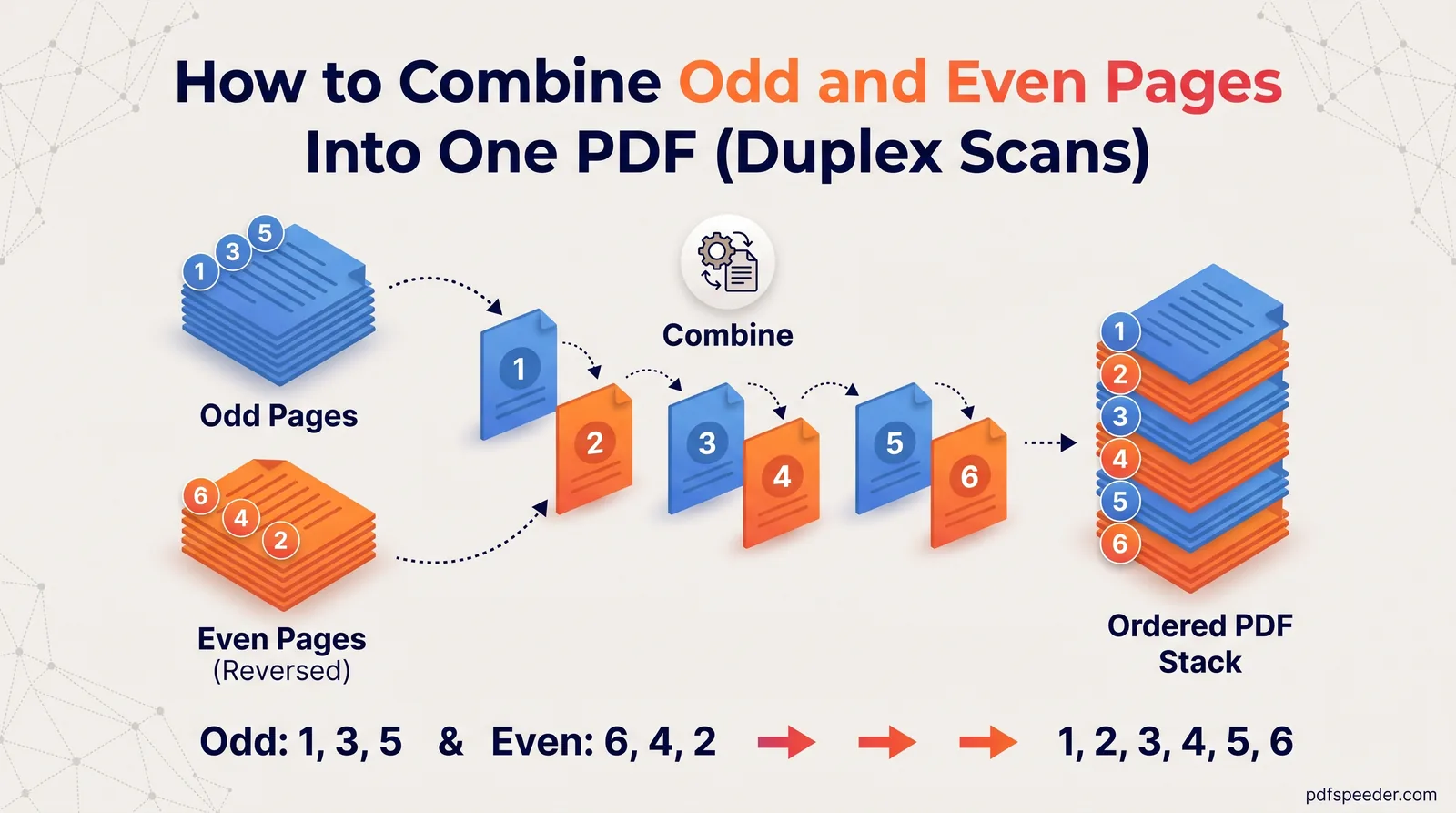
To combine odd and even pages into one PDF, scan all the fronts into one file and all the backs into another, then interleave them so the pages alternate: front 1, back 1, front 2, back 2. Merge PDF does this in one step with its Odd / Even mode, and a single tick box puts the backs right when they were scanned in reverse. The rest of this guide covers scanning both passes so they line up, spotting a wrong order in seconds, and fixing a file where a blank back page threw everything out.
On this page
The problem: double-sided pages, single-sided scanner
A single-sided scanner, or a printer's document feeder without a duplex option, only sees one side of each sheet. Double-sided scanning on a single-sided scanner therefore takes two passes: one for the fronts, then the whole stack turned over for the backs. That gives you two PDFs, and neither is in reading order.
Here's what you get from 5 double-sided sheets, which hold pages 1 to 10:
| File | Pages it contains, in order |
|---|---|
| Fronts PDF | 1, 3, 5, 7, 9 |
| Backs PDF, stack turned over | 10, 8, 6, 4, 2 |
| What you want | 1, 2, 3, 4, 5, 6, 7, 8, 9, 10 |
The backs usually come out reversed because turning the stack over puts the last sheet on top, so its back is scanned first. To collate odd and even pages, you need to take one page from each file in turn, reversing the backs first when that happens.
Scan the fronts and backs the right way
A few habits at the scanner save a lot of fixing afterwards:
- Scan the fronts. Load the stack as usual and scan it to a file called something like
fronts.pdf. - Turn the stack over as one block. For a document printed to be read like a book, turn it over side to side, like turning a page. Turning it top to bottom, like a wall calendar, makes every back come out upside down. That's fixable, but easier to avoid.
- Scan the backs with the same settings. Use the same resolution and colour mode, and save them as
backs.pdf. - Switch off blank page removal. Scanning apps often have an option such as "skip blank pages". Turn it off for the backs pass, even if some backs are empty. A dropped blank page is the main cause of a scrambled result, as you'll see below.
- Count the pages. Both files should have the same number of pages, one per sheet.
Before you merge anything, open backs.pdf and look at its first page. If it's the back of your last sheet, the backs are reversed; if it's the back of the first sheet, they're already in order. Either way, note it for step 4 below.
Tip: Scanning on a phone? Most scanning apps let you capture page after page into one PDF, so photograph each sheet's front, then its back, and you won't need to interleave anything.
Combine odd and even pages into one PDF
Our Merge PDF tool works in any browser, on a computer or a phone. It runs entirely on your device, so the scans aren't uploaded anywhere, and it accepts files up to 200 MB each.
- Add the fronts first, then the backs. The order in the list matters: Odd / Even mode treats the first file as the odd pages and the second as the even pages. Use the arrows or drag the files if they land the wrong way round.
- Choose Odd / Even under Merge mode.
- Tick Reverse the even-pages PDF if the first page of your backs file was the back of the last sheet.
- Fix upside-down backs, if any, by choosing 180° on the backs file's rotation buttons. This turns every page of that file, and only that file.
- Untick Auto-bookmark each file. In this mode it creates just two bookmarks, one for the fronts and one for the backs, which won't help anyone reading the document.
- Select Merge & Download. The merged file is saved with a name starting
Merged_PDF_, so rename it.
The merge counts as one task in the free daily allowance: 2 tasks a day without an account, 3 with a free account, reset at 00:00 UTC (05:30 IST). The Interleave mode gives the same result for two files whose backs are already in order, but it has no reverse option, so Odd / Even is the safer choice for scans. In Odd / Even mode, any third or later file in the list is added after the interleaved pages, which is handy for a single-sided appendix. For everyday merging, see our guide on how to merge PDF files.
When the back pages come out reversed
If you forget to tick Reverse when the backs need it, the result has a recognisable pattern. In a test with the 5-sheet sample above, the merged file read:
1, 10, 3, 8, 5, 6, 7, 4, 9, 2Page 2 of the merged PDF is the back of the last sheet, and the final page is the back of the first sheet. Only the middle sheet's back lands in the right place, which is why the mistake is easy to miss if you only check the middle of the document. Run the merge again with Reverse the even-pages PDF ticked, and the same two files gave 1 to 10 in order.
The opposite mistake looks similar: ticking Reverse when the backs were already in order also puts the last back on page 2. So the quickest check on any merged scan is page 2: it should be the back of sheet 1.
Fix mismatches and blank backs
Odd / Even simply alternates: one page from the fronts, one from the backs. It can't know a page is missing, so the two files must line up sheet for sheet.
A blank back that the scanner skipped
Say sheet 3 of the 5 has nothing on its back, and the scanning app dropped that blank page. The backs file now has 4 pages instead of 5. In our test, merging it with Reverse ticked gave:
1, 2, 3, 4, 5, 8, 7, 10, 9Everything is fine up to the front of sheet 3, then each back arrives one place early. You have four ways out, best first:
- Rescan the backs with blank page removal switched off, then merge again. The blank back sits in its proper place (page 6 here), and you can remove it afterwards with Delete PDF Pages by typing
6and selecting Delete Pages. Rescanning costs no tasks, and the merge and the delete use one each. - Fix the order without rescanning. Open the merged file in Reorder Pages and swap each pair after the sheet with the blank back. For the example above, type
1,2,3,4,5,7,6,9,8in New page order; the box only accepts a list that includes every page exactly once. That gave a correct 9-page file in our test. - Put a blank page back into the backs file. Merge PDF's divider option can add a blank page between two page ranges, as shown in our guide to inserting a page into a PDF. That's one extra task before the interleave.
- Accept the blank at the end. If the sheet with the empty back is the last one, nothing goes wrong: there's simply no page after the final front.
An extra page in one of the files
Sometimes a file has one page too many, such as a cover sheet or a page the feeder grabbed twice. Type the pages you want in that file's Pages to include box, for example 2-6 to skip page 1, and the extra page never reaches the merge. Reverse is applied after the range, so you still use the page numbers of the backs file as it was scanned.
Check the result before you send it
Scroll through the merged PDF once with these questions in mind:
- Is the page count the fronts plus the backs, minus any pages you deleted?
- Is page 2 the back of sheet 1, and the last page the back of the last sheet?
- Are any pages upside down? If only a few are, rotate those pages individually; our guide to rotating a PDF and saving it shows how.
- Are there blank backs you'd rather remove, and are any still needed? Some forms expect a blank page to keep the original page numbers.
Ready to put your scan together? Open Merge PDF, add the fronts and then the backs, choose Odd / Even, and check page 2 of the result before you share it.
Frequently asked questions
How do I merge front and back scans into one PDF?
Scan the fronts into one PDF and the backs into another, then add both to Merge PDF, fronts first, and choose the Odd / Even mode. Tick Reverse the even-pages PDF if the backs file starts with the last sheet's back.
Why are my back pages in reverse order?
Turning the stack over puts the last sheet on top, so its back is scanned first. Merge PDF's Reverse the even-pages PDF option corrects this during the merge.
Can I interleave PDF pages from more than two files?
Yes. Merge PDF's Interleave mode takes page 1 of every file, then page 2 of every file, and so on. Odd / Even mode interleaves only the first two files and adds any others afterwards.
Why is my merged scan out of order halfway through?
The two files probably have different page counts, usually because the scanner skipped a blank back. Rescan the backs with blank page removal switched off, or swap the misplaced pairs with Reorder Pages.
Does interleaving reduce the quality of the scans?
No. Pages are copied into the new PDF unchanged, so the scan resolution and any searchable text stay exactly as they were.