How to Edit a PDF for Free: Text, Images, Pages and Signatures
How to edit a PDF for free: fix existing text, add images and signatures, fill in forms, remove pages or hide details, and know when Word is the better route.

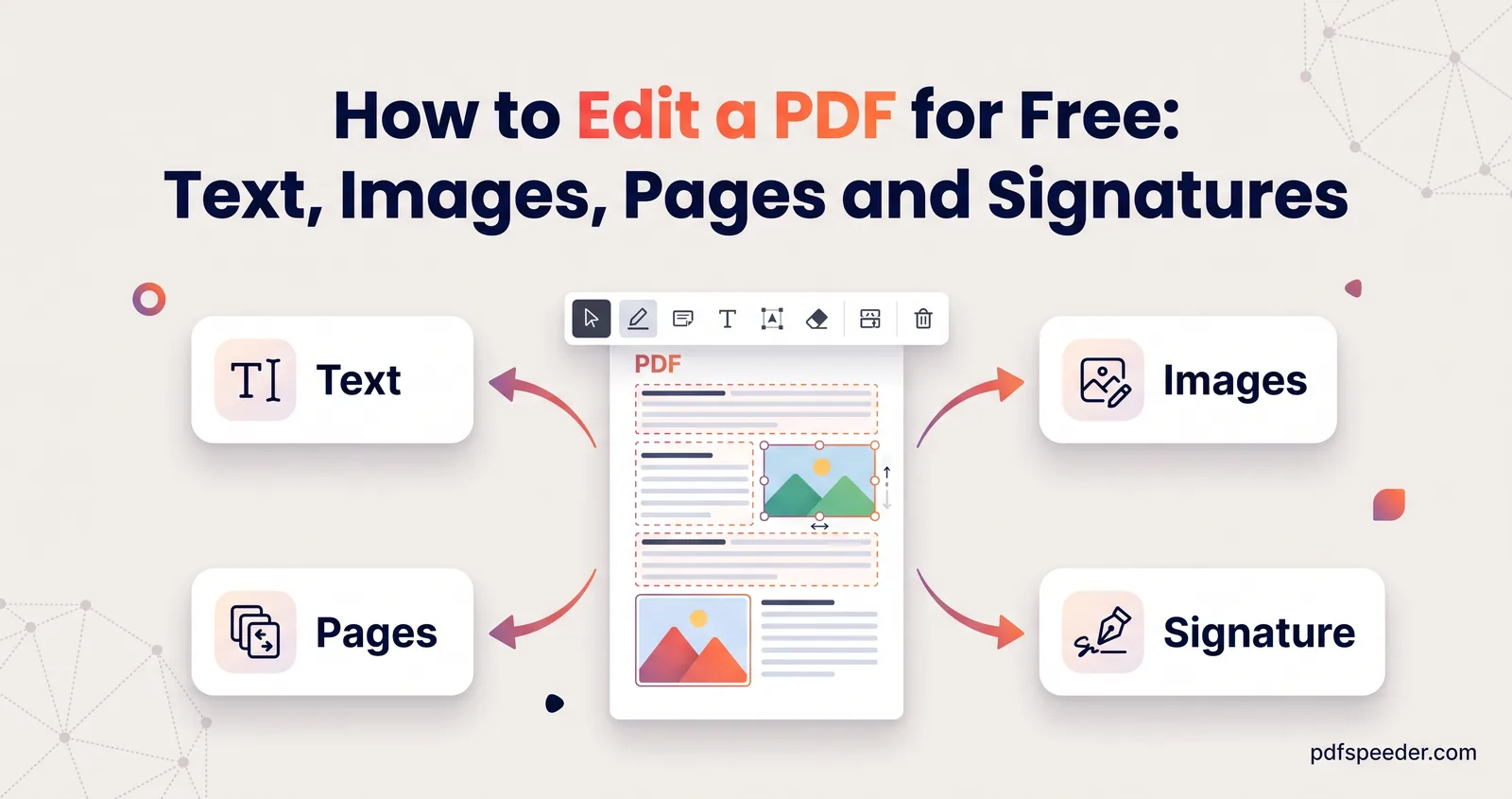
How you edit a PDF depends on what you need to change. Small changes, such as fixing a typo, adding a date, dropping in a logo or signing, can be made directly in a free browser-based PDF editor, while rewriting whole paragraphs is easier if you convert the file to Word first. Use the table below to find the right tool for your edit, then read the section that explains how to do it and what to watch out for.
On this page
What kind of PDF edit do you need?
Find your edit in the first column:
| What you want to do | Best tool | Good to know |
|---|---|---|
| Fix a typo or change a number | PDF Editor, Edit PDF mode | The old text is covered, not deleted |
| Add text, a note or a date | PDF Editor, Text tool | Added text uses Helvetica |
| Add an image or logo | PDF Editor, Image tool | JPG or PNG, with adjustable size and opacity |
| Highlight, draw or add arrows | PDF Editor | Highlight, Pencil and Shapes tools |
| Stamp it PAID, APPROVED or DRAFT | PDF Editor, Stamp tool | 16 ready-made stamps, or your own text |
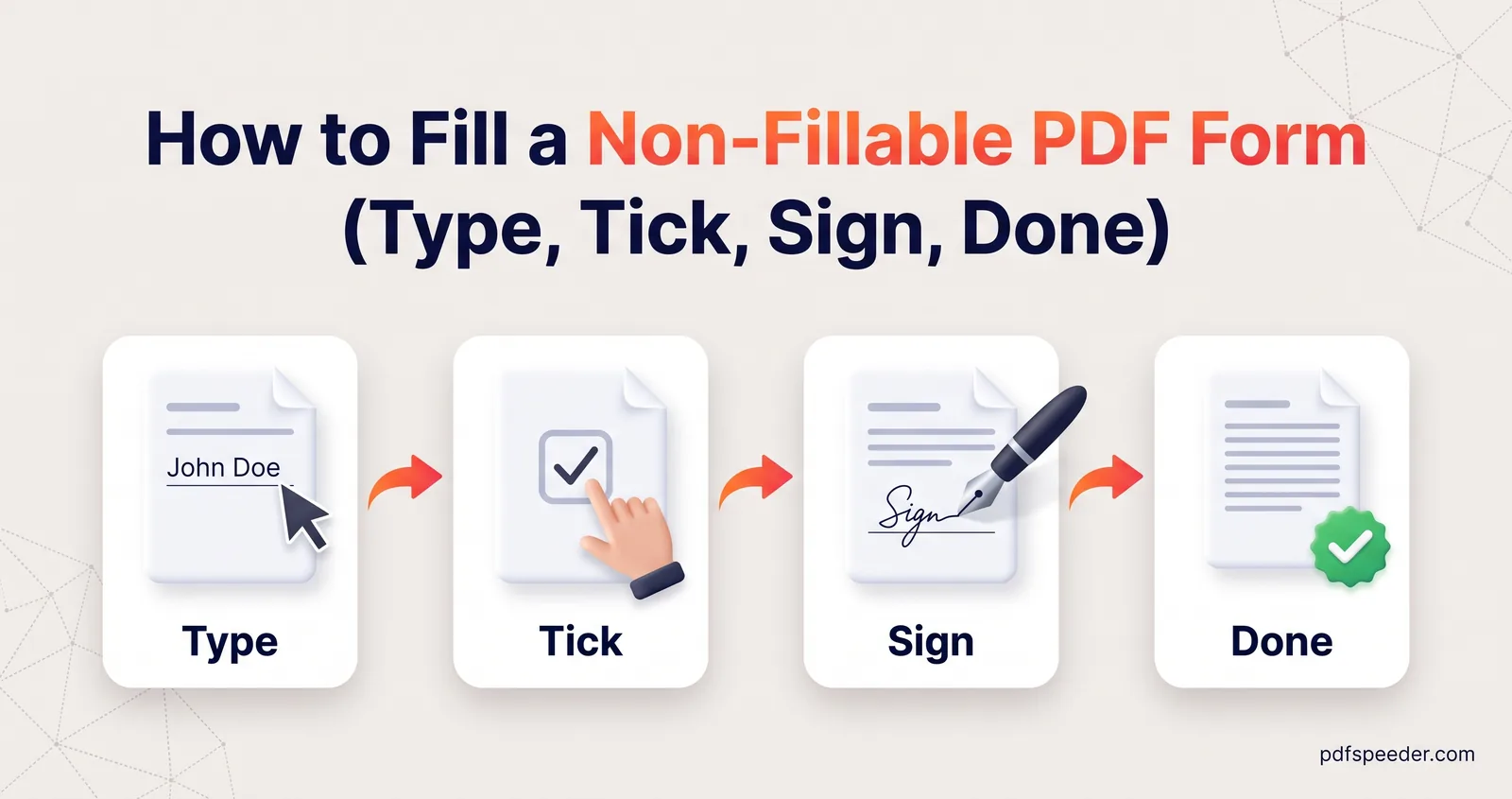
| Fill in a form | PDF Form Filler | Works on flat and scanned forms too |
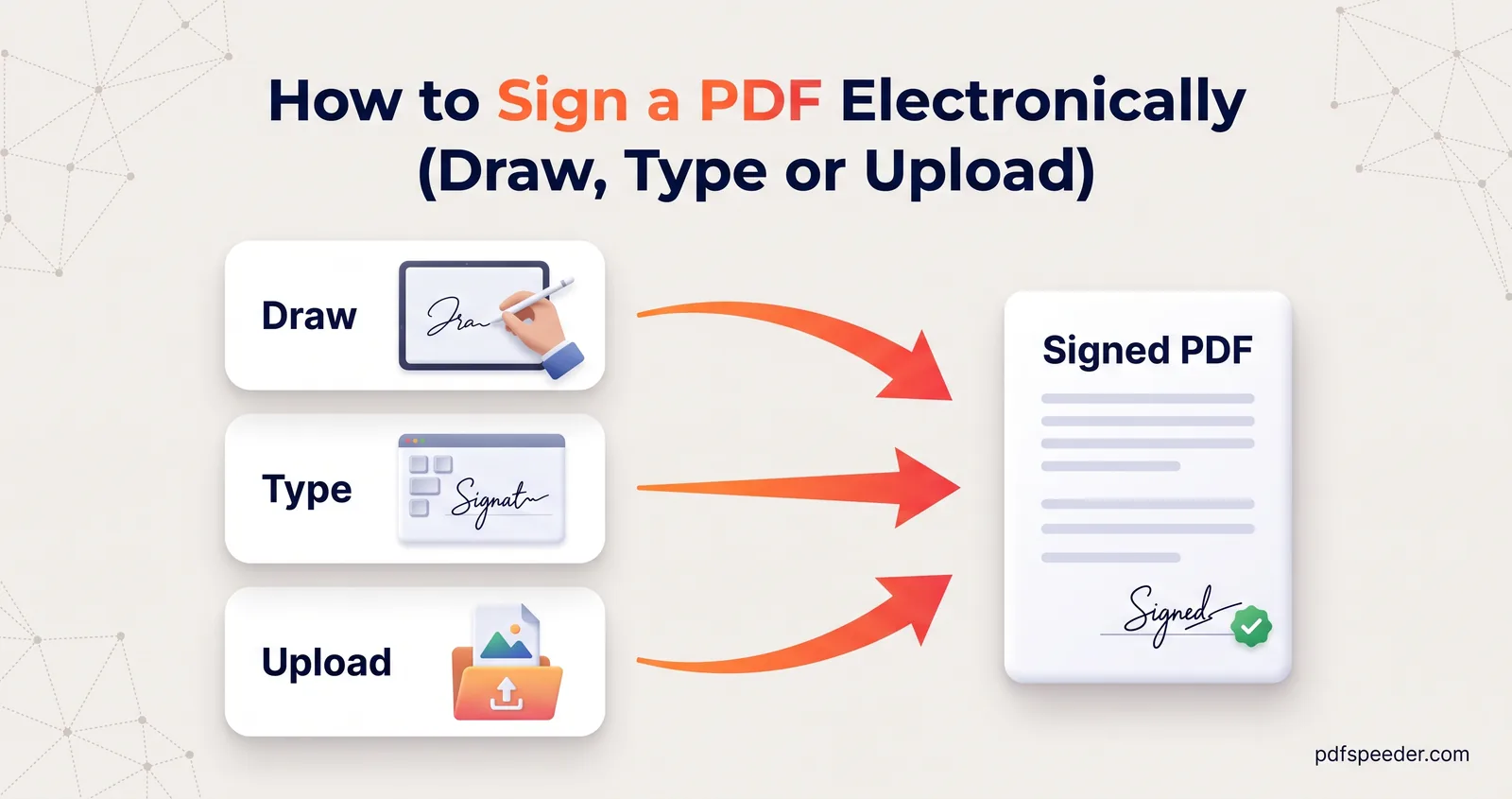
| Sign | Sign PDF | Draw, type or upload your signature |
| Delete, reorder or rotate pages | Delete PDF Pages, Reorder PDF Pages, Rotate PDF | Each is a separate tool |
| Hide information | Redact PDF, or the PDF Editor's Redact tool | Pages with boxes are rebuilt as images, so the text is gone |
| Add a watermark | Add Watermark to PDF | Text or image, single or tiled |
| Rewrite paragraphs | PDF to Word, then back to PDF | The only one here that uploads your file |
Everything in the table except PDF to Word runs in your browser, so you can edit a PDF online while the file stays on your device. Each file you process counts as one task in the free daily allowance, however often you download the result: 2 tasks a day without an account, 3 with a free account, reset at 00:00 UTC. The PDF Editor handles text, images, highlights, stamps and a drawn signature in a single session, so do as much as you can there before you save.
Change text that's already there
Our PDF Editor can change words that are already printed on the page, such as a wrong amount, a misspelt name or last year's date:
- Open PDF Editor and drop in your file (up to 50 MB).
- Select Edit PDF, the first button in the toolbar. The editor reads the page's text and places an editable box over each line.
- Click the text you want to change and type the correction. If the replacement doesn't match, adjust the font (Helvetica, Times or Courier), size, colour, bold or italic, then select Apply.
- Select Save & Download. The edited file is saved with "_edited" added to its name.
The editor matches the size and colour of the original and redraws your text in the closest of Helvetica, Times or Courier; it can't reuse the PDF's own embedded font, and replacement text keeps only basic English characters, so symbols such as ₹ drop out. Behind the scenes, it covers the old words with a patch of the page's background colour and writes your new text on the same line. On a plain white page that's invisible; on a coloured or patterned background, zoom in and check.
Warning: The original words aren't deleted. They stay in the file underneath the patch, so copying the text or searching the PDF can still find them. That's fine for a typo, but not for removing something confidential: see "Hide or protect information" below.
A few situations need an extra step:
- Scanned pages have no text to edit. Select Run OCR to recognise the words first. It runs on your device, reads English text, and works best on a clear, straight scan.
- Rotated pages don't allow text editing or OCR. Turn a page you rotated in the editor back to 0°; on a page that's stored rotated in the file, add new text boxes instead, which land the right way up.
- Password-protected files need their password: the editor asks for it when you add the file, the text stays editable, and the edited copy is saved without the password.
Add text, images, shapes and highlights
The rest of the PDF Editor toolbar adds new content on top of the page:
- Text: click anywhere and type, then set the size and colour. Double-click placed text to edit or delete it.
- Image: add a JPG or PNG, such as a logo, a photo or a scanned stamp, then set its width and opacity.
- Highlight: drag across a passage, in the colour and opacity you choose.
- Pencil: draw freehand to circle, underline or mark something up.
- Shapes: rectangles, circles, lines and arrows, with a choice of stroke width and an optional fill.
- Stamp: 16 ready-made stamps, including APPROVED, PAID, DRAFT and CONFIDENTIAL, or a custom one with your own text.
- Erase: click anything you've added to remove it. It doesn't touch the original page.
Undo and redo work throughout, and you can rotate pages as you go. When you save, everything you added becomes part of the page, so it looks the same in any viewer.
Free editors you already have
For a note, a highlight or a few words of text, these free options let you edit a PDF without Acrobat:
- In Chrome, the built-in PDF viewer can add text, highlight and draw, as Google explains in its help on managing PDFs in Chrome.
- To edit a PDF on a Mac, Preview adds text boxes, shapes, notes and signatures, and can also add, delete, move and rotate pages.
- To edit a PDF on a phone, the Files app on an iPhone adds text boxes and signatures through its markup tools, and our tools work in any mobile browser.
None of these can change text that's already printed in the document; that's what a free PDF editor's Edit PDF mode is for.
Fill in forms and sign
PDF Form Filler finds the built-in fields in a fillable form and lets you type straight into them. On a flat or scanned form it switches to manual mode, where you click anywhere to place text, ticks, crosses, dates and a drawn signature. It flattens everything into the page when you download. Our guide to filling a non-fillable PDF form covers alignment tricks and common mistakes.
Sign PDF gives you more signature options than the editor's drawing pad: type your name in one of six handwriting fonts, upload a photo of your real signature with the background removed, or reuse one you saved in your browser. It also places initials and dates. For what a drawn signature proves, and when a certificate-based digital signature is needed instead, see our guide on how to sign a PDF.
Add, remove or reorder pages
The PDF Editor can rotate pages but can't delete or add them. For page work, use the page tools, all of which run in your browser:
- Delete PDF Pages: type the pages to remove, such as 1, 3-5, 8, or click their thumbnails.
- Reorder PDF Pages: drag thumbnails into a new order, or type one, such as 3,1,2,4.
- Extract PDF Pages: keep only the pages you pick, as a new PDF.
- Rotate PDF: turn one page or all of them by 90°, 180° or 270°.
- Merge PDF: combine files, which is also how you add a page from another PDF. Merge, then move the new page into place with Reorder PDF Pages.
Each of these counts as a task, so plan the order: delete and reorder pages first, then do your text edits and signing on the final version.
Hide or protect information
Covering something up and removing it are different things in a PDF, and the difference matters for account numbers, addresses and ID details.
A black shape drawn over text only hides it: the words stay in the file, where copying or searching can find them. Our Redact PDF tool and the PDF Editor's Redact tool both remove it for real. When you save, every page with a redaction box is rebuilt as an image at 200 DPI with the box burned in, so the text and images under the box are gone from the file:
- Draw boxes over everything that must go, on every page where it appears.
- Download the redacted PDF. In Redact PDF that's one task; in the PDF Editor it's part of the same save as your other edits.
- Open the result and try to select or search for a word you hid. If nothing is found, it's gone.
The trade-off is that text on the rebuilt pages can no longer be selected or searched, while pages without boxes keep their text.
For other kinds of protection:
- Add Watermark to PDF stamps text or an image, such as "COPY" or a logo, on every page or a range, with a live preview and a tiled option.
- Lock PDF adds an open password, so nobody can read the file without it, plus optional limits on printing and copying.
When to convert to Word instead
The PDF Editor changes text line by line and doesn't reflow it, so a longer sentence won't push the rest of the paragraph down. If you're rewriting paragraphs, adding sentences or reworking a table, a word processor is the better tool.
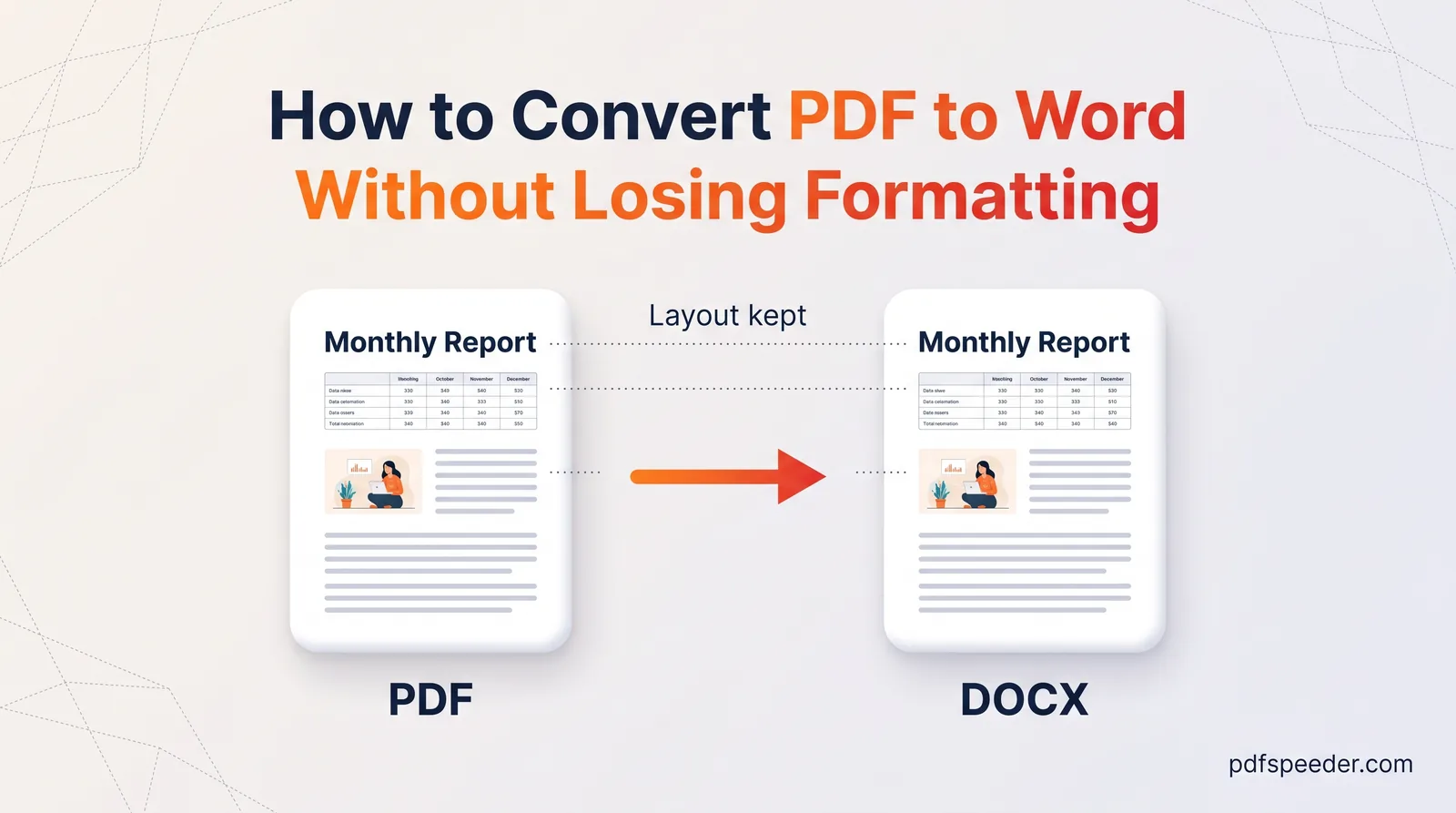
Our PDF to Word converter is the one tool in this guide that uploads your file: it travels over an encrypted connection, is converted on our server and is deleted automatically within 2 hours. You can pick which pages to convert, and its OCR setting makes scanned pages editable, with 15 language options including Hindi. Edit the Word file, then save it as a PDF again from Word's File > Save As menu. Our guide to converting a PDF to Word without losing formatting shows what converts cleanly and how to tidy the rest.
Word can also open a PDF directly and turn it into an editable document. Microsoft notes that the result may not look exactly like the original and that this works best with PDFs that are mostly text.
Tip: If you still have the Word, Excel or PowerPoint file the PDF was made from, edit that and export a new PDF. It's usually cleaner than editing the PDF itself.
Know what you need to change? Open PDF Editor, make all your edits in one session, and check every page before you select Save & Download.
Frequently asked questions
Can I edit a PDF for free without Acrobat?
Yes. PDF Editor runs in your browser and can change existing text as well as add text, images, stamps and a signature. Chrome's PDF viewer and Preview on a Mac handle simple notes and highlights.
Can I edit a scanned PDF?
Yes. In PDF Editor's Edit PDF mode, select Run OCR to recognise English text on the page, then click a line to change it. For other languages, or longer rewrites, convert the scan with PDF to Word and its OCR setting.
Can I edit a PDF on my phone?
Yes. PDF Editor, PDF Form Filler and Sign PDF all work in mobile browsers, and you can draw with your finger. On an iPhone, the Files app's markup tools also add text boxes and signatures.
Does editing change my original file?
No. You download a new copy with "_edited" added to the name, and the original on your device stays as it was.
Why can't I edit the text in my PDF?
The page is probably a scan, which has no text layer until you run OCR. Rotated pages can't be text-edited either, so turn any page you rotated back to 0°.