What Does Flattening a PDF Mean? When and How to Do It
What does flattening a PDF mean? Form fields, comments and layers become fixed page content. See what changes, when to flatten, and how to do it free.

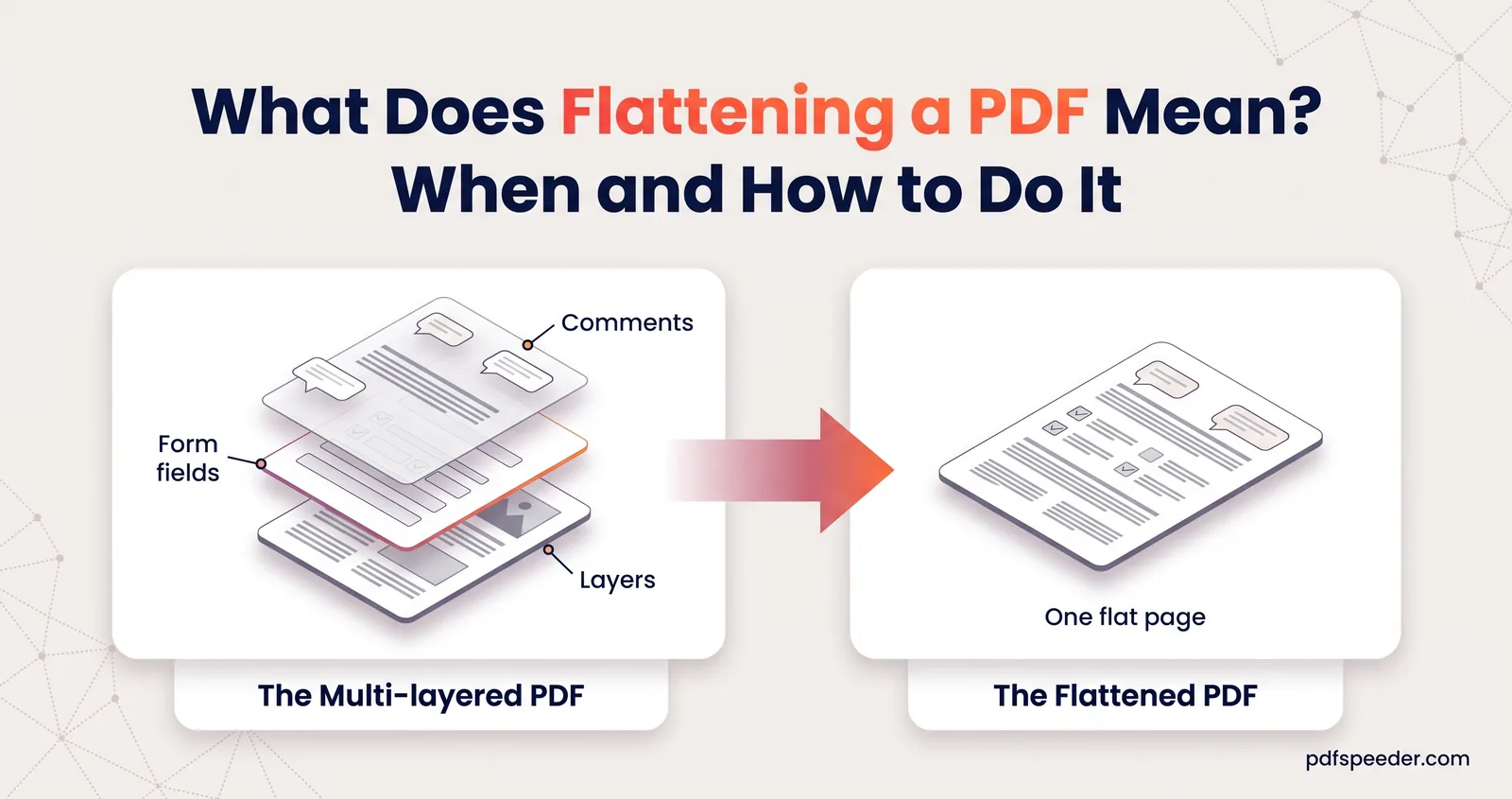
Flattening a PDF means turning its interactive parts, such as form fields, comments, stamps and layers, into ordinary page content. The file looks the same, but answers can no longer be retyped, comments can't be moved or deleted, and layers can't be switched on or off. If you're wondering what "flatten PDF" means on a form you've been asked to submit, that's the short answer; below are before-and-after examples, when flattening helps, when it backfires, and how to do it free in your browser.
On this page
What flattening a PDF means, in plain English
Think of a PDF as a printed page with a sheet of clear plastic on top. The page holds the text and images. The plastic holds everything interactive: the boxes you type into, highlights, sticky notes, stamps, and drawings added as comments. Form and comment tools work on the plastic, which is why you can retype an answer or delete a highlight.
Flattening copies what's on the plastic onto the page and throws the plastic away. Your typed name becomes ordinary text, a tick becomes a printed tick mark, and a highlight becomes a yellow band in the page itself.
Two things flattening does not do:
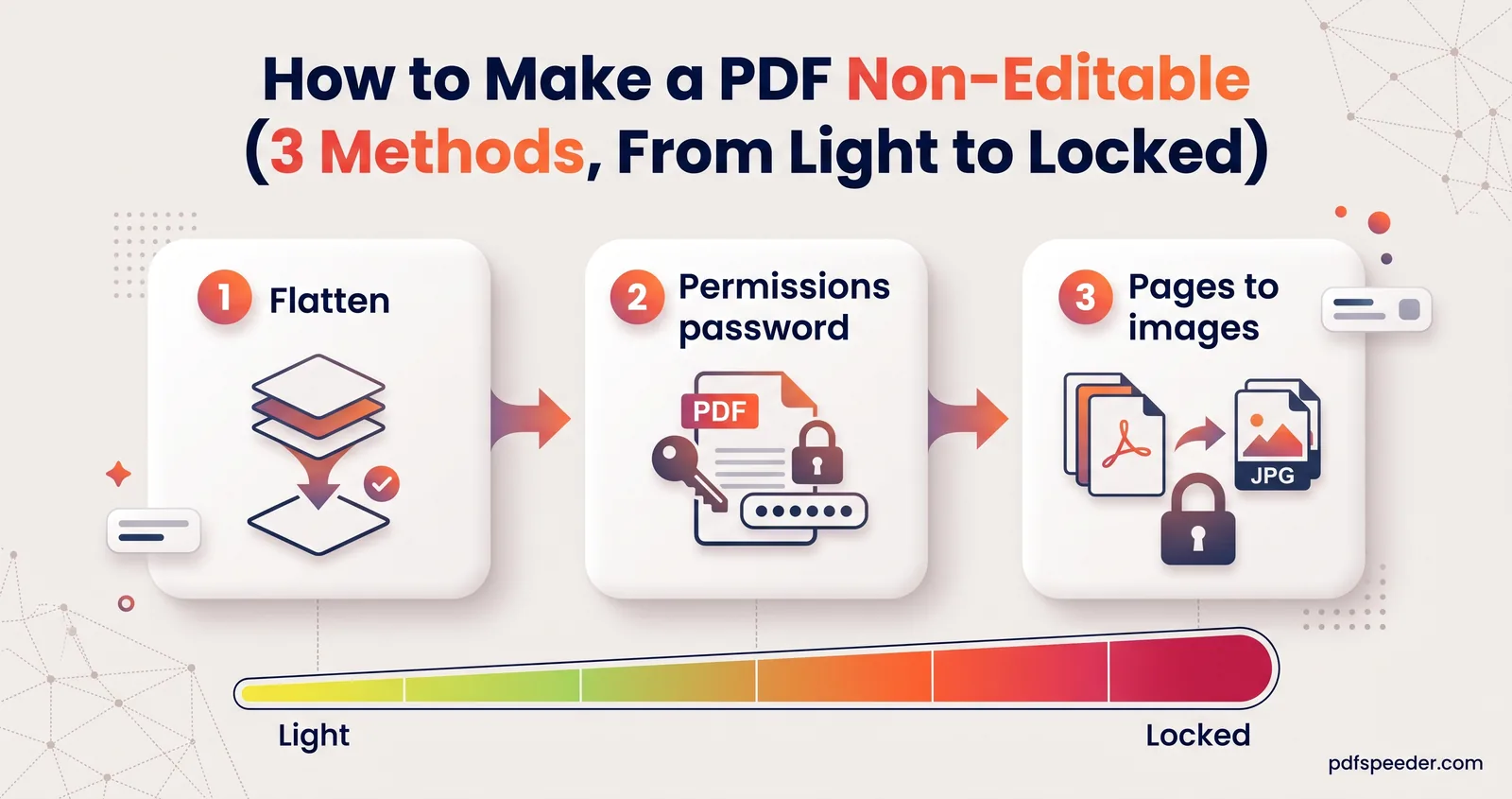
- It doesn't turn the page into a picture. Text stays real text, so it can still be selected, searched and changed with a PDF editor's edit-text tool. "Non-fillable" isn't the same as "non-editable"; our guide to making a PDF non-editable compares the stronger options.
- It doesn't delete anything underneath. A black box flattened over a number is drawn on top of it, and the number is still in the file.
Note: In print production, "flattening" can also mean merging transparent objects before printing. This guide is about forms, comments and layers, which is what most people mean.
What gets flattened: forms, comments and layers
We flattened three sample files with our Flatten PDF tool and compared them before and after:
| Before flattening | After flattening |
|---|---|
| A text box with "Asha Rao" typed in | The words "Asha Rao" printed on the page; no box to click |
| A ticked checkbox | A tick mark on the page; nothing to untick |
| A highlight added as a comment | A yellow band in the page; the comment is gone |
| A sticky note with "Check this with legal before signing." | Only the note's icon remains; its text is gone |
| A black box comment over an account number | A black box on the page; the number underneath still extracts as text |
| A link to a website | Still clickable, unless you choose "Make 100% static" |
| A hidden layer of internal notes | Still a hidden layer, unless you tick Layers; then it's taken off the page, though some of it can stay in the file |
The last row is the one people get wrong. A layer, sometimes called optional content, is a group of content that a viewer can show or hide. Flattening layers keeps what the document shows by default: visible layers become ordinary page content and hidden ones are taken off the page. Leave Layers unticked and the layers stay as they were, switches included, so anyone can still turn a hidden layer on in a viewer's layers panel.
In our test, a visible "DRAFT v2" layer stayed on the page, and the hidden line "INTERNAL: margin on this deal is 42%", which had a line to itself, was gone from the file. Not every hidden part goes that far: hidden text on the same line as visible text may stay in the file as invisible text that can still be selected and copied, and a hidden picture is left off the page but still stored.
When you should flatten a PDF
Flatten when you want the document to stay exactly as it is:
- Submitting a filled form. Nobody can accidentally retype an answer, and the values become part of the page instead of living in fields.
- Sending a reviewed or approved copy. Highlights, stamps and markup become fixed, so they can't be moved or deleted on the way.
- Printing or sharing reliably. Some basic viewers and print setups skip form fields or comments, so a recipient may see empty boxes. Flattened content shows up everywhere the page does.
- Before merging or archiving. A flat file is simpler: no fields or comments that another tool might drop or rearrange.
If you fill a fillable form with our PDF Form Filler, you can skip this step: it flattens the form when you download it, so your answers are already part of the page. Text you place on a non-fillable form is written into the page too, as is a signature added with Sign PDF. Keep a blank copy of the form if you'll need to fill it again.
When flattening is a bad idea
Flattening is easy to do and hard to undo, so stop and think in these cases:
- Forms other people still have to fill. Flattening removes the fields for good. Send the fillable version, or keep an unflattened master copy.
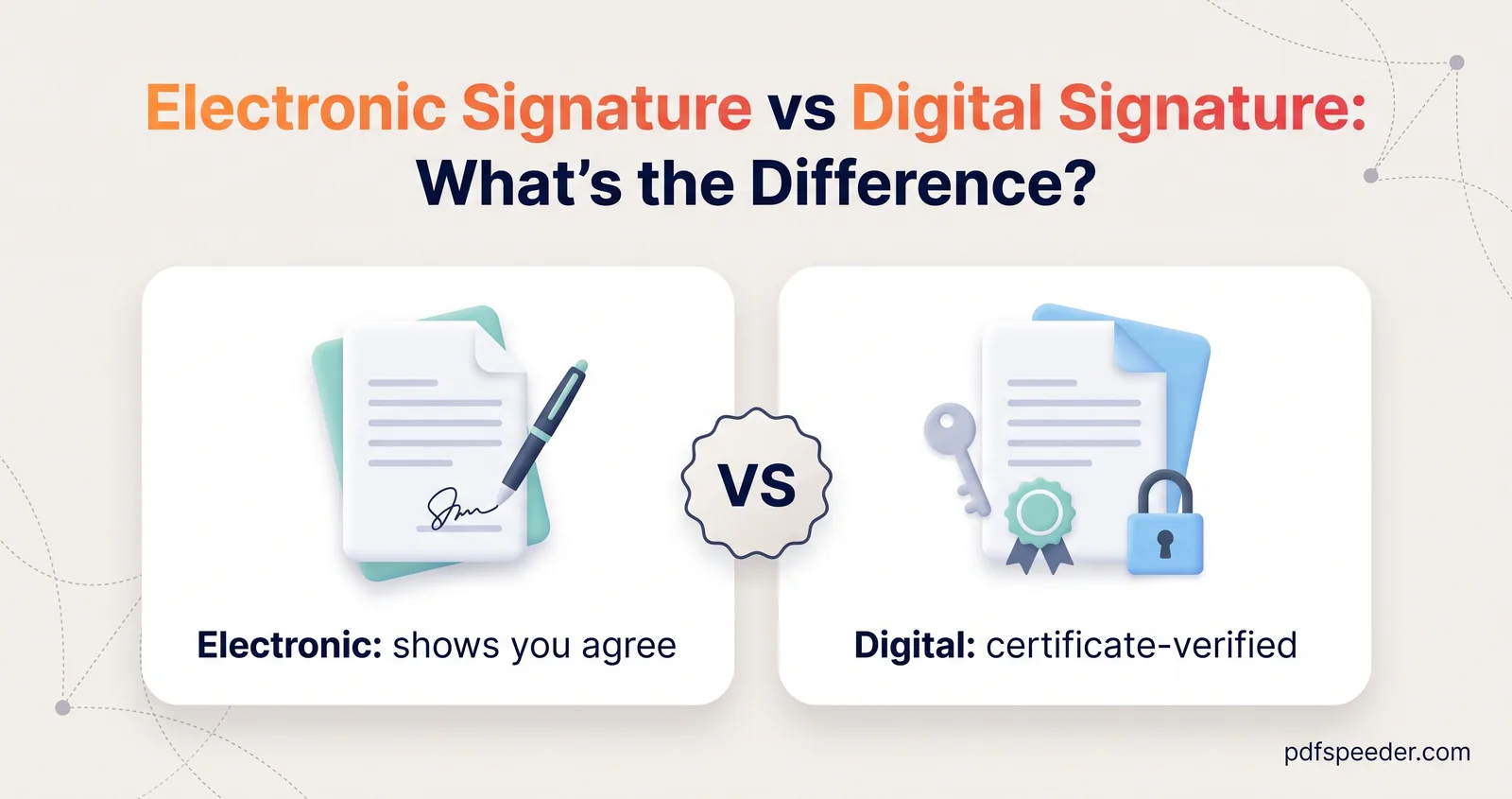
- Digitally signed documents. A certificate-based digital signature seals the exact contents of the file. Flattening rewrites the file, so the signature shows as invalid. Our guide to electronic vs digital signatures explains the difference.
- Comments that still need answers. Sticky note text disappears, leaving only the icon, as our test showed. Resolve the discussion first, or keep the commented version.
- Files whose layers people switch. With Layers ticked, whatever is hidden at that moment is taken off the page, such as an alternative language, a print-only version or optional map details. Hidden pictures, and hidden text on the same line as visible text, can stay in the file, so delete private layers in an editor rather than relying on flattening.
- Hiding sensitive information. Flattening a black box over text doesn't remove the text. To make it unrecoverable, follow our guide on how to redact a PDF.
Always keep the original. There's no button that turns flattened content back into fields or comments.
How to flatten a PDF step by step
Flatten PDF works in your browser, so the file isn't uploaded anywhere. It accepts PDFs up to 50 MB, and each run counts as one task in the free daily allowance: 2 tasks a day without an account, 3 with a free account, reset at 00:00 UTC (05:30 IST).
- Add your PDF. If it needs a password to open, remove it first with Unlock PDF. A file with only editing or printing restrictions is accepted, and the restrictions are removed as part of flattening.
- Choose what to flatten. Form fields and Annotations & comments are ticked by default. Tick Layers (OCG) to merge the layers as they're shown now: hidden layers are taken off the page and the switches disappear.
- Open Advanced options if you need them. Make 100% static also strips links, sticky notes and any leftover widgets. Optimize & compress, on by default, rebuilds the file, which can make it smaller.
- Select Flatten PDF. The result screen lists what was done, such as "Flattened form fields & annotations into the page", and the before and after sizes.
- Download and check it. The file has "_flattened" added to its name. Try clicking a field and selecting a comment: neither should respond.
To flatten PDF form fields only and keep comments movable, untick Annotations & comments; in our test, that fixed the answers and left every comment in place. The reverse works too: with Form fields unticked, the highlight and the sticky note were flattened, while the name box and the checkbox stayed fillable with their answers kept.
Flatten a PDF without Acrobat
You don't need Adobe Acrobat for any of this: Flatten PDF runs in any modern browser, on a phone or a computer. Printing the PDF to a new PDF, with Microsoft Print to PDF or a browser's Save as PDF, often produces a flat copy too, because only what's drawn on the page reaches the new file. It's less predictable, though: comments that aren't set to print can vanish, and links stop working.
Ready to lock in your answers? Fill the form, keep a copy of the original, then run the filled version through Flatten PDF and check that nothing still responds to a click.
Frequently asked questions
Does flattening a PDF make it uneditable?
It makes form fields and comments uneditable, but the page text stays real text that a PDF editor can still change. For stronger protection, add editing restrictions or convert the pages to images.
Can you unflatten a PDF?
No. Once fields and comments are merged into the page, there's no record of what was a field, so keep the original if you might need to change it.
Does flattening reduce file size?
Sometimes. Removing form and comment objects and recompressing can make a file smaller, but the difference is usually modest.
Will flattening remove my signature?
A signature drawn or placed as an image stays on the page. A certificate-based digital signature is invalidated, because flattening changes the file it sealed.
Is flattening the same as redacting?
No. Flattening fixes a black box in place but leaves the text underneath in the file. Redaction removes the content itself.