How to Compare Two PDF Files and Spot What Changed
Compare two PDF versions free in your browser: text and visual diffs, what each one misses, scanned files, and a checklist for reviewing contract changes.

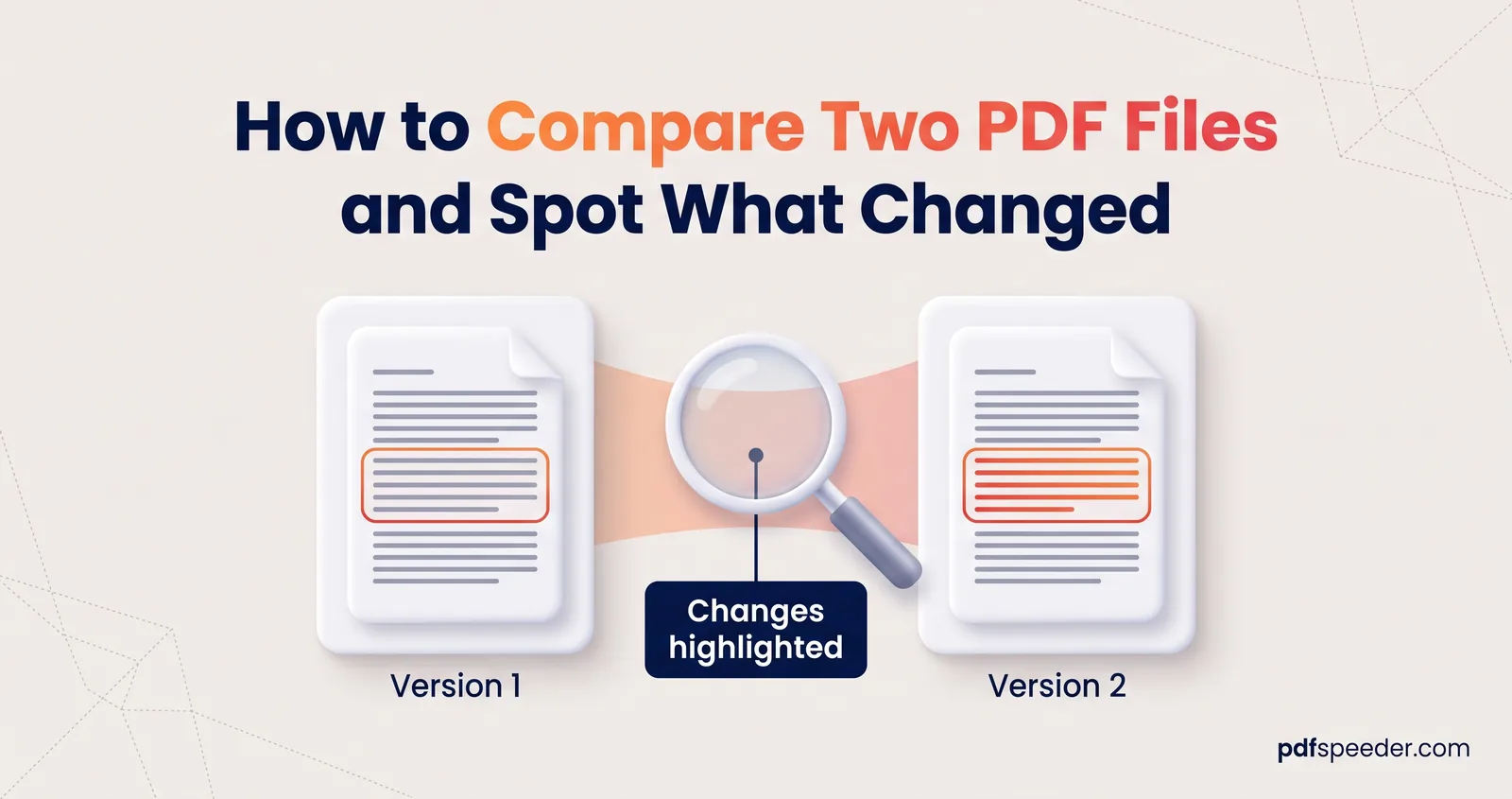
To compare two PDF files, load the older version and the newer one into a PDF comparison tool, then read the changes page by page: a text diff shows reworded clauses and changed numbers word by word, and a visual overlay shows what changed in images, stamps and layout. You need both views, because each one misses things the other catches. This guide shows how to compare two PDF files step by step, how to read the results without being misled, what to do with scans, and a checklist for reviewing a revised contract or quotation.
On this page
Text comparison vs visual comparison
A PDF difference checker can compare documents in two ways. A text comparison pulls the words out of each page and lines them up, so it reports exactly which words were removed and which were added. A visual comparison renders both pages as pictures and marks the pixels that differ. Here's what each one caught when we compared two versions of a sample four-page agreement:
| What changed | Text diff | Visual diff |
|---|---|---|
| A payment term reworded from 30 to 45 days | Caught, word by word | Caught, boxed on both pages |
| One digit in a fee (5,00,000 to 5,50,000) | Caught | Boxed on both pages, on a phone too; only a small mark in the overlay |
| The company seal swapped for one of a different colour, text unchanged | Missed; the page says "text identical" | No box, but shown clearly in the overlay |
| A light grey panel added behind a schedule | Missed; the page says "text identical" | Missed at the default Sensitivity; boxed once Sensitivity was raised to 100 |
| The same changes in scanned copies | Nothing to compare, because scans have no text | The two pages with new wording listed as "visual changes" and boxed; the seal and panel pages "look identical", and only the overlay showed the new seal |
The lesson: trust the text diff for words and numbers, and look at the overlay itself, not just the boxes, for everything that isn't text, such as signatures, seals, logos, tables pasted as images, and scans.
Compare two PDF files step by step
Our Compare PDF tool runs entirely in your browser, so confidential contracts aren't uploaded anywhere. Each comparison counts as one task in the free daily allowance: 2 tasks a day without an account, 3 with a free account, reset at 00:00 UTC (05:30 IST).
- Add the files the right way round. Put the older or agreed version in Original PDF (A) and the newer one in Modified PDF (B). Removed text is then shown as removed, and added text as added.
- Select Compare PDFs. The tool reads every page and shows a summary: total pages, identical pages, changed pages, pages added or removed, a similarity score and the number of word changes.
- Jump between changes. Prev Change and Next Change skip straight to changed pages, and Changed Only narrows the thumbnail strip to them. The arrow keys move between pages; hold Shift to jump between changes.
- Check each changed page in three views. Side by Side shows both pages with boxes around differences, Overlay Diff blends them with differences in colour, and Text Diff lists the page's words with removals and additions highlighted.
- Select Download Report to save a ZIP containing a copy of PDF B with the changed areas boxed in red, plus a text report listing every page's status.
Read the results: added, removed and changed
The summary is a starting point, not a verdict. A few things about how it's calculated will save you from misreading it.
Pages are compared by position. Page 1 of A is compared with page 1 of B, page 2 with page 2, and so on. If someone inserts a page, everything after it is compared with the wrong page. In our test, adding a single one-page schedule to an otherwise identical agreement produced 2 changed pages, 74 word changes, a similarity of 34% and a page "added" at the end.
When page counts differ, find the extra page, delete it from a copy of B with Delete PDF Pages, and compare again so the remaining pages line up.
Word changes count both sides. A replaced word counts twice: once removed, once added. Changing a fee from 5,00,000 to 5,50,000 showed as 2 word changes. Punctuation sticks to words, so "notice" and "notice." also count as different.
Page status comes from the text. Identical, Changed, Added and Removed are decided by the words on each page, which is why a page whose words match is labelled "text identical" (pages with no text at all, such as scans, are compared as pictures instead, as explained below). A page whose only change is an image counts as Identical: it's hidden by the Changed Only filter and left unmarked in the report, even if Side by Side draws a box around the change when you open the page. Look through the overlay of any page where images matter, such as signature pages and annexures, whatever its status says.
In the Text Diff, read the highlights in context. A changed clause shows the removed words struck out in red next to the added ones in green, so "within 30 45 days" means 30 became 45. Read the whole sentence, because a single added "not" or a "may" that became "shall" changes the meaning entirely.
Tune the visual comparison
The visual diff flags a pixel when its colour differs by more than a set amount. The Sensitivity slider in the Overlay Diff tab, from 10 to 100 (default 30), sets how small that difference can be: the higher the number, the fainter the differences it flags, in the overlay and in the Side by Side boxes alike. Raise it if you suspect a subtle change, such as a light grey watermark: in our test, a light grey panel wasn't flagged at 30 and was boxed at 100. Lower it if two exports of the same document light up everywhere because of tiny rendering differences.
In the overlay, red marks content that is only in A (removed) and green marks content only in B (added). The Side by Side boxes are worked out on copies of the two pages about 1,000 pixels wide, whatever your screen, so even a single changed digit gets a box, on a phone too. They compare how light or dark each spot is, though, so a change of colour alone, like our red seal that became a blue one, can get no box at all; the overlay compares the colours themselves and shows it.
Comparing scanned documents
A scan has no text layer, so there are no words to compare, and Compare PDF compares pages like that as pictures instead, at a reduced size. When we compared scanned copies of both versions of our sample agreement, the pages with the new payment term and the new fee were listed as "visual changes (no text to compare)" and boxed. The seal page and the grey-panel page were listed as "looks identical", though, and only the overlay showed the new seal.
For scans, the similarity score is simply the share of pages that look identical (50% here), and the Text Diff can't tell you what the fee changed to.
You have two options:
- Add text first. Run both scans through PDF to OCR with the same language and quality settings, choose the Searchable PDF output, then compare the two searchable files. OCR runs in your browser too. This makes the text diff work, but it uses three tasks in all (two OCR runs and the comparison), so you'll need a free account to do it in one day.
- Compare visually. Go through every page in the Overlay Diff and look for coloured areas, including the pages that "look identical". It costs only the comparison, but it depends on your eyes, and pages scanned at slightly different angles light up all over.
Expect OCR to misread some characters, such as an O for a 0, and those misreadings show up as changes. Check every flagged number against the page image. Our explainer on what OCR is covers why clean, straight 300 DPI scans give the most reliable text.
A checklist for reviewing contract changes
When you compare contract versions, quotations or thesis drafts, work through this list before you sign or approve anything:
- Confirm the files. Make sure A is the version you agreed and B is the one you've been asked to sign. Check the dates and version numbers in the headers.
- Match the page counts. If they differ, find the inserted or removed pages first, as explained above.
- Read every changed page in the Text Diff, paying special attention to amounts, percentages, dates, notice periods, payment terms, party names and defined terms.
- Watch the small words: "not", "may", "shall", "only", "including" and "excluding".
- Open the overlay for pages marked Identical, or "looks identical" in a scan, that carry signatures, stamps, letterheads or tables pasted as images.
- Check headers, footers and annexures, where version numbers and schedules often change unnoticed.
- Keep the evidence. Save the report ZIP with both PDFs, so you can show exactly what changed and when you checked.
Note: A comparison shows what changed, not whether the change is acceptable. For anything with legal consequences, have the changes reviewed by a qualified professional; this guide is not legal advice.
If you find a change you need to correct in your own copy, our guide to editing a PDF covers the options. Ready to check your files? Put the agreed version in A, the new one in B, and start with the Changed Only filter.
Frequently asked questions
Can I compare two PDF files online for free?
Yes. Compare PDF runs in your browser at no cost, and each comparison counts as one task in the free daily allowance.
Does comparing PDFs upload my documents?
No. Compare PDF reads and compares both files inside your browser, so neither document reaches our server.
Why does the comparison say my scanned pages look identical?
Scans contain pictures of text, not text, so Compare PDF compares their pages as pictures, and a change of colour or a faint mark can slip through that check. Look through the Overlay Diff, raising the Sensitivity for faint changes, or run both files through OCR first so their words can be compared.
Why are almost all pages marked as changed?
Probably a page was added or removed, so every later page is compared with the wrong one. Remove the extra page from a copy and compare again.
Can it detect formatting changes?
Only visually. The text diff compares words, so a font or colour change appears only in the overlay, and only if it changes the pixels enough to pass the sensitivity threshold.