How to Add Text to a PDF (Type Anywhere, on Any Device)
How to add text to a PDF for free: type anywhere on the page, match the size and font, use Preview or Edge's built-in tools, and keep your text from moving.

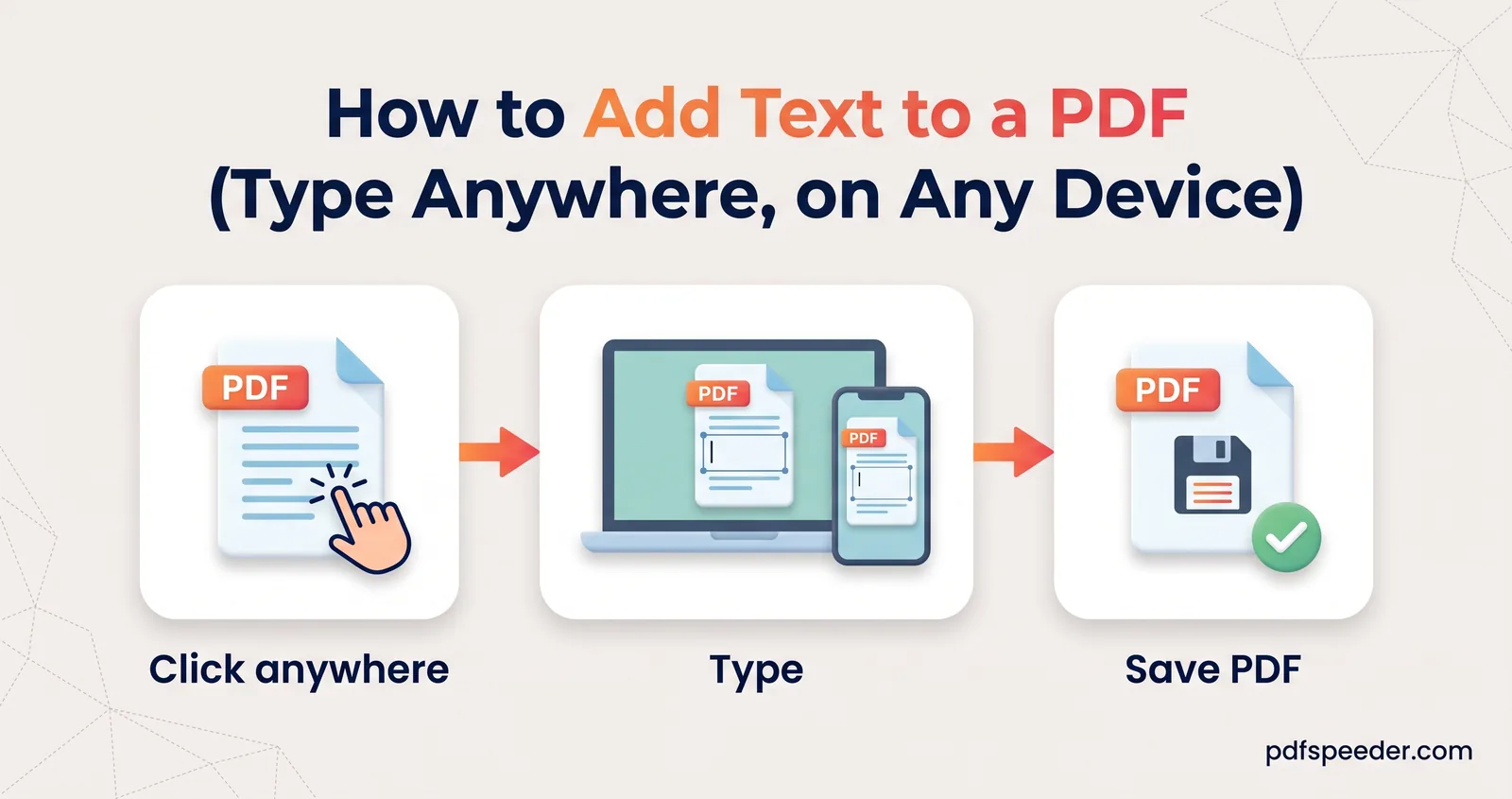
To add text to a PDF, open it in a PDF editor, choose the text tool, click where the words should go and type, then set the size and colour and save a copy. You can do it free in a browser on a computer or a phone, and the viewers built into a Mac (Preview) and Microsoft Edge can add simple text boxes too. Below you'll find each route, how to line your text up neatly, why typing over a white box hides nothing, and how to stop your text being moved.
On this page
How to add text to a PDF online
Two of our browser tools let you type on a PDF and insert text online, and both keep the file on your device. Pick the one that suits the job:
| PDF Editor | PDF Form Filler | |
|---|---|---|
| Best for | Notes, labels, dates and short lines, alongside images, highlights and stamps | Forms, letters and anything with many answers to line up |
| Fonts | Helvetica | Helvetica, Times or Courier |
| Size | 6 to 72 pt (up to 120 when you edit a placed box) | 6 to 72 pt |
| Moving text | Drag it; corner handles resize it | Drag it, or nudge it with the arrow keys; works with a finger |
| Also adds | Images, highlights, shapes, stamps, a drawn signature | Ticks, crosses, dates, a drawn signature |
| File size | Up to 50 MB | Up to 50 MB |
Each PDF you add text to counts as one task in the free daily allowance, however often you download the result: 2 tasks a day without an account, 3 with a free account, reset at 00:00 UTC.
Add a text box with PDF Editor
- Open PDF Editor and drop in your PDF.
- Choose Text in the toolbar.
- Type your words into the Text field in the options bar, and set the Size and Color. Do this first: clicking the page places whatever is in that field.
- Click the page where the text should start. Drag the text to move it, or drag a corner handle to make it larger or smaller.
- Double-click placed text to change the wording, size or colour, or to delete it.
- Select Save & Download. Your copy is saved with "_edited" added to its name.
Each text box holds one line, so for an address or a short paragraph, place one box per line and keep the gaps between them even.
Type with more control in PDF Form Filler
PDF Form Filler is the better choice when you need a particular font, a lot of entries or a phone. Choose Text, pick Helvetica, Times or Courier with a size and colour, click the page and type straight into the box that appears. The arrow keys move a selected entry a pixel at a time (hold Shift for bigger steps), and on a touchscreen you can drag and resize entries with your finger. Select Download Filled PDF when you've finished.
For forms in particular, with character boxes, ticks and declarations, our guide to filling a non-fillable PDF form goes into more detail.
Note: Both tools write text in the standard PDF fonts, which cover English and Western European letters such as é and ü, plus curly quotes and dashes. They can't write the ₹ sign or Indian-language scripts, and the download stops with an error if your text includes them, so type "Rs." instead. For Hindi or another script, add the text in Word or the document's source file.
Line it up neatly: size, font and position
Typed text looks official when it matches the document around it. These starting points cover the most common jobs:
| What you're adding | Tool | Font | Size | Colour |
|---|---|---|---|---|
| An answer on a printed line | Form Filler | Whichever is closest to the form's own type | Same as the printed labels | Black |
| A date or reference on a letter | Either | Closest match to the letter | Same as the body text | Black |
| A review note in the margin | PDF Editor | Helvetica | A point or two smaller than the body text | Red or blue |
| A title on a cover page | PDF Editor | Helvetica | 18 to 24 pt | To suit the page |
To match the size, type a test word right next to some printed text, zoom in and compare the height of the capital letters. If yours look bigger, drop a point and compare again; one point makes a visible difference at normal reading sizes.
Position takes a little practice, because both tools place text by its top edge where you click. To write on a printed line, click roughly one line of text above it, then drag or nudge the entry down until the letters sit just clear of the line. Work zoomed in: PDF Editor has zoom buttons and a 1:1 button for actual size, and Form Filler has zoom buttons and Fit.
Colour sends a signal too. Black or dark blue reads as part of the document; anything brighter reads as a comment, which is exactly what you want for review notes and exactly what you don't want on a form.
Built-in options: Preview on Mac and Microsoft Edge
You may not need a website at all for a quick note.
To add text to a PDF on a Mac, use Preview:
- Open the PDF in Preview and click Show Markup Toolbar if the markup tools aren't visible.
- Click the Text button. A text box appears; type your text, then drag the box where you want it.
- Use the Text Style button to change the font, style, size and colour.
Apple's guide to annotating a PDF in Preview notes that you can't edit a PDF's existing text in Preview, only add markup on top, and that PDFs are saved with editable annotations.
In Microsoft Edge, on Windows or a Mac, open the PDF in an Edge window, select Add text on the PDF toolbar, click where the text should go and start typing. Microsoft explains on its page about Edge's PDF reader that selecting the text box lets you move it or change the font, and that you can save a copy of the PDF with your markings from the PDF toolbar.
On an iPhone, the Files app's Markup tools include a text option, and Chrome's own PDF viewer has an Add text button on computers. These are all fine for a few words. For many entries, precise alignment or a file you're sending to someone else, a dedicated tool is quicker, and the flattening step below matters.
Covering old text: what white-out really does
A common trick is to draw a white rectangle over the old words and write new ones on top. On screen it looks perfect. In the file, the old words are still there, because a PDF paints each item over the last one and nothing underneath is deleted.
Anyone can bring the hidden words back without special skills:
- Search with Ctrl+F (Cmd+F on a Mac) and the covered word is found and highlighted.
- Select all and copy, then paste into a notes app, and the covered text appears in the paste.
- Move or delete the box in any viewer that treats it as a separate object, such as an annotation.
- Screen readers and text extractors read the covered words aloud or straight into a file.
So use white-out only for looks, never for privacy. To replace a word properly, use PDF Editor's Edit PDF mode, which our guide on editing existing text in a PDF explains, but note that it, too, covers the old word rather than deleting it. To remove names, numbers or anything confidential for good, use Redact PDF: it rebuilds every page that has a box as an image at 200 DPI, so nothing under the box survives, though text on those pages can't be selected afterwards. Our guide on how to redact a PDF properly shows how to check the result before you share it.
Lock your text in place by flattening
Text you add with PDF Editor or PDF Form Filler is written into the page itself when you download, so there's no box for anyone to click and drag. There's nothing more to do.
Text added as an annotation is different. Preview saves its text boxes as annotations, as Apple's guide says, and many other viewers do the same. Anyone opening the file in a similar app can select an annotation, move it or delete it, and software that ignores annotations may not show it at all. To check any file, open it again and click your text: if it selects as a box you can drag, it's an annotation.
To fix it in place, run the file through Flatten PDF:
- Drop in the PDF (up to 50 MB); it's processed in your browser.
- Keep Annotations & comments ticked. Keep Form fields ticked too if you typed into fillable fields in another app.
- Select Flatten PDF and download the copy, which is saved with "_flattened" added to its name.
Click your text in the flattened copy: it should no longer select as a separate box. Flattening doesn't stop someone with a full PDF editor from changing a page, but it does stop casual moves and deletions. If you need more, Lock PDF can set permissions that block modifying, which viewers that respect permissions will enforce.
Ready to try it? Open PDF Editor for a quick label or date, or PDF Form Filler for a page full of answers, and check the saved copy at full zoom before you send it.
Frequently asked questions
How do I add text to a PDF for free?
Open PDF Editor or PDF Form Filler in your browser, choose Text, click where the words go and type, then download the copy. It's free within the daily allowance, and each PDF counts as one task however often you download it.
Can I add text to a PDF on my phone?
Yes. PDF Form Filler works in mobile browsers and lets you drag and resize text with your finger. On an iPhone, the Markup tools in the Files app can also add text.
How do I add text to a PDF on a Mac?
Open it in Preview, show the Markup toolbar, click the Text button and type, then drag the box into place. The Text Style button changes the font, size and colour.
Why can't I type the rupee symbol on my PDF?
Our tools write text in standard PDF fonts, which have no ₹ sign or Indian scripts, so type "Rs." instead. For text in Hindi or another script, add it in Word or the original document and export a new PDF.
Can the person I send the PDF to move my text?
Not if you added it with PDF Editor or PDF Form Filler, which write it into the page. Text added as an annotation in Preview or another viewer can be moved, so flatten the file before you send it.