How to Edit Existing Text in a PDF (and Match the Font)
How to edit text in a PDF that's already on the page: change words step by step, get the font as close as possible, fix scans with OCR, and when to use Word.

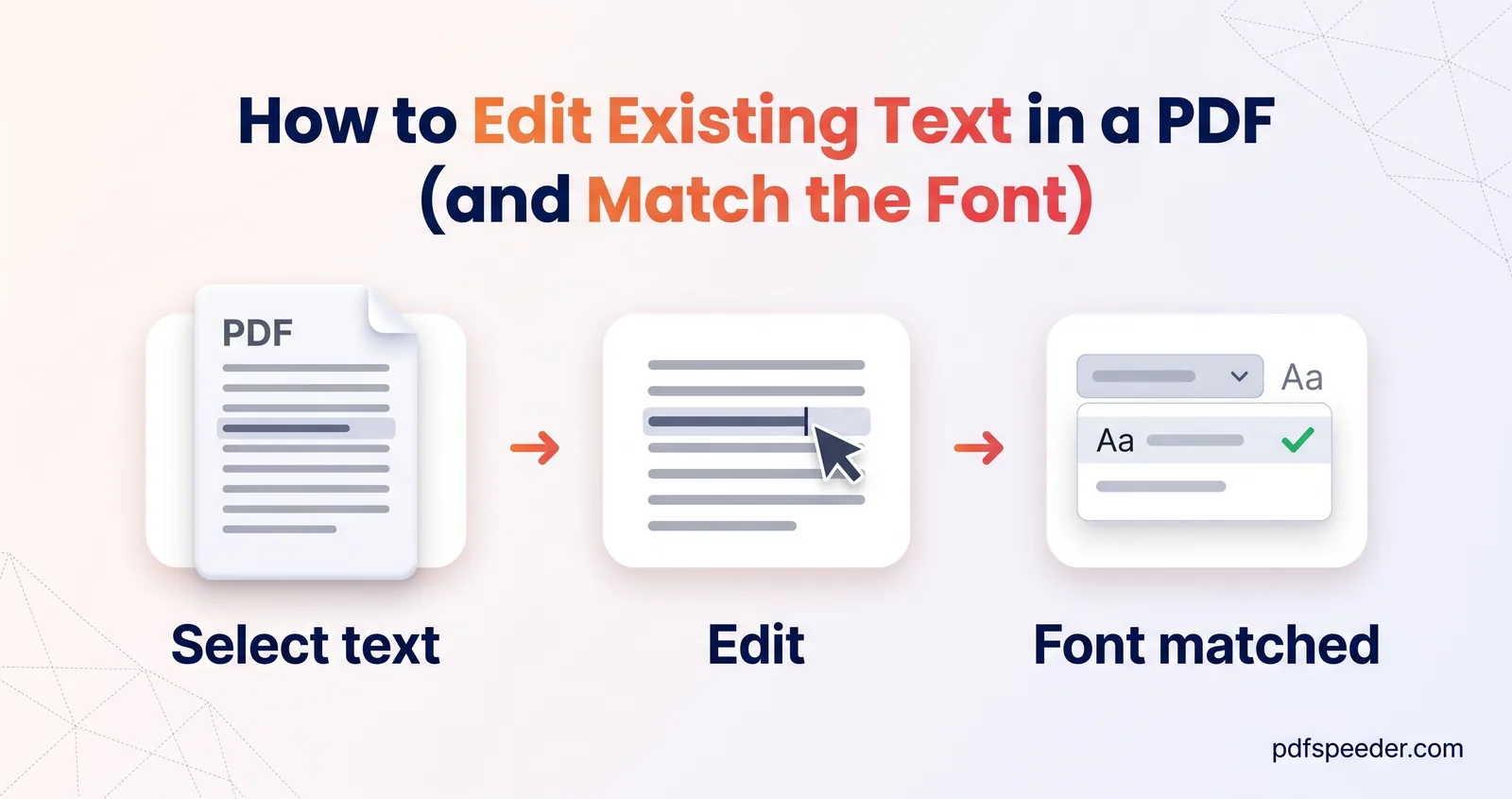
To edit text in a PDF, open it in an editor that can read the page's text layer, click the words you want to change and type the correction; a wrong date, amount or name takes about a minute. The hard part is the font, because most PDFs carry only a trimmed copy of their fonts, so the replacement usually appears in a close standard font rather than the original. Below you'll learn how to edit text in a PDF step by step, how to make the change blend in, what to do with scanned pages, and when converting to Word is the smarter move.
On this page
Can you really edit the text in a PDF?
Yes, within limits. A PDF isn't a word-processor file: every piece of text is placed at fixed coordinates on the page, often one line at a time and sometimes one word at a time. There are no paragraphs for the text to flow through, so when a sentence gets longer, nothing moves out of its way.
That makes small replacements easy and big rewrites awkward. Most free viewers, including the PDF viewers built into browsers and Preview on a Mac, can add new text on top of a page but can't change words that are already printed there. For that you need an editor with a dedicated edit-text mode, or a detour through Word.
| What you want to change | Edit the PDF directly? | Better route |
|---|---|---|
| A typo, date, amount or name | Yes | PDF Editor's Edit PDF mode |
| A phrase that gets a little longer | Usually, if it still fits the line | Shorten it or reduce the size slightly |
| Whole paragraphs, or new ones | No, nothing reflows | Convert to Word, edit, save as PDF |
| Words on a scanned page | Yes, after OCR, word by word | PDF to Word with OCR for longer edits |
| Text inside a logo or photo | No, it's part of the image | Edit the original file |
| Text with ₹, accents or Indian scripts | Not in our editor | Convert to Word |
How to edit text in a PDF, step by step
Our PDF Editor can change text that's already on the page, for free, and it runs in your browser, so the file stays on your device.
- Open PDF Editor and drop in your PDF (up to 50 MB).
- Select Edit PDF, the first button in the toolbar. The editor reads the page's text and places an invisible box over each piece of it; a status line tells you how many editable pieces it found.
- Click exactly where the change goes. The cursor lands where you click, so you can delete a few characters and type, the way you would in a document.
- Press Enter when you've finished that piece, or use the bar that appears: Font (Helvetica, Times or Courier), Size, Color, B and I, then Apply. Cancel puts the original text back.
- Repeat on any other line or page, then select Save & Download. You get a new copy with "_edited" added to its name, and your original file is untouched.
When you save, the editor paints a patch in the page's background colour over the old words and writes your text on the same baseline. Text you didn't touch stays exactly as it was. Saving counts as one task in the free daily allowance: 2 tasks a day without an account, 3 with a free account, reset at 00:00 UTC.
Warning: The old words aren't deleted, only covered. They stay in the file under the patch, where copying or searching the PDF can still find them. That's harmless for a typo, but to remove confidential text for good, use Redact PDF instead.
Keep the replacement about the same length
Because nothing reflows, a longer replacement simply carries on to the right, past the patch and over whatever comes next on that line. Changing "31 March 2026" to "1 April 2026" fits comfortably; turning "R. Kumar" into "Rahul Kumar Sharma" may run into the next column.
If the new text is longer, abbreviate it or take the size down half a point to a point. Watch figures in tables too: your replacement starts where the old text started, so a number that gains a digit, say 9,500 becoming 12,500, sticks out one digit further right than the figures above it.
Mind the characters you type
The saved replacement uses basic English characters only: letters A to Z, numbers and standard keyboard punctuation. Symbols such as ₹, curly quotes, long dashes, accented letters and Indian-language scripts are dropped from any text you edit when the file is saved, including characters that were already in it. Type "Rs." instead of ₹, use straight quotes and hyphens, and for text in Hindi or another script, take the Word route described below.
Why the font doesn't always match
PDFs carry trimmed fonts
To keep files small, most apps embed only the characters a document actually uses, a so-called font subset. If the original never contained a capital Q, the file's copy of that font has no Q to give you. In Adobe Acrobat Reader you can see this under File > Properties > Fonts, where these fonts are labelled "Embedded Subset".
What the editor does instead
PDF Editor doesn't reuse that trimmed copy. It reads the original size, samples the colour of the ink, checks whether the text looks bold and works out whether the font is sans-serif, serif or fixed-width, then redraws your edit in the closest of the three standard PDF fonts:
| If the original looks like | Common examples | Closest choice |
|---|---|---|
| Sans-serif | Arial, Calibri, Helvetica, Roboto, Segoe UI | Helvetica |
| Serif | Times New Roman, Georgia, Cambria, Garamond | Times |
| Fixed-width, or columns lined up with spaces | Courier New, Consolas, typed figures in columns | Courier |
Each comes in regular, bold, italic and bold italic, which is often close enough for a date, a figure or a name. A distinctive font, such as a brand typeface in a heading, won't match exactly.
Judge the match on the saved copy
While you type, the box can show the document's own font, because your browser has loaded it to display the page. The saved file uses the standard font, so open the downloaded copy, zoom to 200% and compare the edited line with its neighbours.
A few adjustments help when something stands out:
- Wrong weight: toggle B if the editor guessed bold where the original is regular, or the other way round.
- Size: the Size box starts at the original size in points, such as 10.5. Leave it unless the text needs to fit.
- A whole paragraph: if one changed line looks different from its neighbours, click each neighbouring line, pick the same font and select Apply, so the paragraph matches. Skip lines that contain ₹ or curly quotes.
- A visible patch: the patch colour is sampled from just outside the text. On a dark or patterned background, or over a watermark, it can show as a rectangle; if it does, editing the source document is the cleaner fix.
Editing text in a scanned PDF
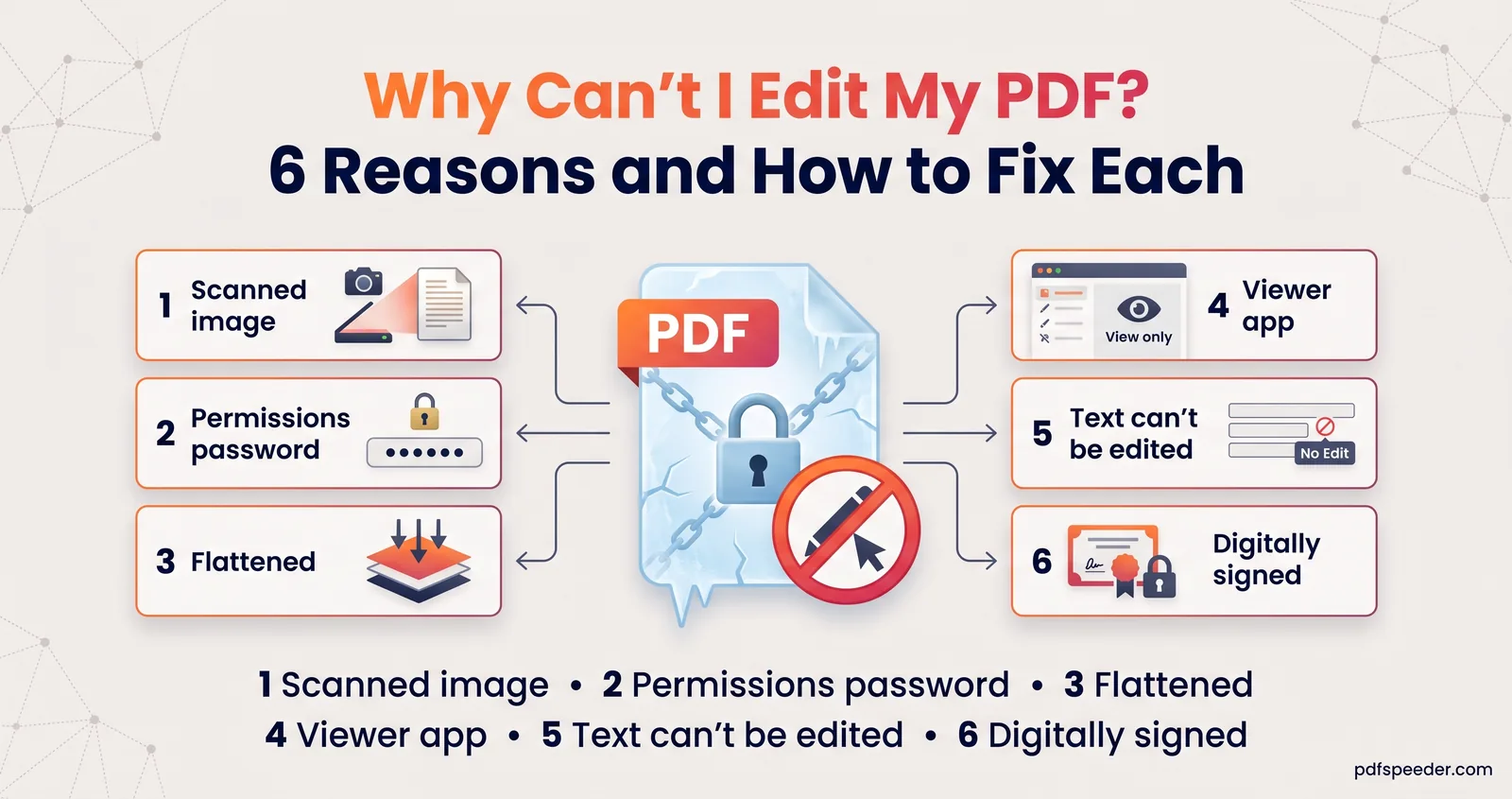
A scan is a photograph of paper, so there's no text to click. When you choose Edit PDF on such a page, the status line says there's no selectable text and offers Run OCR. If that happens on a page you know isn't a scan, the words may be drawn as shapes or sit inside a picture; our guide to why you can't edit a PDF explains this and the other usual causes.
OCR recognises the English words on the current page, in your browser, and gives each word its own box; hover over one to see what was read, then click it and type. The first run downloads the recognition model, and words it can't read confidently are skipped. Do this page by page.
Keep expectations modest. On saving, the editor covers the old word with the colour sampled around it and writes the new one, by default in black Helvetica. Scanned paper is rarely pure white and printed type rarely looks like Helvetica, so edits show more than on a digital PDF; it works best for a few words on a clean, straight scan.
OCR in the editor is only for editing and doesn't make the file searchable. For that, run the scan through PDF to OCR, which works in your browser, handles files up to 100 MB and recognises 40 languages, including Hindi, Tamil and Bengali. A clean, straight scan gives OCR far fewer letters to guess at.
Big rewrites: convert to Word instead
Switch routes when you're changing more than a few lines, adding paragraphs, reworking a table, or writing symbols and scripts the editor can't save. Word reflows the text as you type, and you export a fresh PDF at the end.
PDF to Word converts files up to 50 MB. Click page thumbnails or type a range to convert only the pages you need, and its OCR setting (Auto, Always or Off) makes scanned pages editable, with 15 language options including Hindi. The file is uploaded over an encrypted connection, converted on our server and deleted automatically within 2 hours, and each conversion counts toward the same daily allowance. When you've finished editing, choose File > Save As in Word and pick PDF.
Word can also open a PDF itself. Microsoft explains that it makes a copy and tries to match the original layout, that this works best for files that are mostly text, and that the result might not look exactly the way the PDF did. Our guide to converting a PDF to Word without losing formatting covers what converts cleanly and how to tidy the rest.
Tip: If you still have the Word, Excel or PowerPoint file the PDF came from, change that and export a new PDF: no patches, no font compromises.
For quick fixes, open PDF Editor, choose Edit PDF, change the one word that's wrong, and check the saved copy at 200% before you send it. For other kinds of change, such as adding images, highlights or a signature, see our guide on how to edit a PDF.
Frequently asked questions
Can I edit text in a PDF for free?
Yes. PDF Editor's Edit PDF mode changes existing text in your browser at no cost; saving counts as one task in the free daily allowance.
Why does my edited text look different from the rest?
Most PDFs embed only the characters they use, so the editor redraws your change in the closest standard font: Helvetica, Times or Courier. Check the size and bold setting, and judge the result on the downloaded copy.
Can I edit text in a scanned PDF?
Yes. Choose Edit PDF, select Run OCR to recognise the English words on the page, then click a word to change it. For longer edits, or scans in other languages, convert the file with PDF to Word and its OCR setting.
Is the old text gone after I replace it?
No. It's covered by a patch but stays in the file, so searching or copying can still find it. Use Redact PDF when text must be removed for good.
Can I type the rupee symbol or Hindi text in the editor?
Not in the saved file: replacements keep only basic English characters, so write "Rs." instead of ₹. For Hindi or other scripts, make the change in Word and save a new PDF.