How to Delete Pages From a PDF (Free, Without Acrobat)
How to delete pages from a PDF for free: pick pages by thumbnail or number, use the odd, even and invert shortcuts, spot blank scans, and keep files small.

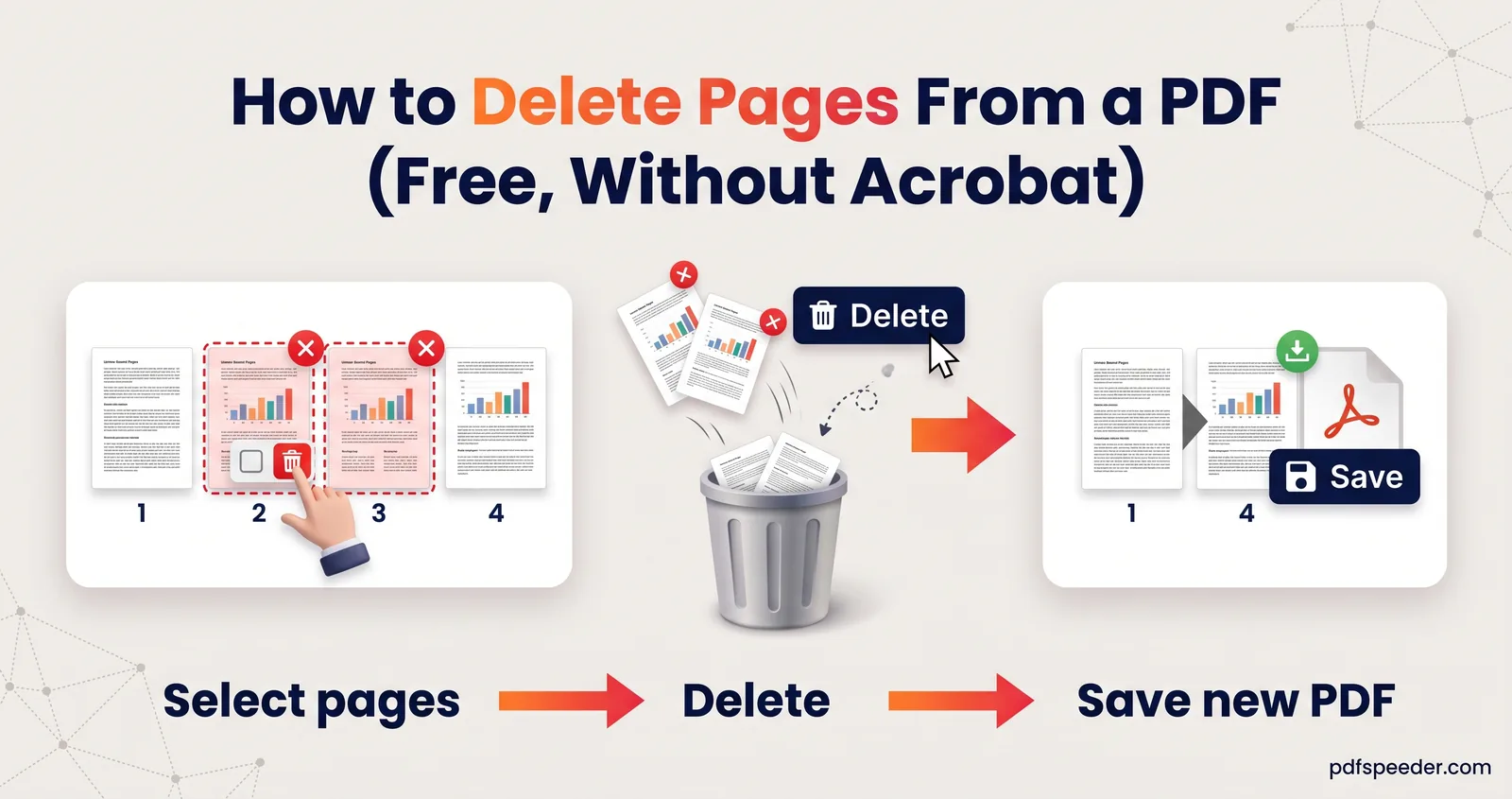
To delete pages from a PDF, open it in a page-deletion tool, click the thumbnails of the pages you don't want or type their numbers, and download the trimmed copy. Delete PDF Pages does this free in your browser, with shortcuts for odd, even and inverted selections, and Preview does it on a Mac or an iPhone. If you're keeping only a few pages, extracting them is quicker, and either way the pages you remove take their space with them.
On this page
Delete pages from a PDF online in three clicks
Delete PDF Pages works in any modern browser, on a computer or a phone. It runs on your device, so the PDF isn't uploaded, and it accepts files up to 50 MB.
- Add the PDF. Every page appears as a thumbnail, with the total page count above.
- Mark the pages to delete. Click their thumbnails, or type them in the Pages to Delete box, such as
1, 3-5, 8. The box and the thumbnails stay in sync, so you can mix both. - Select Delete Pages, check the summary of original, remaining and removed pages, then select Download Edited PDF. The new file ends in "_edited".
Your original file isn't changed: the trimmed version downloads as a new copy. The pages you keep are copied as they were, so text stays selectable and images keep their quality. Each run counts as one task in the free daily allowance (2 a day without an account, 3 with a free account).
A few rules keep you from deleting the wrong thing. Ranges must run from low to high and stay within the page count, so 8-3, or 60 in a 50-page file, gets an error message rather than a guess. And you can't delete every page: at least one has to remain.
If the PDF has a password, you're asked for it when you add the file, and the trimmed copy is saved without one. Lock it again with Lock PDF if the copy has to stay protected.
Shortcuts: odd, even and invert
Above the thumbnails sit five buttons that save a lot of clicking: Select all, Invert, Odd, Even and Clear. Here's how they map onto everyday jobs:
| Job | What to select |
|---|---|
| Remove a cover page | Type 1 |
| Remove the blank backs of single-sided sheets scanned on both sides | Even, then click any back that has content to unmark it |
| Strip six advertising pages from the end of a 40-page statement | Type 35-40 |
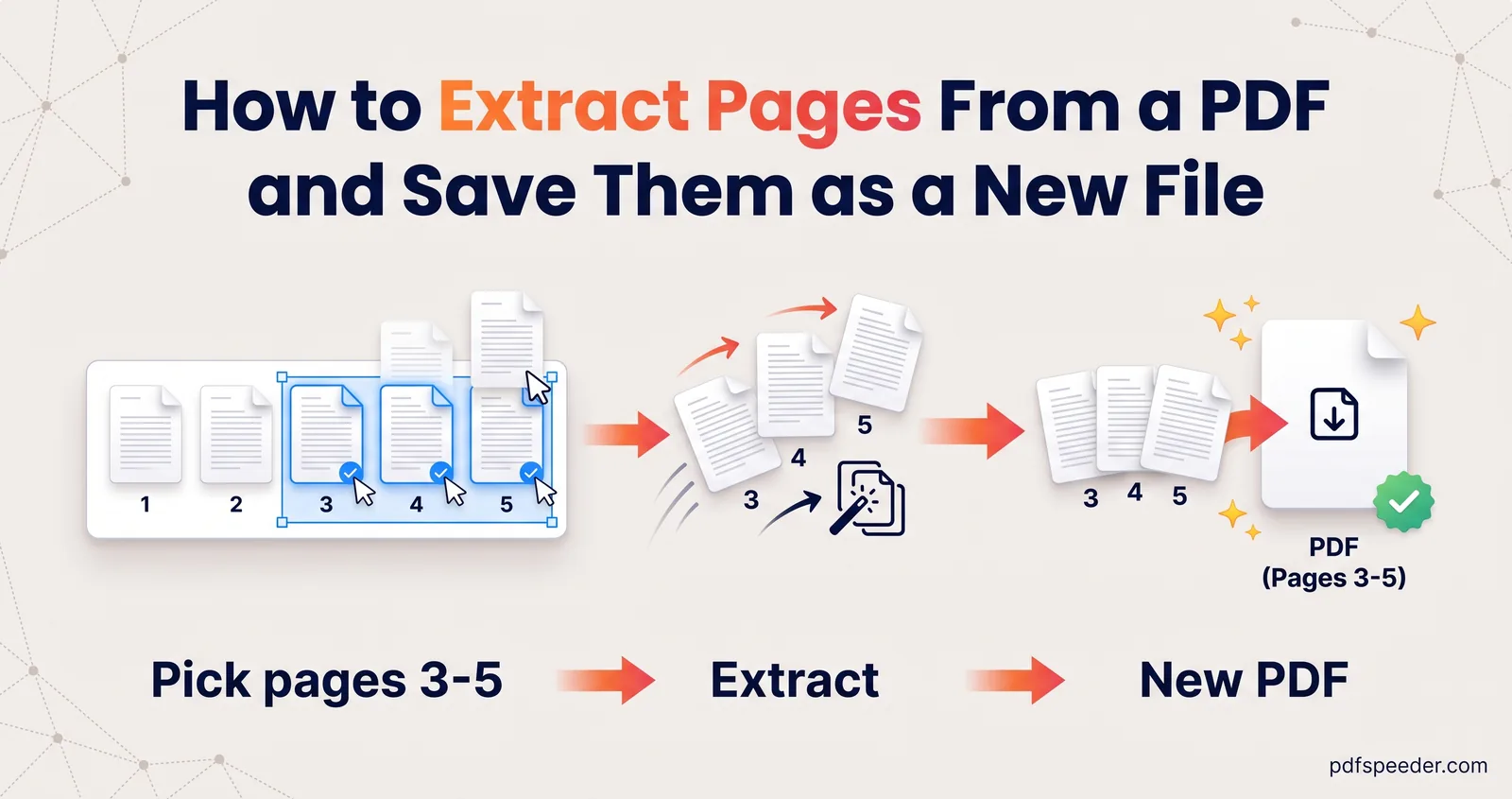
| Keep only pages 3 to 5 of a 30-page file | Type 3-5, then Invert (or extract those pages instead) |
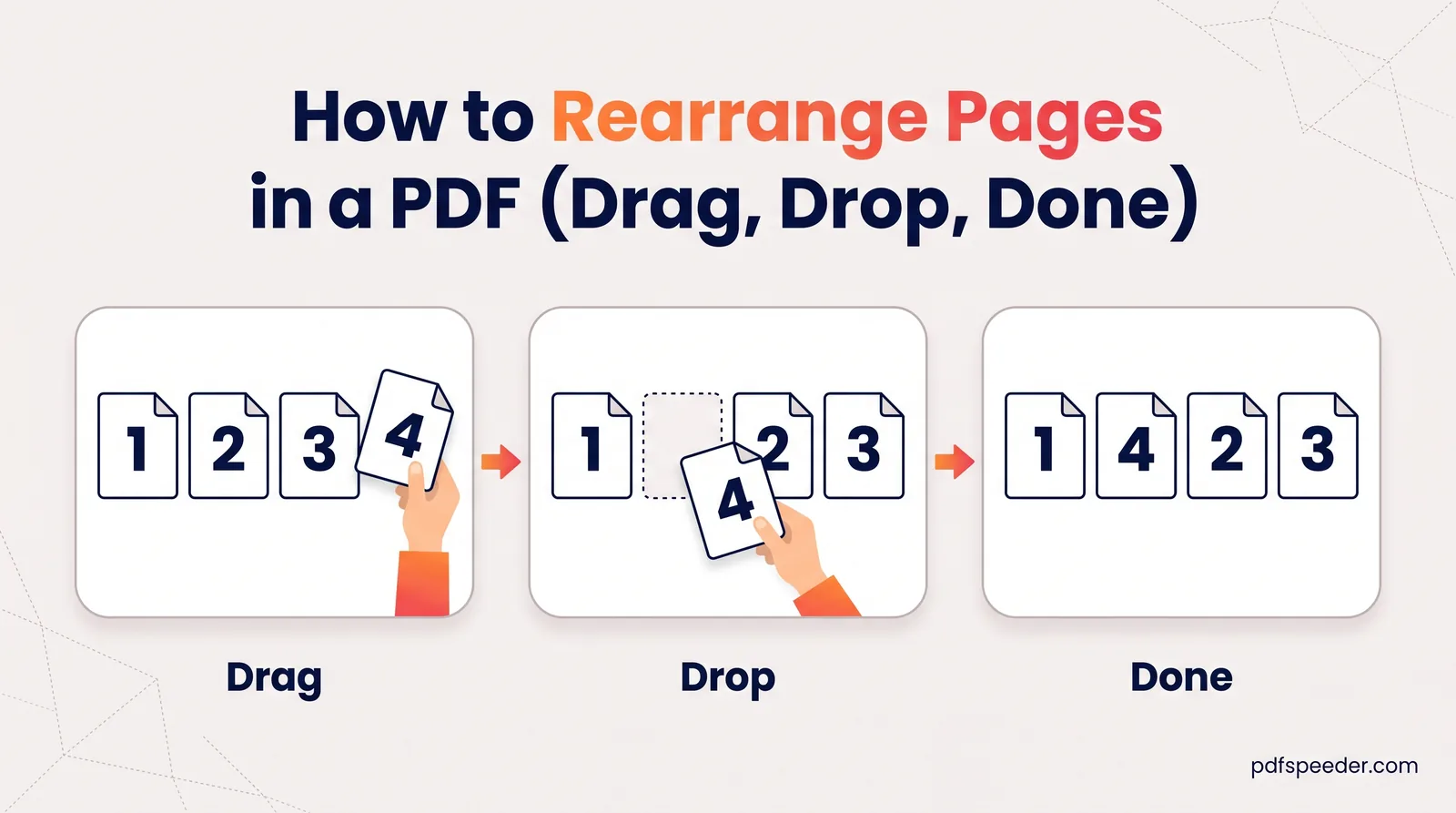
Invert flips the selection: everything marked becomes unmarked and vice versa. That turns "delete everything except these" into a two-step job: click the pages you want to keep, then invert. And if every page belongs but the order is wrong, see how to rearrange pages in a PDF instead.
Warning: Before you remove pages from a bank statement or an official document, check whether the recipient wants it complete. Statements often print "Page 3 of 6", so a missing page is obvious, and some offices reject edited copies. Keep the original either way.
Find and remove blank scanned pages
There's no automatic blank-page detection, so you spot blanks on the thumbnails, where an empty page shows as a plain white or grey card. Blank pages usually come from one of three habits:
- Two-sided scanning of one-sided paper. A scanner set to scan both sides captures the empty back of every sheet, so every even page is blank. The Even button selects them all at once.
- Scanning the back of the last page, or a separator sheet left in the feeder.
- Merging files with a divider page or a blank page left at the end of a document.
Look closely before you delete a page that seems empty. Faint content, such as a page number, a light stamp, a signature in pencil or "This page intentionally left blank", is easy to miss at thumbnail size. When in doubt, open the original and check that page at full size.
To stop blanks at the source, scan one-sided originals in one-sided mode, and check whether your scanner or scanning app offers an option to skip blank pages. Once a scan is trimmed, our guide to compressing a scanned PDF shows how to make it smaller without losing readability.
Delete pages on a Mac or in your browser
You can delete PDF pages without Acrobat on most devices, with nothing to install.
Mac: Preview
To delete pages from a PDF on a Mac, open it in Preview, choose View > Thumbnails (or View > Contact Sheet), select the pages and press the Delete key, or choose Edit > Delete. Command-click to select several pages. Apple's Preview guide notes that any annotations on a deleted page are removed with it. To keep the original intact, choose File > Duplicate first and work on the copy.
iPhone: Preview on iOS 26 or later
Open the PDF in the Preview app, tap the page count to show the thumbnails, then touch and hold the page you want gone and tap Delete Page, as Apple's iPhone guide describes. The same guide explains how to undo a change if you delete the wrong page.
Any computer: Chrome's print dialog
Chrome can remove a page from a PDF by printing only the pages you keep. Open the PDF in Chrome, press Ctrl + P (on a Mac, ⌘ + P), set Destination to Save as PDF, choose Custom under Pages and type the pages to keep, such as 2-9. Printing rebuilds the pages, though, so links and fillable form fields may not survive.
Delete or extract: which is faster?
Deleting and extracting reach the same result from opposite ends: one marks the pages that go, the other the pages that stay. A quick rule is to count both and mark whichever list is shorter.
| Delete PDF Pages | Extract PDF Pages | |
|---|---|---|
| You mark | The pages to remove | The pages to keep |
| Quickest when | Removing a few pages | Keeping a few pages |
| Biggest file it takes | 50 MB | 100 MB |
| Space used by removed pages | Gone | Gone |
| New file ends in | "_edited" | "_extracted" |
Both tools build the new file from the pages that stay, so whatever only the removed pages used, such as their scanned images, leaves the file with them. That helps when you're trimming a file to fit an upload limit: in a test with a two-page scan of 1,457.1 KB, deleting the second page and extracting the first both gave a file of 730.3 KB.
So pick whichever tool means fewer clicks. Our guide to extracting pages from a PDF walks through the other route, and if the trimmed copy is still over a size limit, Compress PDF is the next step.
Ready to trim? Open Delete PDF Pages, use the shortcuts to mark the pages that go, and scroll through the downloaded copy before you send it.
Frequently asked questions
How do I delete a page from a PDF without Acrobat?
Use Delete PDF Pages in any browser: click the page's thumbnail, select Delete Pages and download the new copy. On a Mac or an iPhone with iOS 26 or later, Preview can delete pages too.
How do I delete blank pages from a PDF?
Find them on the thumbnails, where they show as empty cards, and mark them for deletion. For a two-sided scan of one-sided paper, the Even button selects every blank back in one click; just unmark any back that has content.
Does deleting pages make a PDF smaller?
Yes. Delete PDF Pages builds the new copy from the pages you keep, so the images and fonts that only the deleted pages used leave the file too. Deleting text-only pages saves little, because they take up little space to begin with.
Can I delete pages from a PDF on my phone?
Yes. Delete PDF Pages works in your phone's browser, and on an iPhone with iOS 26 or later you can touch and hold a thumbnail in Preview and tap Delete Page.
Is my original PDF changed when I delete pages?
No. Delete PDF Pages downloads the trimmed version as a new file, so the original stays exactly as it was.