How to Add Page Numbers to a PDF (Skip the Cover, Use Page X of Y)
How to add page numbers to a PDF: choose a format like Page 1 of 10, skip the cover, start from any number, and place the numbers well for printing.

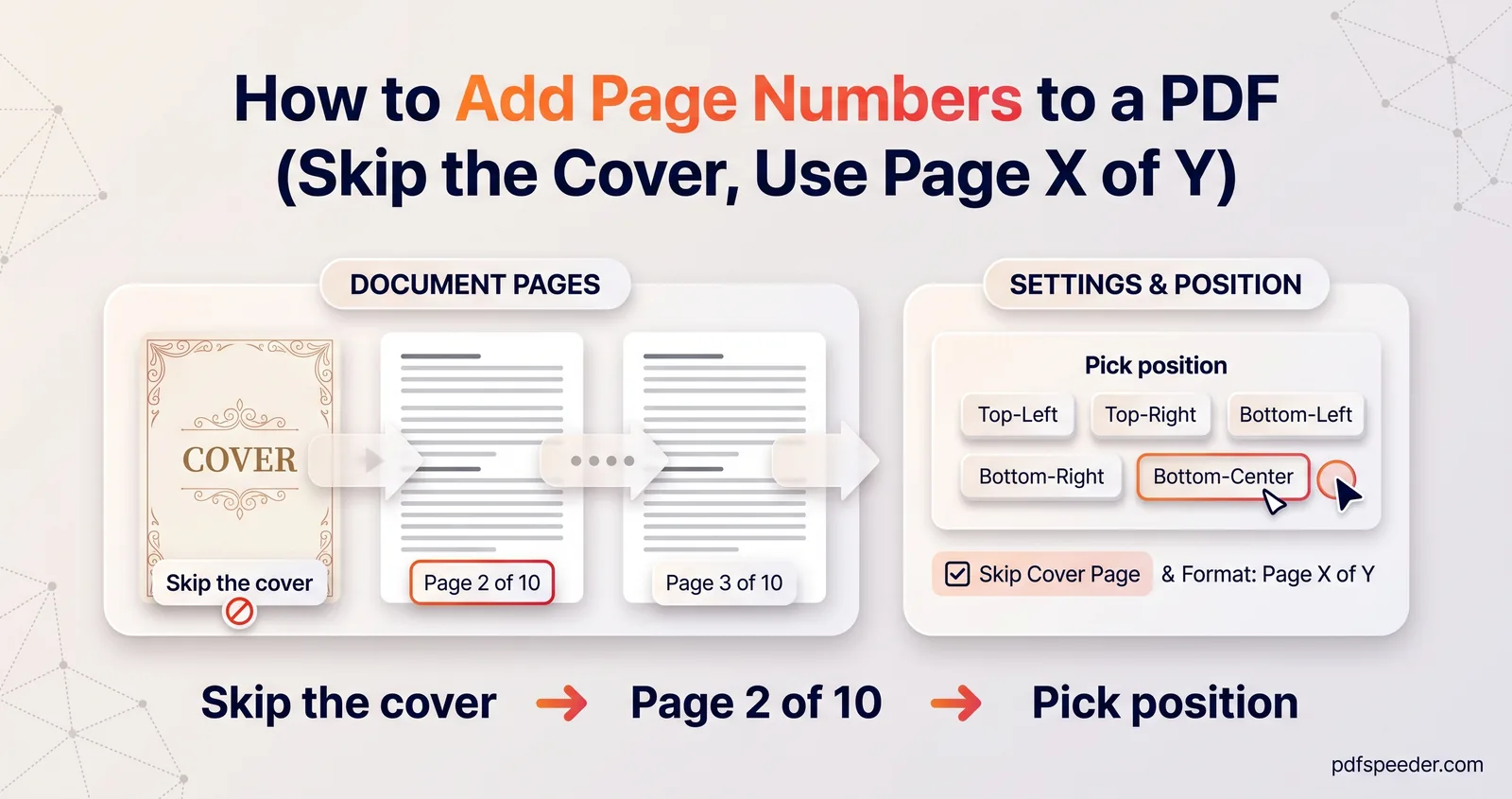
To add page numbers to a PDF, open it in a page-numbering tool, choose where the numbers go and how they look, such as "1" or "Page 1 of 10", and download the numbered copy. Add Page Numbers does this in your browser without Acrobat, and it can skip the cover page and start from any number. If you're combining several files, merge them first and number last, so the numbers run straight through.
On this page
How to add page numbers to a PDF in four steps
The Add Page Numbers tool works in any modern browser. It runs on your device, so the PDF isn't uploaded, and it accepts files up to 50 MB.
- Add your PDF. A live preview shows the first page; use the arrows to check others.
- Pick a position on the six-cell grid: top left, top centre, top right, bottom left, bottom centre or bottom right. Bottom right is selected to start with.
- Choose the format and style: the number format, the font (Helvetica, Times Roman or Courier), Font Size from 6 to 48 pt, Color, Margin from Edge and, if you like, Bold.
- Select Add Page Numbers & Download, then Download Numbered PDF. The new file ends in "_numbered".
The preview updates as you change settings, so you see exactly where each number lands before you commit. Each run counts as one task in the free daily allowance (2 a day without an account, 3 with a free account).
If the PDF has a password, you're asked for it when you add the file, and the numbered copy is saved without one. Lock it again with Lock PDF if the copy has to stay protected.
Choose a format: 1, Page 1 or 1 of 10
Nine formats cover most needs. Here's what each looks like on page 3 of a 10-page document:
| Format | Page 3 shows | Good for |
|---|---|---|
| 1, 2, 3 … | 3 | Books, reports, anything formal |
| i, ii, iii … | iii | Front matter, such as a preface or contents |
| I, II, III … | III | Appendices, or front matter in a formal style |
| Page 1, Page 2 … | Page 3 | Forms and letters |
| 1 / 10 | 3 / 10 | Compact "x of y" for slides and handouts |
| 1 of 10 | 3 of 10 | Contracts and multi-page applications |
| Page 1 of 10 | Page 3 of 10 | Documents that might be printed and shuffled |
| - 1 - | - 3 - | A traditional, decorative look |
| [ 1 ] | [ 3 ] | Drafts and technical documents |
The "of 10" formats, often called Page X of Y, tell a reader instantly whether a page is missing, which is why contracts and statements use them. In this tool, Y is the last number printed, so a skipped cover isn't counted, and the total stays right whatever number you start from.
The fonts are the standard PDF fonts every reader can display. For a thesis that needs i, ii, iii in the front matter and 1, 2, 3 after it, see the tip at the end of the next section.
Skip the cover and start from any number
Two settings control which number goes where: Start Number sets the first number shown, and Skip first page leaves page 1 unnumbered. Numbers then count up across the pages that get one, which matters when you combine the two:
| You want | Settings | Result in a 10-page PDF |
|---|---|---|
| Plain numbering | Defaults | Pages show 1 to 10 |
| A cover without a number; the next page is 1 | Skip first page on, Start Number 1 | Pages 2 to 10 show 1 to 9 |
| A cover without a number; the next page is 2 | Skip first page on, Start Number 2 | Pages 2 to 10 show 2 to 10 |
| This PDF continues a document that ended on page 40 | Start Number 41 | Pages show 41 to 50 |
So to start page numbering from page 2, decide first whether the cover counts. Many reports treat it as page 1 without printing the number, which is the third row.
Page X of Y follows the same count. With the third row's settings, the pages read "Page 2 of 10" to "Page 10 of 10", because Y is always the last number printed.
Pages to Number handles everything else. Leave it blank for every page, or type pages and ranges such as 3-12 or 1, 4, 7-10. The numbers still count up from Start Number across the pages you list, so if you number pages 3 to 12 and want them to show 3 to 12, set Start Number to 3.
Tip: Page numbers for a thesis PDF often need Roman numerals in the front matter and Arabic numbers from chapter 1. Number the front matter first with the i, ii, iii format, typing its pages in Pages to Number, such as 1-6. Then add the numbered copy again and number the rest, such as 7-48, with 1, 2, 3 and Start Number 1. That's two runs, so two tasks. If you still have the Word file, a section break before you export does the same job, as Microsoft's guide explains. Check your university's formatting rules for where the numbers must sit.
Where to put page numbers for printing
Where a number sits matters more on paper than on screen. A few rules of thumb:
- Double-sided printing: choose bottom centre or top centre. The tool puts every number in the same position, so numbers on the right would end up next to the spine on every back page, while centred numbers look right on both sides.
- Binding on the left: avoid the left positions, where punch holes, staples or the spine can swallow the number.
- Scanned pages: use the preview to check that the number doesn't sit on top of existing text, a stamp or a page number from the original. Move it to another corner or change the margin if it does.
- Headers in the document: if the pages already have a header or footer, put the number at the opposite edge.
The margin is measured in points, and 72 points make an inch:
| Margin from Edge | Distance from the paper's edge |
|---|---|
| 5 pt (minimum) | 1.8 mm |
| 30 pt (default) | 10.6 mm |
| 120 pt (maximum) | 42.3 mm |
Many office printers can't print right to the edge of the paper, so very small margins risk a clipped number. The default of 30 pt is a safe choice for print, and 12 pt type at that distance is easy to read.
Merge first, number last
Page numbers are stamped onto the pages as part of the content, so the order of your steps matters:
- Merge first. Combine every part with Merge PDF, in the right order. If you number each file separately, each one restarts at 1. Our guide to merging PDF files covers ordering and page picking.
- Fix the pages next. Delete, add, rotate or reorder pages before numbering, because any page you move afterwards takes its number with it. See how to rearrange pages in a PDF.
- Number last, then flick through the whole file once.
- Keep the unnumbered version. Stamped numbers can't be edited, so if you need to renumber later, start again from the copy without numbers to avoid two sets on each page.
Open Add Page Numbers, choose bottom centre and a format, check two or three pages in the preview, then download.
Frequently asked questions
How do I add page numbers to a PDF without Acrobat?
Use Add Page Numbers in your browser: pick a position and format, select Add Page Numbers & Download, and save the numbered copy. It runs on your device and doesn't need any software.
How do I start page numbering from page 2?
Turn on Skip first page. Keep Start Number at 1 if page 2 should show "1", or set it to 2 if the cover counts as page 1.
Can I add Page X of Y to a PDF?
Yes. Choose "1 of 10" or "Page 1 of 10" as the format. Y is the last number printed, so the totals match whatever Start Number you use.
Can I number only some pages of a PDF?
Yes. Type the pages in Pages to Number, such as 3-12. Numbering starts from Start Number on the first page you list.
Can I remove page numbers after adding them?
Not easily, because they're stamped onto the pages. Keep the unnumbered original, and renumber from that copy if anything changes.