How to Merge PDF Files on iPhone (Preview App or Safari)
How to merge PDF files on iPhone with the built-in Preview app or in Safari, choose pages, fix the order, then rename, save and share the combined PDF.

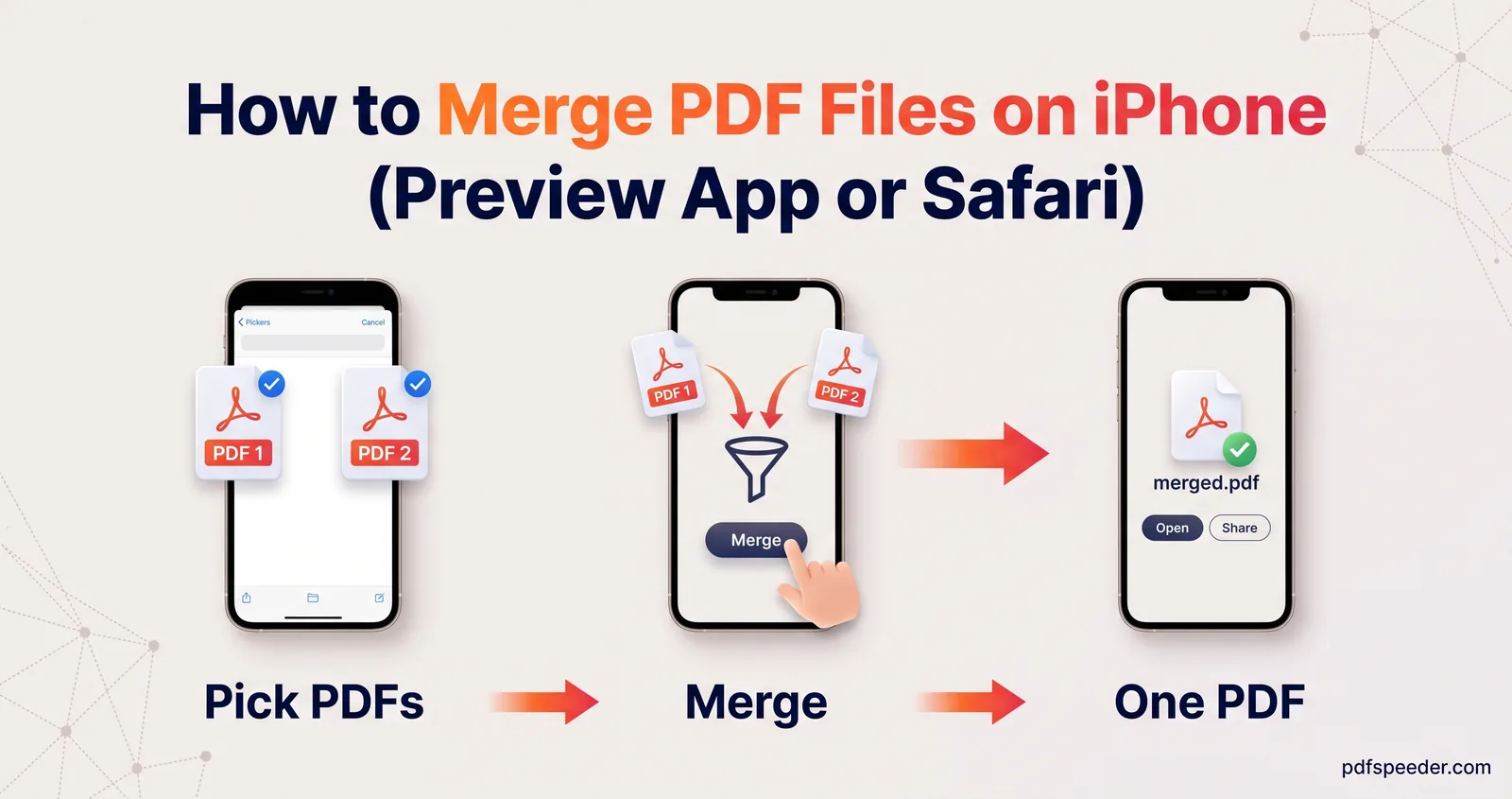
To merge PDF files on iPhone, open the first PDF in the Preview app, show its page thumbnails and use Insert from File to add the next PDF, with nothing extra to install. Preview needs iOS 26 or later; on older versions too, Merge PDF in Safari does the same job with more control over pages, rotation and bookmarks, and your files stay on the phone. Both methods are below, followed by how to rename, save and share the result.
On this page
Method 1: Merge PDF files on iPhone with the Preview app
Apple brought Preview to the iPhone with iOS 26. As well as viewing PDFs, it can add, delete, move and rotate pages, which is everything you need to combine documents into one PDF on iPhone.
- Open the Preview app, tap Browse, find the first PDF and tap it. Preview opens files from iCloud Drive and your other locations directly, without a trip through the Files app.
- If you want to keep this PDF as it is, tap the Actions menu next to its name, choose Duplicate and open the copy instead.
- Tap the page count to show the page thumbnails. If the page count isn't showing, tap the page first.
- Touch and hold a thumbnail, tap Insert from File and choose the next PDF. Look at where its pages landed; you can move them in a moment.
- Repeat for each further file. The same menu offers Scan Pages, for adding a paper document straight from the camera, and Insert Blank Page.
- To move a page, touch and hold its thumbnail until the menu appears, then drag it above or below another page. To rotate, tap the More button and choose Rotate Left or Rotate Right. To remove a page, touch and hold it and tap Delete Page.
- Tap the Back button to save and return to Preview's file list.
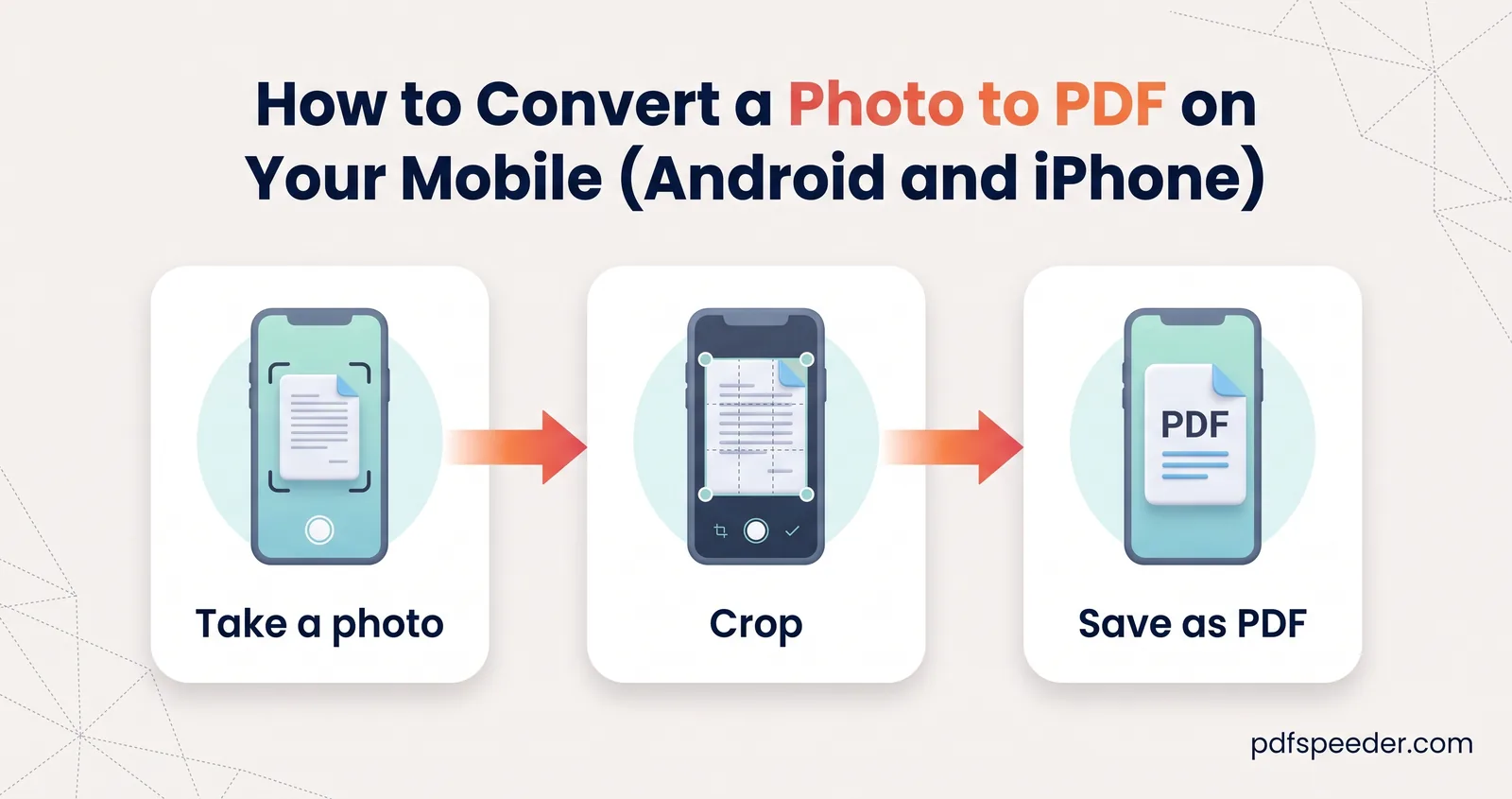
Insert from File accepts images as well as PDFs, so a photo of a signed page or an ID card can go into the same document. If you're starting from a batch of photos instead, see how to convert photos to PDF on your phone first. Apple describes every one of these steps in its guide to editing PDF pages in Preview.
What about the Files app?
Apple's iPhone User Guide doesn't describe a way to merge PDFs in the Files app. Depending on your iOS version, selecting several files and opening the More menu may show a Create PDF action that makes one PDF from multiple files, but you can't choose pages or preview the order before it runs. If you use it, number the file names, sort the folder by Name from the More button, select the files in that order and check every page of the result.
Getting the page order right
Whichever method you choose, a minute of preparation saves fixing pages afterwards:
- Number the files. Names such as
01 Application.pdf,02 Aadhaar.pdfand03 Marksheet.pdfsort the same way everywhere: in Files, in Preview's file list and in Merge PDF's A–Z sort. - Add files in reading order. In Preview, insert them from first to last and glance at the thumbnails after each one, so a misplaced file is easy to spot.
- Fix stragglers in one go. One page out of place is quickest to drag in Preview. For a long PDF that needs several moves, Reorder Pages in Safari lets you type the whole new order at once, such as
1,2,5,3,4.
Method 2: Merge PDFs in Safari
Merge PDF runs in Safari on your iPhone. The PDFs are processed on the phone instead of being uploaded, files of up to 200 MB each are accepted, and each merge counts as one task in the free daily allowance (2 tasks a day without an account, 3 with a free account).
- Open Merge PDF in Safari and tap Select PDF Files. Choose the PDFs in the file browser that opens; you can select several at once.
- Put them in order with the up and down arrows beside each file, which are easier than dragging on a small screen, or tap A–Z if the names are numbered.
- Set the pages and rotation for each file, as described in the next section.
- Tap Merge & Download, and if Safari asks, confirm the download. Unless you've changed Safari's download location, the merged PDF goes to the Downloads folder in Files.
Choose pages and rotate before merging
This is where the browser beats Preview: you set everything per file before merging, instead of fixing pages one by one afterwards.
- Pages to include. Type
1to take only a file's first page,2-4for a range or1,3for a selection, and leave it empty for the whole file. On a phone, the pick button is handier: it shows the pages as a grid you tap, with shortcuts for odd pages, even pages, the first 10 and the last 10. - Rotation. Tap 90°, 180° or 270° on any file whose pages came out sideways, such as a landscape scan or a photo of a document.
- Bookmarks. Leave Auto-bookmark each file on, and the merged PDF gets a bookmark per file, named after that file, which makes a long bundle easy to move around in.
- Dividers. Leave Divider page between files off unless the bundle will be printed; on screen, blank pages just get in the way.
If you need only a few pages from a long PDF, the page range covers it. To keep those pages as a separate PDF as well, for instance to send them on their own, pull them out first with Extract PDF Pages.
Save, rename and share the merged PDF
A merged file from Safari is called Merged_PDF_ followed by a long number, which isn't something you want to send. To tidy it up:
- Open the Files app, tap Browse, then Downloads. If Downloads isn't listed, tap iCloud Drive first.
- Touch and hold the file, choose Rename and give it a clear name, such as
Priya_Sharma_documents.pdf. - To keep it with your other documents, touch and hold it again and choose Move.
- To send it, touch and hold it, tap Share and pick Mail, Messages, WhatsApp or AirDrop.
In Preview, the same jobs sit in the Actions menu next to the file name: Rename, Move and Duplicate. On an iPad, everything works the same way, except that Preview shows the thumbnails through the Toggle Sidebar button.
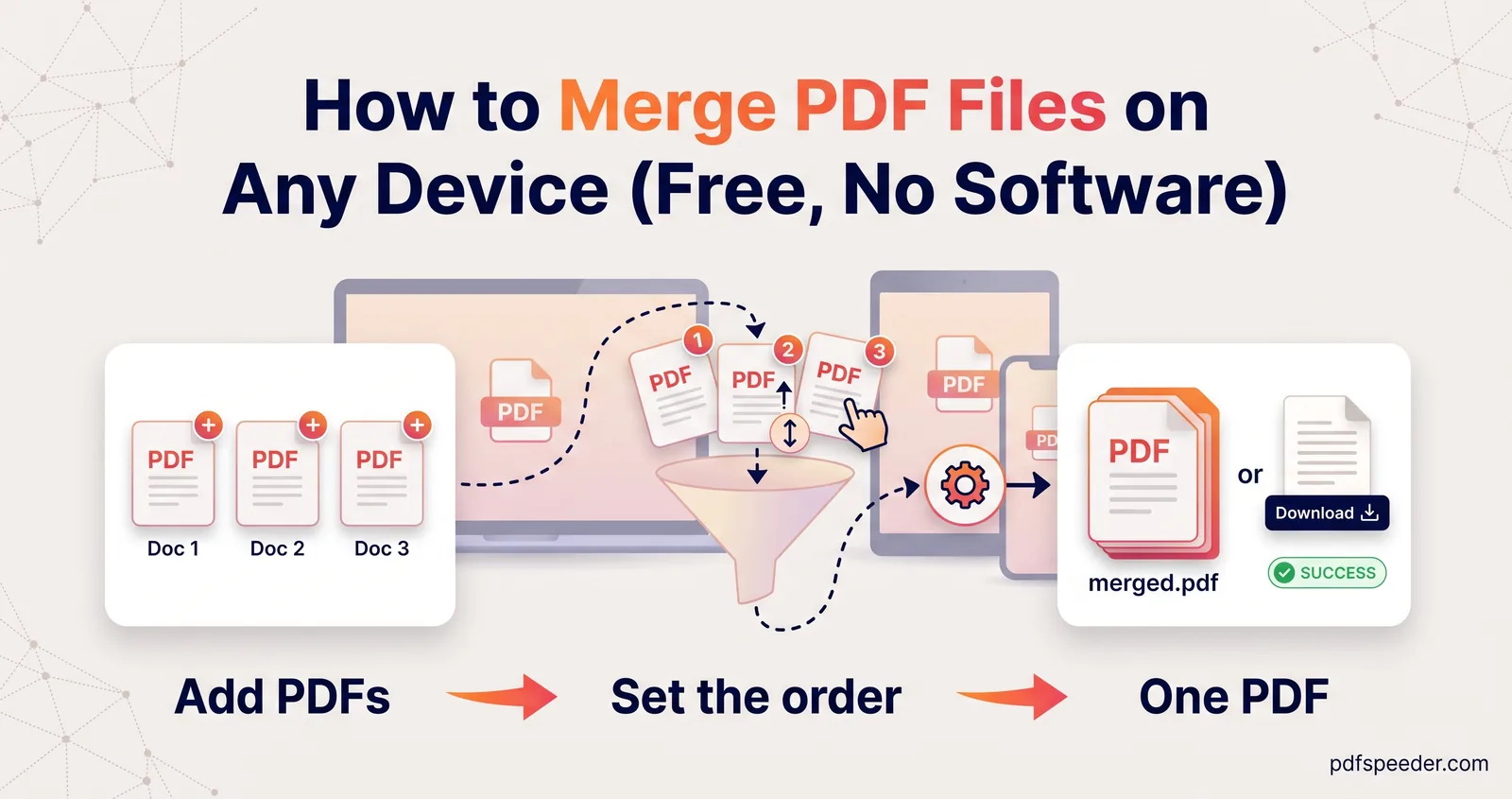
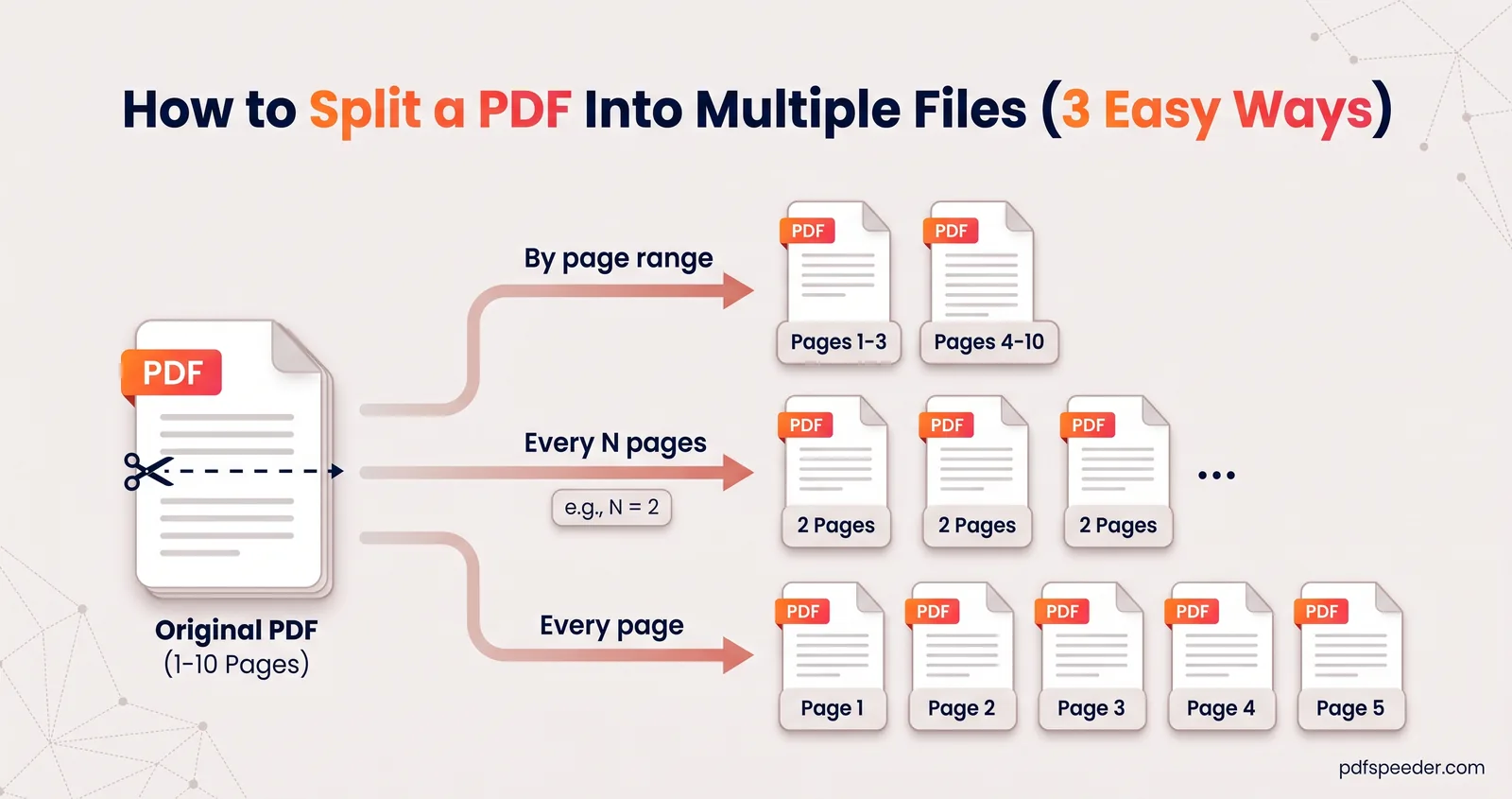
Ready to try it? Combine PDF files on your iPhone with Preview for a quick job, or open Merge PDF in Safari when you need page ranges and bookmarks. Our guide to merging PDF files on any device covers Mac and Windows too, and if you need to break a file apart instead, see how to split a PDF into multiple files.
Frequently asked questions
Can I merge PDFs on iPhone without downloading an app?
Yes. On iOS 26 or later, the built-in Preview app can insert one PDF into another, and on older versions, Merge PDF works in Safari.
Where does the merged PDF go on my iPhone?
A file merged in Safari goes to the Downloads folder in the Files app. In Preview, the changes are saved in the PDF you opened, so duplicate it first if you need the original.
Can I combine photos and PDFs into one PDF on iPhone?
Yes. Preview's Insert from File accepts both PDFs and images, so a photo of a document can sit between PDF pages.
Are my files uploaded when I merge them on iPhone?
No. Preview works entirely on the phone, and Merge PDF in Safari processes the files on your iPhone rather than uploading them.
How do I merge PDFs on an iPad?
The same way. On iPadOS 26 or later, open the PDF in Preview, tap the Toggle Sidebar button to show the thumbnails, then touch and hold a thumbnail and tap Insert from File.