PNG vs JPG: Which Image Format Should You Use?
PNG vs JPG tested on real photos, a screenshot, a logo and a scan: which format is smaller, which stays sharp, where WebP and AVIF fit, and what forms accept.

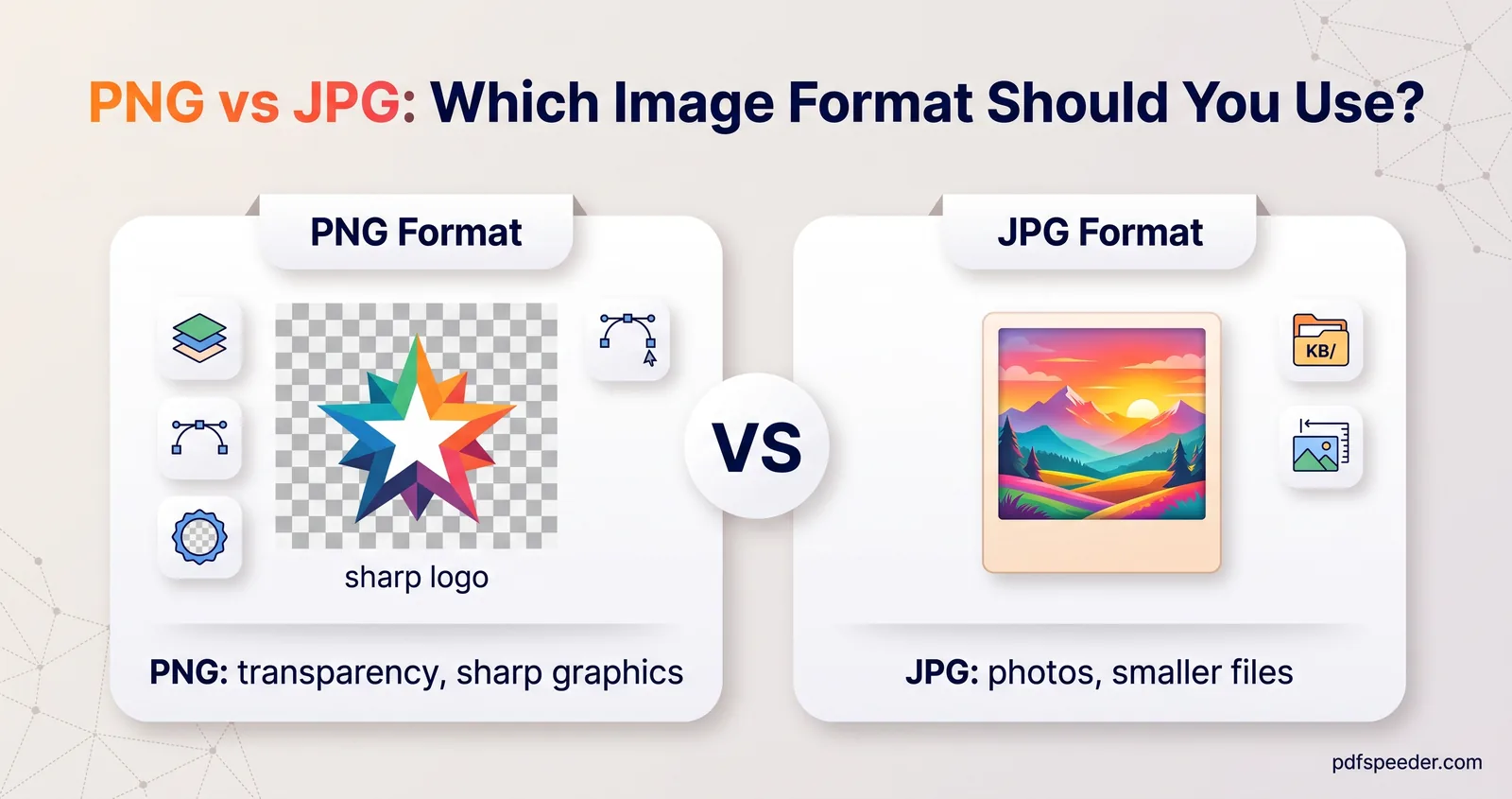
PNG vs JPG comes down to what's in the picture. Use JPG for photographs, where it makes files several times smaller with no visible difference, and use PNG for screenshots, logos, text and anything that needs a transparent background, where JPG blurs sharp edges and can't store transparency. In our test on sample files, a photo saved as PNG was five to six times the size of the same photo as a 90% JPG, while a screenshot came out at almost the same size in both formats, with only the PNG staying perfectly crisp.
On this page
The short answer
| What you're saving | Best format | Why |
|---|---|---|
| Photos from a phone or camera | JPG | Far smaller, and the loss is hard to see at 85-90% quality |
| Screenshots, app and web captures | PNG | Text stays crisp; size is similar to a high-quality JPG |
| Logos, icons, diagrams, charts | PNG | Sharp edges, flat colours, transparency |
| Anything with a transparent background | PNG | JPG has no transparency at all |
| Scanned documents for an upload form | JPG | Smaller, and forms usually ask for it |
| Images for your own website | WebP or AVIF, with JPG or PNG as a fallback | Smaller again, in all current browsers |
| A file you'll keep editing | PNG while you work | It never loses quality when re-saved |
The sections below show the numbers behind these choices, from a test on real files.
How JPG and PNG store images differently
JPG is lossy. It splits the picture into small blocks, keeps the brightness detail your eye is sensitive to and discards fine colour and texture detail it barely notices. The quality setting decides how much it throws away. That trade works brilliantly for photos and badly for sharp edges, which pick up faint smudges or "ringing".
PNG is lossless. It compresses the pixels the way a ZIP file compresses text, so every pixel comes back exactly as it was. It's efficient when large areas are the same colour, as in screenshots and logos, and inefficient when every pixel differs slightly, as in a photo. PNG also stores an alpha channel, so pixels can be transparent or semi-transparent.
That difference matters most when you save a file more than once. We re-saved a sample photo repeatedly as JPG and measured how far it drifted from the original:
- Re-saving an unchanged JPG at the same quality barely mattered: after ten saves at 75%, the error had grown by only about 7% compared with the first save.
- Editing between saves, or switching quality settings, compounded the damage: after ten rounds of small brightness tweaks saved at 85%, or of alternating 85% and 70%, the error was 2.3 to 2.5 times what it was after the first save.
- PNG came back identical to the original every time.
So the practical rule for JPG vs PNG quality is: keep a PNG or the original file while you're editing, and export a JPG once, at the end.
Photos, screenshots and logos: which format?
We saved five sample images, all from lossless sources, in each format: two real photographs from the scikit-image sample library, a 1280 × 800 screenshot of one of our tool pages, the matplotlib logo, and a greyscale scan of a printed page. JPG was saved at 90% and 75% quality; WebP at 80% for the photos and the scan, and in lossless mode for the screenshot and the logo, matching how each would really be used.
| Test image | PNG | JPG at 90% | JPG at 75% | WebP |
|---|---|---|---|---|
| Photo, 512 × 512 pixels | 415 KB | 67 KB | 39 KB | 31 KB (80%) |
| Photo, 741 × 500 pixels | 622 KB | 116 KB | 70 KB | 59 KB (80%) |
| Screenshot, 1280 × 800 pixels | 103 KB | 98 KB | 66 KB | 71 KB (lossless) |
| Logo with transparency, 542 × 130 pixels | 21 KB | 17 KB (transparency lost) | 11 KB (transparency lost) | 11 KB (lossless) |
| Scanned page, greyscale, 384 × 191 pixels | 42 KB | 22 KB | 15 KB | 14 KB (80%) |
What the numbers say:
- Photos: PNG was 5.4 to 6.2 times the size of a 90% JPG, for no visible gain. This is the clearest case in the PNG vs JPG file size debate.
- Screenshot: PNG and a 90% JPG were within 5% of each other. Zoomed in, the 75% JPG showed faint smudges around the letters (at 90% they were barely visible), while the PNG stayed perfectly clean, so PNG wins: the same size with no compromise.
- Logo: JPG saved a few kilobytes but lost the transparency, filling it with white, and left faint speckles around the letter edges. Lossless WebP kept everything at half the PNG's size.
- Scan: JPG was about half the size of PNG and still readable, which is why upload forms prefer it. A scan with more paper texture tilts further towards JPG, as our test in converting PDF pages to JPG shows.
PNG or JPG for printing?
For printing, resolution matters more than the format. For photos, a JPG at 90% or more holds up well in print; for logos, charts and text you'll print large, PNG keeps the edges cleaner. Print services differ in what they accept, so check yours, and remember that neither format adds detail a small image doesn't have.
File size: why PNG photos are huge
The bytes-per-pixel figures from the test explain it. The two photos needed 1.6 to 1.7 bytes per pixel as PNG but only about 0.3 as a 90% JPG. The screenshot needed only 0.1 bytes per pixel in either format, because its large flat areas compress well losslessly.
A photo is full of fine variation: sensor noise, skin texture, leaves, gradients in the sky. Lossless compression has to record every one of those tiny differences exactly, so it can't shrink them much. JPG simply discards most of that variation, which is why a 12-megapixel phone photo that's a few megabytes as a JPG can run to several times that as a PNG.
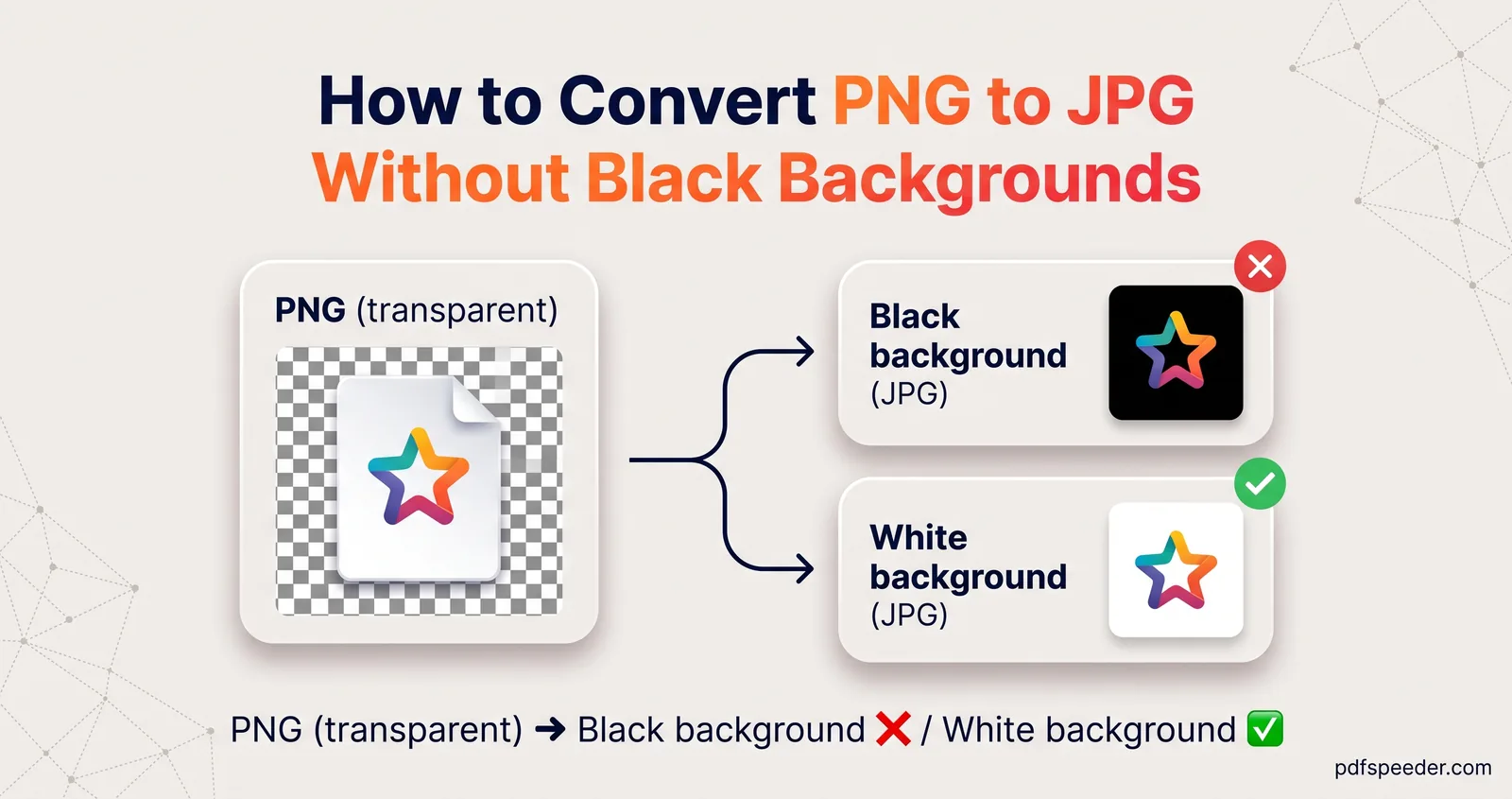
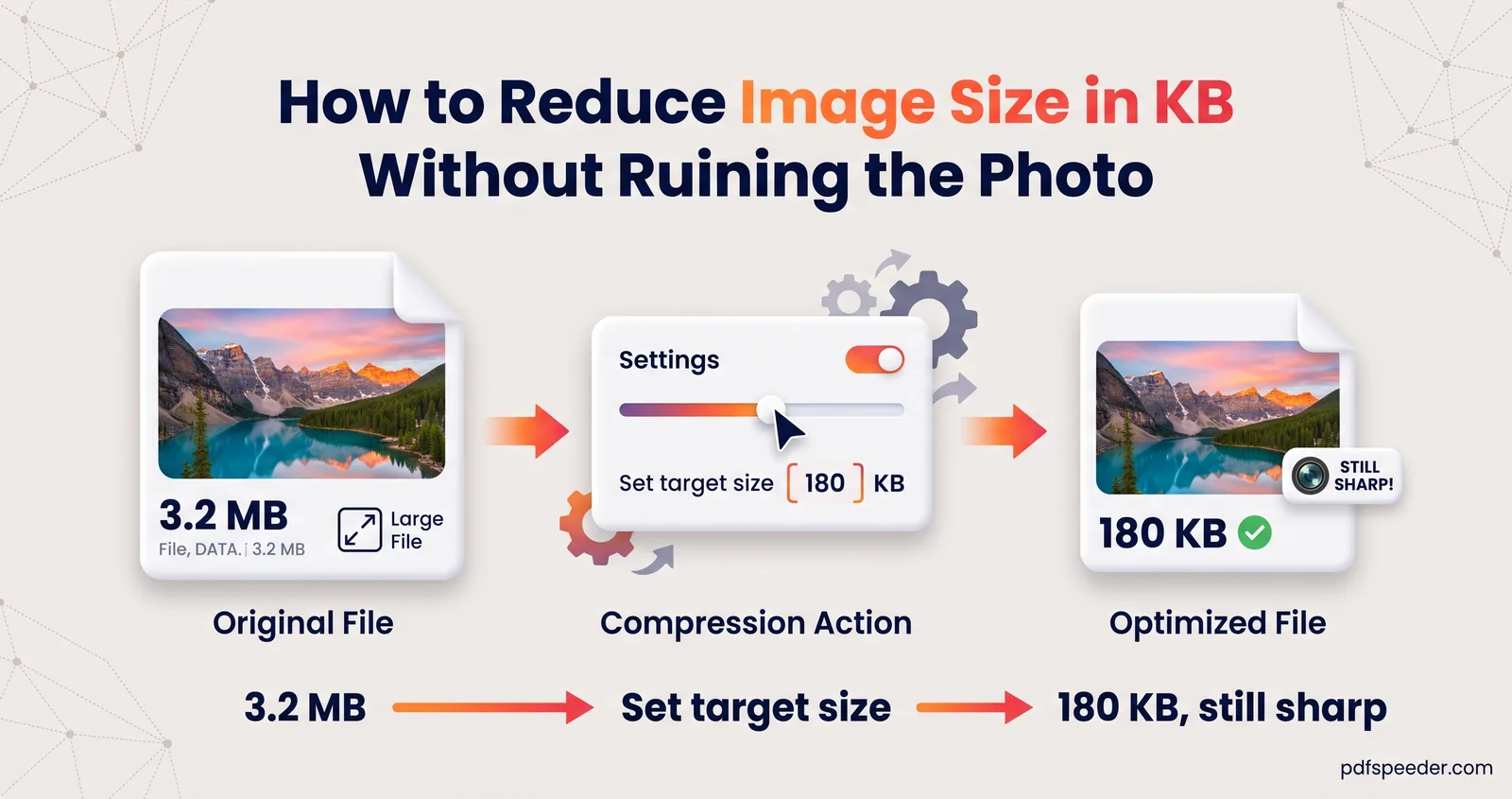
If you've got a folder of photos saved as PNG, converting them to JPG is the quickest way to reclaim space: our Image Compressor does it in your browser with Output format set to JPG, and our guide on how to convert PNG to JPG shows how to stop transparent areas turning black.
Where WebP and AVIF fit in
WebP and AVIF are newer formats that can work either way, lossy or lossless, and both support transparency. In our test, lossy WebP beat even a 75% JPG on the photos and the scan, and AVIF at 60% gave the smallest file of all for every image, such as 25 KB for the first photo.
On WebP vs JPG for websites: Google's WebP page puts lossy WebP at 25 to 34% smaller than JPEG at comparable quality. MDN's image format guide lists WebP as supported in all current versions of Chrome, Edge, Firefox, Opera and Safari, and AVIF as supported in the same browsers, while advising a fallback format for AVIF. So for JPEG vs PNG on your own website, the modern answer is often neither: serve WebP or AVIF, with a JPG or PNG fallback.
Outside the browser, support is patchier. Older photo editors, some printing services and many upload forms still reject WebP and AVIF, so keep JPG and PNG for sharing and submitting.
Our Image Compressor's Smart format tries JPEG, WebP and AVIF and keeps whichever is smallest. AVIF is only offered when your browser can create it; JPEG is skipped for images with transparency.
What forms and websites accept
The best image format is whichever the destination accepts:
- Exam and job portals: usually JPG. IBPS's 2026 guidelines, for example, say the image file should be JPG or JPEG. JPG and JPEG are the same format with two spellings, so either extension is fine.
- Government and visa portals: read the instructions for each one; many specify JPG and a size window in KB.
- Email and messaging apps: anything goes, but photos travel better as JPG because they're smaller.
- Websites and online shops: follow the platform's guidelines; for your own site, WebP or AVIF with a fallback.
Need to switch formats? The Bulk File Converter changes up to 100 PNG, WebP, GIF or BMP images to JPG, PNG or WebP at once in your browser, filling any transparent areas with white when the output is JPG. If you'd rather keep WebP files usable everywhere, our guide on how to convert WebP to JPG covers Windows, Mac and phones. And to turn PDF pages into lossless images, PDF to PNG renders each page as a PNG, with an optional transparent background; it counts as one task in the free daily allowance (2 a day without an account, 3 with a free account).
Next step: check what's in your image, then pick the format from the table at the top. If it's a photo stored as PNG, convert it to JPG at 85-90% and compare the size.
Frequently asked questions
Is PNG better quality than JPG?
PNG is lossless, so it never loses detail, while JPG discards some to save space. For photos at 85-90% quality the difference is invisible, but for screenshots, text and logos PNG stays visibly sharper.
Why is my PNG file so much bigger than the JPG?
Because PNG has to store every pixel exactly, and photos are full of fine variation that lossless compression can't shrink. In our test, photos were five to six times bigger as PNG than as a 90% JPG.
Should I use PNG or JPG for a logo?
PNG, especially if the logo needs a transparent background. JPG can't store transparency and leaves faint speckles around sharp edges.
Does converting JPG to PNG improve quality?
No. The detail a JPG discarded is gone for good, so converting it to PNG only makes the file bigger. It does stop further loss if you plan to edit and re-save it many times.
Is WebP better than JPG?
For websites, usually: it's smaller at similar quality and every current major browser shows it. For uploads and sharing, JPG is safer, because many forms and older programs don't accept WebP.