How to Convert WebP to JPG on Windows, Mac, Phone or Online
Convert WebP to JPG on Windows, a Mac or your phone: the Paint and Preview steps, batch conversion with quality control, and what happens to transparency.

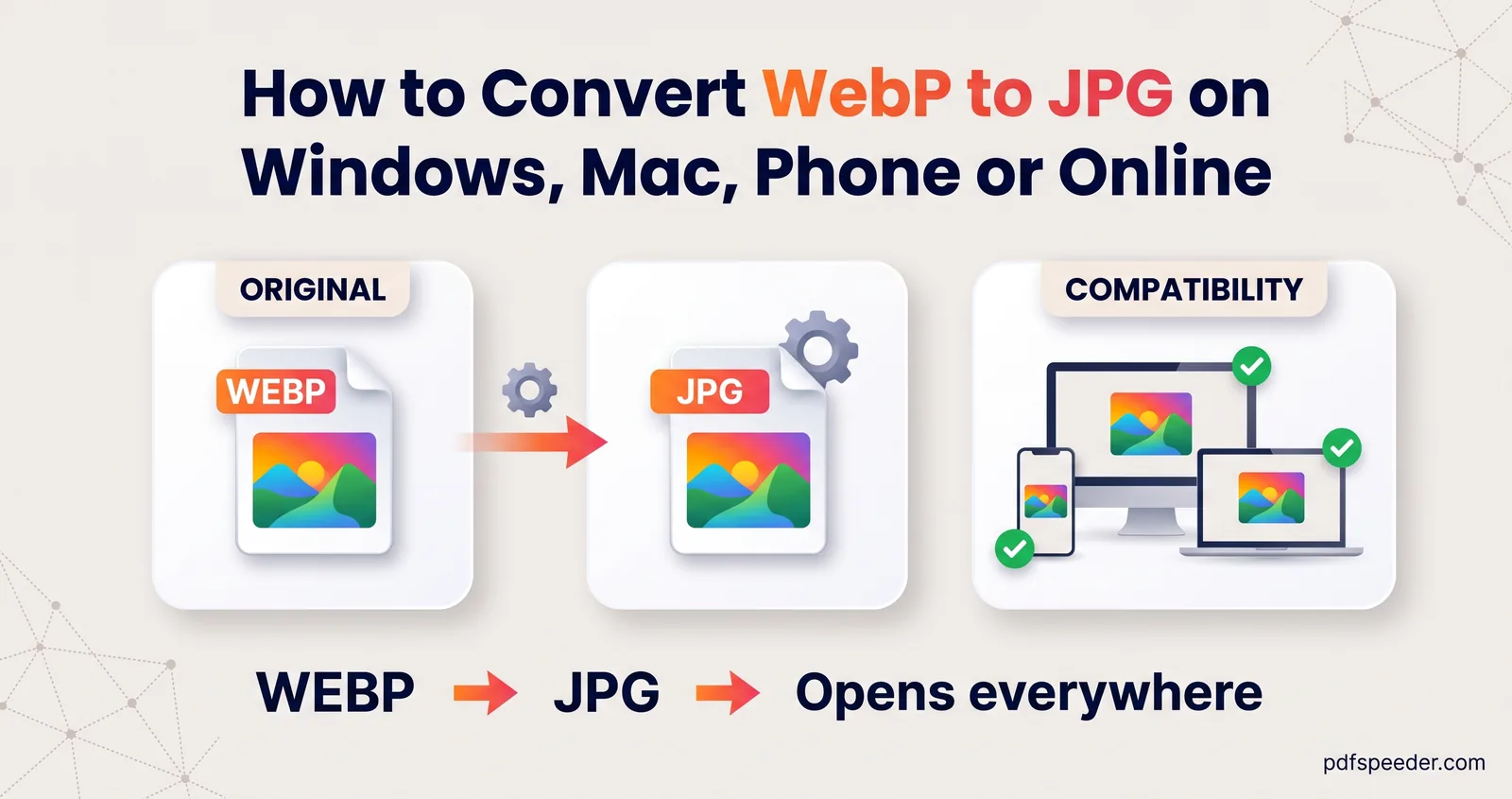
To convert WebP to JPG, open the image in a program that reads WebP and save a copy as JPEG. On Windows, Paint does it with File > Save as > JPEG picture; on a Mac, Preview does it with File > Export. For a folder full of WebP files, or on a phone, a browser converter changes them all at once and lets you choose the quality and size.
On this page
What is a WebP file and why did you get one?
WebP is an image format from Google, built to make web pages load faster. According to Google's WebP page, lossy WebP images are 25 to 34% smaller than comparable JPEGs, and lossless ones are 26% smaller than PNGs. That's why many websites serve their pictures as WebP, and why "Save image as" in your browser often hands you a .webp file even when you expected a JPG.
The trouble starts when you try to use it elsewhere. Many upload forms, such as job portals and application forms, list only JPG, JPEG or PNG, and older photo editors and printing services may not open WebP at all.
To open a WebP file just to look at it, drag it into any modern browser tab: Chrome, Edge, Firefox and Safari all display it. Don't rename photo.webp to photo.jpg, though. The data inside stays WebP, so a strict form or program will still reject it, or fail to open it.
Convert WebP to JPG on Windows
Paint, which comes with Windows, can open a WebP image and save it as JPEG:
- Right-click the WebP file and choose Open with > Paint.
- Choose File > Save as > JPEG picture.
- Give the copy a name and select Save.
Paint saves one file at a time and has no quality setting, so it's best for the odd image. To convert WebP to JPG on Windows in bulk, or to choose the quality, use the browser method below.
Convert WebP to JPG on a Mac
Preview opens WebP files on macOS Big Sur (11) and later:
- Open the WebP image in Preview.
- Choose File > Export.
- Open the Format menu and choose JPEG, then set the Quality slider.
- Choose a name and location, and select Save.
For several files, the Finder is quicker: select the images, Control-click them, and choose Quick Actions > Convert Image. Pick JPEG as the format and a size, and the converted copies appear next to the originals. Apple describes both in its guides to converting image file types in Preview and Finder quick actions.
Convert many WebP files at once
Our Bulk File Converter works in any browser, including on Android phones and iPhones, and converts up to 100 files in one go:
- Drop in your WebP files (it also takes JPG, PNG, GIF and BMP).
- Set Convert to to JPG. The menu offers only formats your files can actually become.
- Set Image quality. It starts at 85%, which suits most photos; drag it higher for images with fine text.
- If you want them smaller, choose Max longest side (px), Max width (px) or Scale (%) under Resize images. The two maximum settings only ever shrink an image, never enlarge it; Scale (%) resizes by exactly the percentage you type, so keep it below 100 to make images smaller.
- Select Convert All Files, then Download All as ZIP.
The conversion runs in your browser, so your images aren't uploaded anywhere.
How much bigger will the JPG be?
Expect the JPG to be larger than the WebP it came from, because WebP packs the same picture into fewer bytes. Here's what happened to five sample photos, 1,600 pixels wide, that started as WebP at quality 80:
| JPG quality | JPG size compared with the WebP | Good for |
|---|---|---|
| 75 | about 2.4 times | Email and web previews |
| 85 | about 3 times | Most photos (the converter's default) |
| 90 | about 3.7 times | Pictures with fine text or detail |
Your own photos will differ, but the direction won't. If a form has a size limit in KB, check the converted file before you upload it.
When a form gives you an exact limit, such as 100 KB, use Image Compressor instead. Switch it to Target size, enter the limit and set Output format to JPG: it converts and shrinks in one step, again without uploading anything. Our guide to reducing image size in KB explains what decides the final size.
And if what you really need is a PDF of the images, WebP to PDF makes one directly, so there's no need to convert to JPG first.
What happens to transparency?
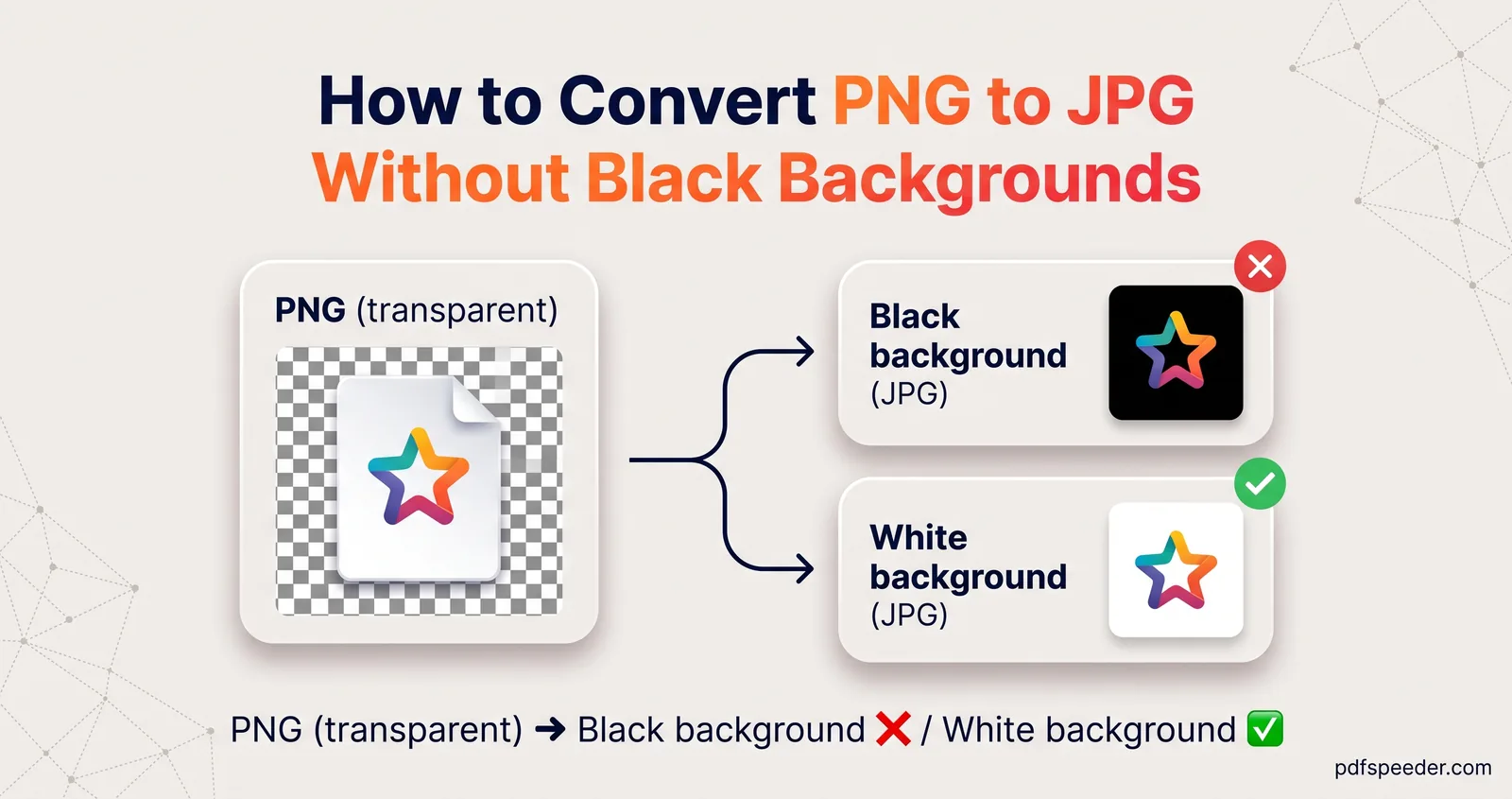
JPG has no transparency, so every transparent pixel must become a colour. Our two browser tools handle it like this:
| Tool | Transparent areas in the JPG | Keep transparency instead |
|---|---|---|
| Bulk File Converter | Filled with white | Convert to PNG or WebP |
| Image Compressor | White by default; pick any colour under Transparency fill | Choose PNG or WebP as the output format |
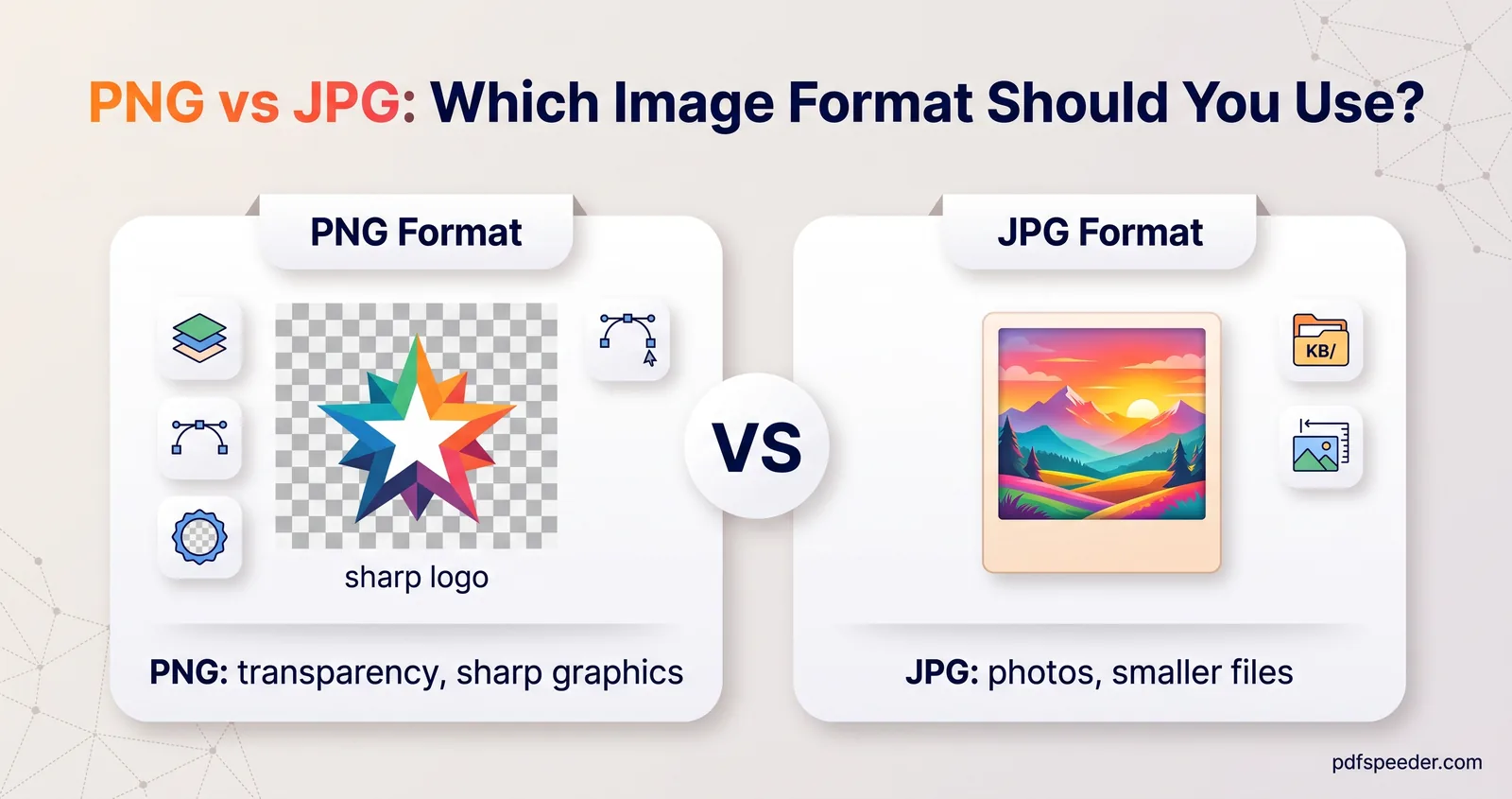
Logos, stickers and product cut-outs are the usual casualties: on a white background a white fill looks fine, but on a coloured web page the image now sits in a white box. If you need to keep the transparent background, convert WebP to PNG instead, which Bulk File Converter also offers. The PNG keeps transparency, but expect a larger file, because PNG compresses without losing detail.
Animated WebP files are a different case. A JPG holds one still picture, so a converted animation keeps a single frame. WebP to PDF can instead put each frame of an animated WebP on its own page.
Got a folder of WebP downloads to sort out? Drop them all into Bulk File Converter, choose JPG at 85%, and download one ZIP.
Frequently asked questions
Does renaming a WebP file to JPG convert it?
No. Renaming changes only the extension; the image data is still WebP, so strict upload forms and older programs will still reject it. Save or export a real JPEG copy instead.
Will converting WebP to JPG lose quality?
A little, because JPEG compresses the image again. At a quality of 85 to 90 the difference is hard to see in photos; keep the original WebP in case you need to convert it again.
How do I save a WebP image as JPG on my phone?
Open Bulk File Converter in your phone's browser, add the image, set Convert to JPG and download the result. It works the same way on Android and iPhone.
Is WebP better than JPG?
For websites, usually: Google's figures show lossy WebP files 25 to 34% smaller than comparable JPEGs. For sharing and uploading, JPG is the safer choice, because almost every program and form accepts it.
Should I convert WebP to PNG or JPG?
Choose JPG for photos and anywhere a form asks for JPG, because the files are smaller. Choose PNG for logos, screenshots and images with transparent backgrounds.