How to Convert PNG to JPG Without Black Backgrounds
Convert PNG to JPG the right way: when it's worth it, how to stop transparent areas turning black, which quality to pick and how to convert a whole folder.

To convert PNG to JPG, open the image in a converter, choose JPG as the output, pick a background colour for any transparent areas and set the quality to around 85-92%. Our Image Compressor does all of that in your browser, for one file or a whole batch. Before you start, check that converting is worth it: photos shrink dramatically, but screenshots and logos often don't, and transparency can't survive the trip.
On this page
Should you convert PNG to JPG at all?
JPG is built for photographs, so the payoff depends on what the PNG contains. We converted three sample files at 90% quality:
| Sample PNG | PNG size | As a 90% JPG | Verdict |
|---|---|---|---|
| Photo, 512 × 512 pixels | 415 KB | 67 KB | Convert: 84% smaller, no visible change |
| Screenshot of a web page, 1280 × 800 pixels | 103 KB | 98 KB | Keep the PNG: barely smaller, and the text softens |
| Logo with a transparent background | 21 KB | 17 KB | Keep the PNG, unless you need a solid background |
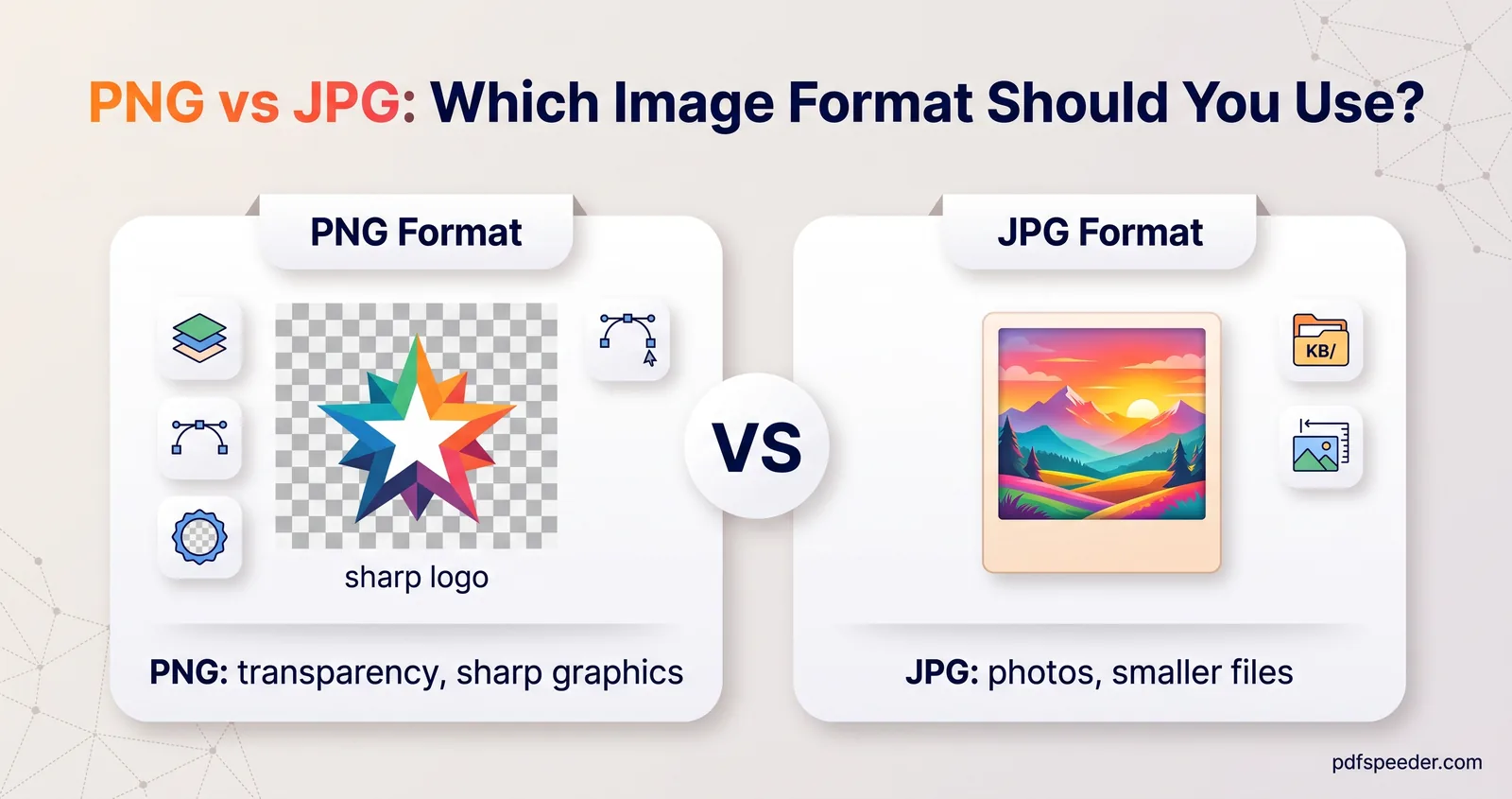
So convert photos, and anything a form insists must be JPG (many exam and government portals do). Keep screenshots, diagrams and logos as PNG when you can. Our PNG vs JPG guide has the full test, including WebP and AVIF.
One more surprise from that screenshot: saved at 95% quality, the JPG came out at 132 KB, bigger than the 103 KB PNG it came from. For simple graphics, a high-quality JPG can be larger than the original.
Convert PNG to JPG step by step
Our Image Compressor converts and compresses in one pass, entirely in your browser, so your images are never uploaded:
- Add your PNGs. Drop in one or more images, up to 80 MB each.
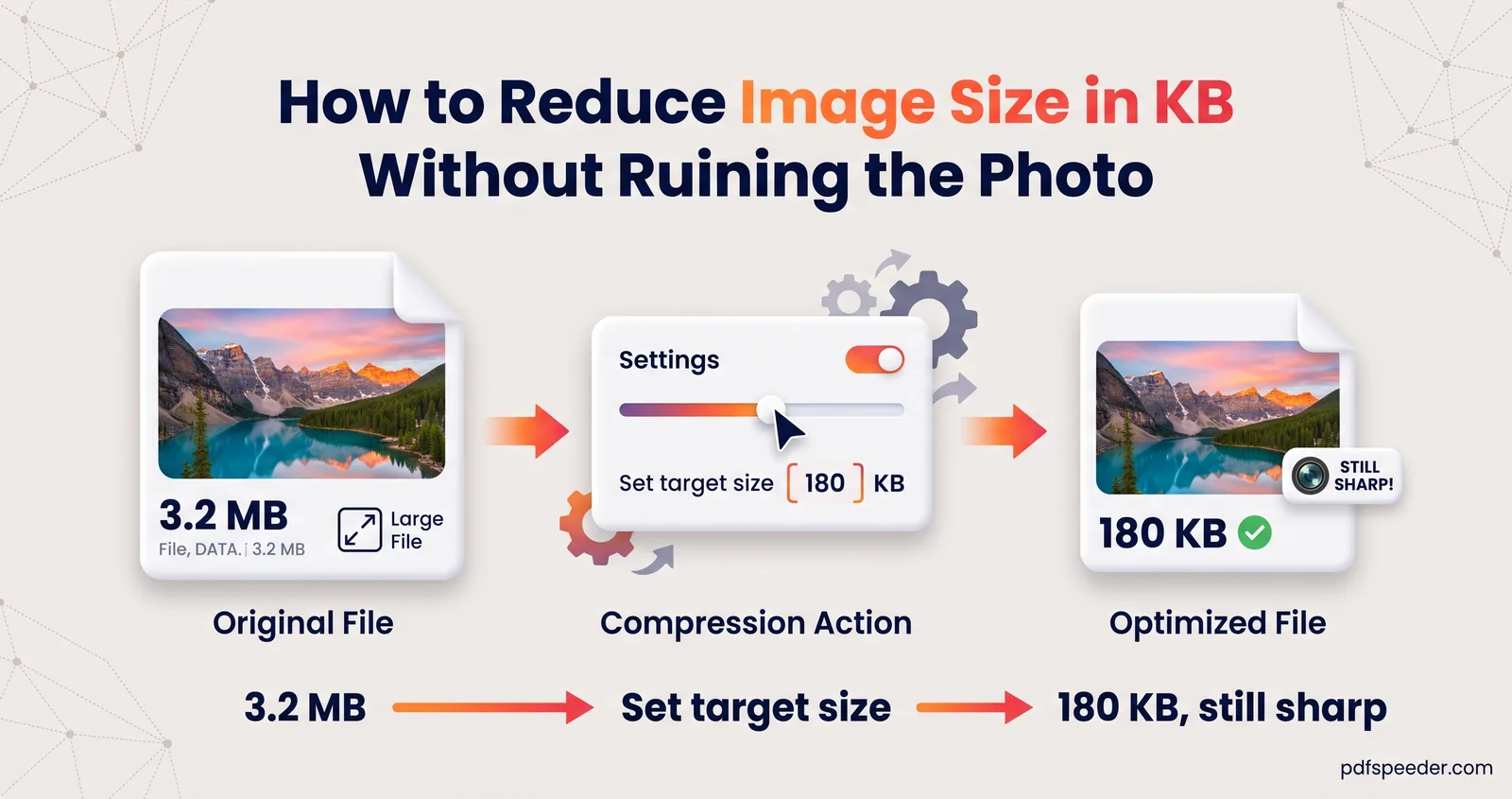
- Set the quality. Leave Compression on Quality and move the slider, or tap High (90) or Balanced (80). If a form has a size limit, switch to Target size and type it instead; our guide to reducing image size in KB lists safe numbers to enter.
- Choose the format. Under Output format, pick JPG.
- Pick the transparency fill. If your PNG has transparent areas, choose their colour under Transparency fill. It starts at white.
- Compress and check. Select Compress, drag the before/after divider across any edges or text, then download the file, or all of them as a ZIP.
The tool also strips EXIF metadata, such as a phone's location data, whenever it re-encodes an image. And because you asked for a new format, it won't fall back to the original file if the JPG comes out bigger, so glance at the sizes it shows before you download.
On your own computer, two built-in options work for single files. On Windows, open the PNG in Paint and choose File > Save as > JPEG picture. On a Mac, open it in Preview, choose File > Export, pick JPEG and set the quality slider, as Apple's guide to converting image file types in Preview shows. Neither lets you choose the fill colour, so check the result for a white or black background.
Transparent PNGs: pick a background colour
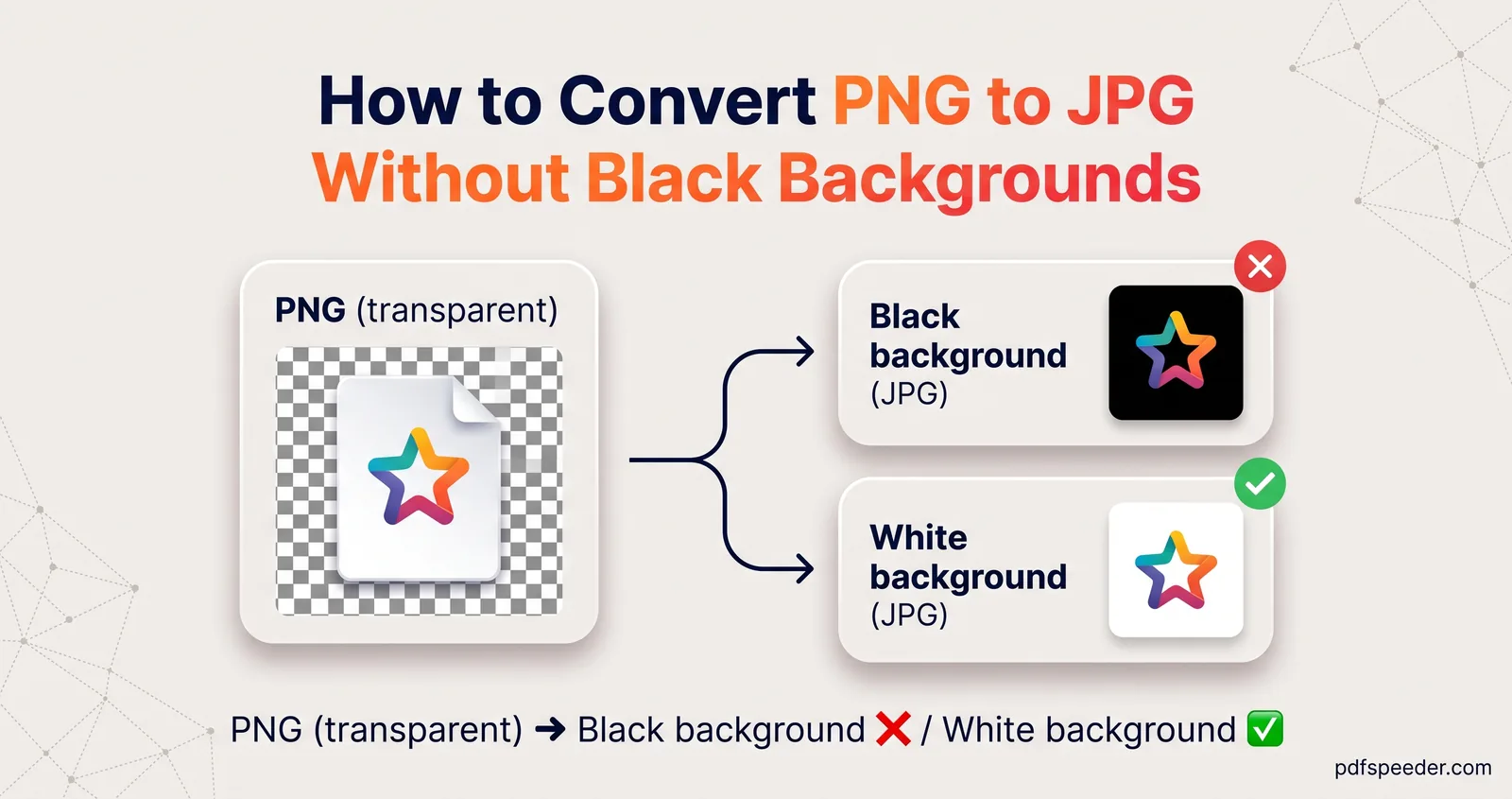
JPG has no transparency, so every transparent pixel must become a solid colour. This is where most black backgrounds come from: a transparent pixel still stores a colour underneath, and it's often black. A converter that simply discards the transparency reveals that hidden colour.
We saw exactly that in a test. The matplotlib logo's transparent pixels were stored as black, and stripping its transparency without filling it first produced a logo on a solid black rectangle. Filled with white instead, it looked as intended.
To convert PNG to JPG with a white background, or any other colour, choose the colour of wherever the image will end up:
- White for documents, upload forms, email and most web pages.
- Your page's background colour for a dark website or a coloured slide, so the image blends in.
- A brand colour for a banner or social media graphic.
Edges matter too. Smooth edges in a PNG are partly transparent: in that logo, 2,718 of its 70,460 pixels were semi-transparent, and when you convert, those pixels blend with the fill colour.
Fill with white and later place the JPG on a dark page, and a pale halo appears around every edge. Pick the final background colour before converting, or keep the PNG.
Here's how our three image tools handle transparency when they save a JPG:
| Tool | Transparent areas become |
|---|---|
| Image Compressor | White by default, or any colour you choose under Transparency fill |
| Bulk File Converter | White, always |
| Image Resizer | The Padding / bg colour, white by default |
Choose a JPG quality that looks right
Quality trades file size against detail. Here's the 512 × 512 sample photo, which was 415 KB as a PNG, at different settings:
| JPG quality | File size |
|---|---|
| 80% | 45 KB |
| 85% | 53 KB |
| 90% | 67 KB |
| 92% | 73 KB |
For PNG to JPG without losing quality you can see, 85-92% is the sweet spot for photos; use 90% or more if the image contains text or fine lines. Going higher rarely pays: the screenshot grew to 132 KB at 95% and 234 KB at 100%, more than twice its PNG size. Our tools start at different points (80% in the Image Compressor, 85% in the Bulk File Converter and 92% in the Image Resizer), so set the slider deliberately.
Convert once, from the original PNG. Every time a JPG is edited and saved again it loses a little more detail, so keep the PNG as your master copy.
Convert a whole folder at once
To batch convert PNG to JPG, our Bulk File Converter handles up to 100 files in one go:
- Drop in your PNGs. It also takes JPG, WebP, GIF and BMP images, plus PDFs and text files.
- Set Convert to to JPG and choose the Image quality (it starts at 85%).
- Optionally shrink large images under Resize images: Max longest side or Max width only ever scale down, while Scale (%) resizes by the percentage you type.
- Select Convert All Files, then Download All as ZIP.
It runs in your browser too, and fills transparent areas with white. If you need a different fill colour, use the Image Compressor instead: it batches just as well, downloads everything as a ZIP and lets you re-run with Adjust settings without adding the files again. When the JPGs also need exact pixel dimensions, such as 1080 × 1080 for a social post, the Image Resizer resizes and converts in the same step.
Got WebP files instead? Our guide to converting WebP to JPG covers the same job for that format.
Next step: open the Image Compressor, set Output format to JPG and the fill colour to match where the image is going, and convert one file to check the result before you run the whole batch.
Frequently asked questions
Why does my PNG turn black when I convert it to JPG?
The transparent pixels in your PNG store a hidden colour, usually black, and the converter discarded the transparency without filling it. Use a tool that lets you choose a fill colour, such as the Image Compressor's Transparency fill.
Does converting PNG to JPEG reduce quality?
Yes, slightly, because JPG is lossy. At 85-92% the change is hard to see in photos, but text and sharp-edged graphics show it sooner, which is why screenshots and logos are better left as PNG.
How do I convert PNG to JPG with a white background?
In the Image Compressor, set Output format to JPG and leave Transparency fill on white, its default. The Bulk File Converter always fills transparent areas with white.
Can I convert many PNG files to JPG at once?
Yes. The Bulk File Converter takes up to 100 files and downloads them as one ZIP, and the Image Compressor also converts batches. Both run in your browser.
Will a JPG always be smaller than the PNG?
No. Photos shrink a lot, but for screenshots and simple graphics a high-quality JPG can be bigger: our 103 KB screenshot became 132 KB as a 95% JPG.