How to Translate a PDF and Keep the Layout (English, Hindi and More)
How to translate a PDF with AI: keep the layout or get only the text, handle scans, check names and numbers, and know when you need a certified translation.

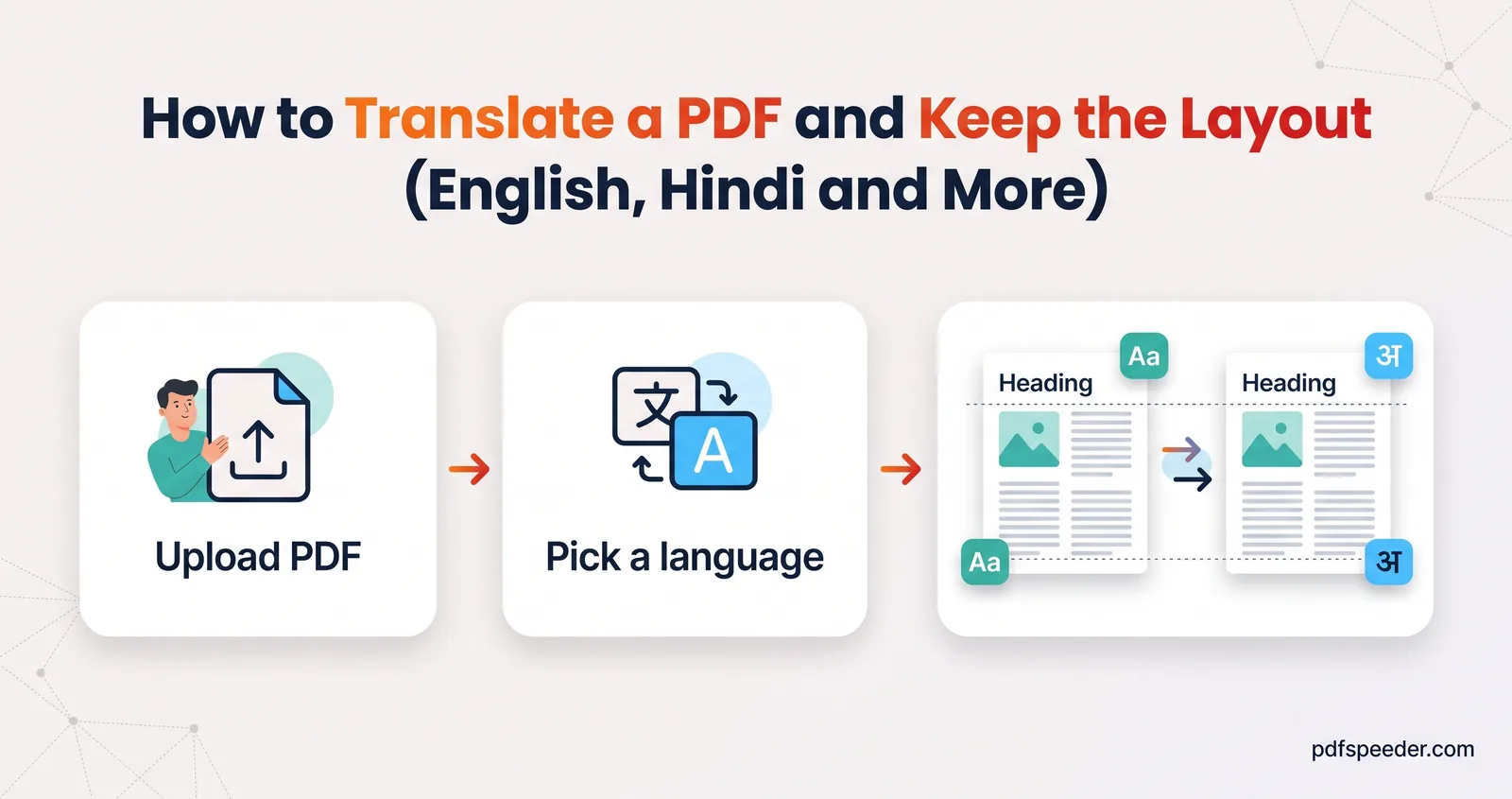
To translate a PDF, upload it to a document translator, set the original and target languages, choose whether to keep the layout or get only the text, and then check names, numbers and key terms against the original. AI translation is quick, and good enough to understand a contract, a research paper or a notice in a language you don't read. It isn't a certified translation, though, and official submissions usually need one.
On this page
Keep layout or only text?
Our AI PDF Translate gives you a real PDF back either way. The difference is how the translated text is laid out:
| Keep layout | Only text | |
|---|---|---|
| What you get | The document's structure rebuilt: bigger, bold headings, the original alignment, bullets, and images placed back in reading order | The translated text with its headings and paragraphs |
| Page size | Same as the original | A4 |
| Pictures | Kept | Left out |
| Page count | Often grows, because many languages take more room than English | Depends on the amount of text |
| Best for | Reading, printing or sharing a translation that still looks like the document | Copying into Word, editing, reading on a phone |
Keep layout isn't a pixel-for-pixel copy. Squeezing a translation into the original text boxes would force tiny type, so for most target languages the translator flows the text down each page at readable sizes and starts new pages as needed. For Arabic, Urdu and Hebrew, which read right to left, it fits the translation into the original boxes instead. In the flowing version, lines and shapes drawn in the PDF, such as table borders and simple charts, aren't redrawn, so a table arrives as separate lines of translated text.
So if you're hunting for a PDF translator that keeps formatting exactly, adjust the expectation: translated text is rarely the same length as the original, so no tool can promise identical pages. What you can expect is the same structure, the same pictures and readable text.
How to translate a PDF step by step
- Open AI PDF Translate and add your PDF, up to 30 MB. If it needs a password to open, remove the password first, because the translator can't read a locked file.
- In From, choose the document's language, or leave Auto-detect. Setting it helps both the translation and the text recognition on scanned pages.
- In To, choose the target language. The list has 32 languages, including English, Hindi, Bengali, Tamil, Telugu, Marathi, Gujarati, Punjabi, Kannada, Malayalam, Nepali and Urdu, plus Arabic, Chinese, Japanese, Korean and the major European languages. The swap button flips the two.
- Pick Keep layout or Only text.
- Select Translate with AI. A preview shows the first three pages, then Download translated PDF saves the file with the language in its name, such as
report_translated_Hindi.pdf.
Each translation counts as one task in the free daily allowance: 2 tasks a day without an account, 3 with a free account, reset at 00:00 UTC (05:30 IST). The translator works through the first 200 pages of a file, so break longer documents up with Split PDF first. If a file is over 30 MB because of its pictures, Compress PDF can usually bring it under the limit without touching the text.
Your PDF is uploaded over an encrypted connection, and its text is sent to OpenAI's API for translation. OpenAI's API data policy says that since March 2023, data sent through its API isn't used to train its models unless a customer opts in, and that abuse-monitoring logs are kept for up to 30 days. The uploaded file is deleted from our server automatically within 2 hours.
Translate a PDF from English to Hindi
Hindi is the preselected target, so for an English document you only need to set From to English and choose a layout. The Devanagari text in the result is real, selectable text, so you can search it and copy from it.
The translator is told to keep numbers, dates, email addresses, web links and code exactly as they are, and to leave brand names, technology names and acronyms such as IIT or CGPA in Latin letters rather than spelling them out in Devanagari. Personal names aren't covered by that rule, so check how they came out, especially where a name must match an ID document.
Scanned PDFs: do you need OCR first?
Usually not. When a page has almost no real text, the translator reads it with OCR (optical character recognition) first, using the language in the From box alongside English, and leaves the scanned image out of the translated file. When we ran that recognition step on a sample scanned invoice, it picked up the text without any extra settings.
Three situations need a little help:
- Sideways pages. The same invoice scanned sideways came out as gibberish, because the recognition doesn't turn pages upright first. Rotate sideways pages before you upload.
- Faint, blurry or crooked scans. If the translator reports that it found no readable text, run the file through PDF to OCR first. It works in your browser, can enhance the scan, straighten crooked pages and turn wrong-way-up ones, and reads 40 languages.
- Scans that are already searchable, whether from PDF to OCR or from scanning software. Translate these with Only text. A searchable scan still carries a picture of every page, and Keep layout would place that picture, in the original language, alongside the translation.
Handwriting is the one thing OCR rarely gets right, so expect to transcribe handwritten notes yourself. Our explainer on what OCR is covers why scan quality makes such a difference, and if you need an editable copy in the original language instead, see our guide to converting a scanned PDF to Word.
Check names, numbers and terms
A translation that reads smoothly can still be wrong in the places that matter. Keep the original open beside it and check:
- Figures and dates. Compare every amount, percentage and date with the original. Watch digit grouping, such as 1,00,000 written the Indian way against 100,000, and date order, since 04/10/2026 means different days in different countries.
- Names and places. They may be transliterated into the target script, or occasionally translated when they're also ordinary words.
- Key terms. The document is translated in batches of a few thousand characters, so a term can come out differently in different sections. Search the translation for your important terms and make them consistent.
- Untranslated passages. If a batch comes back incomplete, the missing pieces keep their original wording instead of disappearing, so skim for any paragraph still in the source language.
- Negatives and conditions. In legal and medical text, words like "not", "unless", "shall" and "may", and every dosage, deserve a second look.
If you only need the gist rather than every sentence, a summary in your language may be quicker; our guide to summarizing a PDF with AI shows how to get one in Hindi and other languages.
Other options: Google Translate and human translators
Google Translate can translate documents online for free on a computer. Its document translation help lists the limits: .docx, .pdf, .pptx and .xlsx files up to 10 MB, PDFs of 300 pages or less, and no document translation on small screens or mobile. It also notes that text in images and scanned PDF pages appears in the output but isn't translated, so for a Google Translate PDF of a scan, make the file searchable first or use a translator with OCR.
A certified translator is the right choice for official documents such as birth and marriage certificates, degree certificates, court papers and immigration evidence. US immigration is a clear example: USCIS requires a full English translation that the translator certifies as complete and accurate, along with a statement that they're competent to translate. Embassies, universities and courts set their own rules, so ask the receiving office what kind of translation it accepts. An AI translation still helps while you wait, to understand the document or to check the certified version.
For your next foreign-language PDF, set the From language, choose Keep layout for reading or Only text for editing, and check every number before you act on it.
Frequently asked questions
Can I translate a PDF for free?
Yes. AI PDF Translate is free within the daily allowance. Google Translate also translates PDFs for free on a computer, up to 10 MB and 300 pages.
How do I translate a PDF from English to Hindi?
Open AI PDF Translate, set From to English, keep Hindi as the target, choose Keep layout or Only text, and select Translate with AI. Then check names and figures against the original.
Will the translated PDF look exactly like the original?
Close, but not identical. Keep layout rebuilds the structure, headings and images, but translated text has a different length, so lines and page breaks move.
Can I translate a scanned PDF?
Yes. Scanned pages are read with OCR automatically; rotate sideways pages first, and for faint scans make the file searchable with PDF to OCR and translate it with Only text.
Is an AI translation accepted for official documents?
Usually not. Immigration offices, courts and universities generally ask for a certified translation, so check the receiving organisation's rules.